Insert Mermaid code
You can describe many different types of diagrams in text using the Mermaid syntax.
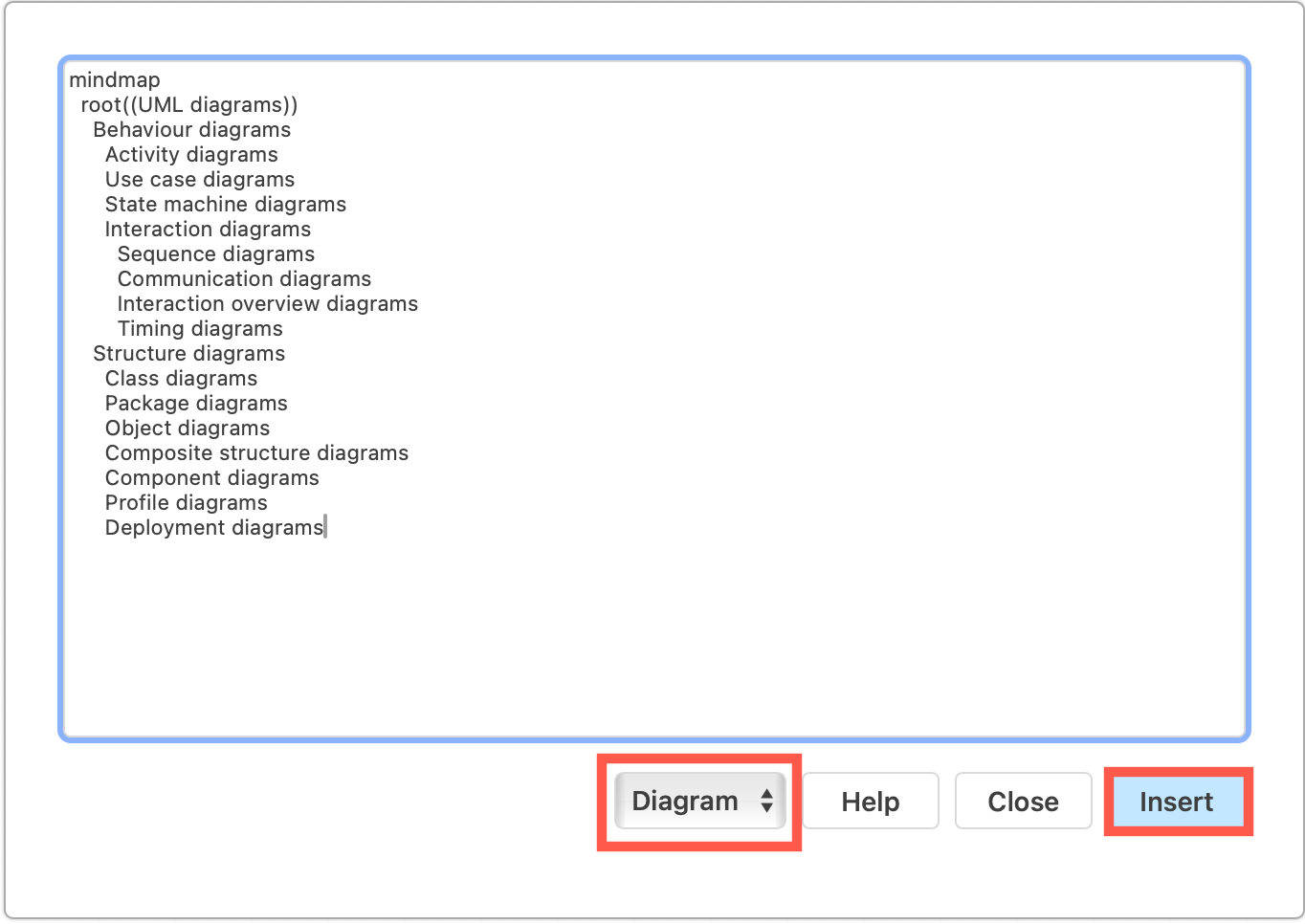
- In the draw.io editor, click Arrange > Insert > Mermaid.
- Add the text for your Mermaid diagram and click Insert to generate the diagram using draw.io shapes.
Now you can continue to edit and add to your mindmap, style the nodes and connectors as you would any other type of draw.io diagram.
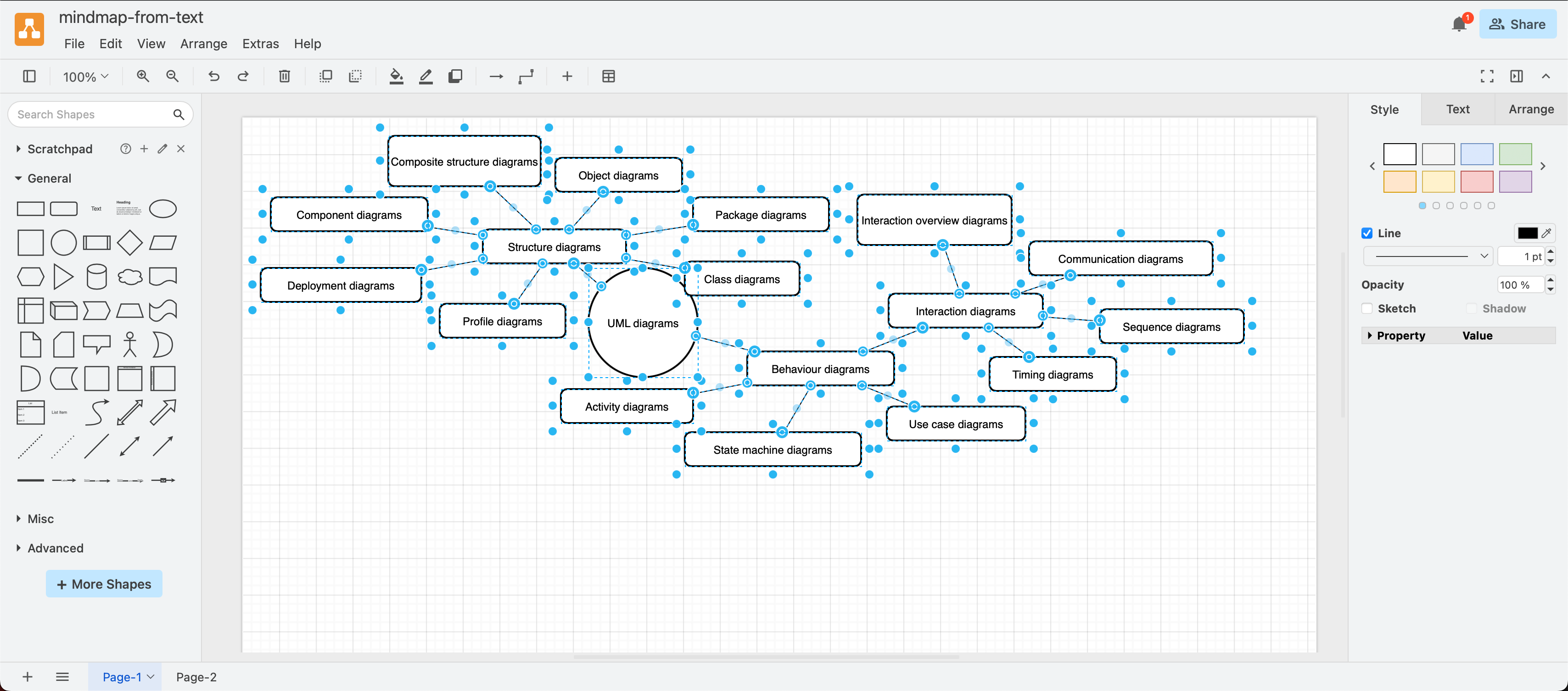
When you insert Mermaid as a diagram in draw.io, you can't re-edit the Mermaid code as your diagram has been converted to use draw.io shapes.
Insert Mermaid diagram as an image
Choose Image from the drop down list when inserting your Mermaid code to generate and insert it as an SVG image on the drawing canvas.
Hover to see the Mermaid code as a tooltip, and double click on it to re-edit the Mermaid code and Apply your changes to update the diagram.
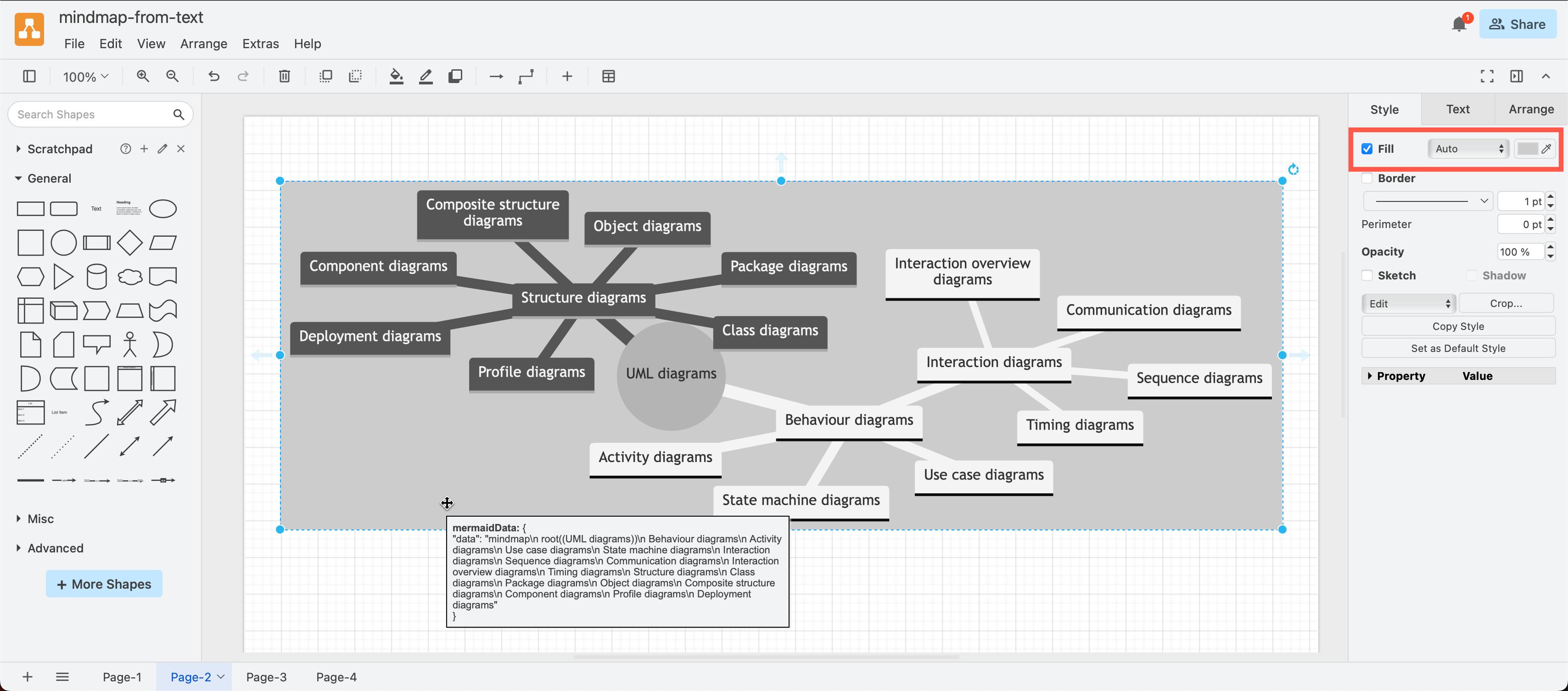
Tip: You may need to add a background to the image as Mermaid will automatically use black and white for the first two branches. Select the mindmap image, enable Fill in the Style tab of the format panel and select a fill colour.
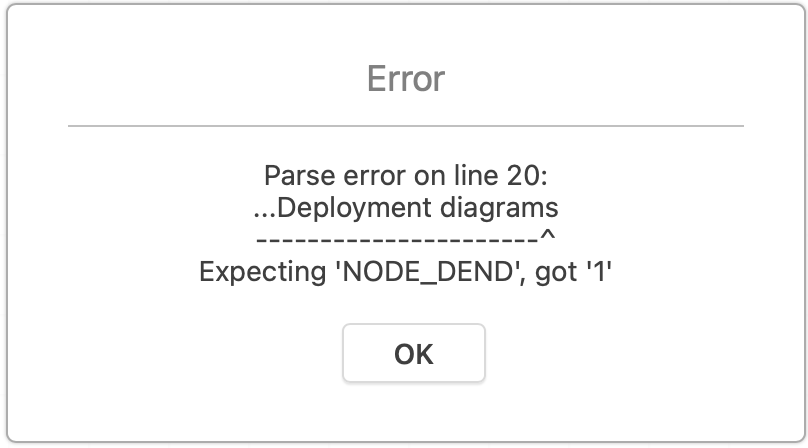
If there is an error in your Mermaid mindmap text, draw.io will display a parser error.