Draw and insert a polygon
You can use a grid to draw your own polygon shape in draw.io and add it to the drawing canvas.
Select Arrange > Insert > Polygon from the menu.
Draw the polygon
- Click on the grid to add a point. You need a minimum of three points for a closed polygon.
- To draw a non-closed polygon, deselect the Close Path checkbox at the bottom of the dialog.
- Drag points to new positions in the grid.
- Deselect Grid at the bottom of the dialog if you want to work without a grid.
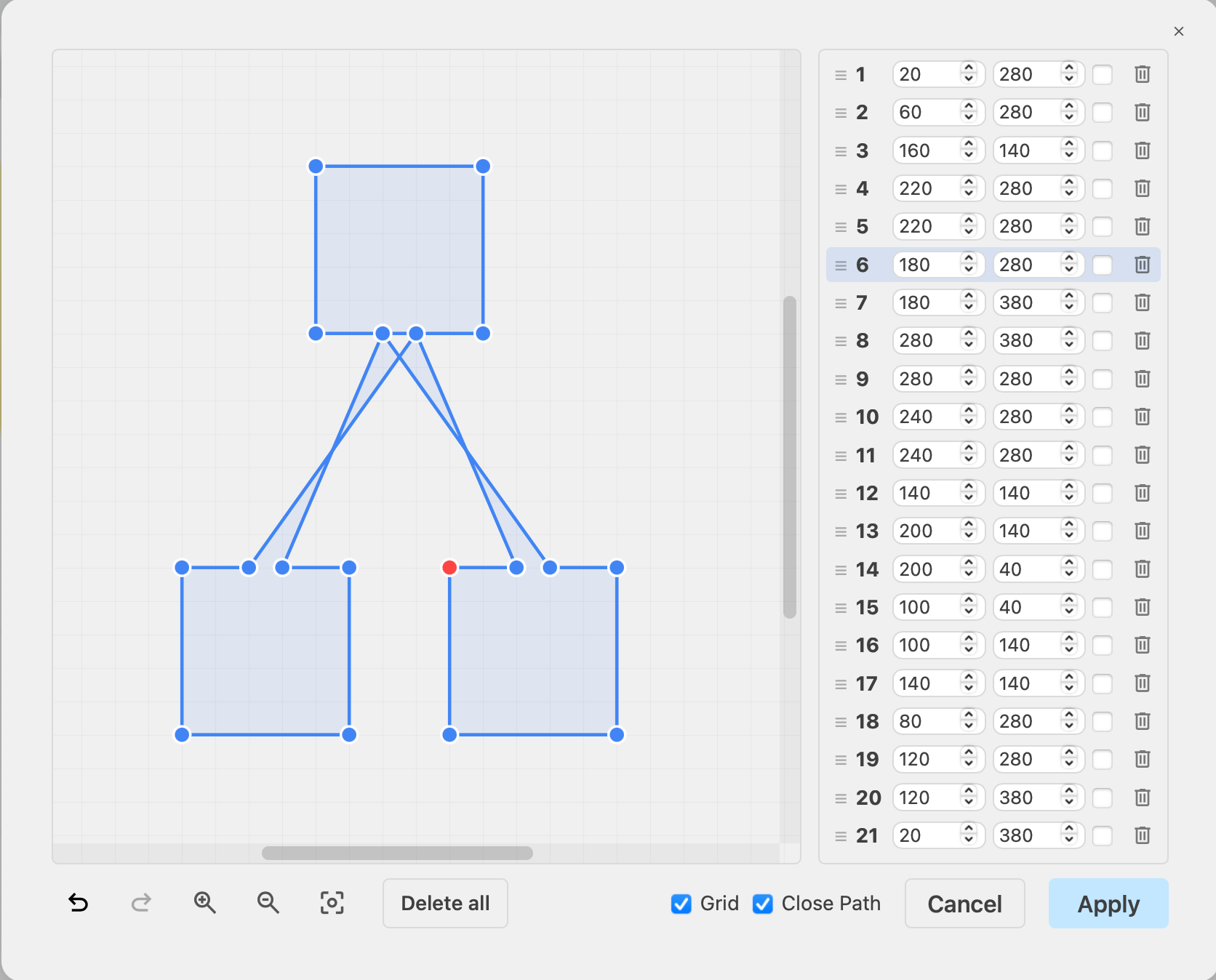
The co-ordinates of each point of the polygon will appear in a list on the right
- Drag them into a new position in the list using the left horizontal line icon.
- Click on the trash icon to the right of any point to delete it.
- Make the line between two points into an arc by selecting the checkbox next to the co-ordinate. Drag the orange arc points to increase or decrease the curvature.
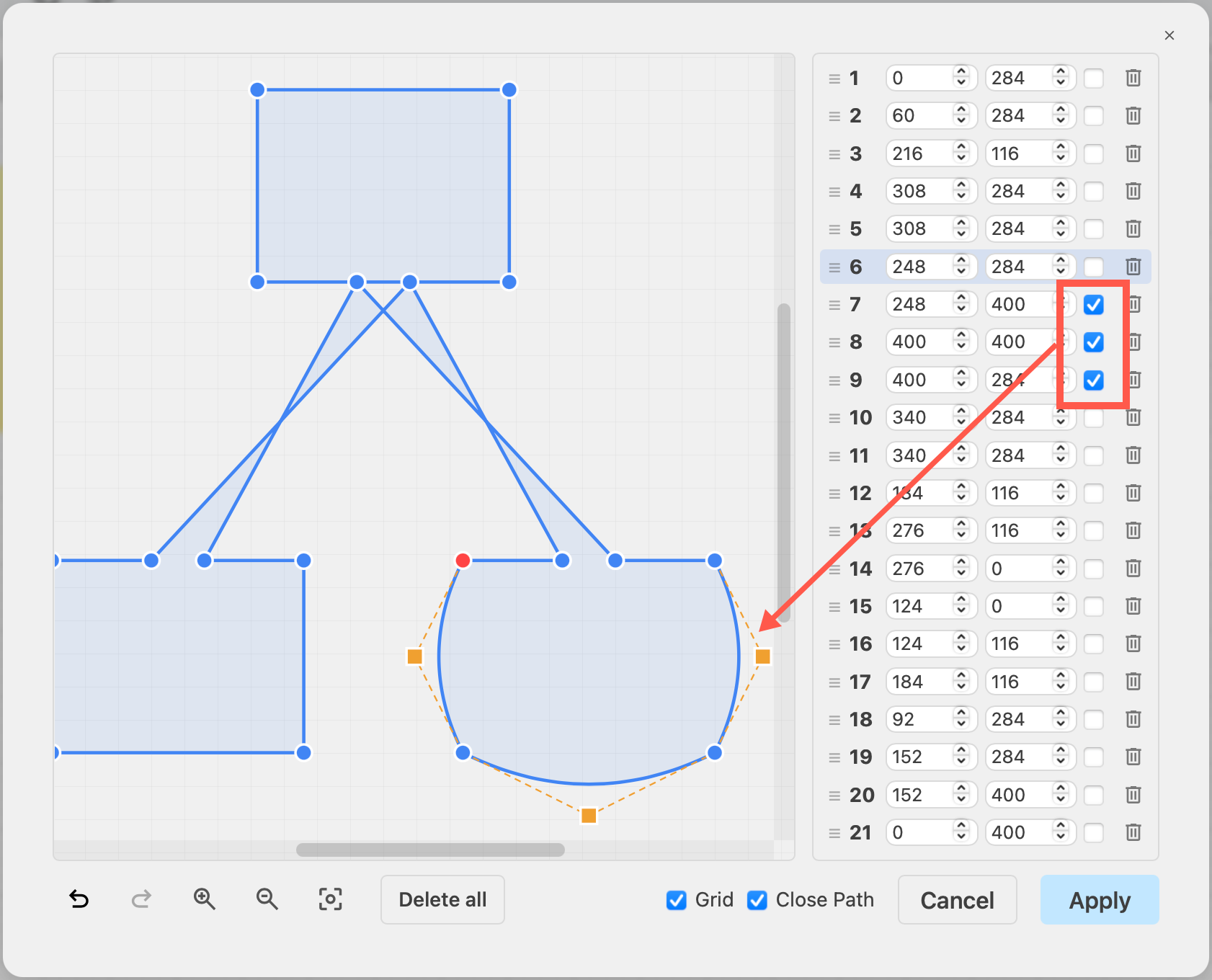
At the bottom left of the dialog, you can Undo and Redo changes, Zoom In and Zoom Out, and start over when you click Delete All
Once you have finished drawing your polygon, click Apply to add it to the drawing canvas.
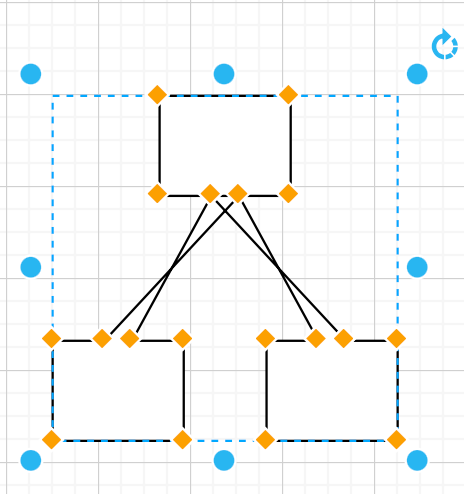
Edit an existing polygon
Right-click on the polygon shape to open it in the polygon editor. Alternatively, select the polygon, then select Edit > Polygon from the menu.
Note: this only works with polygons drawn in this polygon editor.
Related
- Style the polygon like any other shape via the Style tab in the format panel.
- Edit the fixed connection points.