Using pages as backgrounds
One of the most requested features for draw.io and draw.io was the concept of using one or more pages as backgrounds for other pages. This could be a background graphic to provide a consistent branding across your diagrams. Another popular use case is more technical diagrams where each page displays a border with an information block in a specific format and dimensions.
Background pages are now implemented in the 15.0.0 editor release.
How to set a background page
Select one of the pages to be your background, often it makes sense to define the last (right-most) page as the background. Note that you can have more than one background page if you wish. Being a background page isn't a specific property of a page, it still behaves like a standard diagram page.
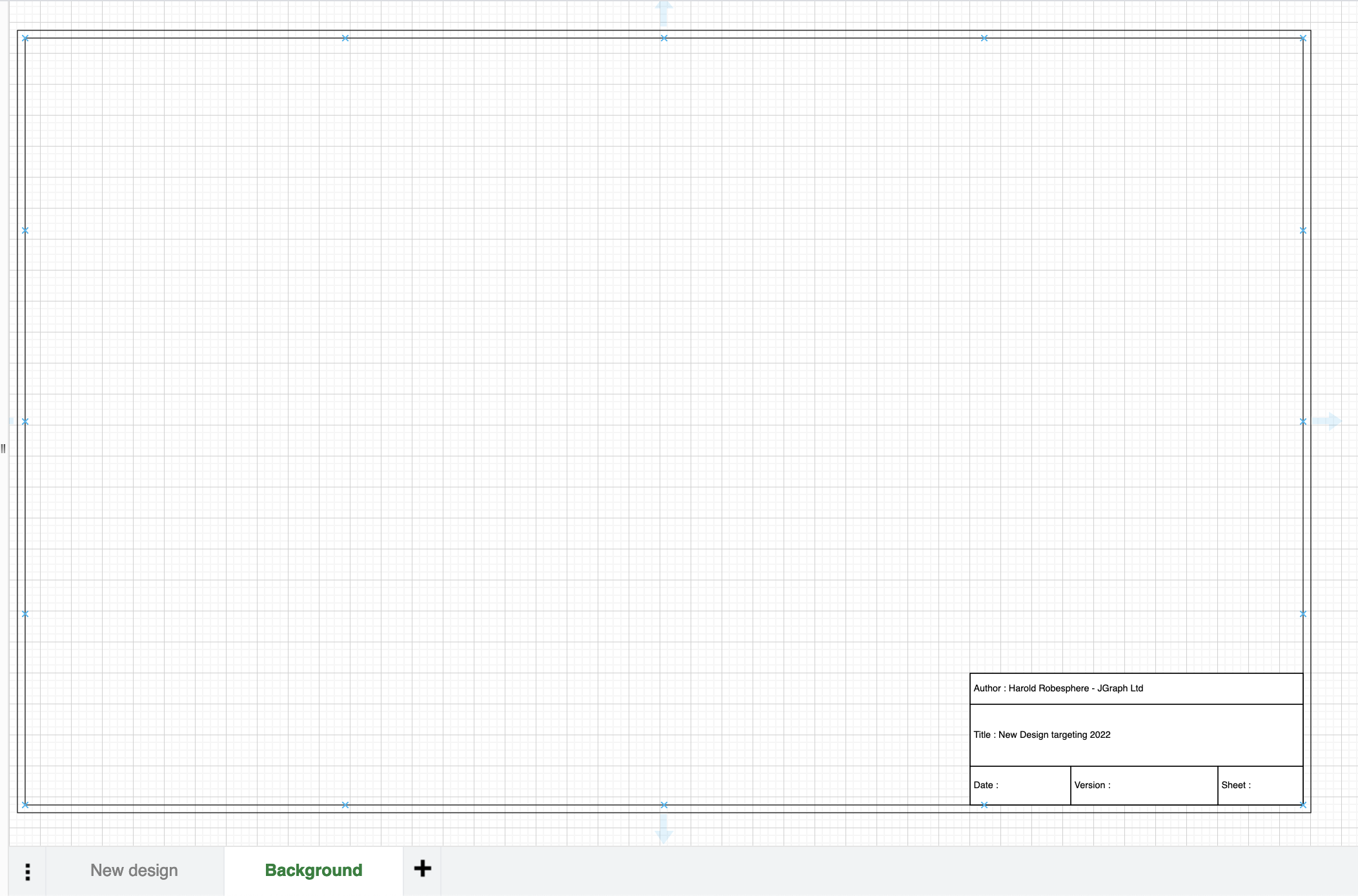
First, create two pages:

In that page build your background:
Select your foreground page:
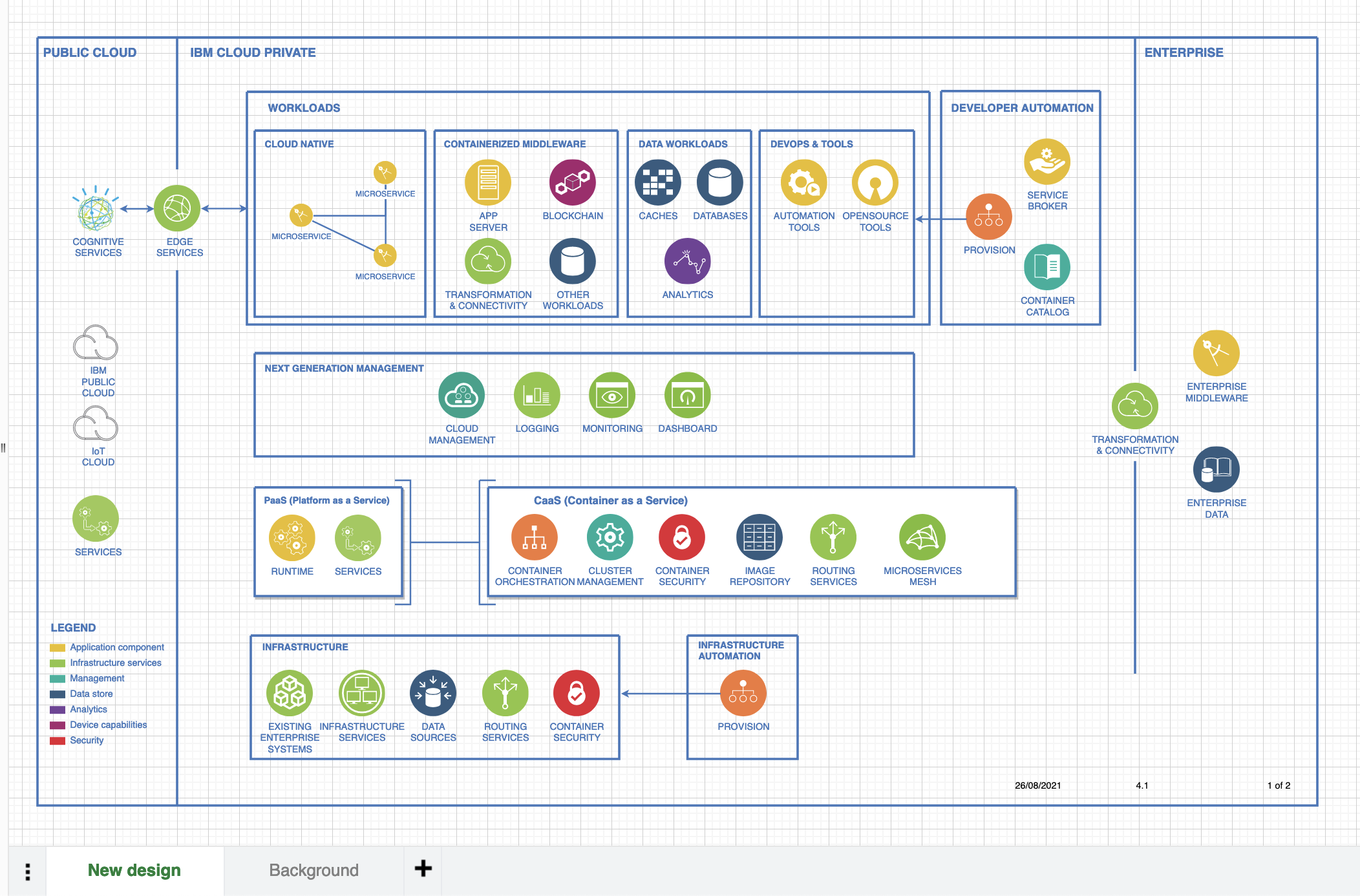
Note that we're using built-in placeholders within the information block.
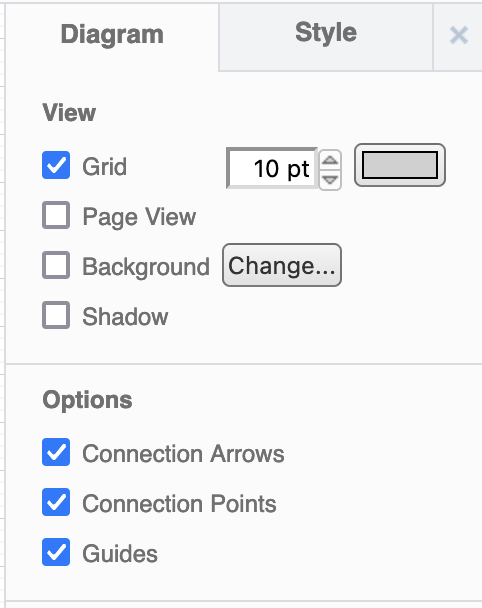
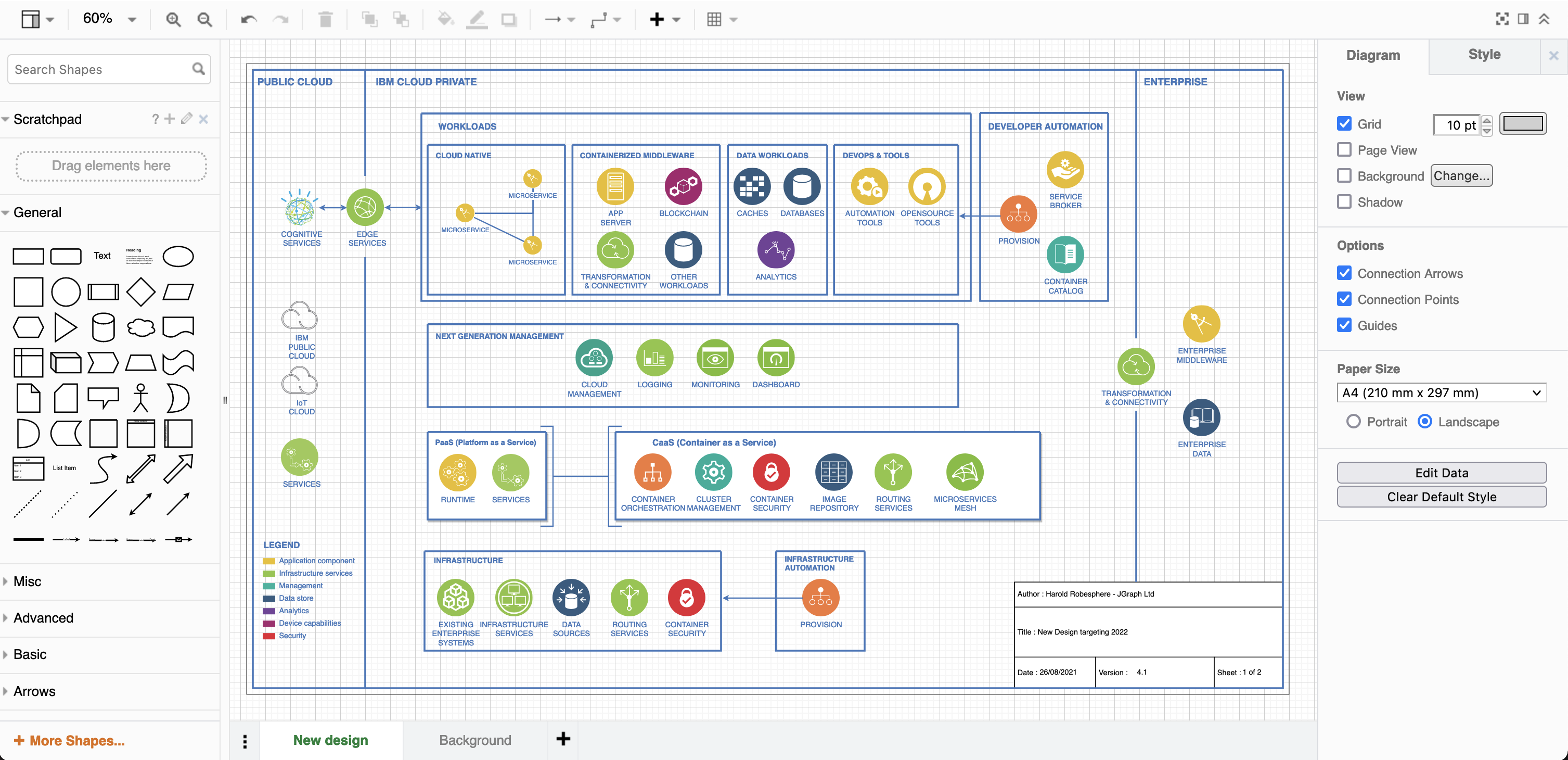
With nothing in the diagram selected click change in the right-hand diagram format panel to bring up the background dialog:
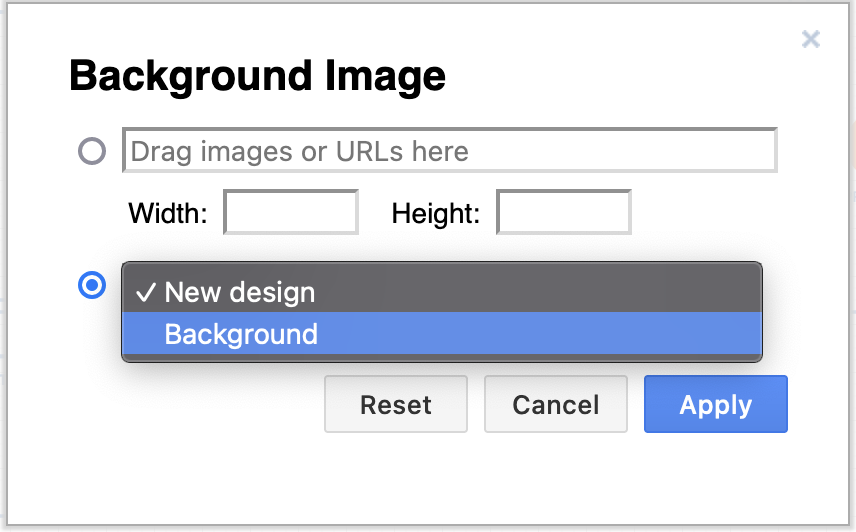
In the background dialog we select our background page, named background in this case:
And the first page now contains the second page as a non-selectable background (click to open the actual diagram):
Related
If you are using draw.io for Confluence you could add templates of your background pages in both Cloud and Data Center.
If you are storing your diagrams in Google Drive, you could create a background pages folder in your shared team drive that users can copy and use as a basis for their own diagrams.
Learn more about backgrounds in diagram pages.