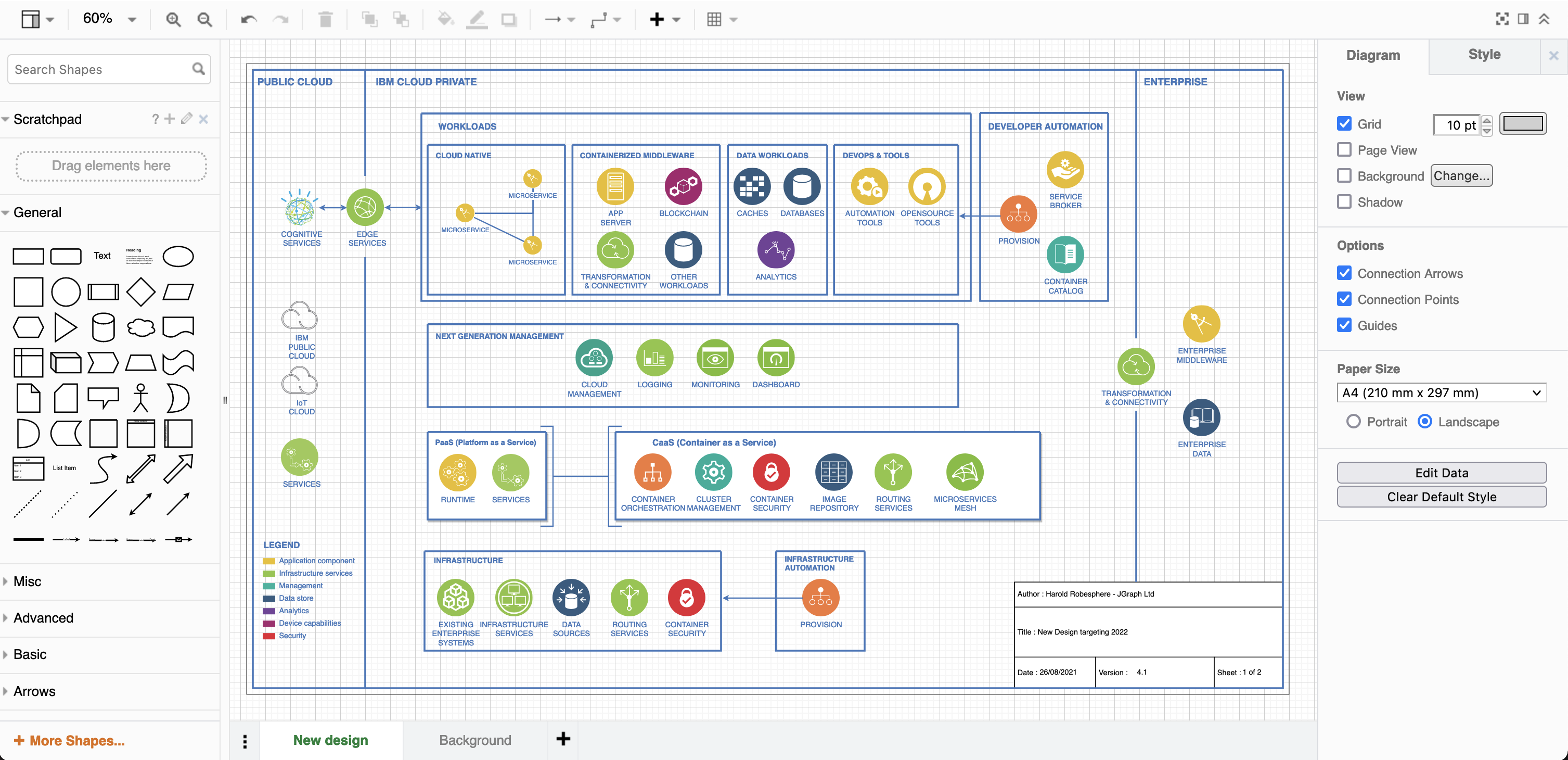
Change the background in draw.io
You can set a different colour to use as the drawing canvas, add an image to the background or use a diagram page in a multi-page diagram as a background. These will be included when you export or print your diagram unless you choose otherwise.
Each page in a multi-page diagram has its own background. To make all pages use the same background, edit the diagram options on each page, or configure the draw.io editor to use a custom background by default.
Set a background colour
You can set a coloured background instead of using the default transparent background, which will be included when you print or export your diagram.
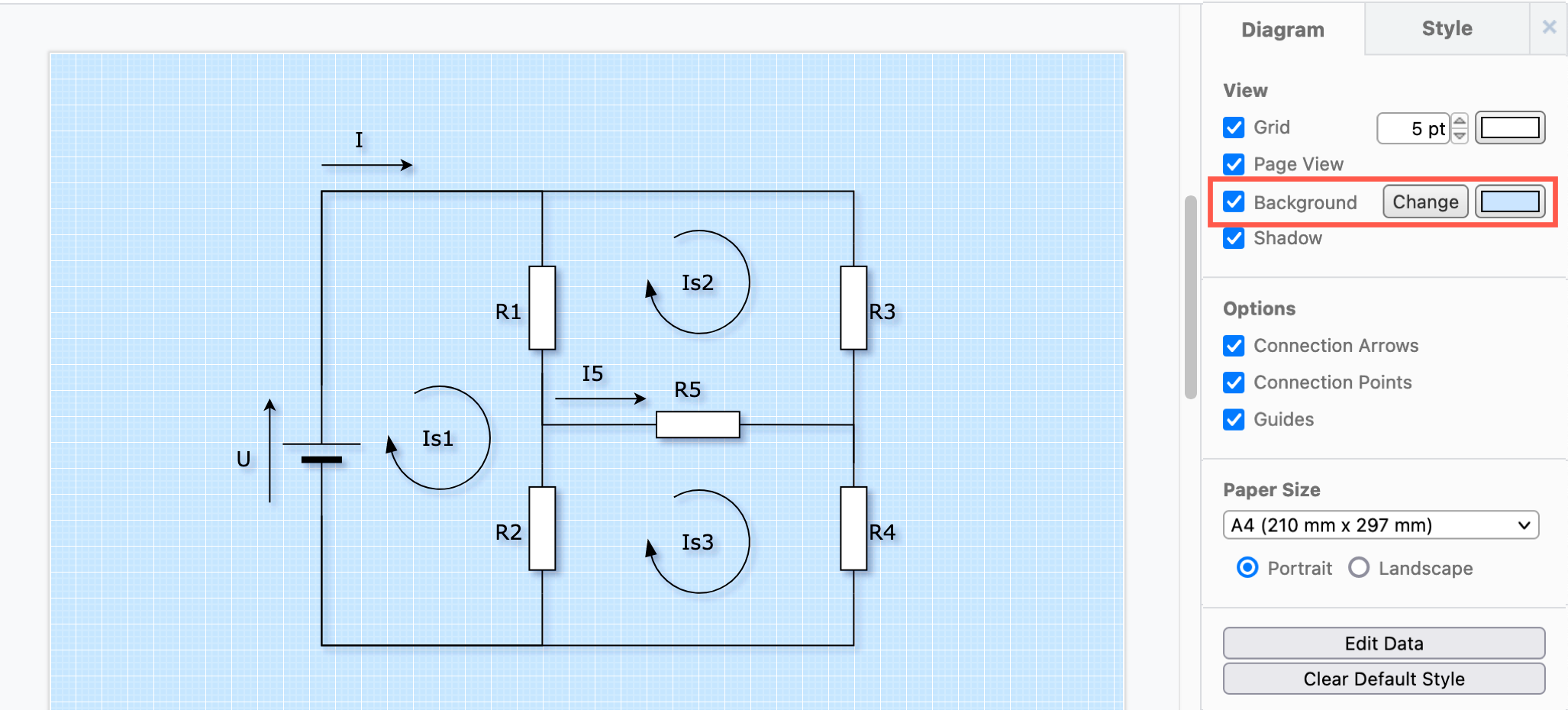
The background colour will automatically adapt when using dark mode - in the example, the automatic value for the light blue background colour is a dark blue.
Set a background colour in the format panel
- Ensure nothing is selected in your diagram to see the Diagram tab in the format panel.
- Click on the Background checkbox.
- Click on the colour button, then select a different solid colour from the palette or enter a colour's hex code (without a
#), and click Apply to set a solid background colour.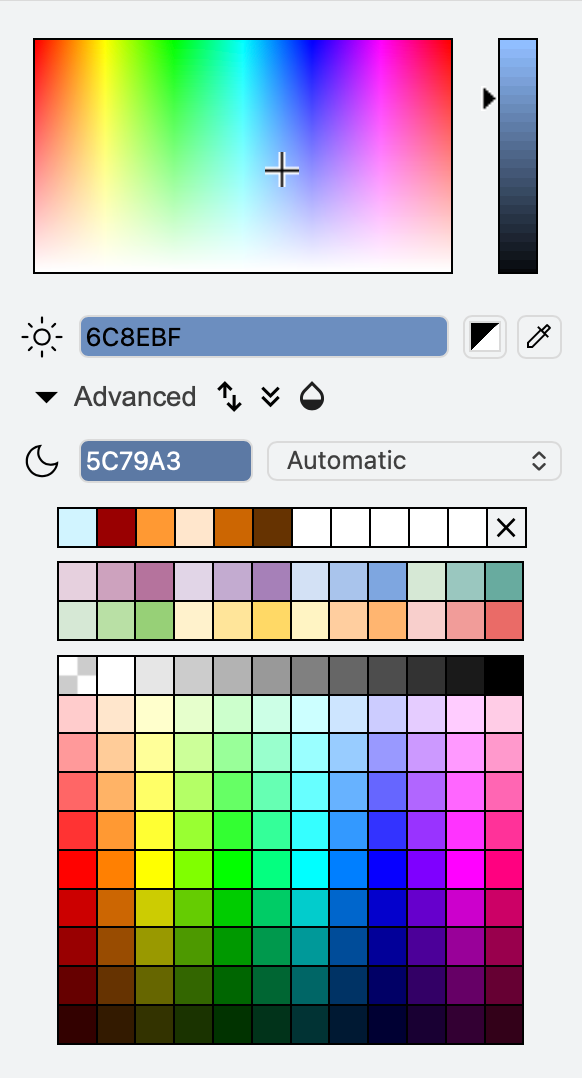
Set a background colour in the menu
- Select File > Page Setup.
- Click on the colour square next to Background to see a colour palette. The default background colour is transparent.
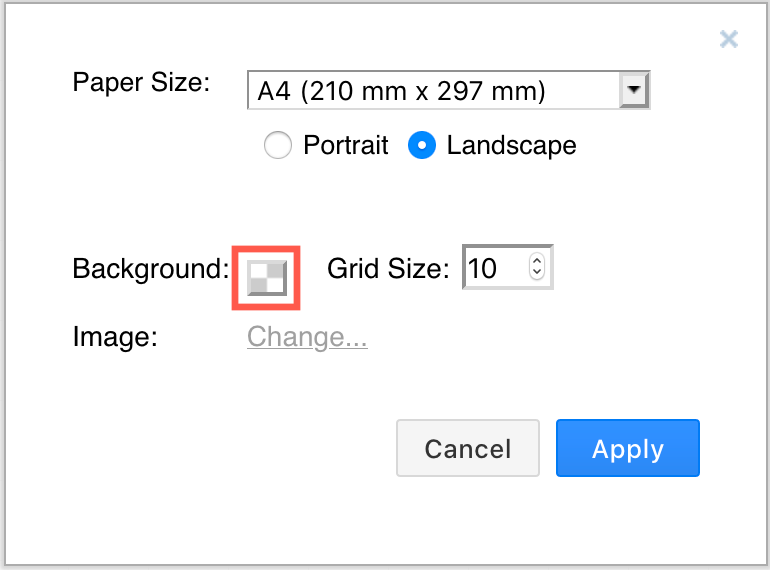
- Select a new colour from the palette, click Apply, then click Apply again to save your new page setup.
Set a background image
Instead of the default transparent background in your diagram page or a solid background colour, you can add an image from your local device or the web.
Note: Only use images in your diagram and background that you have a license to use.
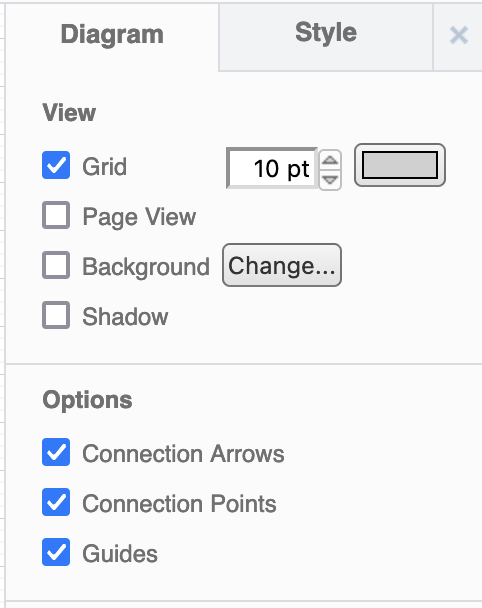
- Make sure nothing is selected in your diagram to see the Diagram tab in the format panel.
- Click on Change next to Background in the View settings.
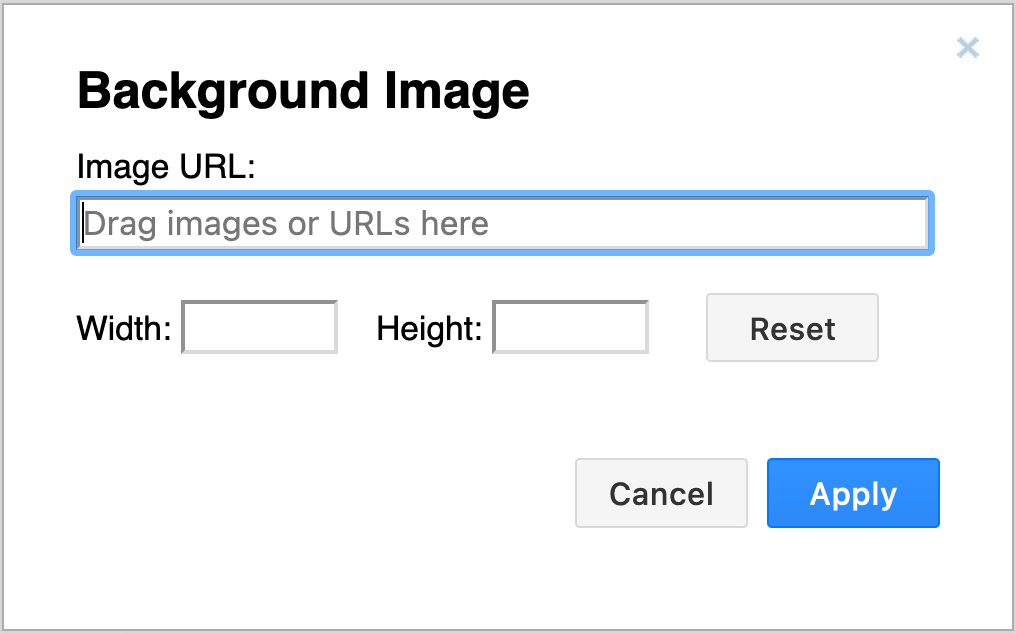
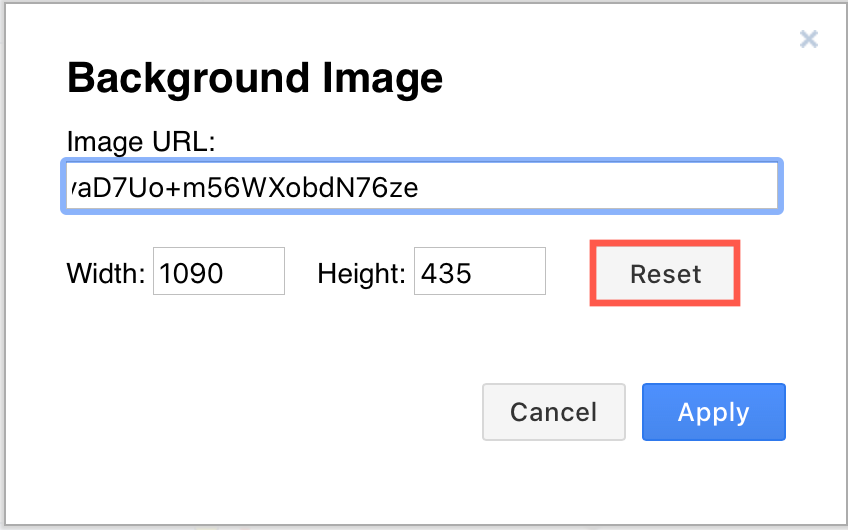
- Drag the image file onto the dialog, or enter the URL in the text fieldThe Width and Height are added automatically - change these if you want to resize the background image.
- Click Apply.
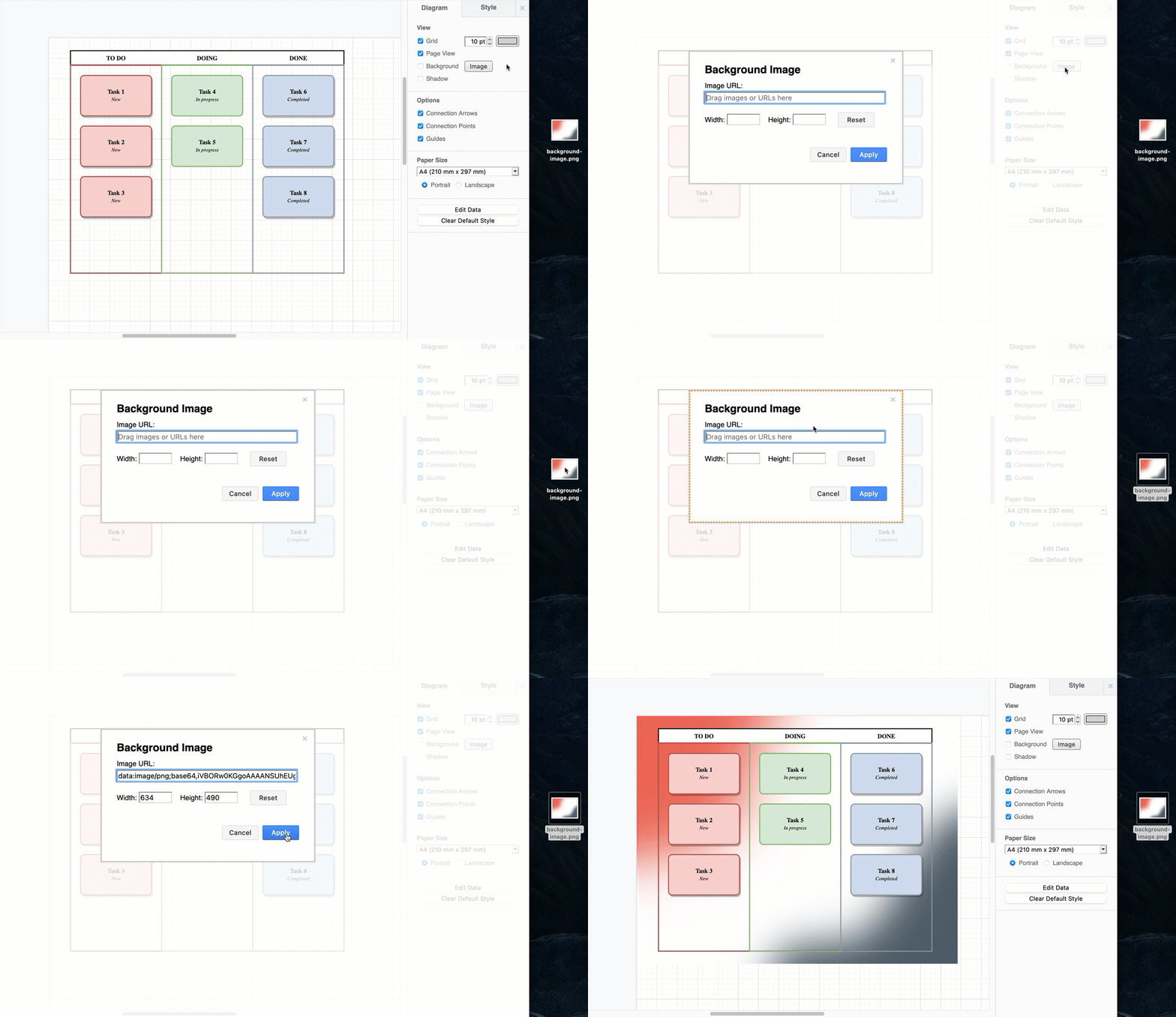
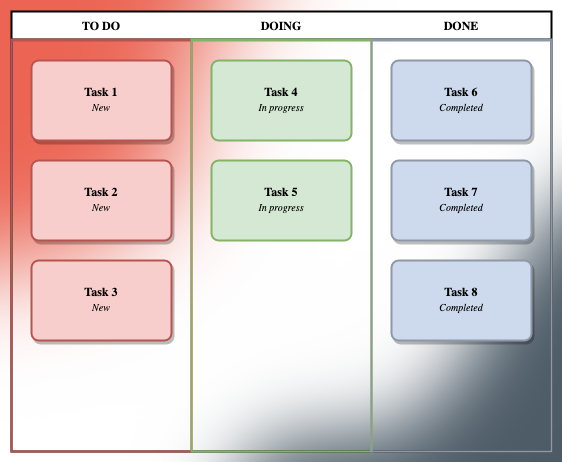
When you export your diagram to an image or print it, the background image will be included
Remove a background image
You can remove a background image from your draw.io diagram via the format panel.
- Make sure nothing is selected in your diagram to see the Diagram tab in the format panel.
- Click on Change next to the Background checkbox.
- Click on Reset to remove the existing background image, then on Apply to save your changes.
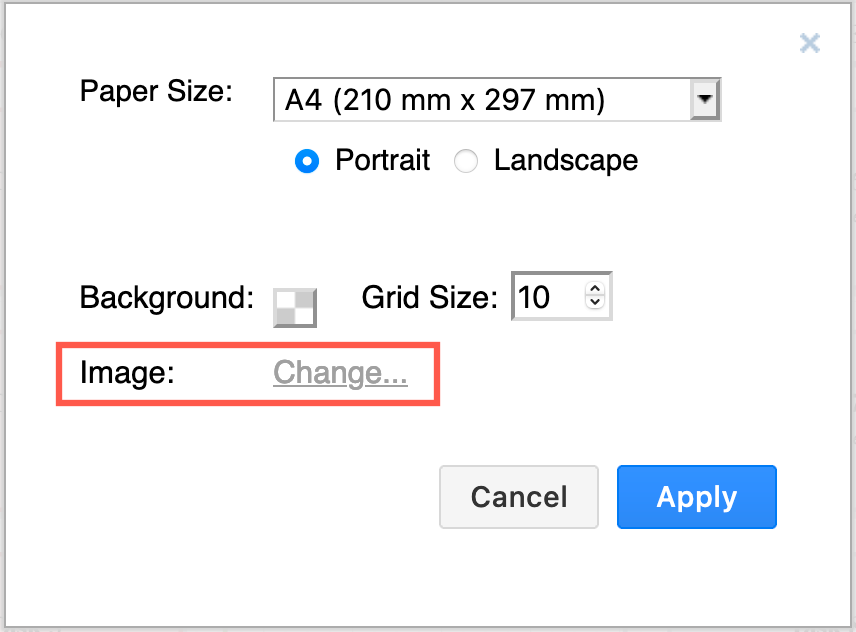
Set a background image via the Page Setup dialog
You can also change this background image via the menus in draw.io
- Select File > Page Setup from the menu
- Click on Change to add a new image, or on the image link to change an existing image.
Set a background diagram
Using a diagram page as a background for another page is useful when you have a repeating design, logo or watermark that you want to continue throughout all of your diagram pages when they are embedded or printed. It can also be used to display fixed user interface elements so you can easily mockup various layouts without needing to add them to every diagram page.
Note: Your diagram must have at least two pages for this option to appear. See how to work with multi-page diagrams.
- Create your background image on one diagram page. Any interactive elements, such as custom links and tooltips, that are in the diagram page that you use as a background will not be available.
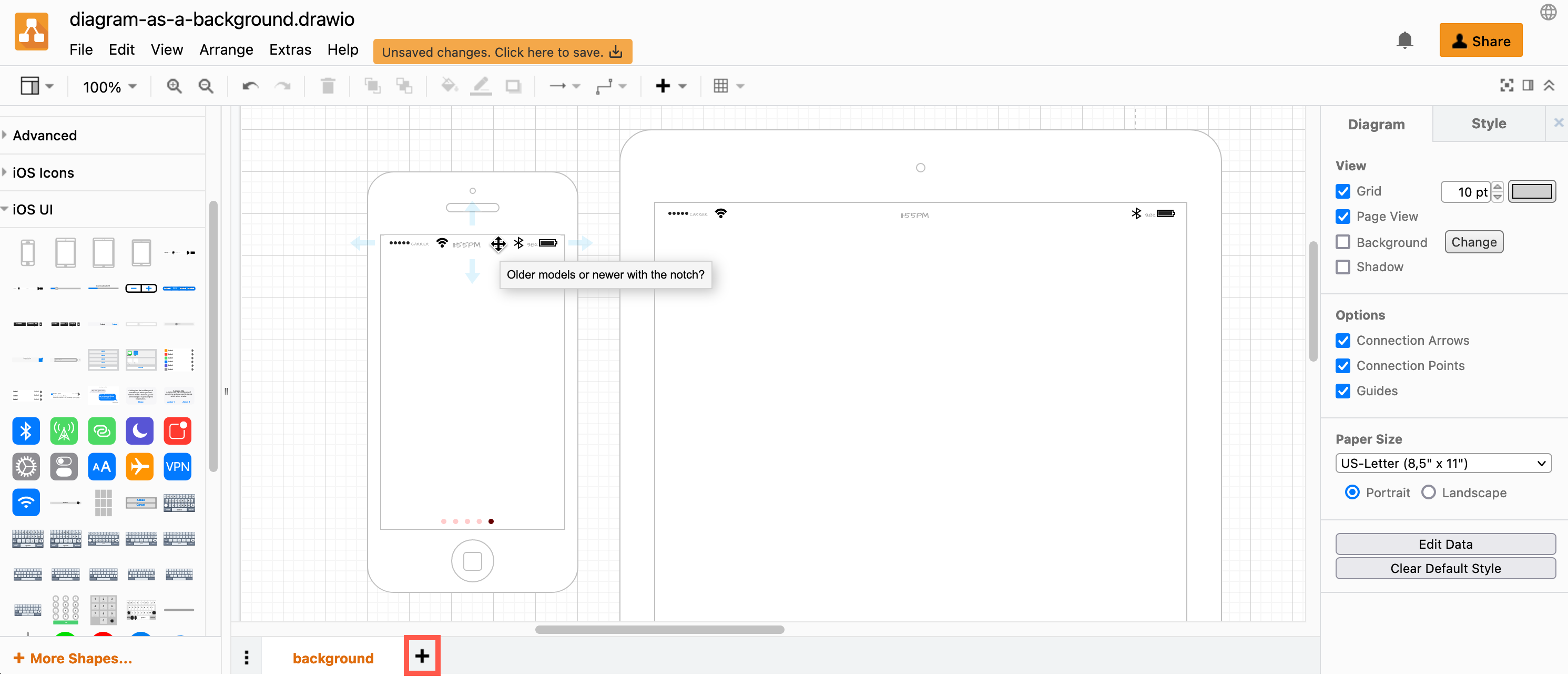
- Add another diagram page by clicking
+at the bottom of the drawing canvas. - On the new diagram page, make sure nothing is selected to see the Diagram tab in the format panel on the right.
- Select the checkbox next to the list - this will only appear if your diagram has two or more pages - and select the diagram page in the list that you want to use as the background image.
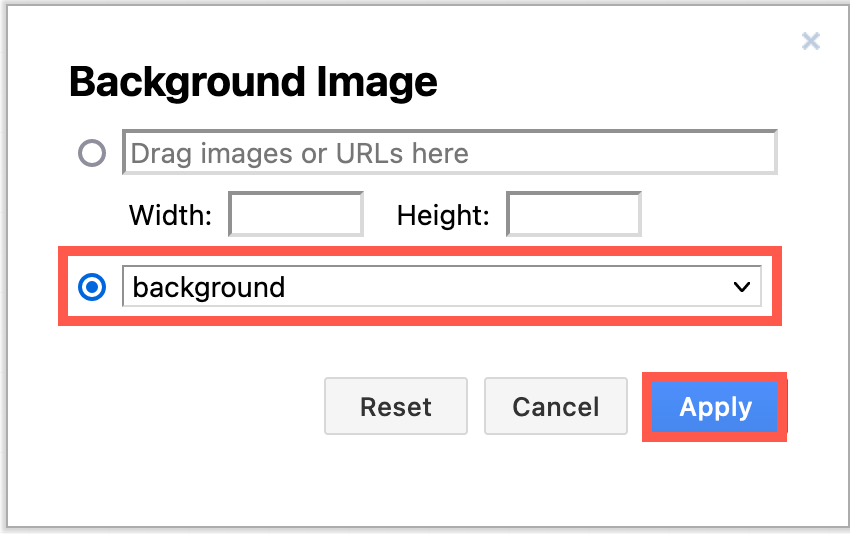
- The selected diagram page will be converted to an image and placed as the background of your current page. You can now add shapes over the background.
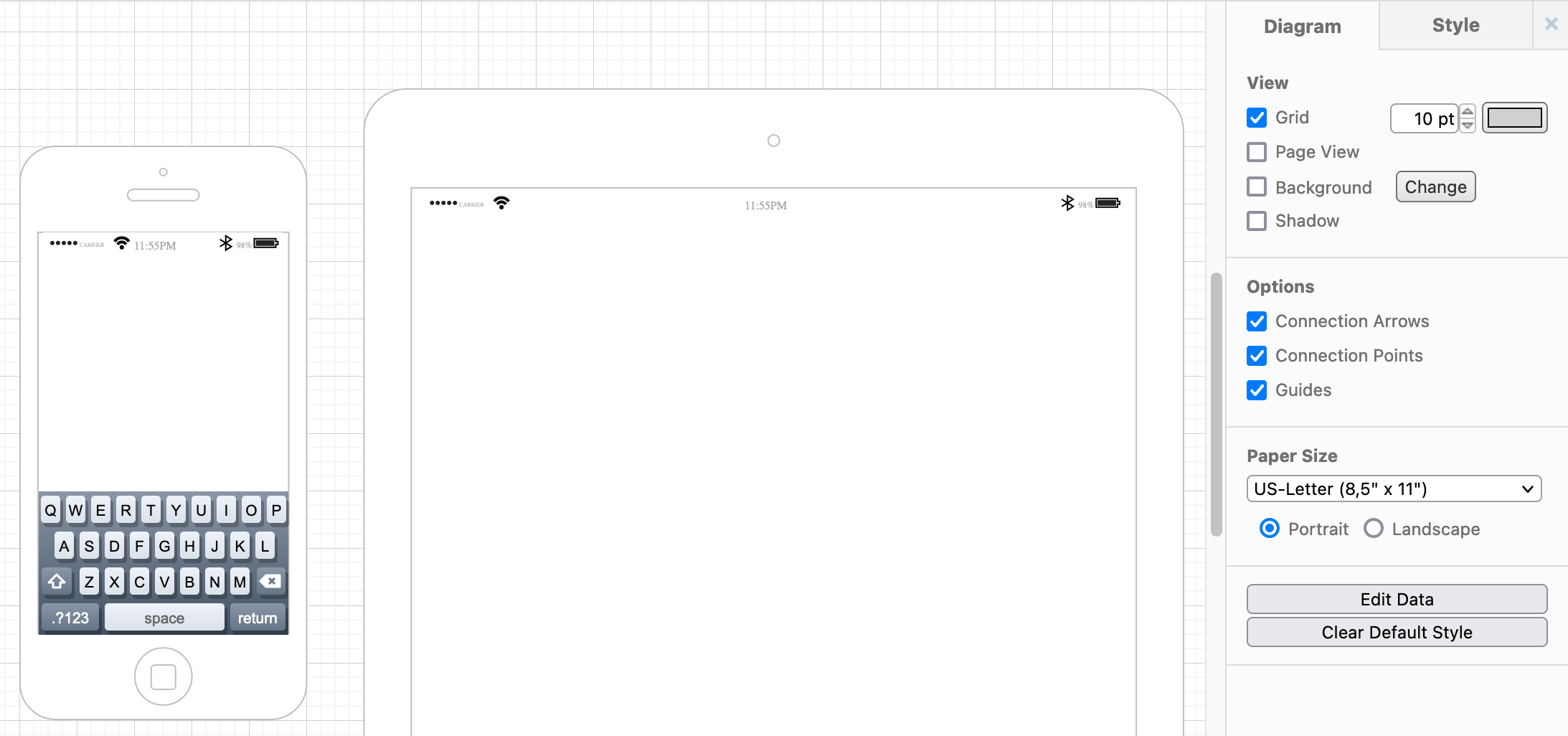
Background diagram shapes, connectors and text can not be selected, tooltips that were in the background diagram will not appear when you hover, and links are not available.
Do more with background diagrams
Add text labels with placeholders which automatically update depending on their context in your diagram, and use a background diagram to provide the non-dynamic aspects. This is good for adding dates, page numbers, version numbers and more.