Convert labels to SVG
Some browsers may have trouble rendering labels in HTML with formatted text and word wrapping enabled due to not supporting foreignObject elements correctly. If you find your diagram text is not appearing as you expect, you can convert it to SVG using <text> and <tspan> instead of HTML elements.
This is a per-cell, opt-in option (requires version 28.0.3 or later). See the final section below for an explanation of why.
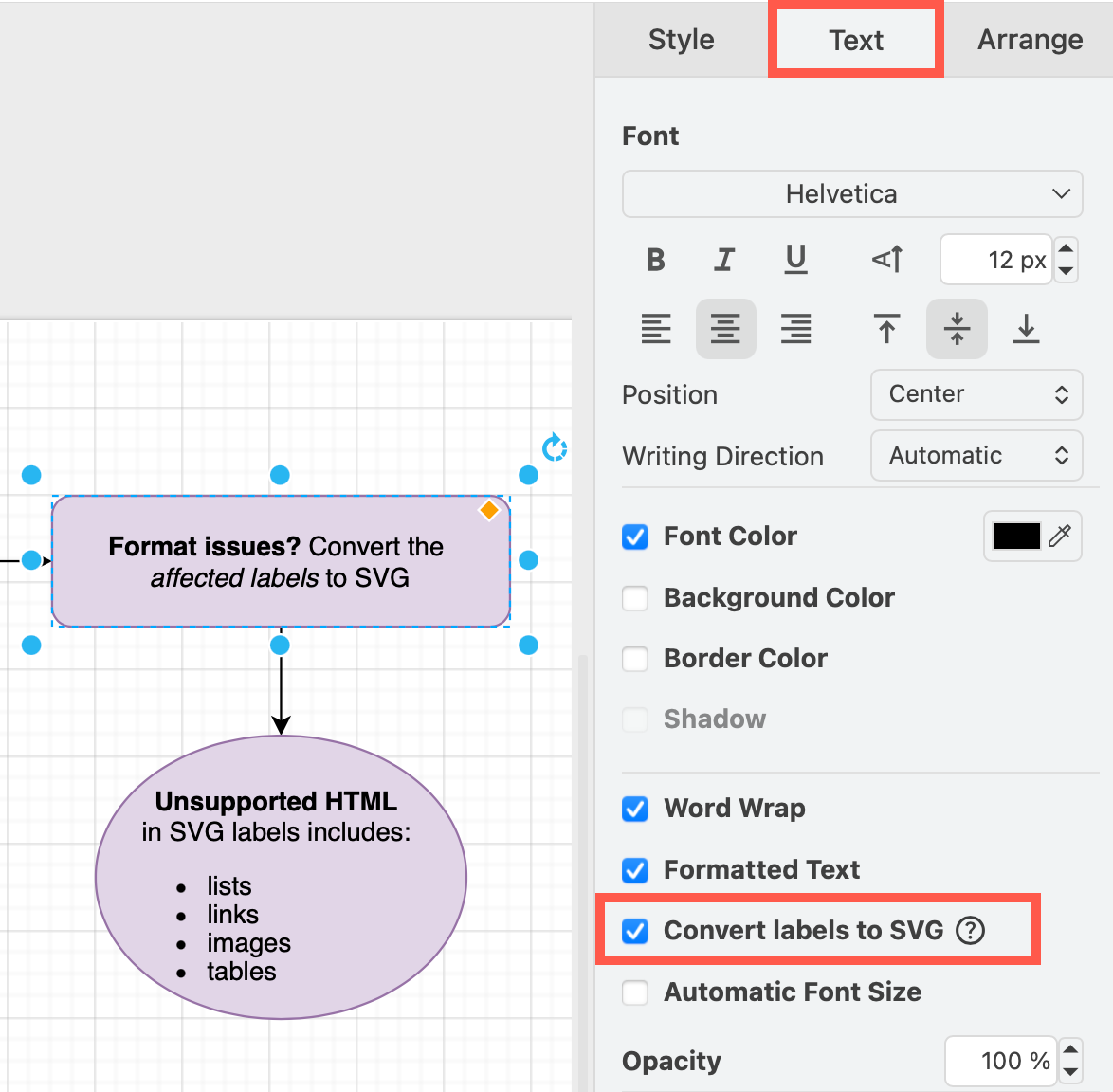
- Select the shapes and connectors that have labels you want to convert.
- In the Text tab of the format panel, enable the Convert to SVG checkbox.
Supported HTML elements in SVG labels
- Inline elements:
<b>,<i>,<u>,<strike>,<sup>,<sub>,<span>,<font>,<br> - Text colours: on
<font>and<span>elements (CSScolorstyles orcolorattributes) are preserved in the converted SVG text.
From version 29.6.7 onwards:
- Block elements:
<h1>through<h6>,<div>,<p>,<pre>,<blockquote> - Word wrap
Unsupported HTML elements
The Convert labels to SVG checkbox in the Style tab of the format panel is disabled when the selected label contains HTML elements that cannot be converted to native SVG text.
The following HTML elements are NOT supported:
<table>,<ul>,<ol>,<li>,<a>,<img>, and any other HTML elements not listed above- Any element with a
background-colorCSS style - Labels with a vertical writing-direction (vertical text cannot be represented as SVG text, so these labels fall back to HTML rendering — from version 30.0.2)
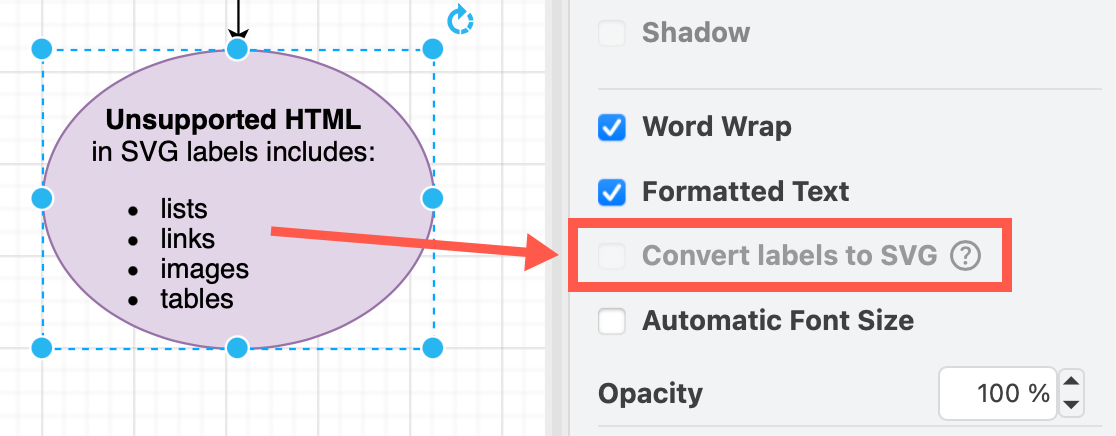
If you need SVG-compatible output and your label contains these unsupported elements, reformat the label to use only the supported elements listed in the previous section.
Warning when a label can no longer be converted
The Convert to SVG option cannot be enabled while a selected label cannot be converted. If the option is already enabled and a label can no longer be converted — for example, after editing its text so it contains an unsupported element — a warning symbol (⚠︎) appears next to the option and the affected label falls back to HTML rendering. In this case the option deliberately stays enabled, so you can uncheck it to remove the style.
Why is this a per-cell manual option?
Converting arbitrary HTML to SVG <text> is a genuinely hard problem, and there is no general guarantee that the result is faithful. HTML/CSS has a large layout and styling surface (box model, line-breaking rules, font fallback and metrics, nested block formatting, backgrounds, and so on), and only a subset of it has a clean equivalent in SVG text. Even for the elements that are supported, the converted output can differ subtly from the browser's HTML rendering — wrapping points, spacing, baseline alignment and font metrics don't always match exactly.
Because of that, the only reliable judge of whether a conversion is acceptable is you, looking at the specific label. For one diagram a small difference is invisible and the SVG output is clearly "good enough"; for another, the same difference matters.
So the option is deliberately:
- Per-cell, not global — you turn it on for the labels where you've checked the result and want native SVG output, and leave the rest as fully-faithful HTML.
- Manual and opt-in — the default (HTML
foreignObject) always renders exactly what the editor shows. Enabling SVG conversion is an explicit choice you make after seeing the converted label on the canvas, so you can confirm it matches the HTML, or is close enough, before relying on it. - Conservative on failure — labels that can't be represented are blocked from enabling the option (or fall back with a ⚠︎ warning), rather than silently producing wrong output.
An automatic or document-wide switch would quietly change the appearance of labels you never inspected — exactly the labels most likely to break in a way you wouldn't notice until after export. Keeping it a per-cell switch keeps you in control of that trade-off and guarantees you've seen the converted result before relying on it.