Export a diagram to an SVG image
SVG images load quickly, especially when compared to images in other formats. You can embed an SVG image exported from draw.io in a website, document or even a WordPress site if you have installed a plugin supports SVG files.
SVG or Scalable Vector Graphics is a file format that defines vector-graphics using the XML markup language, similar to the .drawio file format used for diagrams created in draw.io. SVG images can be enlarged or shrunk without losing quality or introducing pixellation, unlike .JPG, .GIF and .PNG images. Because SVG uses XML code, non-image code can be embedded in these files, which is why they may not be supported on certain platforms without third-party plugins.
To make sure your SVG diagram displays correctly when embedding it in an online platform that does not support foreign objects in SVG files (like WordPress), disable Text Formatting and Word Wrap on all text elements in your diagram.
Tip: If your diagram has animated connectors, make sure you export it to an SVG file or animated GIF to preserve this animation.
Prepare your diagram for export
- Right-click on an empty spot of the drawing canvas, and click on Select All in the context menu to select everything in your diagram (or press
Ctrl+Aon Windows,Cmd+Aon MacOS). - In the Text tab of the format panel on the right, expand the Advanced section and make sure the Formatted Text checkbox is deselected.
- Next, select all of the vertices in your diagram - right-click and choose Select Vertices (or press
Ctrl+Shift+Ion Windows,Cmd+Shift+Ion MacOS). - Again in the Advanced section of Text tab in the format panel, make sure that the Word Wrap checkbox is deselected.
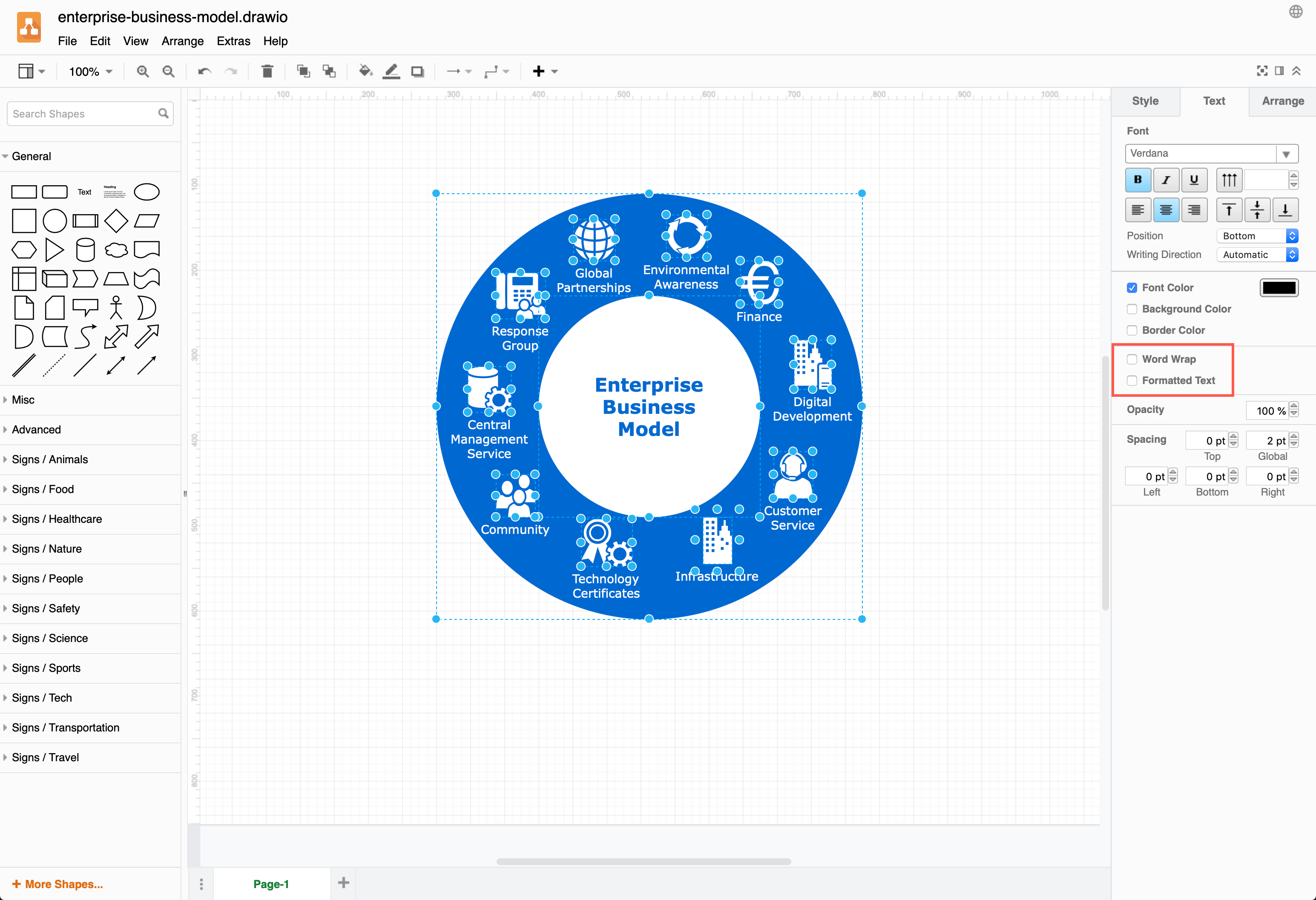
Export your diagram to SVG
- Click File > Export As > SVG.
- Change the export settings to suit your requirements.
- Choose the Zoom factor.
- Choose what to include in your image - enable Selection Only to only include the selected shapes and connectors, change the Size to fit the bounding box around your diagram, and enable a Transparent background.
- Make sure the checkbox to Include a copy of my diagram is selected if you want to be able to open your diagram and edit it again when you import the PNG file into draw.io. Choose whether you want to include the entire multi-page diagram (default) or just the page that is open in the editor.
Advanced - Edit the default values to set a different Width and Height for your image.
- Set a Border Width to add whitespace around your diagram.
- If you want to force your diagram to appear in dark mode on a dark background, select the Dark Appearance.
- By default Links will open following the viewer's browser preferences. Select a different behaviour if you want links to always open in a new tab or a new browser window.
- Enable the checkbox to add a Shadow on your shapes.
- Enable Embed Images to include image components, such as clip art, into the SVG.
- Enable Embed Fonts for complex formatted text labels (see troubleshooting below).
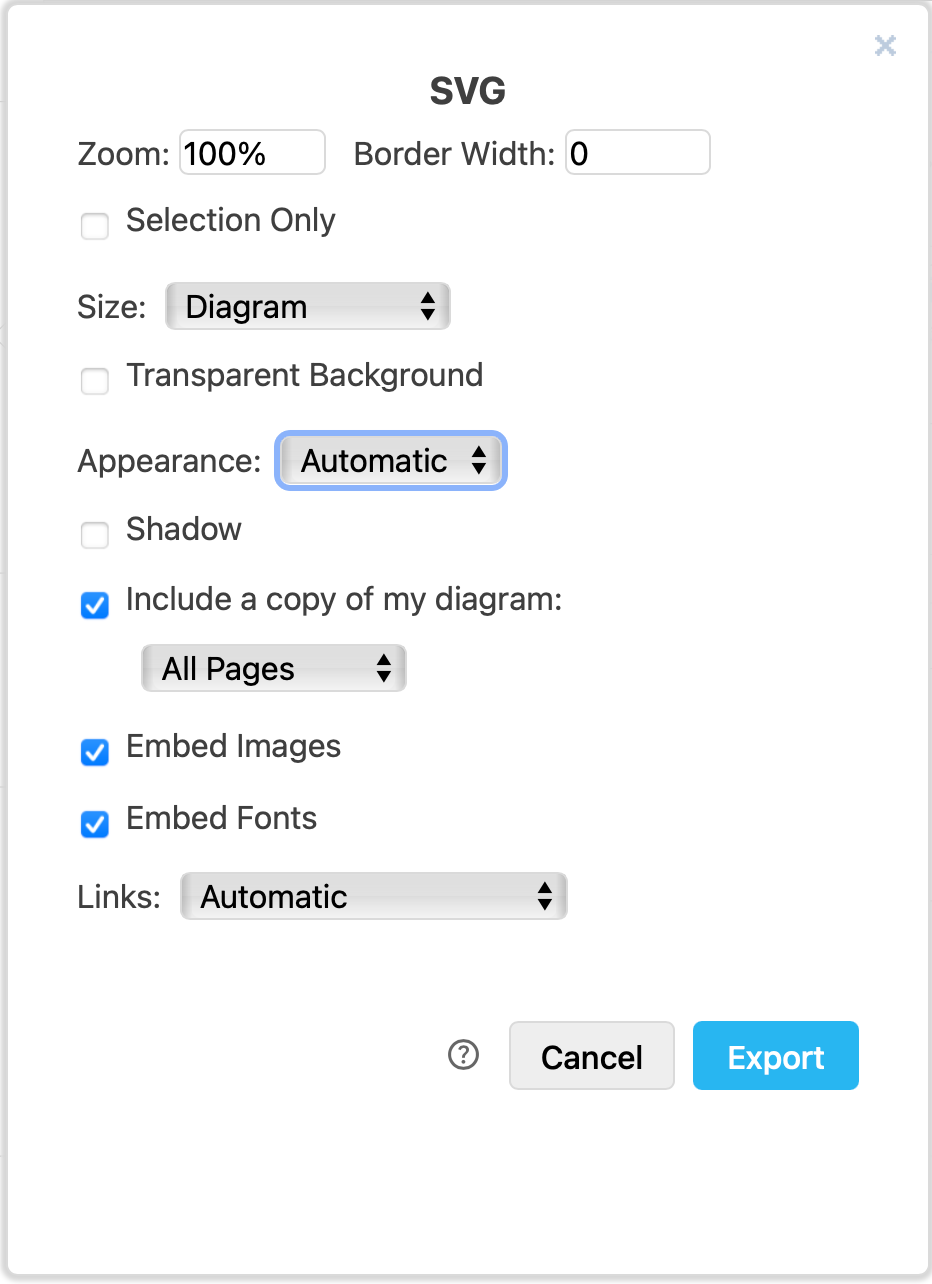
- Click Export and select the location to save your SVG file.
Troubleshooting
If your SVG viewer or online platform does not support foreign objects in SVG files, you have several options:
- Disable text formatting: Disable Formatted Text and Word Wrap on all text elements in your diagram.
- Convert via PDF: Export your diagram to a PDF file, and convert that PDF to SVG via an SVG editor like Inkscape.
Note: SVG 1.1 and formatted text labels
draw.io and our free online editor exports SVG 1.1 by default. Some older SVG viewers have trouble when text contains a variety of formatting information.
Usually, a warning is embedded in the raw SVG data that only displays when your SVG viewer doesn't support SVG 1.1. You can convert individual labels to native SVG text by enabling both Formatted Text and Convert Labels to SVG in the Text tab of the format panel for the affected cells.
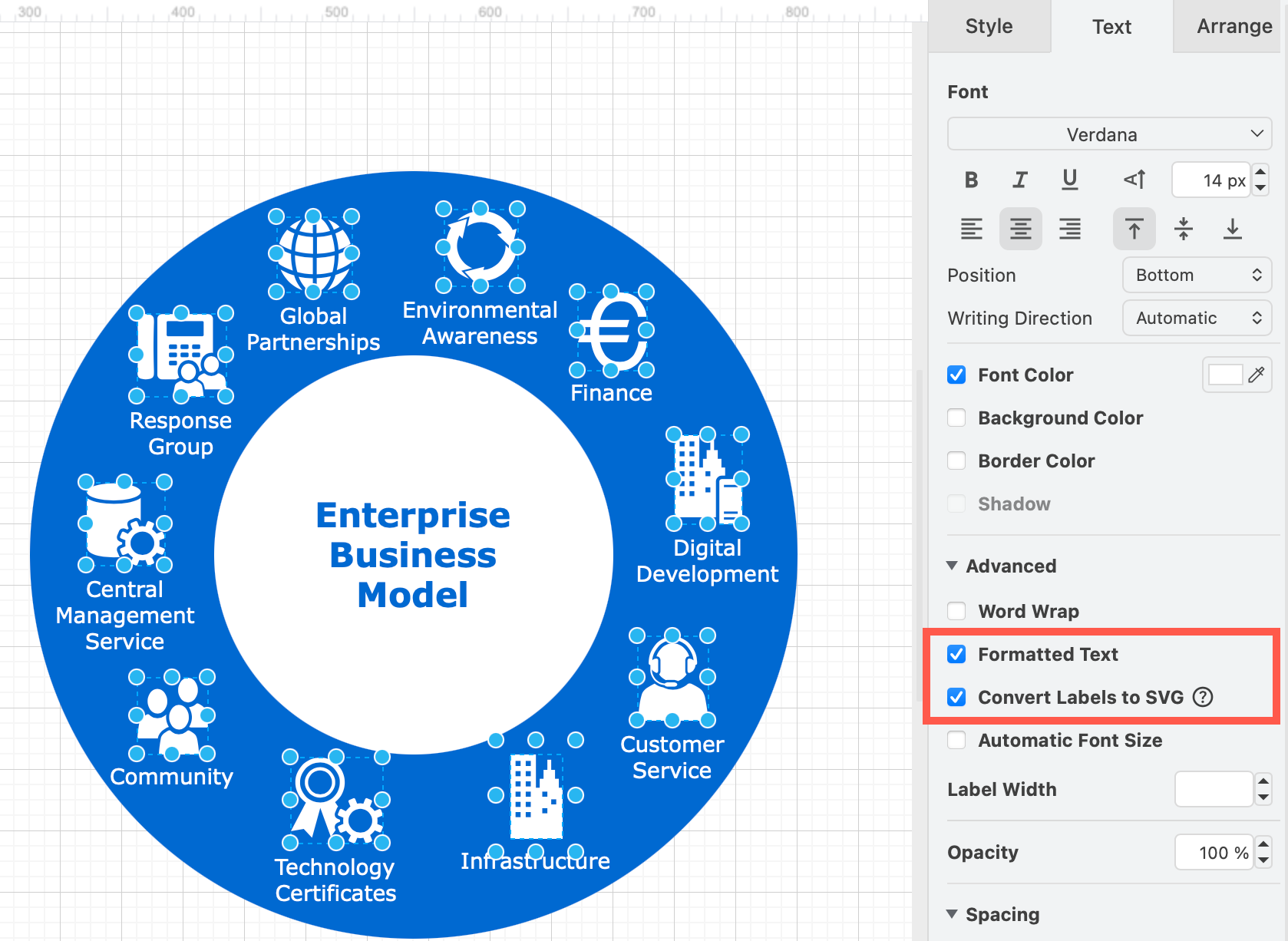
See why text in exported SVG images may not display correctly for details and how to convert labels to SVG.
Adaptive colours in exported SVGs
Colours in your draw.io diagram automatically adapt by default when you switch between light and dark mode.
The light-dark() function is used to define two colour values for each element in a diagram - one for light mode, and one for dark mode. SVG elements have a color-scheme: light dark CSS property. This means a static SVG will adapt to the color scheme of the operating system.
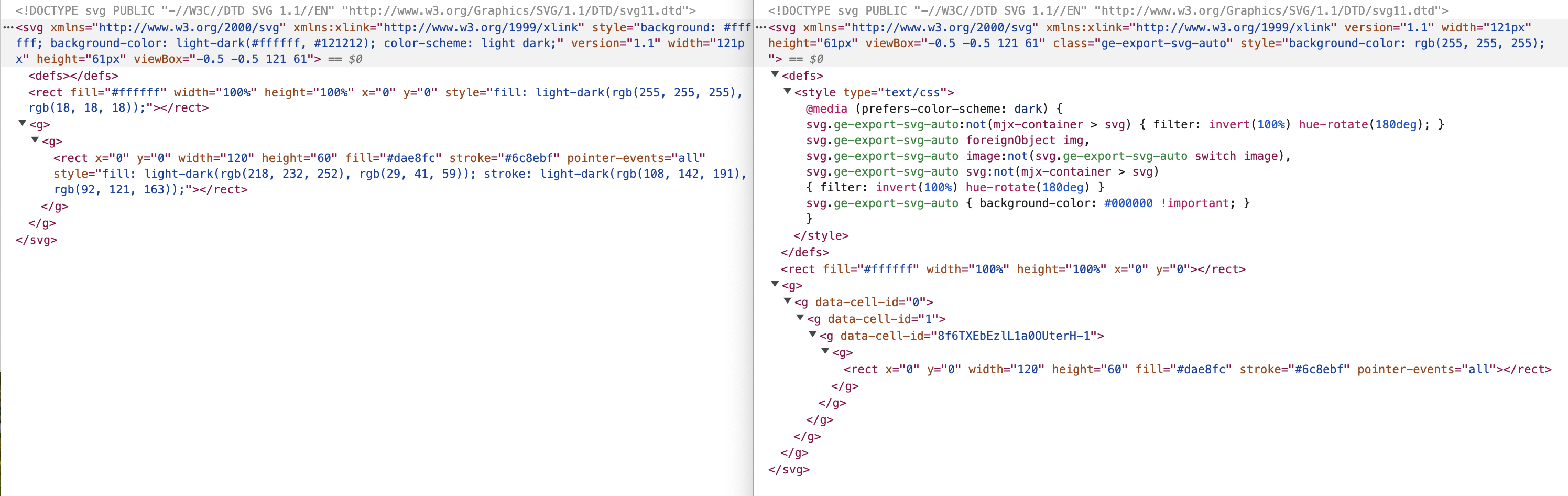
The new SVG export is on the left, the old is on the right
Note: Diagrams exported to SVG from draw.io will show light colours as a fall-back for browsers that don't support light-dark() function.
Learn more about adaptive colours in draw.io