Export a diagram to a PNG image
PNGs are used in web pages, documents and presentation slides. You can also export your diagram as a high resolution PNG for printing.
To see all of the export options, expand the Advanced section at the bottom of the dialog.
- Click File > Export As > PNG.
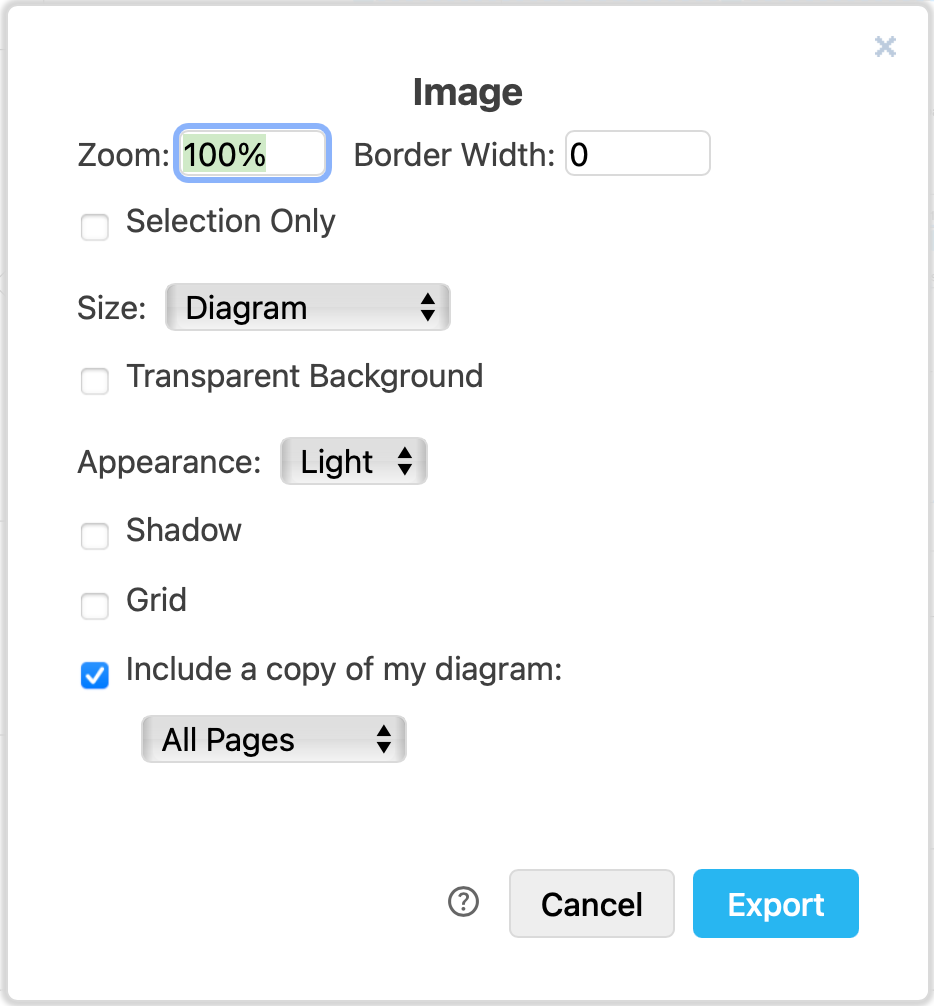
- Change the export settings to suit your requirements.
- Choose the Zoom factor.
- Choose what to include in your image - enable Selection Only to only include the selected shapes and connectors, change the Size to fit the bounding box around your diagram, and enable a Transparent background.
- Make sure the checkbox to Include a copy of my diagram is selected if you want to be able to open your diagram and edit it again when you import the PNG file into draw.io. Choose whether you want to include the entire multi-page diagram (default) or just the page that is open in the editor.
Advanced - Edit the default values to set a different Width, Height, and DPI for your image.
- Set a Border Width to add whitespace around your diagram.
- If you want to force your diagram to appear in dark mode on a dark background, select the Dark Appearance.
- Enable the checkboxes to add a Shadow on your shapes, or to include the Grid of the drawing canvas.
- Click Export and select the location to save your PNG file.