Straighten connectors in diagrams
When working with connectors in diagrams, sometimes you may find a floating connector does not follow a straight line between two shapes. You can straighten such connectors quickly and automatically by changing the path style. Depending on where the connected shape is, the connector will straighten automatically.
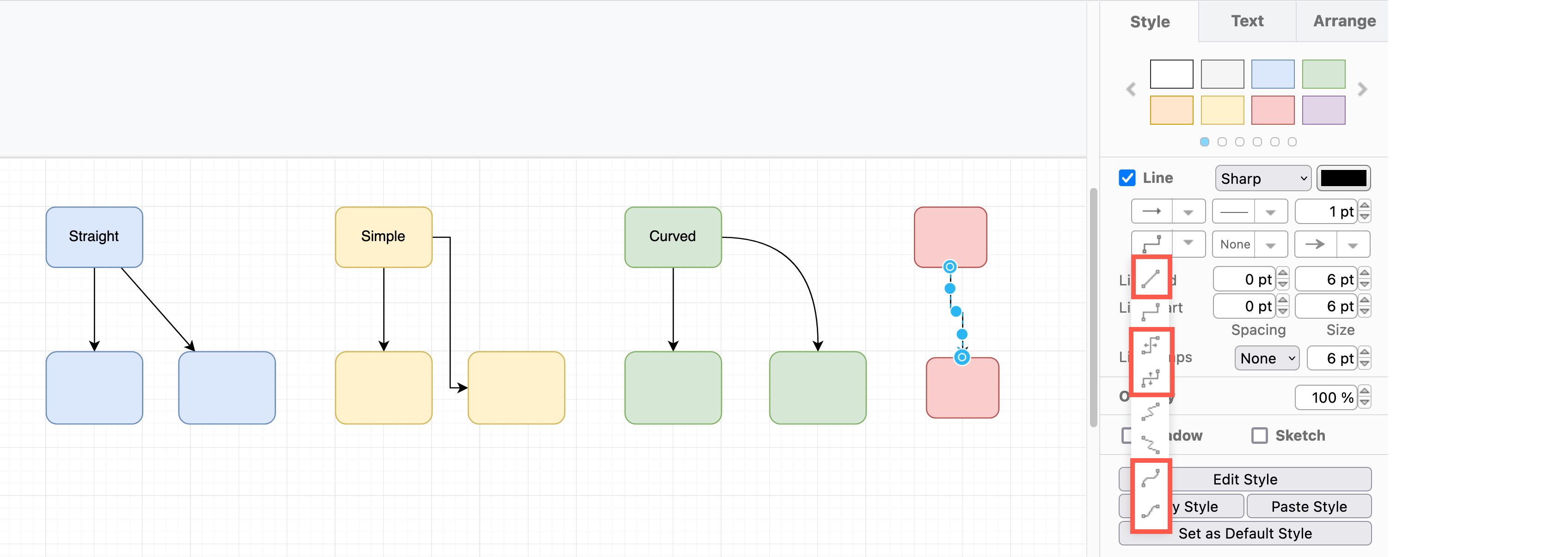
- Select the connector you want to straighten.
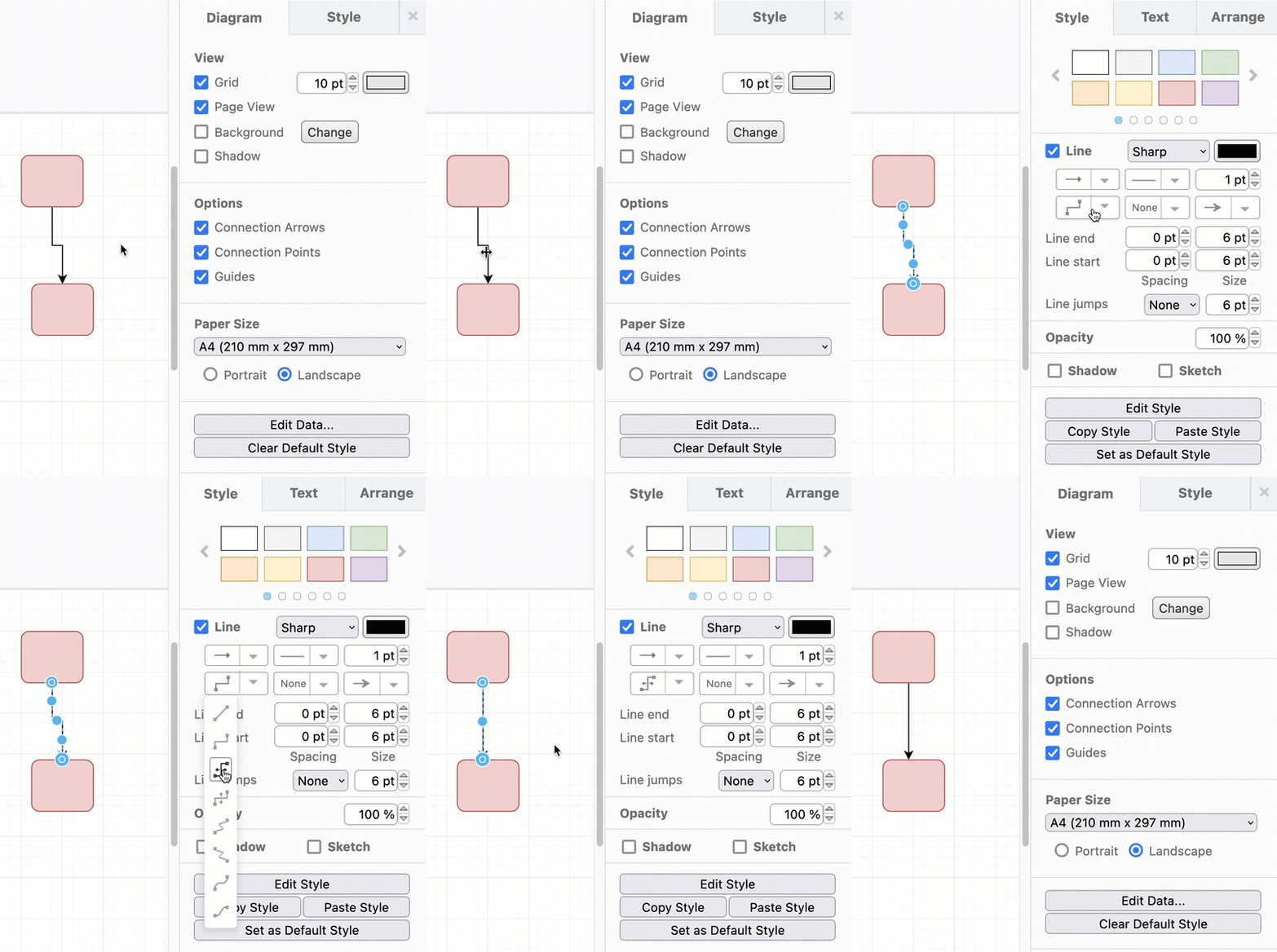
- Click on the Waypoints dropdown list in the Style tab of the format panel on the right.
- Select a different path style from the list to automatically reroute the connector and its waypoints.
In the example below, the shapes are not aligned - orthogonal and curved path styles on the floating connector will always contain a bend. To straighten this connector, use the simple style.
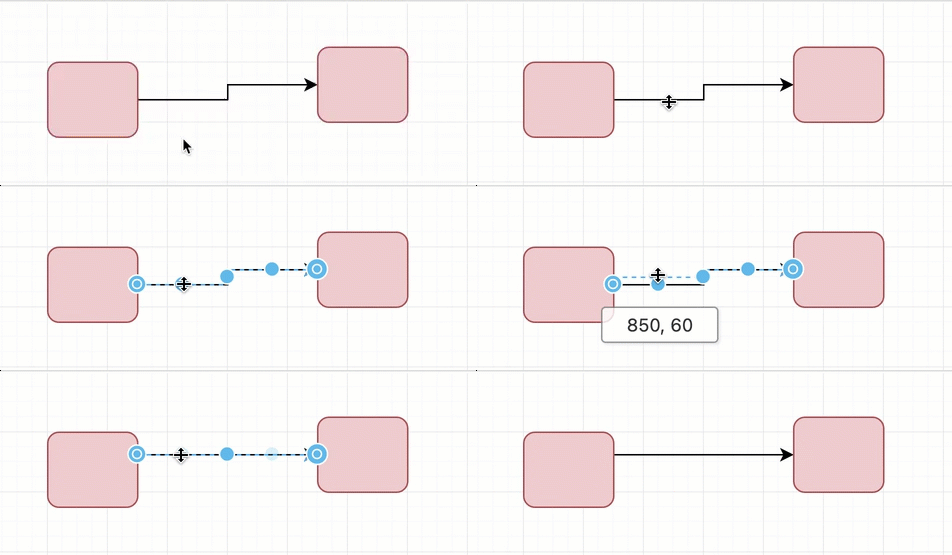
Alternatively, drag one section of the floating connector until it aligns with the other section. This will remove the waypoint between them and straighten the connector.
Note: Fixed connectors will not 'float' along the edge of a shape, and may not allow you to straighten such a connector.
Learn more about fixed versus floating connectors.
Related
-
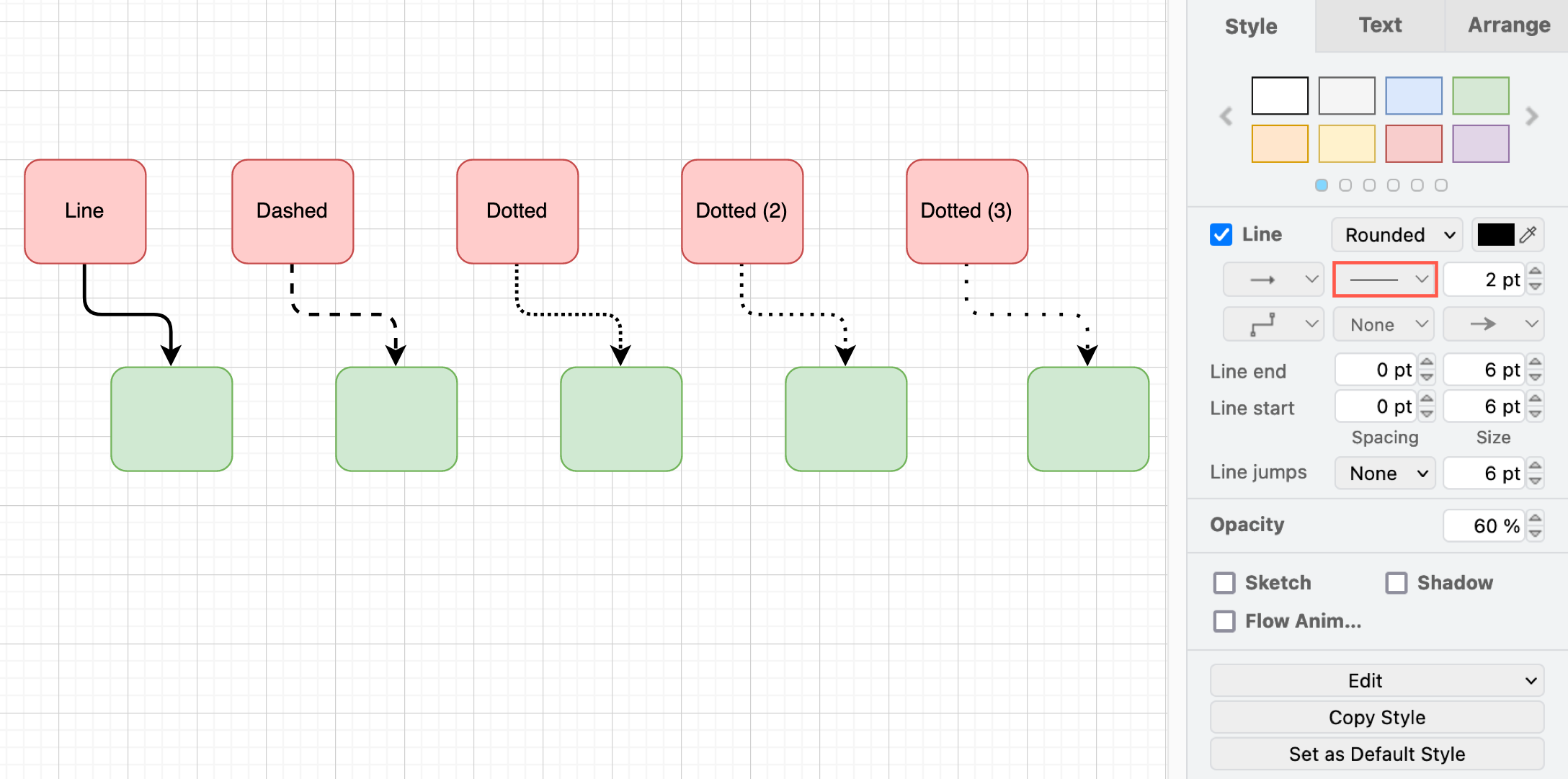
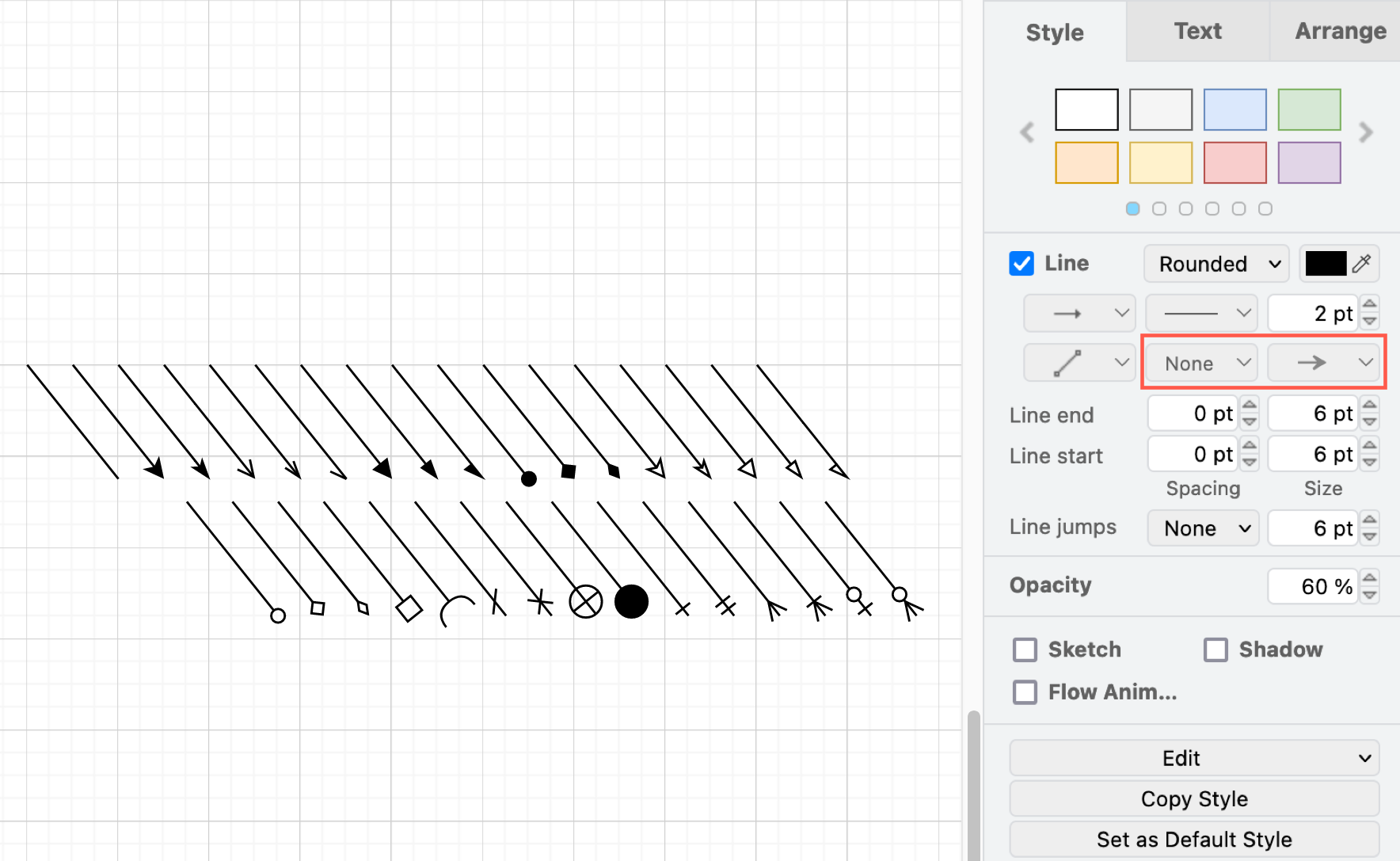
Style connectors, including the line style and pattern, its colour and thickness, and a wide variety of arrow ends.
-
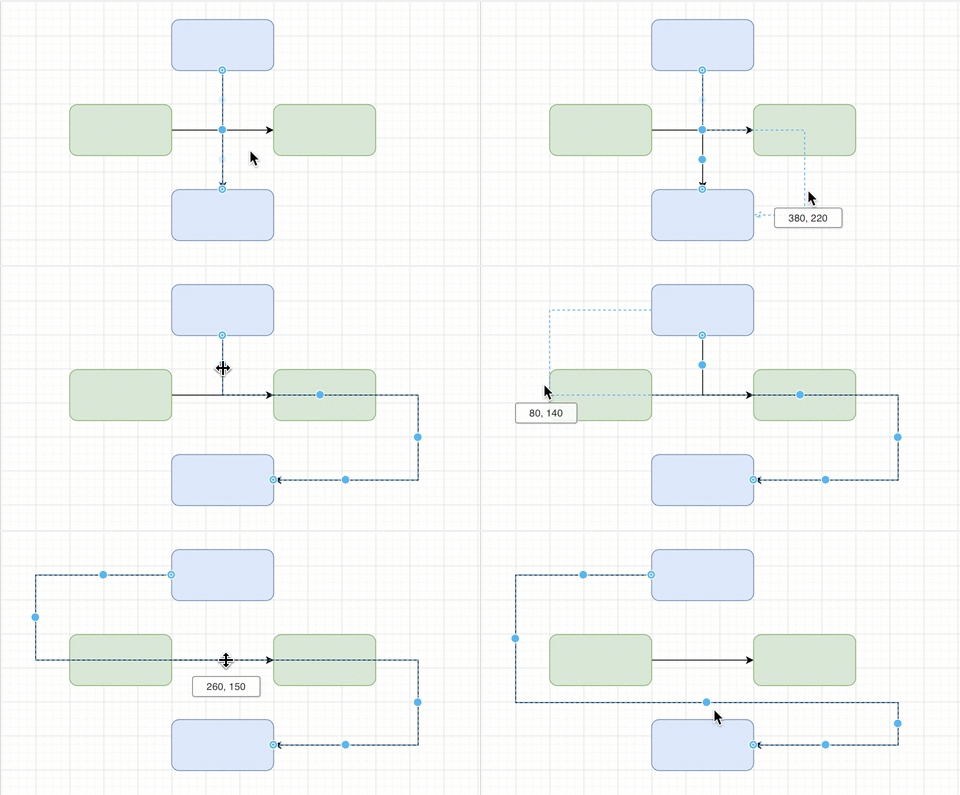
Add and remove waypoints on a connector to manually change is path.
-
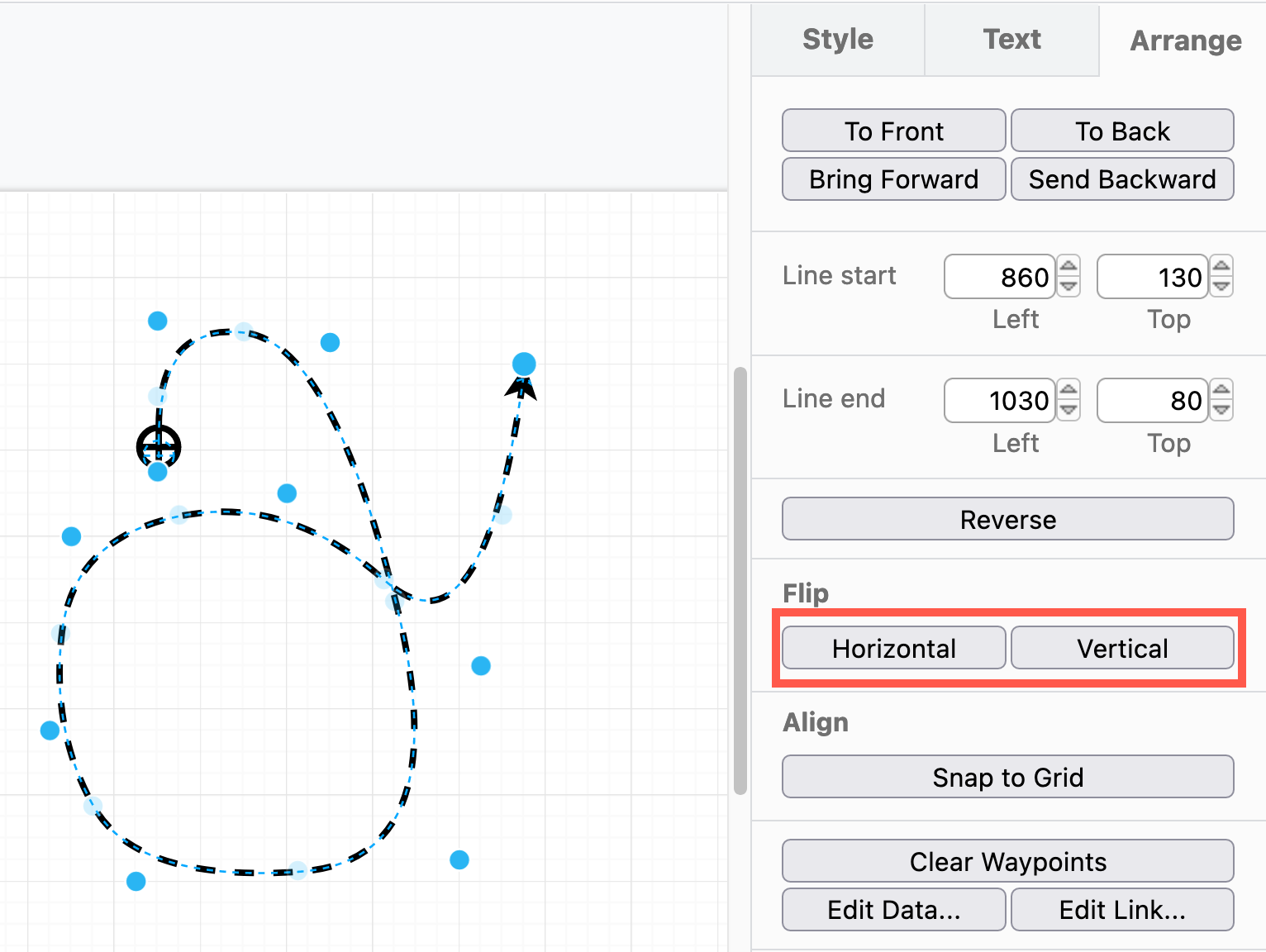
Flip a connector horizontally or vertically - select the connector, and click on Horizontal or Vertical in the Arrange tab of the format panel.
-
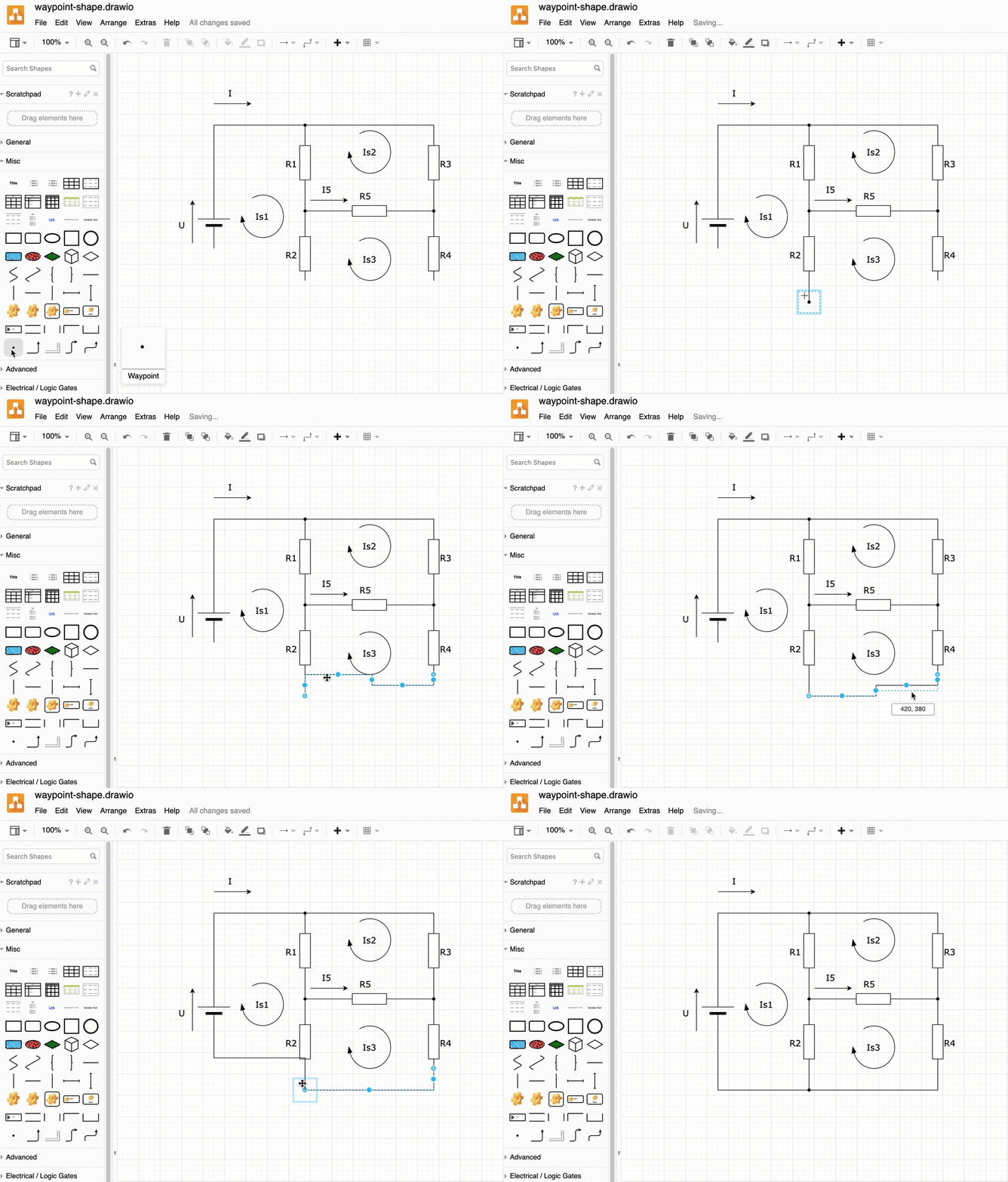
Join connectors using the waypoint shape. This is especially good for org charts (tree diagrams) and circuit diagrams.