Label connectors
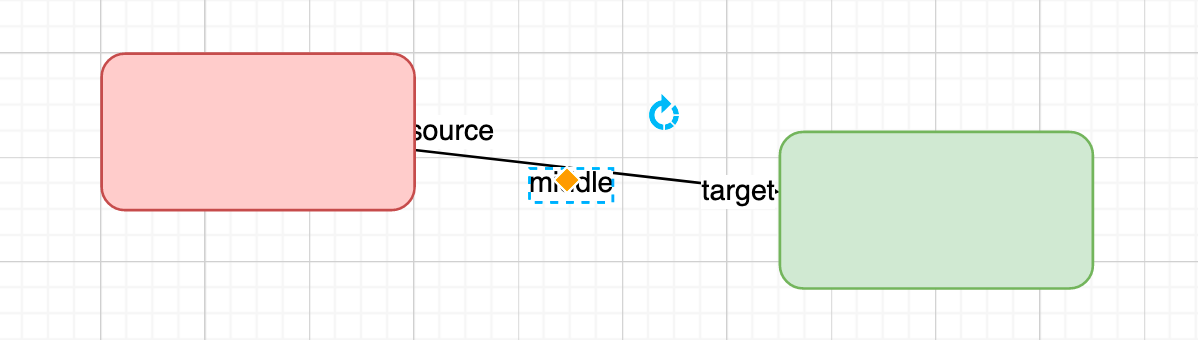
Connectors can have three labels - one in the middle, and at either end.
Double click on the connector at the location where you want to add a label.
Move a connector label
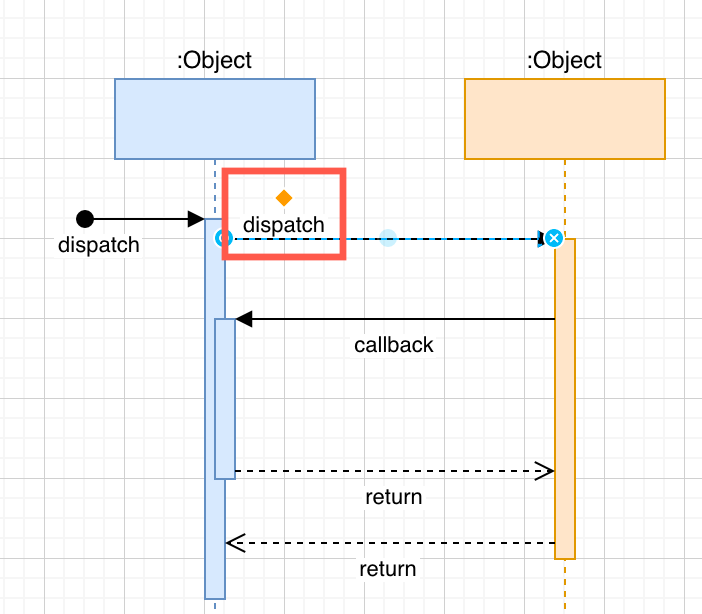
These labels will move with the connector as you move the shapes around on the drawing canvas, but you can also drag them to another location.
- To manually change a label's position, select the label by clicking on it, then drag the diamond grab handle to a new position
Rotate a connector label
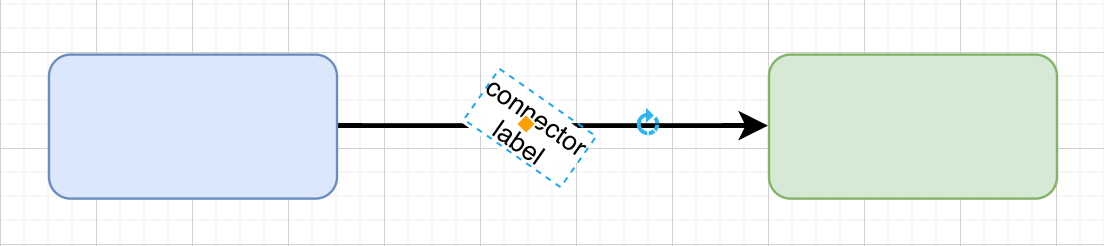
Select the label on a connector, and use the rotate grab handle to rotate the text.
Tip: In some shapes, you can change the writing direction of the labels from horizontal to vertical.
Edit a connector label
- Double click on the text to edit the label
Format and style the text
Use the Text tab in the format panel to change the style of a connector label.
You can add line breaks in connector labels, use a different font or font size or an external font, and add HTML formatting including superscript and subscript.