Change connector arrows in draw.io
There are many different styles of connectors - the lines that join shapes in a diagram. Some are plain, some have arrows, and some have particular symbols to show a type of connection. Change the connector arrows and their styles in the Style tab of the format panel.
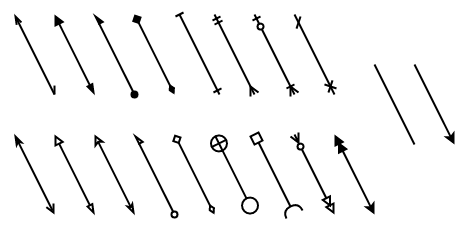
Change a connector arrow
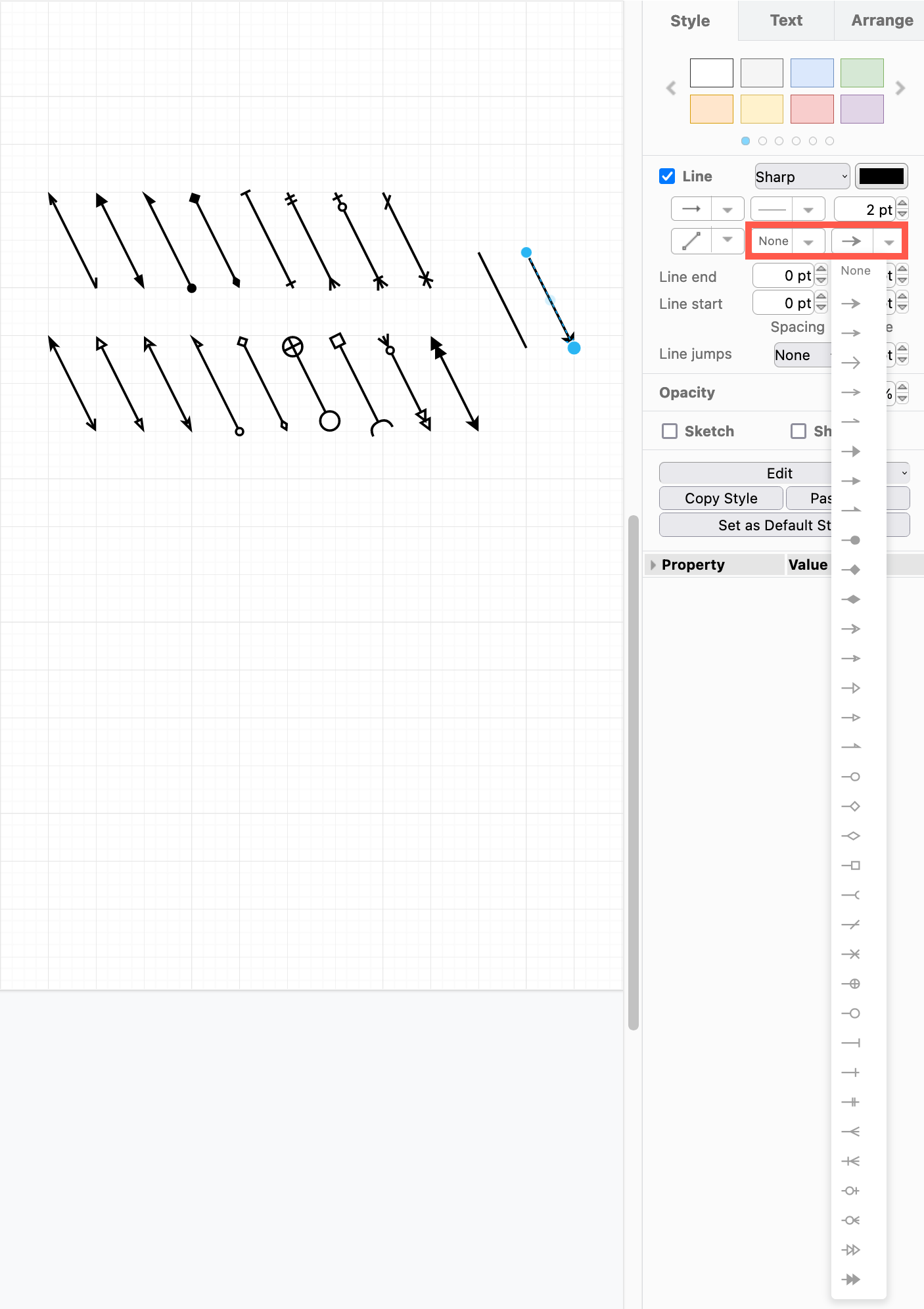
Select the connector that you want to style, then go to the Style tab on the format panel.
Click on the drop-down list for the Start and End of the connector and choose a different connector arrow from the long list. If you don't see all of these arrows and connector symbols, you may need to make your browser window larger.
Enable the format panel in different editor themes: You need to enable the format panel to change the connector arrows. Some of the simpler editor themes hide this panel by default, or allow you to collapse it.
- Press
Ctrl+Shift+P(Cmd+Shift+P) to display or hide the format panel.
Make a connector bi-directional
In draw.io by default, connectors have arrow heads at one end, where it connects to the target shape. You can add an arrow head at the other end via the format panel on the right.
- Select the connector.
- In the Style tab of the format panel, select the middle drop down on the second row, then select an arrow head from the list. This will add an arrow head pointing towards the source shape.
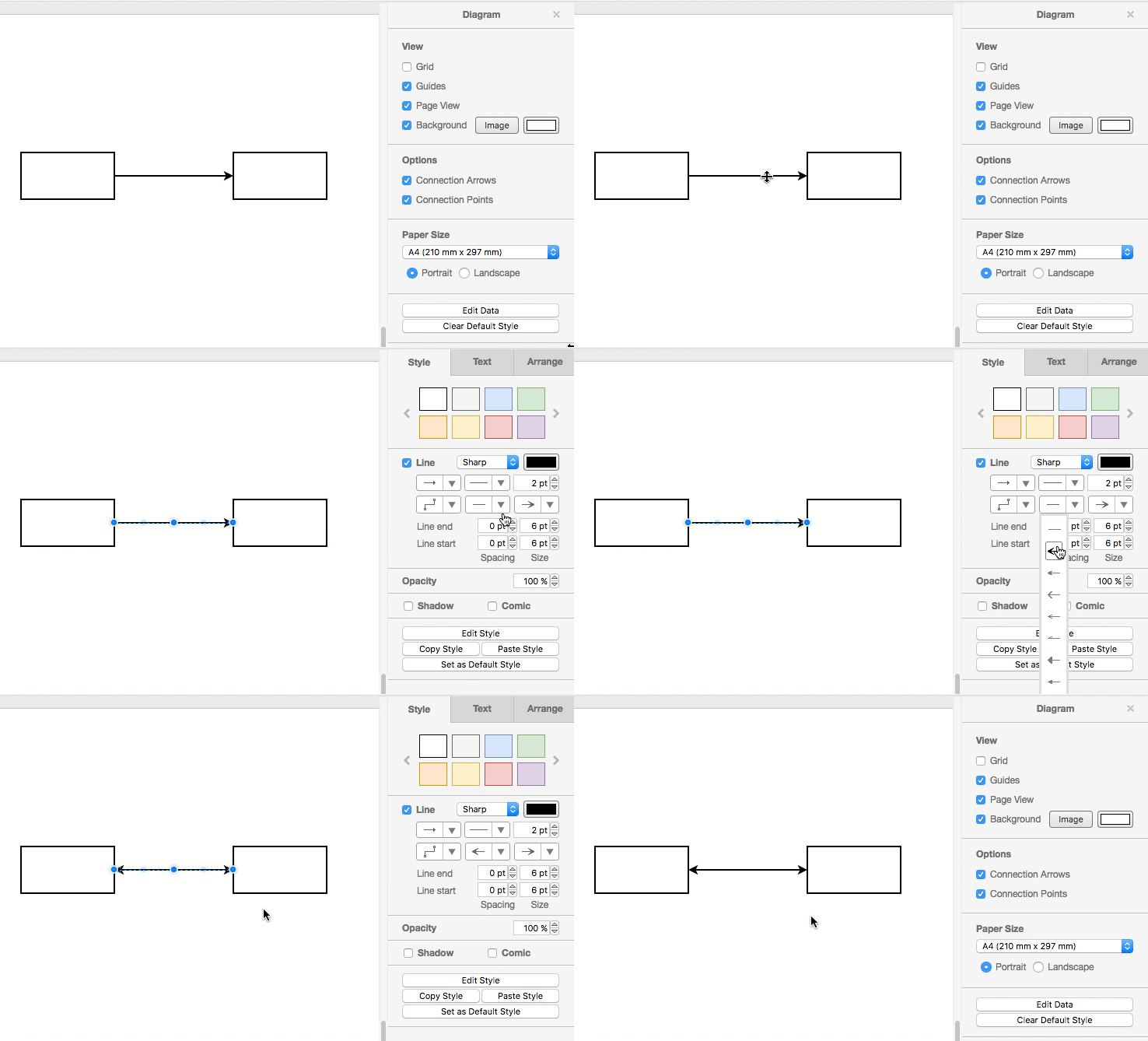
You can reverse the source and target of a connector to swap their arrows.
Change the connector to have no arrows
In draw.io by default, connectors have arrow heads at one end, where it connects to the target shape. You can remove a connector's arrow heads via the format panel on the right.
- Select the connector.
- In the Style tab of the format panel, select the middle or the right drop down list on the second row, then select
Noneat the top of the lists. This will remove the arrow heads pointing towards the source and target shapes.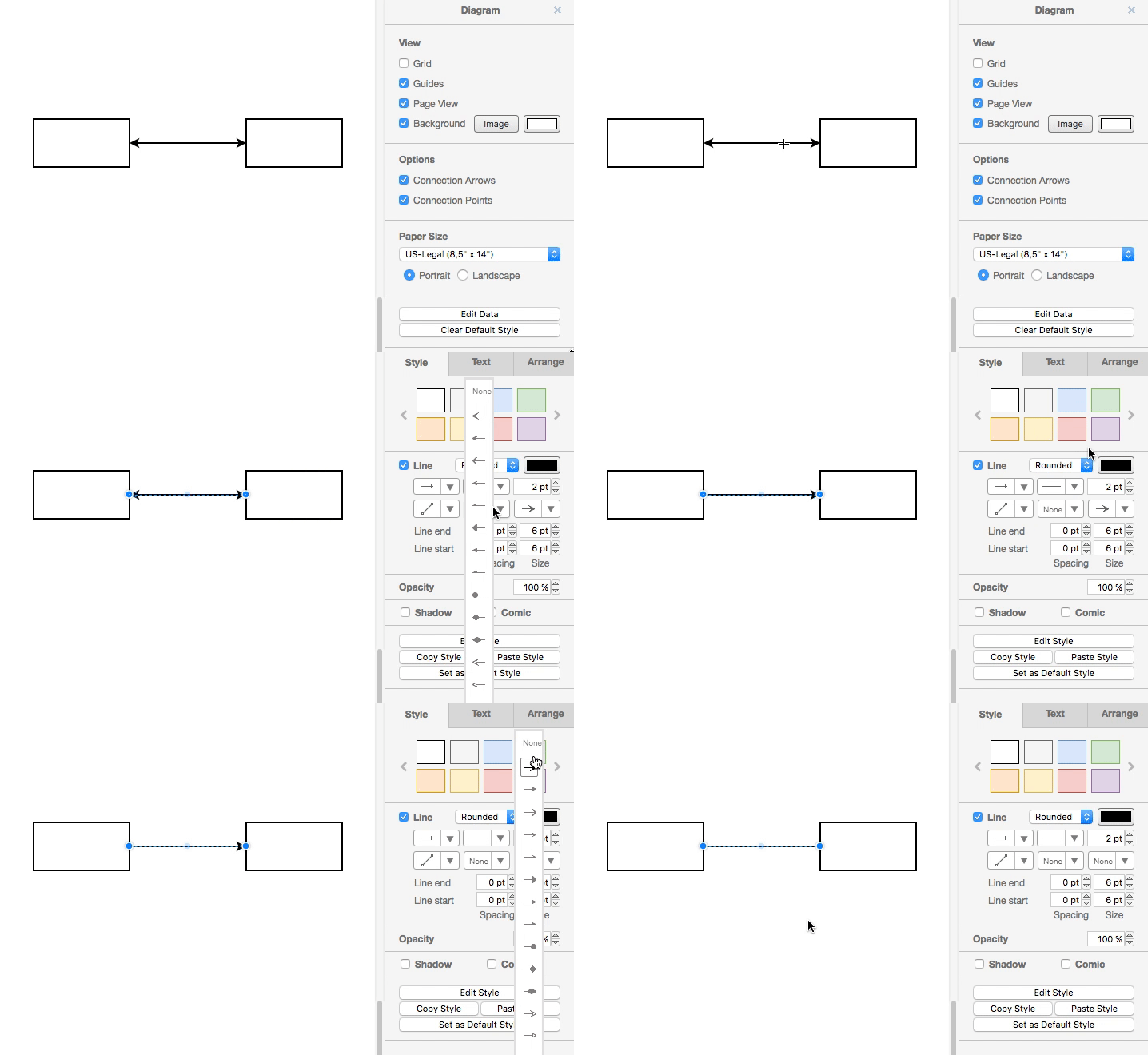
Use connectors from the shape libraries
Several shape libraries contain connectors with specific arrows or symbols used to create those types of diagrams. For example, the UML shape library contains the different connectors for class diagrams with symbols to indicate inheritance, dependency, aggregation, and so on.
Hover over any connector to see a larger preview.
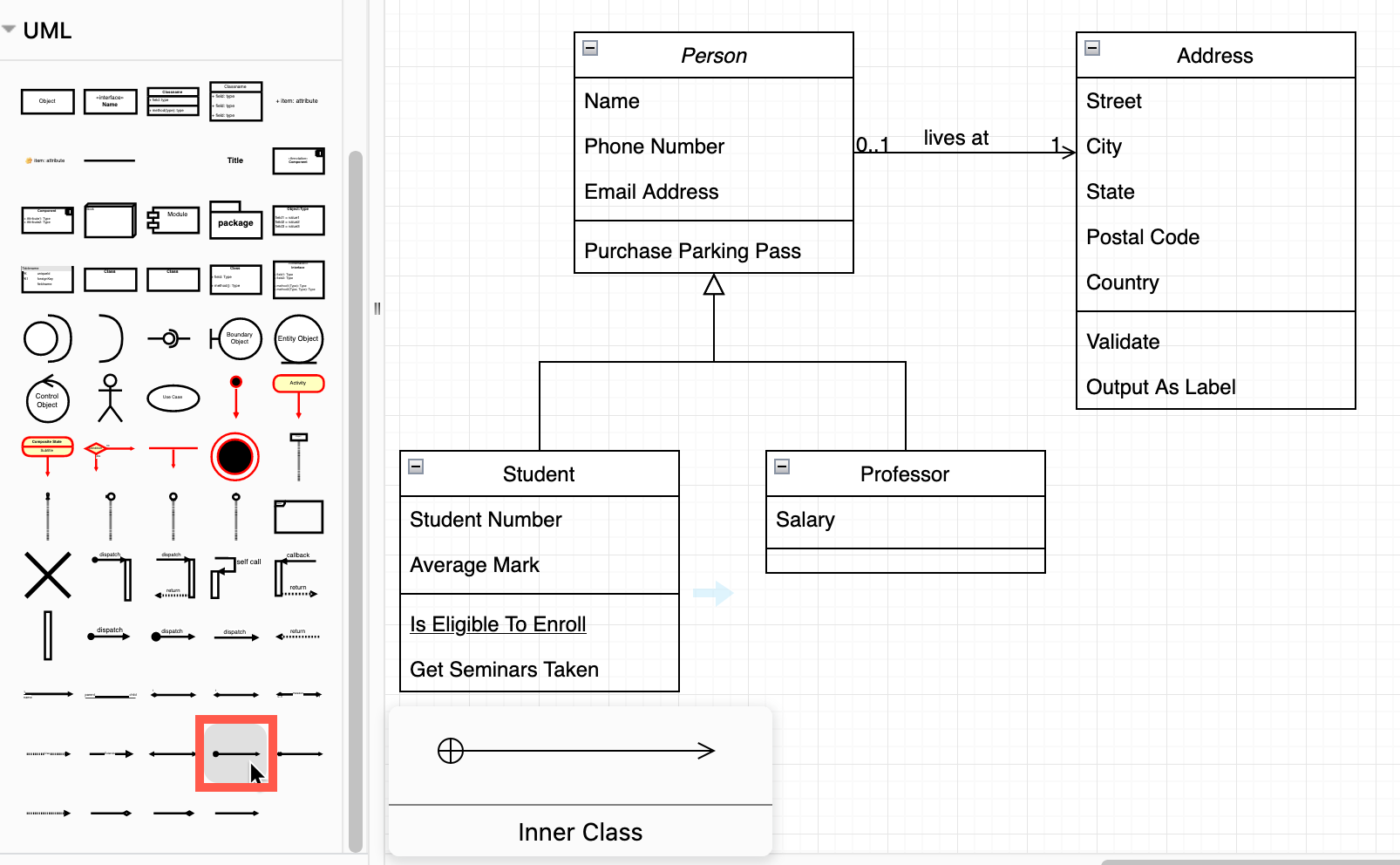
Style connector arrows
Resize the arrow
To change the size of an arrow or symbol on a connector, change the thickness of the connector. The arrow/symbol will be resized in proportion to the line width.
- Click on the Linewidth up and down arrows, or enter a new size in the text box.
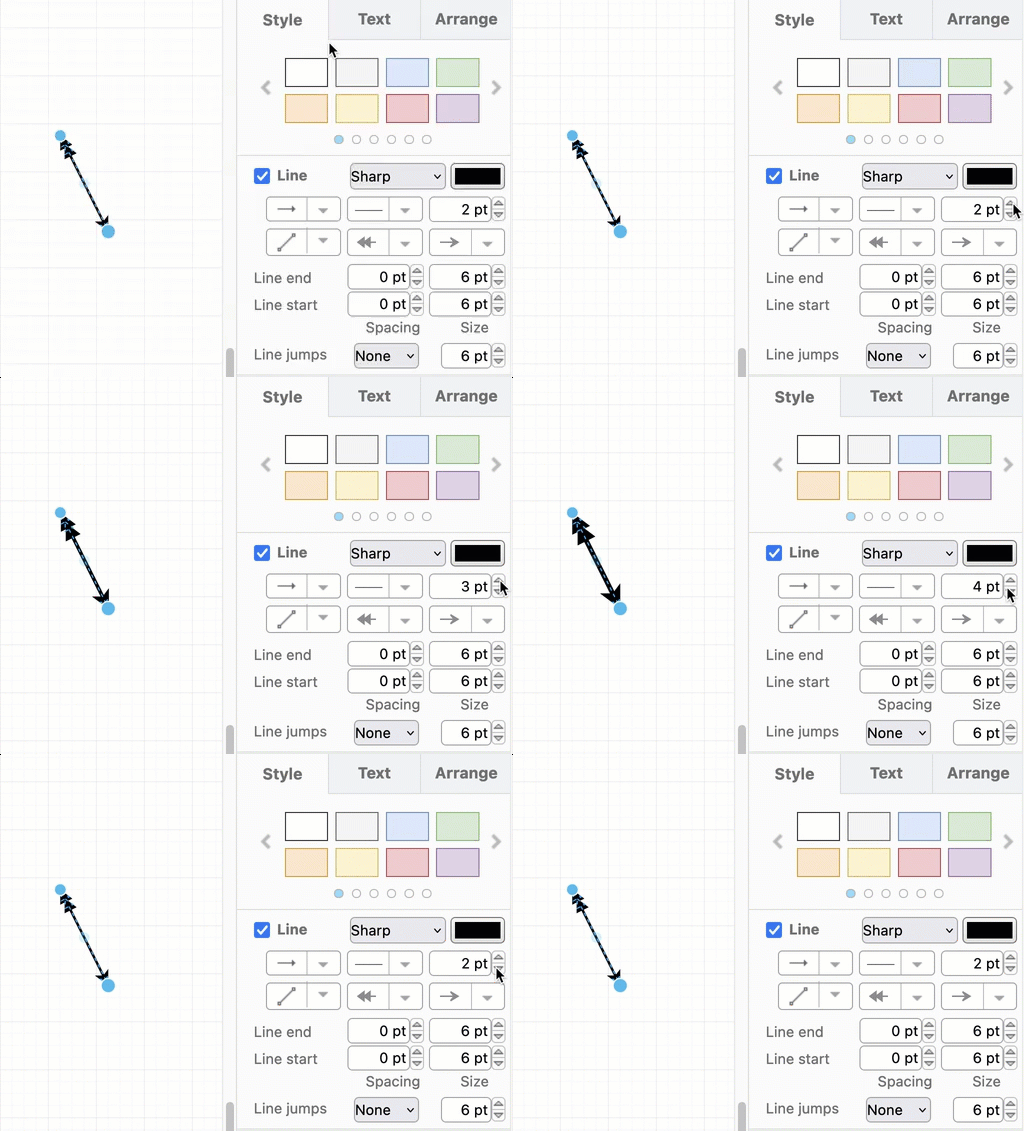
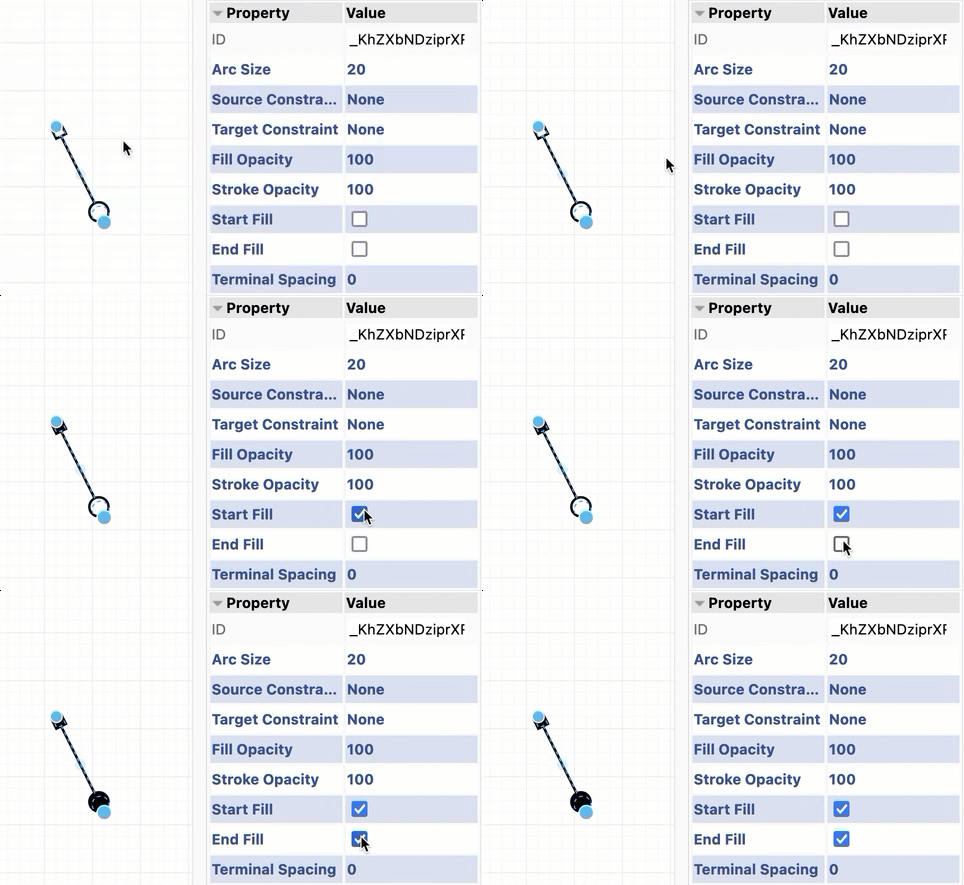
Change the arrow's fill
Open the Properties section, and enable or disable the Start Fill and End Fill checkboxes.
Apply the sketch rough style
The rough sketch style makes connectors look hand-drawn, and also changes the connector arrows.
- Select the connector(s) you want to restyle.
- In the Style tab of the format panel, enable the Sketch checkbox.
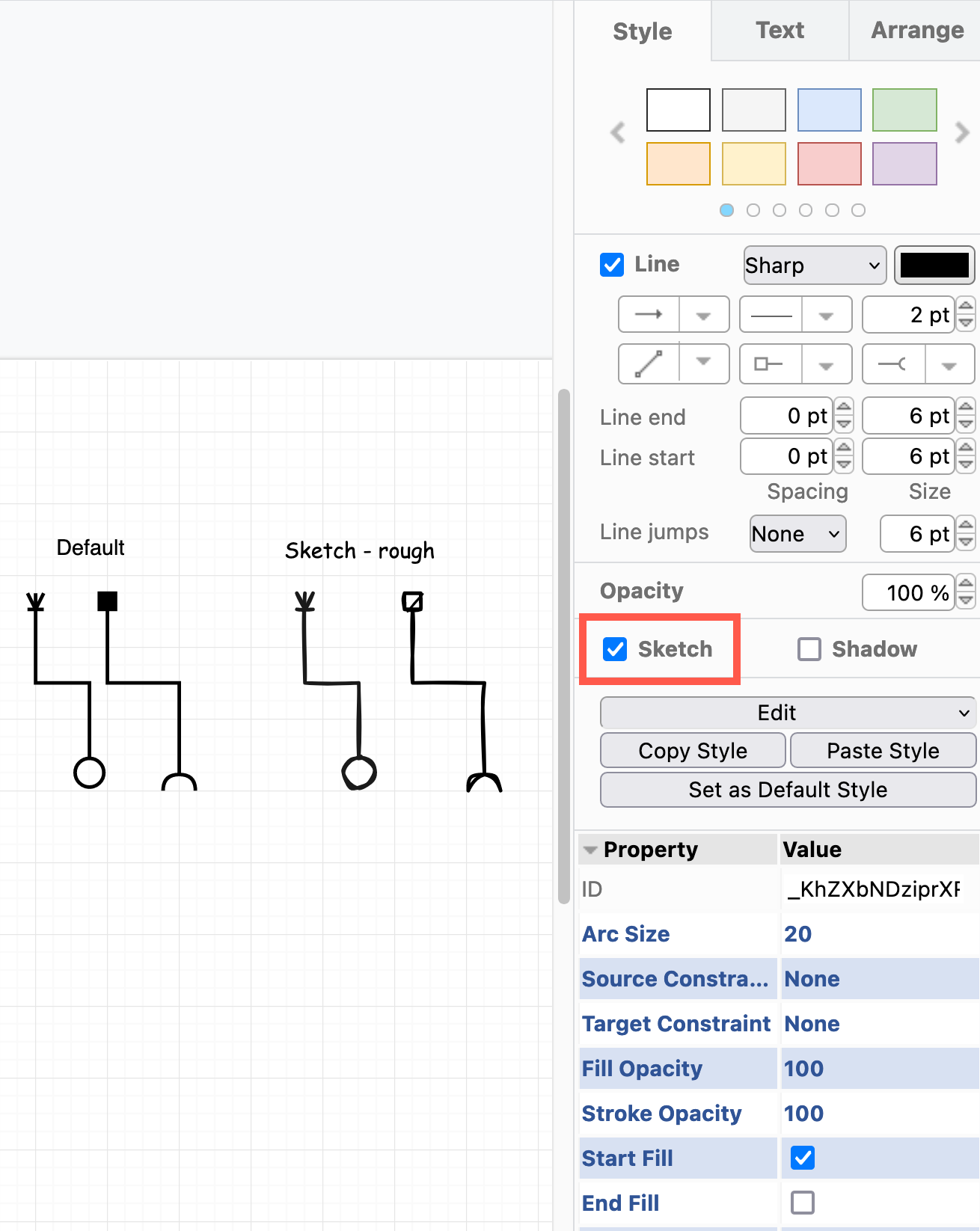
Filled connector arrows will automatically use the rough fill style, which, depending on the size of the arrow or symbol, may then appear unfilled.
Apply the sketch comic style
The comic style keeps the solid fill of a connector arrow, but still uses a hand-drawn style.
- In the Style tab of the format panel, expand the Properties.
- At the bottom, change the Sketch Style to Comic.
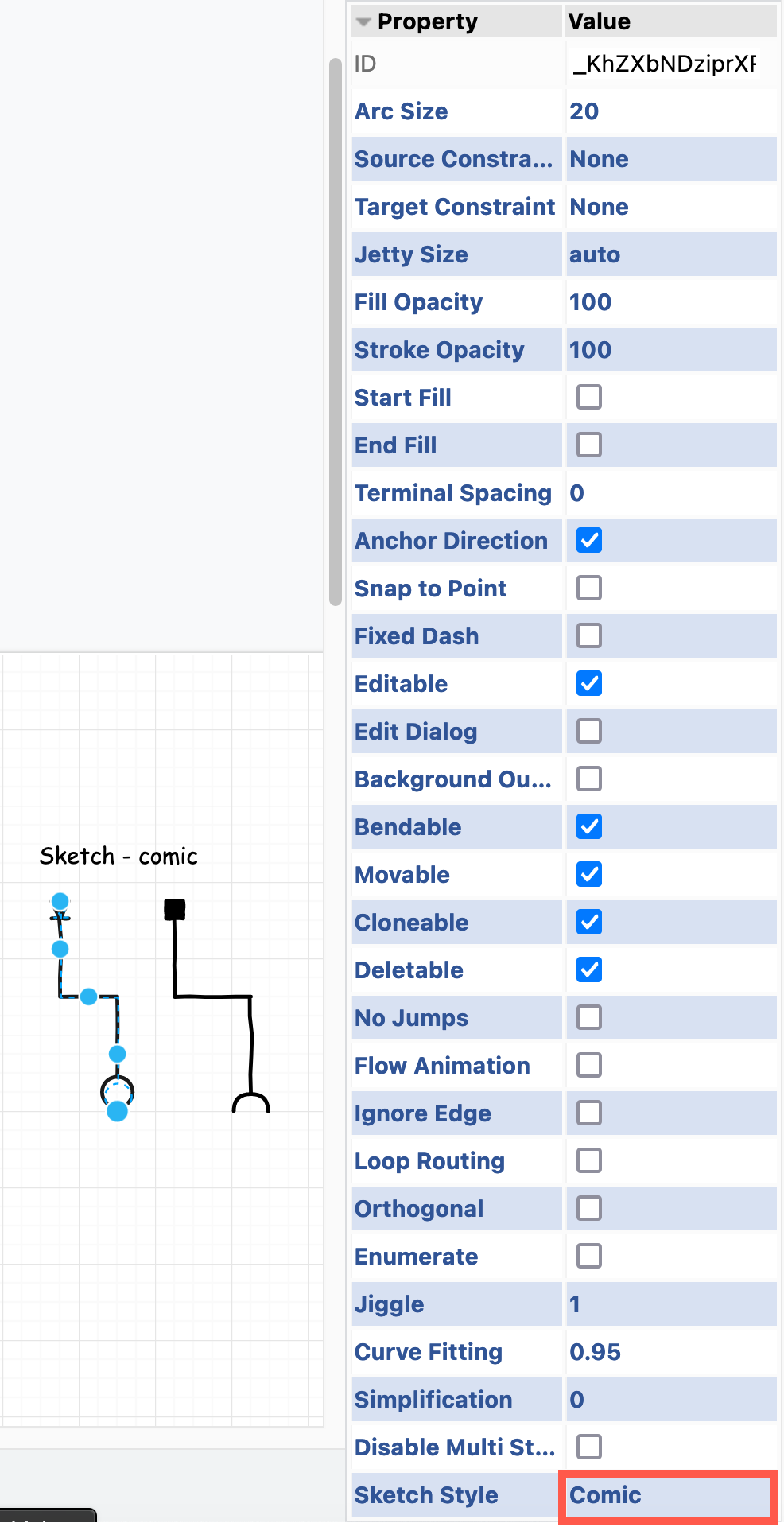
In this example, the solid square at the start of the right connector has been filled in, but the circle at the end of the other connector is still empty, as it was unfilled.