Arrange > Insert menu in draw.io
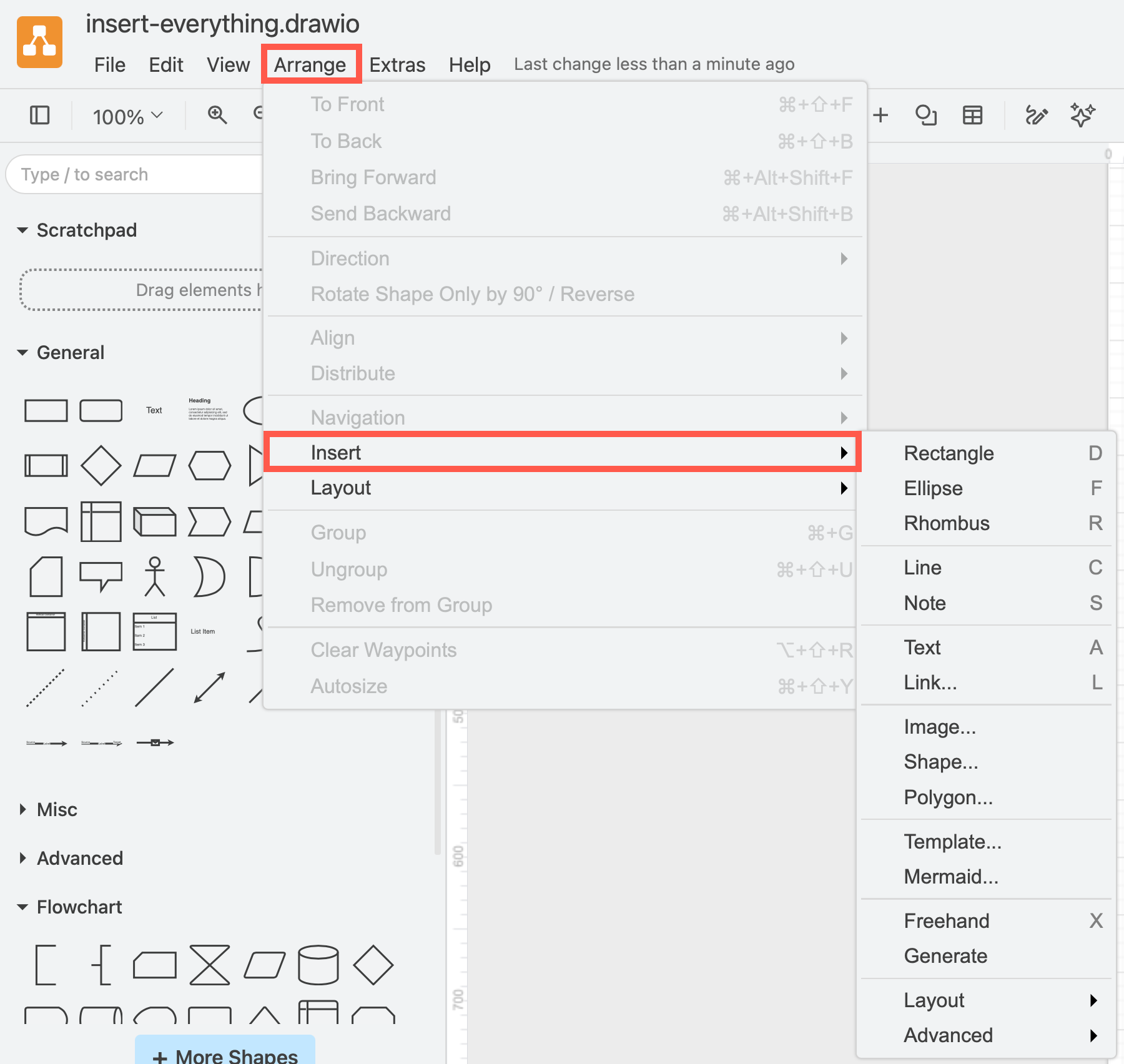
Use the Arrange > Insert submenu in the draw.io editor to insert various types of shapes and text elements onto the drawing canvas.
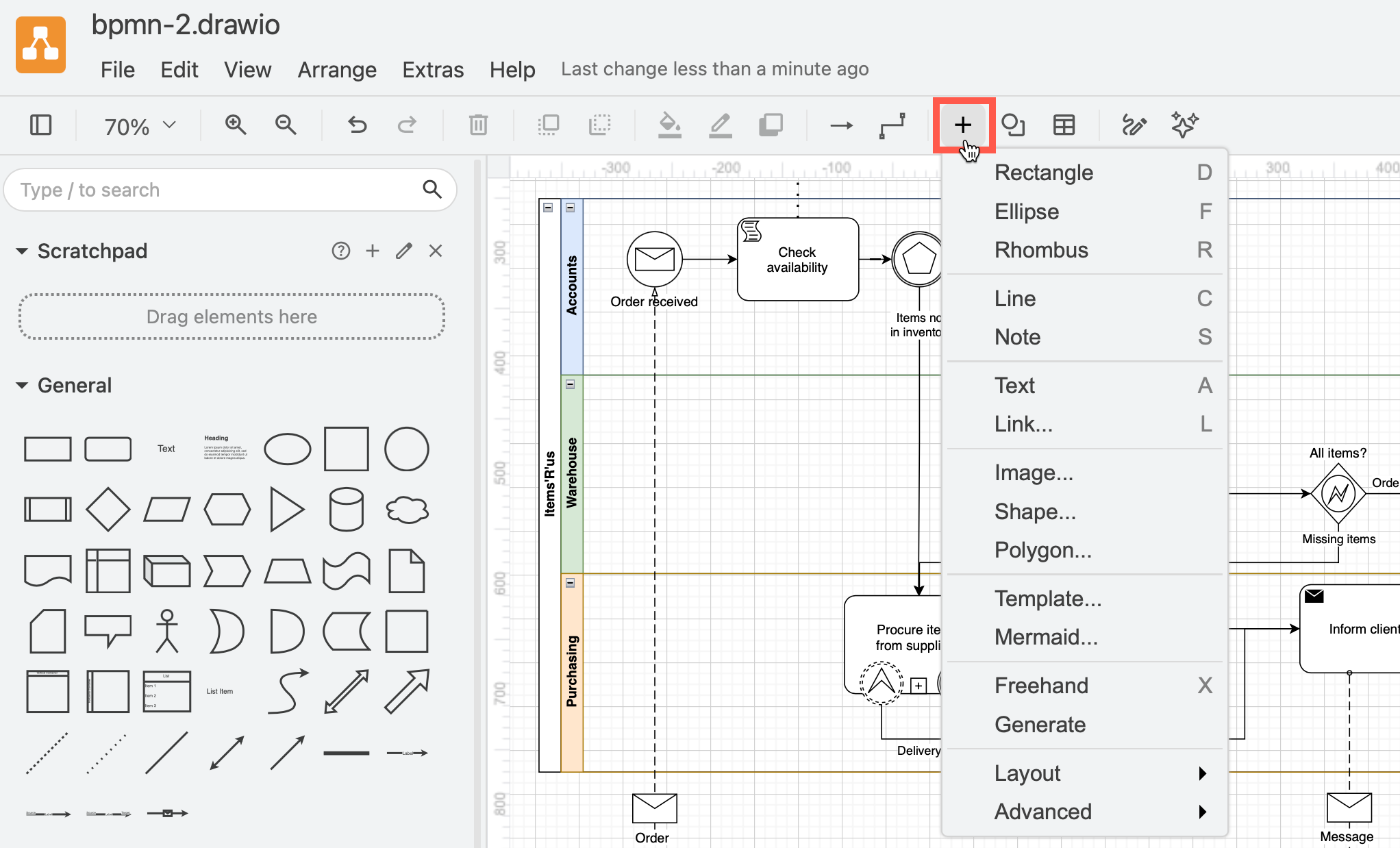
Alternatively, you can access the Insert tool (+) via the toolbar that is just above the drawing canvas.
Basic shapes
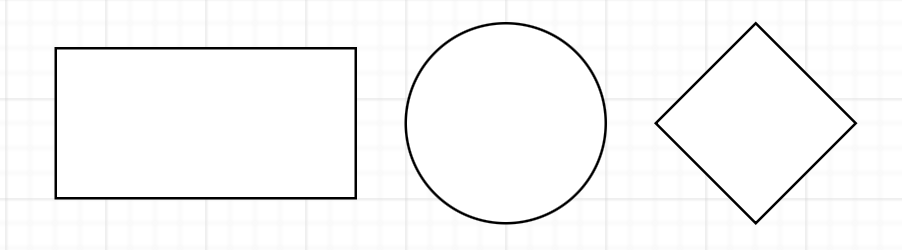
Select Arrange > Insert then select Rectangle, Ellipse or Rhombus to insert that shape.
Line or note
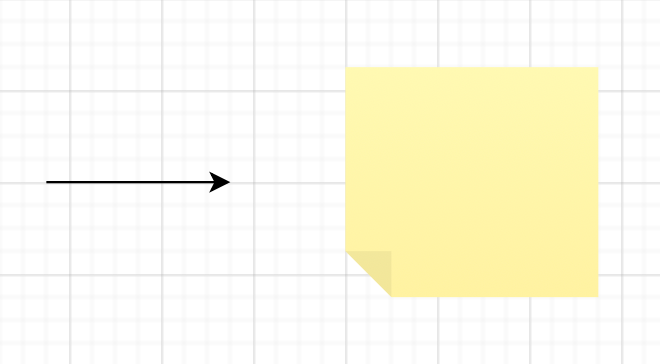
Select Arrange > Insert then select Line or Note to insert a connector with an arrow at one end or a sticky note shape.
Text or links
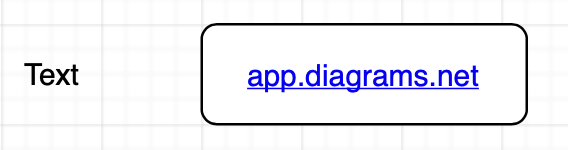
Select Arrange > Insert then select Text or Link to insert a text shape, or a rectangle with a link.
Images
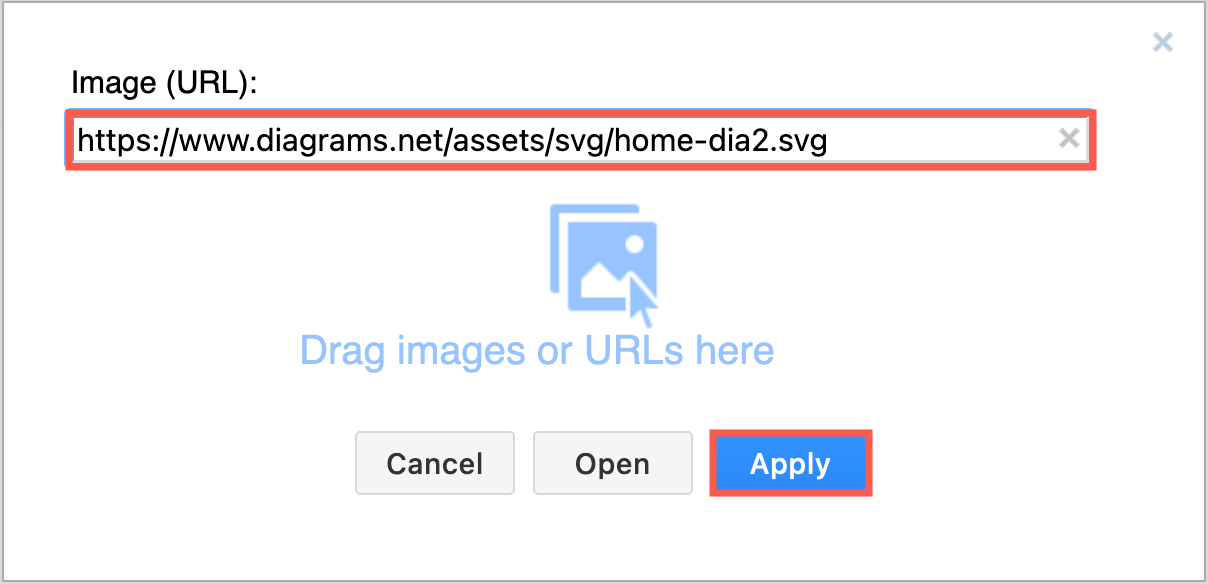
Select Arrange > Insert > Image then add the URL to your image or drag it onto the dialog and click Apply.
Custom shapes
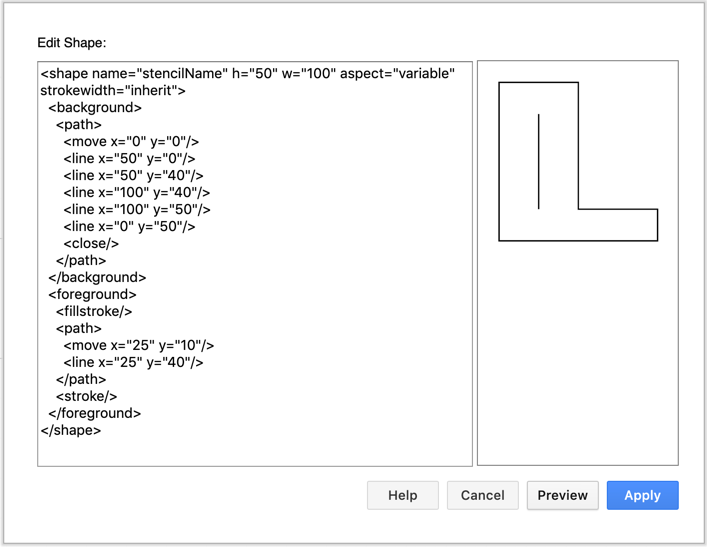
Select Arrange > Insert > Shape then enter the XML that defines the geometry and style of your custom shape.
Draw a polygon shape
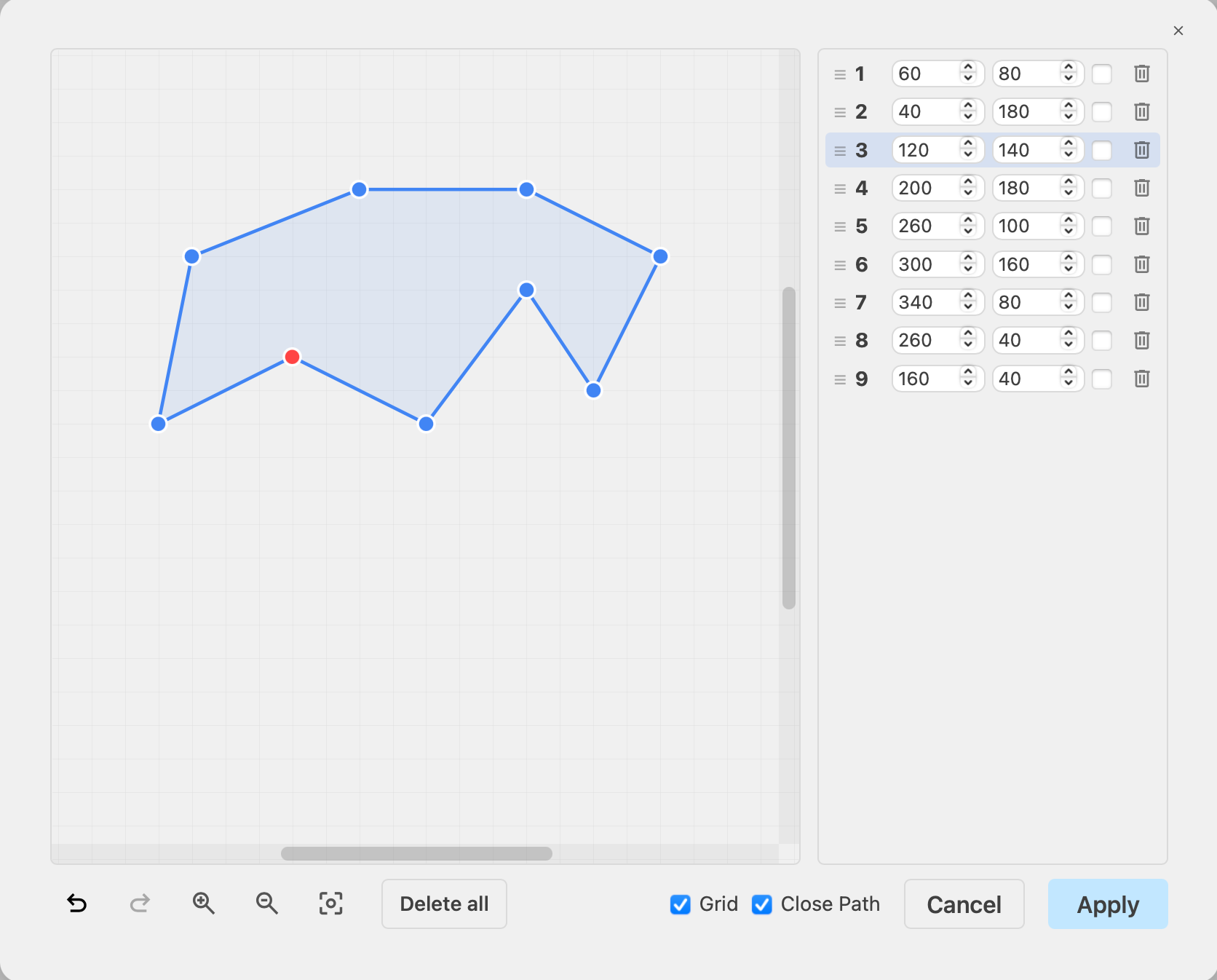
Select Arrange > Insert > Polygon to open a dialog where you can draw your own polygon shape.
Templates
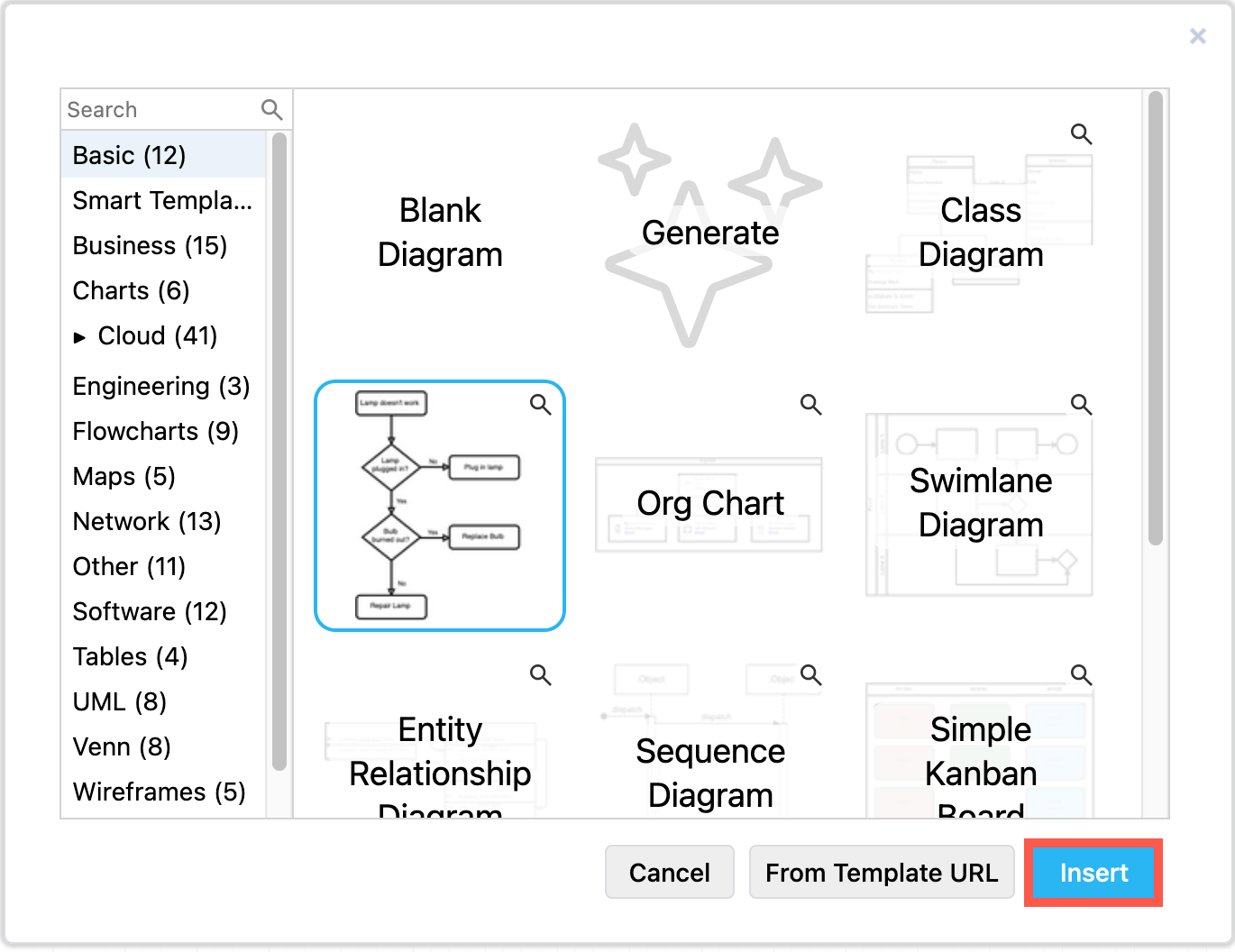
Select Arrange > Insert > Template, then select a template from the library, and click Insert to add it to the drawing canvas.
Mermaid diagrams
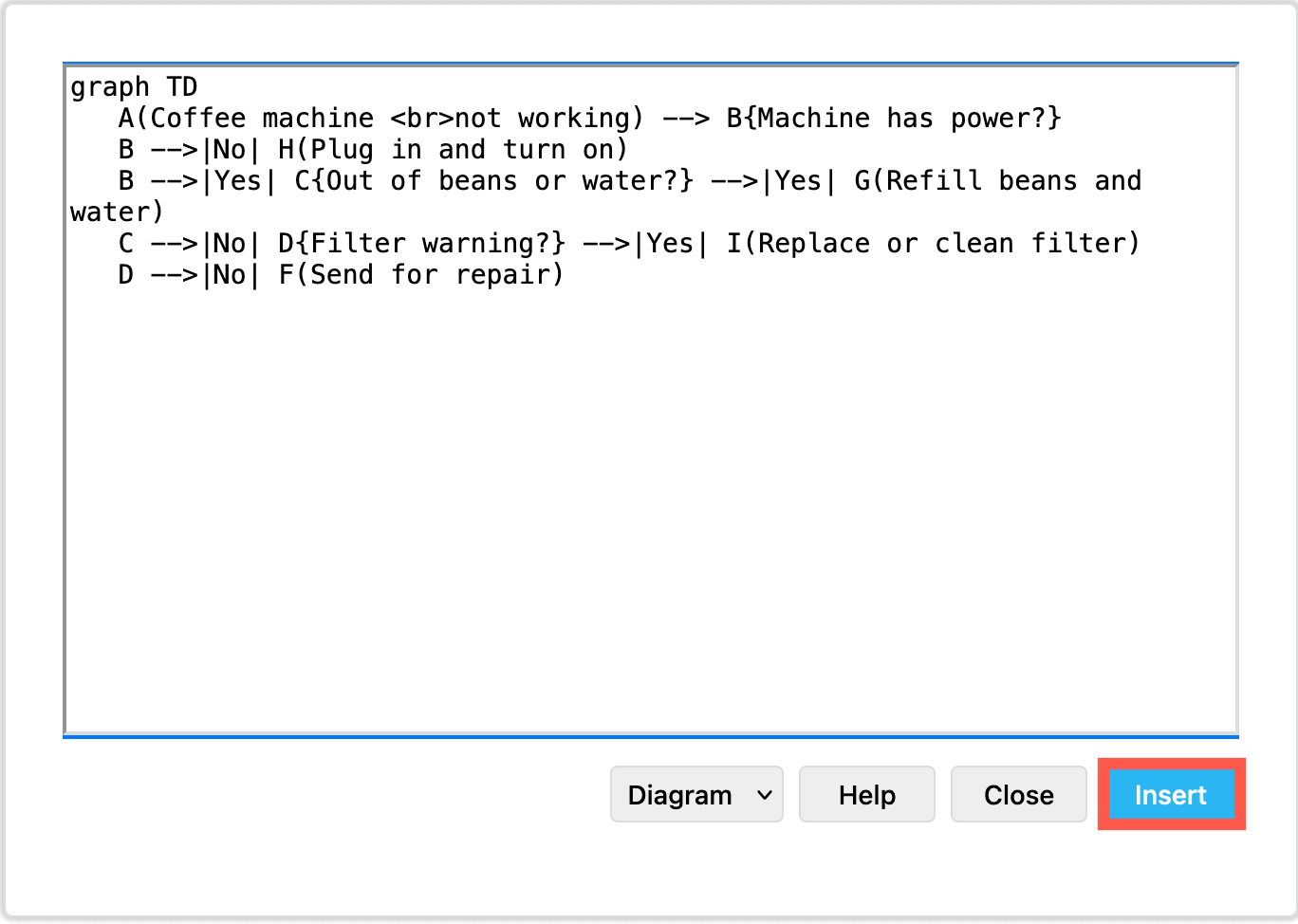
Select Arrange > Insert > Mermaid. Enter the text description of your diagram in Mermaid syntax in the dialog, then click Insert to automatically generate diagram using draw.io shapes (Diagram) or as an SVG image (Image) and insert it on the drawing canvas.
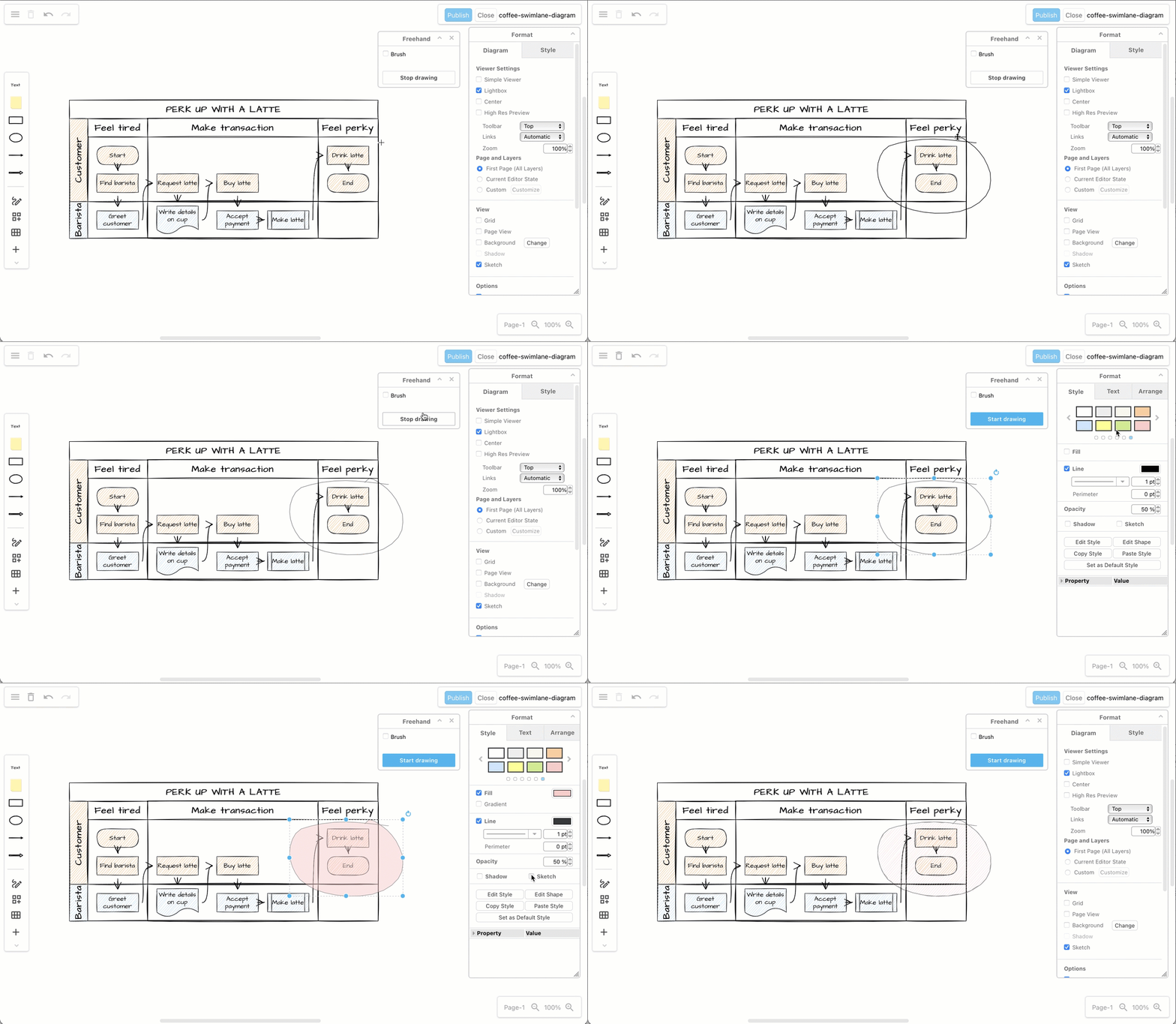
Freehand shapes
Select Arrange > Insert > Freehand, draw your freehand shape with your mouse, or pen/finger on a mobile device, and style it as you would any other shape.
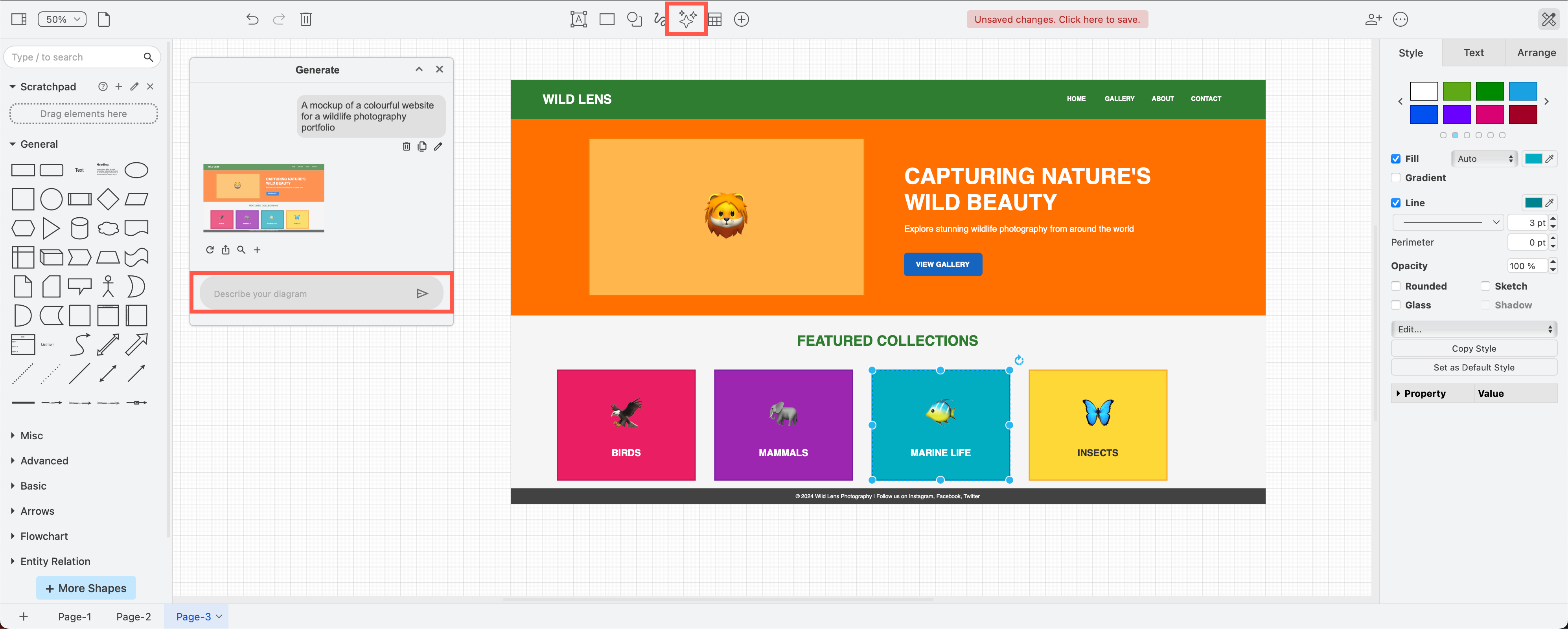
Generated diagram
Select Arrange > Insert > Generate or click on Generate in the toolbar to open a dialog where you can describe your diagram in text and generate a template diagram.
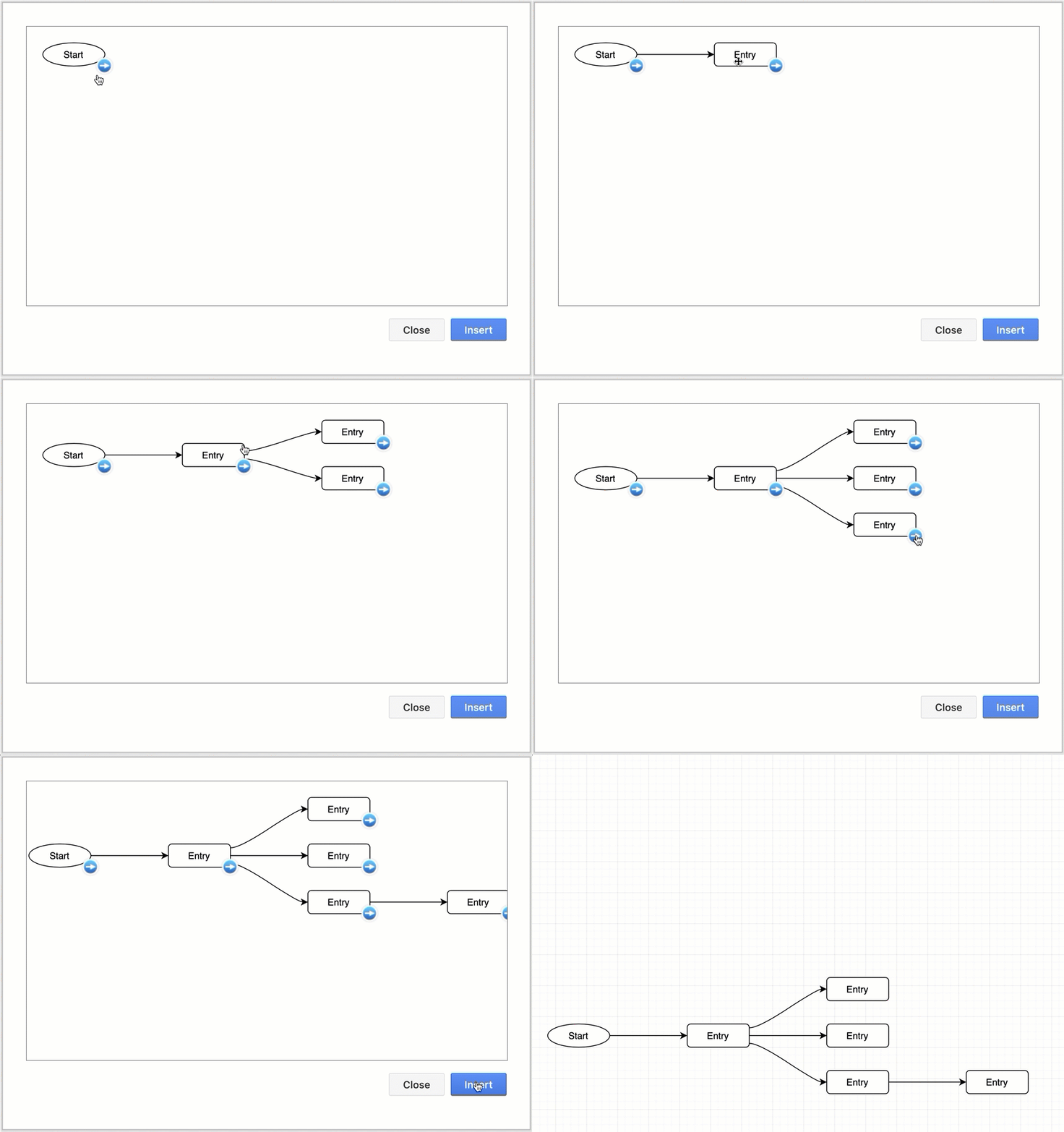
Layouts
- Select Arrange > Insert > Layout to open the layouts dialog.
- Select the style of diagram layout you want to use, build the diagram in the dialog.
- Click Insert to add it to the drawing canvas.
The layout tool will automatically rearrange the shapes in your diagram as you add them, keeping the spacing even and neat.
Diagrams from text
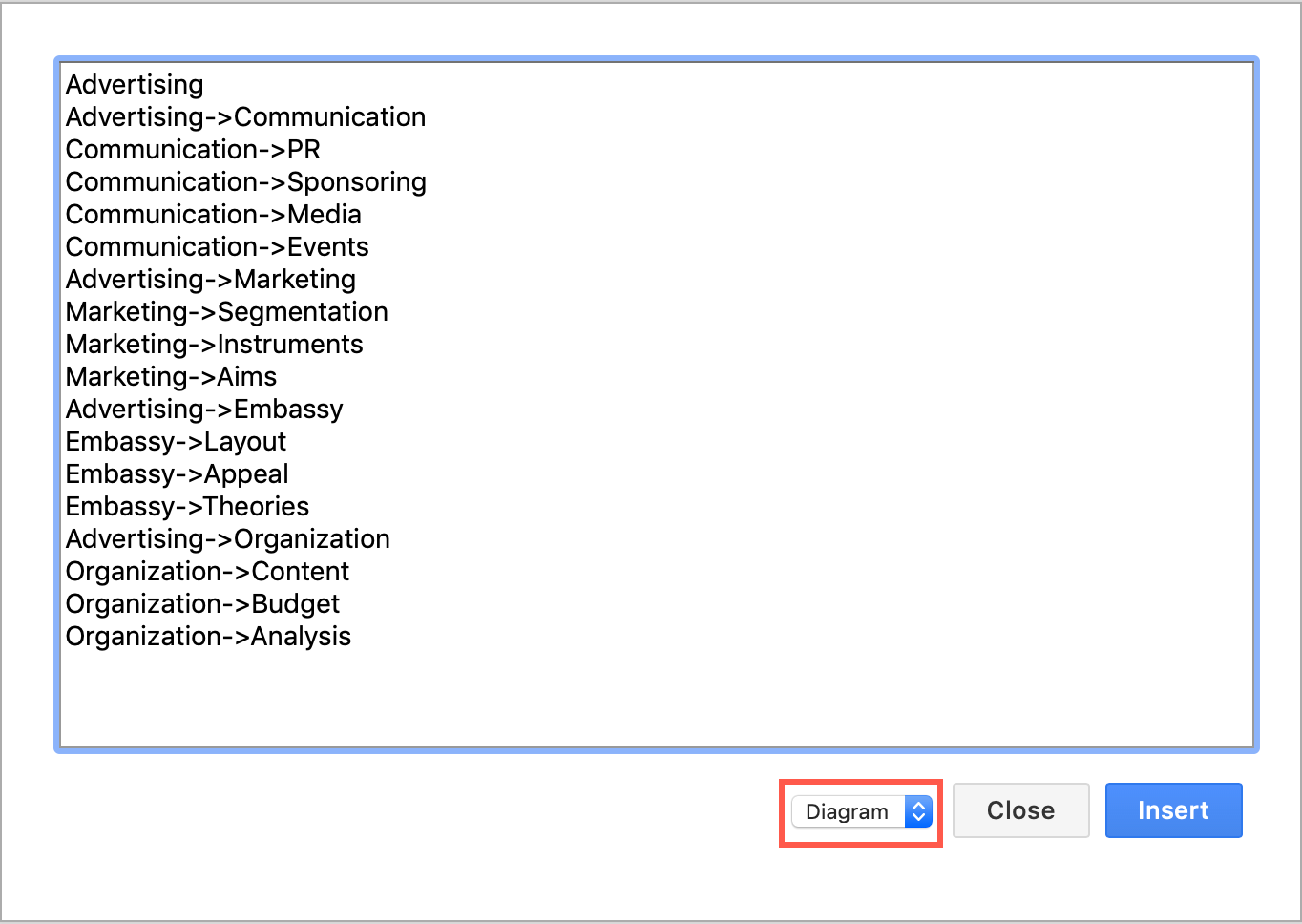
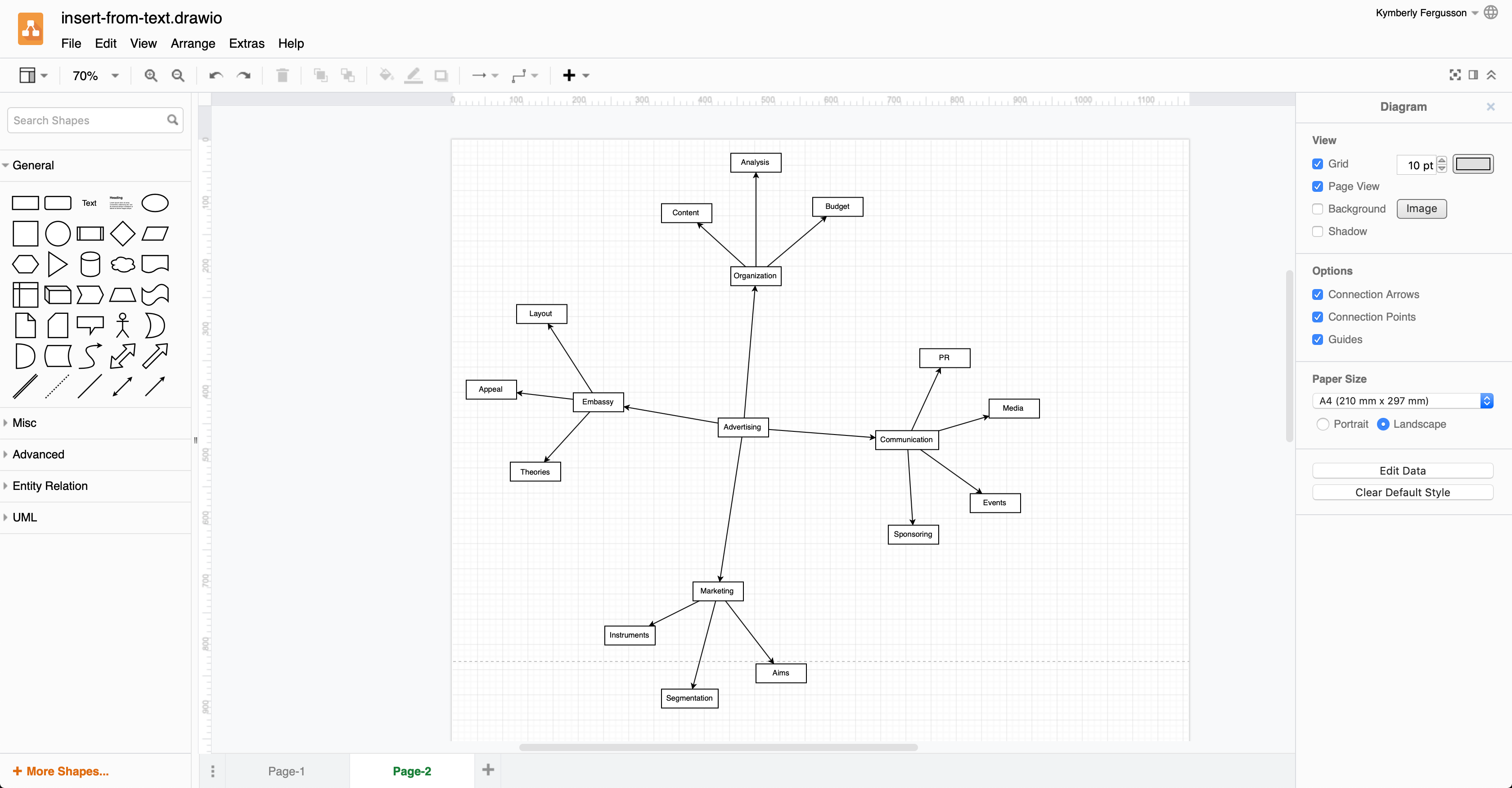
Select Arrange > Insert > Advanced > Text, enter text that represents a simple tree diagram or entities containing simple lists in the text field, select the type of diagram you want from the drop down list at the bottom of the dialog, then click Insert.
Diagrams from PlantUML
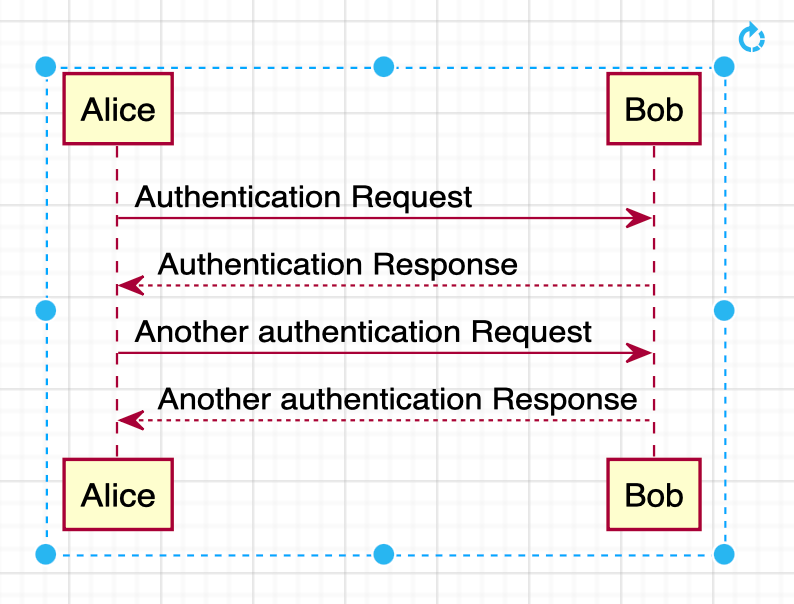
Select Arrange > Insert > Advanced > PlantUML, describe your diagram in PlantUML and click Insert to add it to the drawing canvas.
Note: This feature is currently under active development.
Database entities from SQL code
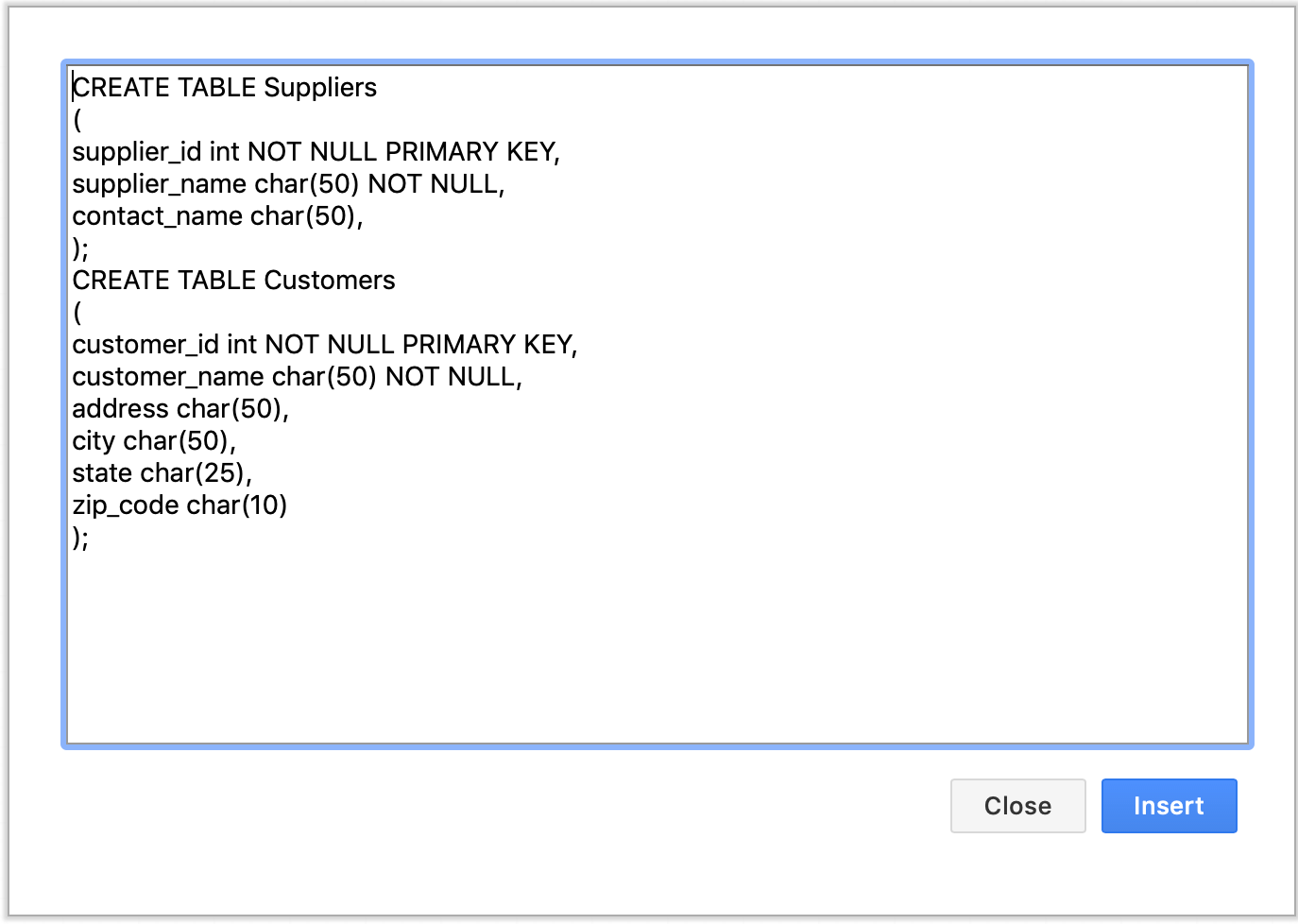
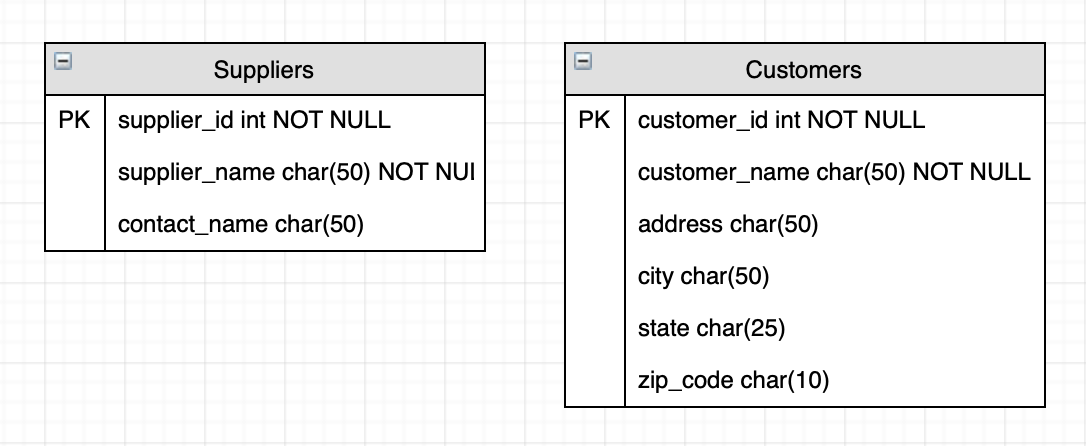
Select Arrange > Insert > Advanced > SQL, add the SQL code in the text field, then click Insert to add the entities to the drawing canvas.
Diagrams from specially formatted CSV data
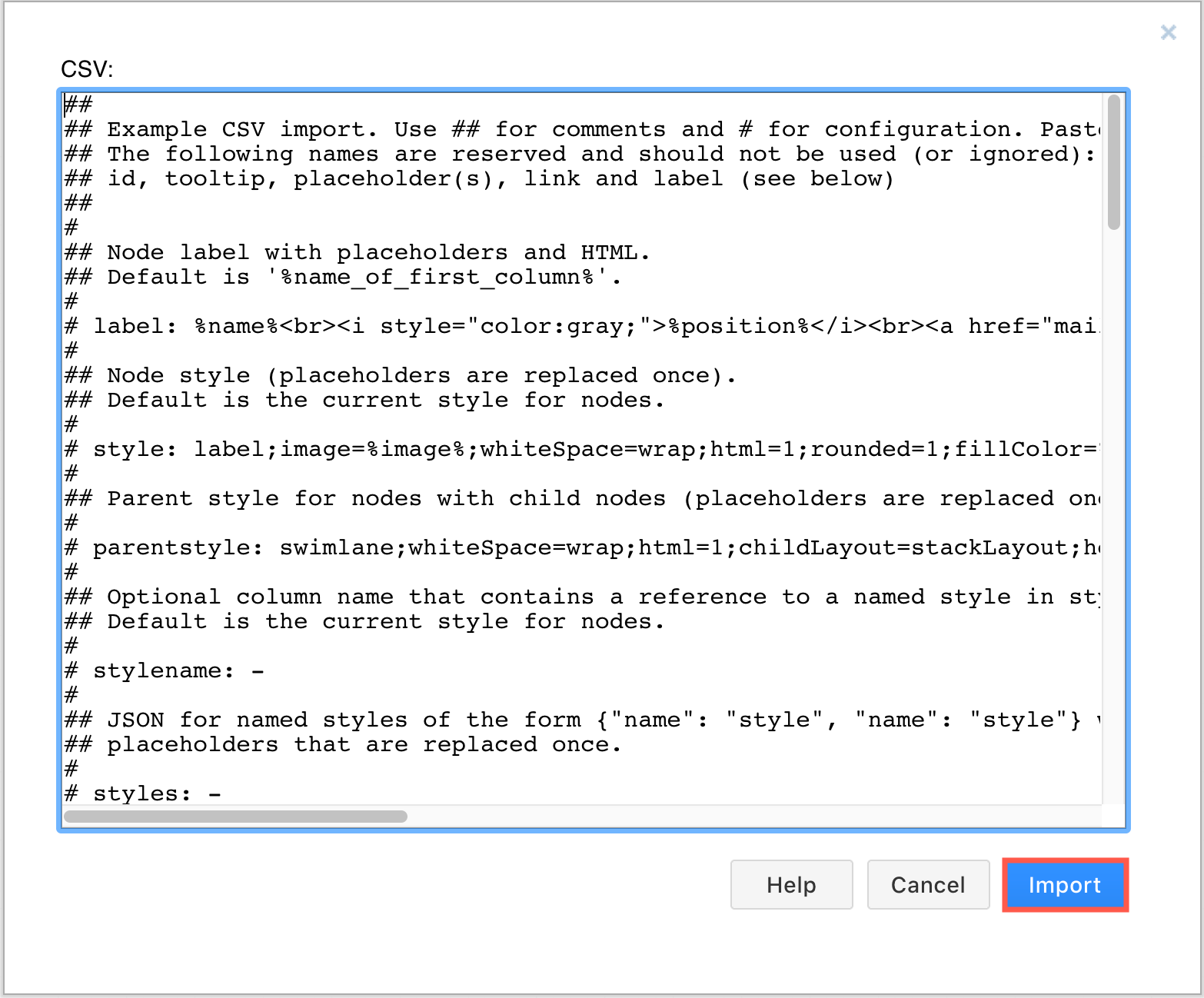
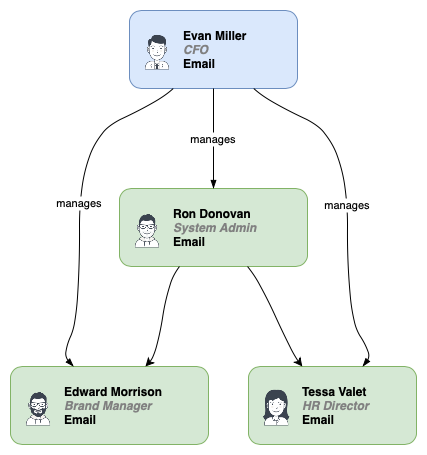
Select Arrange > Insert > Advanced > CSV, past the draw.io formatting and CSV data over the example in the text field, then click Import to automatically generate a diagram and insert it on the drawing canvas.