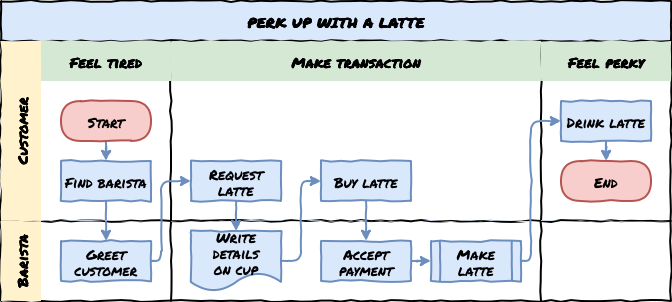
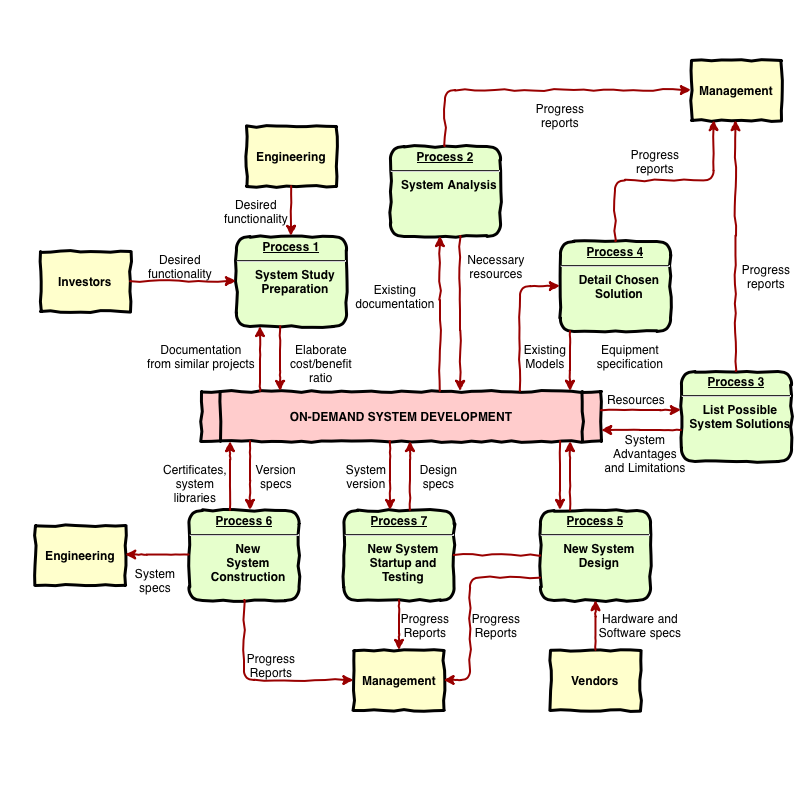
Support for hand-drawn diagrams with rough.js
A more relaxed and informal style for shapes, fills and lines is often used in infographics, teaching materials, maps and reports so that the diagrams are little less sterile and boring. The rough or sketch style adds a hand drawn shading options, rough outlines and connectors, and handwritten text labels.
We have integrated rough.js to update our existing comic style, and this is available in version 13.3.1 onwards.
Apply the rough sketch style
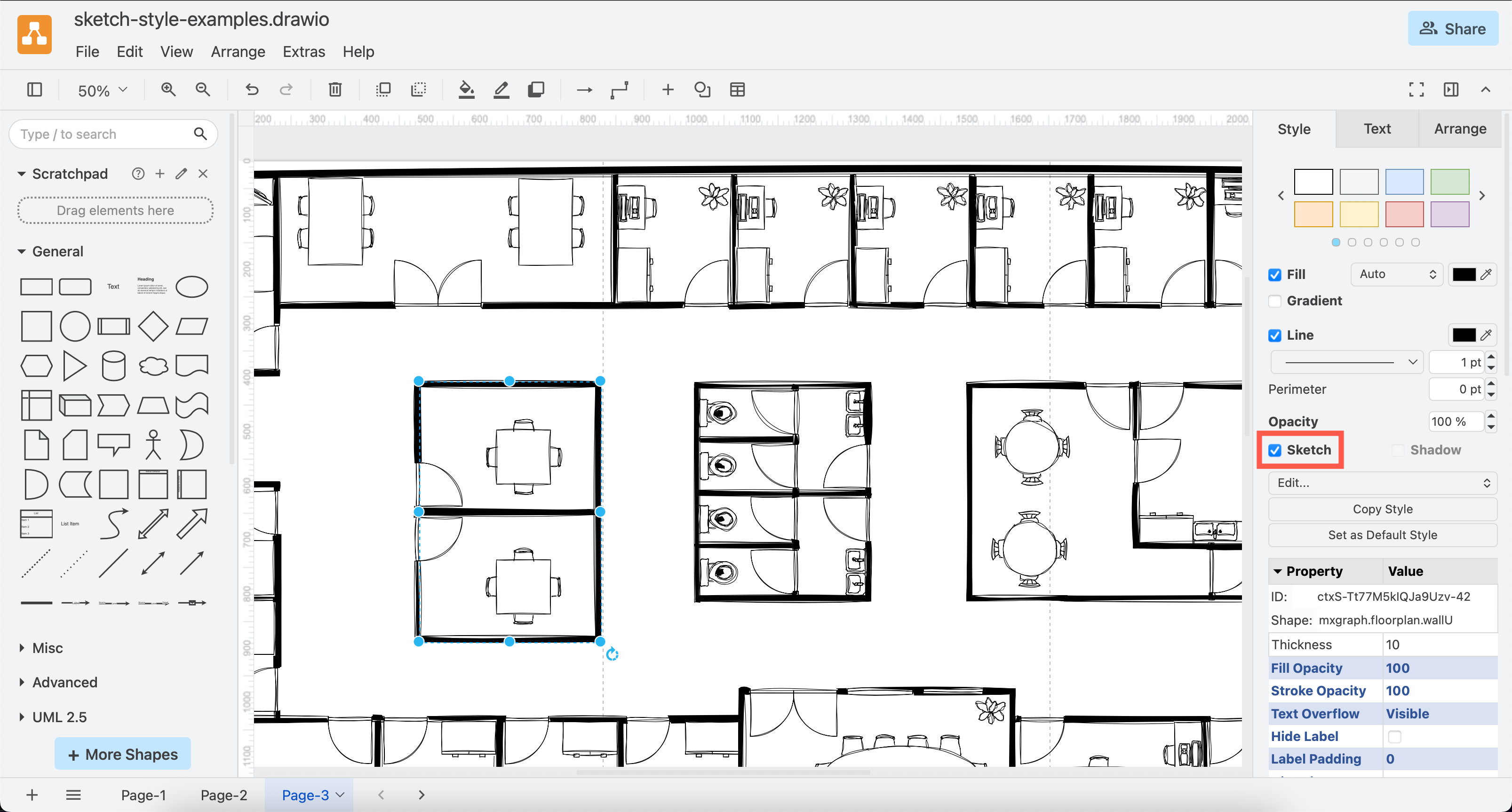
- Select one or more shapes and connectors that you want to roughen.
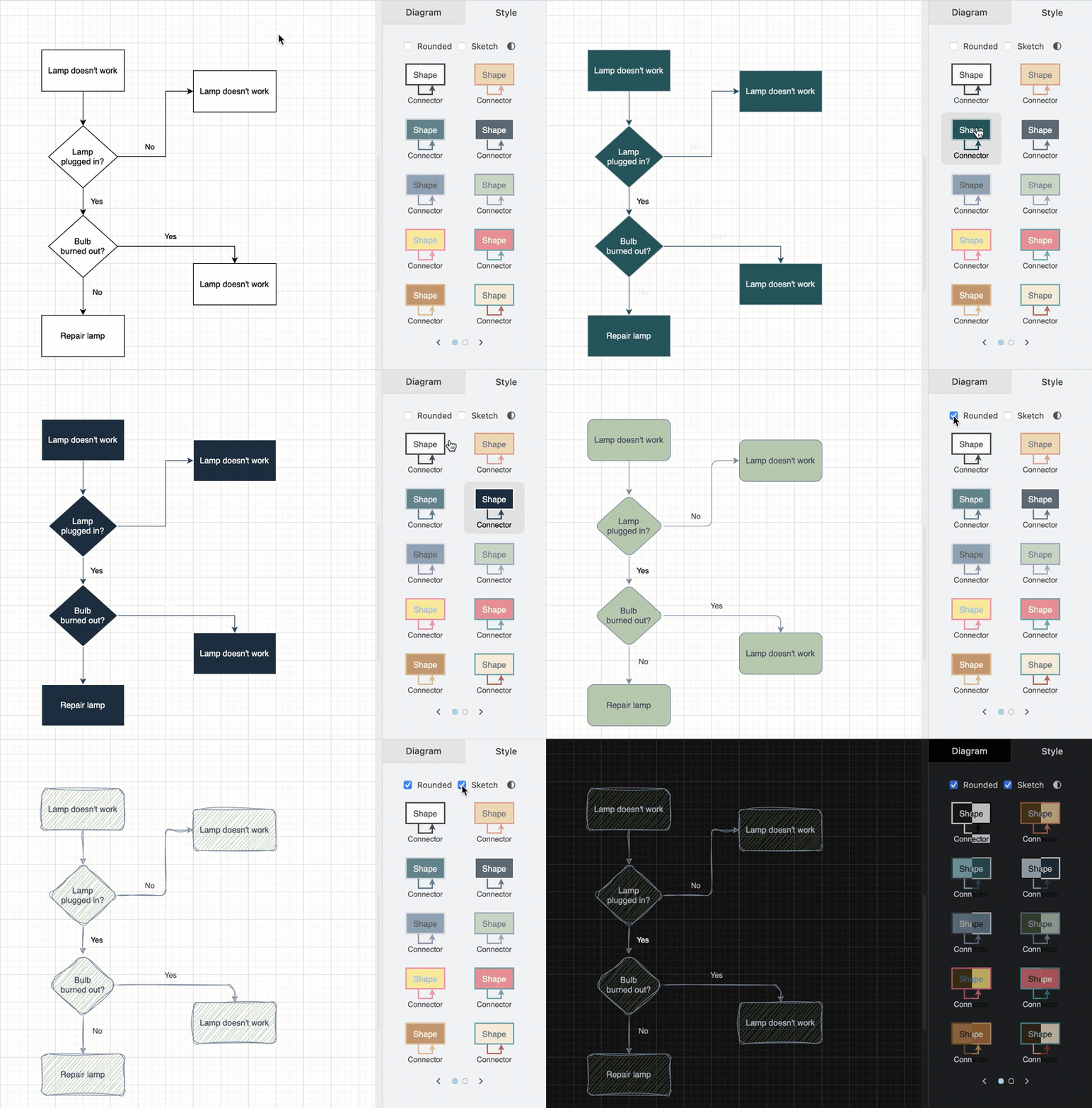
- In the format panel on the right, click Sketch to apply the rough style to your selected shapes, labels and connectors.
Use the comic style
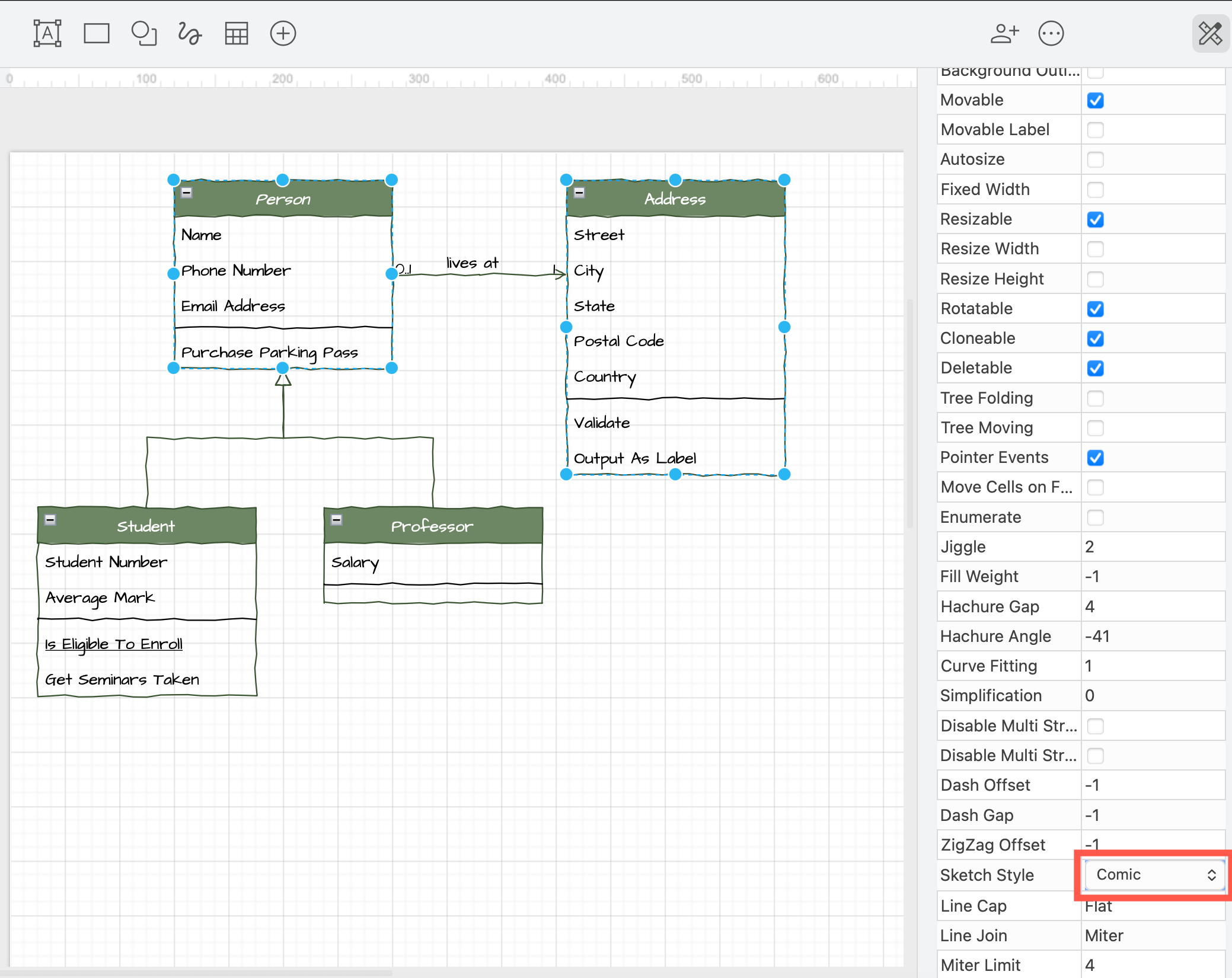
The rough sketch style appears more like a handdrawn diagram. Use the comic style for a more subtle effect.
- Select the shapes and connectors you want to apply the comic style to.
- In the Style tab of the format panel, click on Properties.
- At the bottom, change the Sketch Style dropdown to Comic.
Sketch style fill patterns
- Select the shape or connector.
- In the Style tab of the format panel on the right, make sure the Sketch checkbox is enabled.
- Next to Fill, select a new fill pattern.
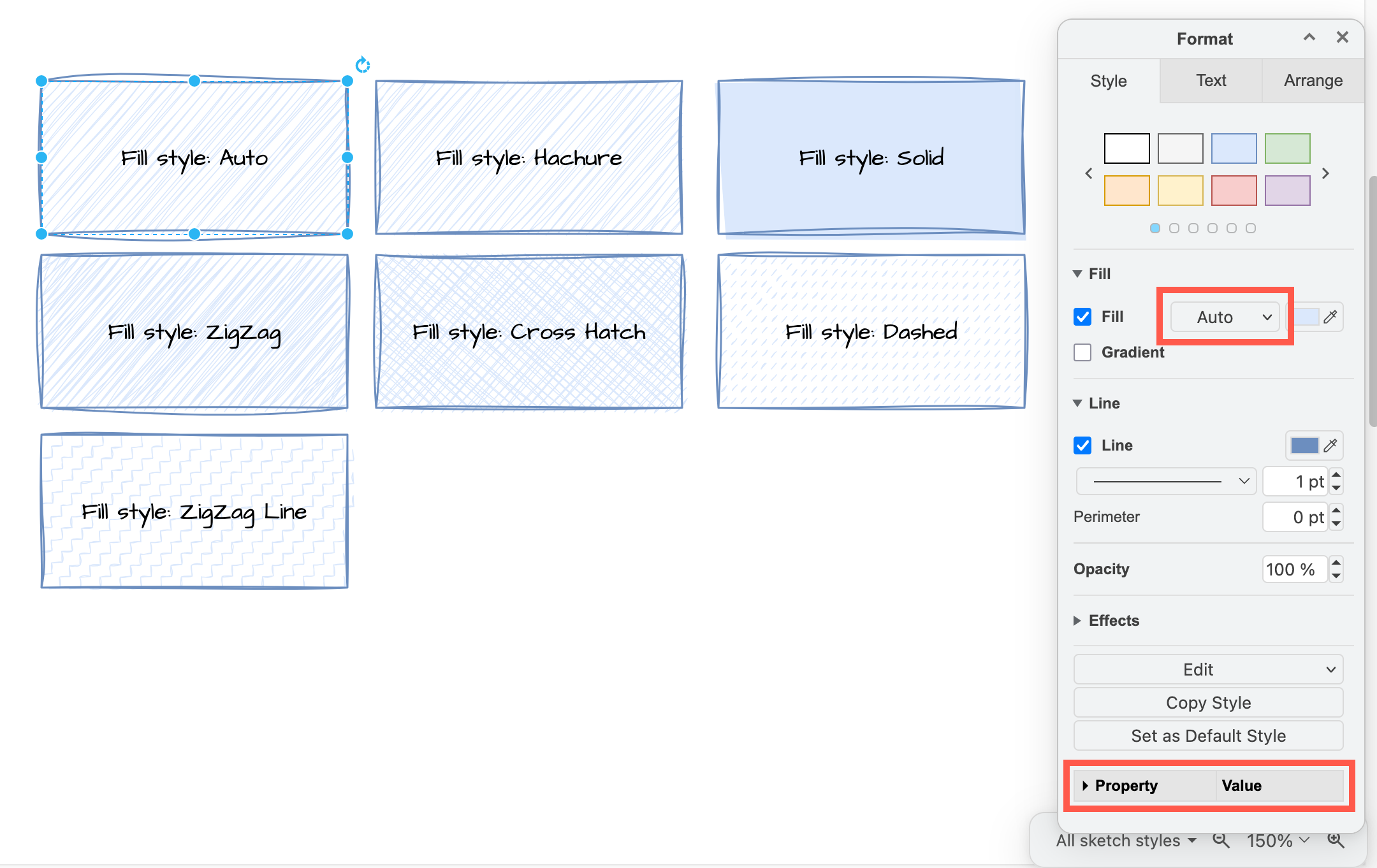
Tip: Use the shape properties at the bottom of the format panel to change the jiggle, angle, fill line widths, multi-stroke, zigzag size and dash properties.
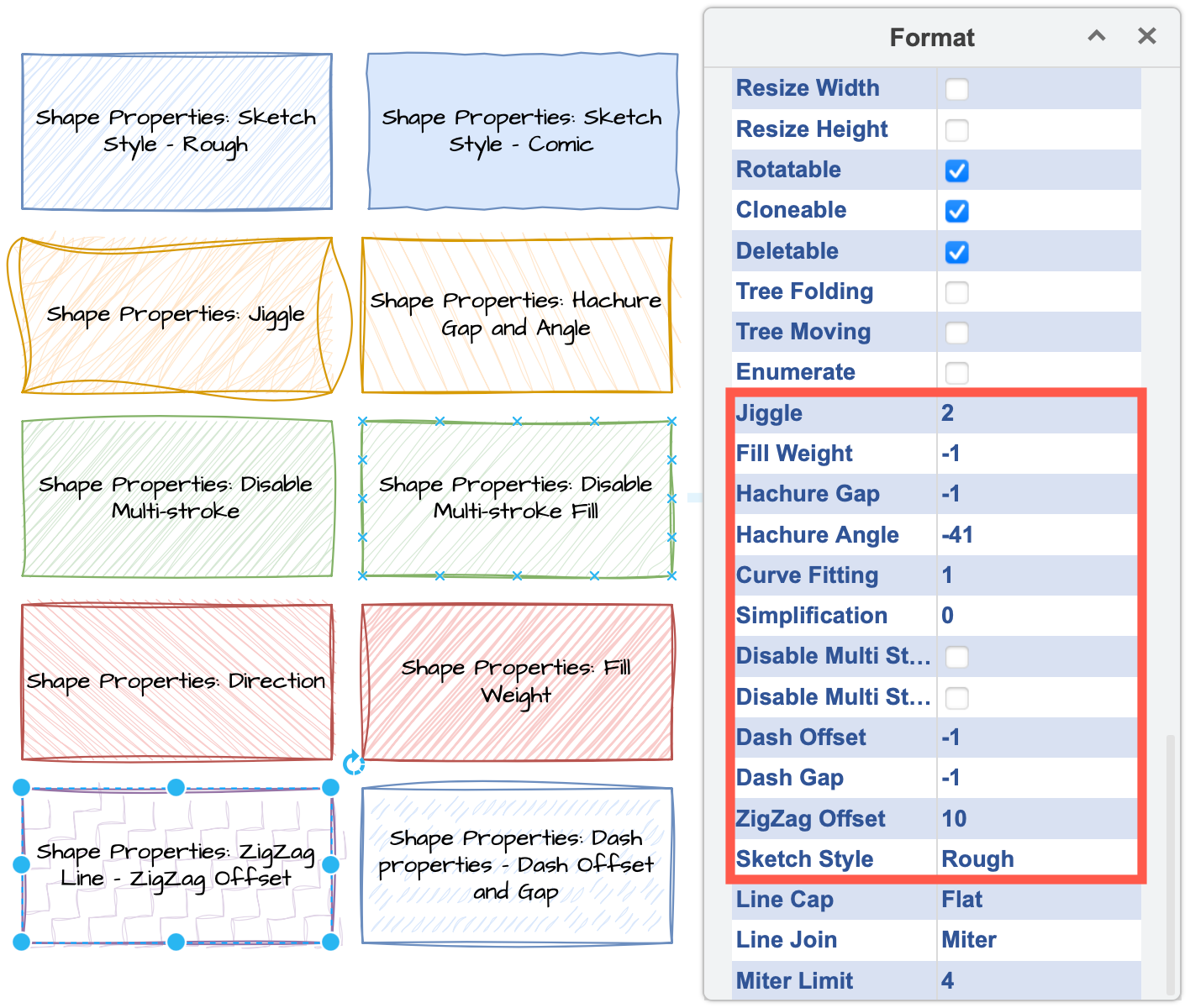
Change properties to customise the sketch style
There are many other properties you can change to customise the sketch style. Note that not all of these properties are applicable to the style you have chosen, but may apply to a different style.
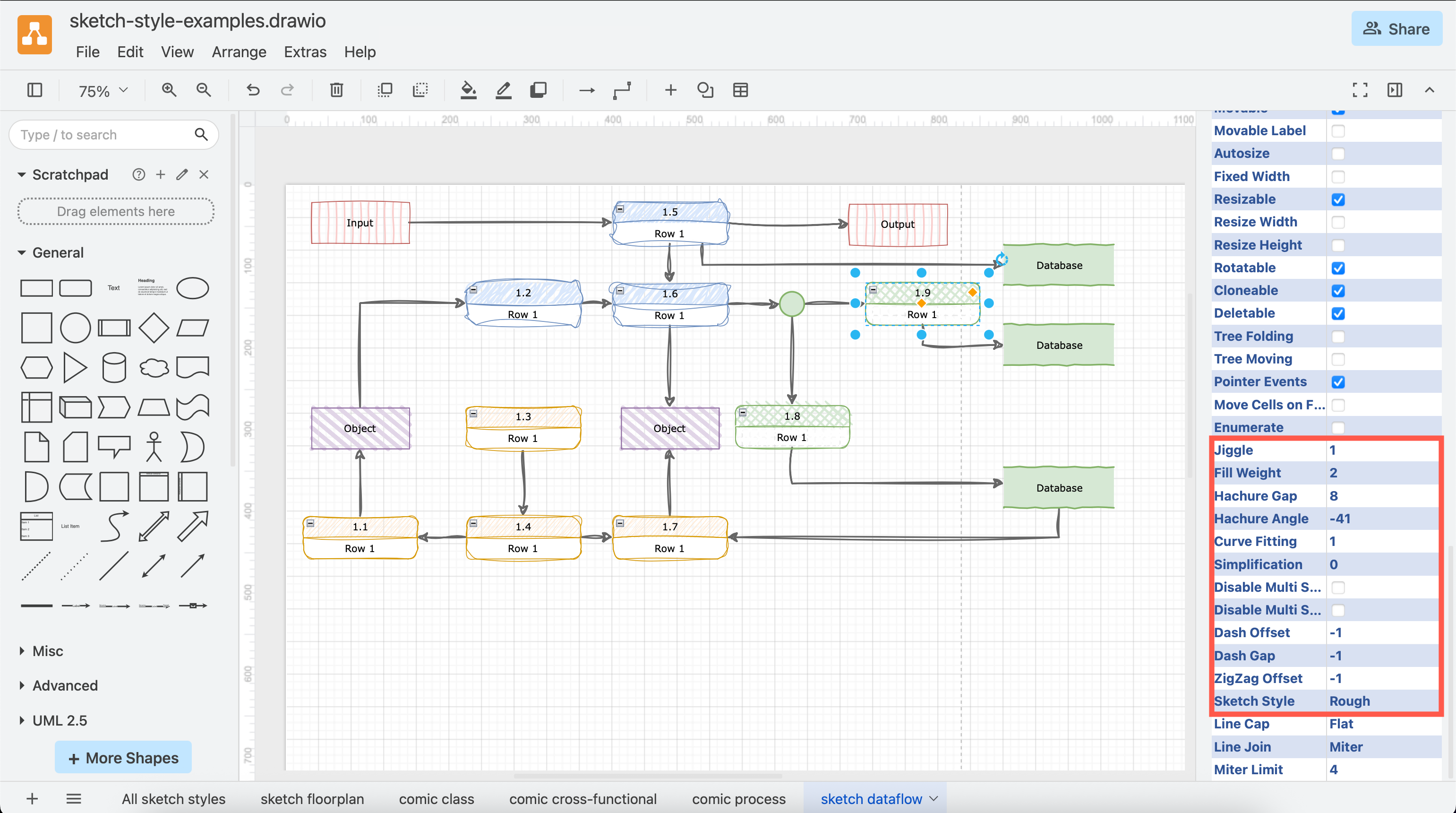
Click on a shape or connector, then expand the Properties section in the Style tab of the format panel on the right. The most common properties are as follows.
- Jiggle - how roughly or randomly the borders, connectors and the fill colours are drawn.
- Fill Weight - set the width of the 'pen' used to draw the fill colour in a shape.
- Hachure Gap - set the distance between the sketched fill lines.
- Hachure Angle - set the direction of the sketched fill lines. Alternatively, change the angle with the Direction shape property.
- Disable Multi Stroke - use only one pass of the 'pen' in the sketched border of a shape or a connector.
- Disable Multi Stroke Fill - use only one pass of the 'pen' in the sketched fill colour in a shape.
- Sketch Style - choose between the rough and comic sketch styles.
Set sketch style on the entire diagram
To apply a global sketch style to all shapes and connectors, make sure nothing is selected in your diagram, then select Sketch in the Style tab of the format panel.
Use the rough=1 URL parameter
Alternatively, add rough=1 as a URL parameter so the whole diagram has that style. For example, to apply the sketch style on the gitflow-examples from our drawio-diagrams repository:
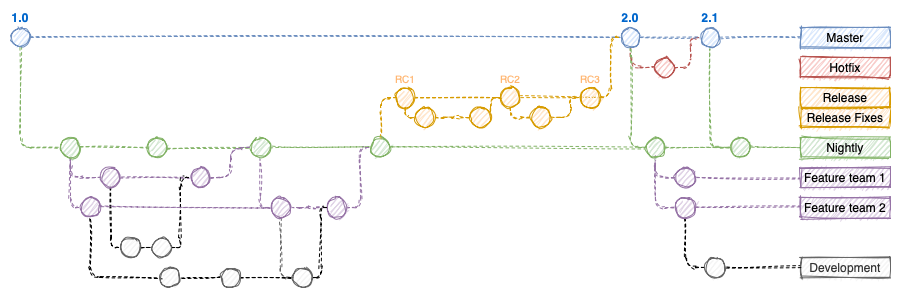
See all of the supported URL parameters.
The rough style can make flowcharts a little less intimidating in training and onboarding materials.