Work with default styles
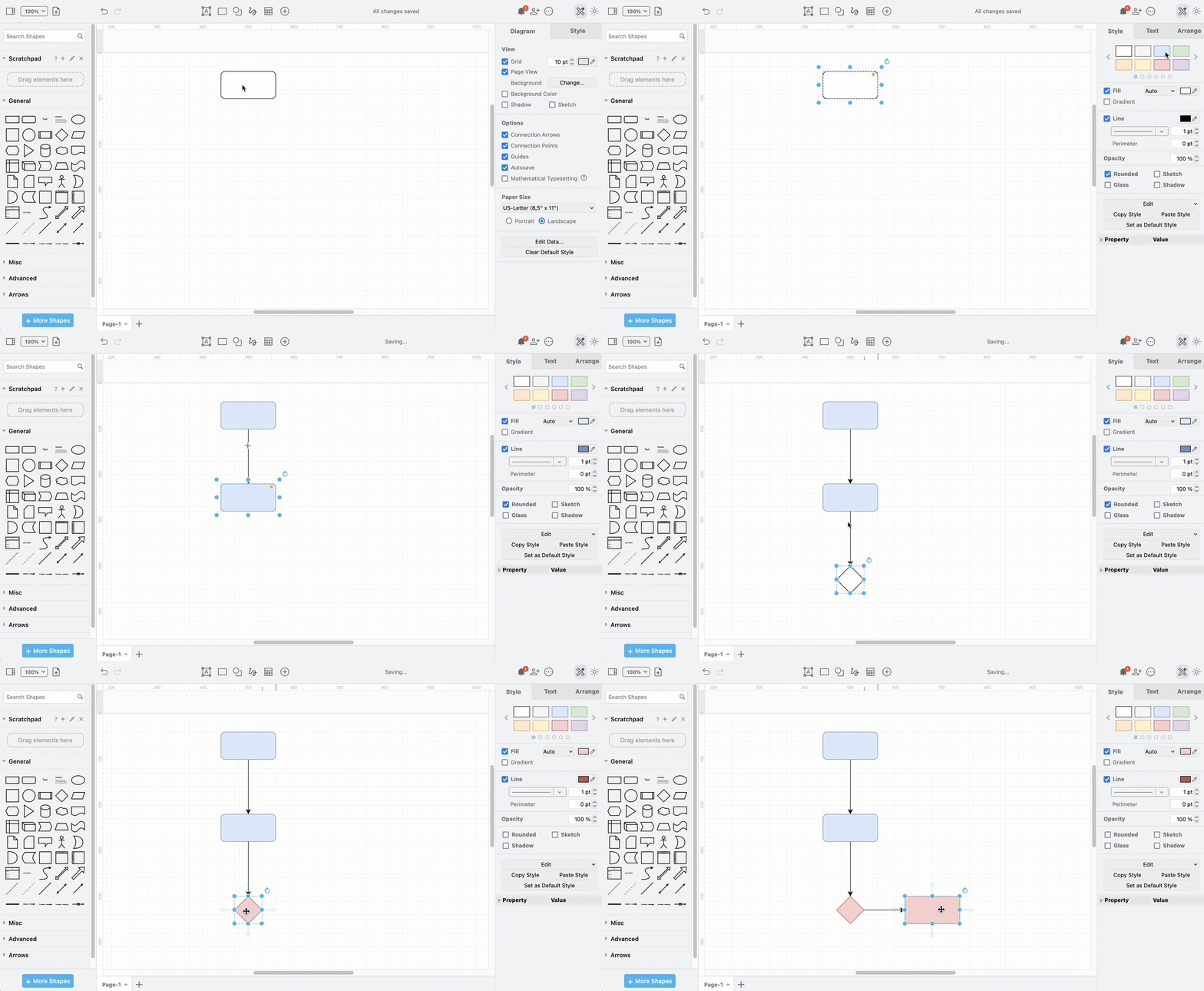
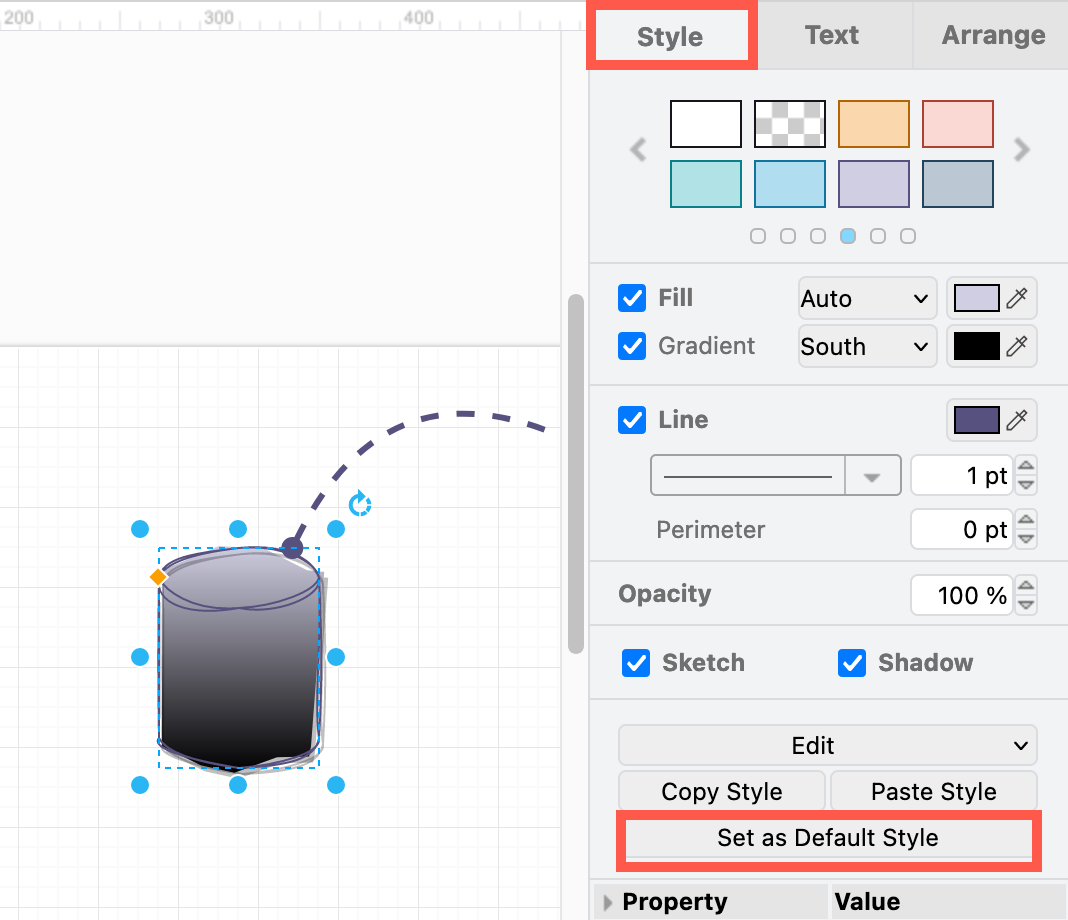
You can change the default styles of shapes and connectors easily as you are creating your diagram with Set as Default Style in the Style tab of the format panel. Whenever you add a new shape or connector from the shape library or toolbar, this new default style will be applied.
See how to apply shape styles and connector styles
Set a default style
Connector styles and shape styles each have their own default style, so you need to set them separately.
- Style your shape or connector on the drawing canvas first.
- While it is selected, click on Set as Default Style from the Style tab of the format panel.
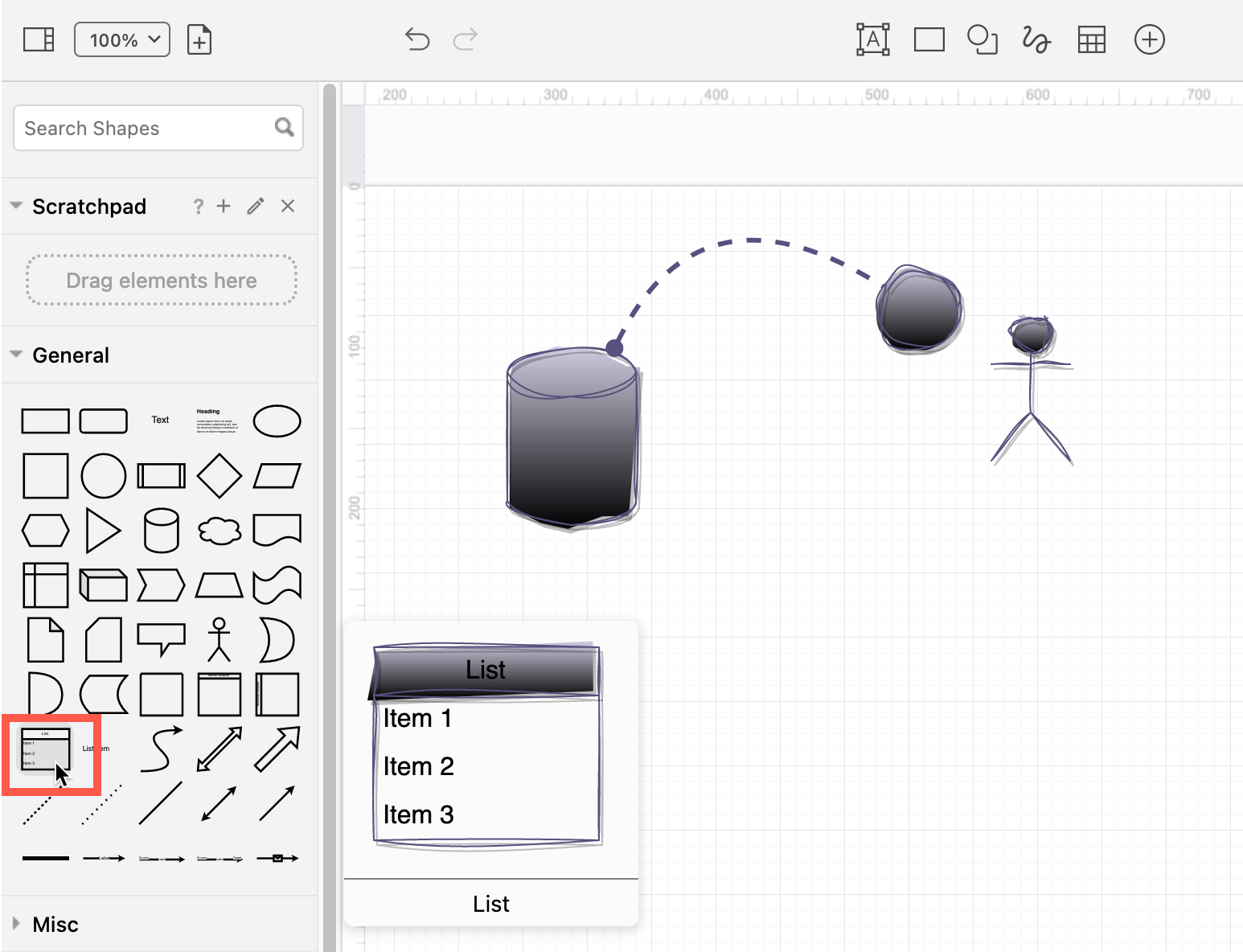
Shapes and connectors that you add from the shape libraries on the left or from the toolbar above the drawing canvas in simple mode will always use the default style.
Tip: Hover over any shape in the shape libraries to see if a default style has been set.
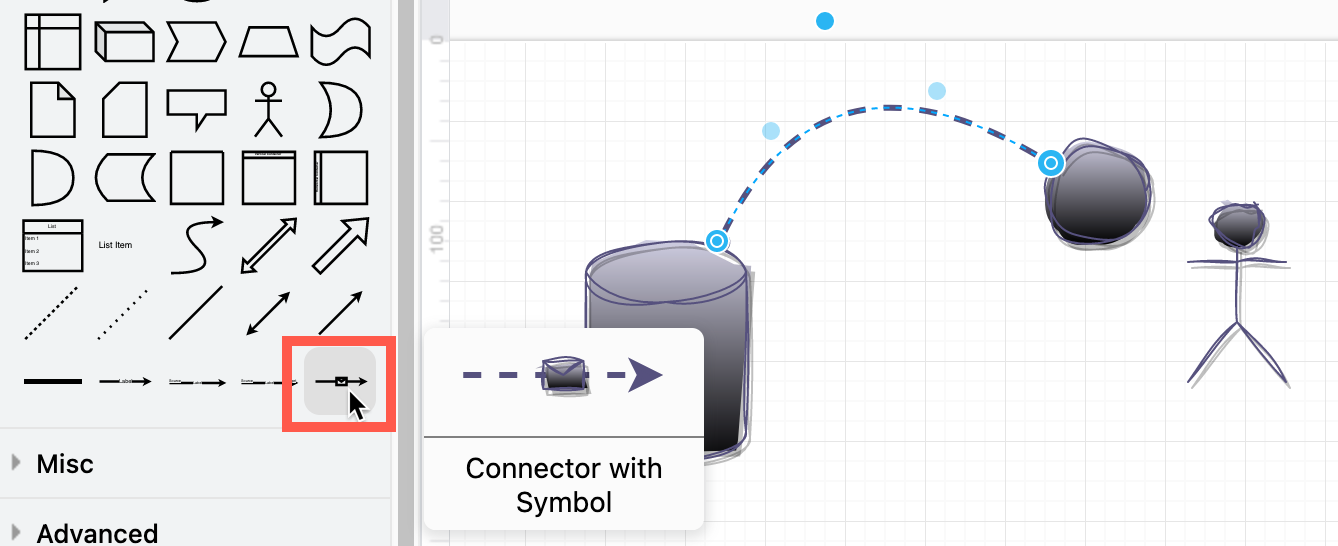
The connector default style will be applied to connectors you drag from the shape library.
When you double-click on a blank section of the drawing canvas, the shape selection box will also use the default shape style.
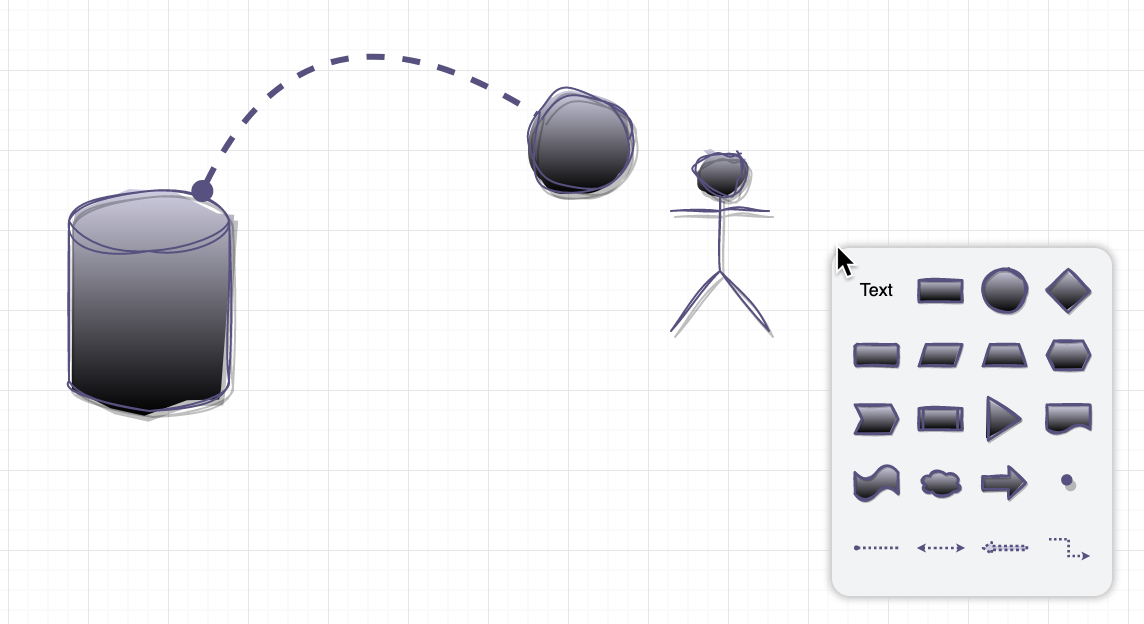
Clear or reset the default style
- Make sure nothing is selected in your diagram so you can see the Diagram tab in the format panel.
- Click on Clear Default Style on the Diagram tab in the format panel.
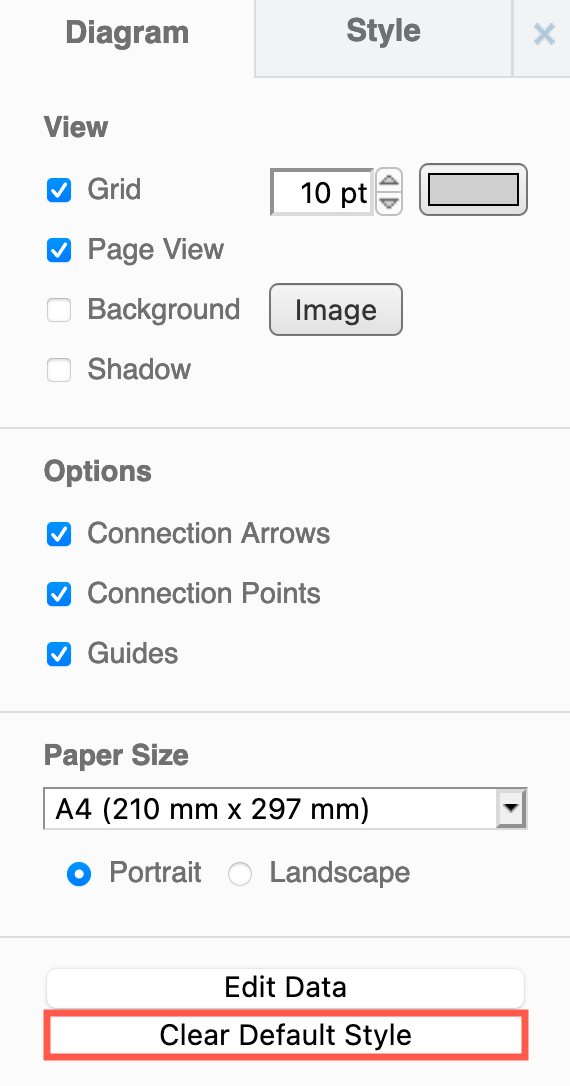
This will reset both the shape default style and the connector default style.
Context-sensitive new shape styles
When you hover over a direction arrow, you can select a shape to add and connect in one step. This shape will always take the style of the shape you are using as a reference - not the default style.