3 posts tagged with "shapes"

View All Tags

Draw custom polygon shapes

· 3 min read

You can use the new polygon shape dialog to draw open or closed polygons quickly and easily by clicking on their perimeter.

To start drawing a new polygon shape, select Arrange > Insert > Polygon from the menu, or + > Polygon from the toolbar.

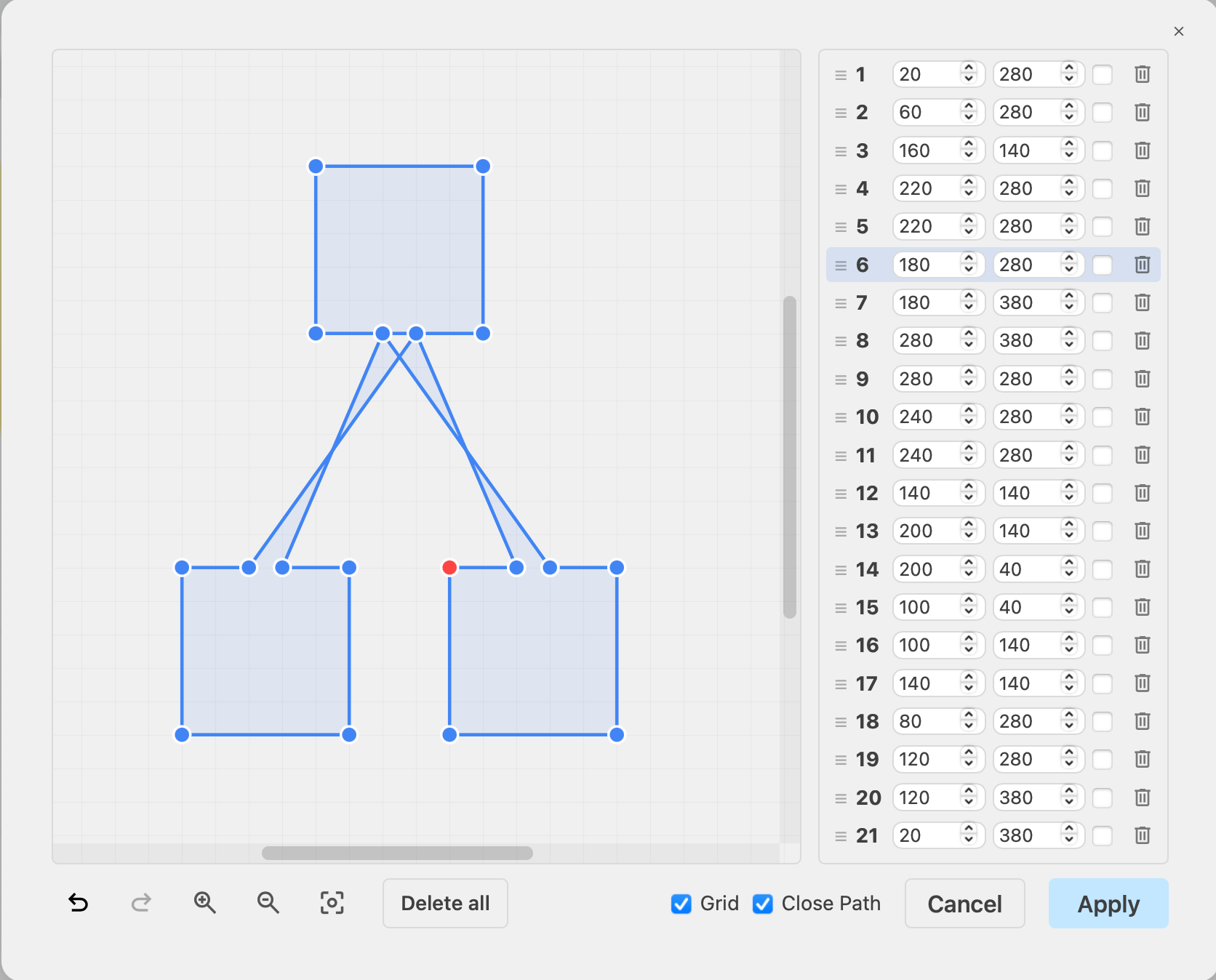
  1. Click anywhere on the grid on the left to add a point.
  2. Click again to add another point and a line will be drawn between them.
  3. Click a third time to add a third point. This will be connected to both the second and the third point. You need a minimum of three points for a closed polygon.

Continue clicking to add more points. To change the shape of your polygon, you can drag any point to another location in the grid, or click in between two points to add a new point.

No grid: You don't have to work with the grid, if you want to freely position the points in your polygon. Deselect the Grid checkbox.

Open polygon: If you don't want your polygon to be a closed shape, deselect the Close Path checkbox.
You can insert note shapes via Arrange > Insert > Note in draw.io

The co-ordinates of each point of the polygon will appear in a list on the right.

  • Drag them into a new position in the list using the left horizontal line icon.
  • Click on the trash icon to the right of any point to delete it.
  • Make the line between two points into an arc by selecting the checkbox next to the co-ordinate. Drag the orange arc points to increase or decrease the curvature.
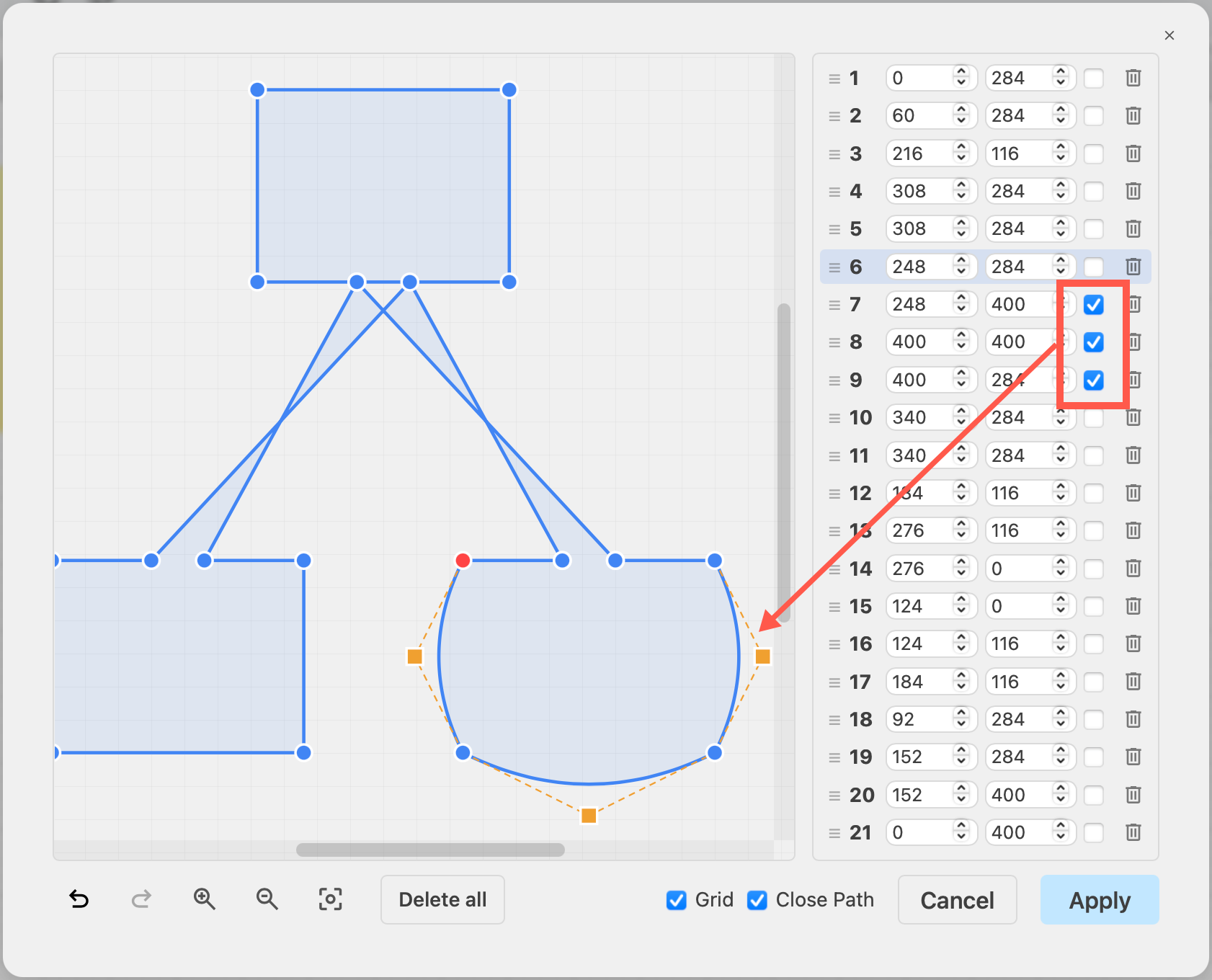
    Turn a straight edge of a polygon into an arc

At the bottom left of the dialog, you can Undo and Redo changes, Zoom In and Zoom Out, and start over when you click Delete All

Once you have finished drawing your polygon, click Apply to add it to the drawing canvas.
You can draw polygon shapes in the polygon editor via Arrange > Insert Polygon in the draw.io menu

Edit an existing polygon

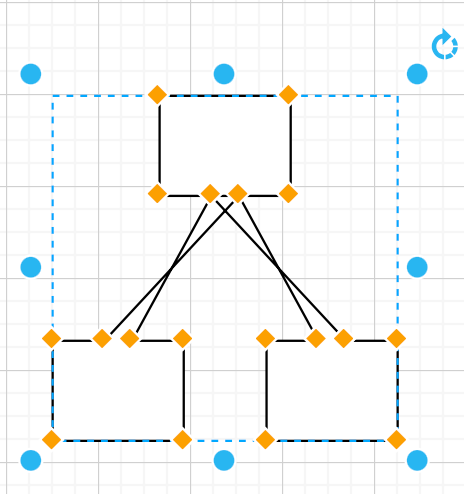
  • Right-click on the polygon shape to open it in the polygon editor. Alternatively, select the polygon, then select Edit > Polygon from the menu. This only works with polygons drawn in this polygon editor.
  • Right-click on the shape and select Edit Connection Points, or select the shape and choose Edit > Edit Connection Points in the draw.io menu to set custom connection points.
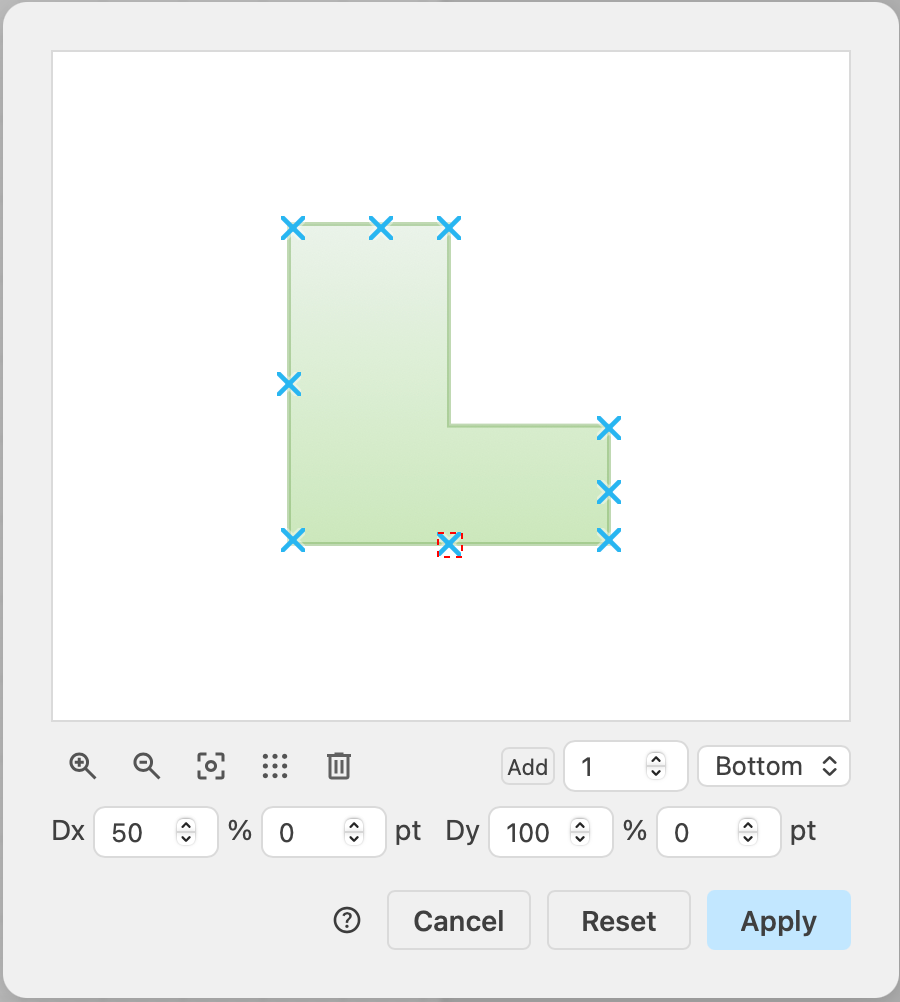
    Add your own connection points to your custom polygon - right click and select Edit Connection Points

Align connectors easily with a waypoint shape

· 4 min read

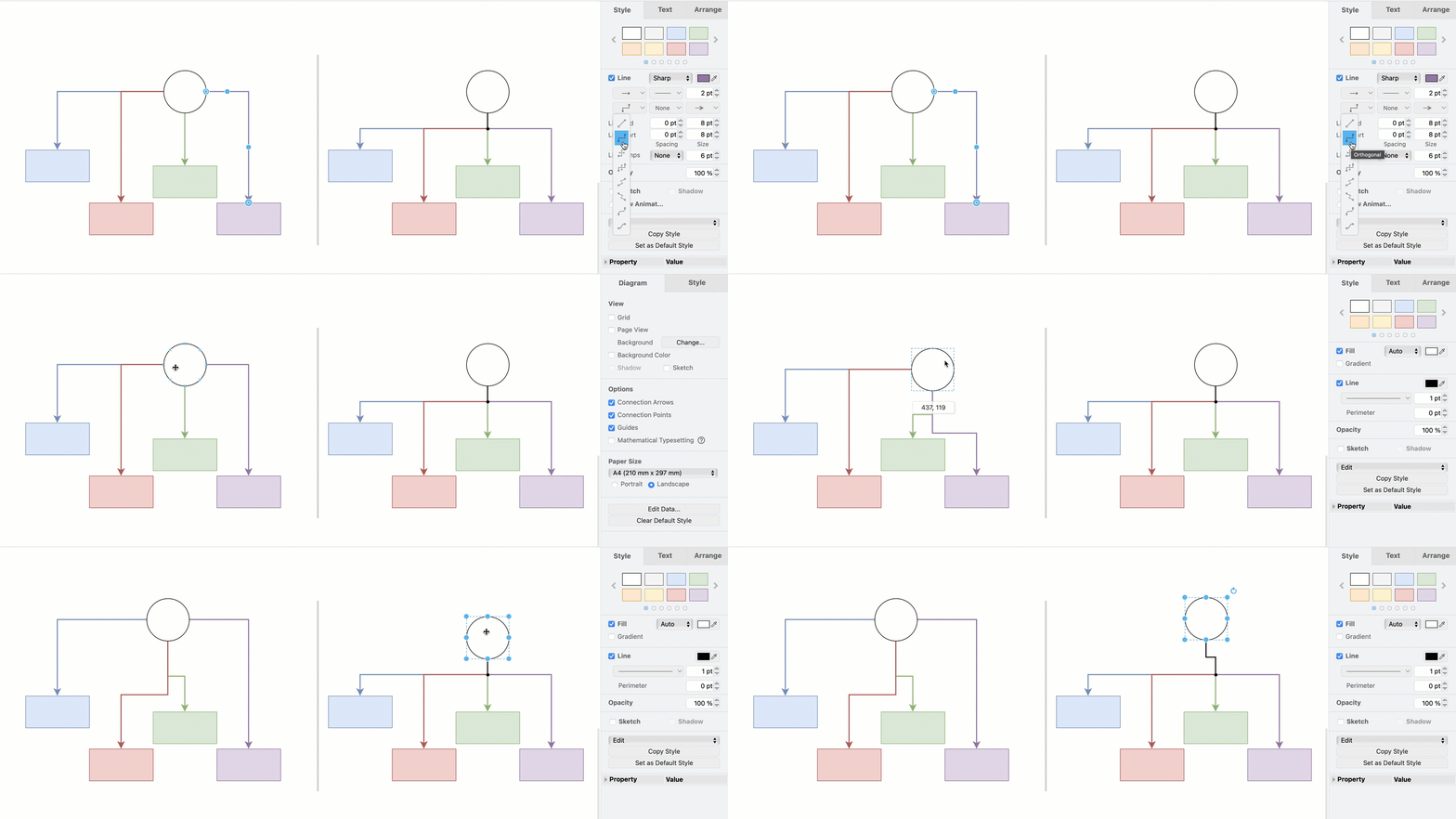
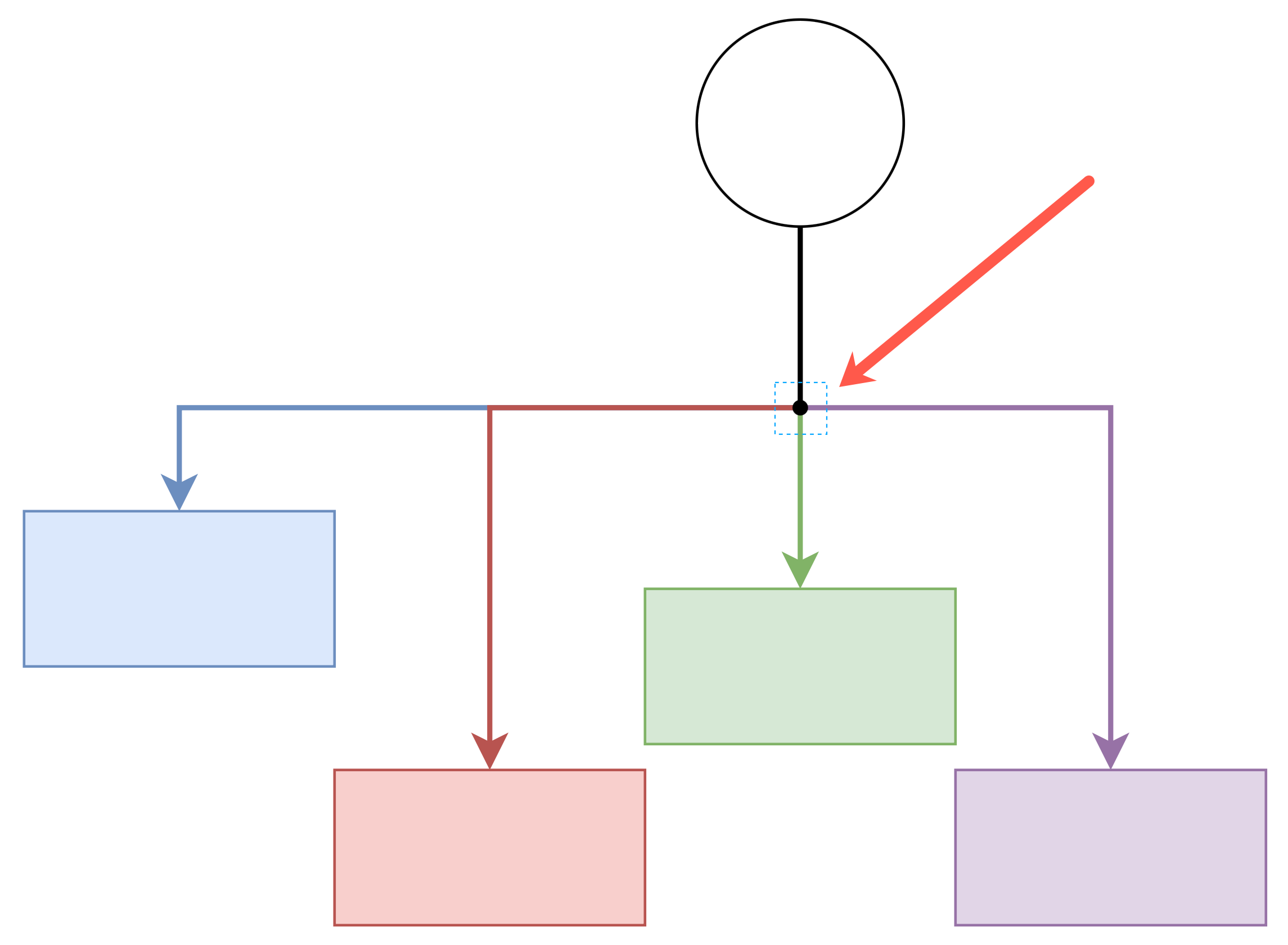
In any diagram with branches - trees and org charts, Ishikawa diagrams, wiring diagrams, and even some flow charts - you will have multiple overlapping connectors attached to the parent shape. Using a waypoint shape between connectors will prevent manual alignment frustration when you move the parent or child shapes.
A waypoint shape will make your tree connectors neater

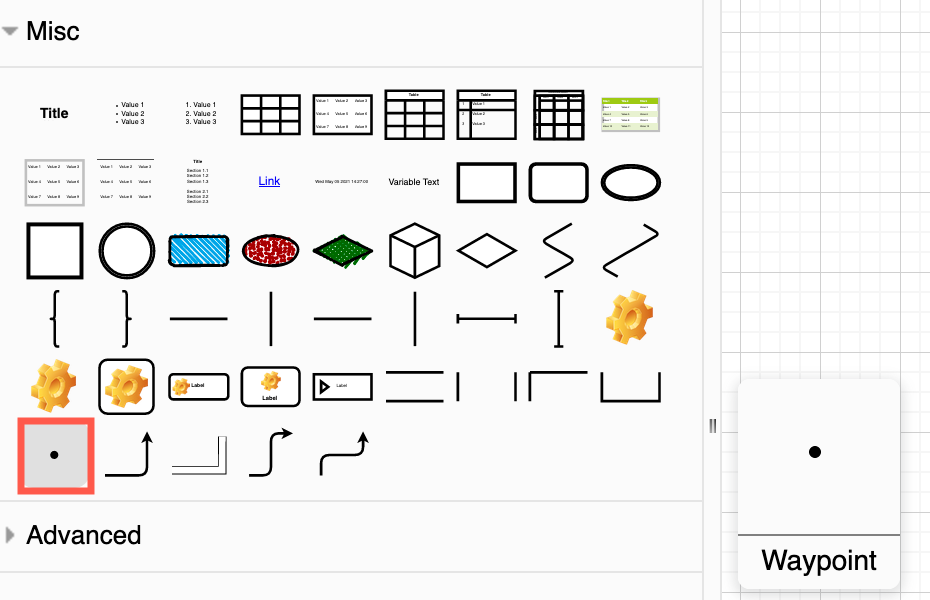
The waypoint shape

The Waypoint shape is in the Misc shape library, which is a subcategory in the General shape library.
The waypoint shape is available in the shape library

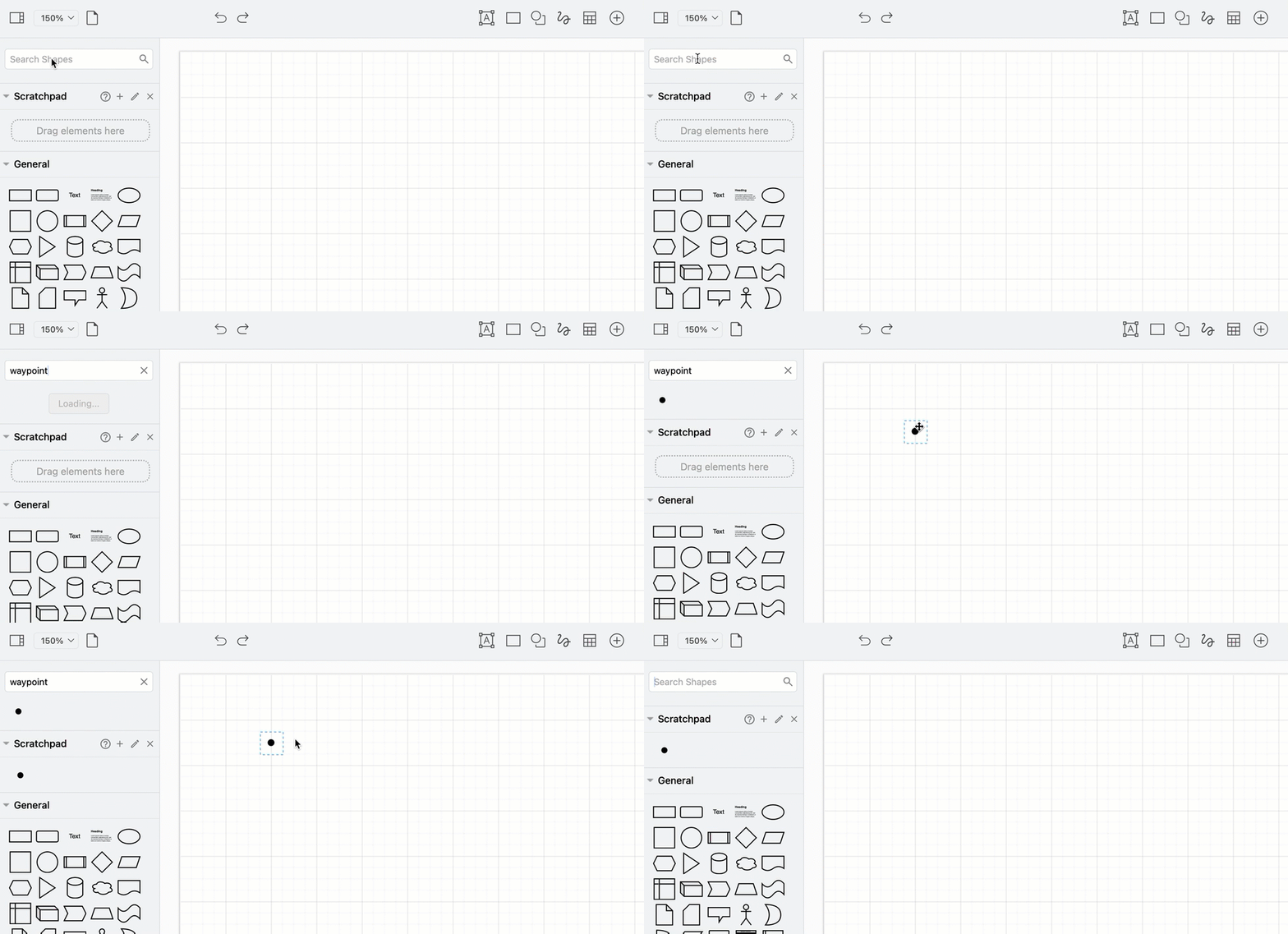
If you are going to use the waypoint shape or any other shape often, add it to the scratchpad so you can find it easily.

  1. Search for waypoint in the shape panel.
  2. Add this Waypoint shape to the canvas.
  3. Drag it back onto the Scratchpad in the shape panel - by putting in the Scratchpad, you won't have to go search for it.
    If you are going to use a shape often, like this waypoint shape, drag one from the drawing canvas to the scratchpad for easy access

Faster and neater diagrams

Tree diagrams, org charts and flowcharts look great with neat orthogonal connectors - lines with aligned vertical and horizontal bends. These connections look best when 'tied together' where multiple connectors attach to a single parent shape, instead of overlapping.

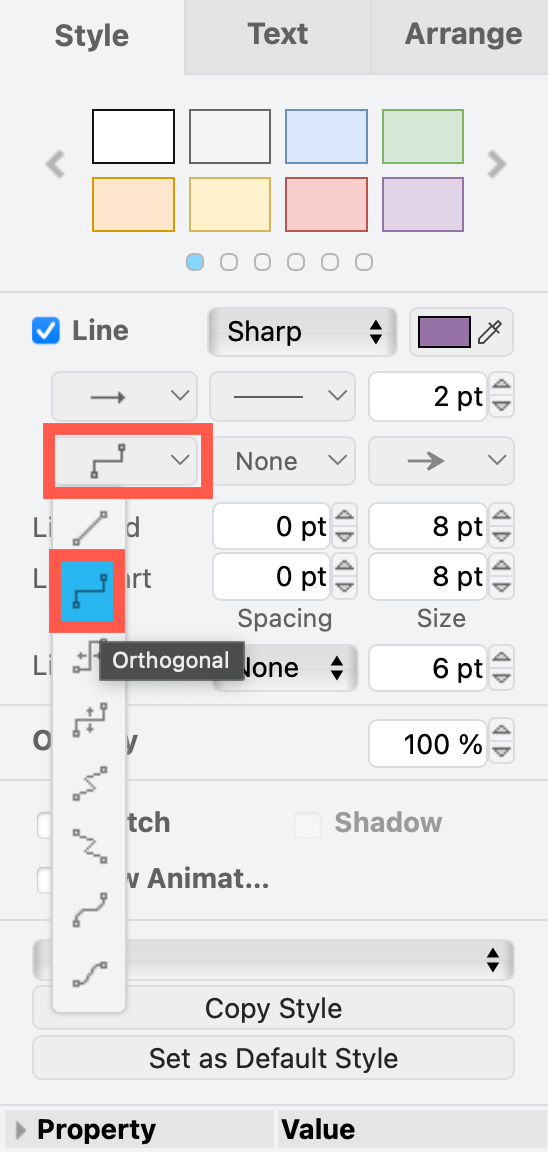
Select one or more connectors and choose Orthogonal (or Vertical or Horizontal) from the Waypoints drop down list in the Style tab of the format panel.
Orthogonal connectors are ideal for neat trees, graphs and flowcharts

Place a waypoint shape in between the parent shape and the child shapes at the spot where the connectors would neatly separate. Then drag a connector from the parent shape to the waypoint shape. And drag connectors from the waypoint shape to each of the child shapes.
Place the waypoint shape between the parent and child shapes at the spot where the connectors neatly separate

draw.io automatically repositions connectors as you move shapes around the drawing canvas, especially if you use floating connectors. Waypoint shapes help you keep your connector alignment neat.
A waypoint shape will make your tree connectors neater

Hide the waypoint shape

While it is useful to see the waypoint shape in some diagrams, such as electrical wiring diagrams, you may want to hide it in tree diagrams and org charts.

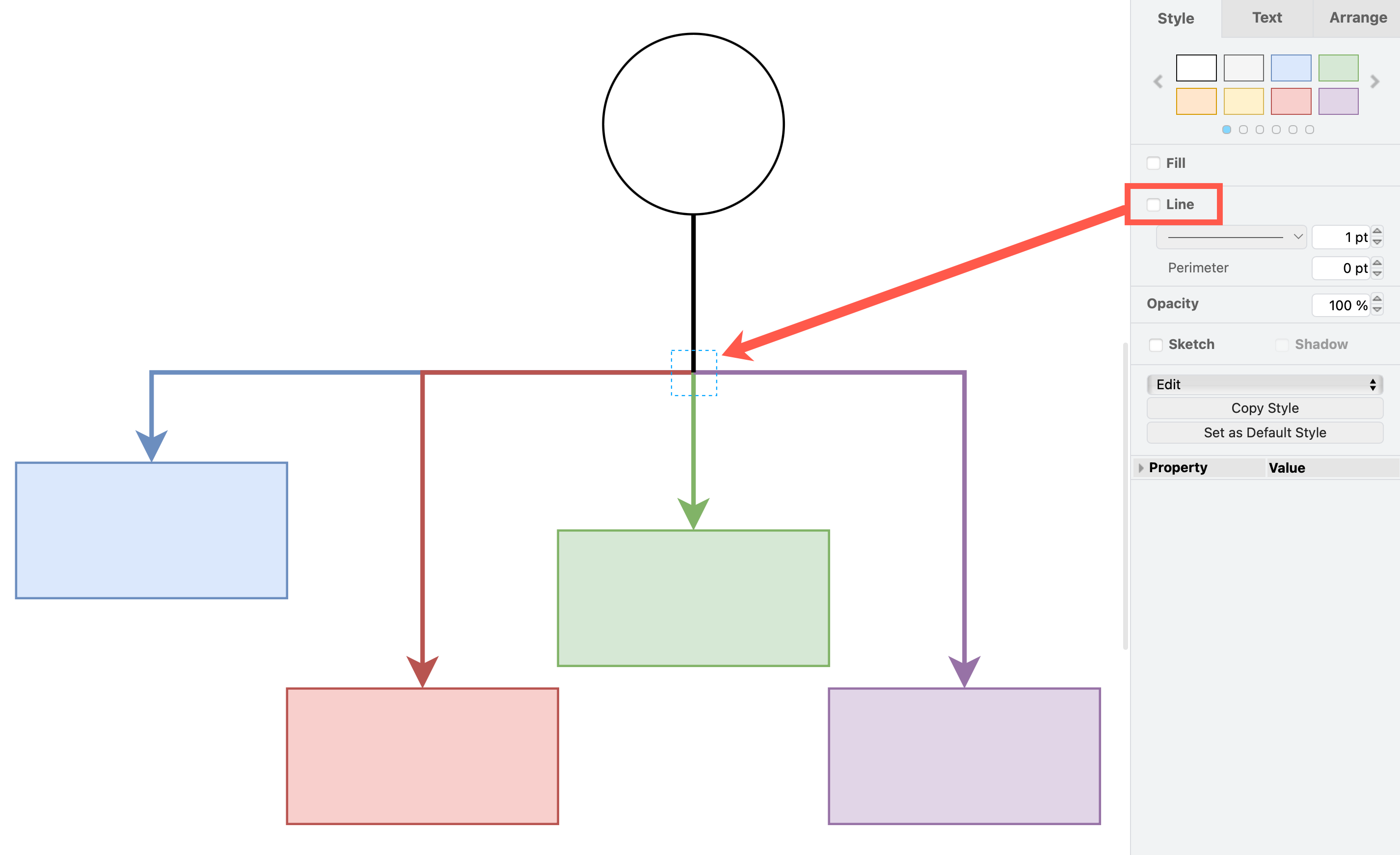
  1. Select the waypoint shape.
  2. In the Style tab of the format panel, deselect the Line checkbox.
    Deselect the Line style checkbox to turn a waypoint shape invisible

The waypoint shape will become invisible but still exist. The connectors will neatly line up and go through that point. Click on that spot to select the invisible waypoint shape if you need to move it.

Updated shapes for GCP and AWS network diagrams

· 4 min read

You can create network diagrams from scratch in draw.io using shapes that match the platform you are using - AWS, GCP, Veeam, Azure, Cisco, IBM and many more. Both the draw.io AWS19 and GCP Icon shape libraries for network and cloud architectures have been updated recently.

Open the updated network shape libraries

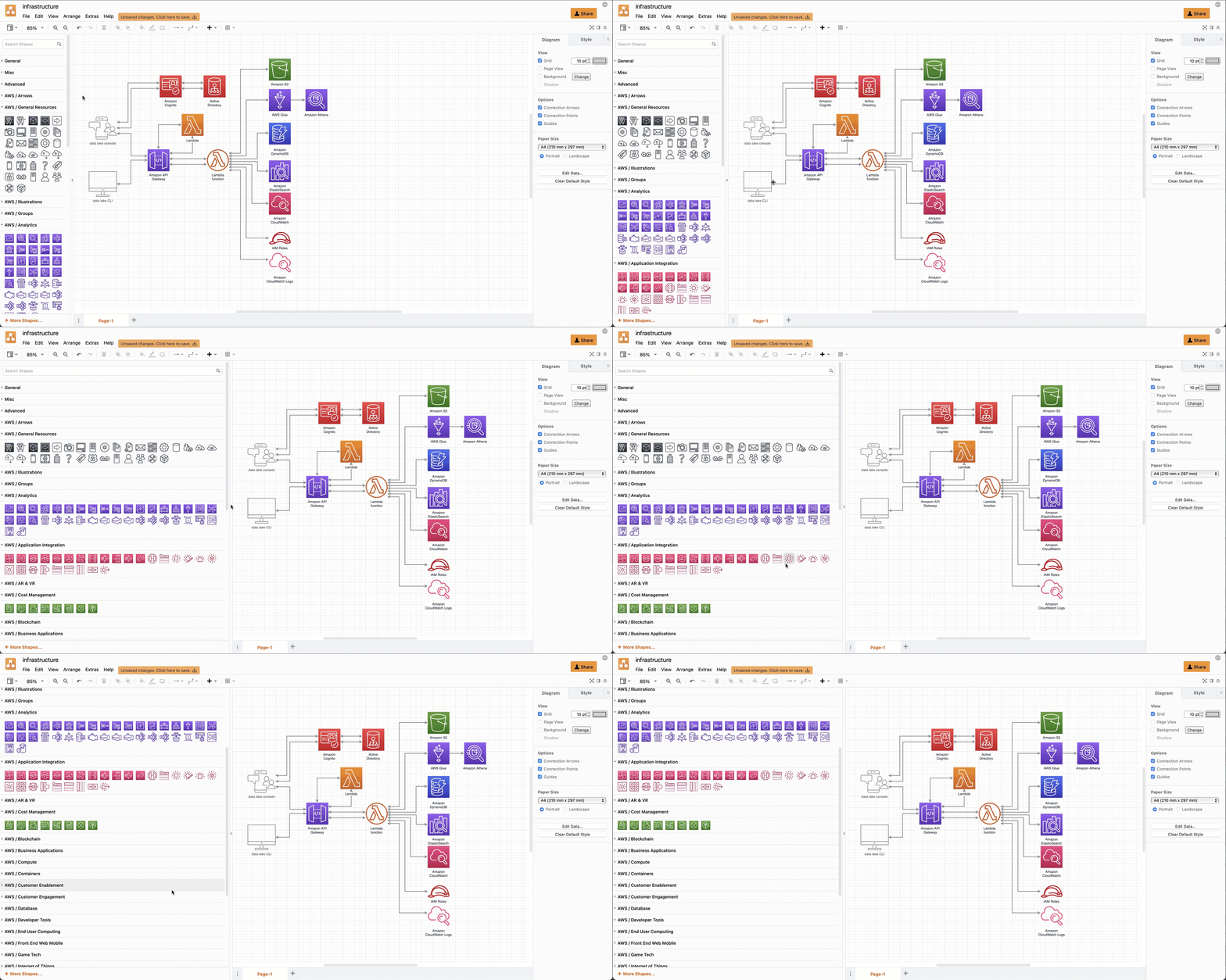
Both the Amazon Web Service and Google Cloud Platform shape libraries have been updated recently. Enable the shape libraries that you need to use in draw.io.

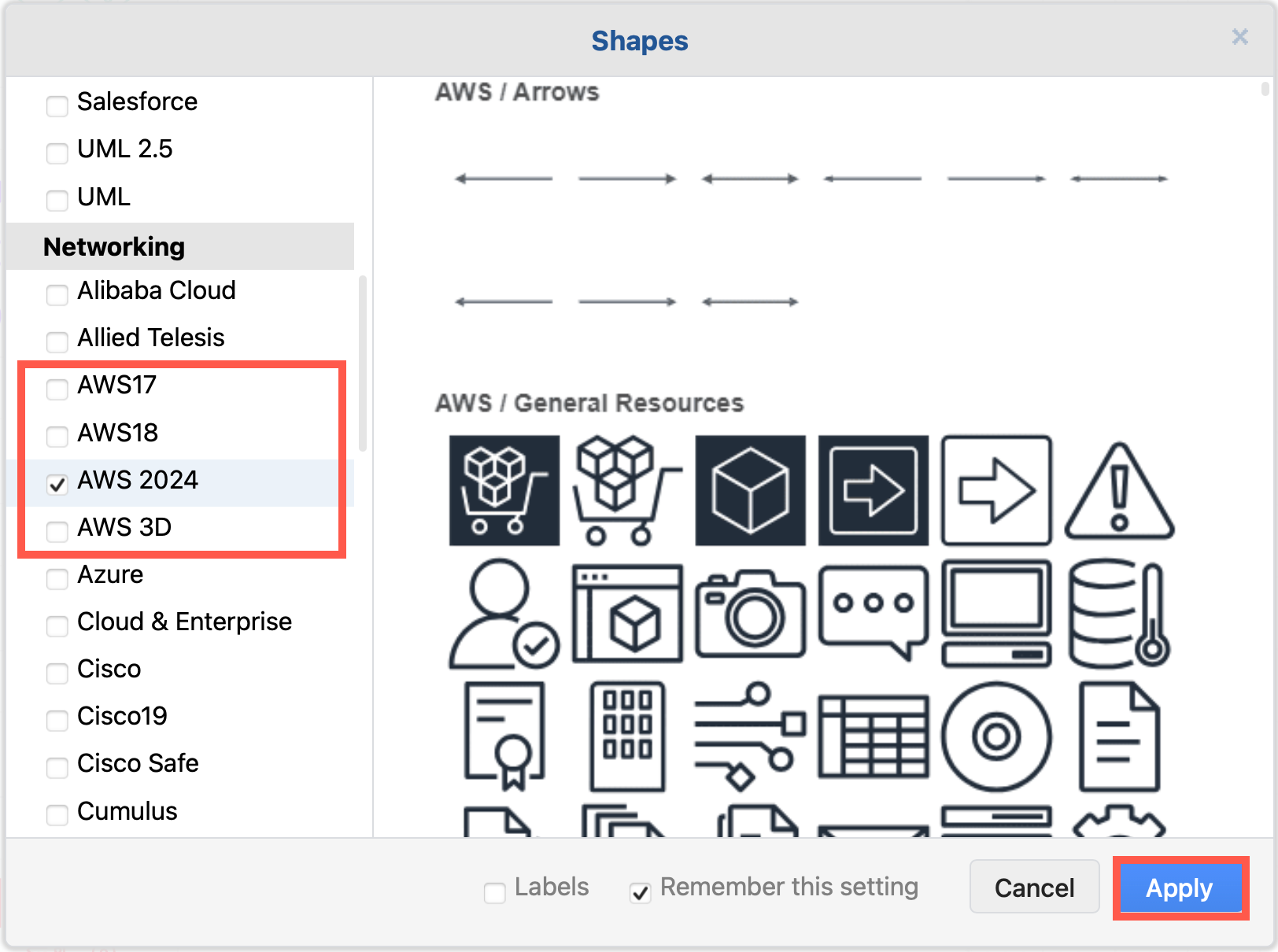
  1. Click on More Shapes in the left-hand panel.
  2. In the Networking section, click on the checkboxes next to the libraries you want to enable, then click Apply.
    Enable the AWS19 shape library for Amazon Web Services infrastructure diagrams in draw.io

If you want to see the shape names even when you aren't hovering over a shape in the shape libraries, click on the Labels checkbox in the shape library selection dialog.

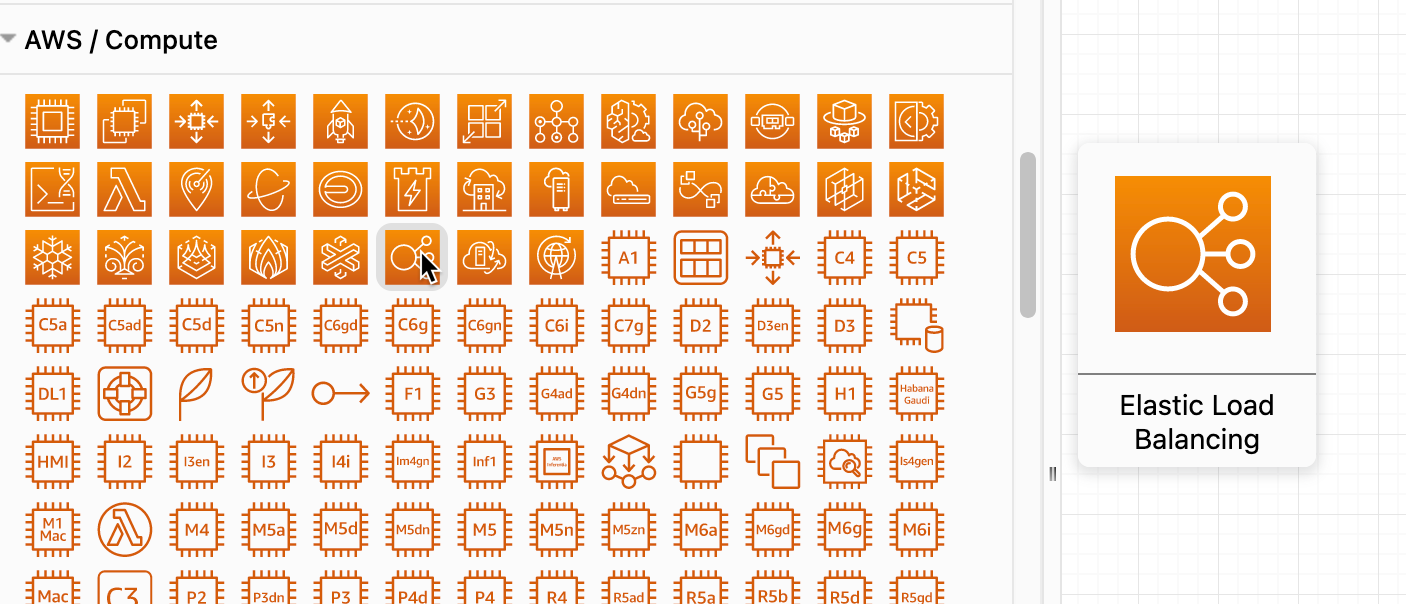
Hover over any shape in the shape libraries on the left of the drawing canvas to see a preview and its name.
Hover over any shape to see a preview and its name in draw.io

Drag the shape library panel edge towards the drawing canvas to expand the panel and see more shapes.
Drag the edge of the shapes panel to make it larger

Updated AWS19 network shapes

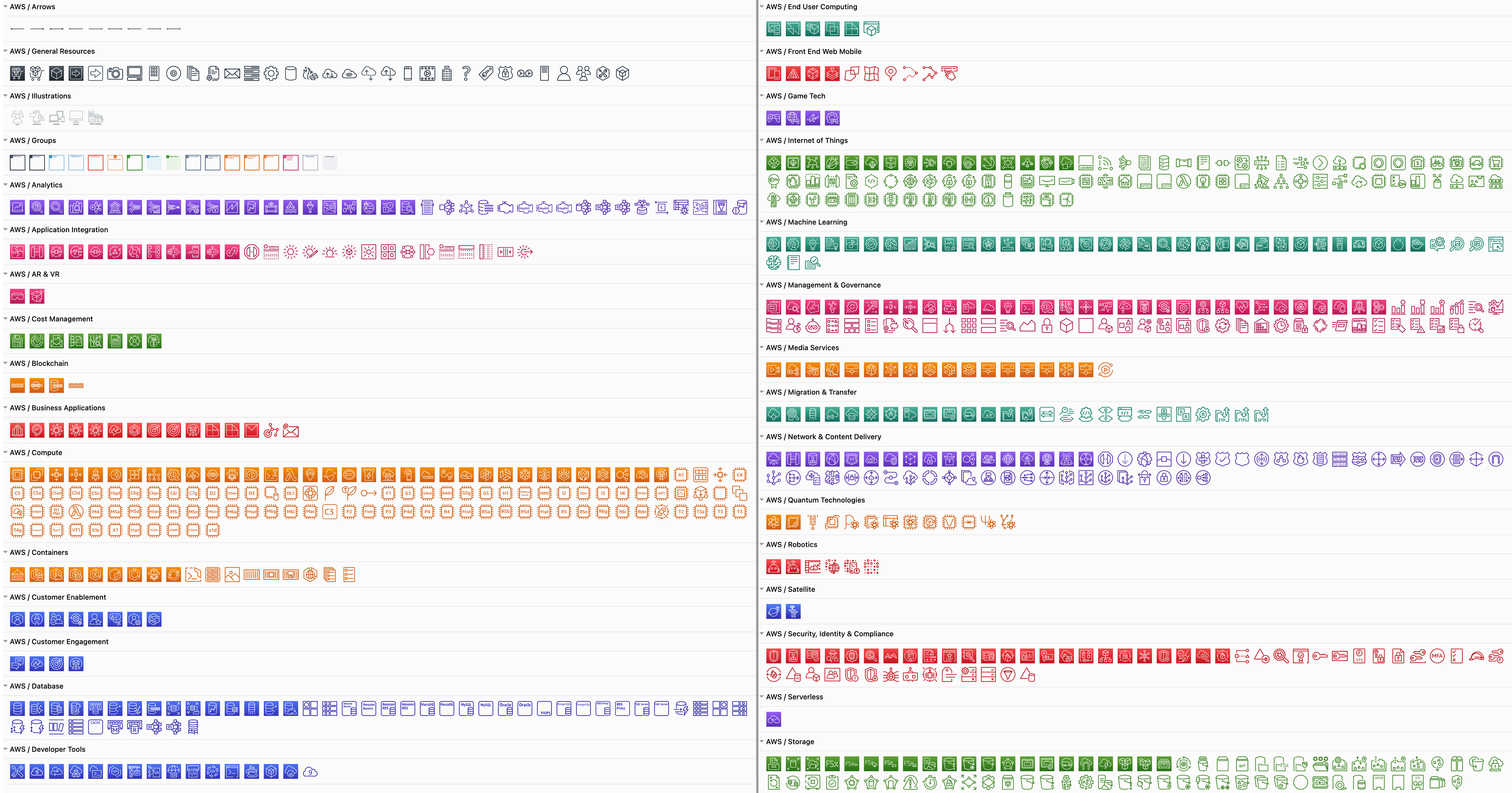
Enabling the AWS19 shape library will give you a large number of sub-libraries in the left panel, sorted into logical categories. Expand the categories that you need by clicking on the sub-library's title or the arrow next to it.

As you can see below, the AWS19 shape library for modelling cloud service architectures on Amazon's platform is large and varied.
The AWS19 shape library for Amazon Web Services infrastructure diagrams has been updated in draw.io

Create a new diagram with the AWS19 shape library already enabled

Updated GCP Icons

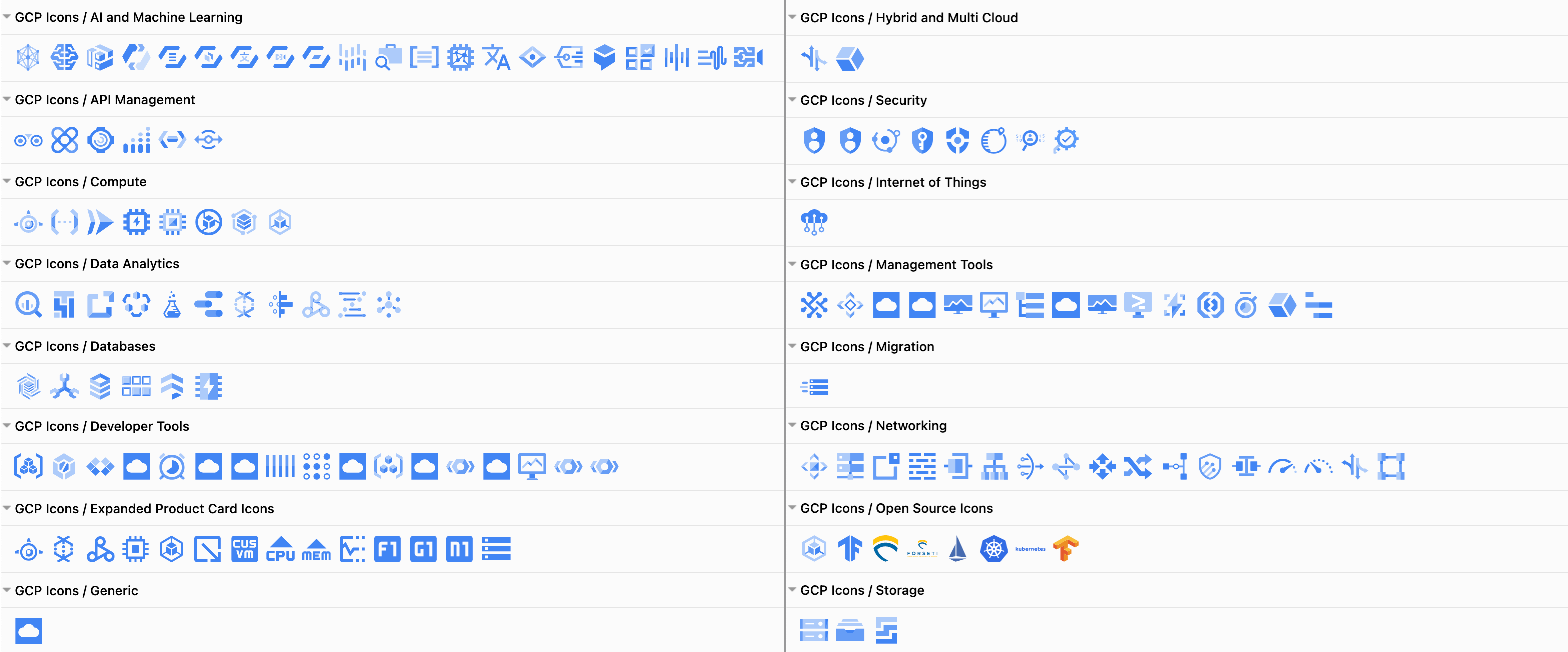
The large Google Cloud Platform shape library containers older labels and icons, whereas the updated GCP Icons are sorted into their own shape library. Click More Shapes and enable the GCP Icons library to see updated sub-libraries shown below.
The GCP icons shape library for Google Cloud Platform infrastructure diagrams has been updated in draw.io

Create a new diagram with the GCP Icons shape library already enabled

Some cloud visualisation platforms can output diagrams in the .drawio format, including Cloudcraft and Cloudockit.

Embed the exported diagram in your system documentation or display it in your wiki with one of our draw.io integrations.

Network diagram templates

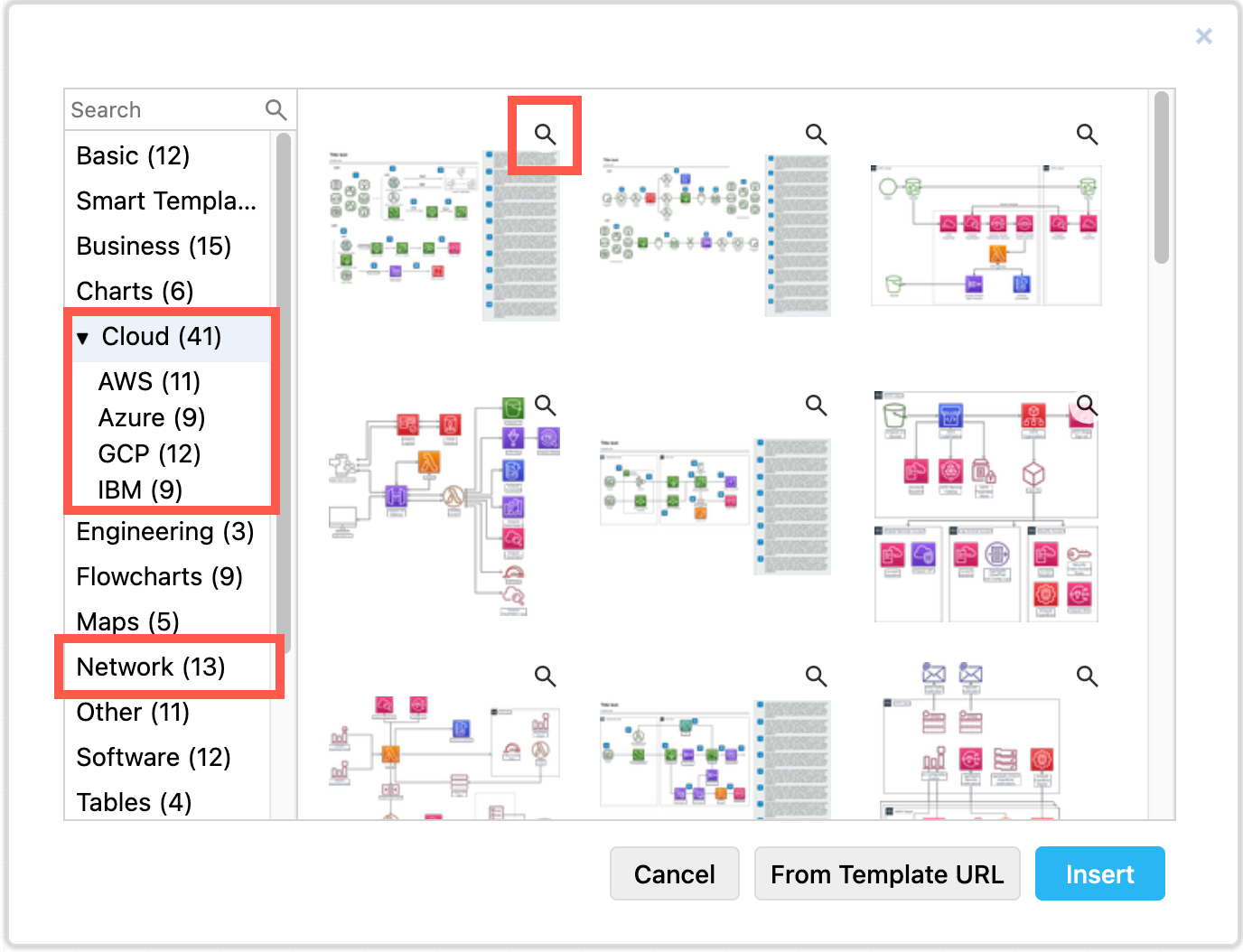
draw.io includes many templates for common cloud infrastructures on several platforms. Select Arrange > Insert > Template from the menu.
Network diagrams in the templates at draw.io