Change and style a diagram in an AI assistant
Change a diagram by asking for it in the same chat: new content, another layout, icons, colours, a whole new look.
How it works
The viewer passes the diagram back to the assistant as it is shown, including a layout you switched to. The assistant changes what you asked for, keeps everything else (positions, text, colours) and shows the new version below the old one. A change takes 25–45 seconds.
Every example on this page is a real conversation: the prompts as typed, the diagrams as returned, unedited.
Adding and changing content
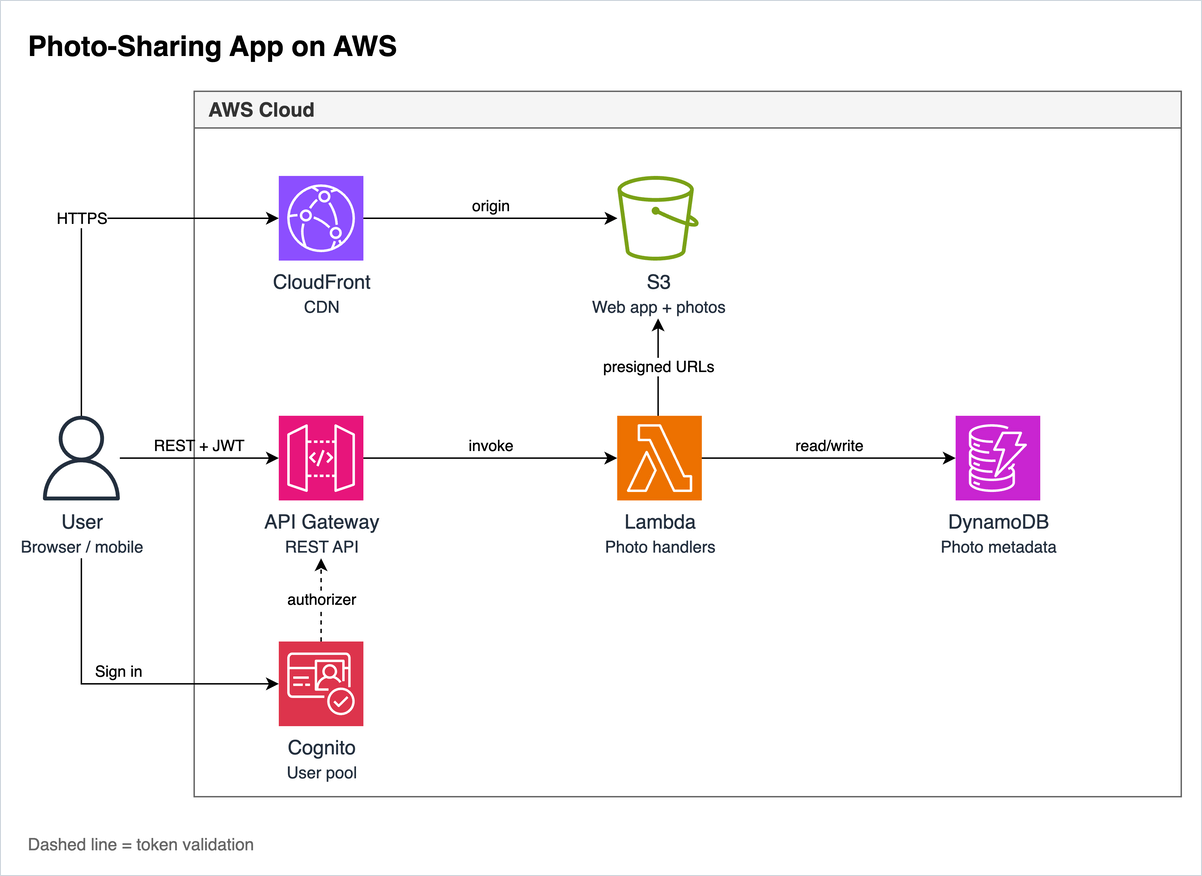
Draw the AWS architecture of a photo-sharing app as a diagram, using CloudFront, S3, API Gateway, Lambda, DynamoDB and Cognito.
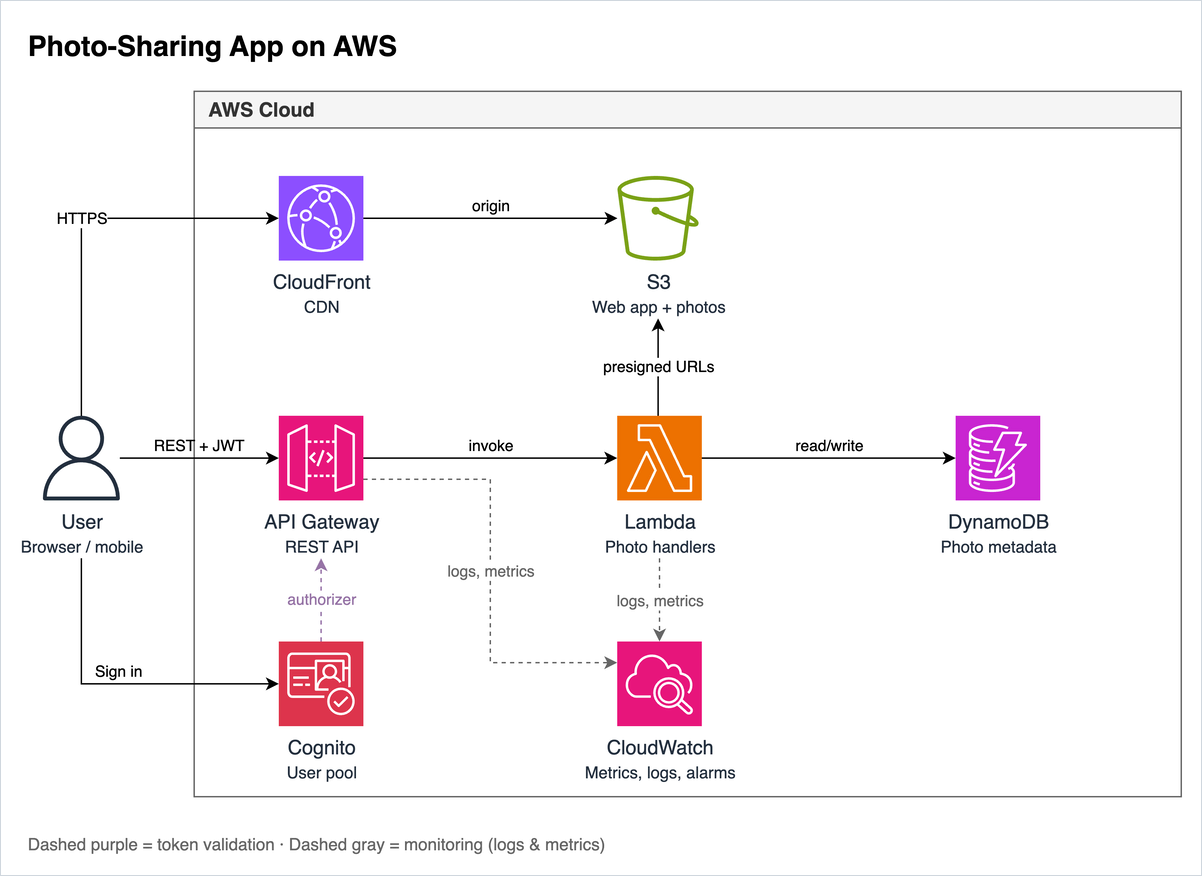
Add CloudWatch for monitoring, connected to API Gateway and Lambda.
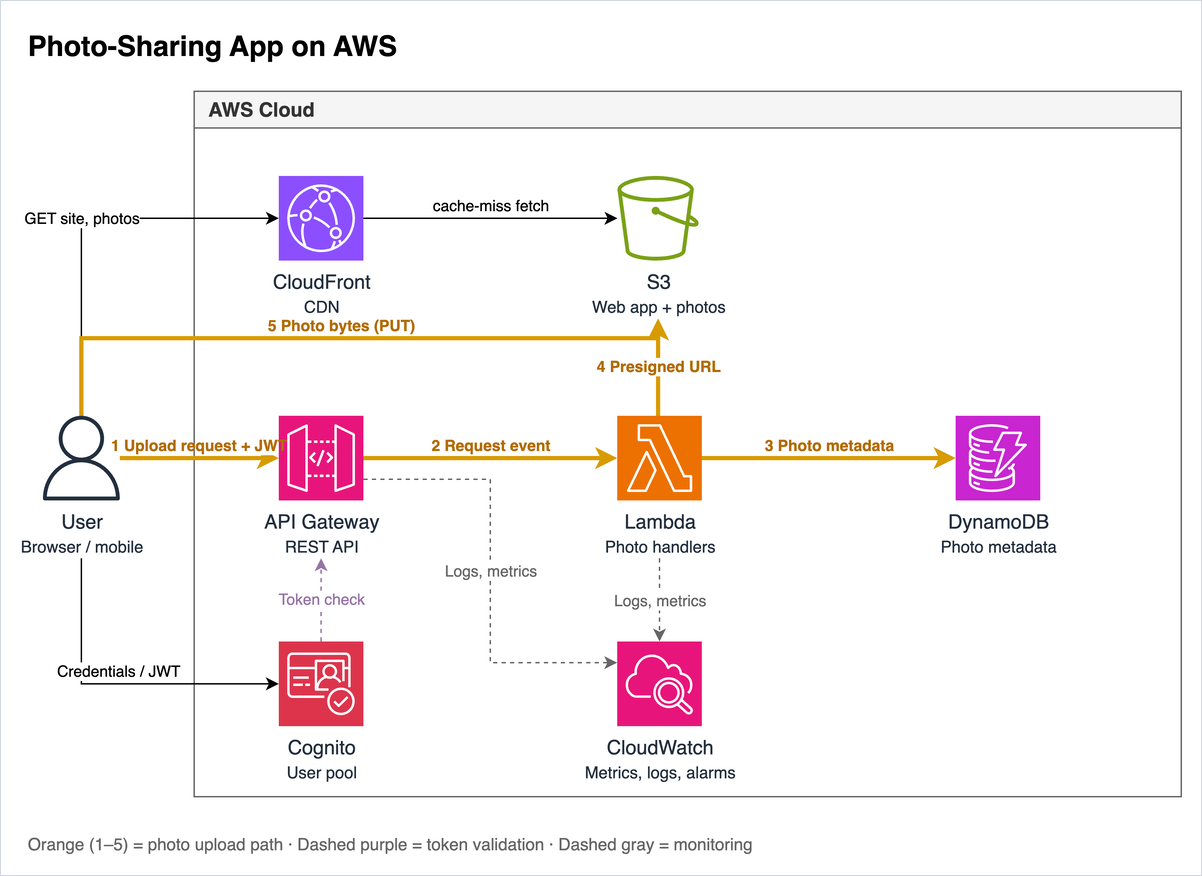
Highlight the photo upload path in orange and label each connector with what it carries.
Changing the layout
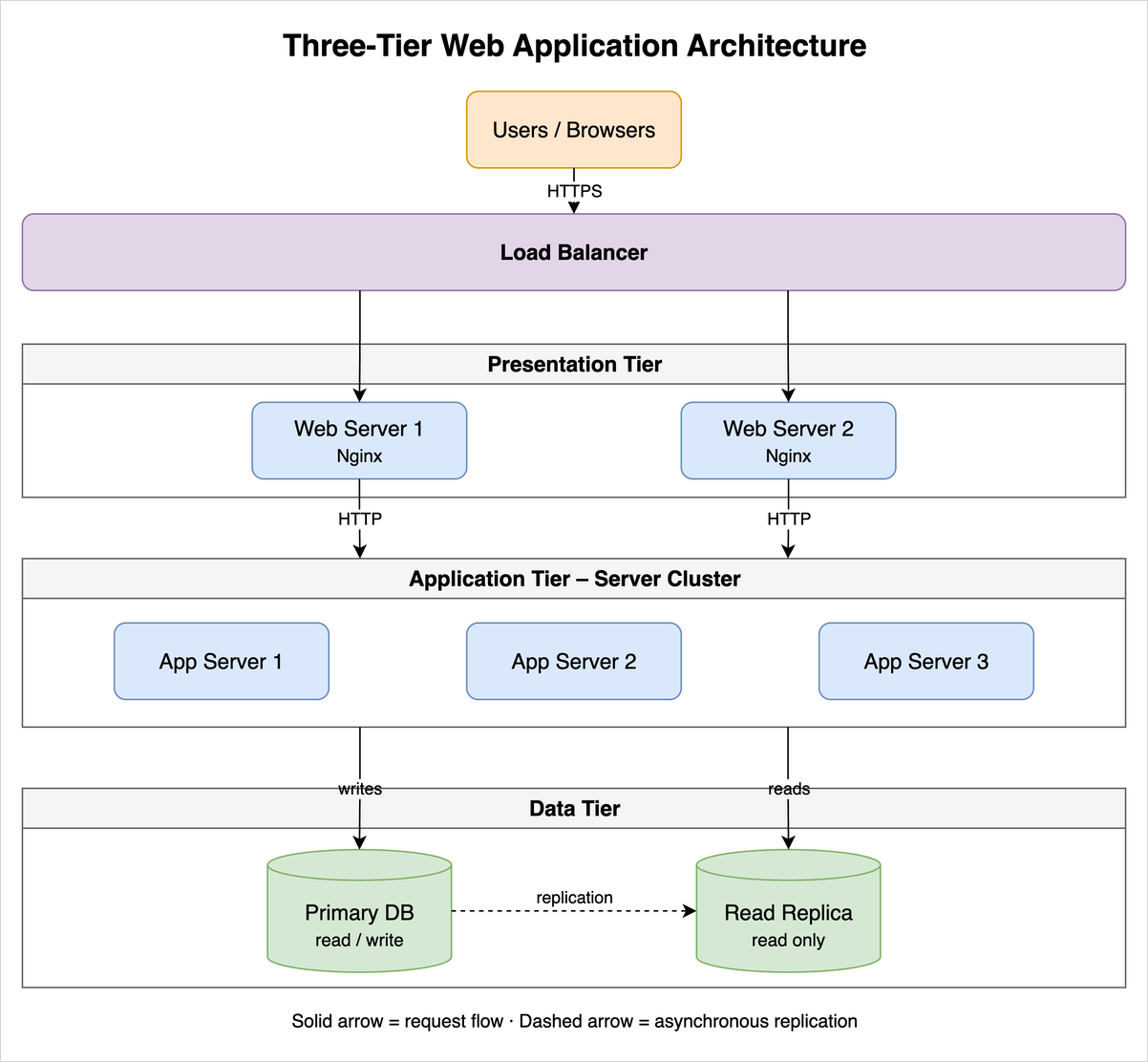
Draw a three-tier web application architecture with a load balancer, two web servers, an application server cluster and a primary database with a read replica.
Make it left to right.
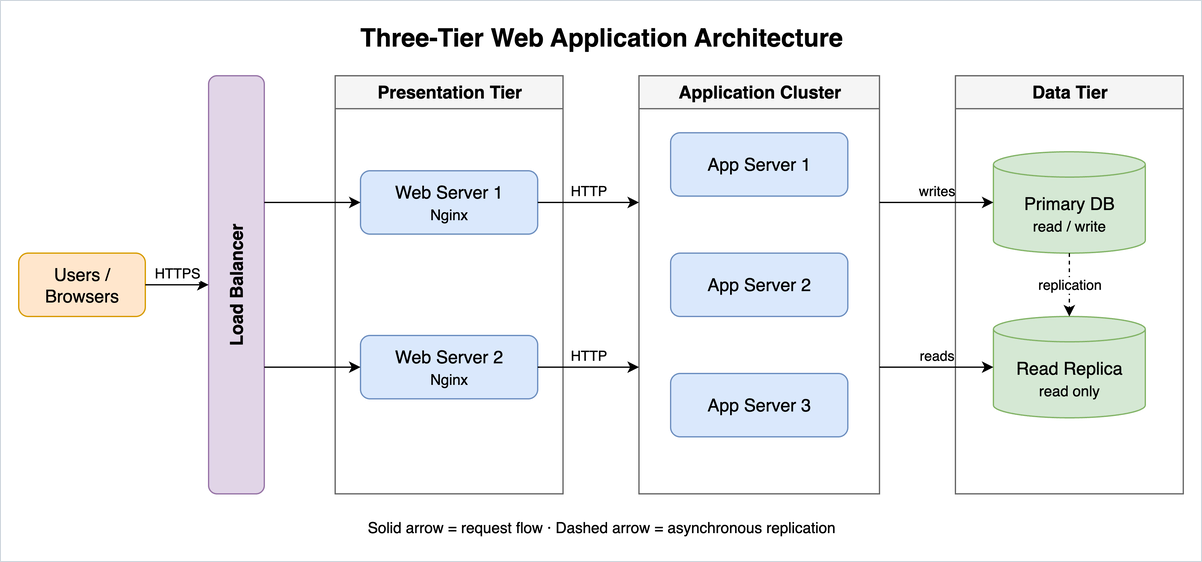
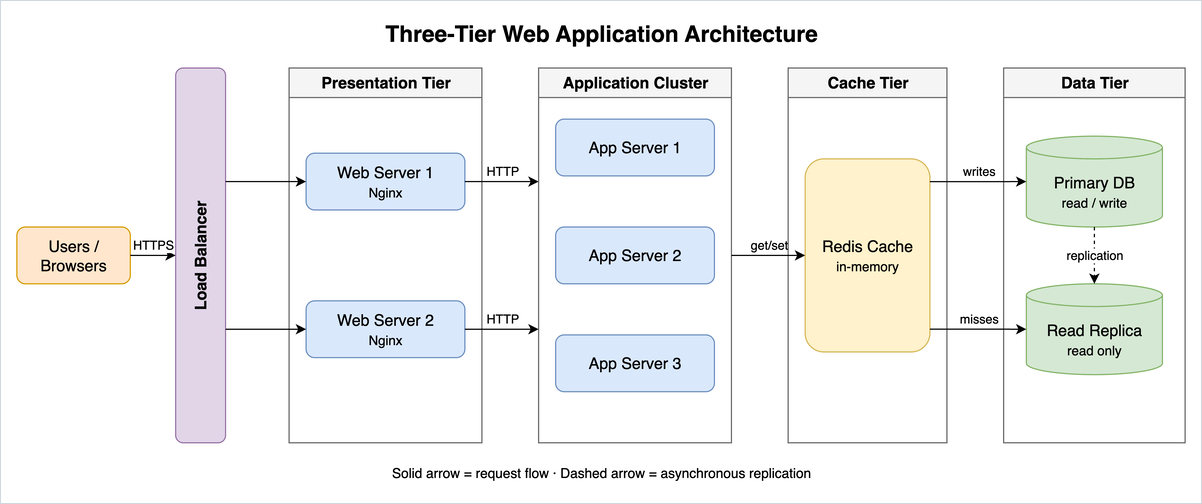
Add a Redis cache between the application servers and the database.
Changing a Mermaid diagram
Mermaid diagrams change the same way.
Draw the sequence of a user logging in with a one-time code sent by SMS: browser, web app, auth service, SMS provider.
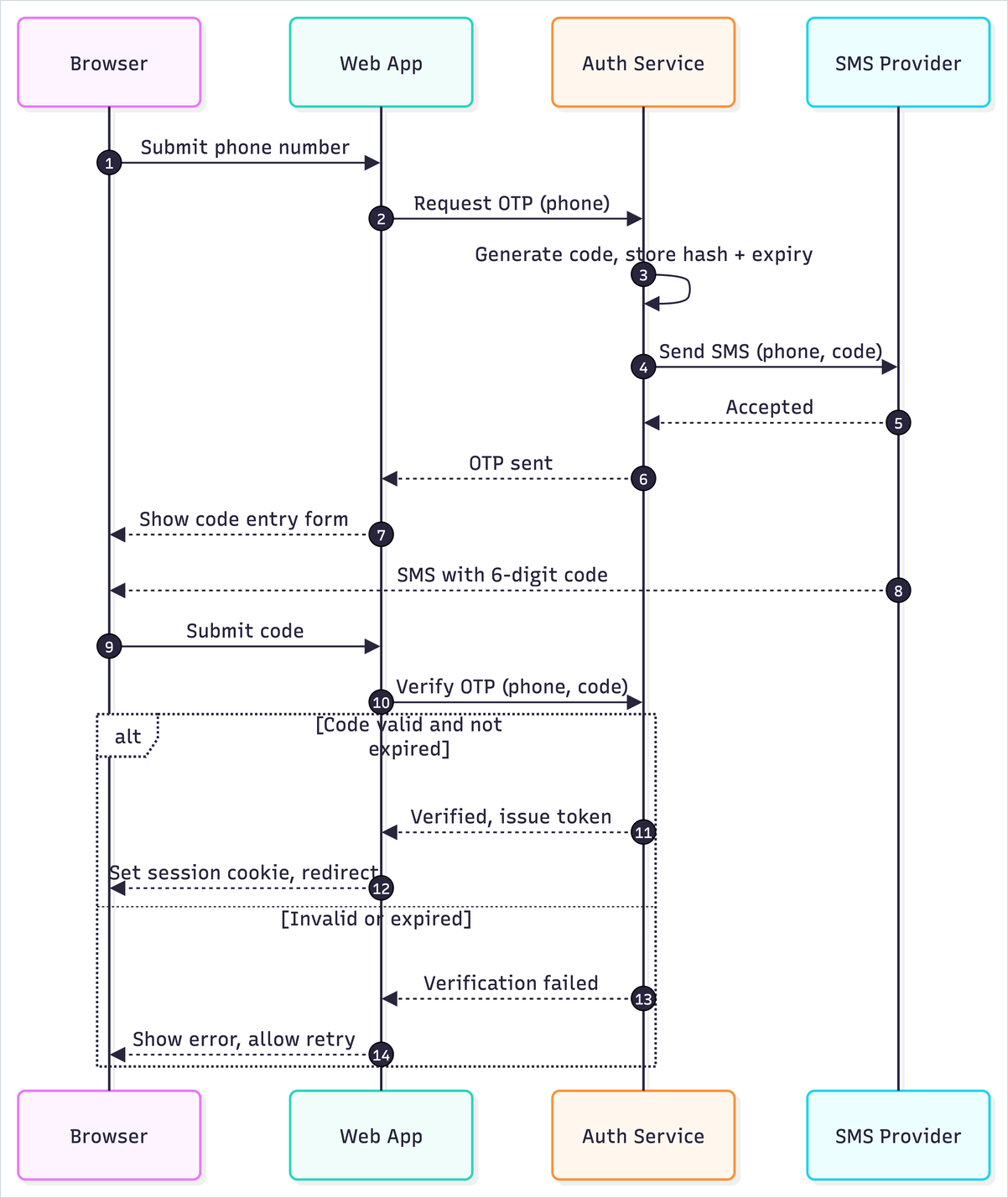
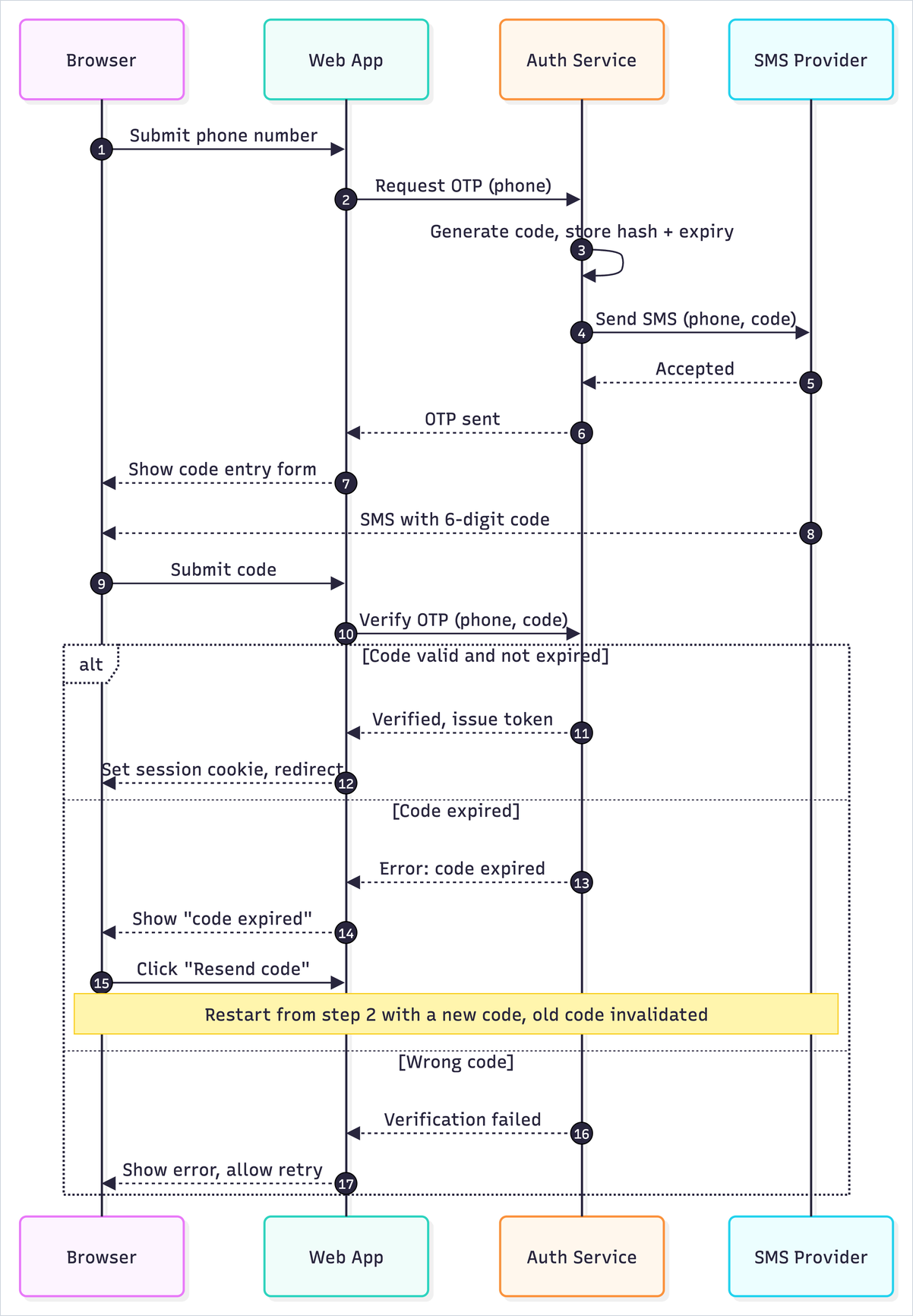
Add the case where the code has expired.
Icons
Create a flowchart for picking apples.
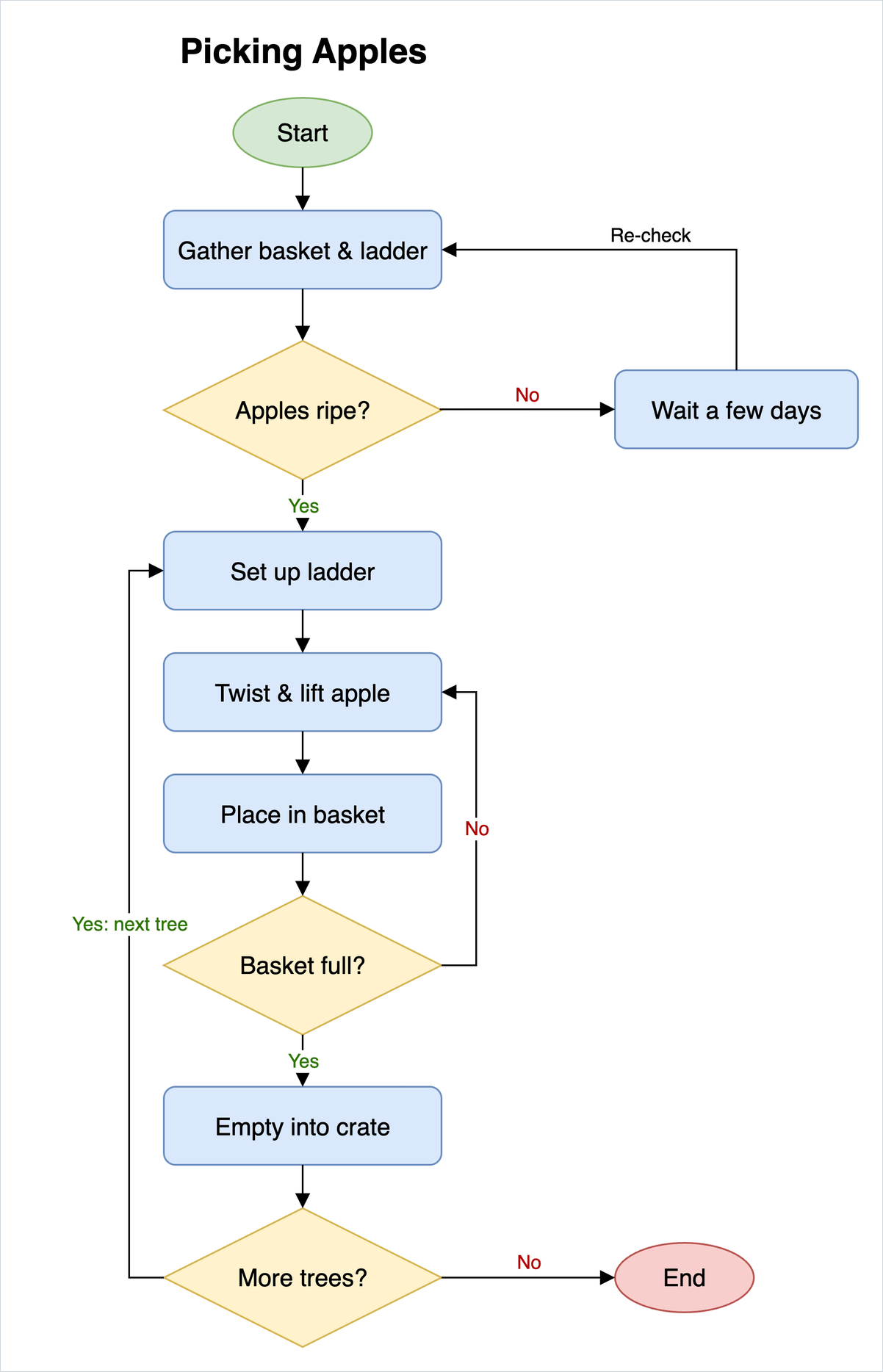
Use icons for the steps, with each step's name below its icon.
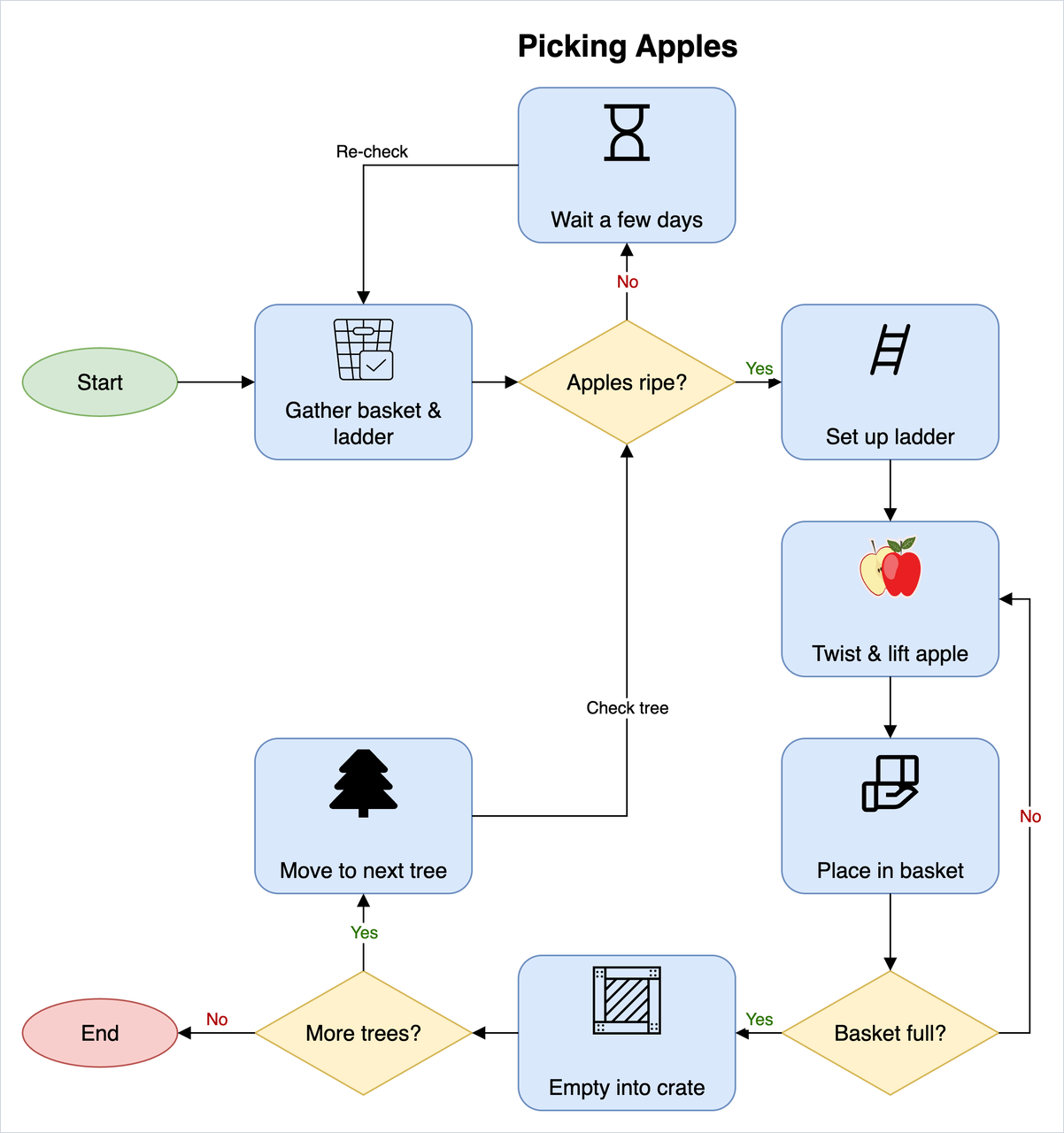
The assistant looks up each icon in draw.io's libraries and takes them all from one set, at one size. For official icons, name the set: "use AWS icons", "use Cisco shapes". Only icons from draw.io's libraries and icon collection show in the chat; images from other websites don't.
Colour themes
Themes and the styles below apply to diagrams drawn as draw.io XML, the format for most diagram types. Classic is the default. Ask for another theme by name, at the start or later:
Draw an ER diagram for a blog in the dark theme: users, posts, comments, tags and a post_tags join table. Use the professional theme.
Classic (default)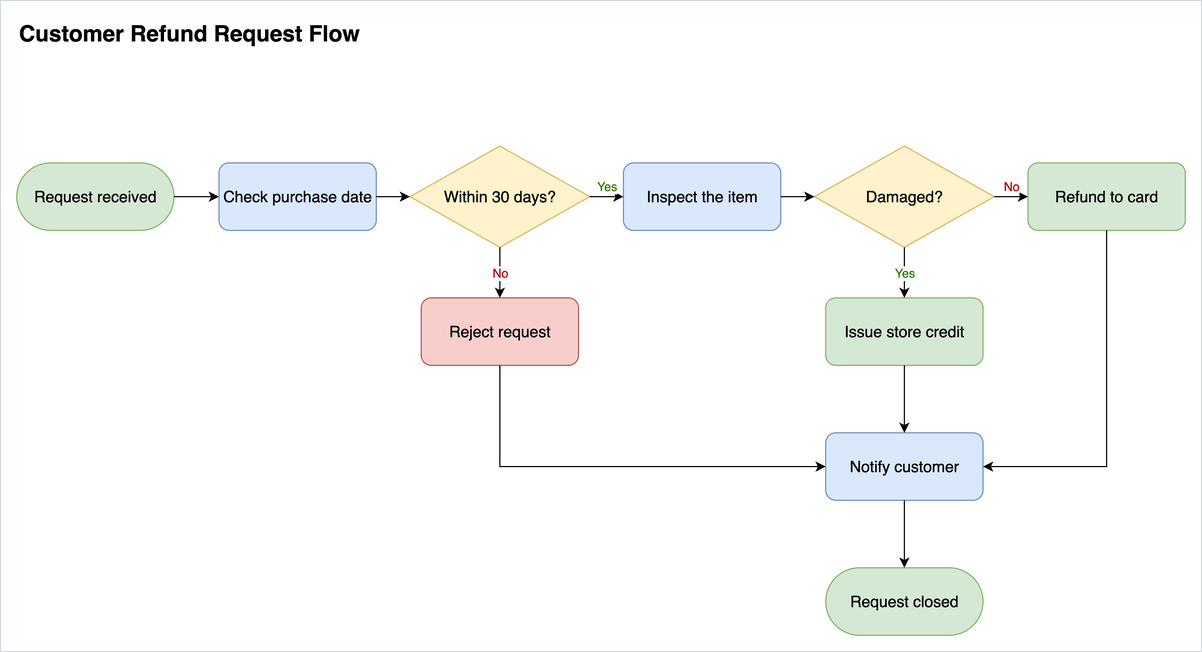 | Professional · "Use the professional theme."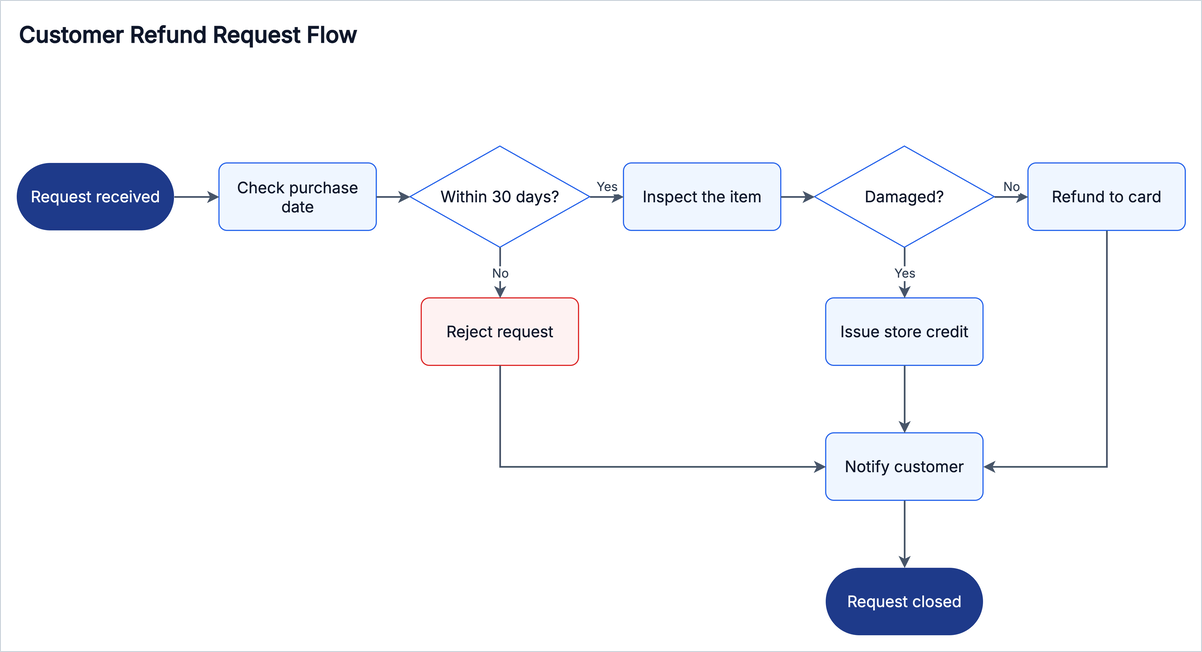 |
Minimal · "Switch to the minimal theme."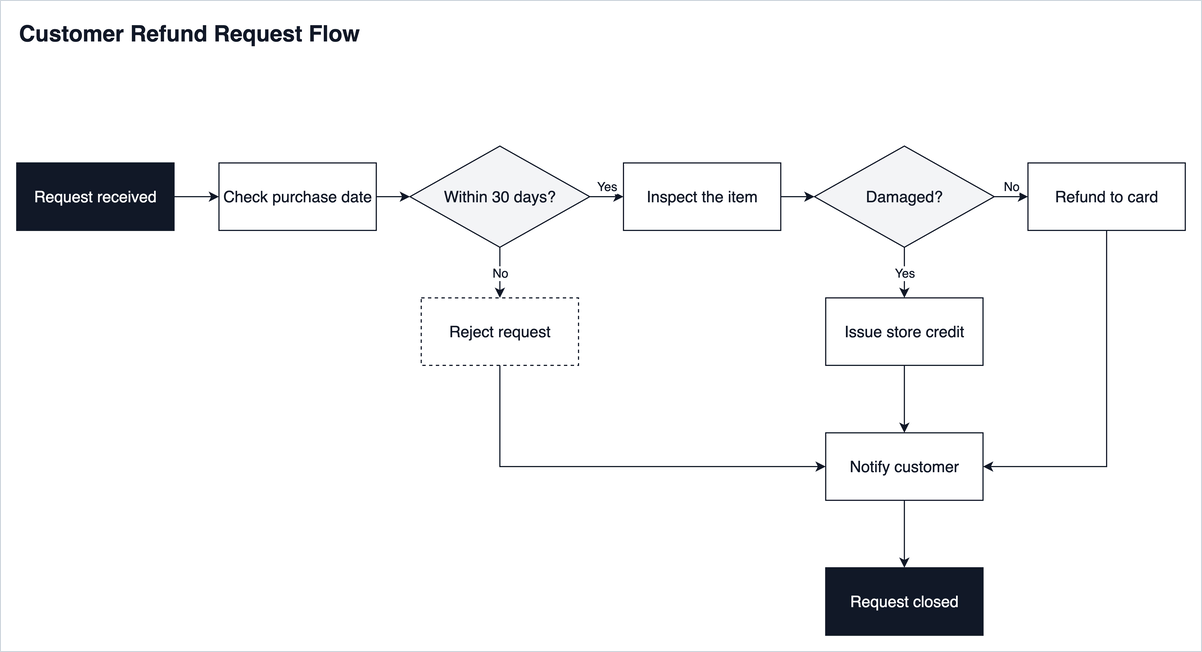 | Vivid · "Now the vivid theme."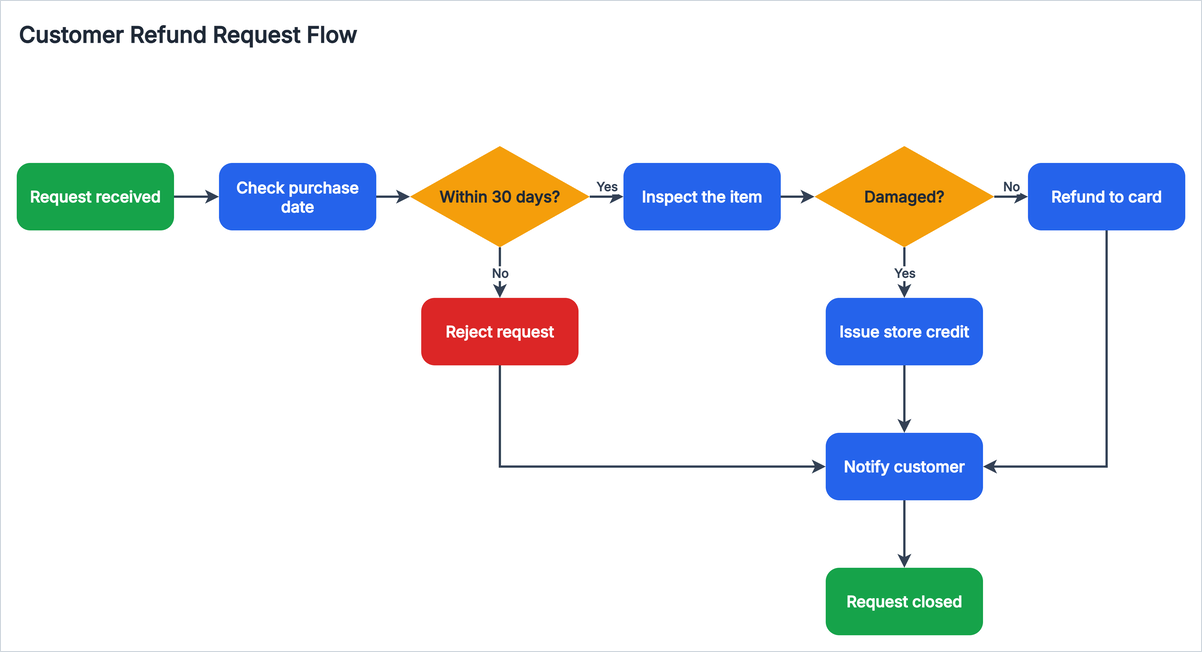 |
Dark · "Switch to the dark theme."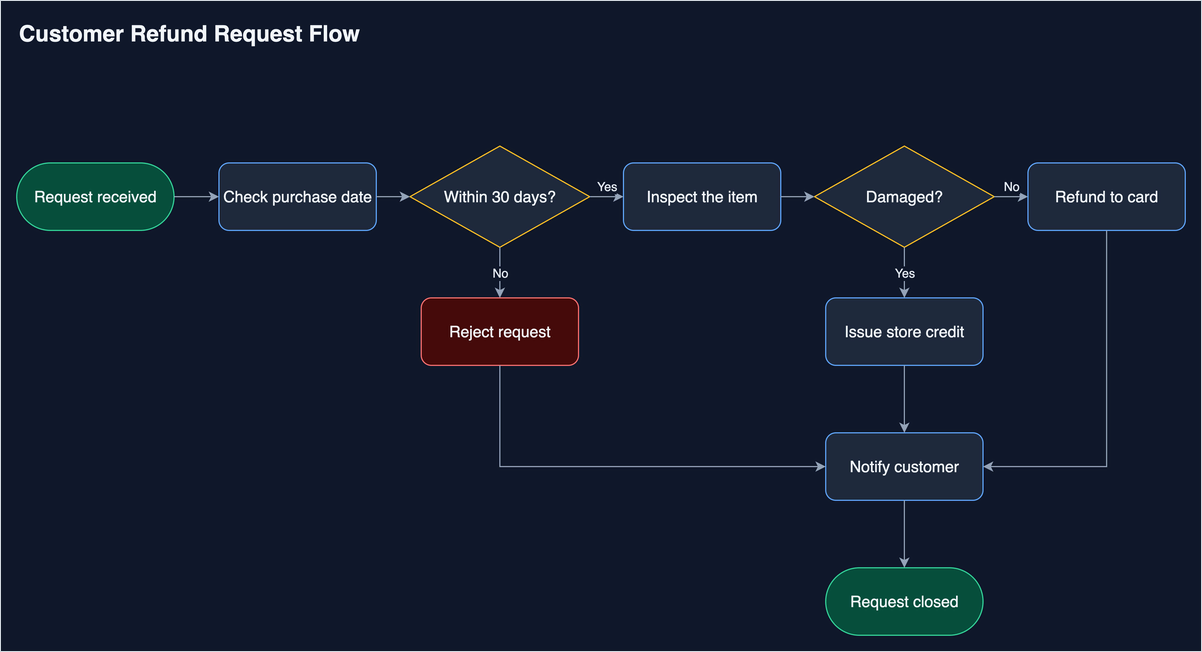 | Blueprint · "Try the blueprint theme."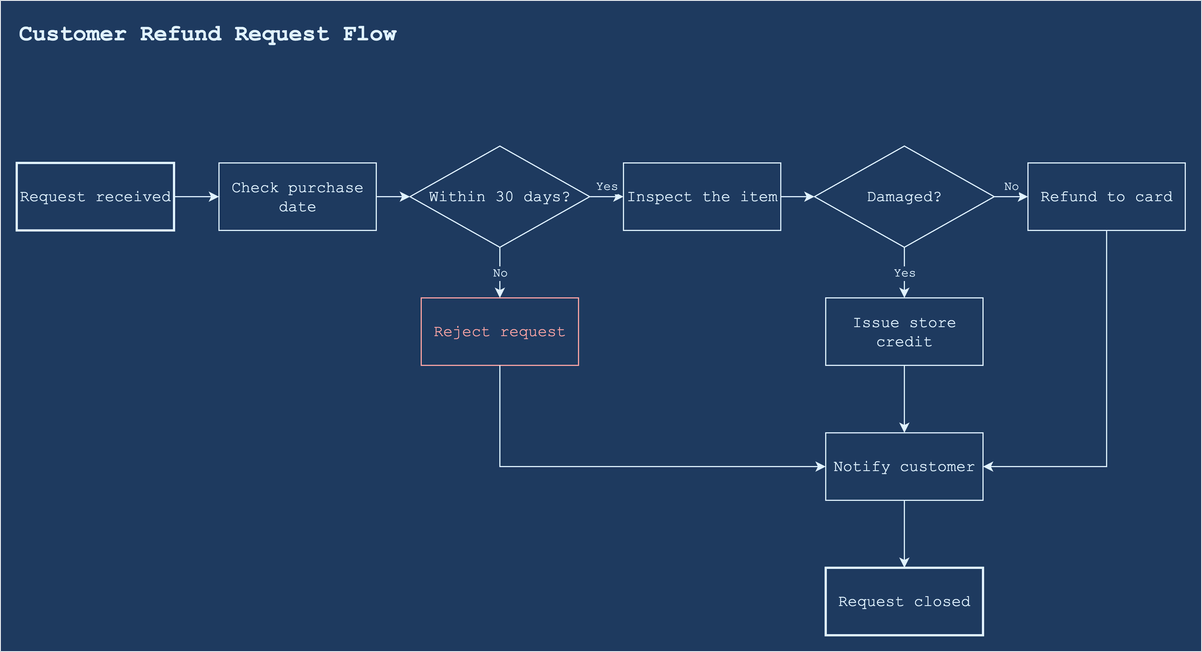 |
Brand colour · "Use our brand color #0055A4."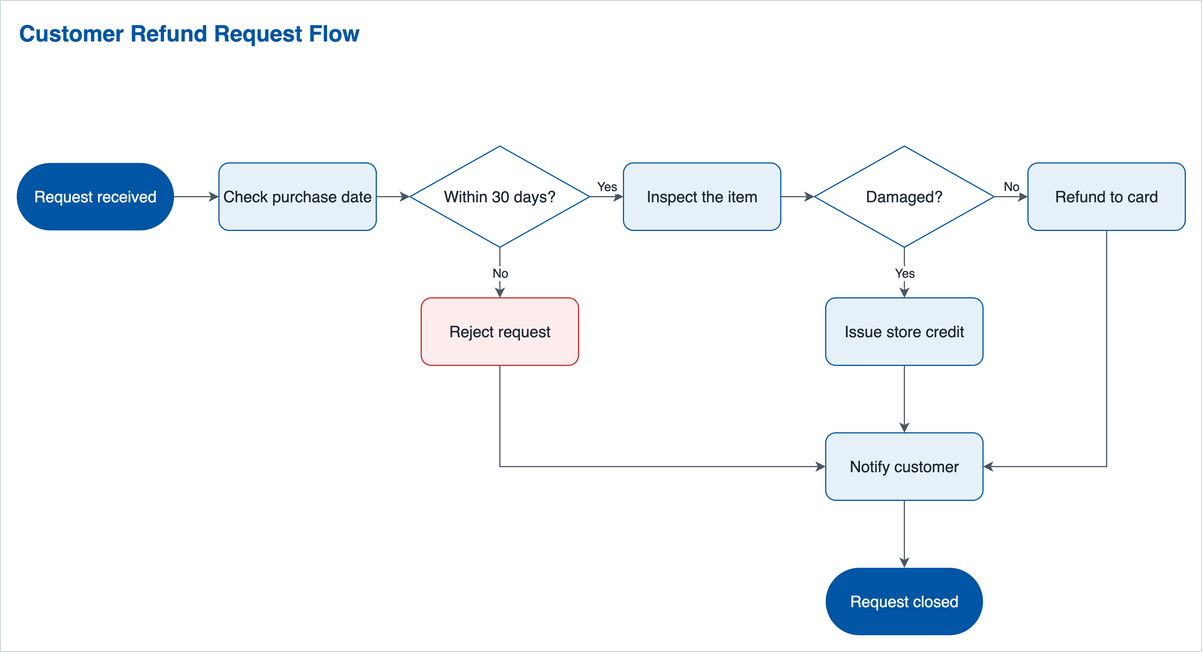 | Hand-drawn · "Switch to the hand-drawn theme."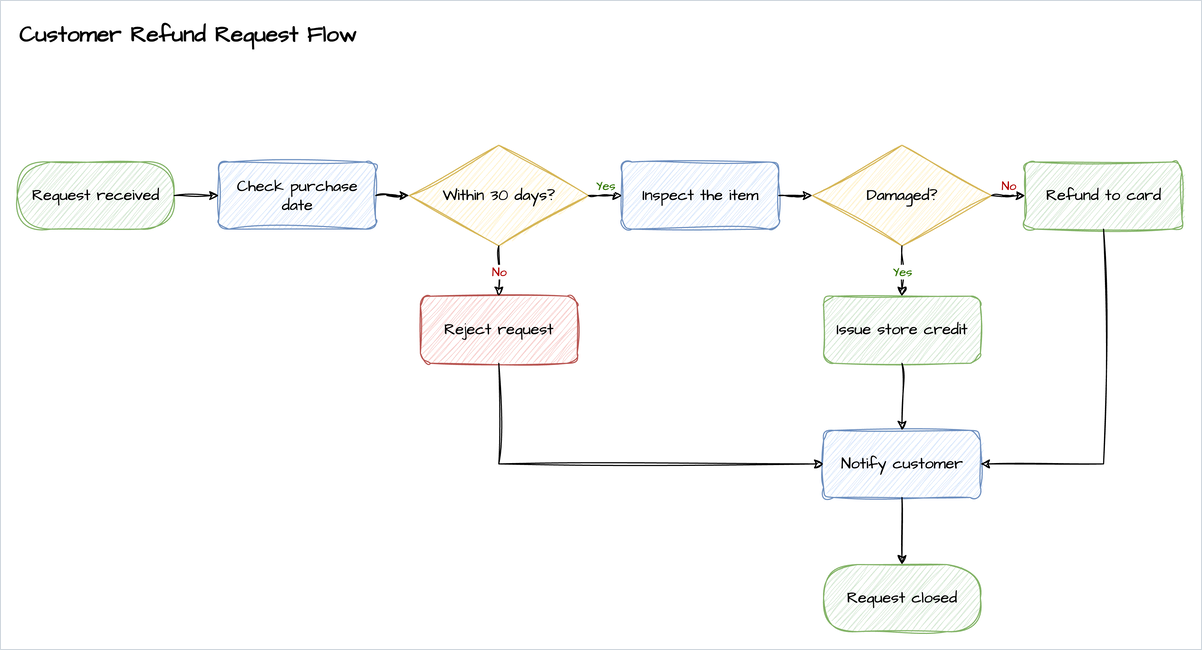 |
One conversation, starting with: Create a flowchart for handling a customer refund request: request received, check purchase date, within 30 days?, inspect the item, damaged?, refund to card, store credit, reject request, notify customer. Each theme switch took 30–40 seconds and kept every shape in place.
The assistant also picks a theme from what you say the diagram is for:
| You say | You get |
|---|---|
| "…for a slide in tomorrow's board meeting" | Professional |
| "Sketch a rough first idea for…" | Hand-drawn |
| "…in our brand color #0055A4" | Brand |
To use one theme for all your diagrams, add it to your project or custom instructions: Draw diagrams in the professional theme.
Styles
| Ask for | Example prompt |
|---|---|
| Rounded corners, shadows | "Round the corners and add shadows." |
| Hand-drawn look | "Make it look hand-drawn." |
| Curved connectors, one path in another color | "Use curved connectors, and make the No path red and dashed." |
| Font, line width | "Use the Roboto font and make all outlines 2 px thick." |
| Gradient | "Give the steps a soft blue gradient." |
| Hatched fill | "Fill the shapes with a hatched sketch pattern." |
| A highlighted path, labeled connectors | "Highlight the photo upload path in orange and label each connector with what it carries." |
| Layout direction | "Make it left to right." |
One conversation, starting from Create a flowchart for publishing a blog post: write the draft, editor review, approved?, revise if not, schedule, publish, share on social media. Each image is the next request:
As created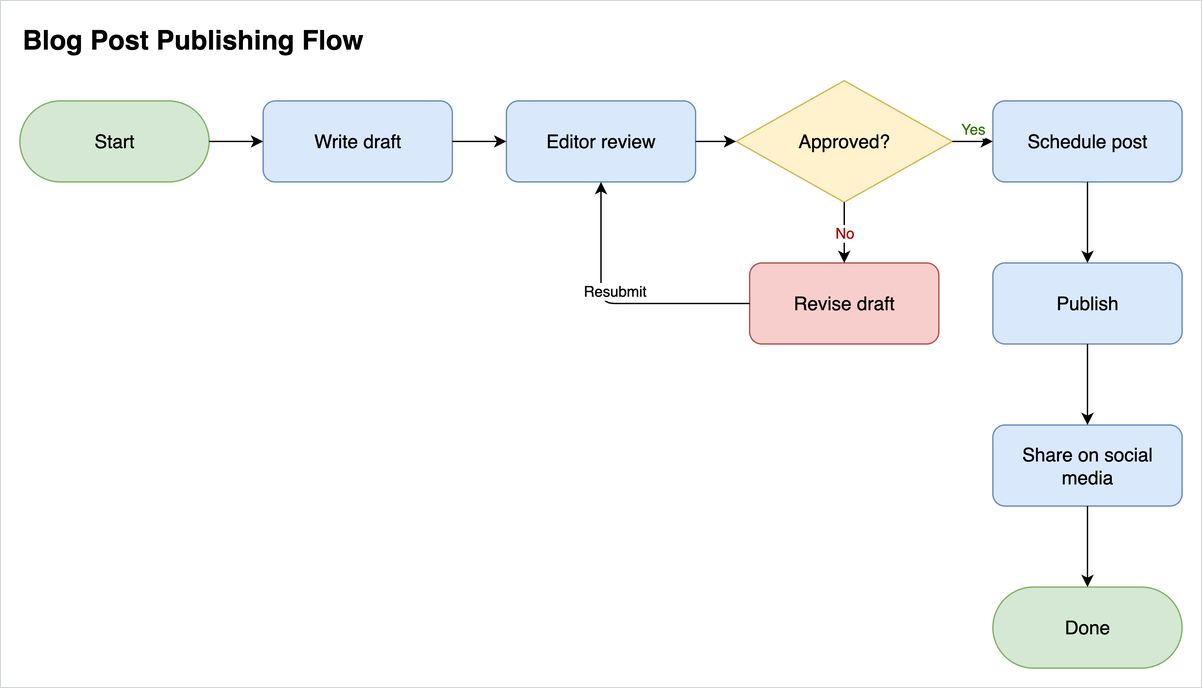 | "Round the corners and add shadows."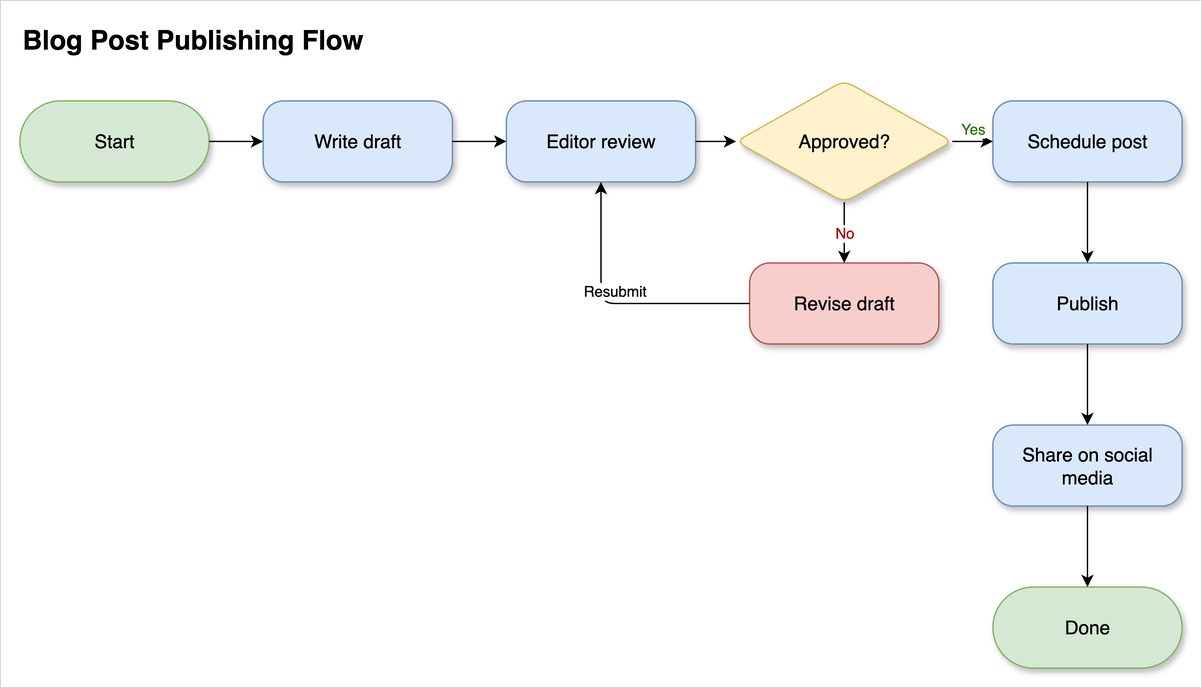 |
"Make it look hand-drawn."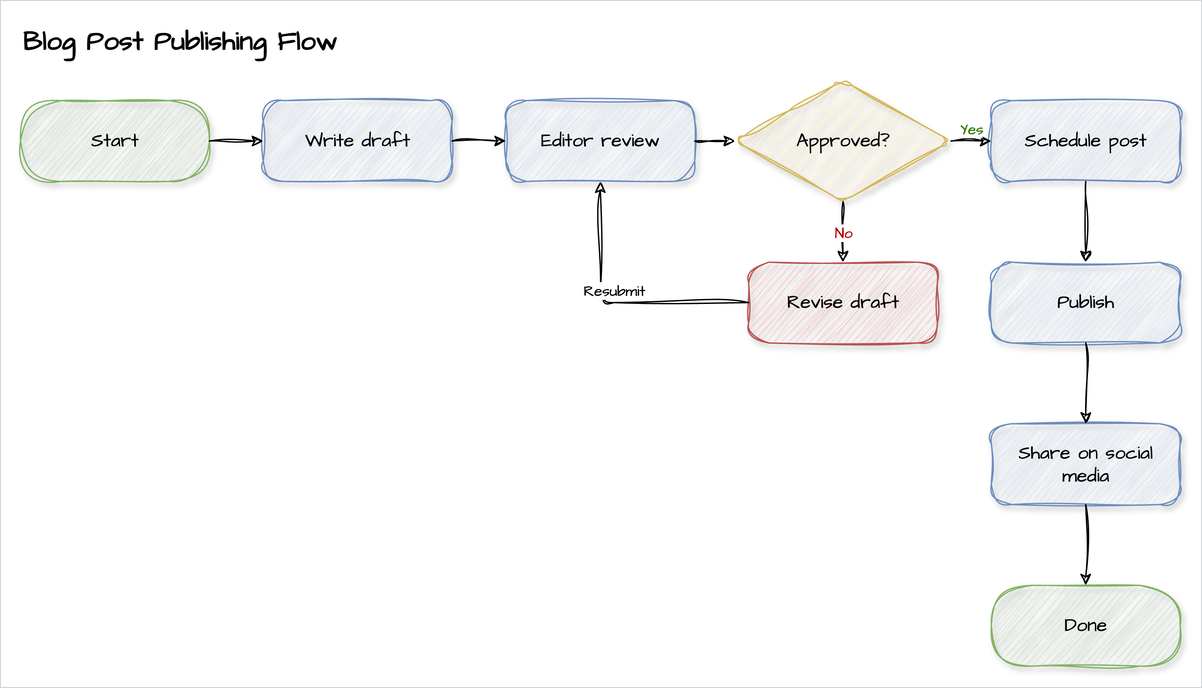 | "Switch to the dark theme."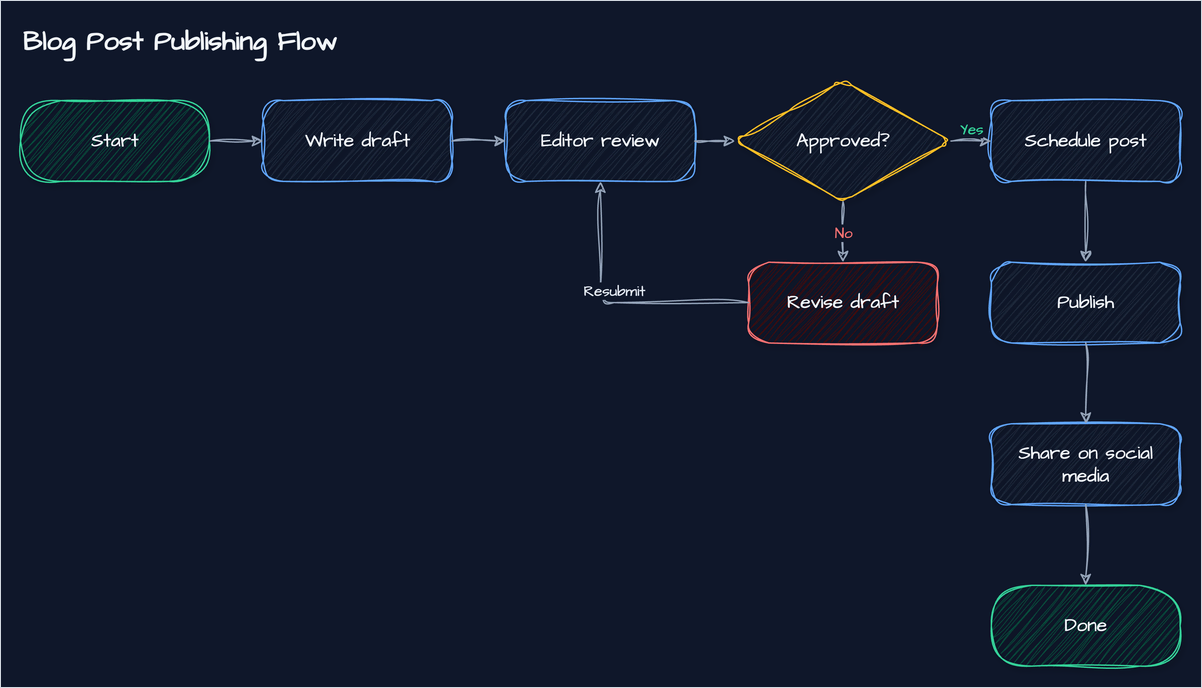 |
"Use curved connectors, and make the No path red and dashed."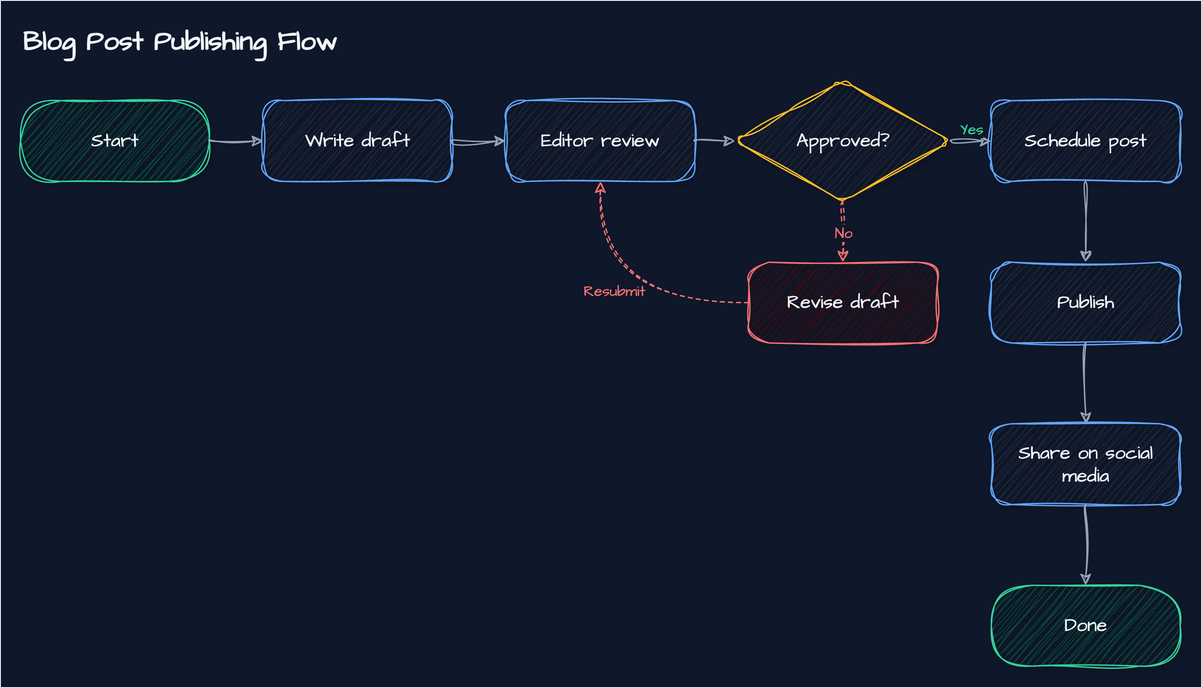 |
A second conversation with the same first prompt:
"Use the Roboto font and make all outlines 2 px thick."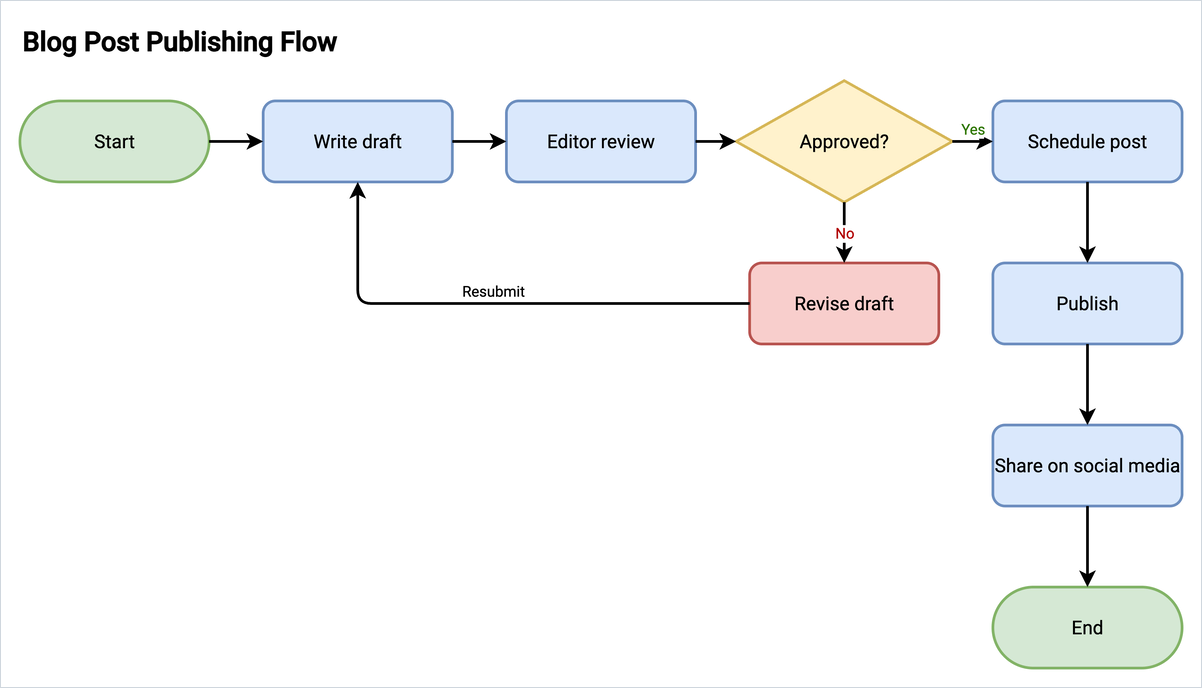 | "Give the steps a soft blue gradient."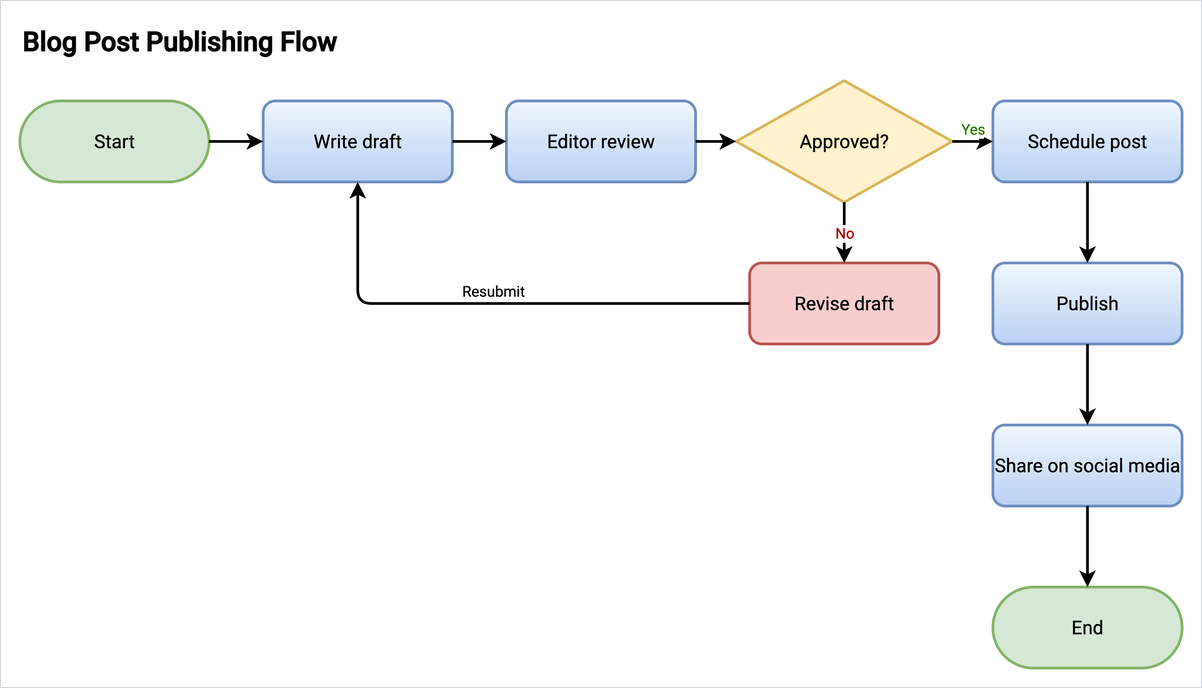 |
"Fill the shapes with a hatched sketch pattern."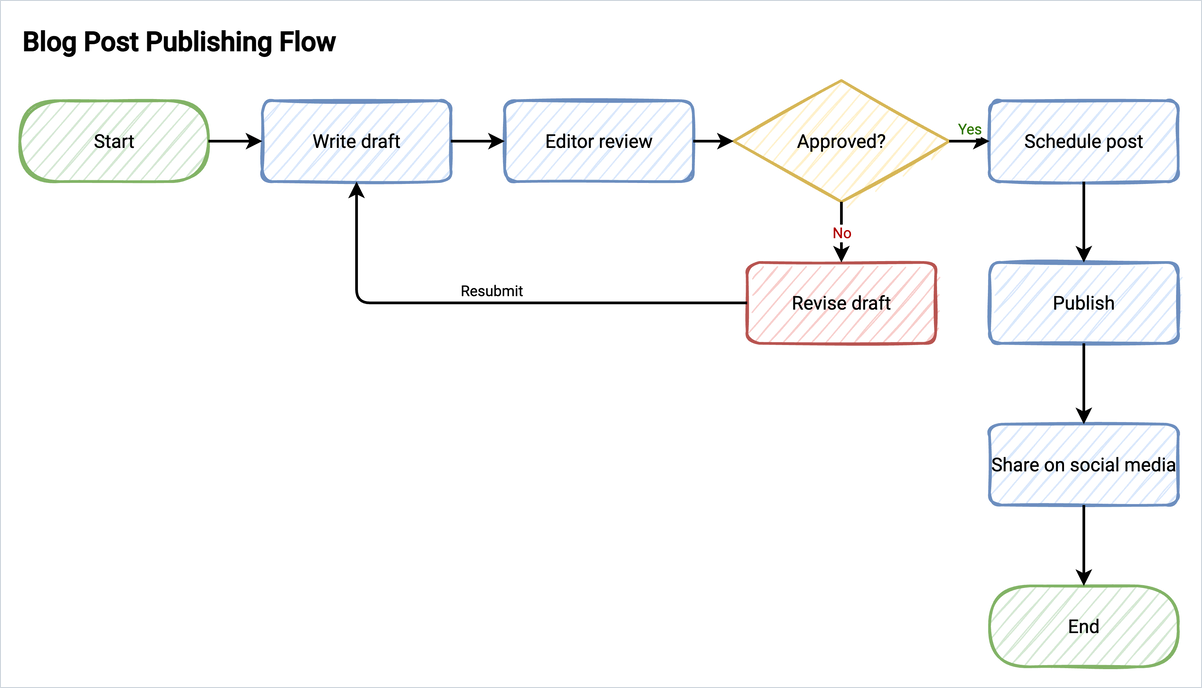 |
Other ways to change a diagram
- Layout in the viewer toolbar switches a Mermaid flowchart between Mermaid's layout and a layered automatic layout, without asking the assistant.
- Open in draw.io opens the diagram in the editor for changes by hand: moving shapes, any style, export to PNG, SVG or PDF.