Disable diagram generation features in draw.io
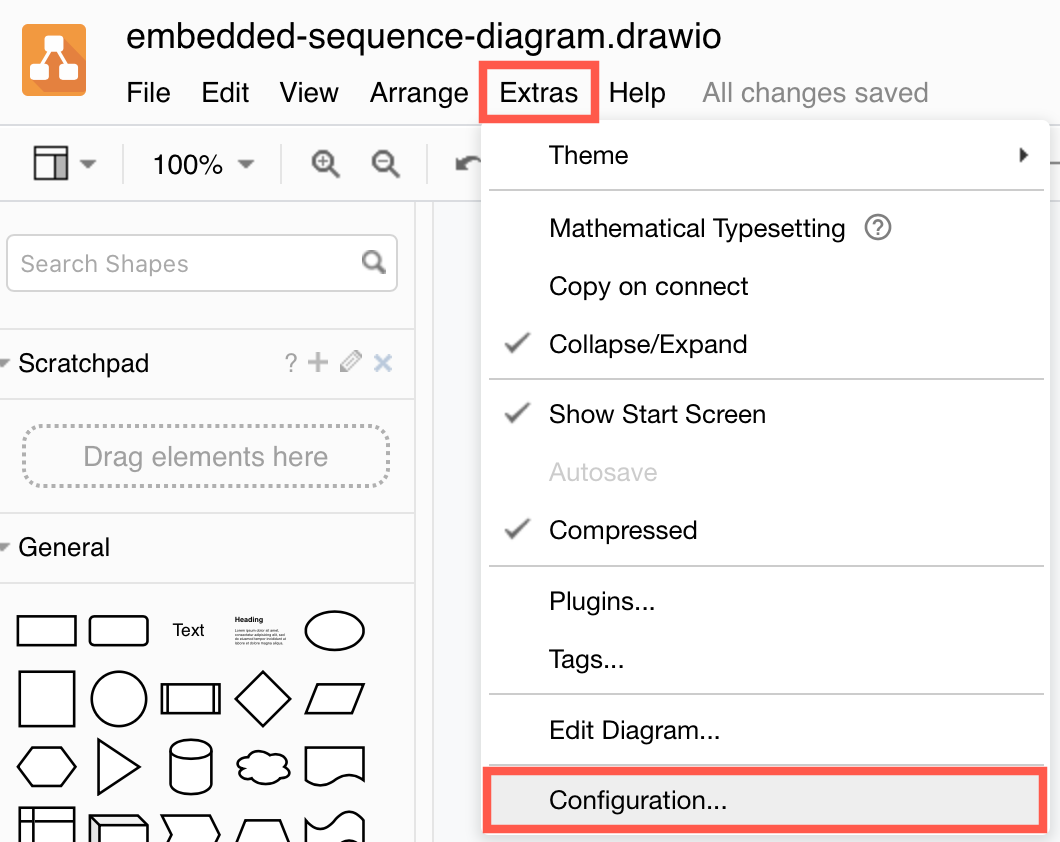
- Select Extras > Configuration from the menu, or ... > Settings > Configuration from the toolbar.
- In the Editor tab of the Configuraion dialog, search for enable AI (or
enableAi) and pressEnter. Set the Enable AI toggle switch to off.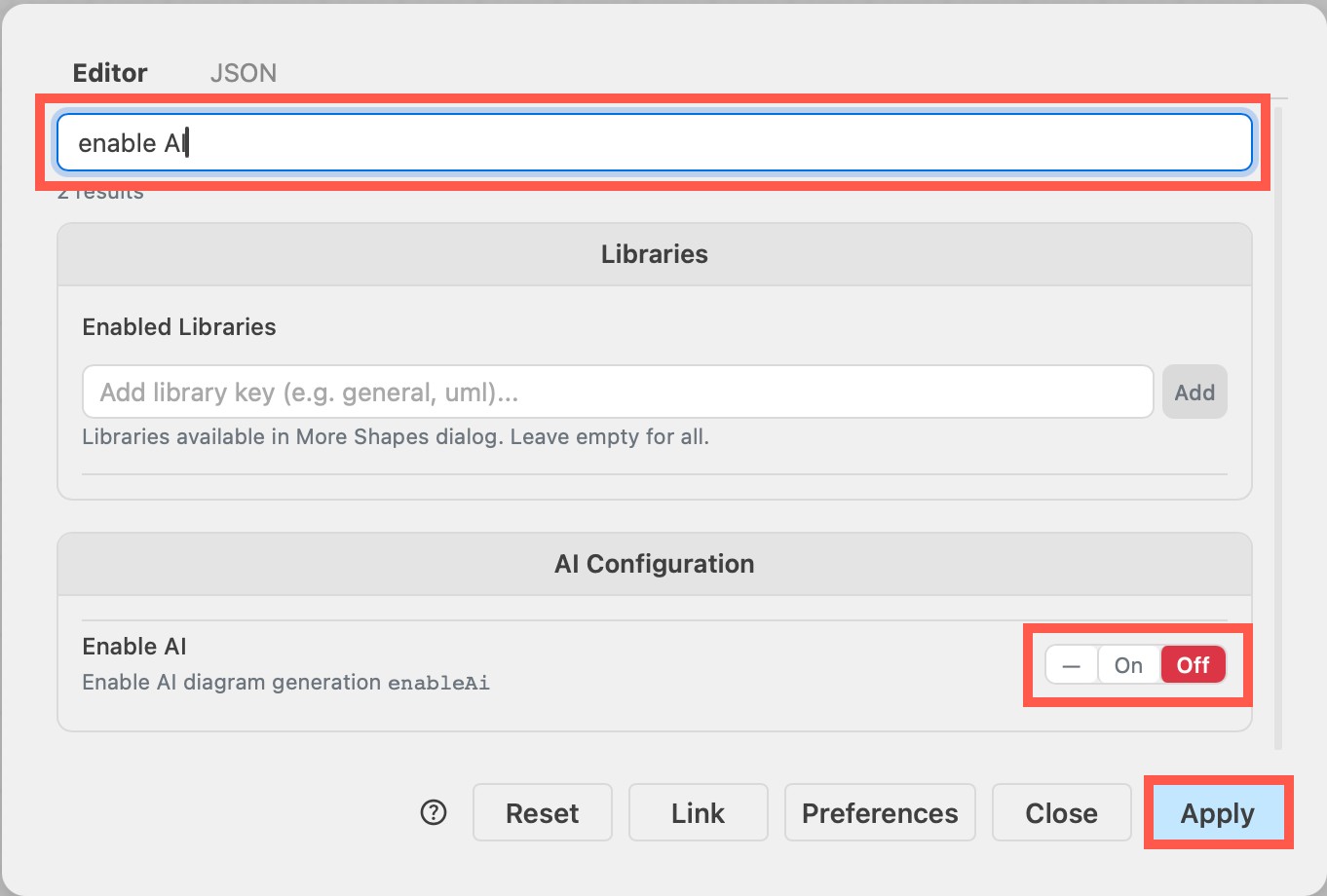
- Alternatively, add the following JSON string to the configuration in the JSON tab:
"enableAi": false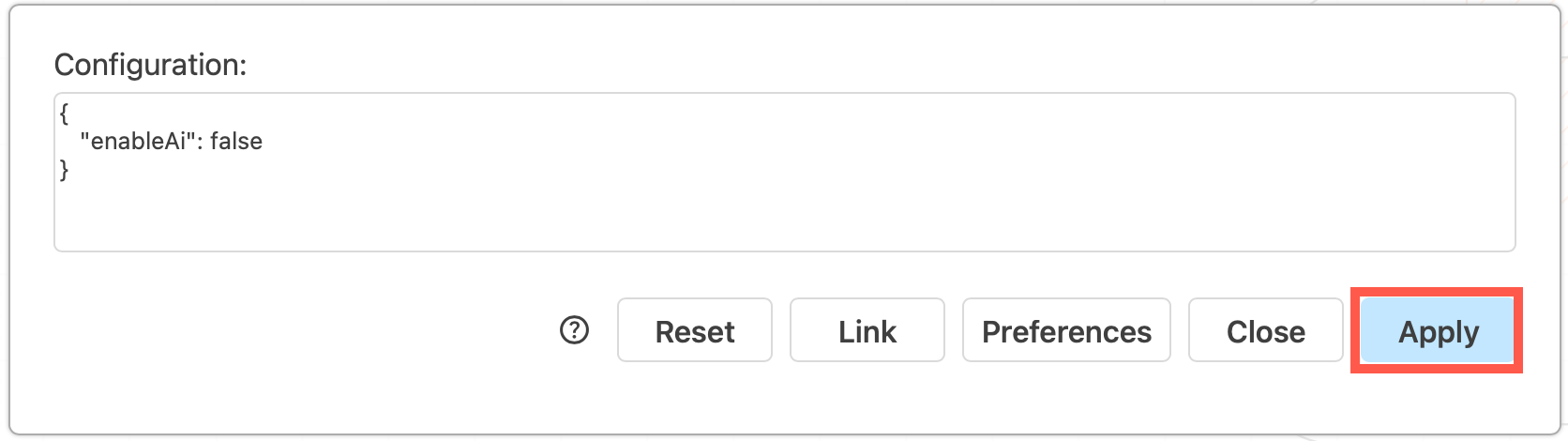
- Click Apply to save your changes. Reload the browser tab to load the new configuration and disable the diagram generation features in the draw.io editor.
This removes the the Generate tools and options from the template library, search field and menus, and hides the sparkle tool from the toolbar.
Feature availability
If you are using the online version of draw.io at app.diagrams.net, then the diagram generation features are enabled by default.
Diagram generation is not available in draw.io Desktop as the Desktop version is fully offline.
Administrators must manually enable diagram generation in draw.io for Confluence Cloud in the draw.io configuration options before their users can generate diagrams. Diagram generation tools are disabled by default in draw.io for Confluence.
When the lockdown option is set to true, the all diagram generation options and tools will be disabled and hidden.
Using diagram generation in draw.io
The AI-assisted diagram generator in draw.io uses a variety of LLMs (AI large language models such as Claude, ChatGPT and Gemini). draw.io will choose an appropriate one for the diagram type you have requested in your prompt.
You write a prompt in text, and it returns a Mermaid diagram or a draw.io diagram based on your input, the type of diagram and any options you selected.
What diagram data is shared?
Your query text and the diagram response generated by the LLM tool is seen by the LLM service.
The diagram generation actions you can customise in the draw.io configuration determine what (if any) data is cached and/or shared.
Your diagram data is not shared with the LLM by default. It will see the diagram data of whatever it generates, but unless you choose otherwise, nothing on the drawing canvas will be shared with the LLM.
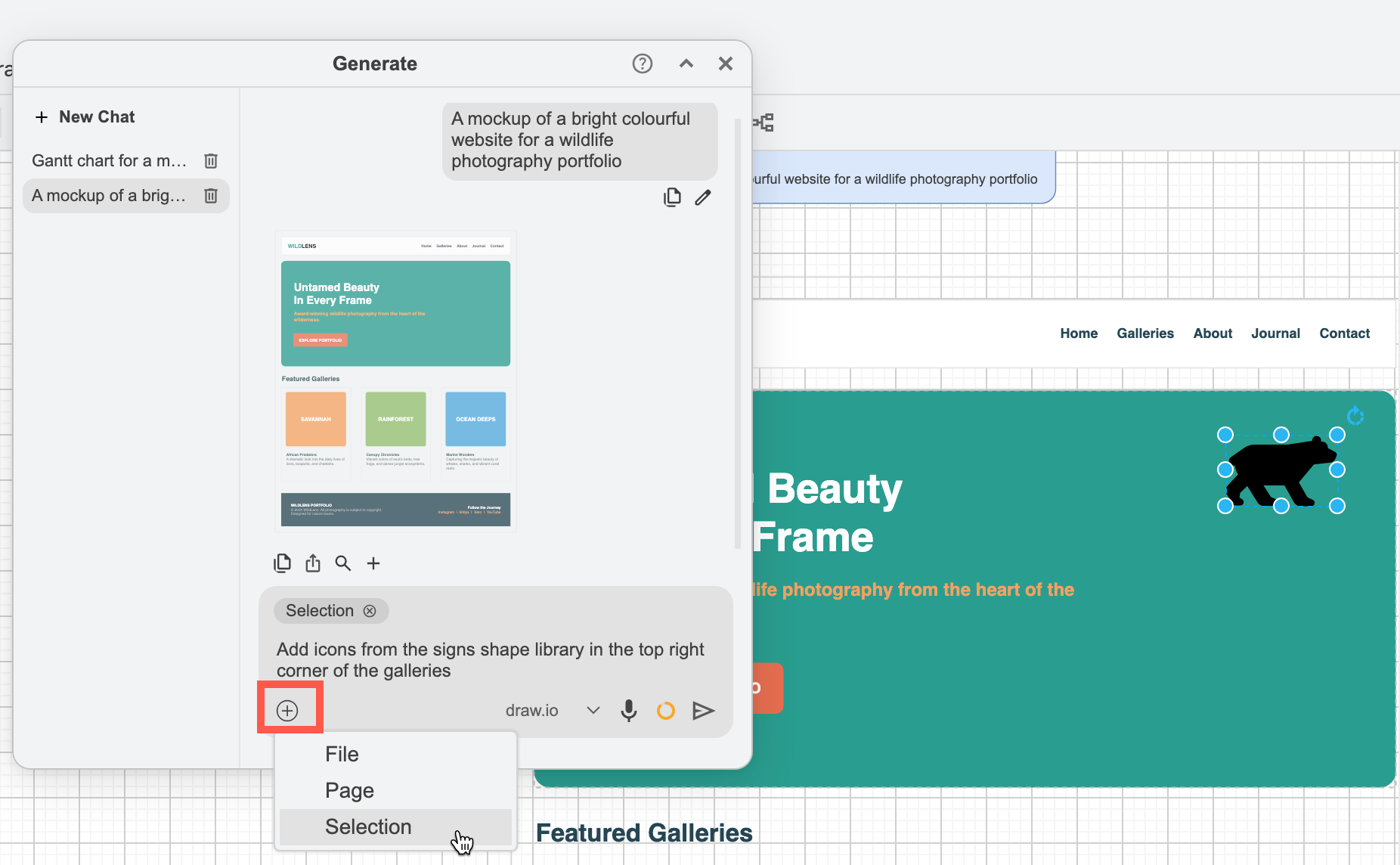
You can choose to share selected shapes, the current diagram page or entire the diagram file via the + in the text box in the Generate dialog - this attaches the diagram data that you selected to the query. Note that it is up to the LLM whether it takes your attachment into account.
Related
Learn more about diagram generation and how to write good queries to generate better diagrams.
You can also configure draw.io to use your preferred LLM or train an LLM with our AI style refernece.