Simple editor theme for draw.io
The Simple editor theme for draw.io combines the fixed panels and page tabs from the original diagram editor layout, the responsive toolbar from the Minimal editor theme, and the menu and shape picker from the Sketch whiteboard-like theme.
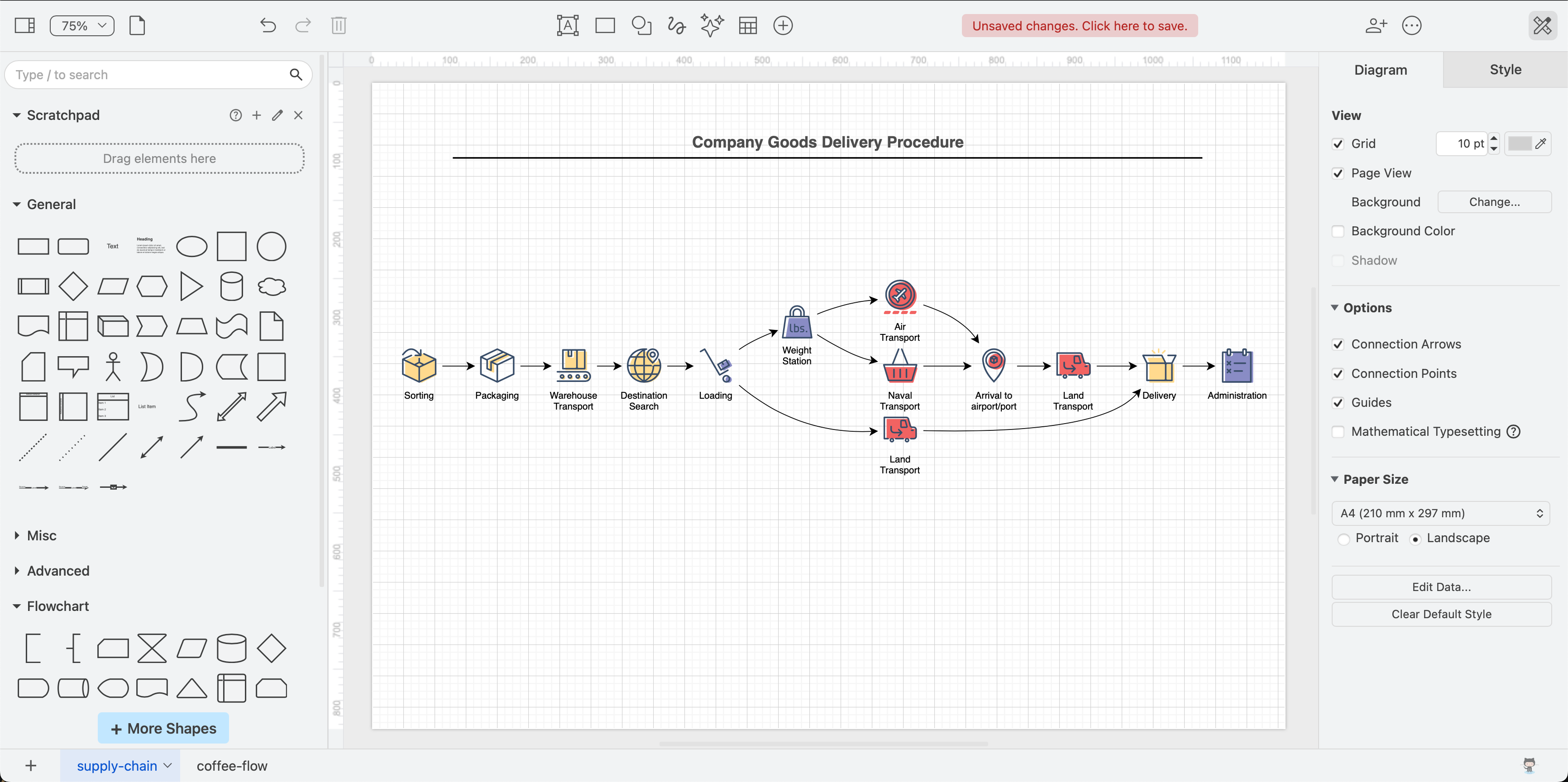
Switch to the Simple editor theme
Select Extras > Theme > Simple from the draw.io menu. The draw.io editor will switch immediately to the simple toolbar.
Hide the format panel and shapes panel in the Simple editor theme for a large, distraction-free drawing canvas.
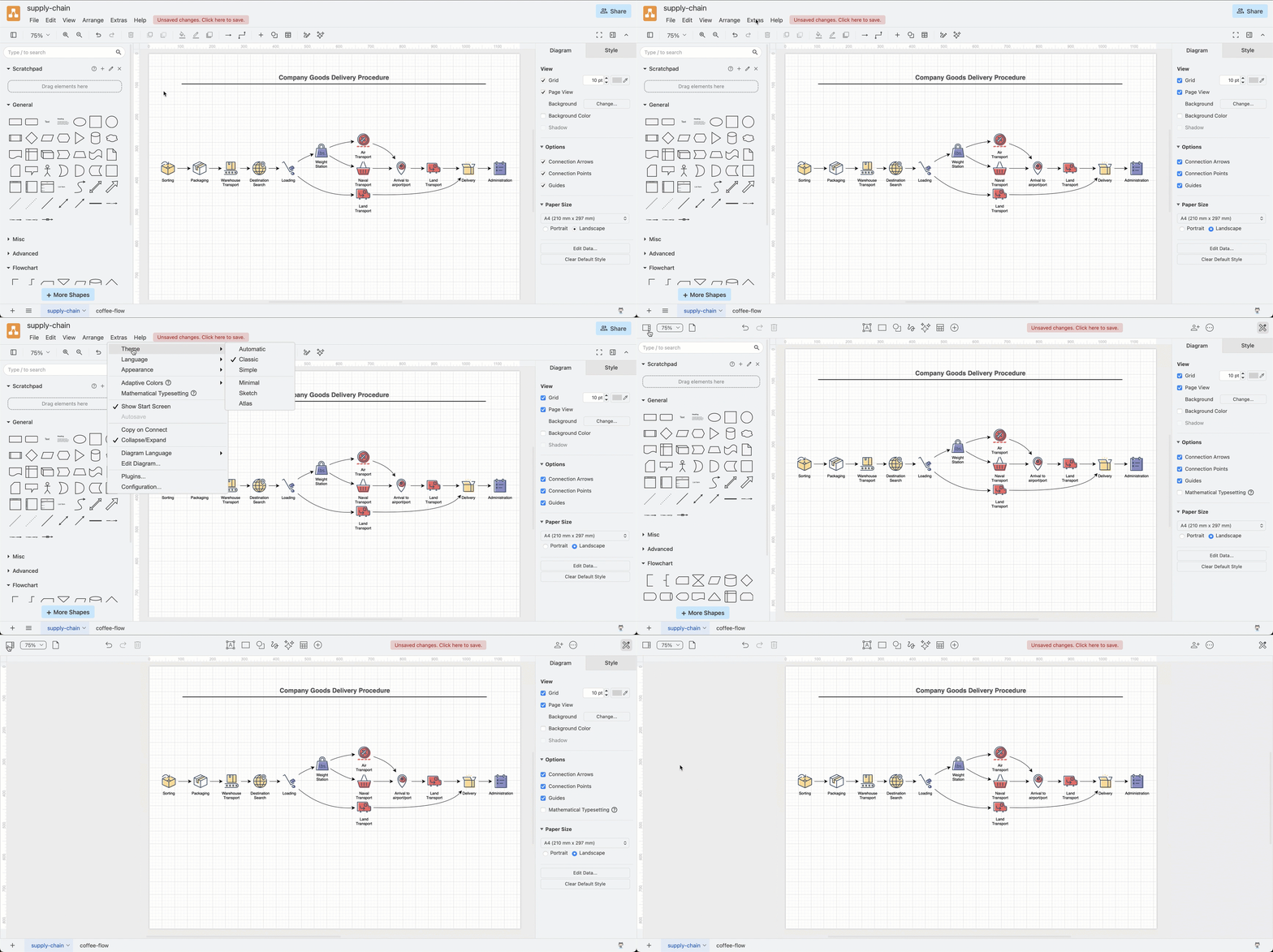
See how to change the editor theme if you are not using the original Classic editor theme.
Simple editor toolbar

Hover over any of the tools on the toolbar to see a tooltip.
Display or hide panels
Hide or display the shape panel, format panel, rulers, page tabs at the bottom of the drawing canvas, and the floating dialogs for additional tools, all via View at the left end of the toolbar.
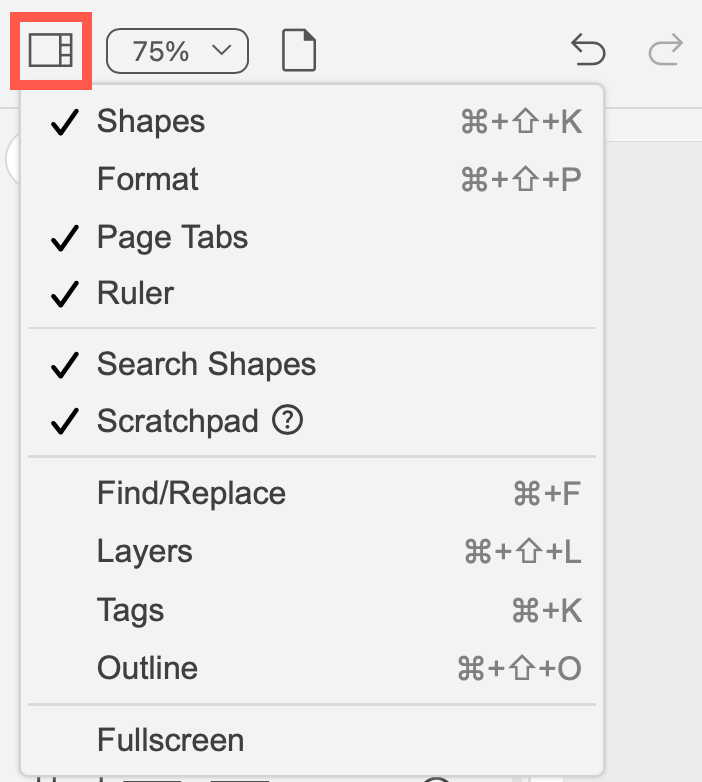
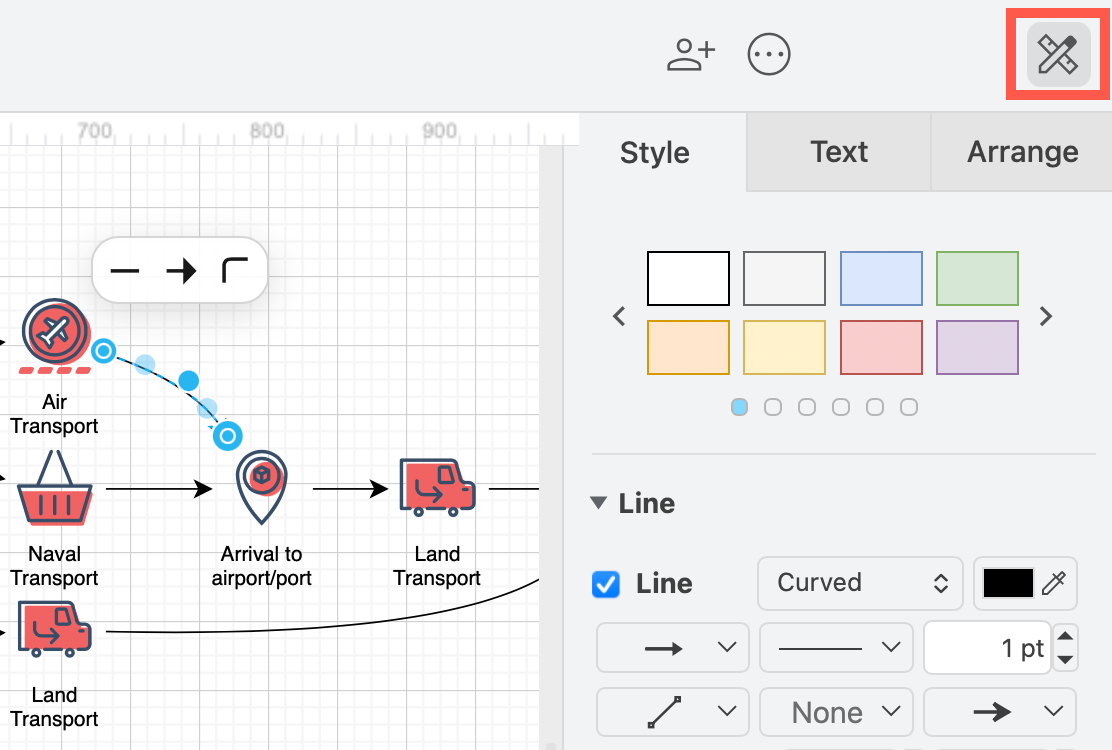
Alternatively, hide or display just the format panel via Format at the right end of the toolbar next to the mode switch.
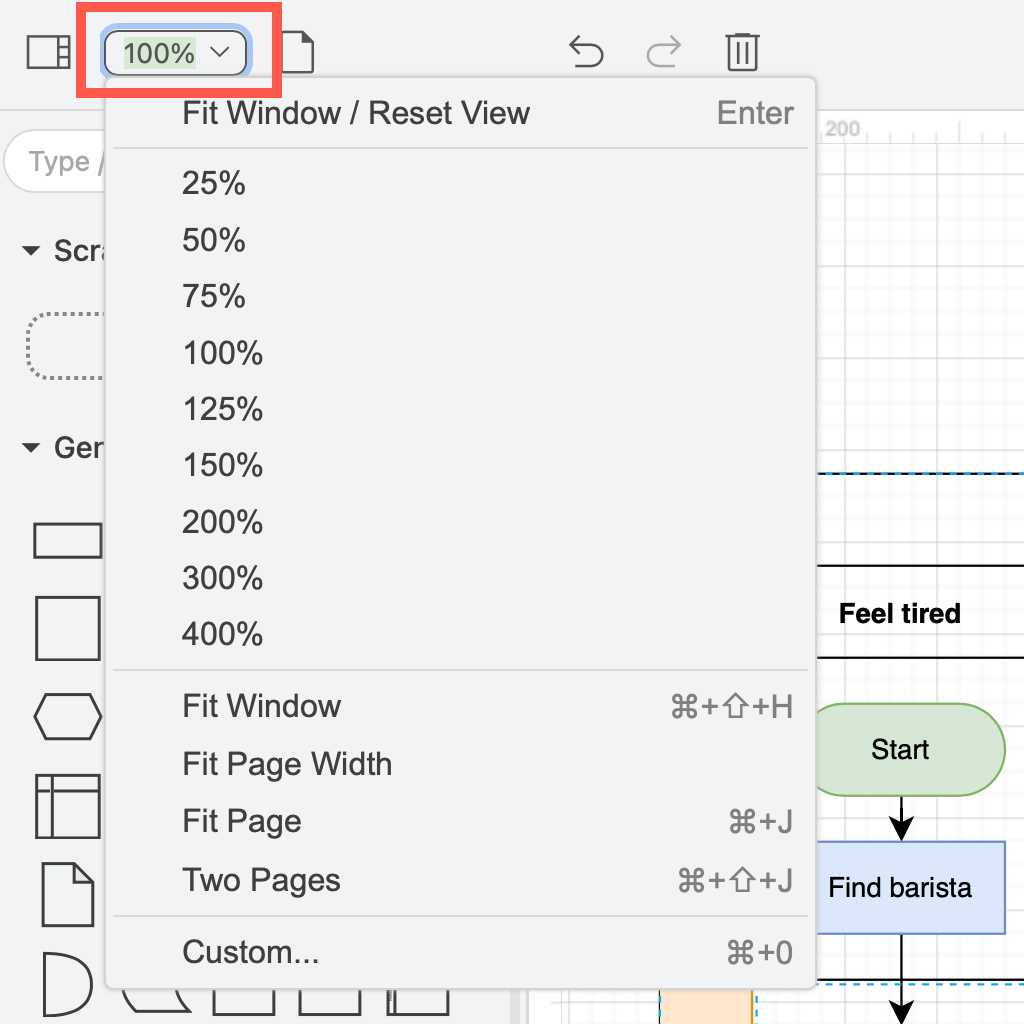
Zoom in and out
Zoom in and out of your diagram or fit it to the browser window using the drop-down list at the left end of the toolbar.
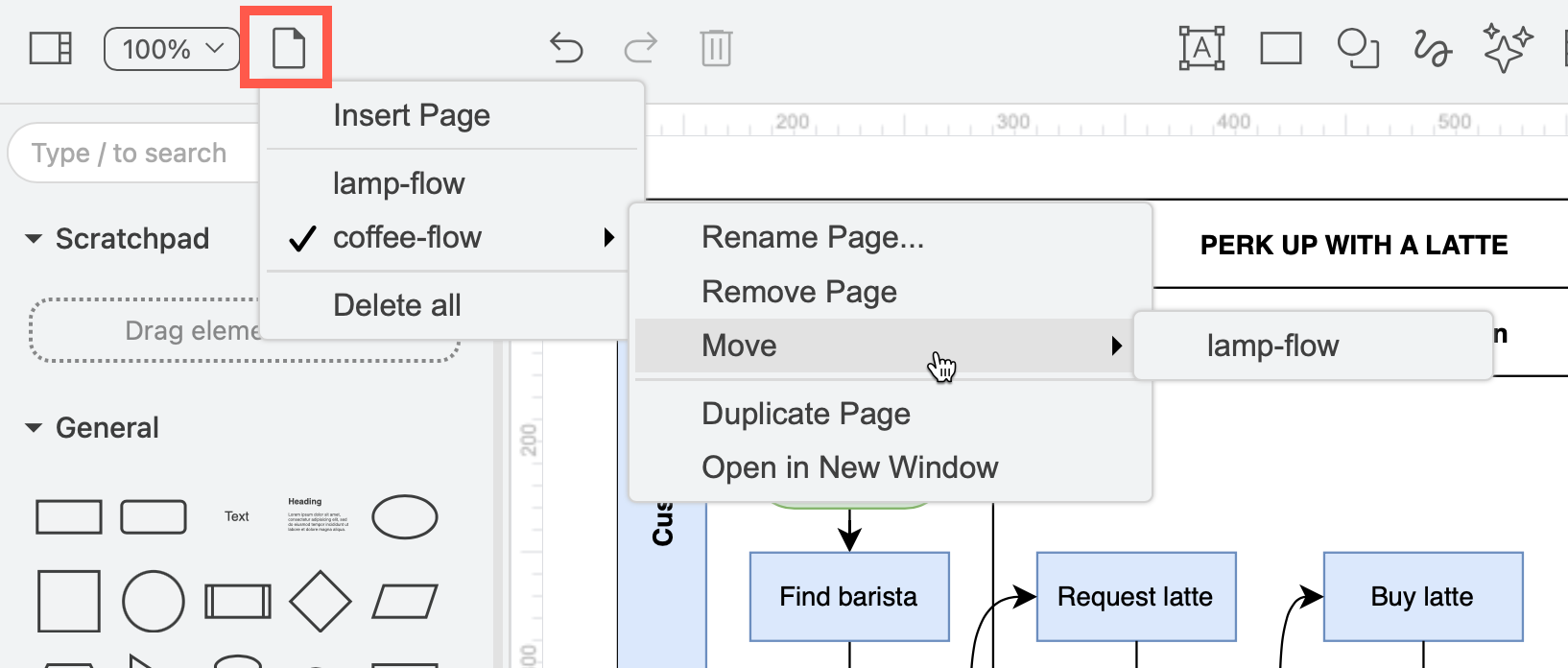
Multiple page diagrams
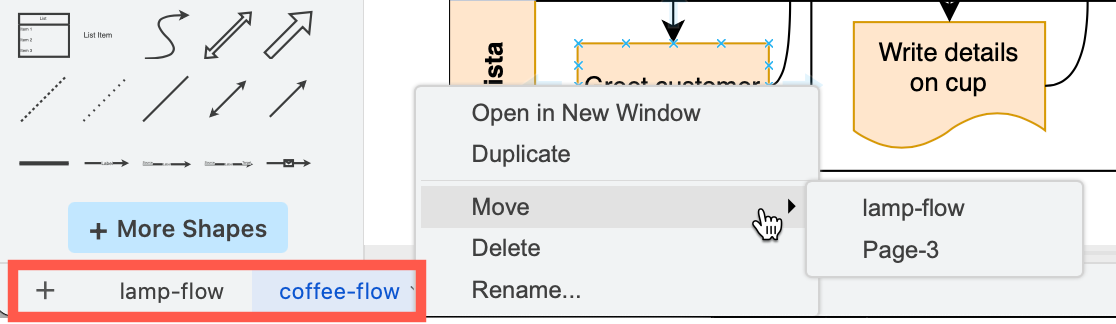
Work with multiple-page diagrams via the Pages tool, and via the page tabs at the bottom left of the editor.
- Insert a new blank page or duplicate the current page.
- Rename, remove or move the current page.
- Open just this diagram page in a new browser tab.
Undo and redo changes
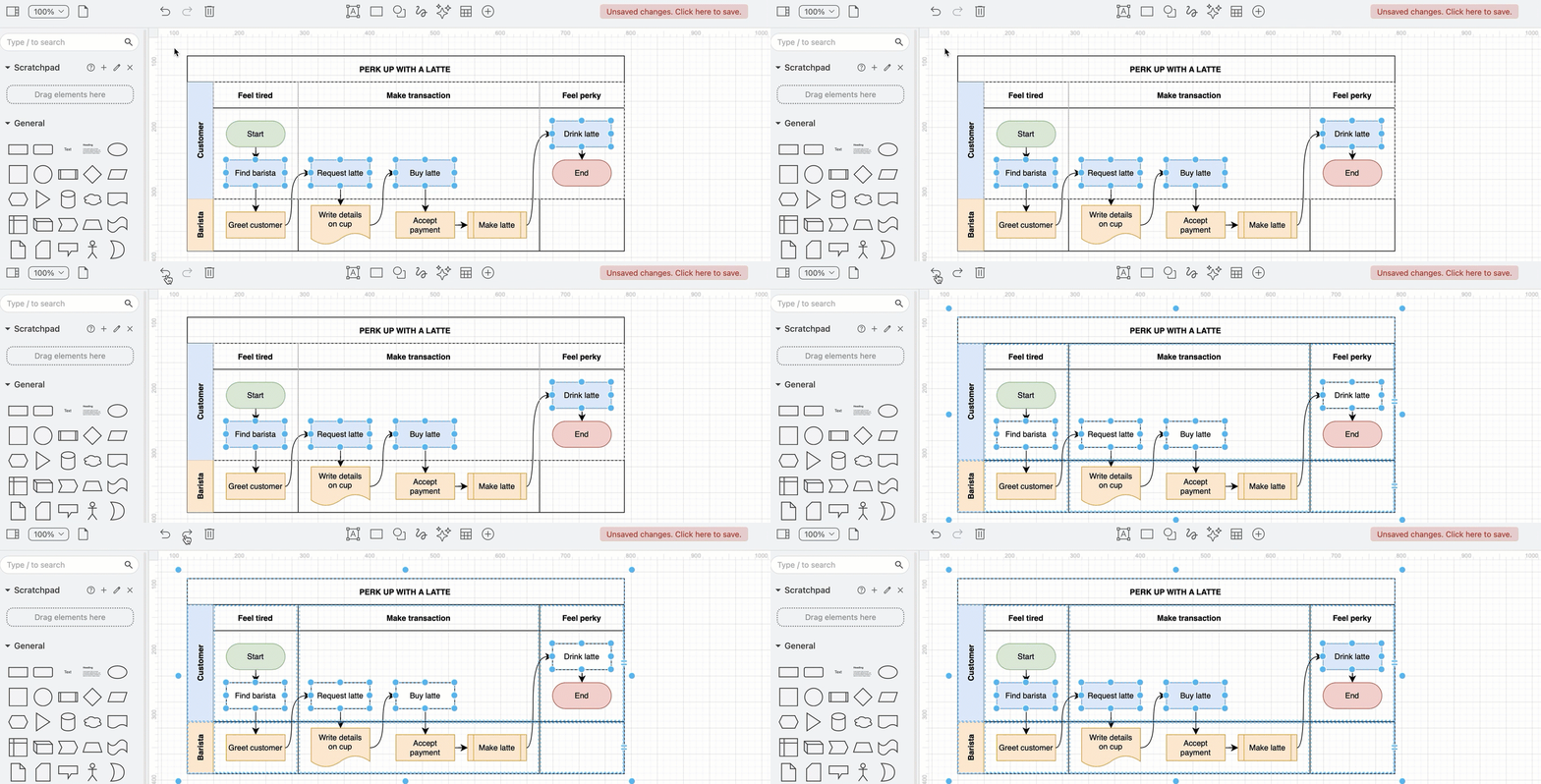
Once you have made changes to a diagram, click on Undo to undo an edit. Click on Redo to apply the change again.
Insert shapes q via the toolbar
Click on one of the tools in the middle to add text, rectangles, and a selection of shapes to the center of the drawing canvas.
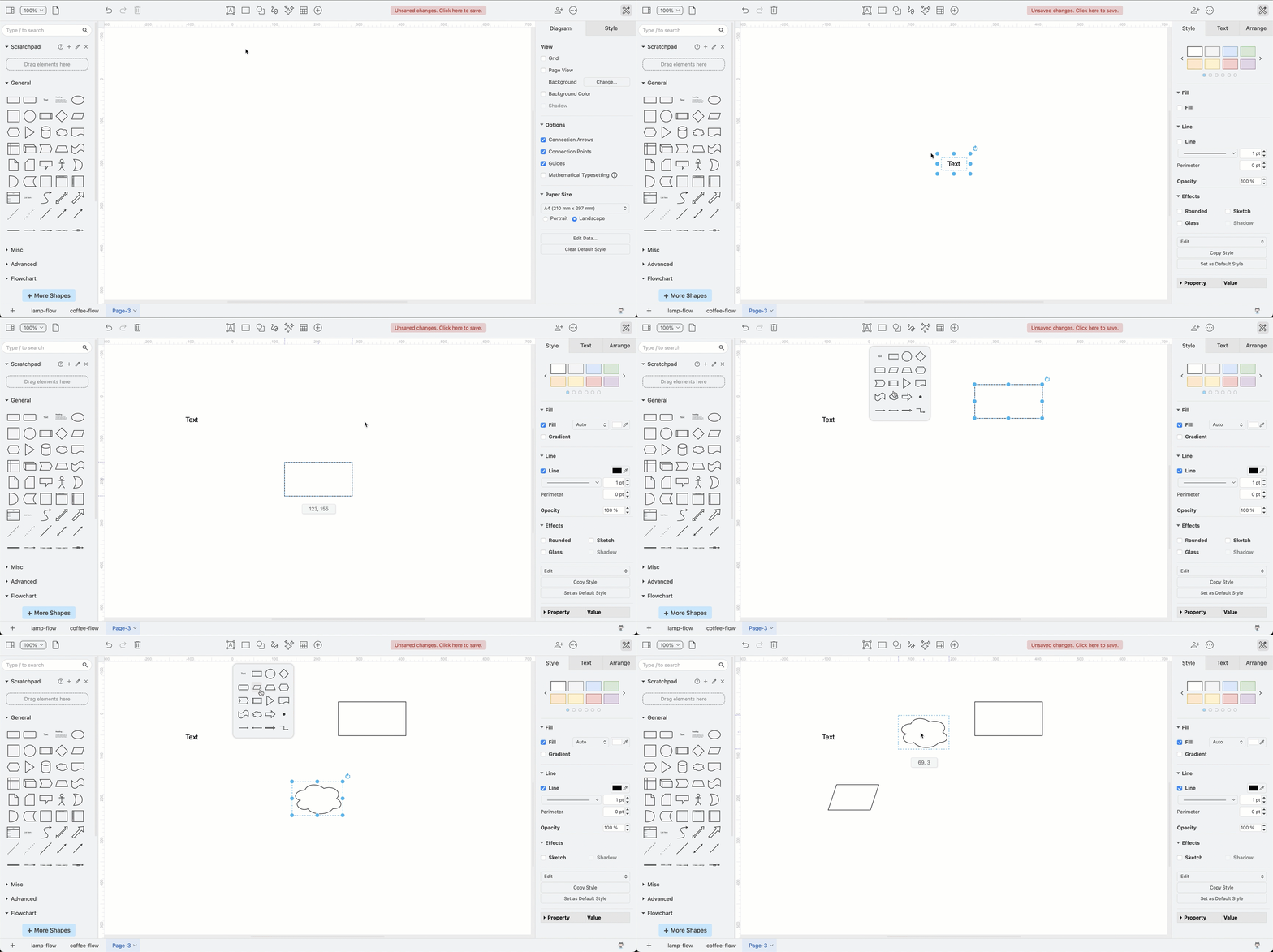
Tip: Hold down the middle mouse button/wheel and drag the drawing canvas to reposition your diagram - then the added shapes won't overlap.
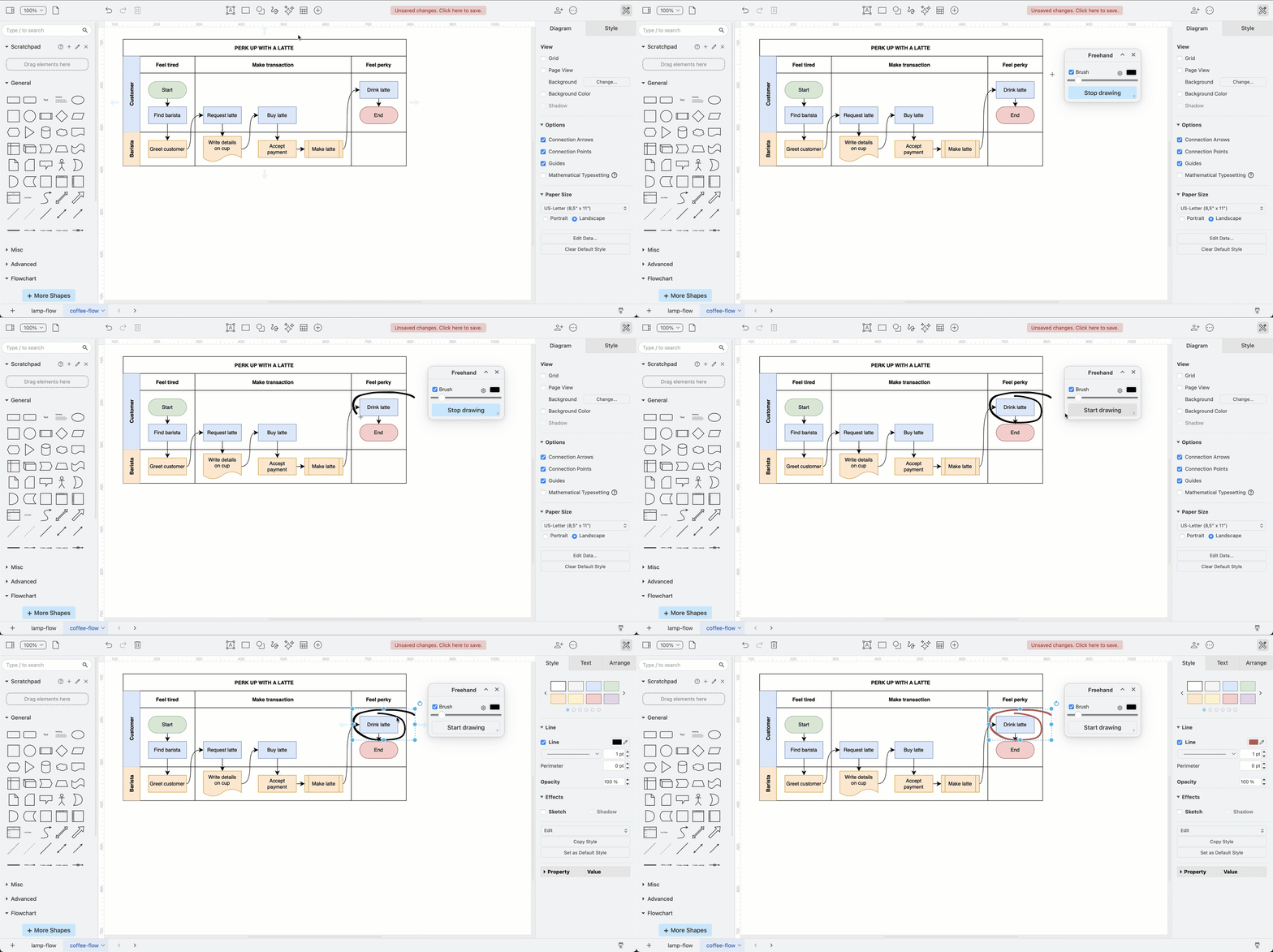
Click on the Freehand tool to open the Freehand dialog and draw a shape with your mouse. Before you style your shape or draw another, click Stop drawing in the dialog.
Click on the Table tool and drag to select the rows/columns you want your table to have.
- Before selecting the size, you can click Title and Container to turn the table into a cross-functional flowchart, into which you can drop other shapes.
- Add and remove rows and columns via the Arrange tab on the format panel. Alternatively, select your table and click on the Table tool to see the same row and column functions.
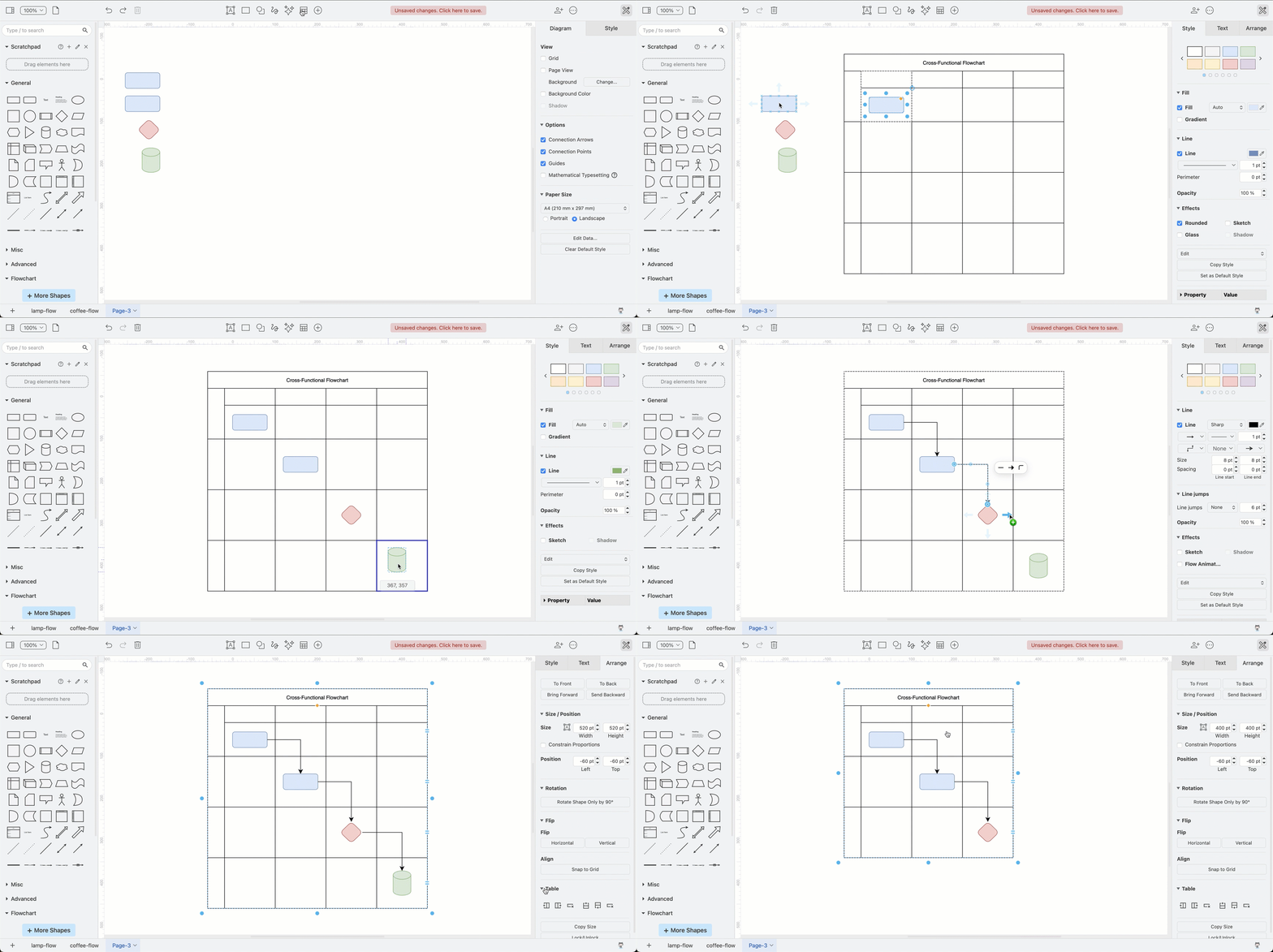
Note: Unlike the swimlane and layout shapes in the Advanced shape library, you will need to resize your cross-functional table rows and columns yourself. They will not resize automatically when you drop shapes into them.
Insert more shapes, templates and images
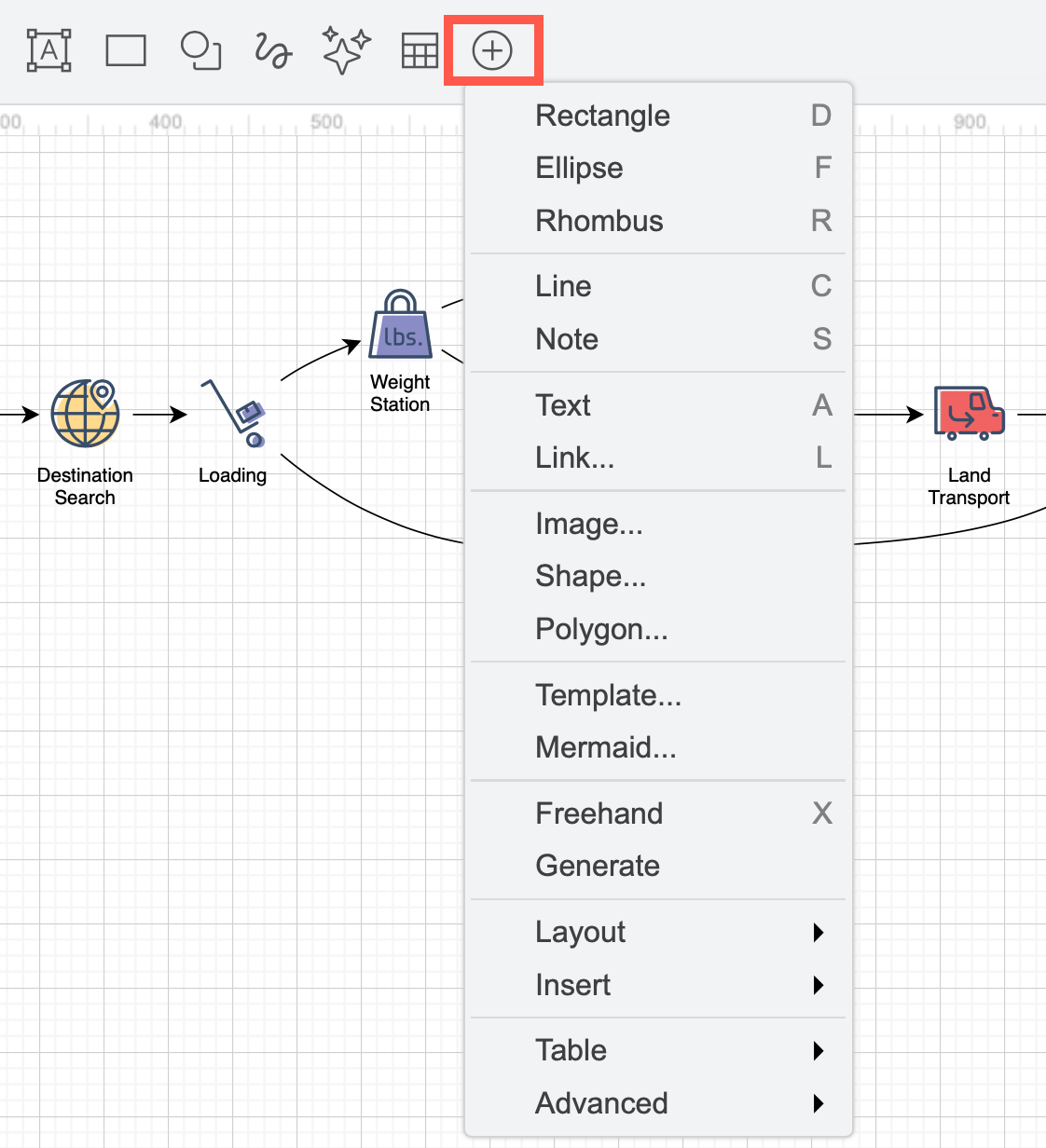
Click on the + in the middle to insert specific shapes, an image, a template diagram, an auto-layout shape, or use the advanced text-to-diagram tools.
Share or publish your diagram
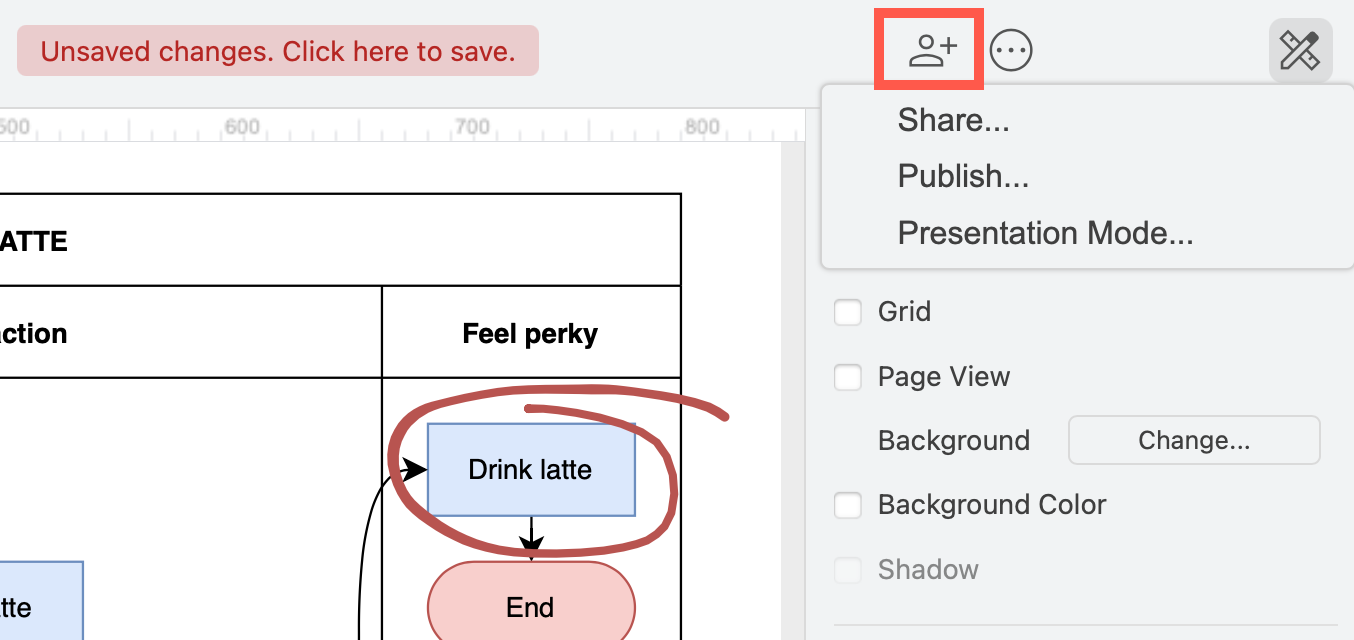
Click on Share (a person with a plus) in the toolbar and select Share to share your diagram with colleagues if you have stored it in Google Drive or Microsoft One Drive. If your diagram is stored in Google Drive, you can read and resolve comments via the speech bubble icon that will only appear if a a comment has been added to the diagram.
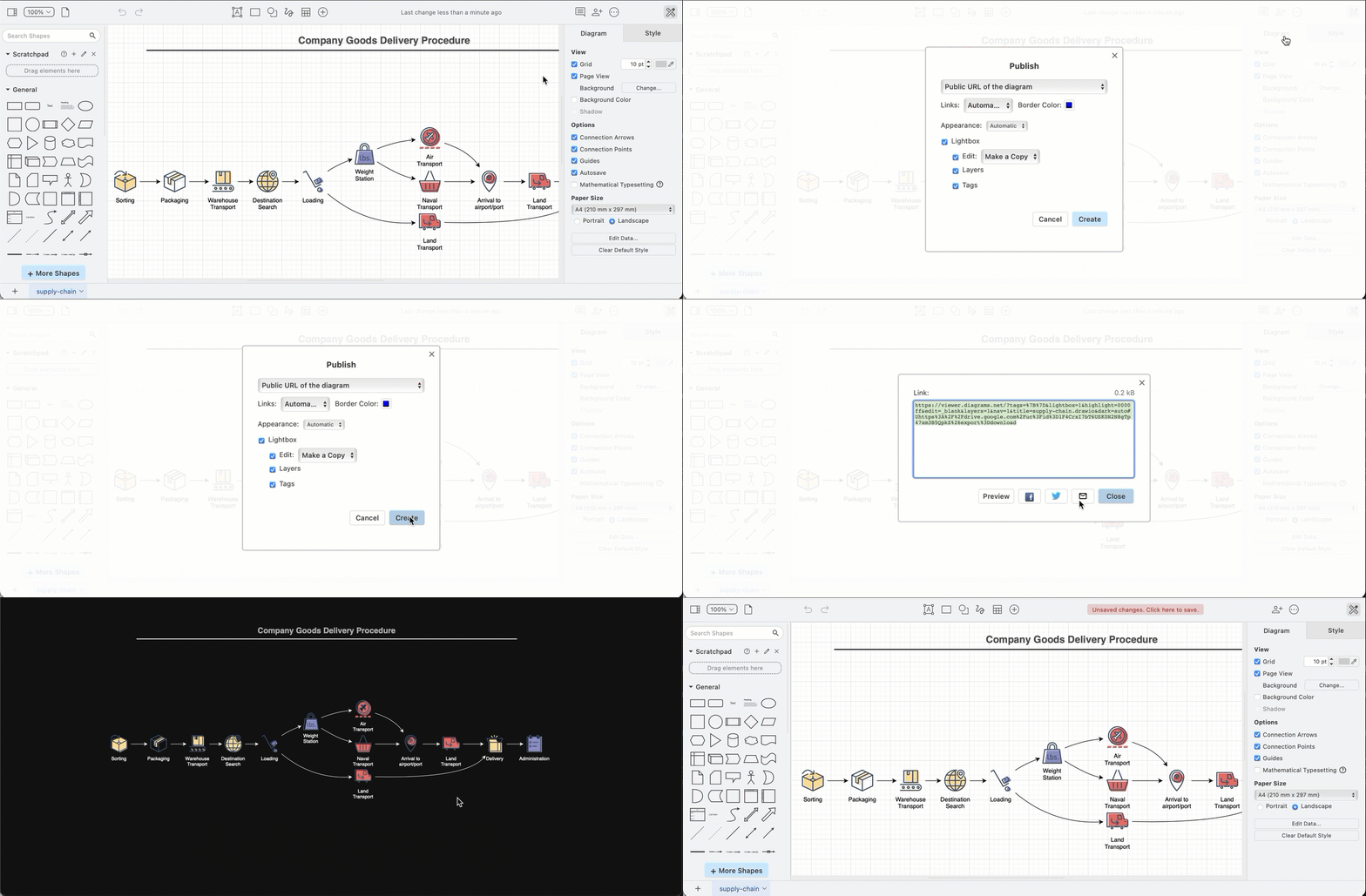
Select Publish, choose the settings you want to use and click Create to generate a link with your diagram data encoded into it. You can share this (long) link and the recipient will open a copy of the diagram in either the viewer or the editor, depending on the the publish settings you selected.
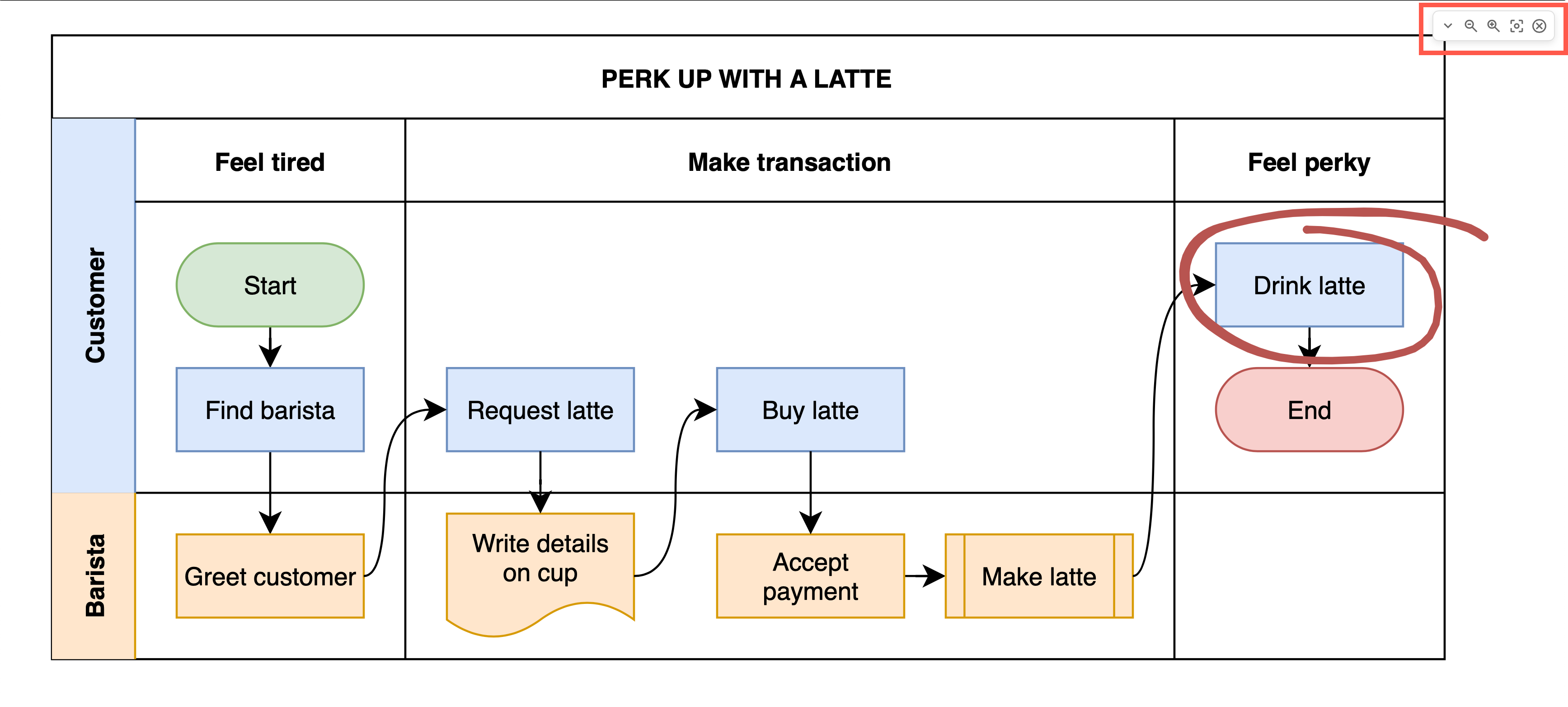
Presentation Mode will display your diagram as an image the size of your browser window. Use this to present your diagram in meetings - you can change pages in the top right.
Open the Simple editor theme menu
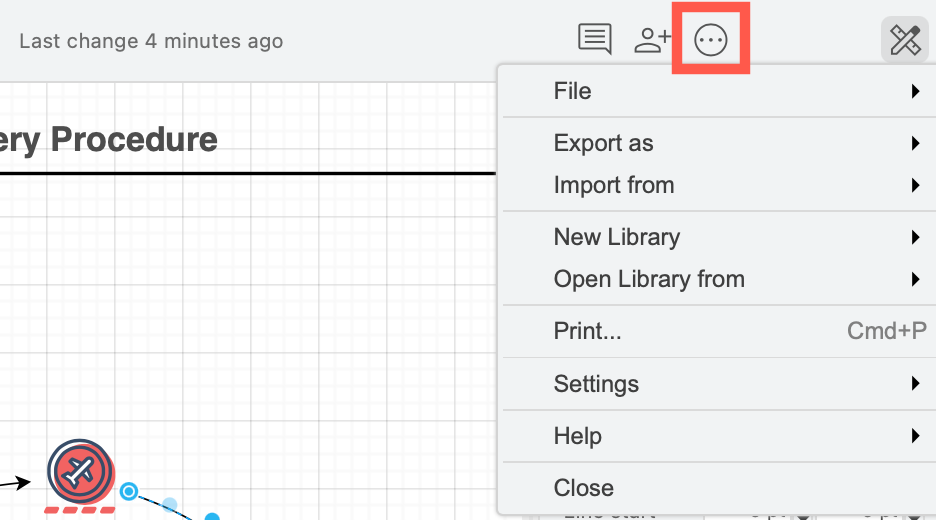
Click on ... (three dots) at the right end of the toolbar to open the settings and import/export menu. You can also open another diagram file, work with custom libraries, and print you diagram via this menu.
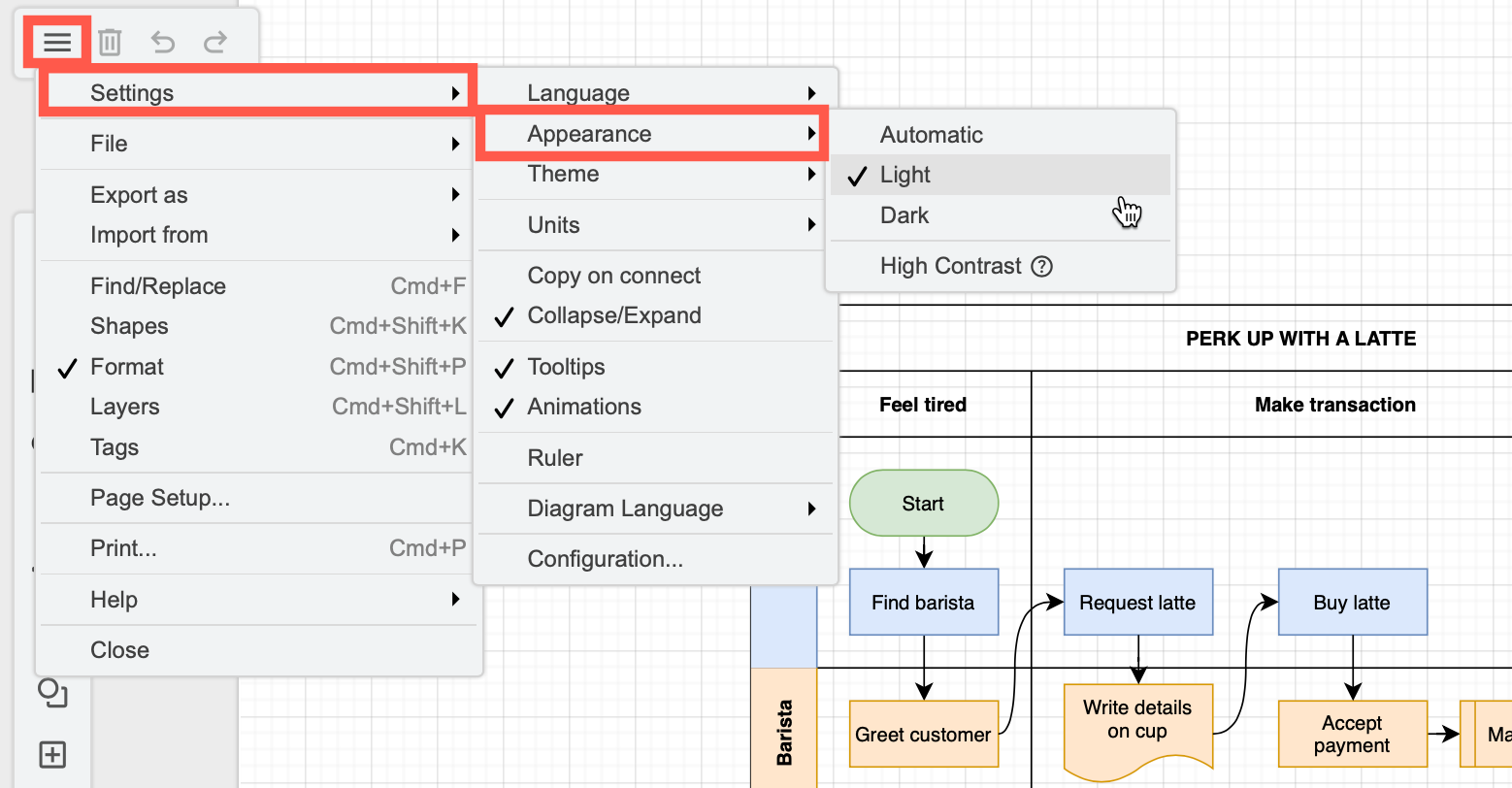
Switch to dark mode
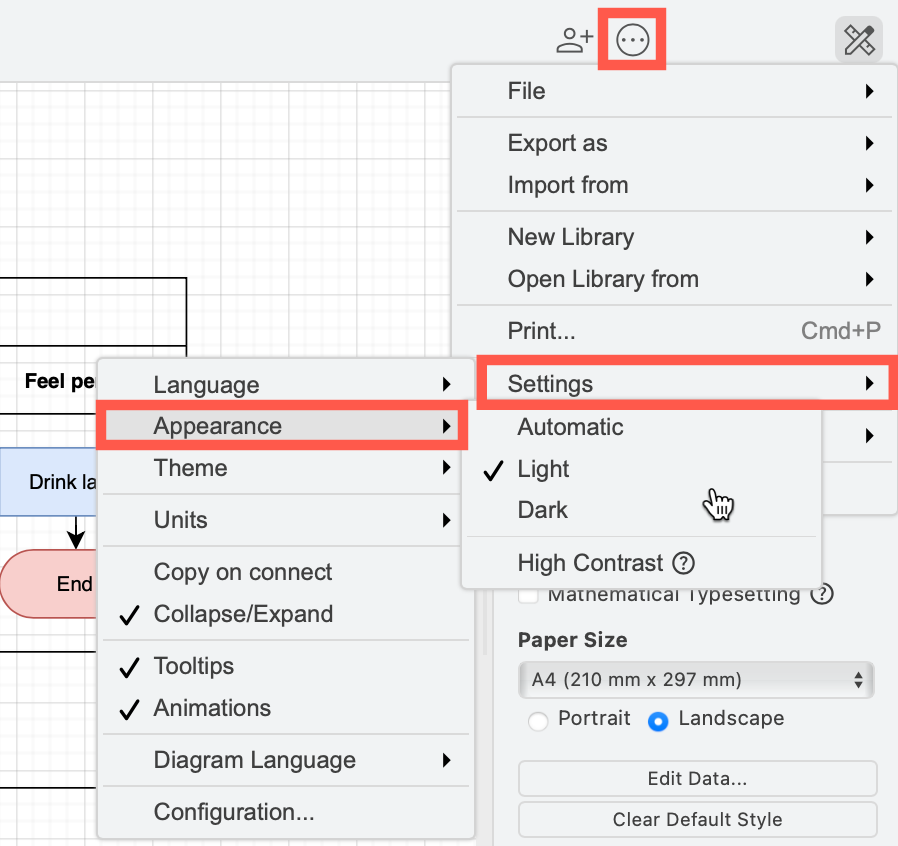
Open the menu and select Settings > Appearance > Dark to switch to dark mode. The colours will automatically adapt to remain readable.
See notifications
If you have not selected a location to store your diagram file, once you make any changes, a warning will be displayed in the toolbar. Click on it and select a storage location to save your diagram.
