Draw with Bioicons clipart library in draw.io
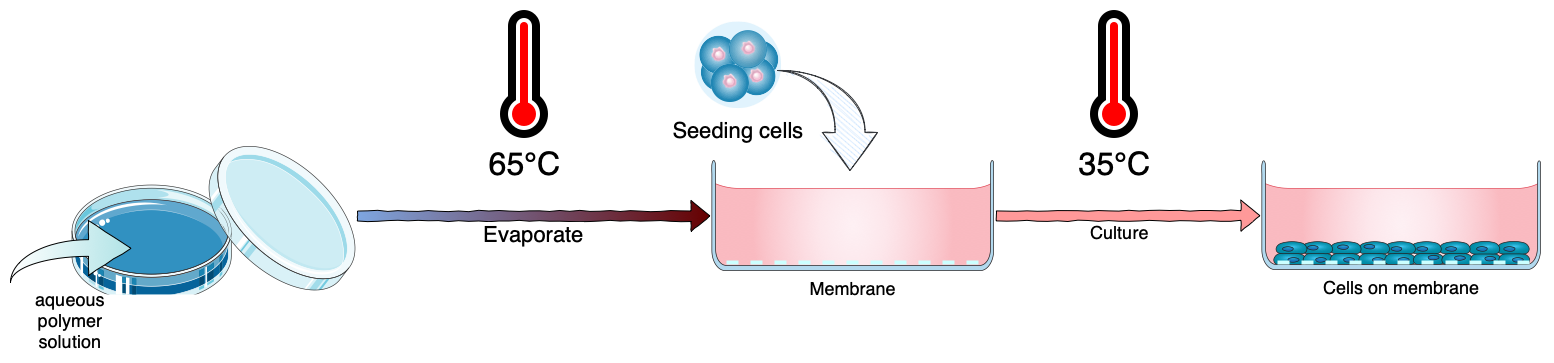
Bioicons is a collection of free custom shape libraries containing open source icons for life science applications. The website lets you select one or more shape libraries, and open them in the draw.io editor on the web.
Bioicons is developed by Simon Duerr as an open source project on Github.
With these icons, you can create scientific illustrations, educational content, lifecycle diagrams, infographics, informative flyers, and more.
Use the Bioicons libraries in a diagram
- Go to the Bioicons extension page at https://bioicons.com/extensions
- Select the libraries that you want to use.
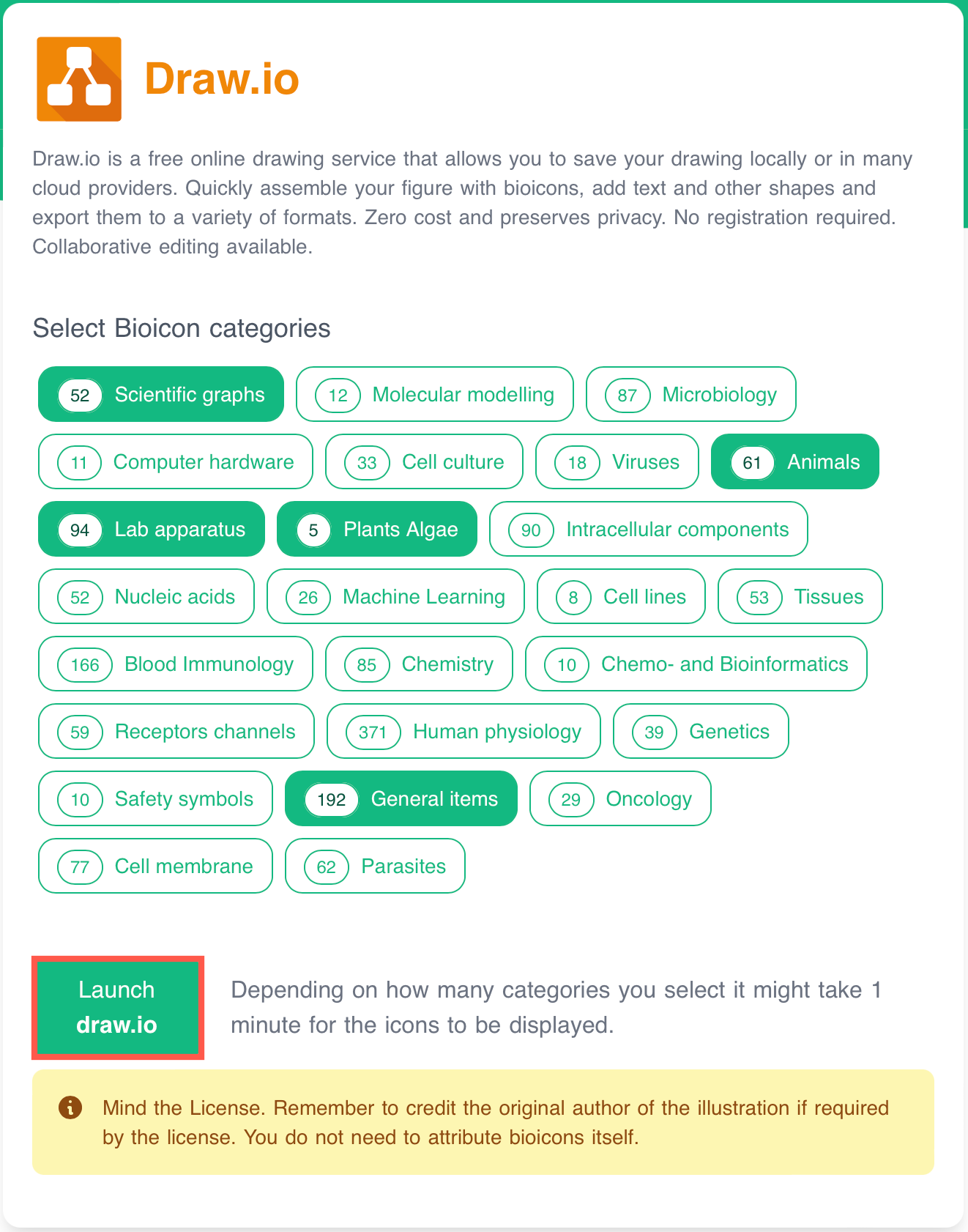
- Click Launch draw.io.
After a short loading time, the icon libraries you selected will be displayed in the left panel above the built-in draw.io shape libraries.
Hover over any shape in these libraries to see a larger preview, including the icon's title and license information.
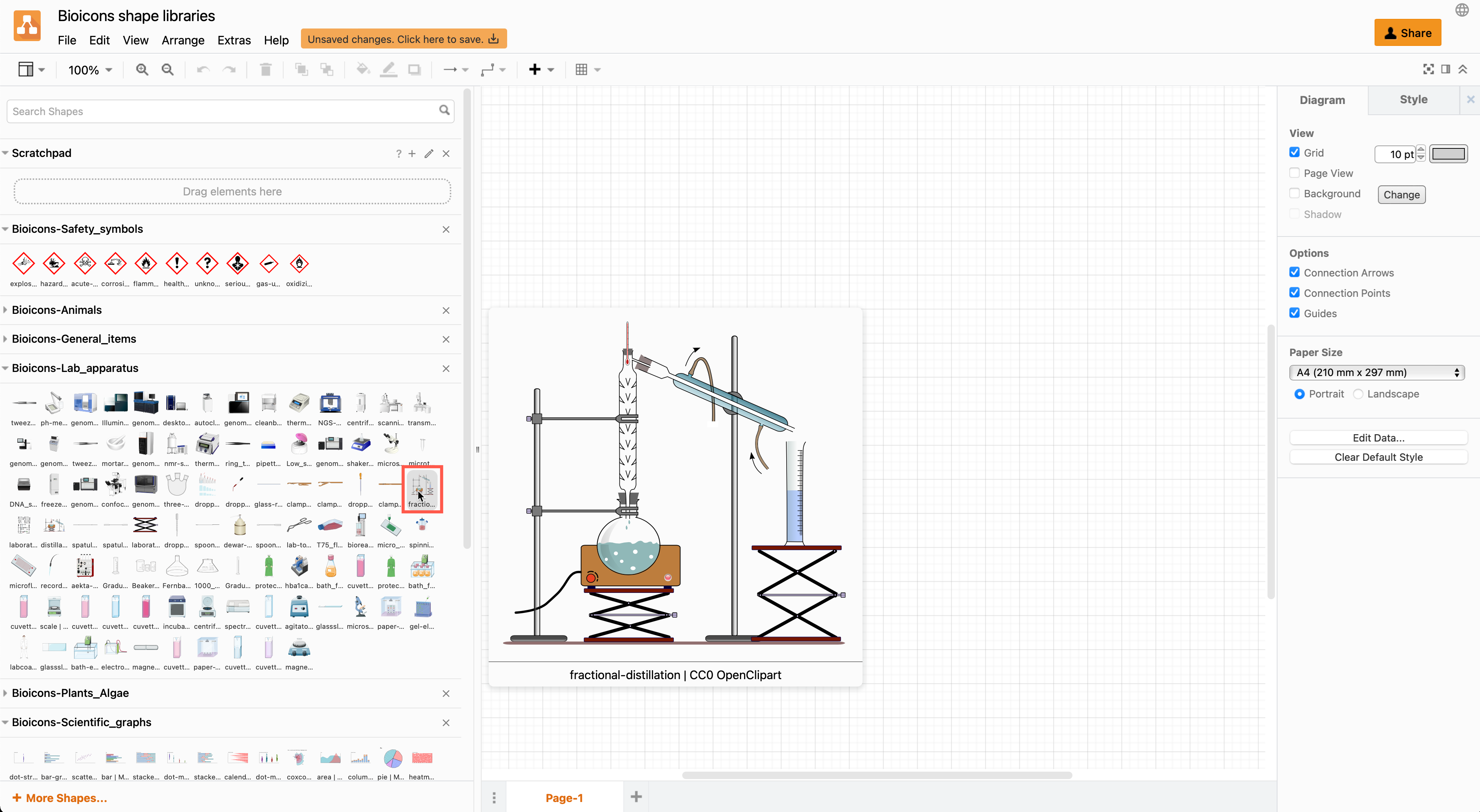
Note: Because the Bioicons are served and not built into the draw.io editor, the Search Shapes feature won't list results from these libraries.
Tips for scientific illustrations and infographics
draw.io helps you diagram quickly and neatly.
Export, print and share diagrams
Export to a wide range of formats including SVG and PNG images which you can embed in websites or documents.
Change the page scale to resize your diagram quickly for printing.
Store the diagram file in Google Drive or One Drive, and embed your illustration in Google Docs or in Microsoft Word/Powerpoint. Teachers and students can share diagrams easily in Google Classroom.
Draw with more shapes
Search for additional clipart and icons at the top of the left panel - draw.io has a huge library of shapes and clipart.
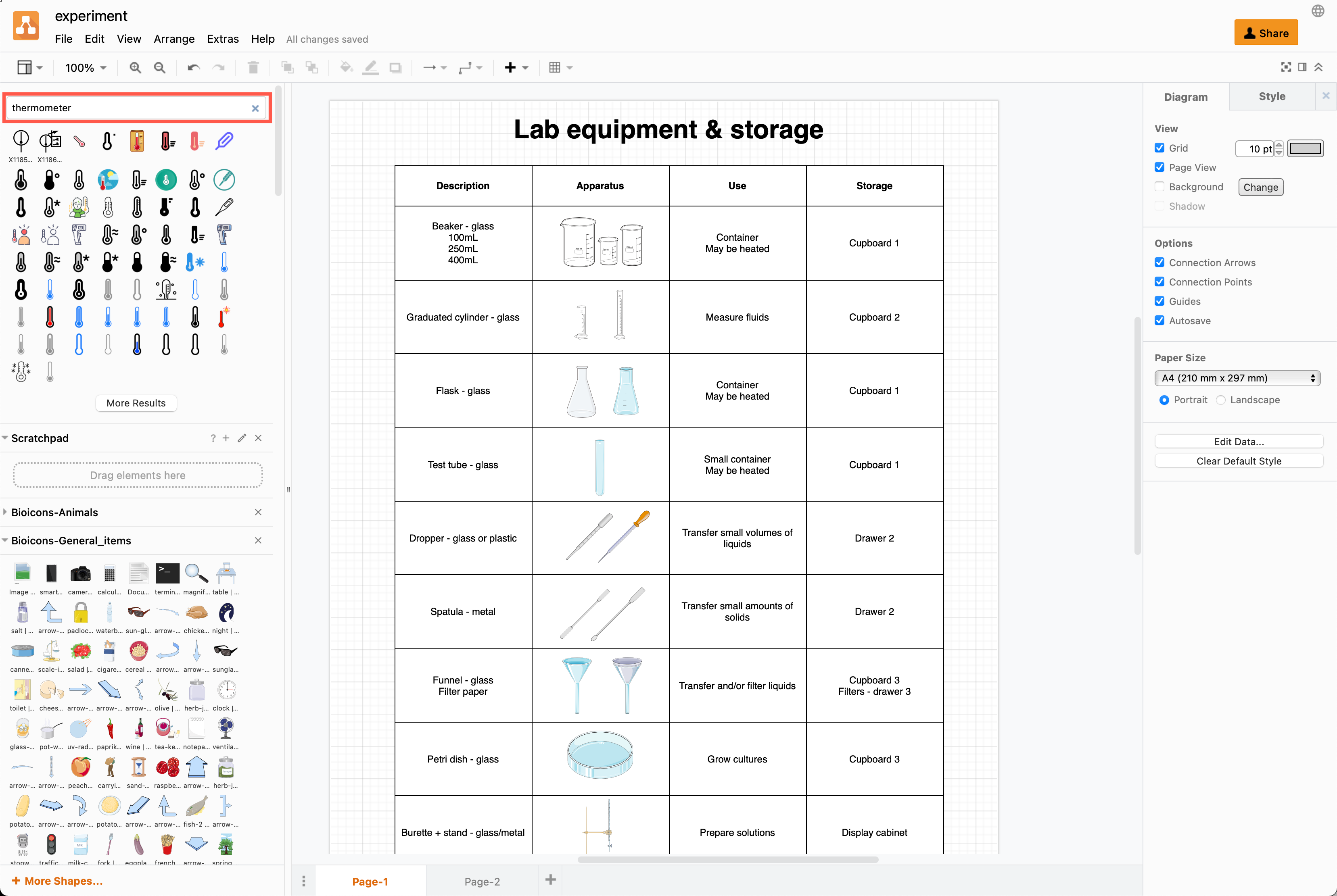
Drag your favourite or oft-used icons from the drawing canvas into the scratchpad on the left.
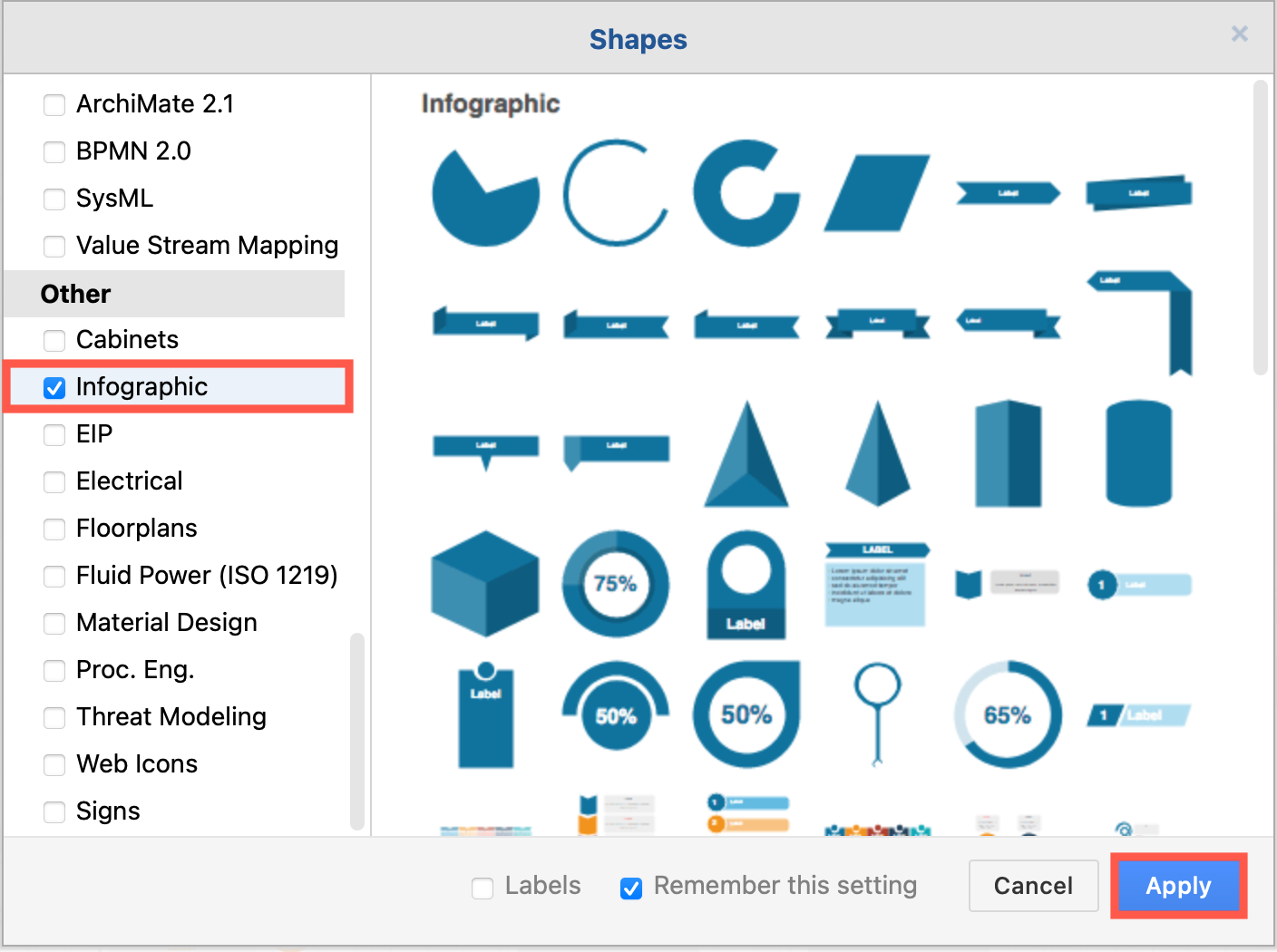
Enable the Infographics shape library to use timelines and circular flowcharts. Enable the Arrows for a variety of arrow shapes.
- Click More Shapes at the bottom of the left panel to enable or disable the draw.io shape libraries.
Style your diagram
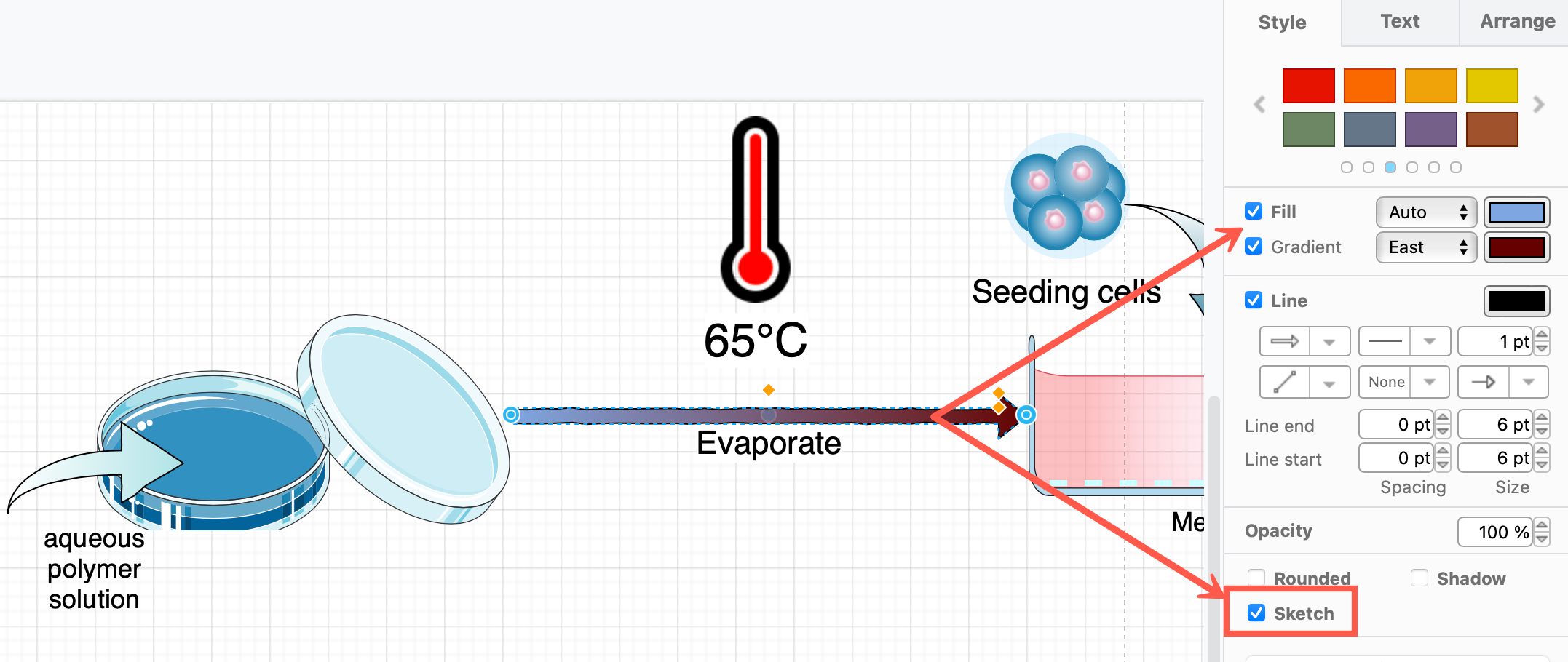
Change the connector styles and shape styles to match the Bioicons in your diagram using the Style tab in the format panel on the right. You can also add gradients on arrow shapes for clear visual explanations.
For a hand-drawn informal look, enable the Sketch style.