Change the page size, scale and orientation
By default, draw.io uses an A4 paper size in a portrait orientation. You can change the paper size and the orientation via the Format panel or the menu.
Change the paper size
- Make sure you have nothing selected in your diagram so you can see the Paper Size settings in the format panel on the right.
- Select a new Paper Size from the drop down list.
- Click on either Portrait or Landscape to change the page orientation.
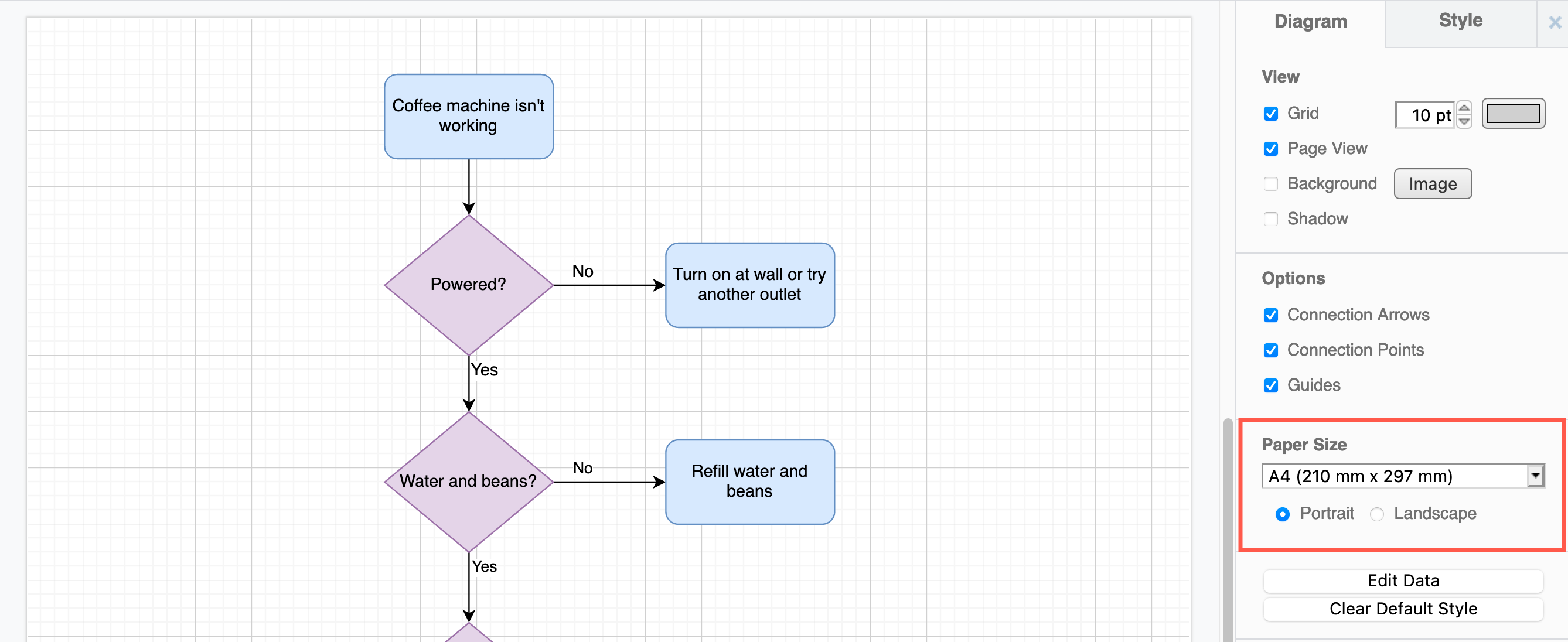
Tip: If your drawing canvas does not indicate the page edges, make sure the Page View checkbox is enabled in the Diagram tab on the format panel.
Use a custom paper size for your diagram
- Make sure nothing is selected in your diagram so you can see the Paper Size list in the format panel on the right, or select File > Page Setup.
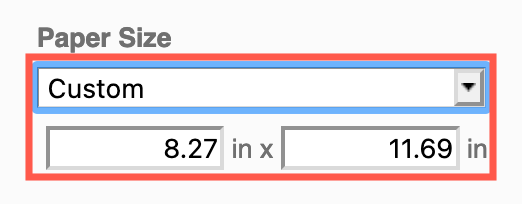
- Select Custom from the Paper Size list.
- Enter the custom height and width of your page in inches.
Change the page setup
- Select File > Page Setup.
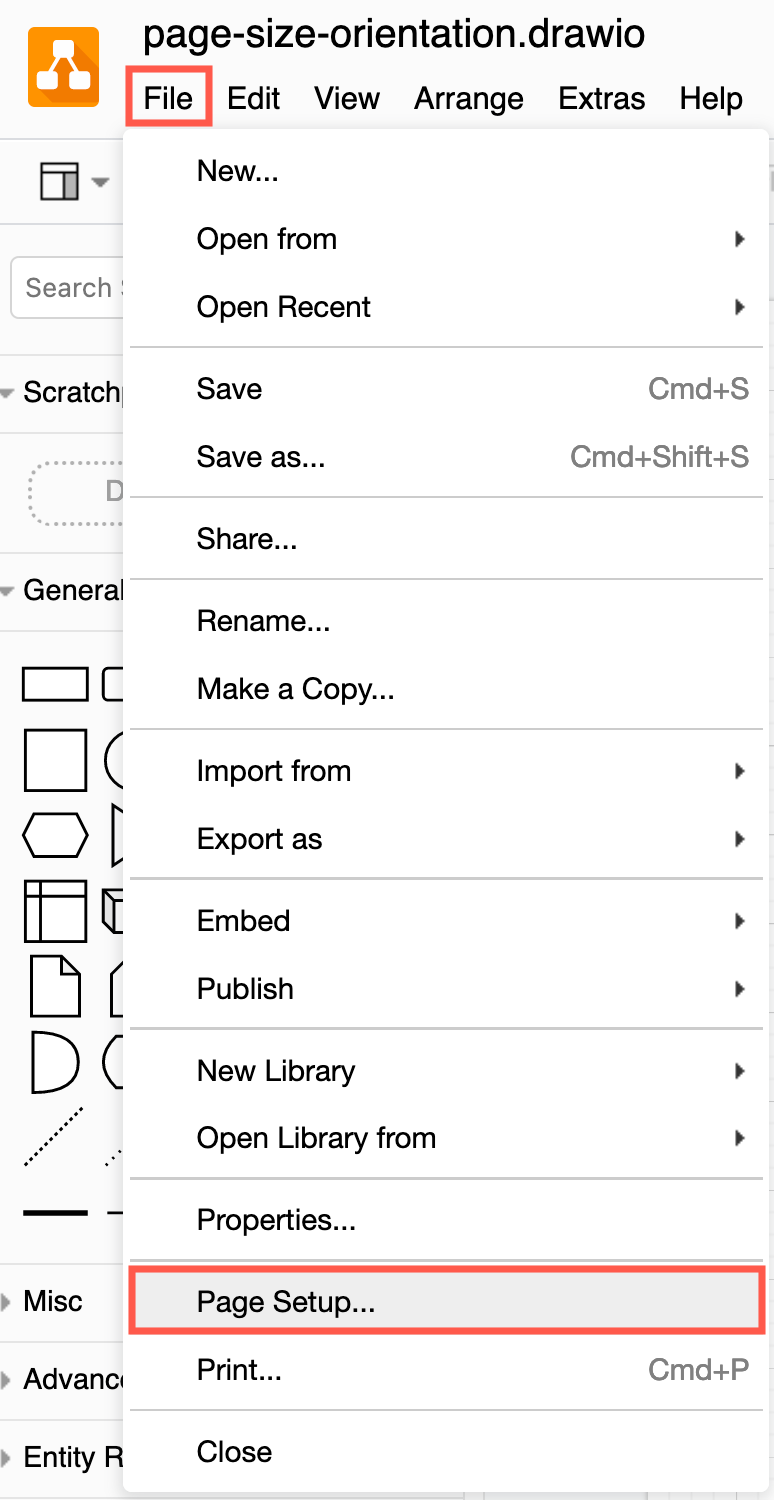
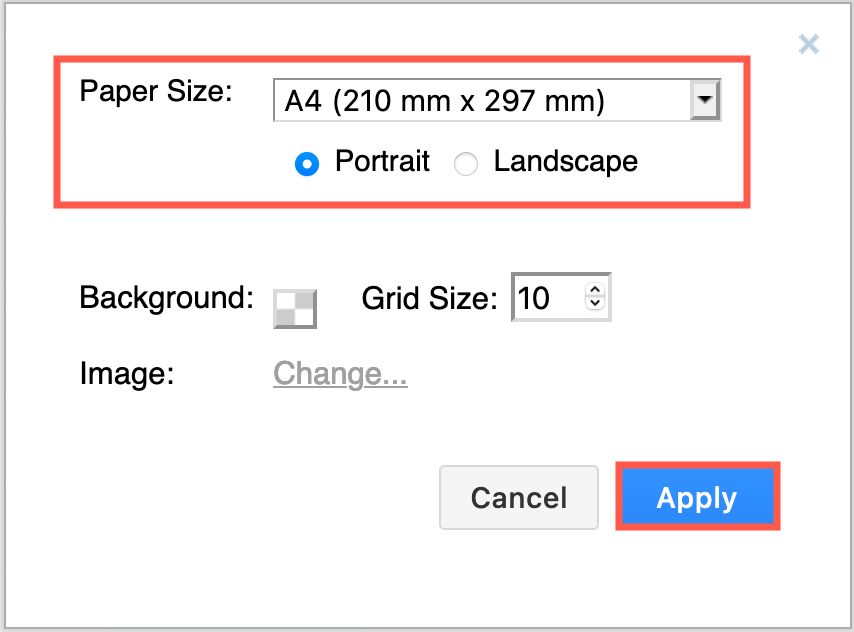
- Select a new Paper Size from the list, and change the page orientation to Portrait or Landscape.
Change the page scale
Changing the scale of the page will change the size of your diagram when you print it or export it to a PDF.
- With nothing selected in your diagram, ensure the Page View checkbox is enabled in the format panel on the right.
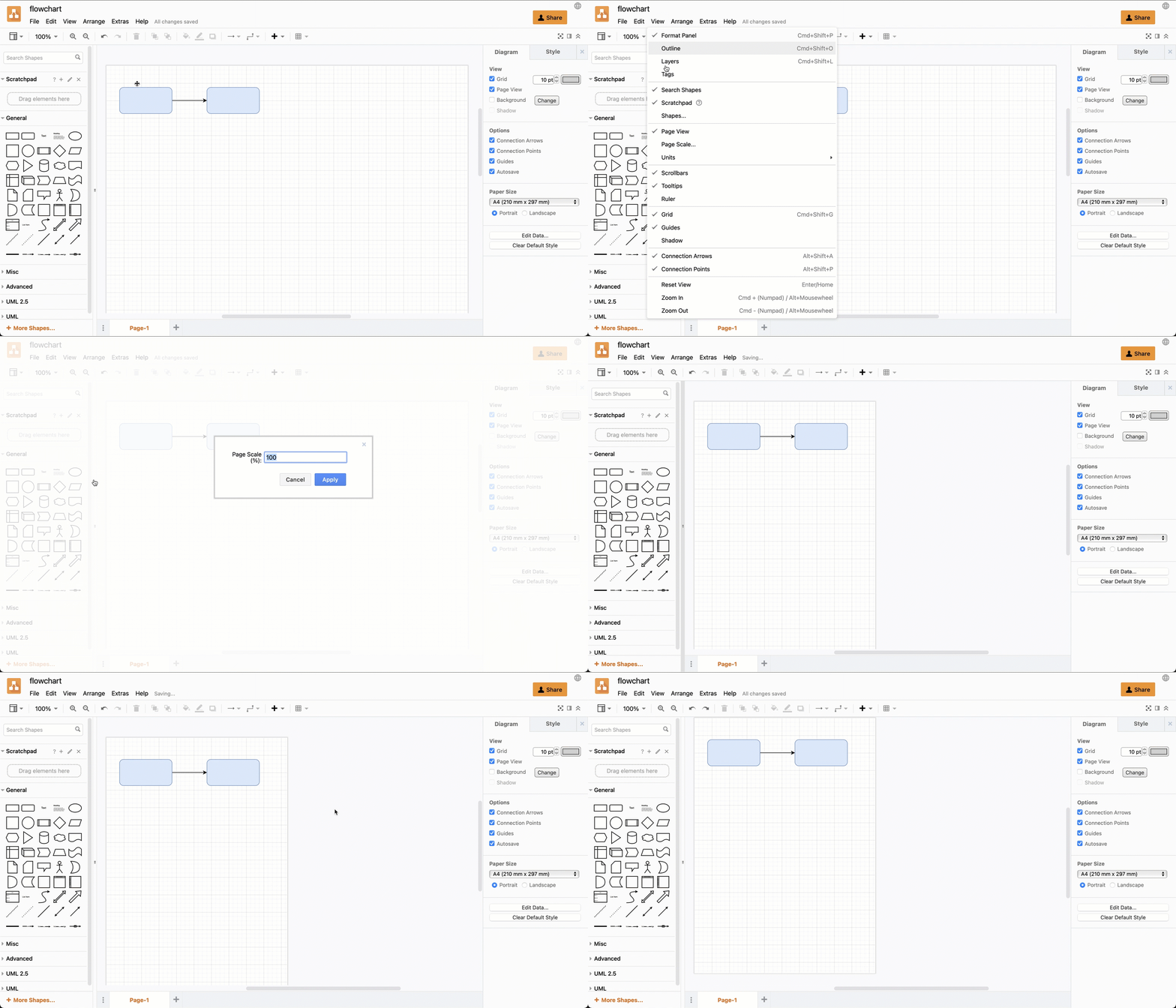
- Select View > Page Scale from the menu.
- Enter a new value in the Page Scale text box and press
Enteror click Apply.