Add line breaks in text
You can add line breaks to shape and connector labels.
Press Shift+Enter or Alt+Enter as you type the label text to add a line break.
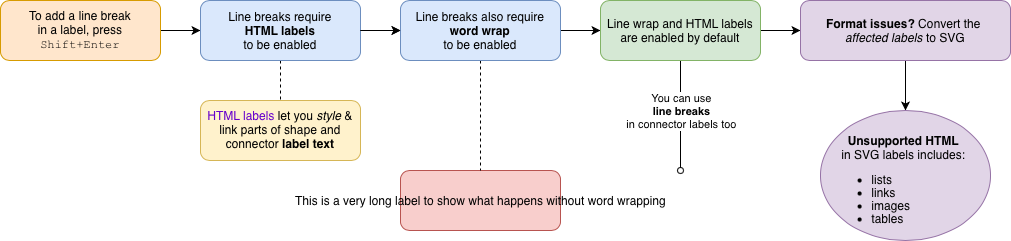
Open this example in our online editor
Line breaks are only possible with word wrapping enabled on shapes. Both are enabled by default.
Re-enable Word Wrap and Formatted Text
If one or both of these options are disabled in the Text tab of the format panel, renable both to be able to add line breaks to labels.
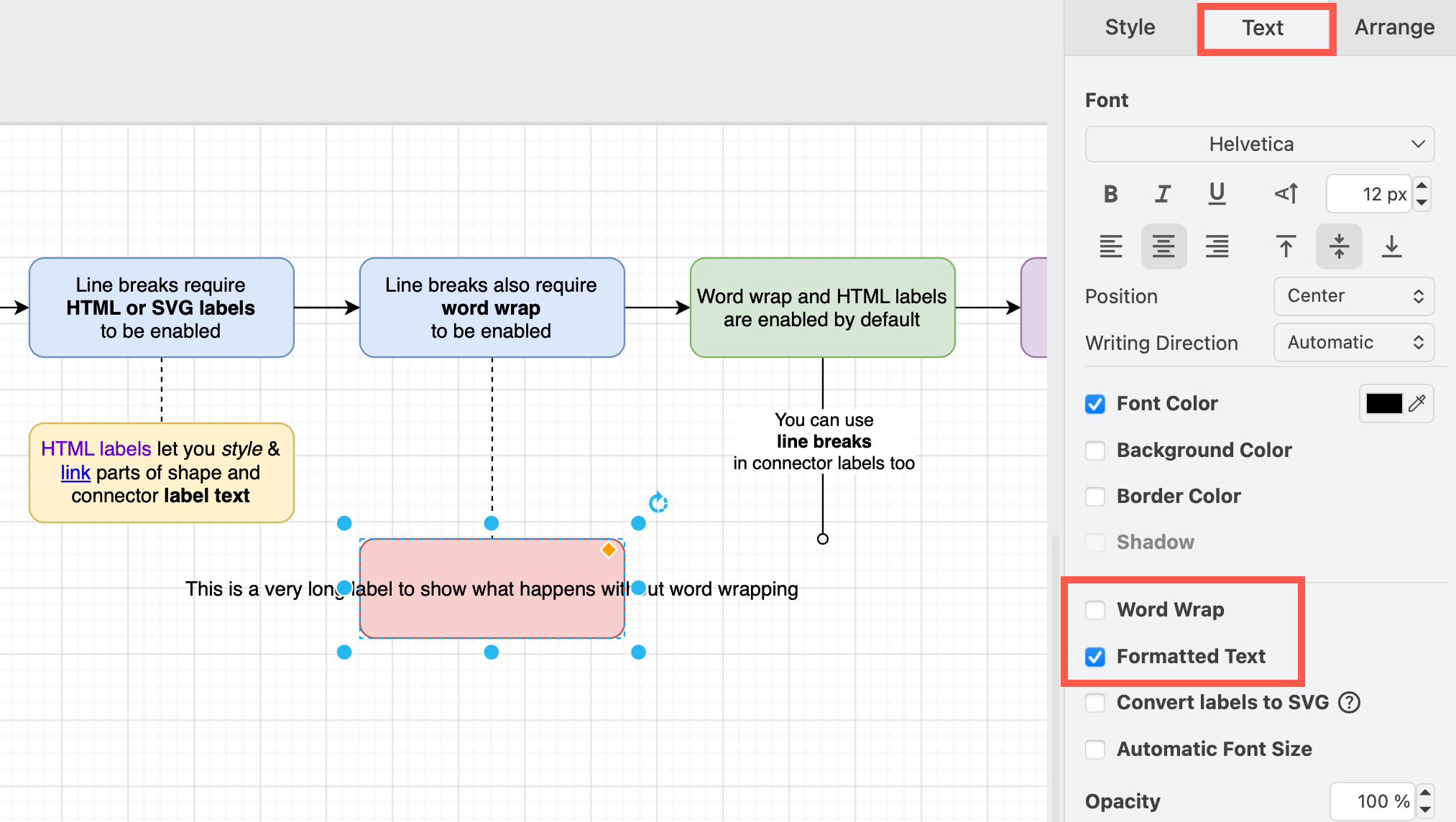
Word wrapping is also supported on labels converted to SVG.
Shape style definition
You can also edit the shape style XML definition to re-enable these two options on a selected shape or connector.
- Select the shape, then click Edit Style in the Style tab of the format panel.
- Add the style options:
whiteSpace=wrapandhtml=1, as shown in the image below.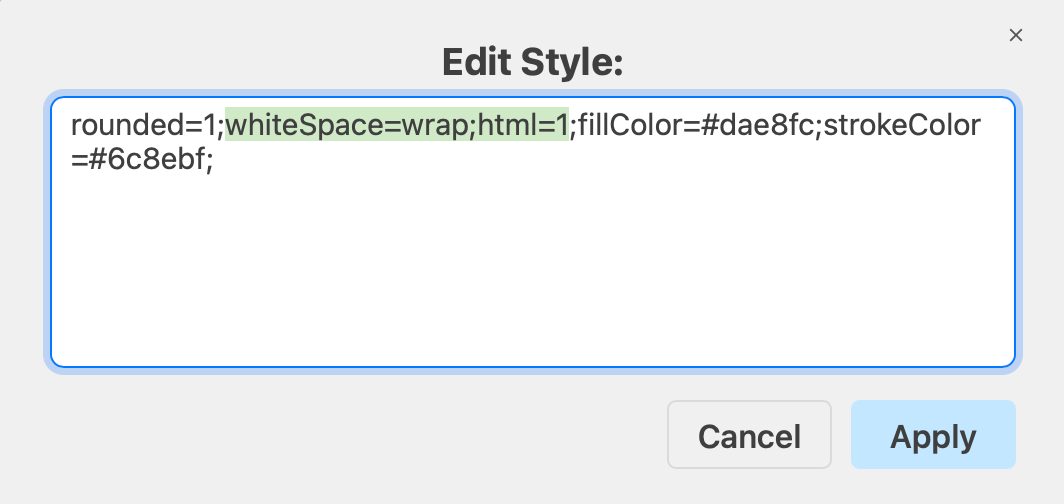
Related
See all text style options for labels, list shapes and tables.