Use Google or external web fonts
If you don't want to use the fonts that are available by default in draw.io for text labels, you can use your own system fonts or external web fonts, including Google's fonts or web fonts stored on your own server. This is useful when you need to match the style guide of a publication, your company's corporate image, or to add interest and emphasis in an infographic.
Use a different system font
System fonts are those which are stored on your computer or system. To use a different system font, you'll need to know the font's name.
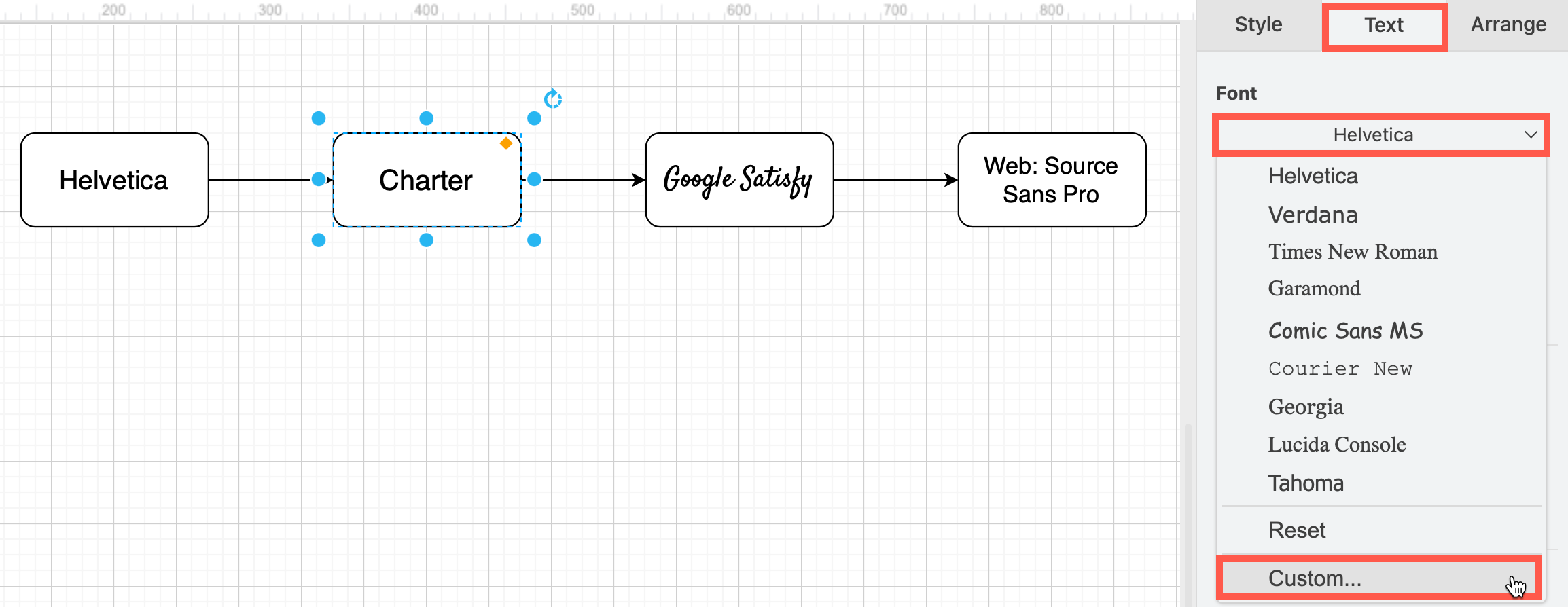
- Click on the shape or text that you want to change.
- In the Text tab of the format panel on the right, click the drop down arrow next to the font name, and click Custom (at the bottom of the list).
- In the font selection dialog, type the name of the new font, then click Apply. This example uses the
Chartersystem font.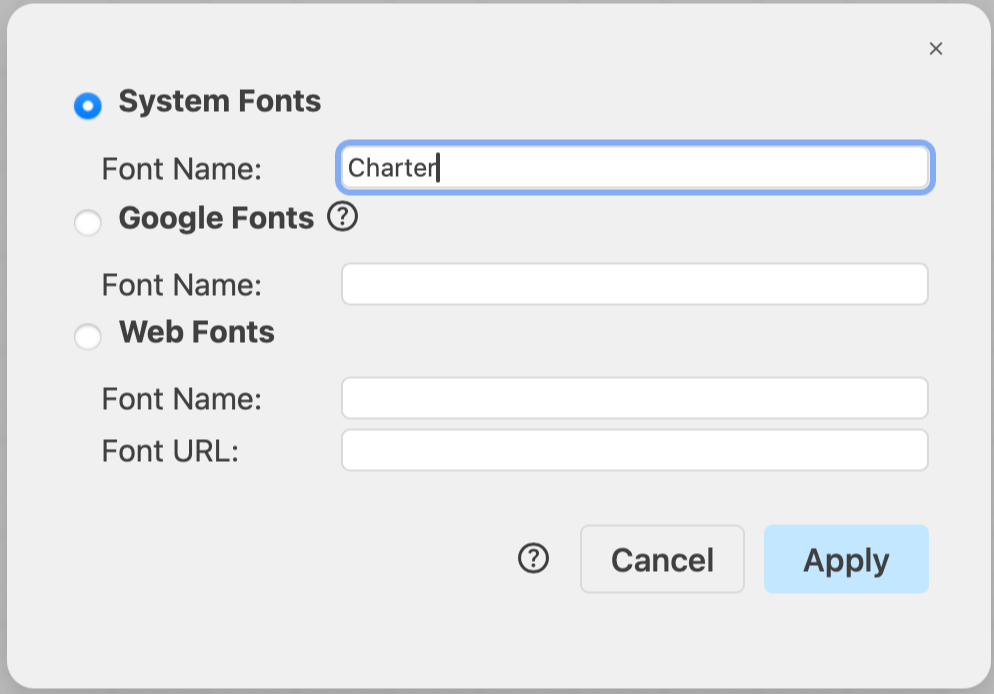
Your changes will be applied to the shape or text.
Use a Google font
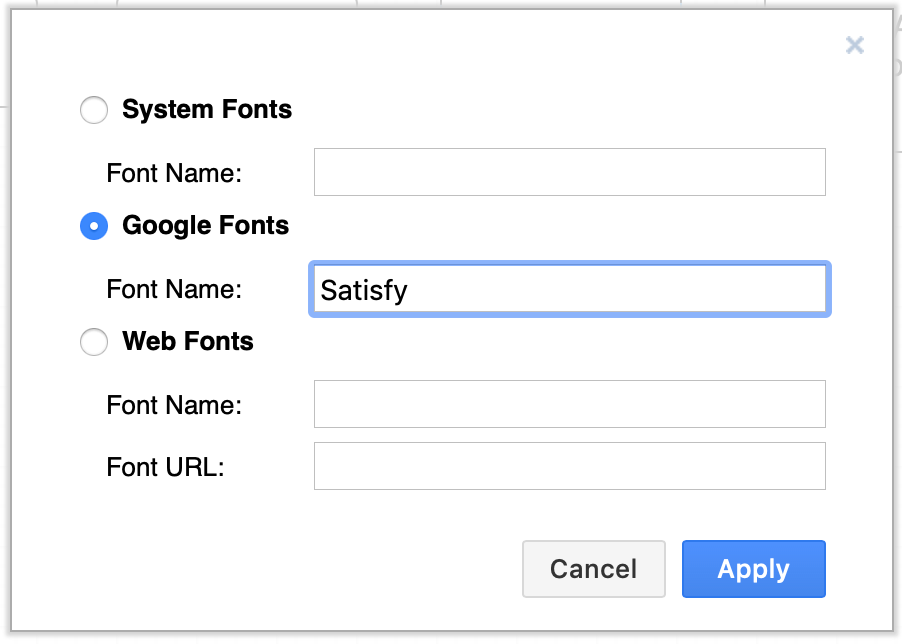
To use a Google font, all you need to know is Google's font name. This example uses the Satisfy Google font.
- Click on the shape or text that you want to change.
- Select the Text tab in the format panel if it is not active, then click on the drop down arrow next to the font name, and on Custom.
- Click on the Google Fonts radio button, type the name of the Google font in the Font Name text field, then click Apply.
Set a Google font weight
To use a specific weights for a Google font, you can specify the weights in the URL of the font in the Web Fonts section. For example, to use the Roboto Condensed Google font with a weight of 100 (normal) and 900 (bold), you would enter Roboto Condensed for Font Name and https://fonts.googleapis.com/css2?family=Roboto+Condensed:wght@100;900 for Font URL in the Web Fonts section.
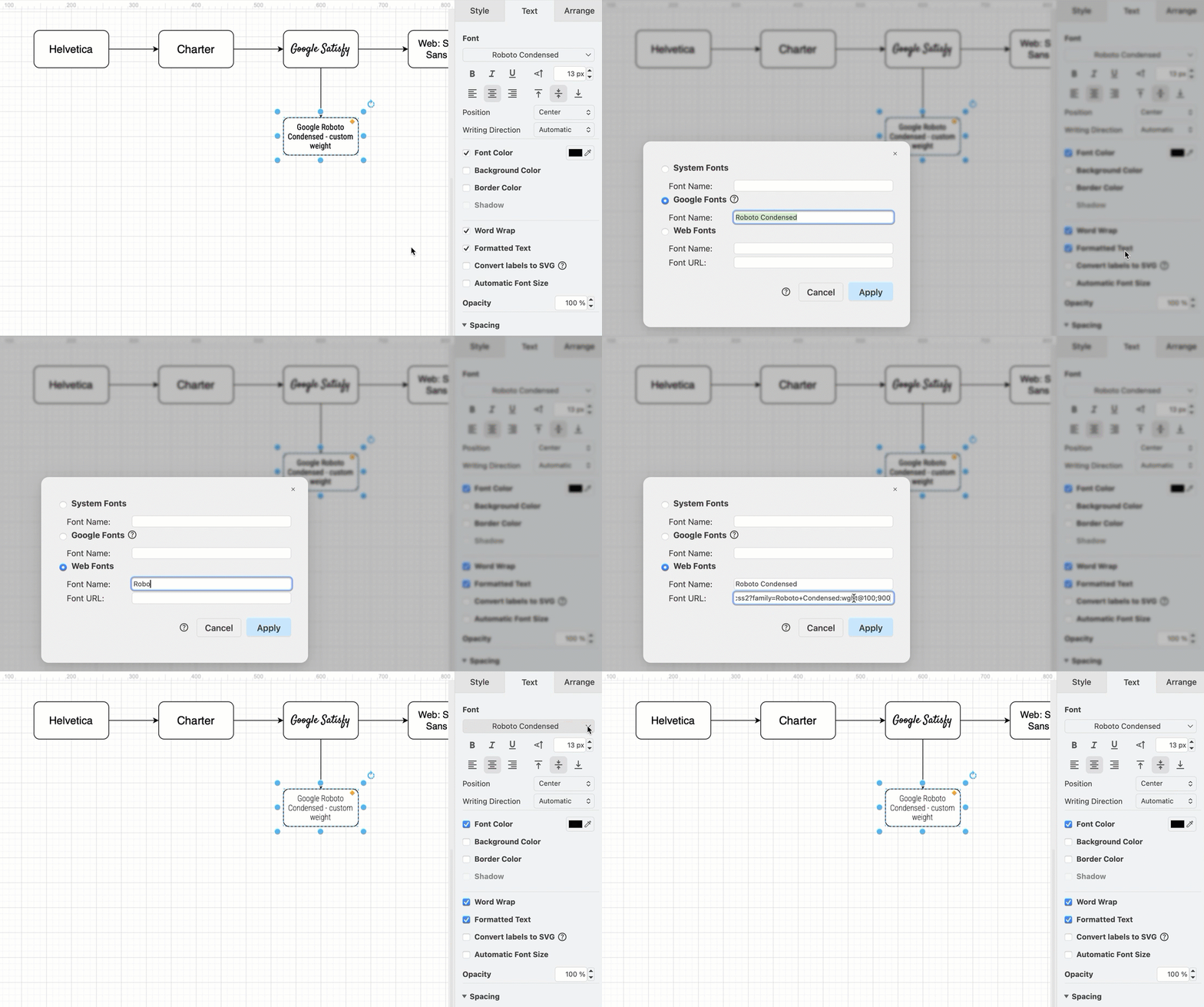
Visit fonts.google.com to see all available Google fonts and their different weights.
Use a web font stored externally
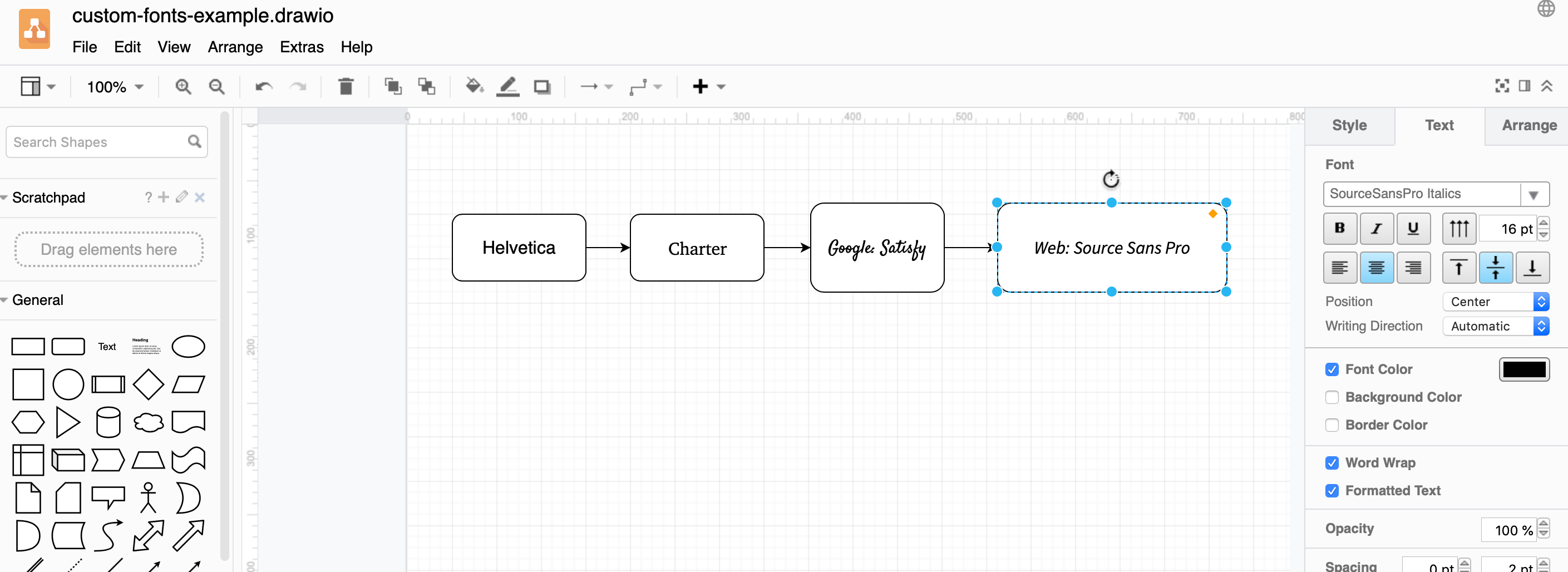
You can also use your own web fonts stored somewhere on the web. You need to link to the font file with the file type extension .woff. The example below uses the italics version of the open source web font called SourceSans Pro.
- Host your raw web font file somewhere on the web that can be directly accessed via the browser.
- Click on the shape or text you want to change.
- Select the Text tab in the format panel, click on the drop down arrow next to the font name, then click on Custom.
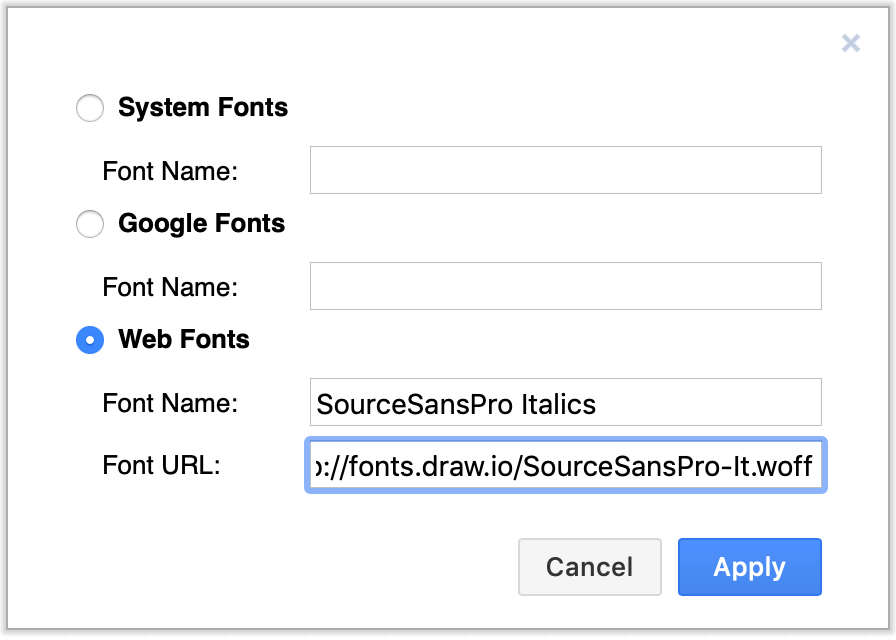
- Click on the Web Fonts radio button, enter a name in the Font Name field, then enter the URL where your
.wofffont file is stored. Then click Apply.
Related
Configure draw.io to use custom fonts by default, or include them in the font list by default.