Toolbars in draw.io editor themes
The differen editor themes in draw.io have different toolbars. Choose the editor theme which displays the tools you most often use to diagram faster.
Note: Some of the tools in the toolbar need to have the right elements in your diagram selected. For example, the Delete tool will be light grey and not enabled if you haven't selected a shape, connector or text.
Classic editor theme toolbar

From left to right:
- View (box with a panel) - to display or hide the panels and dialogs.
- Zoom (number percentage) - Make your diagram appear larger or smaller.
- Zoom In/Zoom Out (magnifying glass). This does not affect the export or print size of your diagram.
- Undo/Redo (curved arrows) - Undo or redo your changes.
- Delete (trash) - Delete the selected diagram elements.
- To Front/To Back (layered shapes) - Move the selected shapes to the front or back of your diagram, arranging them over or under those that aren't selected.
- Fill Color (paint can) - Change the fill colour of the selected shapes.
- Line Color (pen and line) - Change the colour of the selected shapes' outline or connector.
- Shadow (box with a shadow) - Enable or disable a shadow on the selected shapes.
- Connection (arrow) - Select a connector style from the drop down list and apply it to the selected connectors.
- Waypoints (line with two connection points) - Select a pathing style to change how the selected connectors bend on the drawing canvas.
- Insert (plus) - Insert common shapes, freehand drawings, images, templates, layouts, generated diagrams, Mermaid, and more.
- Shapes (circle and square) - Choose from a small selection of common shapes to insert.
- Table (grid) - Click then drag or click on a point in the table to insert a table shape of with your selected rows and columns.
- Freehand (pen) - Open the freehand drawing dialog to draw a shape with your mouse.
- Generate (stars) - Open the generate dialog to describe a diagram in text and generate a template.
At the right end of the toolbar are three view options:
- Fullscreen (box and corners) - Close the left and right panels to make the drawing canvas the full size of the draw.io window.
- Format (two panels) - Display or hide the format panel on the right.
- Collapse/Expand (up arrows) - Display or hide the filename and draw.io application icon.
Simple editor theme toolbar

- View (box with a panel) - to display or hide the panels and dialogs.
- Zoom (number percentage) - Make your diagram appear larger or smaller in the editor. This does not affect the export or print size of your diagram.
- Pages (document page) - Jump to another page in your multi-page diagram and edit or delete pages.
- Undo/Redo (curved arrows) - Undo or redo your changes.
- Delete (trash) - Delete the selected diagram elements.
- Text (letter in a box) - Add a text shape to the drawing canvas.
- Rectangle - Add a rectangle shape to the drawing canvas.
- Shapes (circle and square) - Choose from a small selection of common shapes to insert.
- Freehand (squiggle) - Open the freehand drawing dialog to draw a shape with your mouse.
- Generate (stars) - Open the generate dialog to describe a diagram in text and generate a template.
- Table (grid) - Click then drag or click on a point in the table to insert a table shape of with your selected rows and columns.
- Insert (plus) - Insert common shapes, freehand drawings, images, templates, layouts, generated diagrams, Mermaid, and more.
At the right end of the toolbar:
- Share (person with a plus) - Share or publish your diagram as a link or image.
- Diagram (ellipse) - Open the draw.io menu to export, import, print, and work with shape libraries and custom editor settings.
- Format (ruler and pencil) - Display or hide the format panel on the right.
Minimal editor theme toobar
The Minimal editor theme does not use a toolbar, but has the tools and panels inside button menus in the top left above the drawing canvas.

- Access the draw.io menu via Diagram and enable or disable the Shapes and Format panels.
- Insert various diagram elements and Delete selected diagram elements.
- Undo/Redo changes.
- Fit to page and Zoom in/out.
Sketch editor theme toolbar
The whiteboard-like Sketch editor theme toolbar is on the left of the drawing canvas.
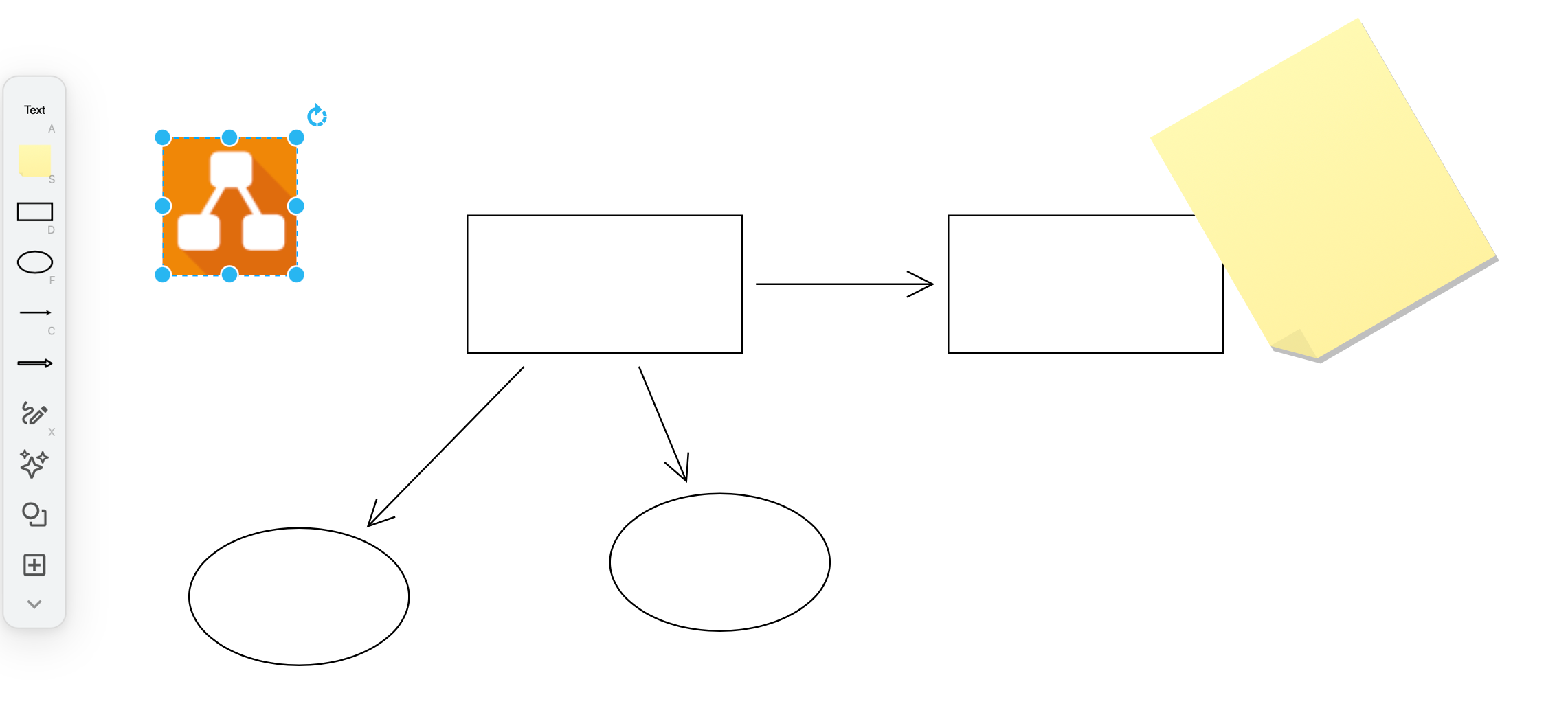
- Text - Add a text shape to the drawing canvas.
- Sticky Note - Add a sticky note shape to the drawing canvas.
- Rectangle - Add a rectangle shape to the drawing canvas.
- Ellipse - Add an ellipse shape to the drawing canvas.
- Connector - Add a connector to the drawing canvas. Drag each end and drop them onto shapes on the drawing canvas to connect them.
- Arrow (unfilled arrow) - Add a stylable wide arrow connector shape to the drawing canvas.
- Generate (stars) - Open the generate dialog to describe a diagram in text and generate a template.
- Shapes (circle and square) - Choose from a small selection of common shapes to insert.
- Insert (plus) - Insert common shapes, freehand drawings, images, templates, layouts, generated diagrams, Mermaid, and more.