Change the zoom level
There are several ways you can zoom into and out of your diagram. This only changes what you see on your monitor - your diagram will not appear zoomed in (or zoomed out) when you print or export it to an image format.
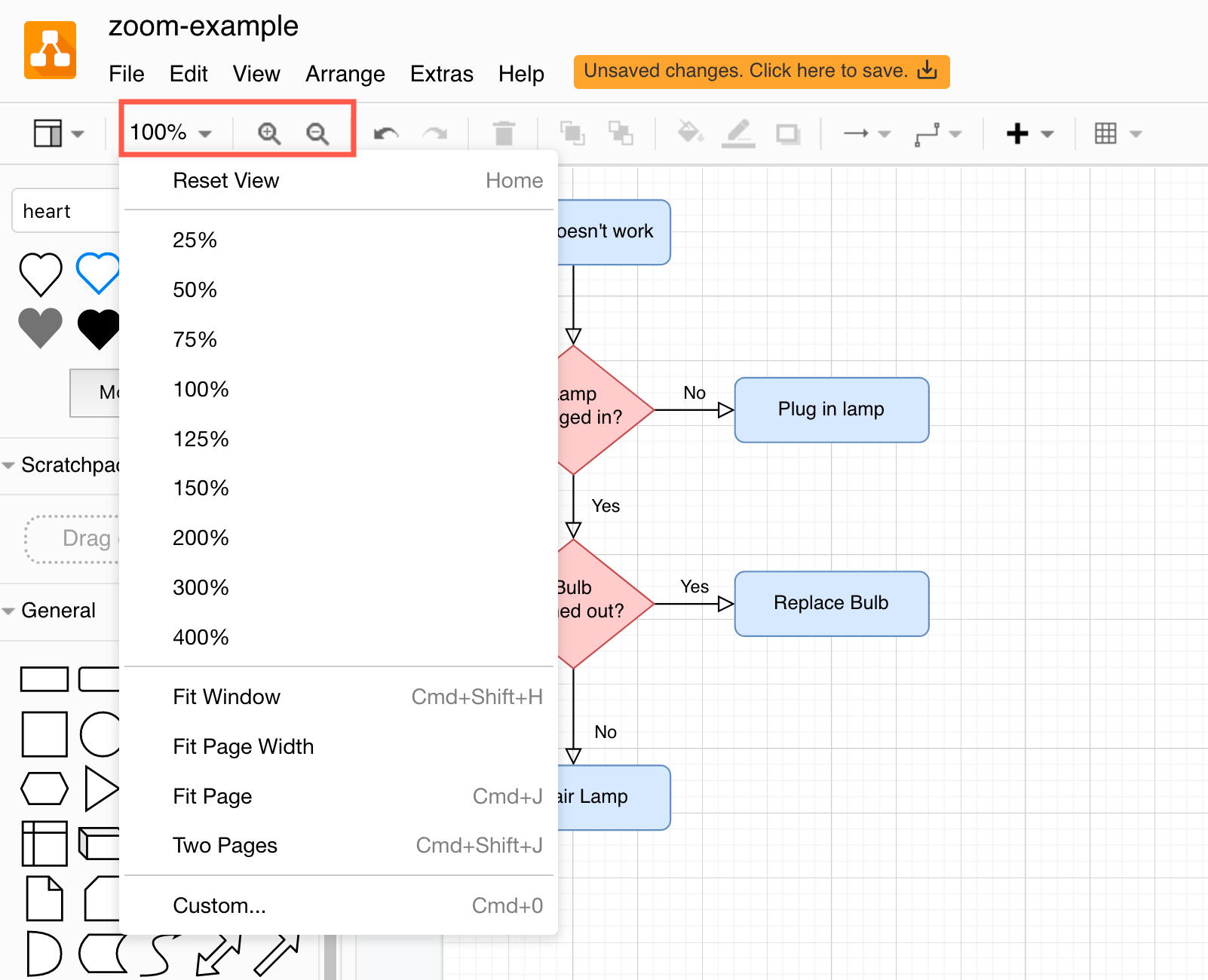
Zoom in and out using the toolbar
Zooming in or out makes your diagram appear on your screen as larger or smaller.
- Use the Zoom In/Zoom Out tools in the toolbar.
- Click on the number to the left of the Zoom In/Out magnifying glass icons in the toolbar, then select a different zoom factor from the list.
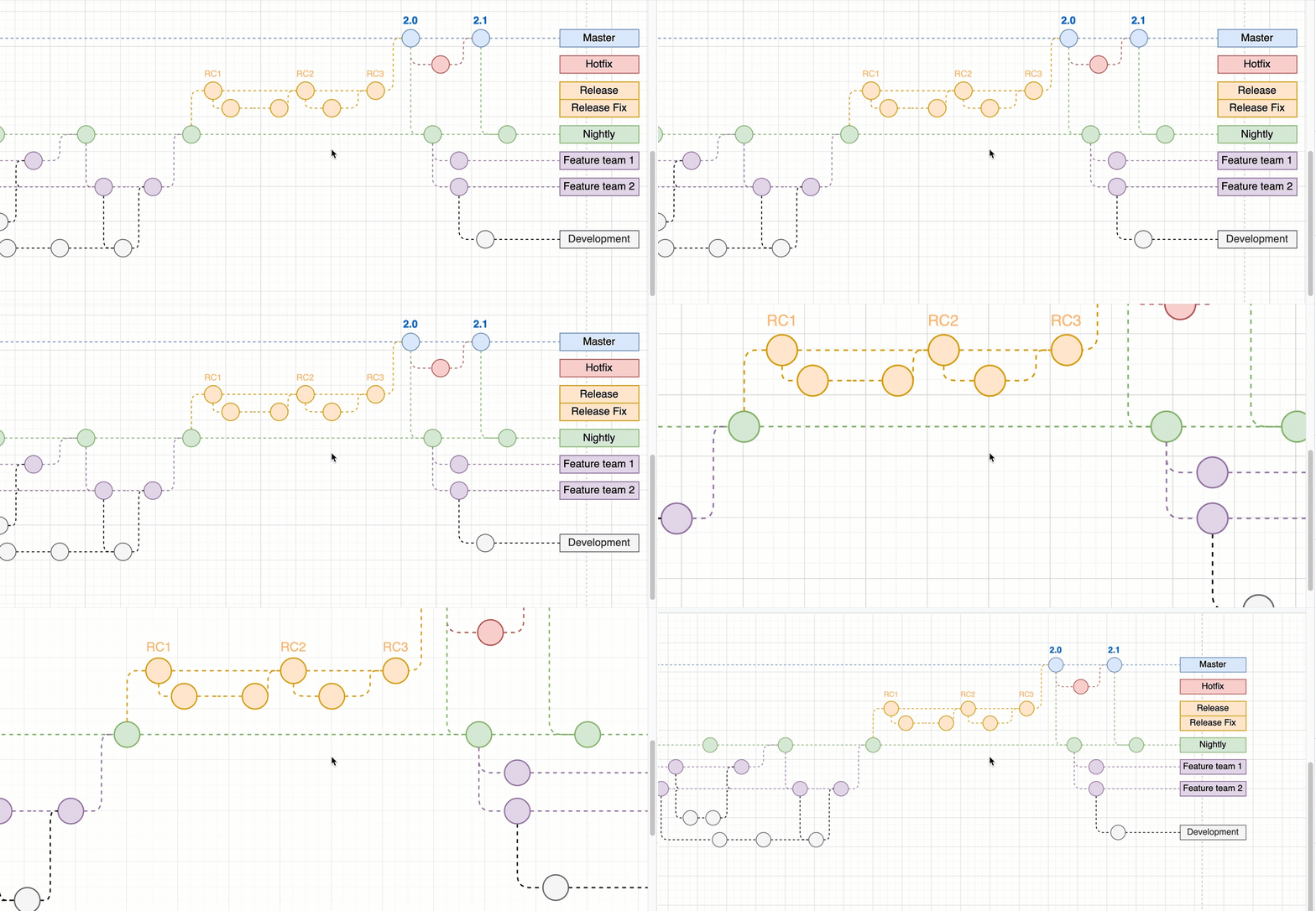
Touchscreen: If you are using draw.io on a mobile device, make sure nothing is selected in your diagram, then pinch the canvas with two fingers and push them outwards to zoom out, or pull them together to zoom in.
Use keyboard shortcuts to zoom in/out
Hold down Ctrl on Windows, or Cmd on macOS and use the scroll wheel or press + or - keys on the number pad to zoom in or out.
Zoom in/out using the menu
- Select View > Zoom In or View > Zoom Out in the menu.