Panels and dialogs in draw.io
draw.io has many editor themes to suit your diagramming style, from the feature-rich Classic theme or the Simple editor theme, to the clear whiteboard-like Sketch editor theme. Not all tool, dialogs and panels are visible by default in each editor theme.
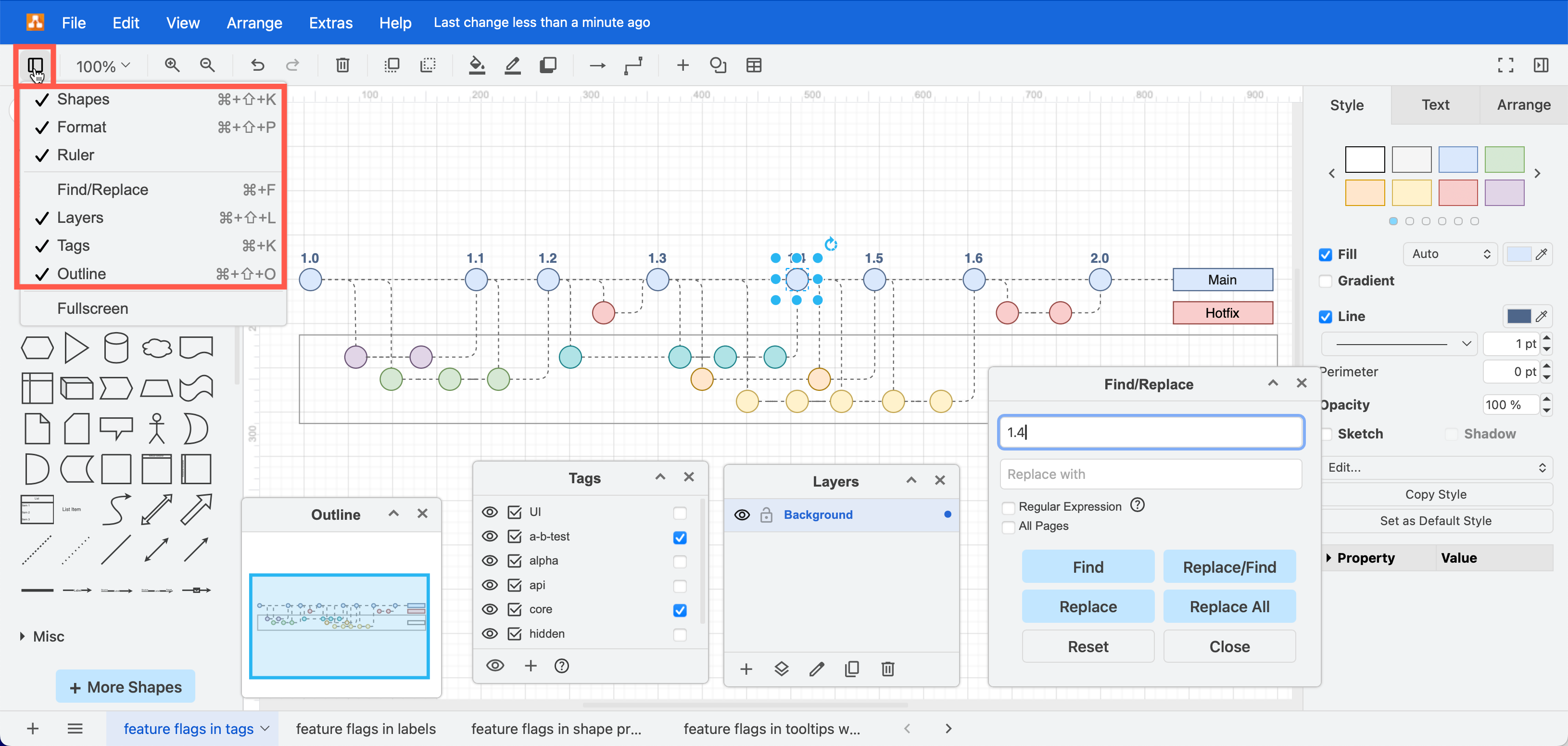
The Atlas editor theme (above) is often used in draw.io for Confluence - it has the same layout as the draw.io Classic editor theme.
Tool panels and dialogs
- Shapes panel - Display the enabled shape libraries, the Scratchpad and the Search function.
- Format panel - Style and arrange selected shapes and connectors and text or change global diagram and drawing canvas settings.
- Layers dialog - Place shapes and connectors on different layers in your diagram. Layers are used to create interactive diagrams with custom links.
- Tags dialog - Group related shapes and connectors with tags, then select, display or hide those groups via their tags.
- Outline dialog - Navigate via an overview, specifically for large diagrams. Click in the Outline dialog move to that location on the drawing canvas.
- Find and Replace dialog - Search for (and replace) text inside your diagram.
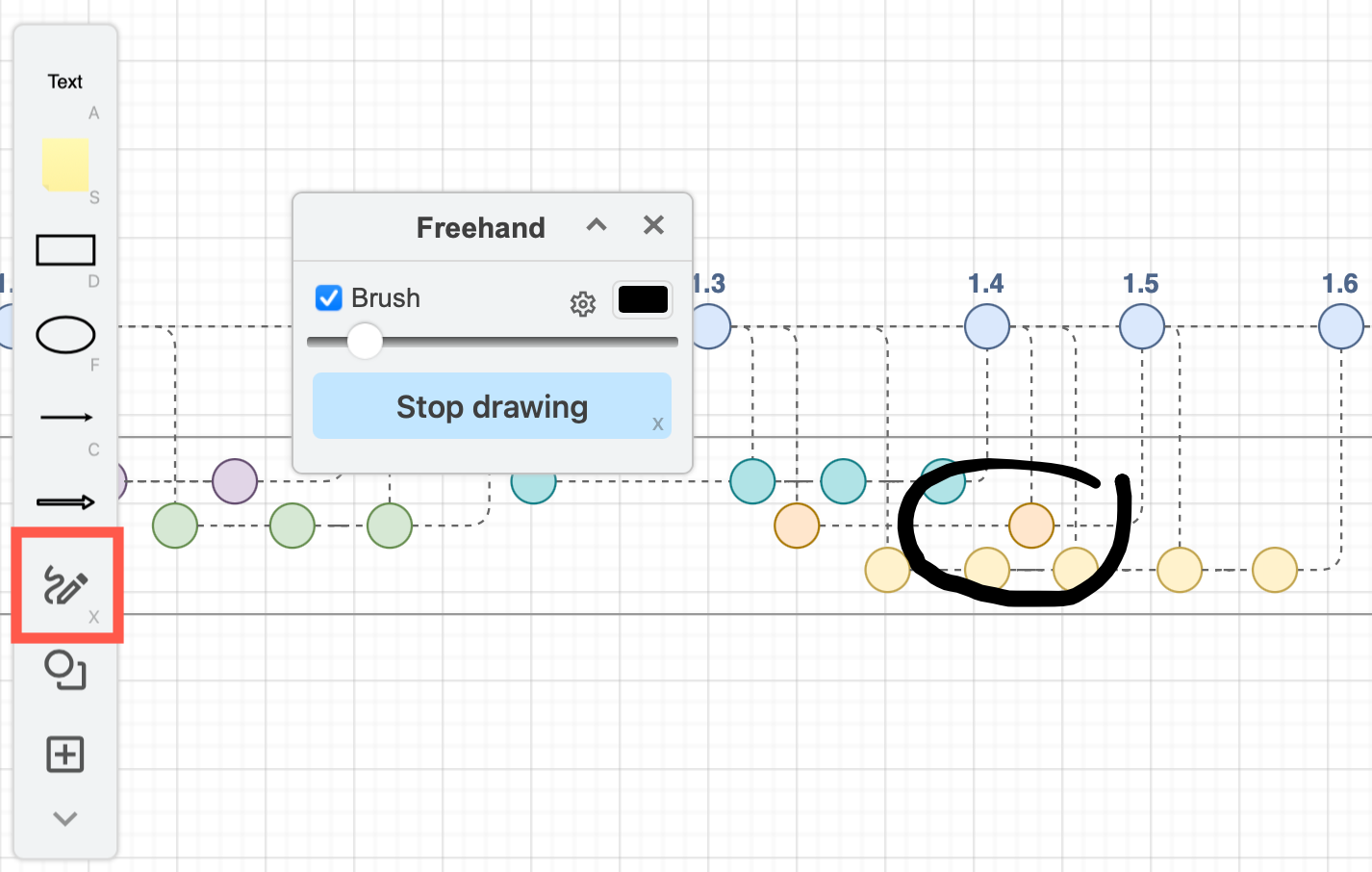
- Freehand drawing tool - Draw freehand shapes with your mouse or pen/finger on a touch screen.
- Generate dialog - Enter a text description of your diagran and generate a templa.
Further dialogs are used to define custom shapes, draw custom polygons, insert Mermaid or SQL code to generate diagrams, edit a shape's connection points, edit shape metadata, and more.
Classic editor theme panels
By default, in the Classic editor theme the shapes panel is on the left, and the format panel is on the right, and both are visible by default, along with a toolbar above the drawing canvas and under the menu. The Atlas editor theme also uses this editor layout.
To open the other tool panels and dialogs, click on the View tool in the toolbar and click on one or more tool panels. Alternatively, select the View menu and then the tool panel you want to display.
Tip: You can customise the shape panel on the left to display or hide the Scratchpad and the Search function via the View menu.
Simple editor theme panels
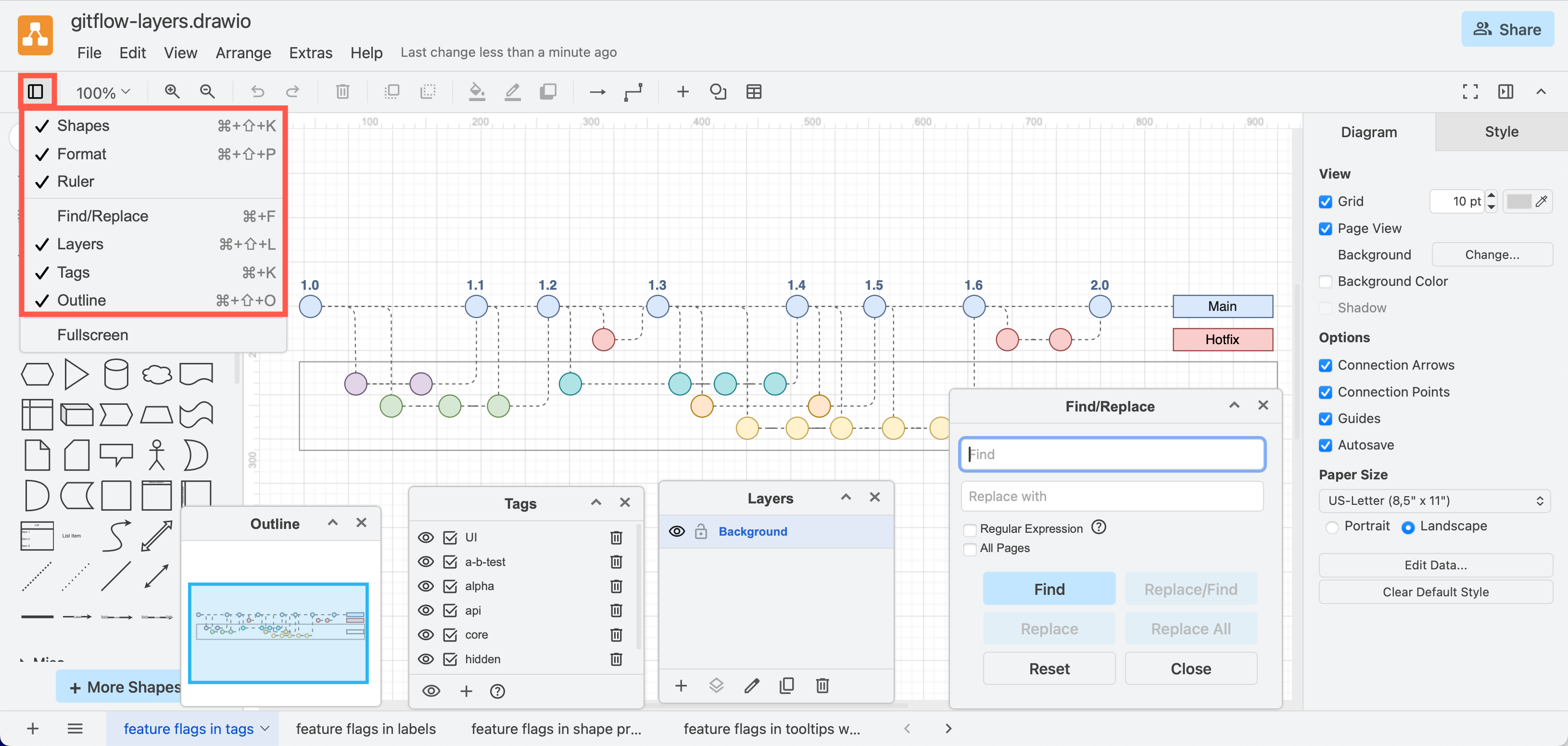
The Simple editor theme takes away the menu and rearranges the common tools into the centre of the toolbar for those who prefer a Chrome-like editor. Click on the View tool at the left end of the toolbar above the drawing canvas to enable or hide the other tool dialogs.
Minimal editor theme panels
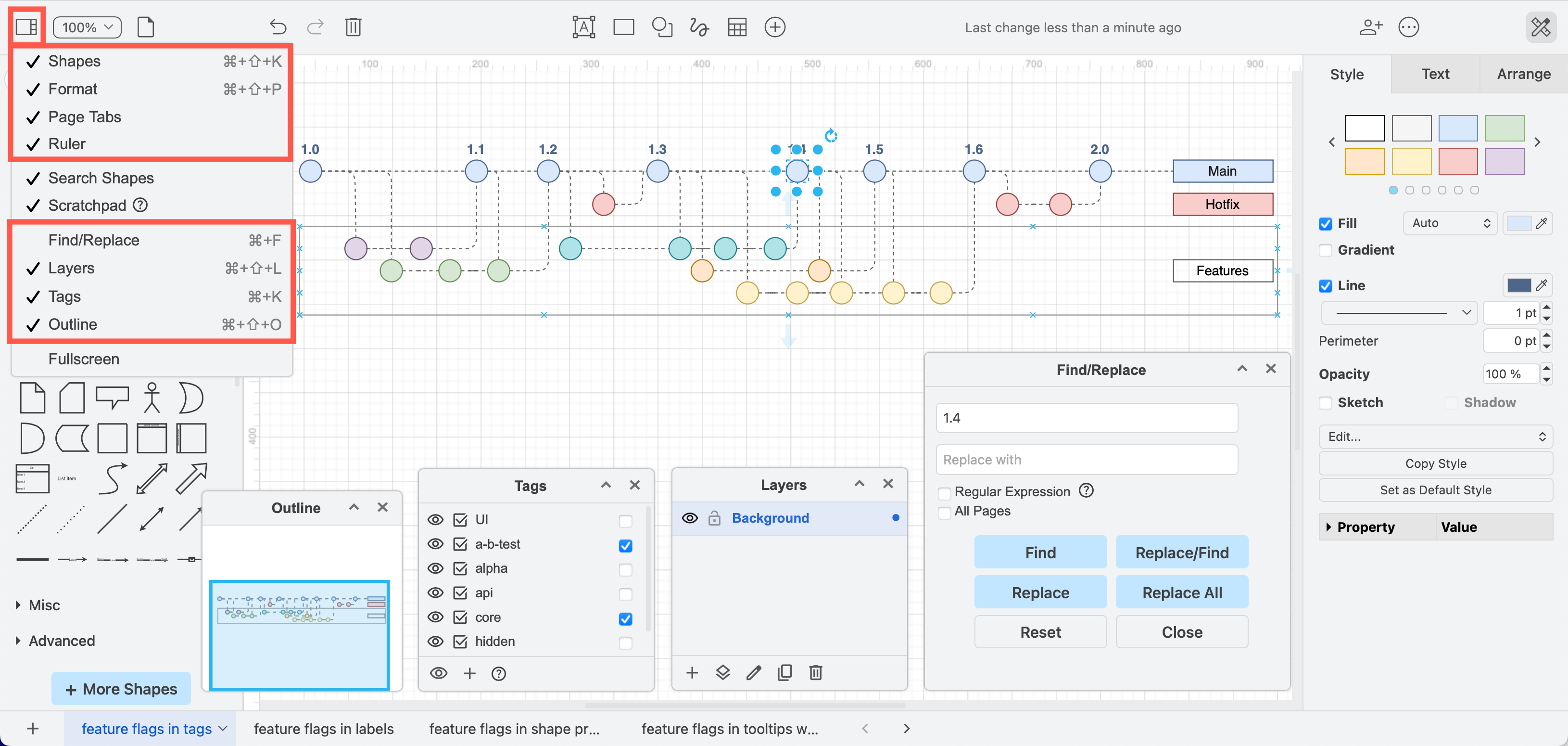
The Minimal editor theme moves the shape and format panels into floating dialogs that you can move, minimise or close. Open these and the other tool dialogs via the Diagram menu.
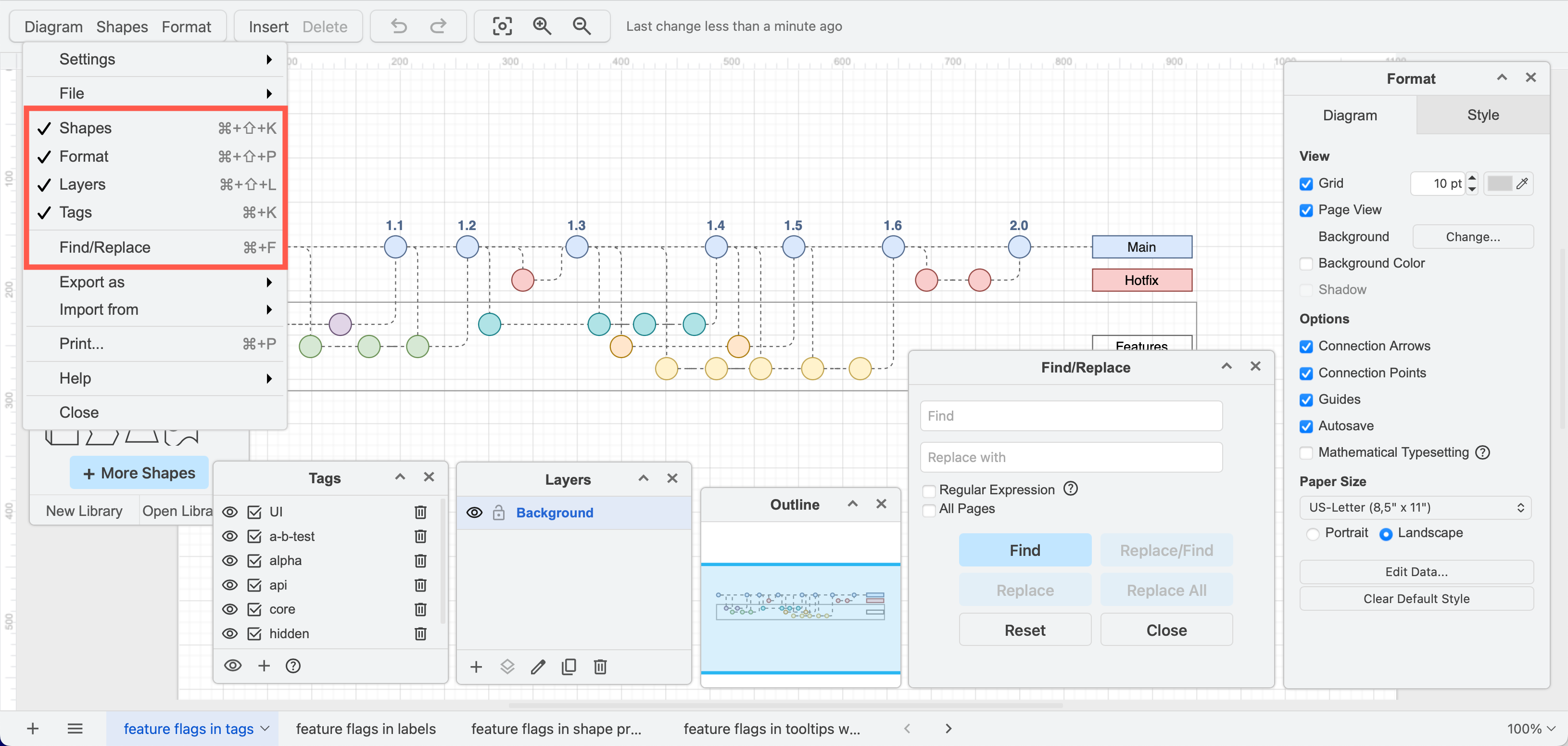
Outline dialog: Use the keyboard shortcut to open this dialog. Press Ctrl+Shift+O (Windows) or Cmd+Shift+O (macOS).
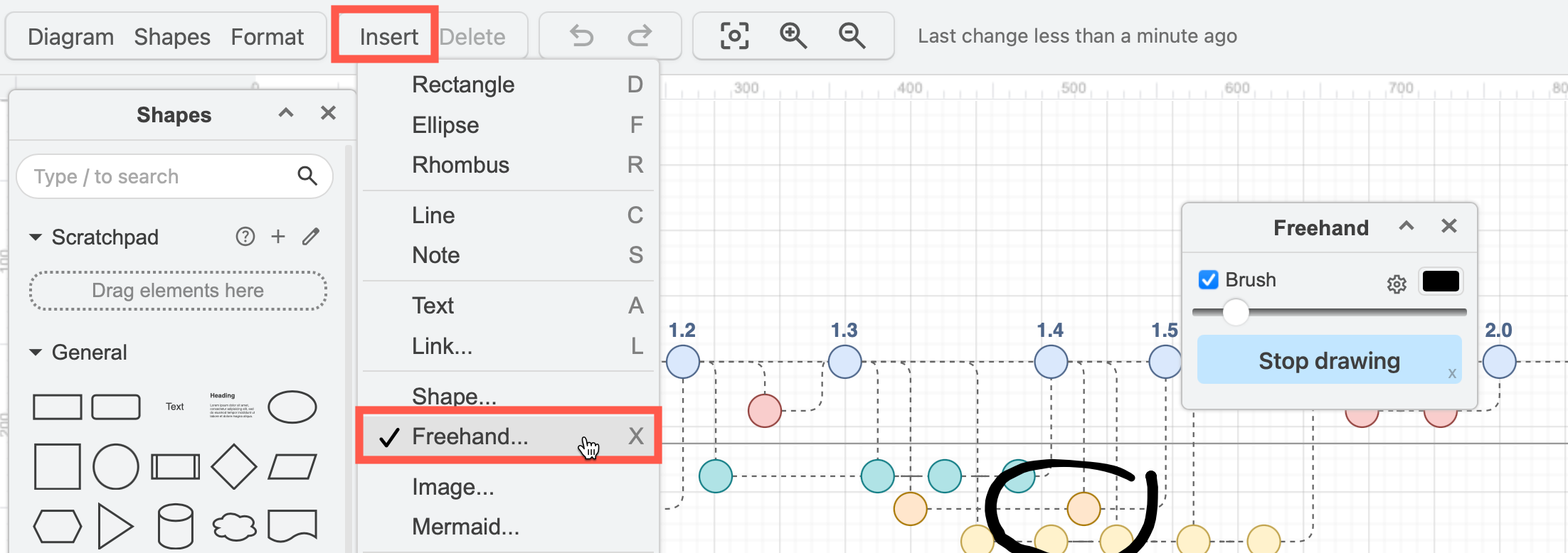
Freehand tool: Click on Insert > Freehand to open the Freehand drawing tool.
Sketch editor theme panels
The Sketch editor theme is the least cluttered, hiding the shapes panel by default, and placing the format panel into a floating dialog that you can move, minimise and close. You can display or hide all the tool dialogs via the menu.
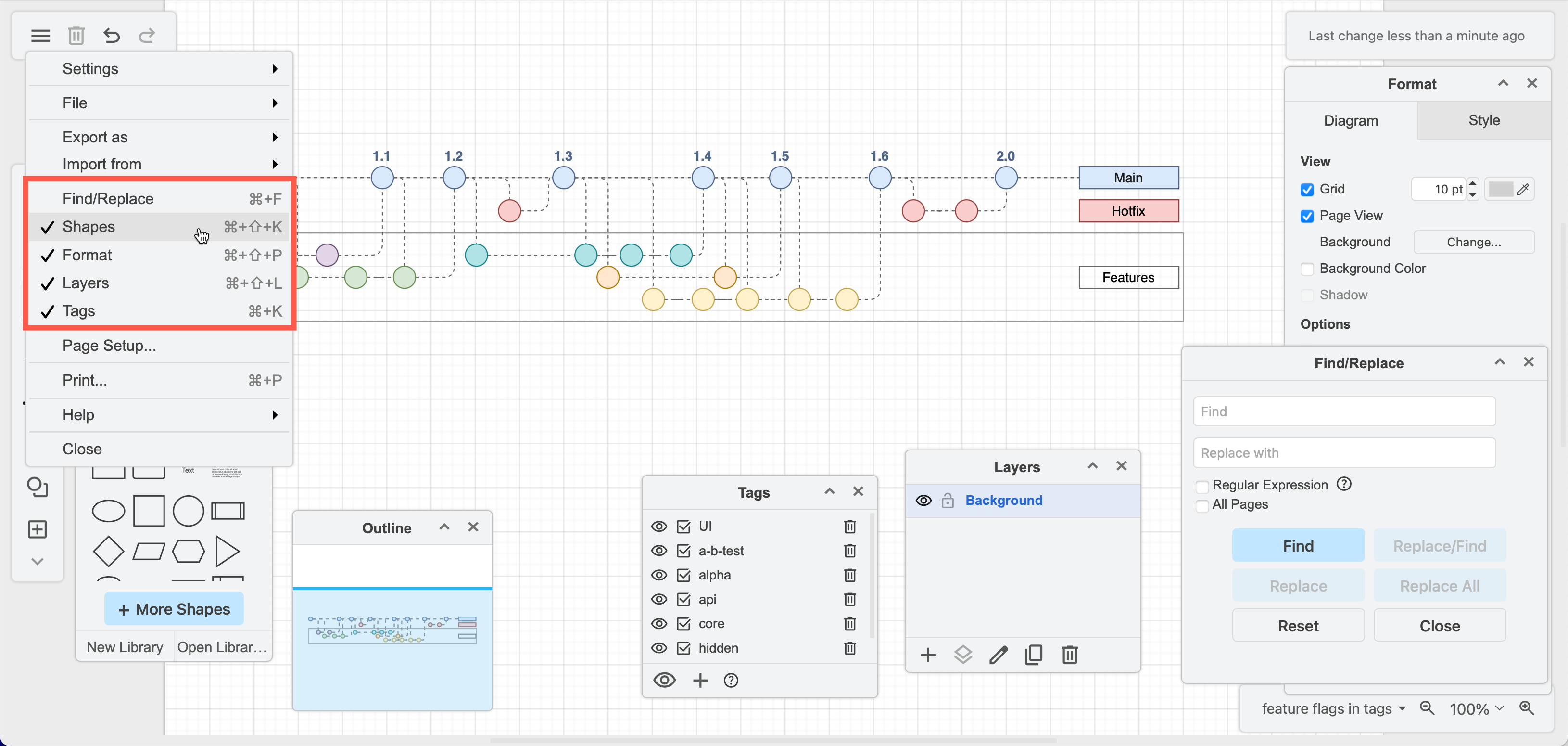
Outline dialog: Use the keyboard shortcut to open this dialog. Press Ctrl+Shift+O (Windows) or Cmd+Shift+O (macOS).
Freehand tool: Click on the Freehand tool in the toolbar on the left of the drawing canvas.