Pan and scroll
Pan and scroll around the drawing canvas
There are several ways you can move around your diagram. This only changes what you see on your monitor - your diagram will be centered when you print, or export it to an image format.
To reset the view of the drawing canvas at any time, select View > Reset View from the menu, or press the Home key.
- Drag the scroll bar on the right of the drawing canvas to move up and down. Drag the scroll bar that is underneath the drawing canvas to move left or right.
- Right-click/middle-click and hold your mouse button down and move the mouse to pan around the drawing canvas.
- Use the scroll wheel on your mouse to move the canvas up or down.
- Use the cursor (arrow) keys on your keyboard to move up, down, left or right.
- Select View > Outline, or press
Ctrl+Shift+Oon Windows orCmd+Shift+Oon macOS, then drag the blue highlighted section around to move the drawing canvas.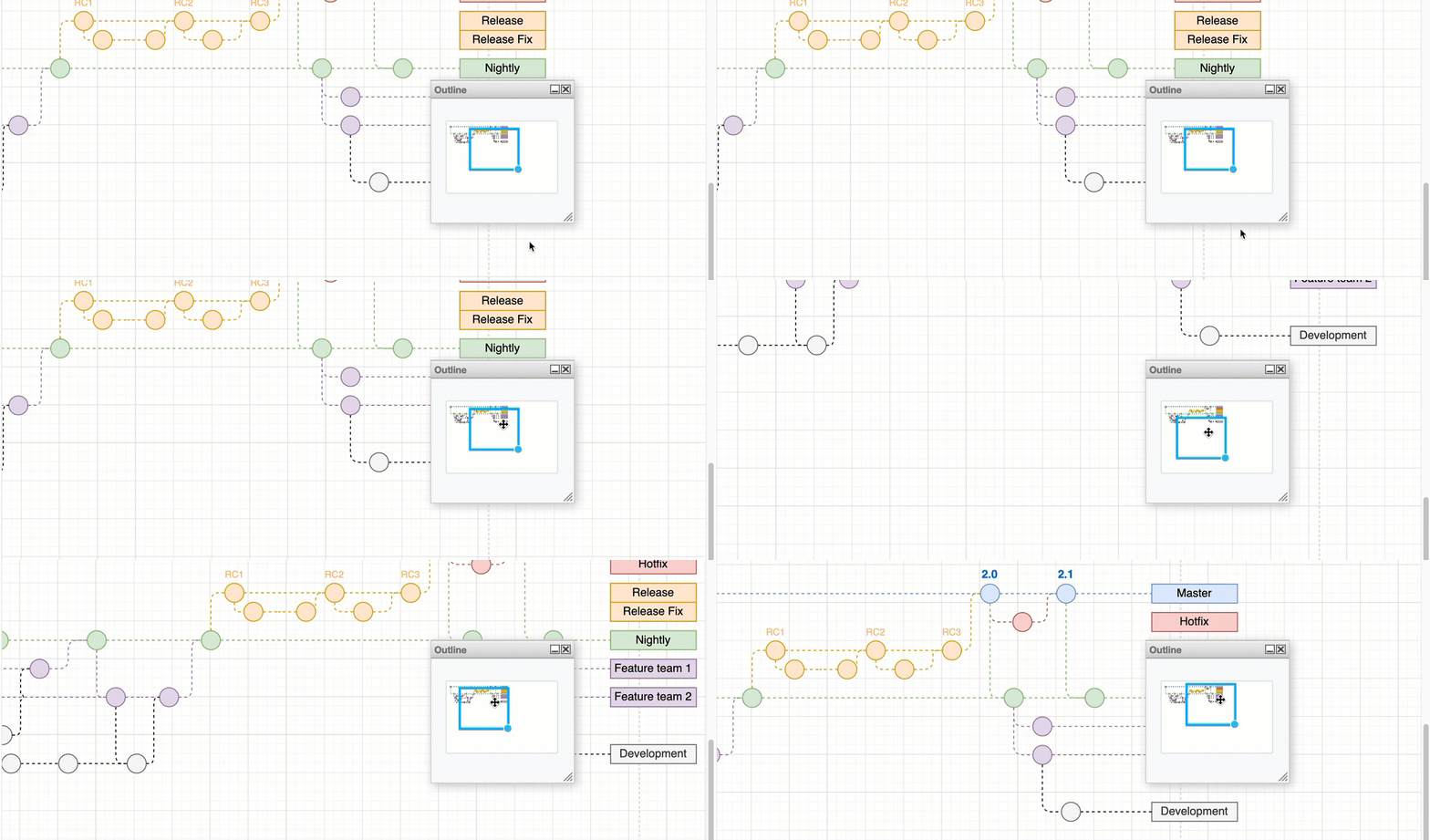
Touchscreen: Make sure nothing is selected in your diagram. Tap and drag your finger in a blank area of the drawing canvas to move it around. You can also use the Outline panel on a touchscreen, as shown above.