Menus in draw.io
The menu in draw.io works in the same way as other applications.
Depending on what editor theme you are using and what you have selected in your diagram, some menu entries may be hidden or not be selectable. For example, you can't edit a shape's style if you haven't selected a shape.
In the Classic and Atlas editor themes, the following menus are visible above the drawing canvas.
- File - work with the diagram files (new, open, import/export, and print), as well as to open or custom create shape libraries. Change the Page Setup to add page animations.
- Edit - select and edit the shapes and connectors in your diagram and their styles.
- View - hide or display the various panels and helper tools in the draw.io editor including the scratchpad, layers, ruler and more.
- Arrange - group and organise shapes and connectors, use the automatic layout features, generate a diagram or from Mermaid code, insert images and other diagram elements, and more. Learn more about the Arrange > Insert menu and the Arrange > Layout menu.
- Extras - enable a different editor theme, use math typesetting, enable/disable the start screen and autosave, and work with tags or add a custom configuration.
- Help - see the keyboard shortcuts, view support information or download the desktop version of draw.io.
Tip: Next to the menu or in the top right corner is typically a status message showing when there are unsaved edits or if your diagram has been autosaved.
Menu locations in other editor themes
The draw.io editor themes have different toolbar and menu locations.
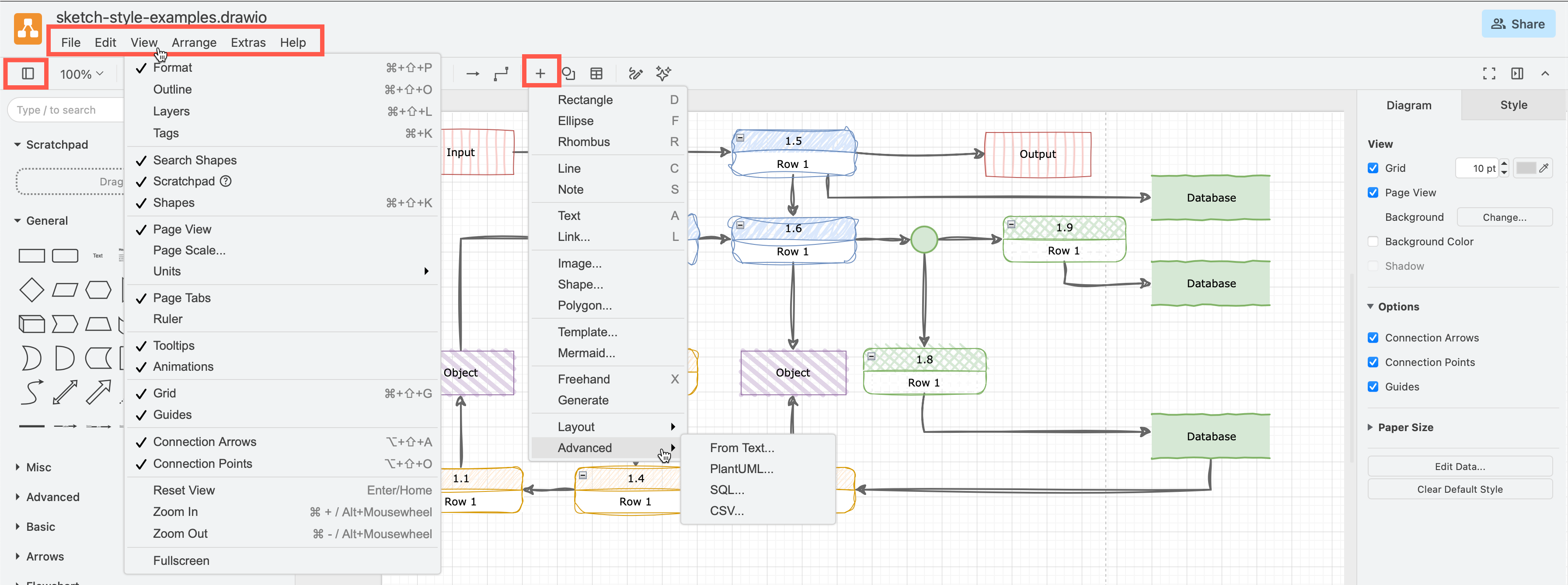
Classic editor theme
In the Classic editor theme (above), the menus are in the usual place above the drawing canvas. Many of the insert and arrange tools are also under + on the toolbar. Show and hide panels with the View tool at the left end of the toolbar.
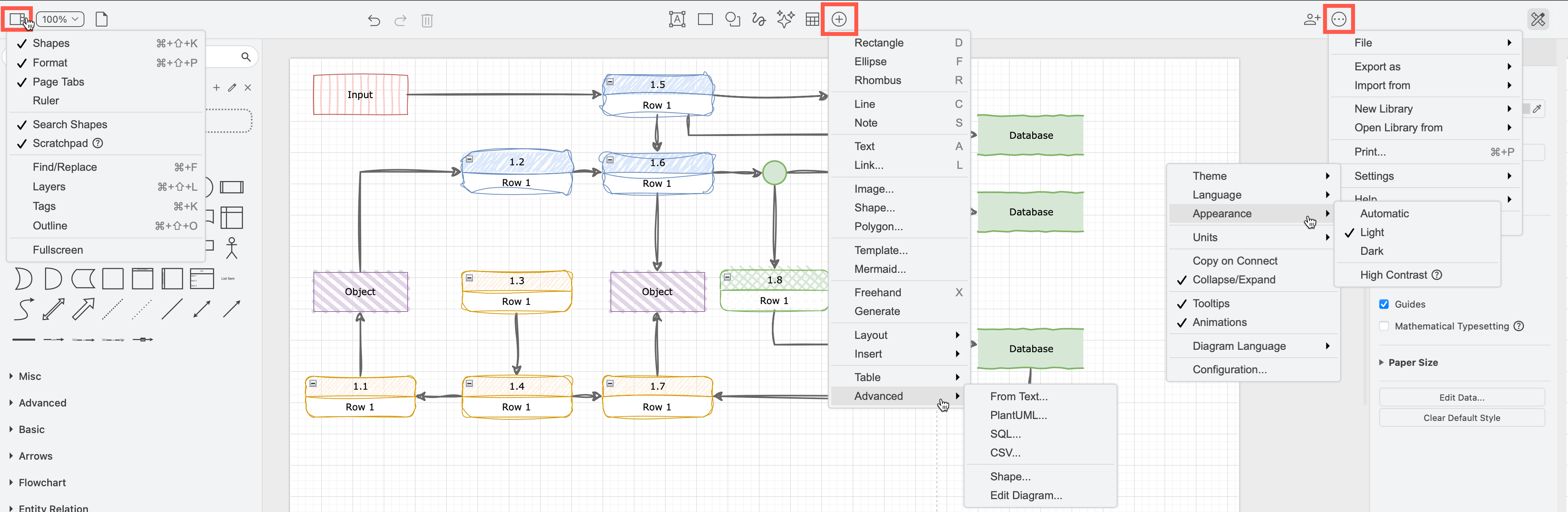
Simple editor theme
In the Simple editor theme, the menus are via the three horizontal dots, or via the + on the toolbar, and the View tool to the left of the toolbar.
Minimal editor theme
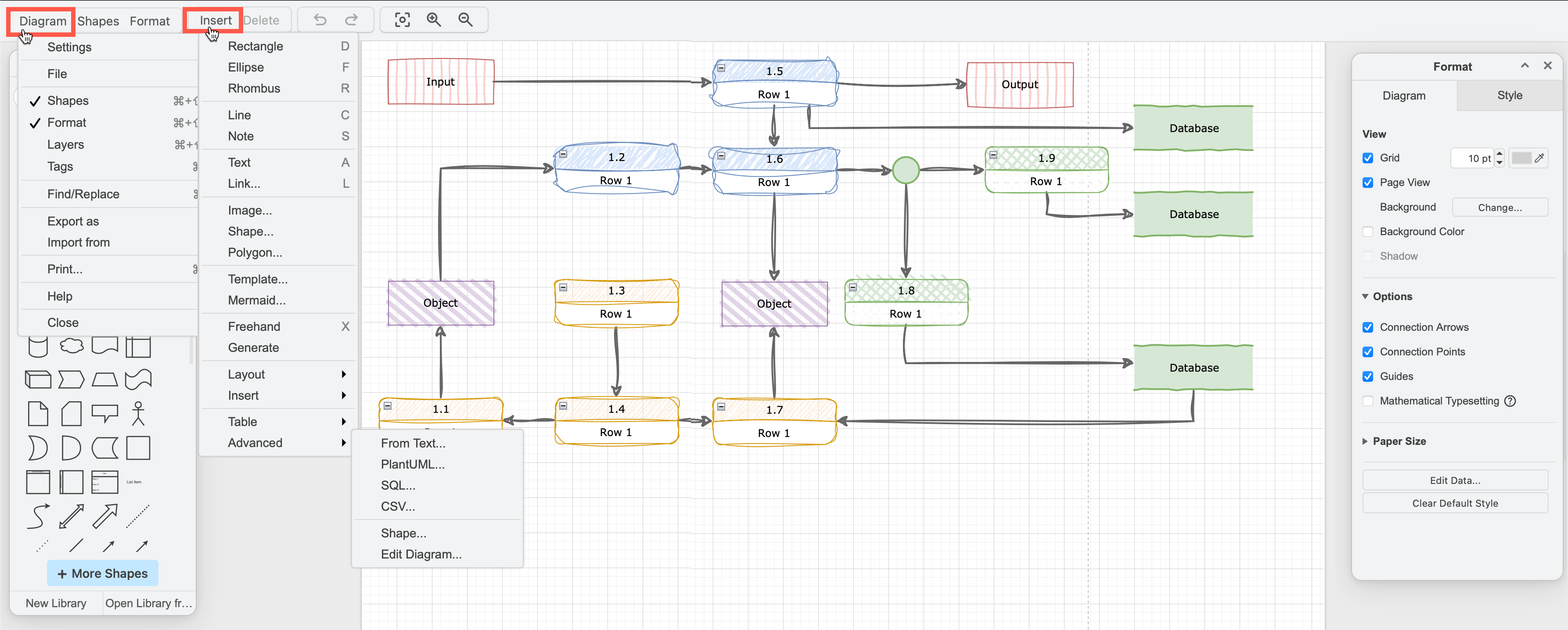
In the Minimal editor theme, there is no toolbar. The menus and tools are all via the menus in the top left, mostly Diagram and Insert.
Sketch editor theme
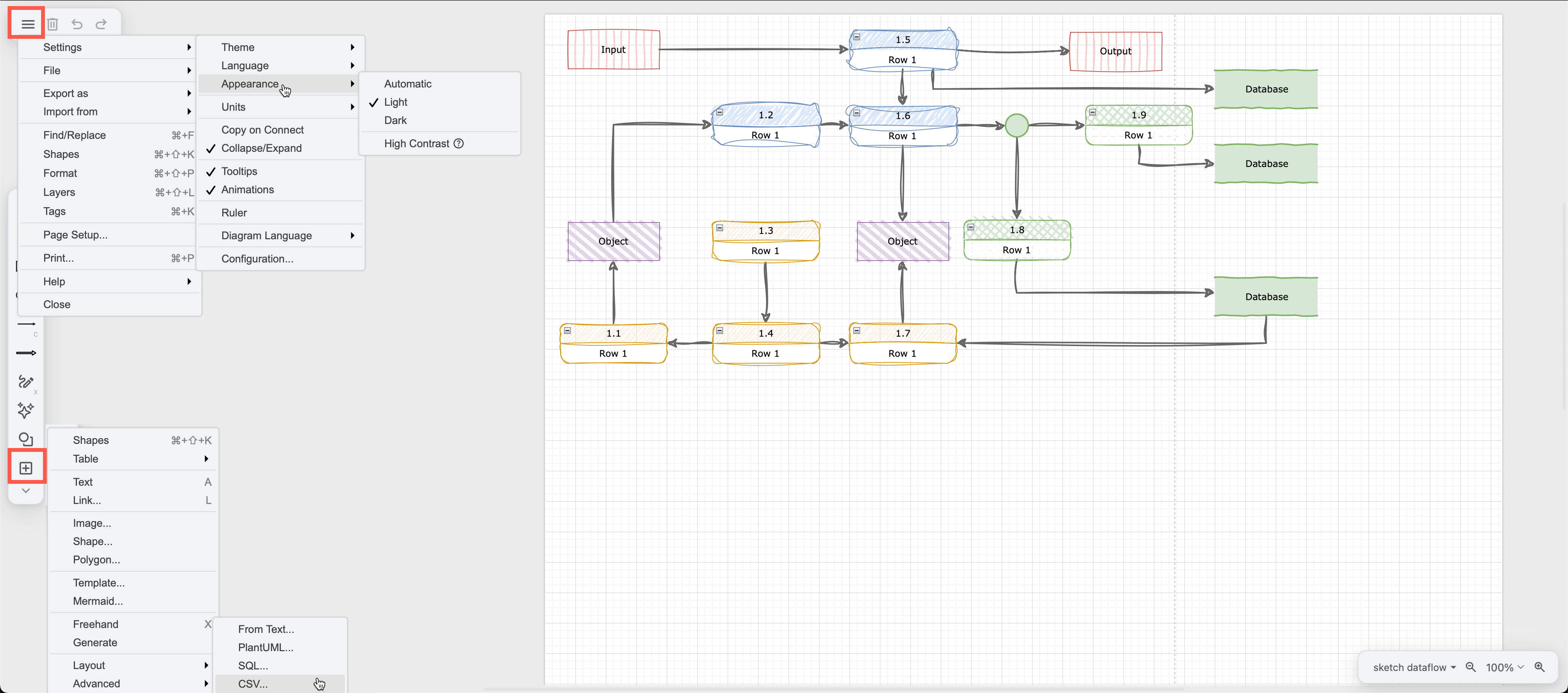
In the online whiteboard-style Sketch editor theme, The menus are via the horizontal bars in the top left, and the + in the toolbar on the left of the drawing canvas.