Adaptive colours for dark and light mode
When you change from light to dark mode in draw.io, the colours automatically switch intensity so that your diagram and its labels are easy to read. You can set now specific colours for shapes, connectors, text and the diagram page background for both light and dark modes via the updated colour palette.
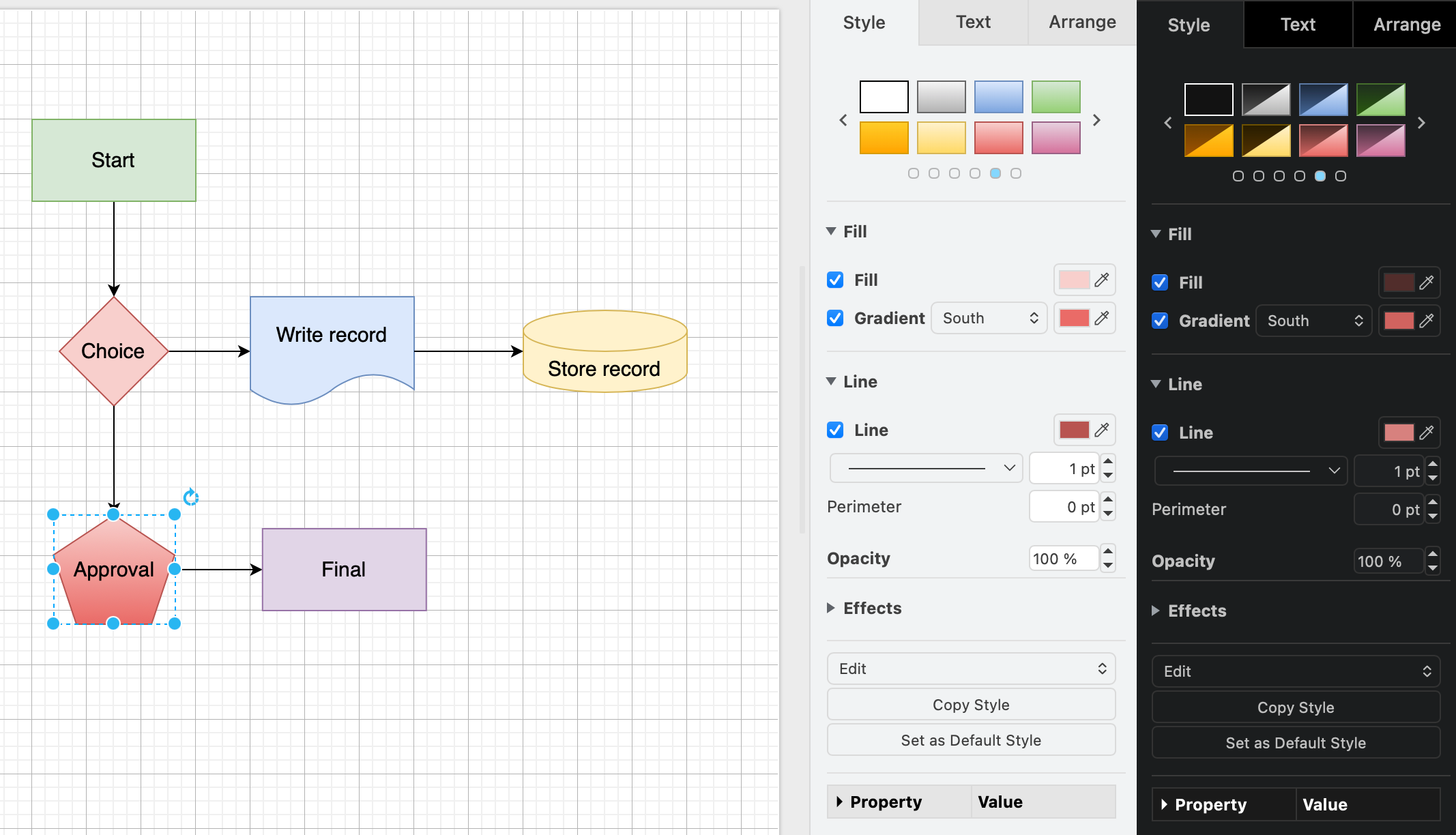
Adaptive colours are important when part of your team prefers to work in dark mode, and the rest prefers light mode.
Set a specific dark and light colour
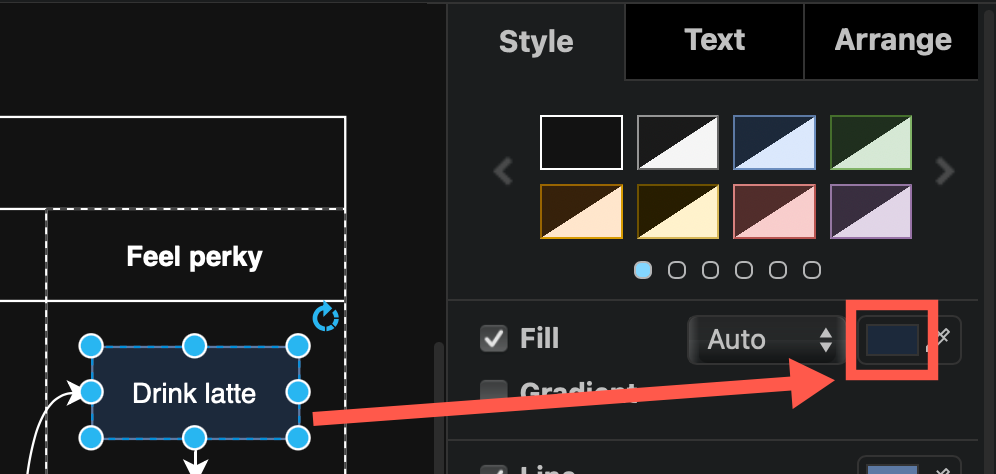
- Select one or more shapes, connectors, text labels, or the diagram background, then click on a colour block to open the colour palette, for example, the Fill colour of a shape.
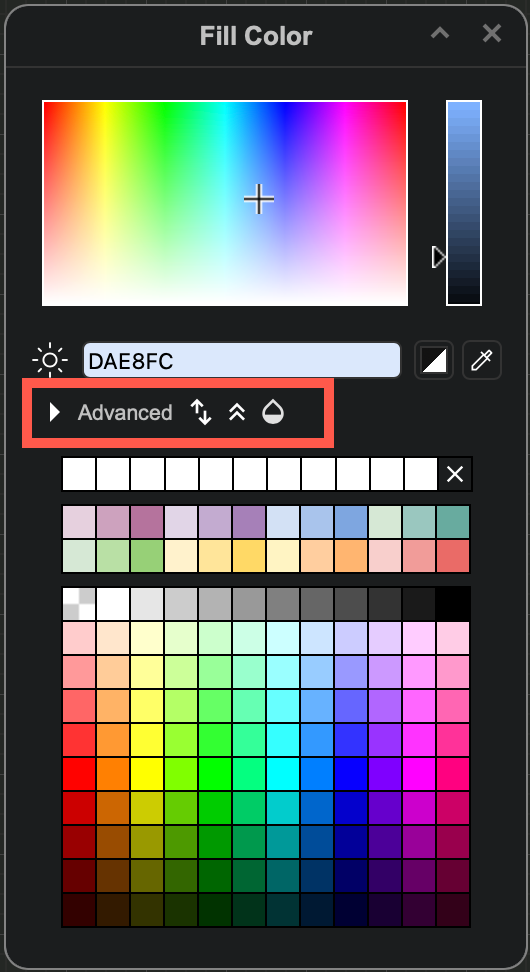
- Click Advanced to see the dark mode colour settings in the palette.
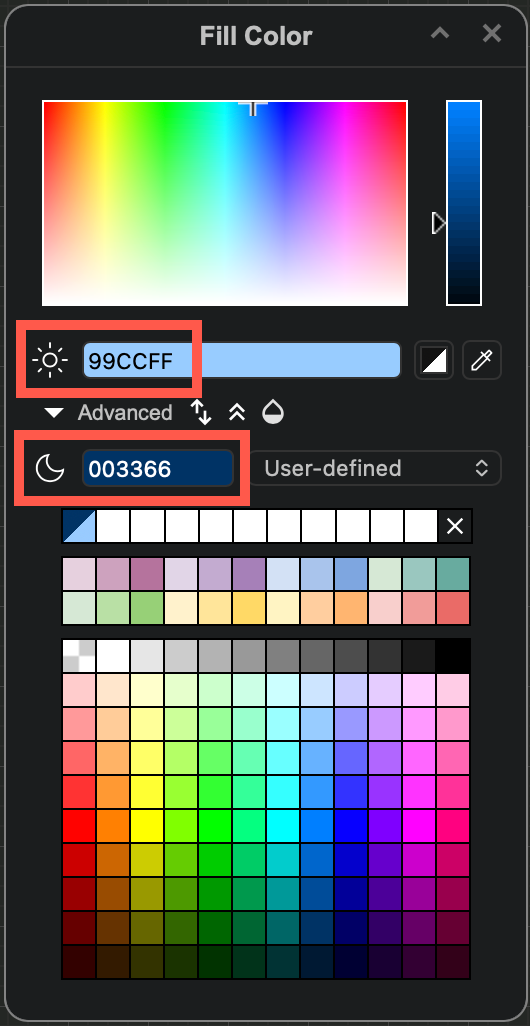
- Enter a colour value in the Light mode field (sun). The dark mode value will update automatically to its inverse if you are using the Automatic adaptive colour setting.
- To use a specific dark mode colour instead, enter a different colour value in the Dark mode field (moon). This colour is now User-defined.
- Click away from the dialog to save the colour style to your selected shapes, connectors, text or diagram page background.
You'll notice that the colour block now has two triangles, in both dark and light mode.
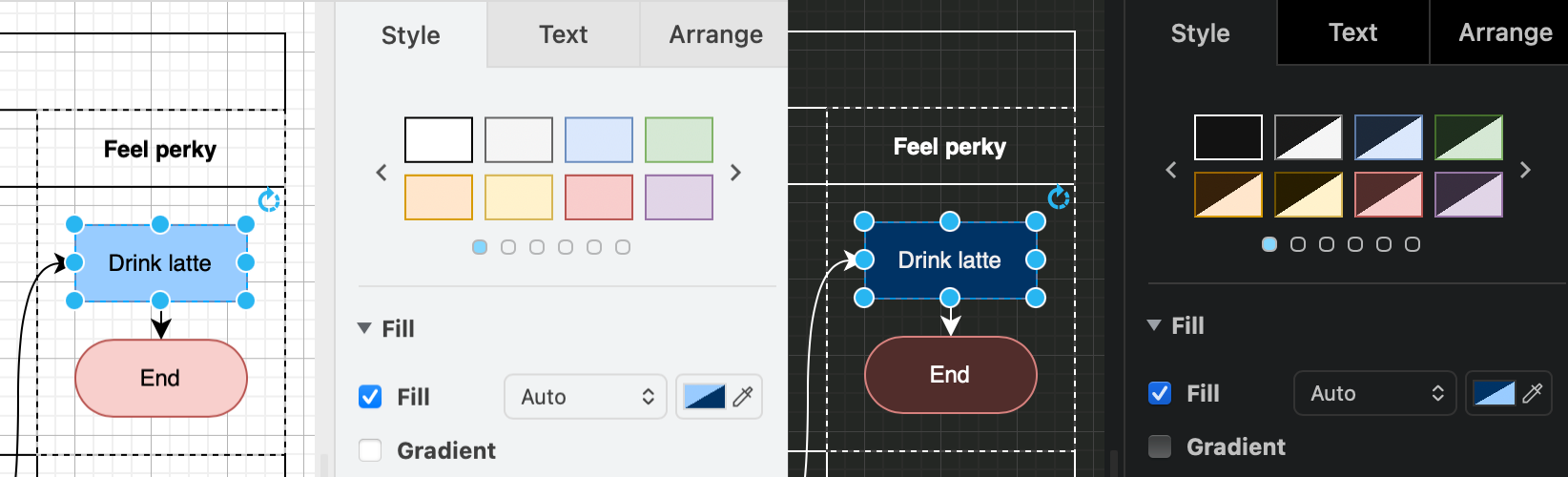
Tip: To use the same colour in dark and light modes, enter the same value in both fields.
Set opacity with RGBA hex notation
The Opacity button in the colour dialog lets you define the transparency of a colour using RGBA hexadecimal notation (RRGGBBAA), in addition to the standard RGB hexadecimal notation (RRGGBB).
When you use the Opacity button, the opacity value is applied to both the light and dark colours. To use a different opacity for each mode, enter the colour value manually in RGBA hexadecimal notation in the respective light mode and dark mode text boxes.
For example, to set a red shape that is 50% opaque in light mode and 80% opaque in dark mode:
FF000080   // 50% opacity red for light mode
FF0000CC   // 80% opacity red for dark mode
Remove user-defined adaptive colours
User-defined colours for dark mode override the automatic adaptive colour settings in the Simple adaptive colour mode. You can reset all user-defined dark-mode colours on a diagram page to their automatic defaults with a shortcut.
- Press
Ctrl+Shift+6to open the Adaptive Colors dialog. - Deselect the Background or Labels colours if you want to keep their user-defined values.
- Click Remove User-defined to reset the adaptive colours.
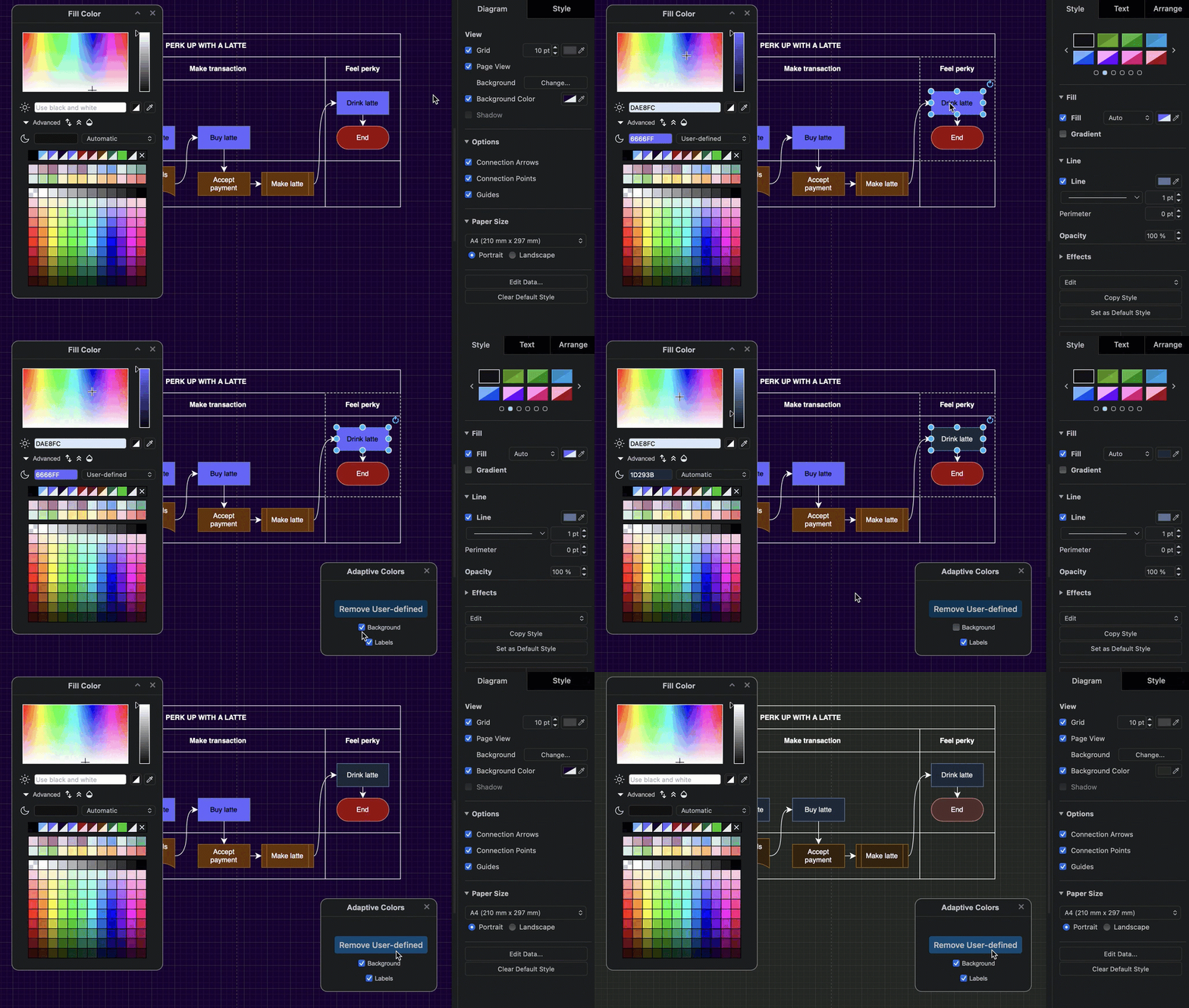
This ensures your diagram will have a uniform appearance for all shapes, connectors and labels in both dark and light modes.
Note: Adaptive colour and user-defined colours are saved per diagram page. To reset user-defined colours in a multi-page diagram, you will need to repeat this on every page of your multi-page diagram.
Share diagrams with adaptive colours
The adaptive colour settings are saved in the diagram file. When you share your diagram file, a URL link with the diagram or HTML code with the diagram embedded, when it is reopened in the editor, the diagram will display with the adaptive colour settings it was saved with.
Adaptive colour settings
Each page in a multi-page diagram has its own adaptive colour setting.
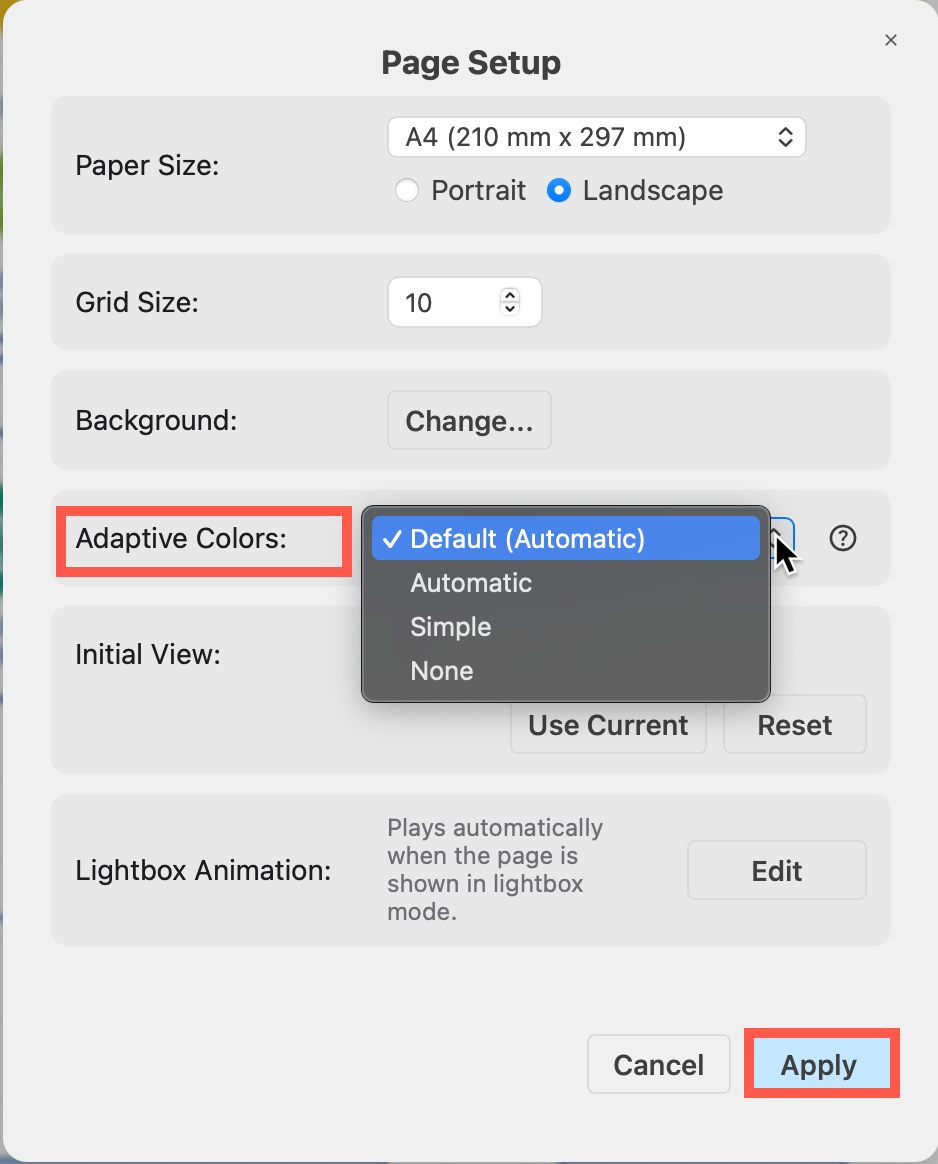
- Open the draw.io menu and select Page Setup, or File > Page Setup using the Classic or Atlas editor themes.
- Set the Adaptive Colours for that diagram page via the dropdown list.
- Automatic (default): Changes the intensity to enhance the contrast of all coloured elements in a diagram.
- Simple: Improves the contrast of only the black and white elements, and retains all other colours. Thus the same palette can be used in dark and light modes.
- None: Disables adaptive colours in dark mode completely. Diagrams will appear as they would in light mode even if you enable dark mode in the draw.io editor.
Minimum browser requirements
Adaptive colours rely on the light-dark() CSS colour function, so this dark mode requires a recent browser: Chrome 123+, Firefox 120+, Safari 17.5+, Opera 109+, WebView Android 131+, Safari iOS 17.5+, and Edge 123+. Where possible, a fallback is used for older browsers.
Related
- Read why diagrams pose a particular challenge when automatically adjusting colours for readability in dark mode.
- Set default adaptive colours in the draw.io editor configuration to keep the editor in dark mode, but the diagram and drawing canvas in light mode.
- Learn how to configure palette colours in the draw.io editor.
- Set custom dark-mode colours in the style and colour palettes with the light-dark function for each color definition in Confluence Cloud.
- Learn more about how adaptive colours work when you export to an SVG image.