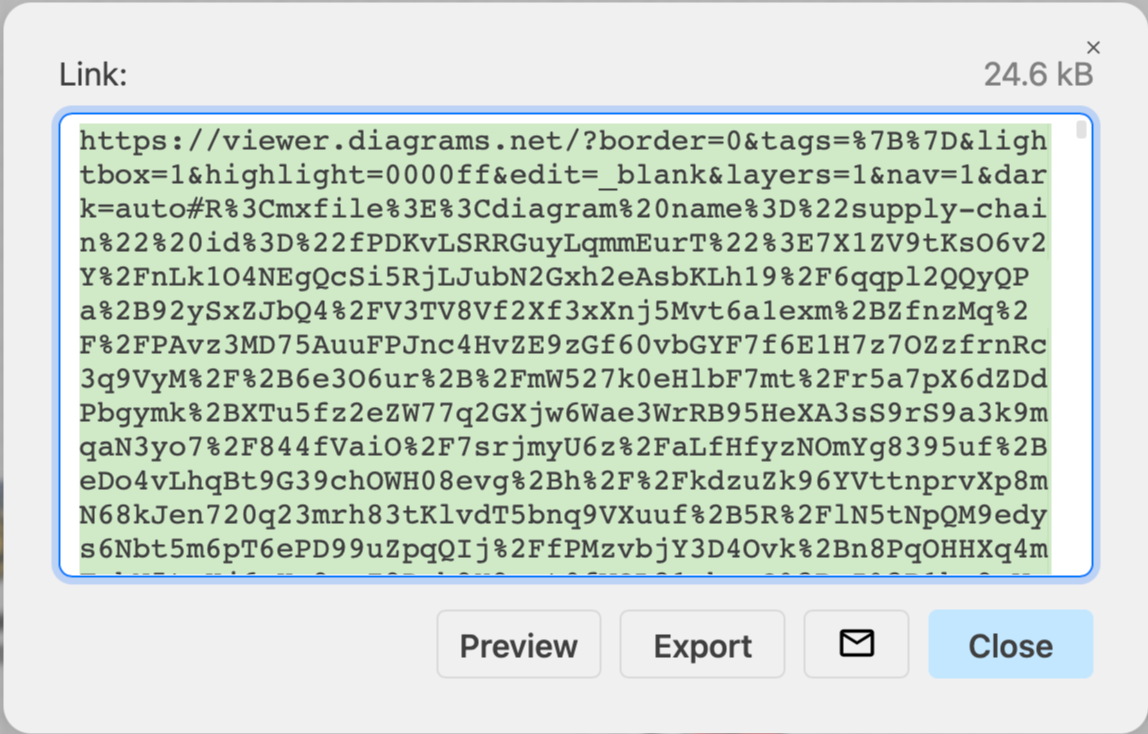
Supported embedded formats
When you choose to embed instead of export your diagram, draw.io will generate text (code) that you can copy and paste into a web page, or sometimes into an application (if that application supports embedded images or HTML).
Embedded image
- Select File > Embed > Image, change the options as needed, then click Embed.
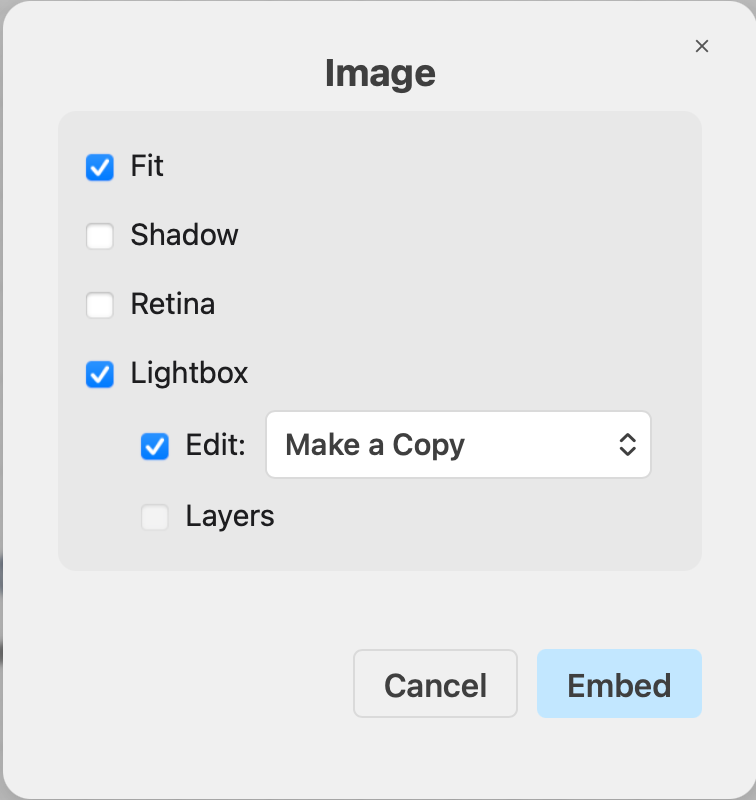
- The HTML for the embedded image will be generated. Copy and paste this into your web page or application.
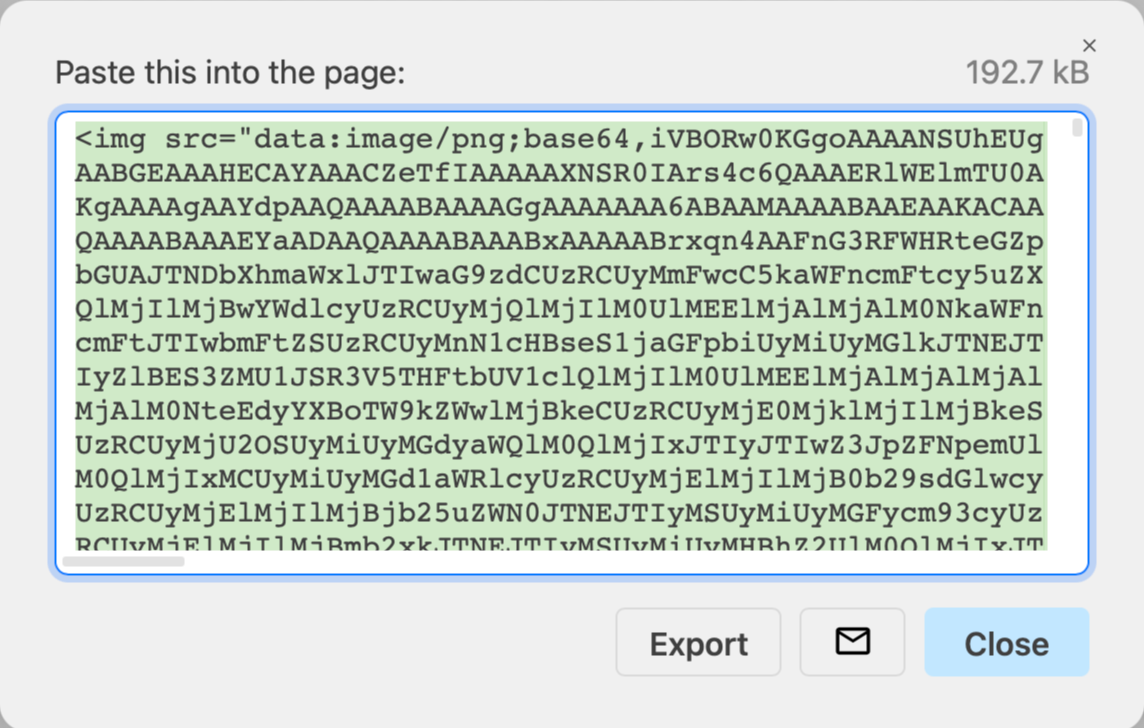
You can Export this code to save it as a text .txt file.
Embedded SVG
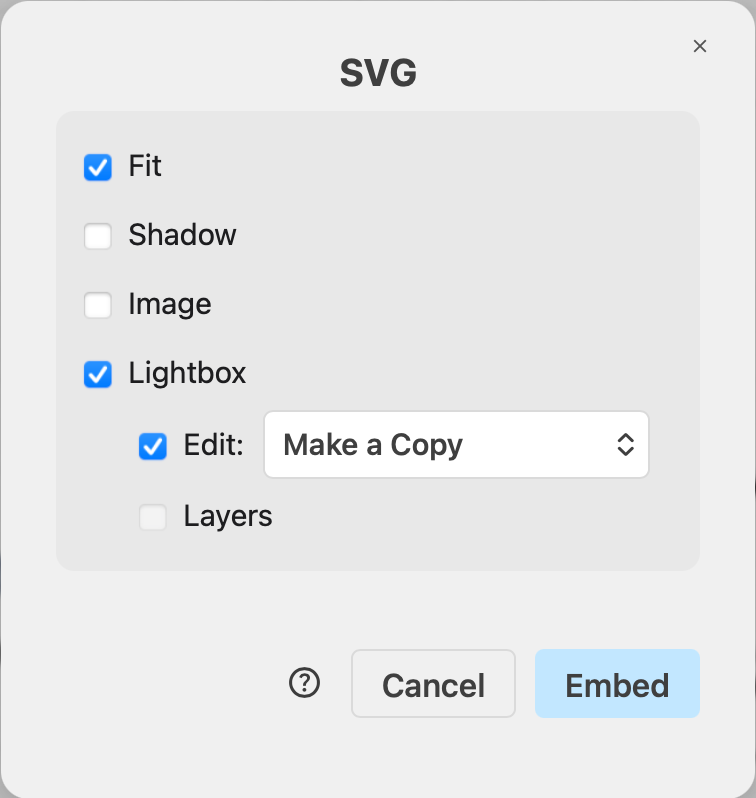
Select File > Embed > SVG, change the options as needed, then click Embed to generate the SVG with the diagram data encoded within it.
Embedded HTML or iFrame
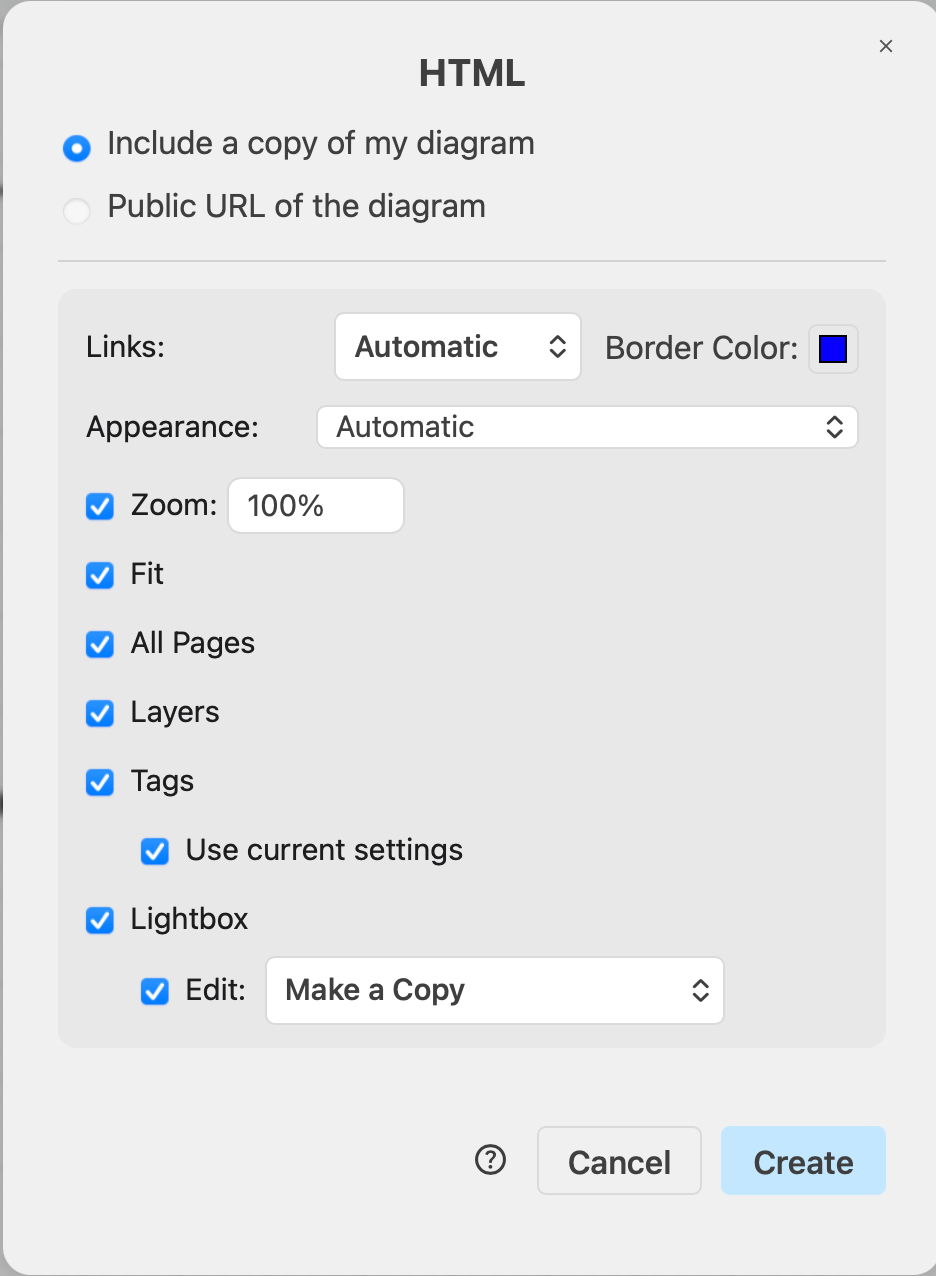
You can embed HTML with the draw.io viewer displaying your diagram into your web page.
Select File > Embed > HTML, change the options as needed, then click Embed to generate the HTML code.
Embed a diagram in Microsoft Office
Install the draw.io apps for Microsoft Office applications, including Word, PowerPoint and Excel, to be able to embed diagrams in your documents.
See how to use the draw.io apps with Microsoft Office
Embed a diagram in Notion
- Select File > Embed > Notion, change the options as needed, then click Create.
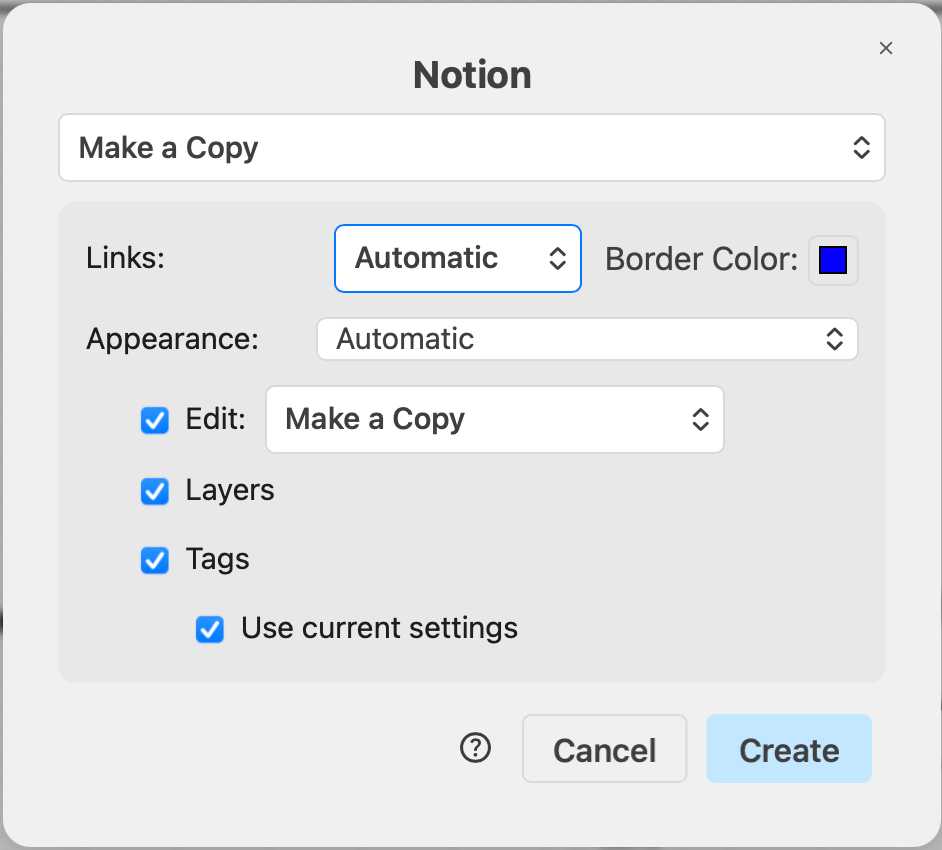
You can Preview this in a new browser tab, or Export this code to a text file. Copy and paste the code into your Notion page.