Print a diagram
- Select File > Print from the menu in draw.io to open the print options. Alternatively, press
Ctrl+Pon Windows orCmd+Pon macOS. - Select your print options, then click Print.
- Choose your printer and follow its instructions to print your diagram.
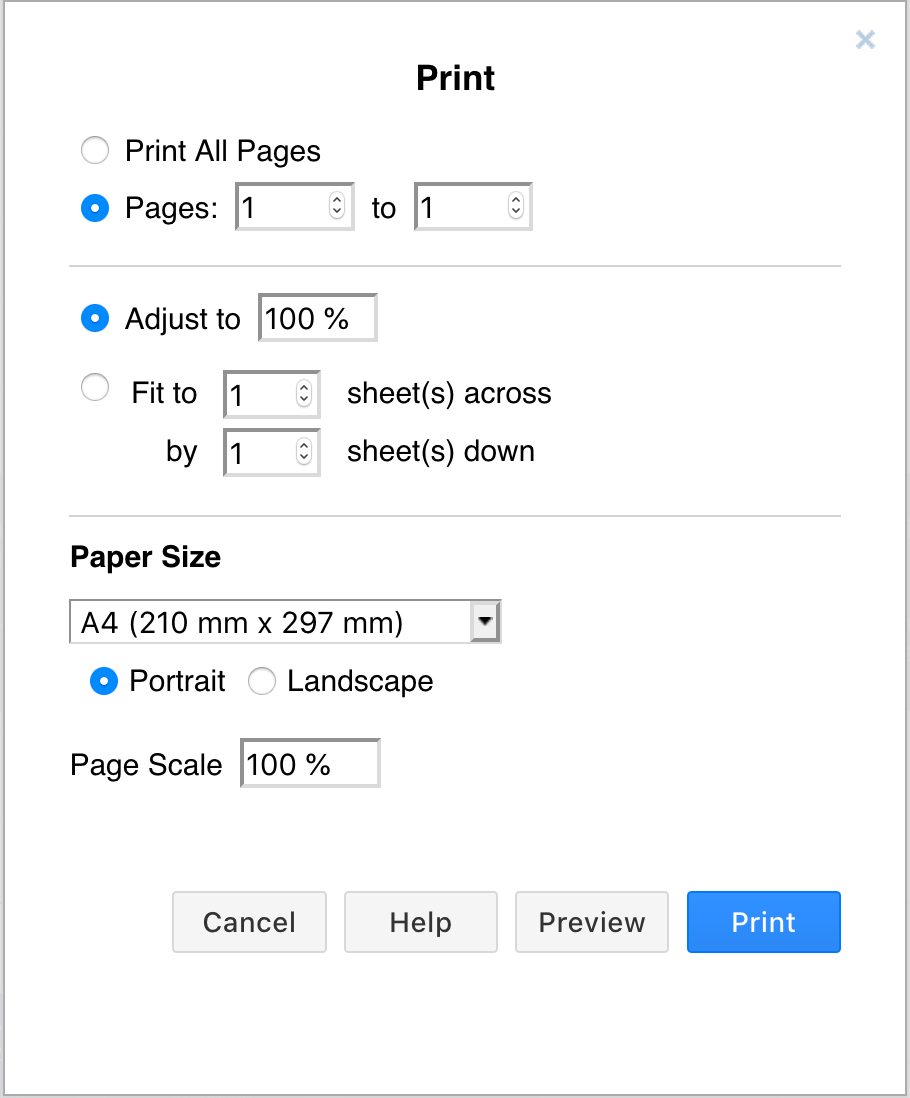
Border and background
- Change the whitespace Border Width to make your diagram take up more or less of the page.
- Change the Zoom percentage to make your diagram smaller or larger on the page.
- Enable the Grid checkbox if you want to include the editor grid
Print multiple pages
This option is not shown if your diagram has only one page.
- If your diagram has multiple pages, select Print all pages.
- Alternatively, type the page range you want to print in Pages. Each diagram page will be printed on a separate page.
- Choose Selection Only if you have select part of a diagram and only want to print that part.
Crop and Fit to page
By default, your diagram will be printed at 100% - to fit to your page.
Select Crop if you want to make your diagram smaller, or larger and printed across multiple pages.
Change the number of pages to which it fits to print it across multiple pages.
- Select File > Print from the menu in draw.io to open the print options. Alternatively, press
Ctrl+Pon Windows orCmd+Pon macOS. - Click on the Fit to radio button, and type the number of sheets of paper across, and pages down that you want to stretch your diagram over. If you want to fit this page of your diagram onto a single sheet of paper, leave the values as
1sheet across and1sheet down.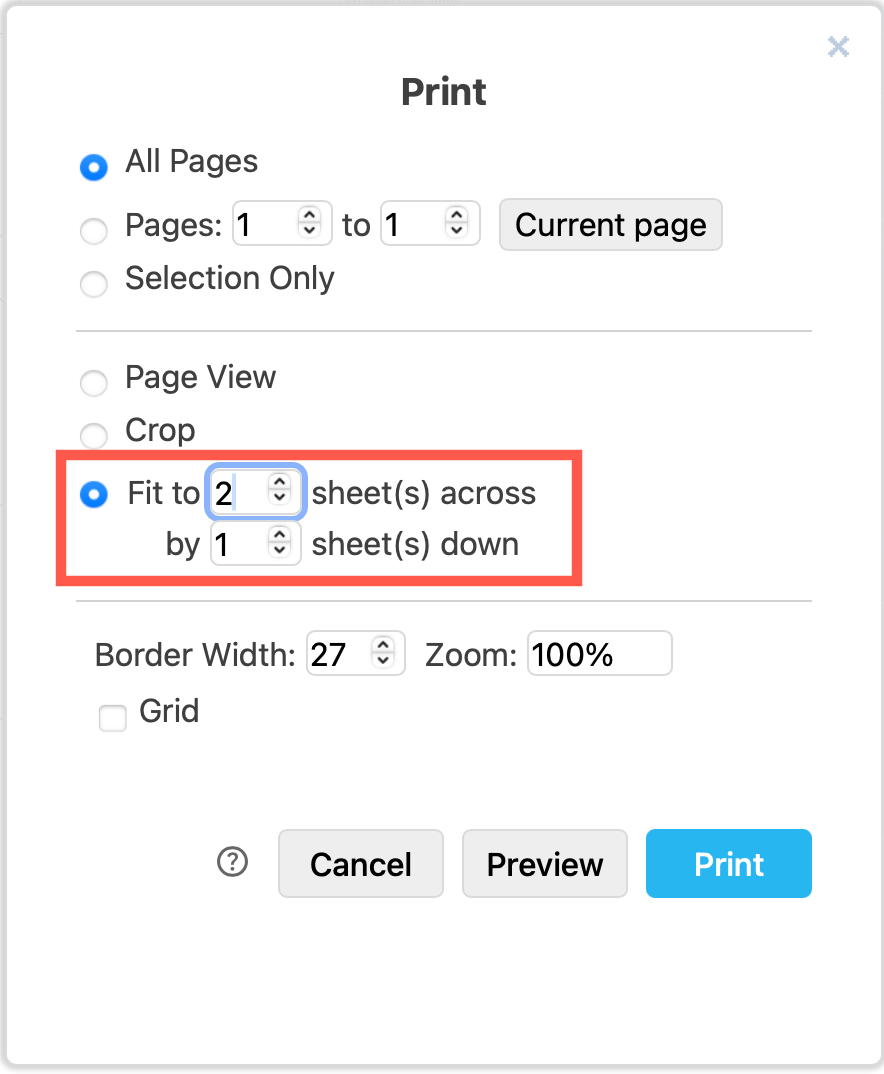
- You'll see a preview of how your diagram will be printed along with your operating system's printer dialog. Choose your printer and follow its instructions to print your diagram.
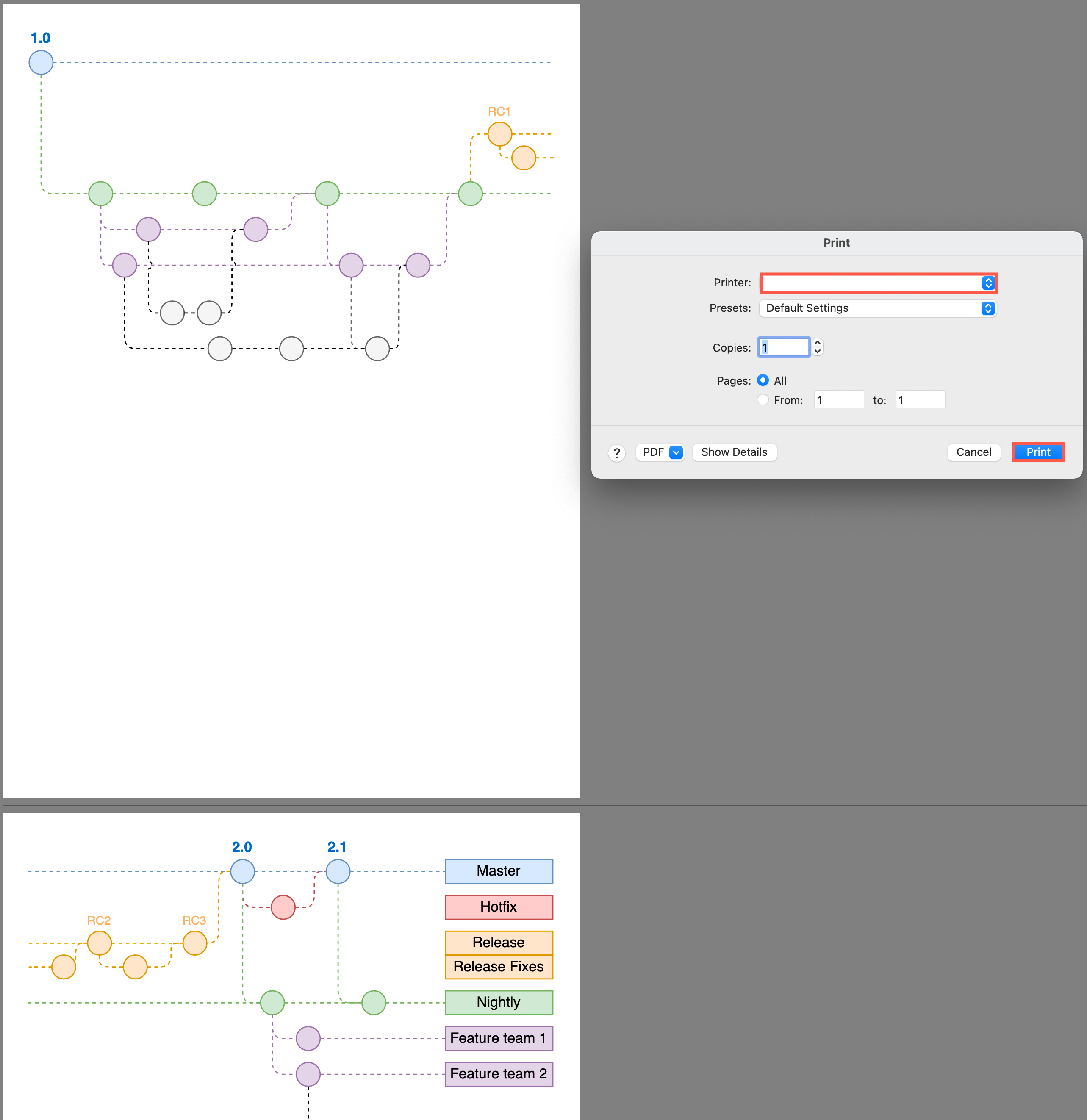
Tip: Instead of printing to a printer, you can print your diagram that you have fit over multiple sheets to a PDF file.
Related
- See all export formats and embed formats
- You can also print your diagram to a PDF file instead of exporting it.