Supported export formats
You can export your diagrams to various types of images, files of different types, and even encode your diagram into a URL. The type of file that you choose to export to will depend on how you want to use it.
.drawioand.xmlsave file formats contain your full diagram, and can be opened in draw.io..png,.svgand.jpegare image file formats that you can use in documents, presentation slides or on web pages..webpis an image file format designed for small file sizes for web pages..htmlcreates HTML code which embeds your diagram on a web page..pdfgenerates a PDF document.
Compare export and embed formats
While the embed code for HTML, SVGs and images are similar, you will find that one is better for your situation than another.
| HTML | SVG | Image | |
|---|---|---|---|
| Requires JavaScript | Yes | No | No |
| Uses system fonts | Yes | Yes | No |
| Supports hyperlinks | Yes | Yes | No |
| Uses foreign objects | If available | Yes (notes) | No |
| Vector format | Yes | Yes | No |
| Supports zoom, pages, layers, collapse/expand, and tooltips | Yes | No (zoom via viewer) | No |
Tip: You can choose to embed the diagram data in PNG, SVG, and PDF files so that they can be opened in the draw.io editor as the diagram.
If you have set a background colour or image, it will be included when you export your diagram.
Export your diagram to an image
You can export the current drawing canvas to an image: PNG, JPEG or SVG. JPEG are most commonly used in web pages. PNG and SVG images are scalable (resizeable) and work well in documents and presentation slides. SVG images support animated connectors.
- Select File > Export as (or just Export As from the Simple editor theme menu) then choose the image format you want to generate - PNG, JPEG, WebP, or SVG.
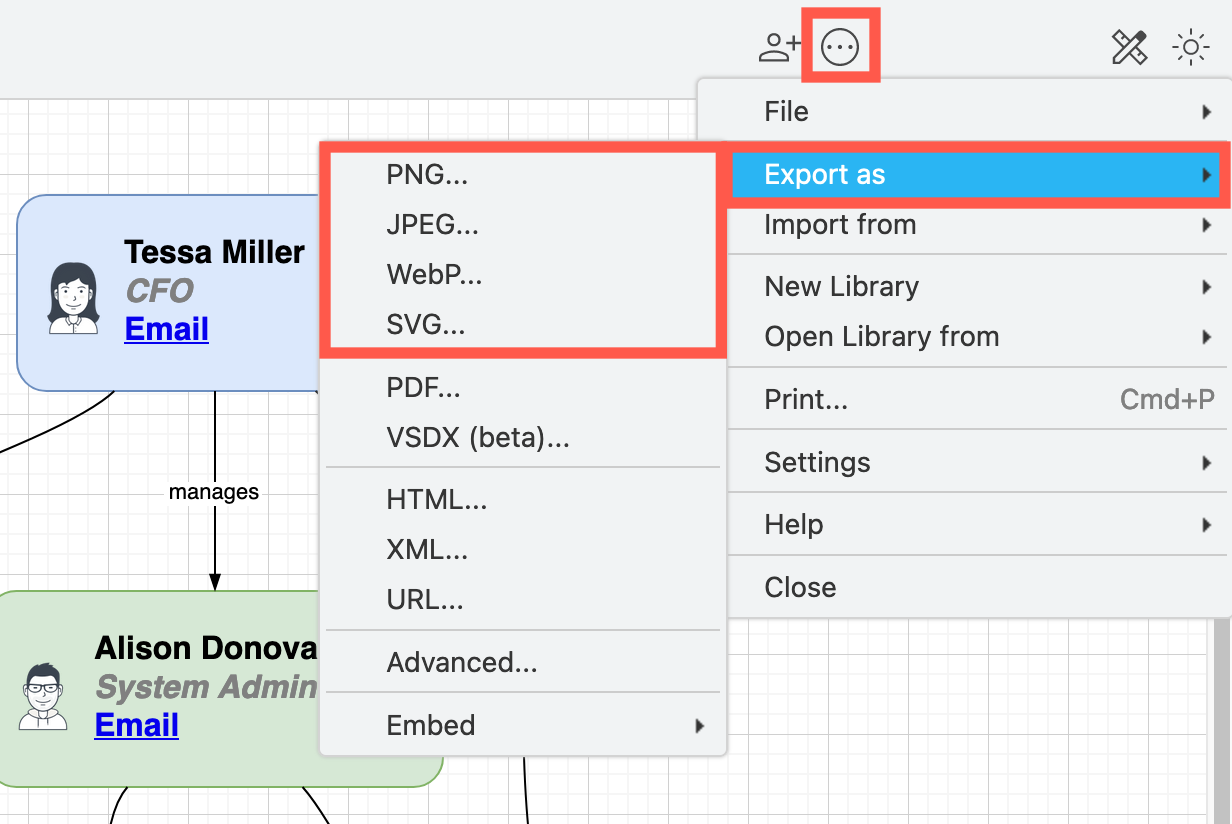
- Each image format will offer you slightly different options, see below for details. Select the options you want, then click Export.
Tip: If you want to include the editor grid in your image, enable the Grid checkbox.
Export as a PNG
PNGs are used in web pages, documents and presentation slides. Change the PNG export options as needed.
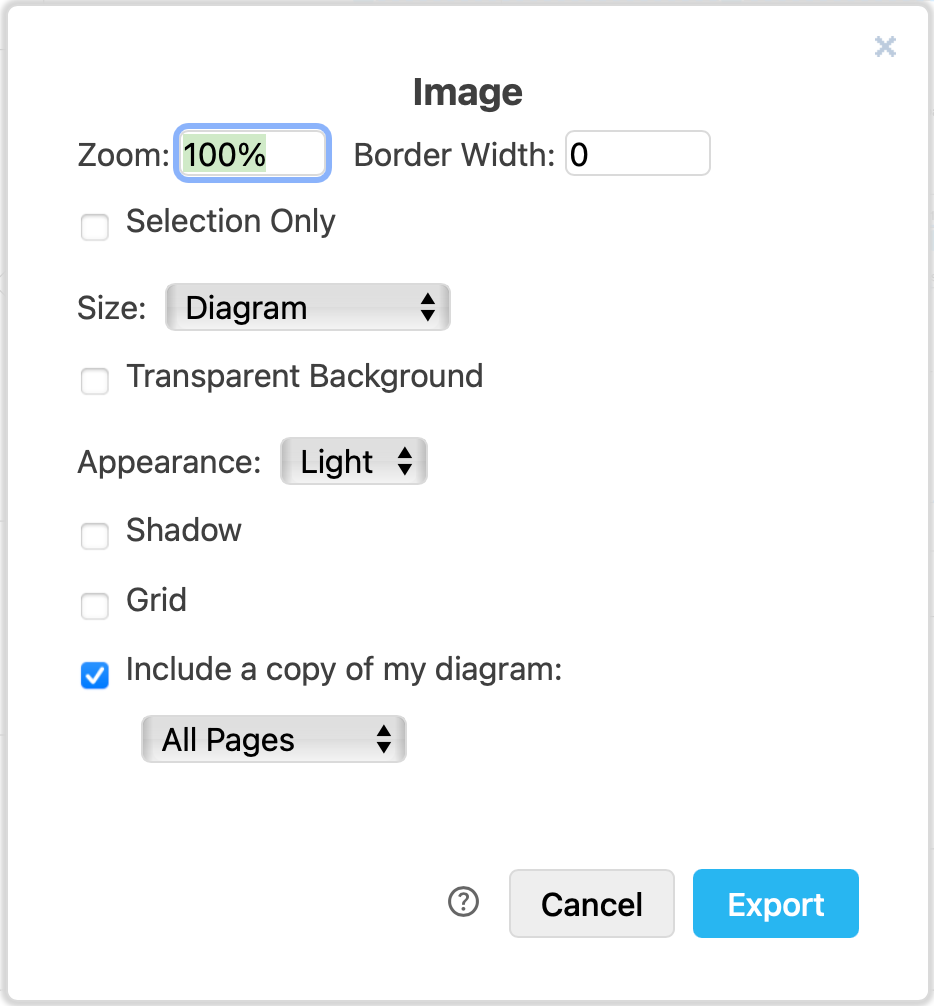
Export as a JPEG
JPEG image files cannot contain your diagram data - only an image version of the page you are exporting. Change the JPEG export options as needed.
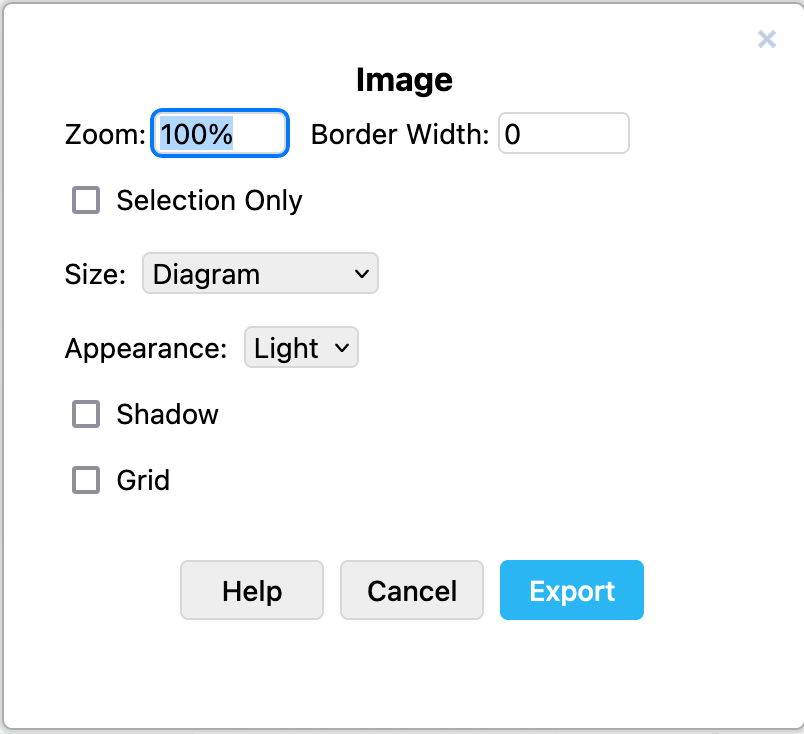
Export as an animated GIF
If you have animated connectors, you can export your diagram page as an animated GIF image. Change the animated GIF export options as needed.
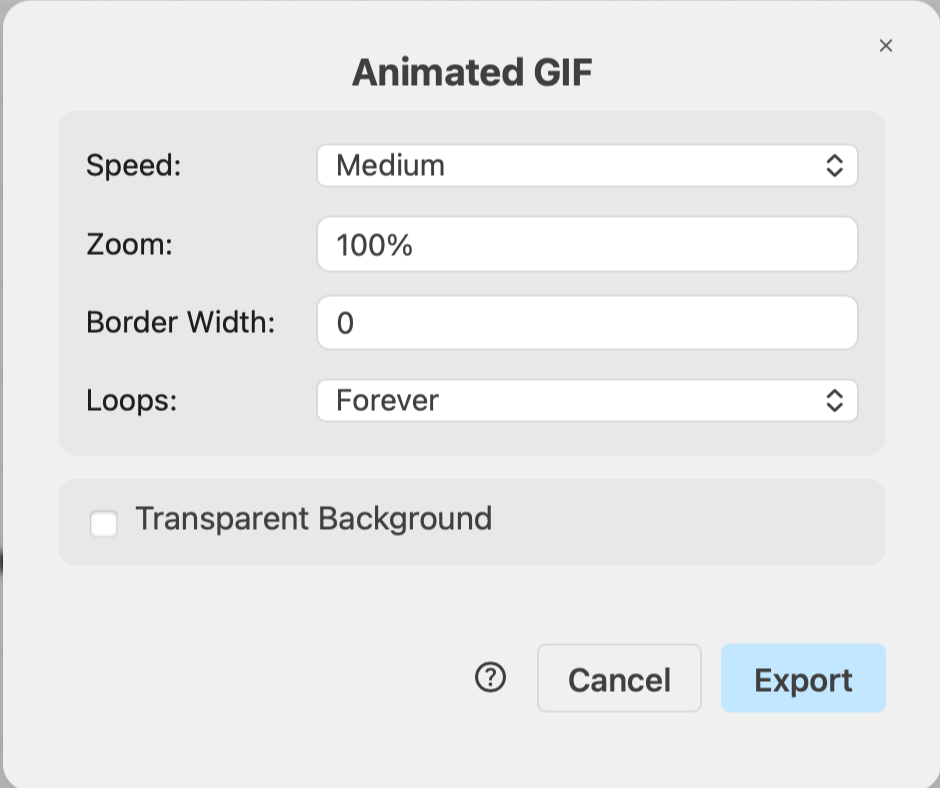
Export as a SVG
SVG images can include your diagram data, as well as any links you've added to shapes. Change the SVG export settings as needed.
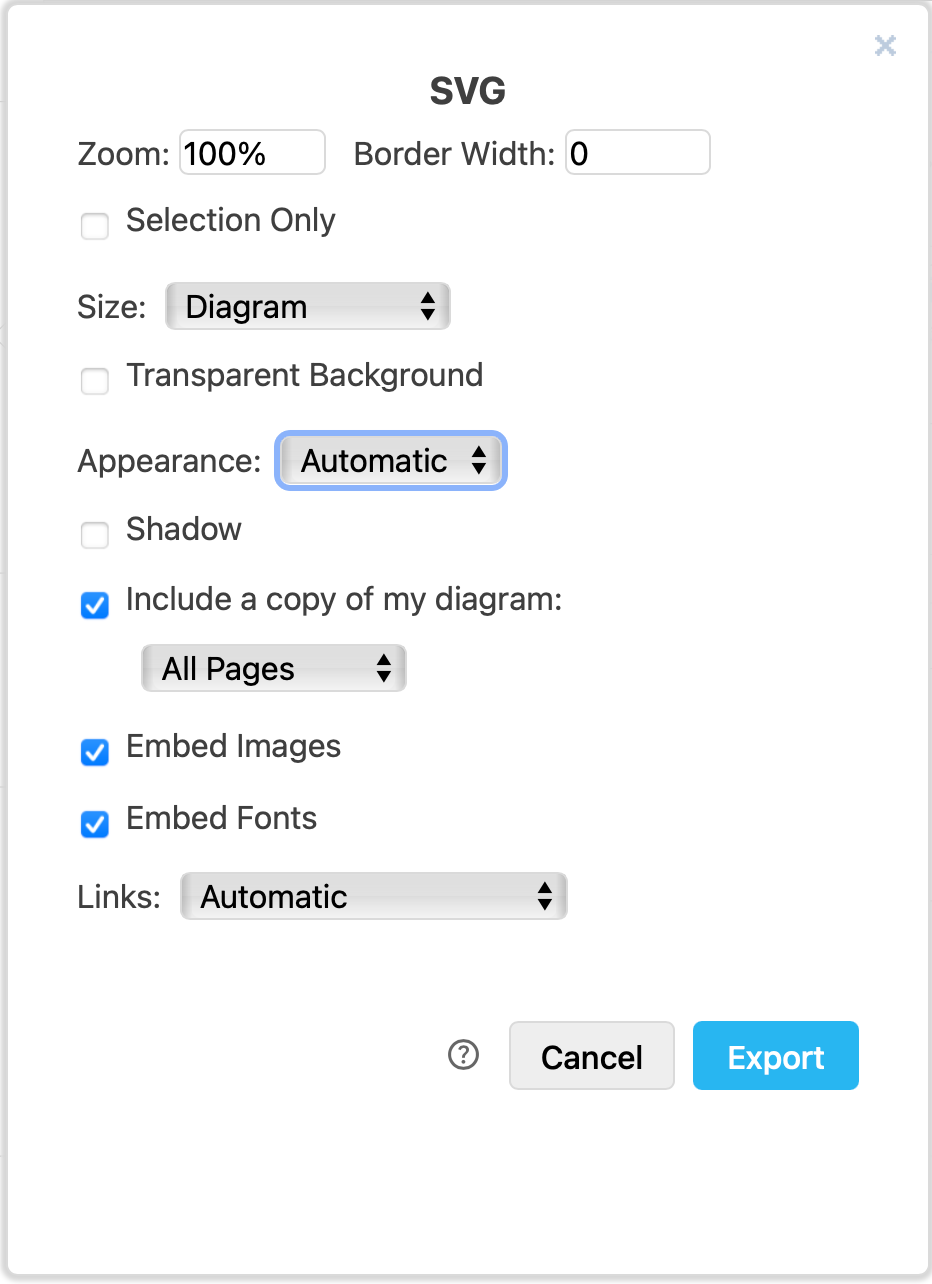
Troubleshoot exported text that is not rendered correctly.
Export to a PDF file
When you export your diagram to a PDF file, you can include a copy of your diagram data, so that when you drop that file onto the draw.io editor, it will open your diagram for editing.
- Select File > Export As > PDF.
- Change the PDF export settings to suit your requirements, then click Export.
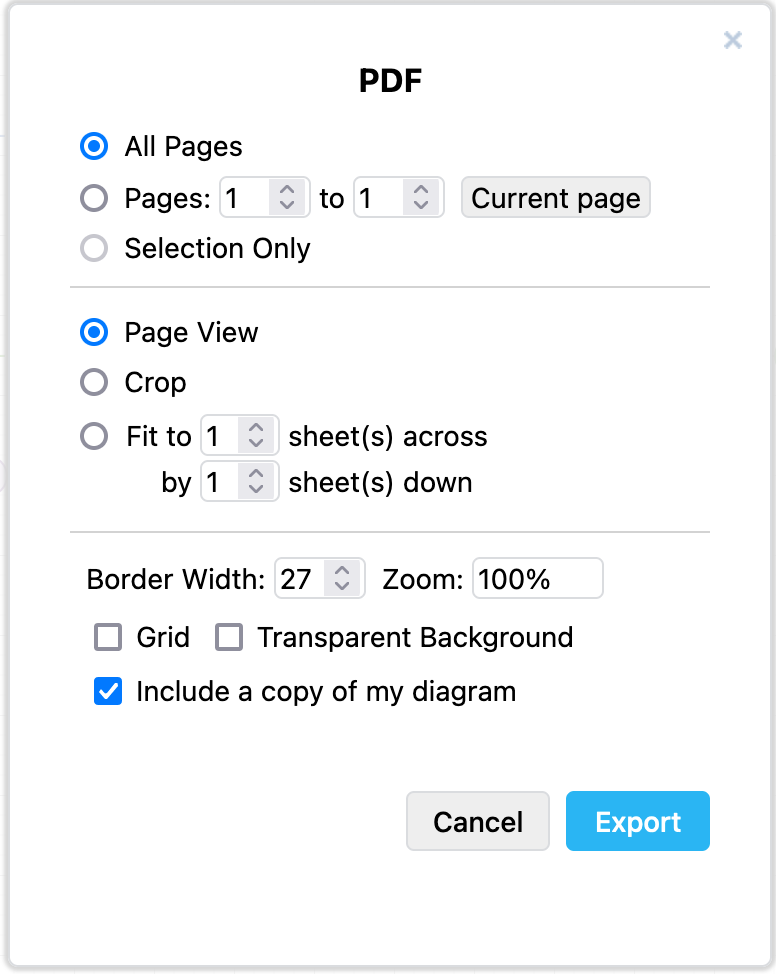
Tip: If File > Export as > PDF throws an error, you can print to a PDF via File > Print, click on All Pages then on Print. Finally, in the printer settings dialog that appears, choose Print to PDF or Save as PDF.
Export to HTML
You can embed a diagram in a web page or in any online platform that can render HTML.
Diagrams exported to HTML files/code are rendered in the draw.io viewer by calling a JavaScript hosted on the draw.io server. You'll need a working internet connection for the diagrams to be displayed properly.
- Select File > Export as > HTML.
- Change the HTML export settings to suit your requirements, then click Export.
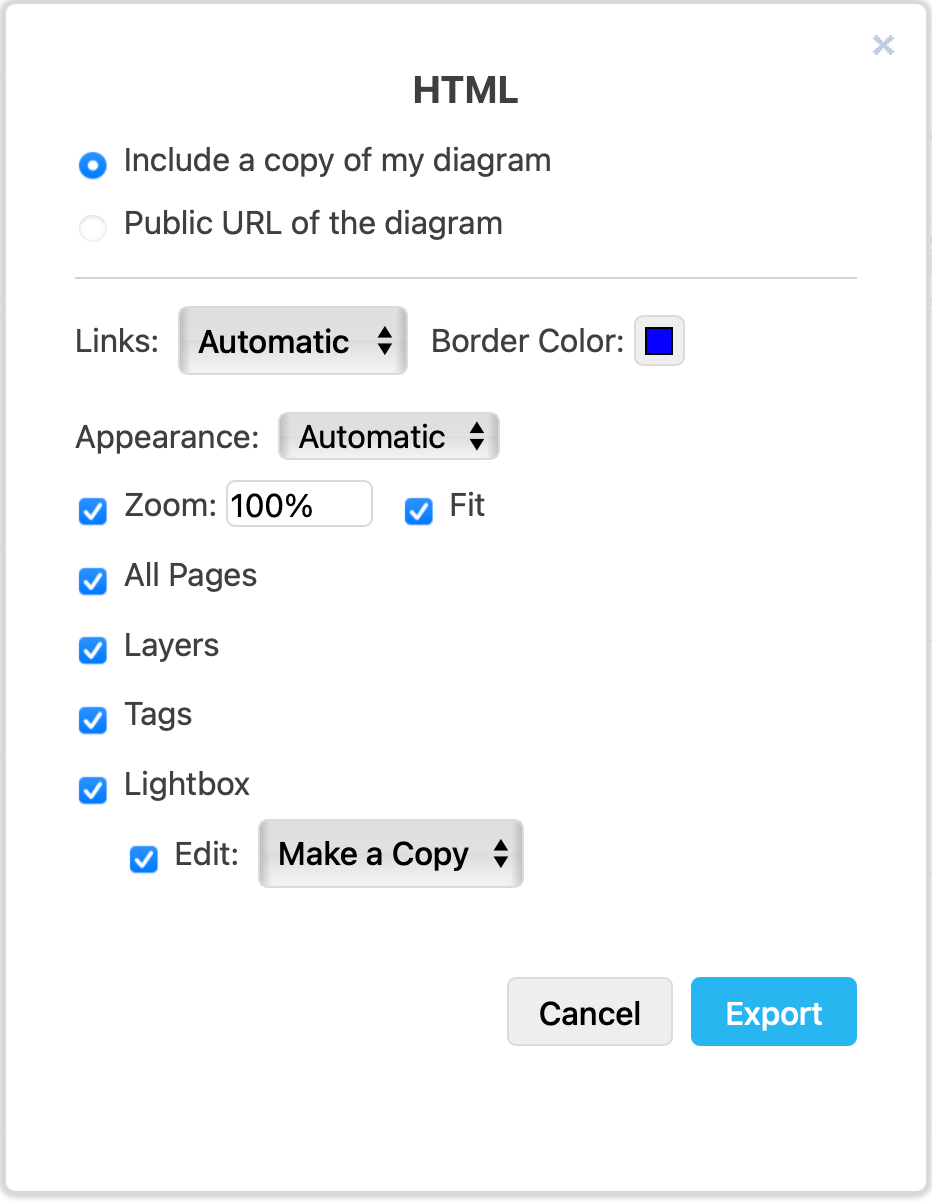
- Choose where you want to save the HTML file.
Export to XML
- Select File > Export as > XML.
- Change the XML export settings to suit your requirements, then click Export.
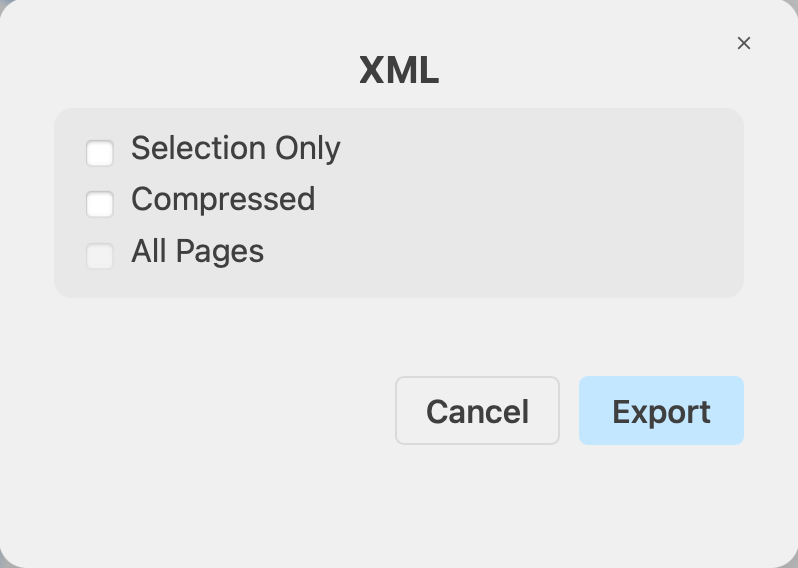
- Enter a Filename, then click on one of the save locations, or click Download to save the XML file to your device.
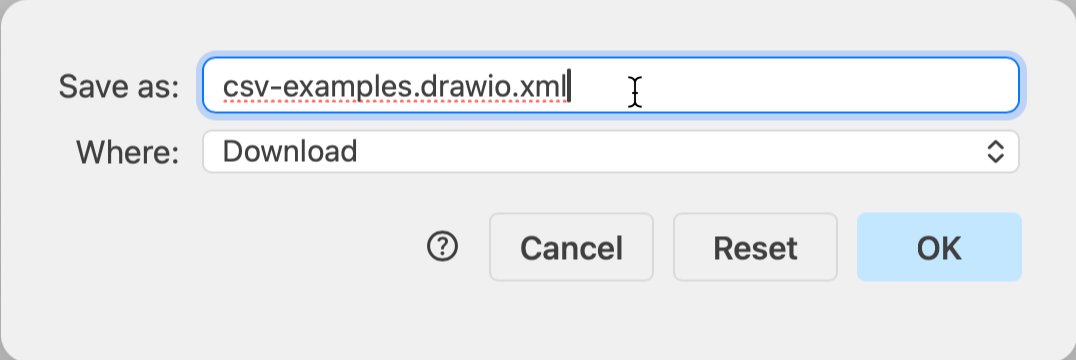
Depending on your browser, you may be prompted to open it with a default program, or simply save the file.
Export your diagram as a URL
When exporting your diagram to a URL, the diagram data is encoded in the link and it is not stored as a file anywhere.
- Select File > Export as > URL.
- Change the URL export settings to suit your requirements, then click Export.
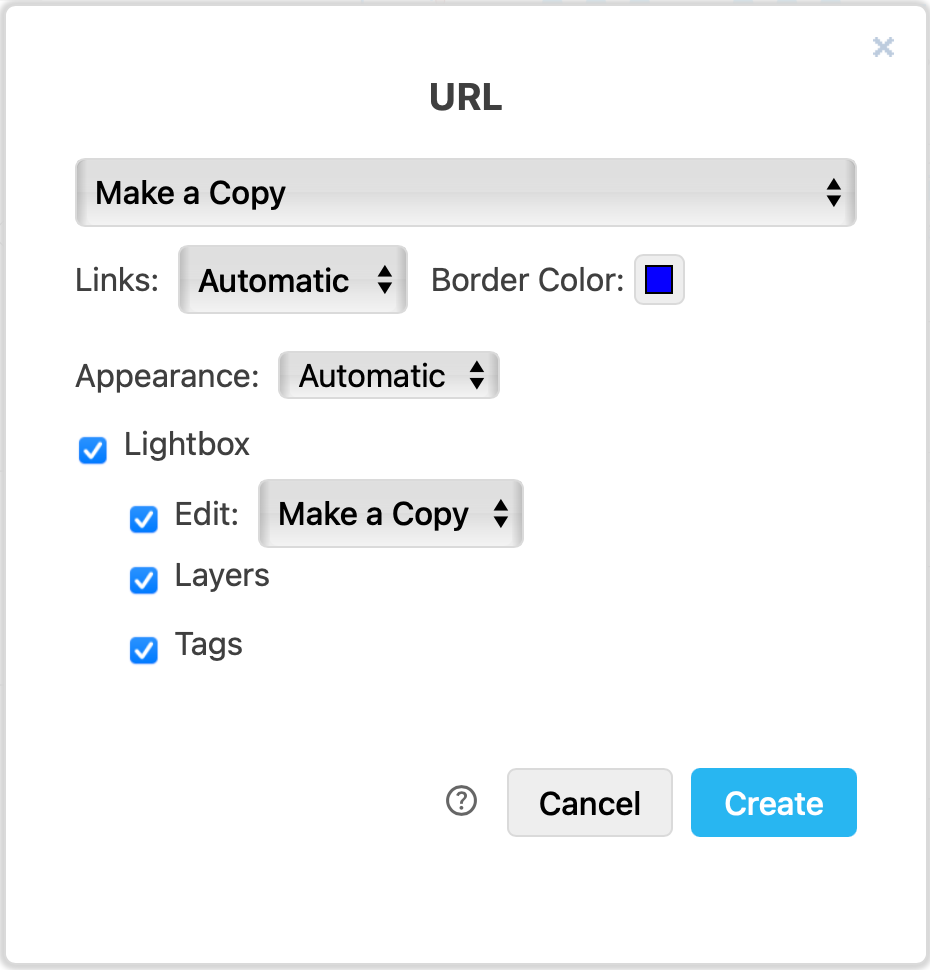
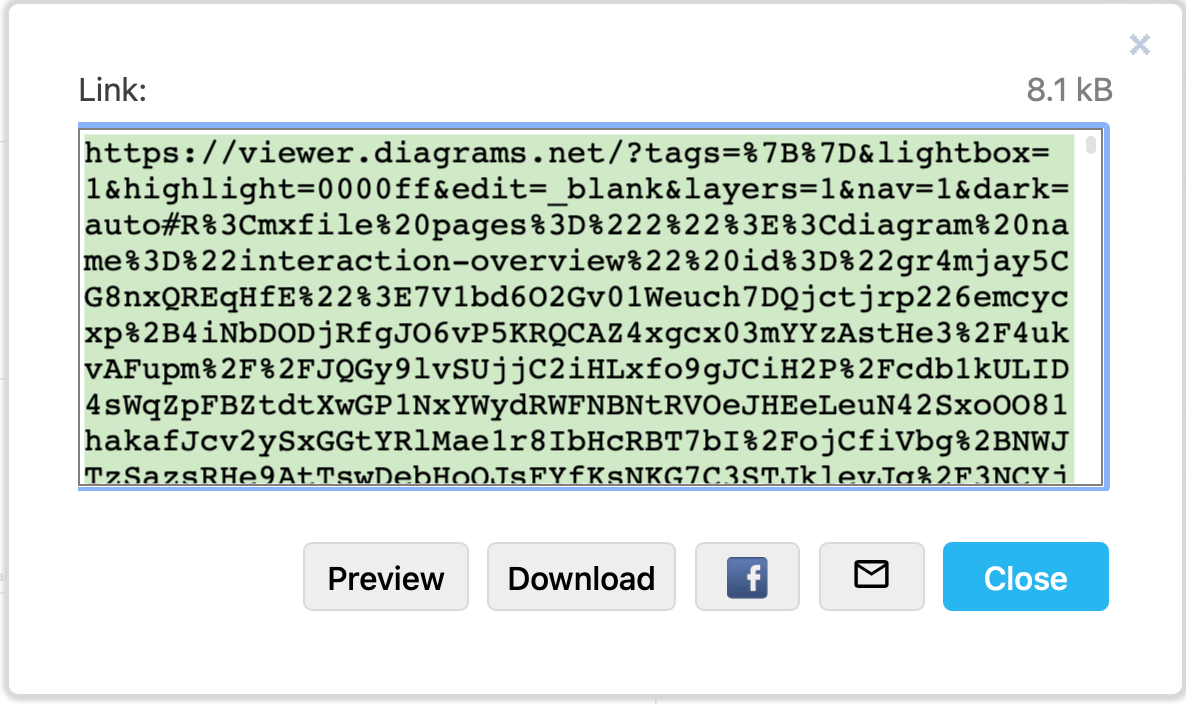
- Copy the URL to share it by email or chat, or click on the Facebook button to add the link to a new post in a new browser tab. Click on Preview to open the link in a new tab. Click Close to return to the diagram editor.
Export using the advanced options
- Select File > Export as > Advanced to see some additional export options that can be applied to image files. Depending on the Format you choose, some options may be disabled.
- Enter a Filename and select the export Format from the drop down list.
- Change the Zoom percentage, set a Width and Height for the resulting image/PDF file.
- Change the DPI setting to output a higher quality image.
- Set a Transparent background and change the Border Width.
- Enable Grid if you want to include the drawing canvas grid.
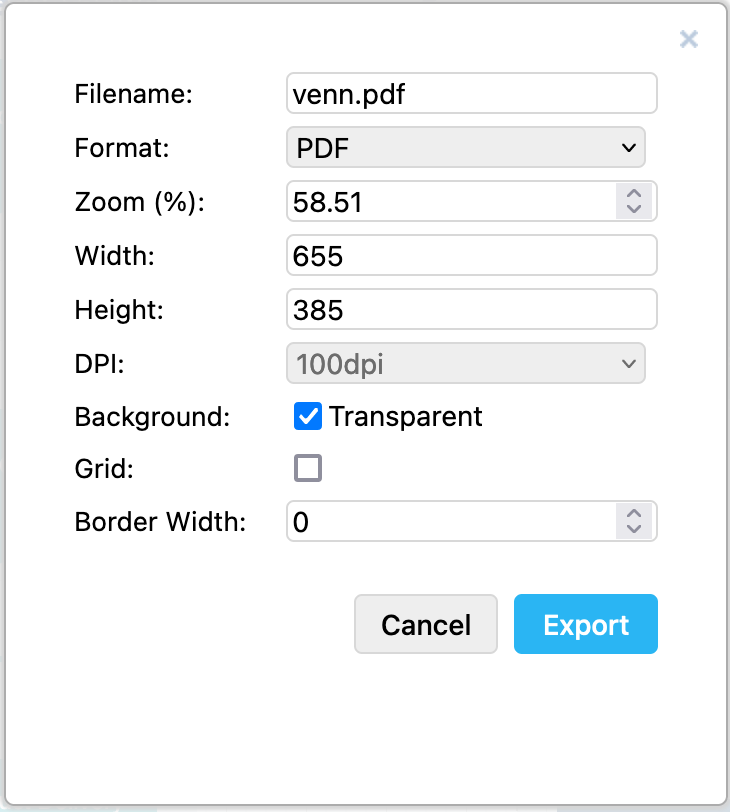
- Click Export to create a file of the format you chose, then select a location to save the file.