Print a diagram to a PDF file
On rare occasions, huge diagrams may cause a timeout on the PDF generation servers, which might return a blank or corrupt PDF. If the built-in PDF generation via File > Export has problems, you can print your diagram to a PDF file.
- In the draw.io menu, select File > Print to display the Print dialog.
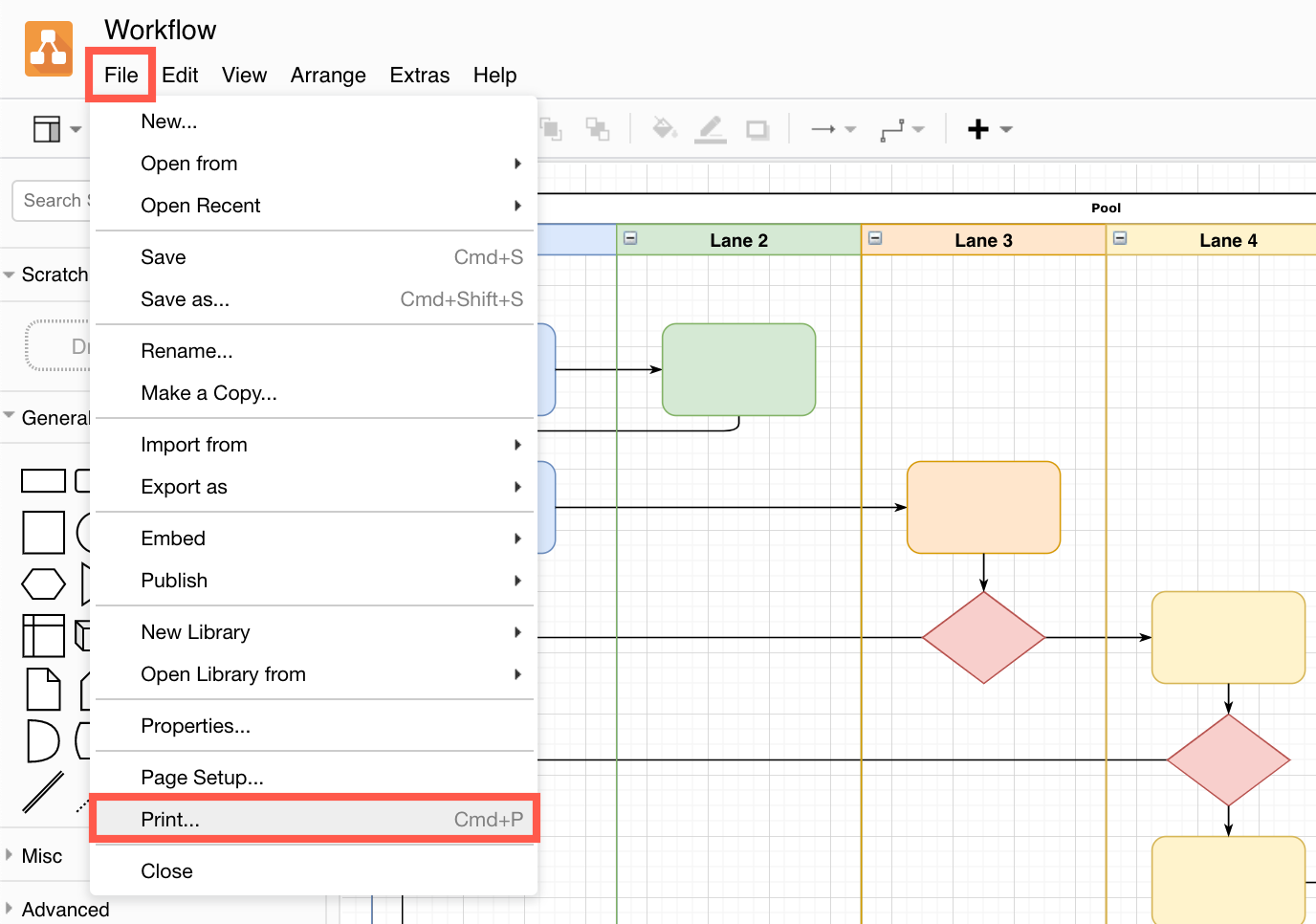
- Click Print.

- Your operating system and browser will determine what steps you need to follow, for example:
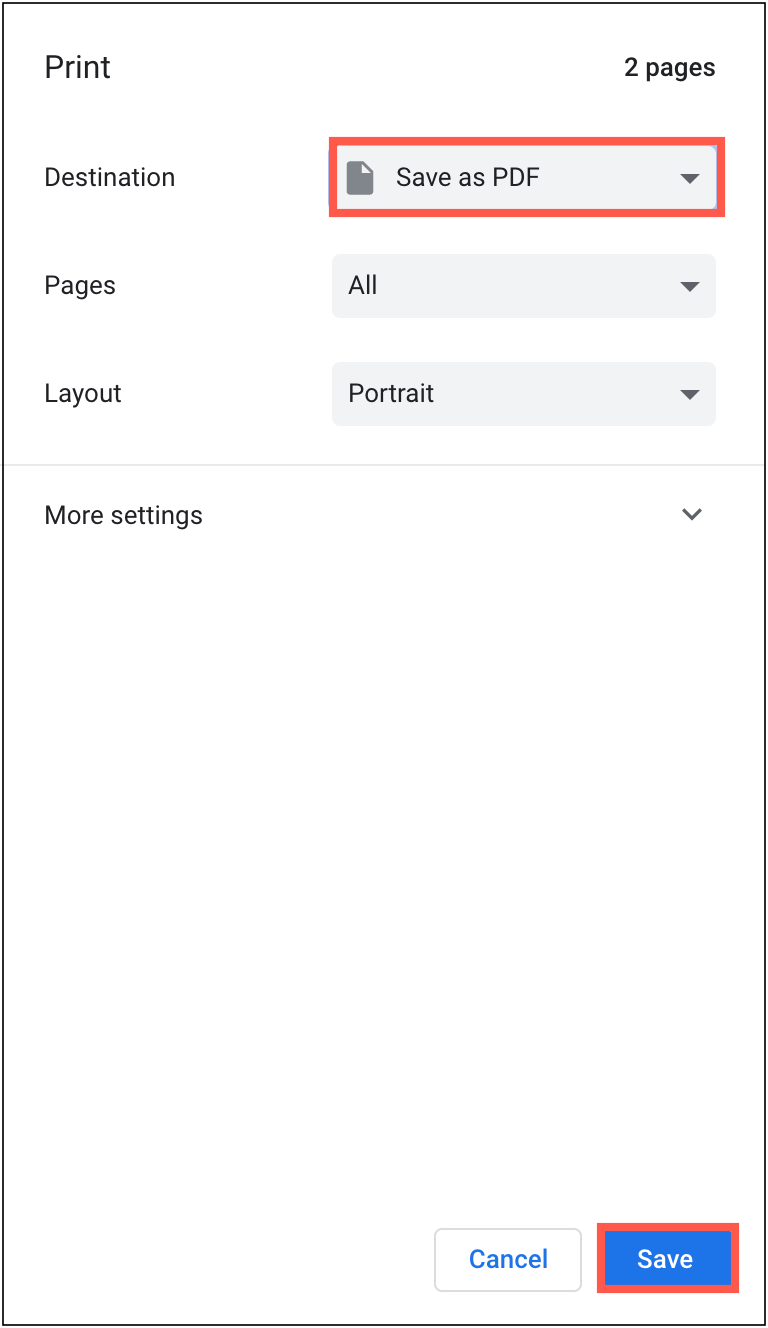
- If you are using Chrome, set the Destination to Save as PDF, then click Save.
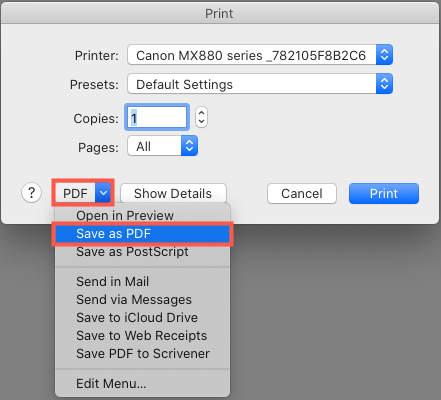
- If you are using a different browser on macOS, in the Print dialog, click on the PDF dropdown, then select Save as PDF. Enter a filename and then save the file.
- If you are using Chrome, set the Destination to Save as PDF, then click Save.
Print a diagram with custom local fonts
If you have used a custom font that is installed on your local computer, your diagram will not be displayed correctly in an exported PDF file. In this instance, print your diagram to a PDF file instead of exporting it.
Secure PDF generation
Print directly to a PDF file via File > Print to ensure your diagram data is never transferred outside your own system.
If you choose to Export your diagram to a PDF file instead, your diagram is sent to the draw.io server to use the PDF generator hosted there, and then deleted from the server as soon as the PDF file is returned.