Export a diagram to a PDF file
When you export your diagram to a PDF file, you can include a copy of your diagram data. When you drop that file onto the draw.io editor, it will open your diagram for editing again.
You can export diagrams from draw.io to PDF files, even if they have multiple pages.
Tip: You can crop the PDF to match the size of the diagram, rather than using your devices page size settings.
Export to PDF
- Click File > Export As > PDF.
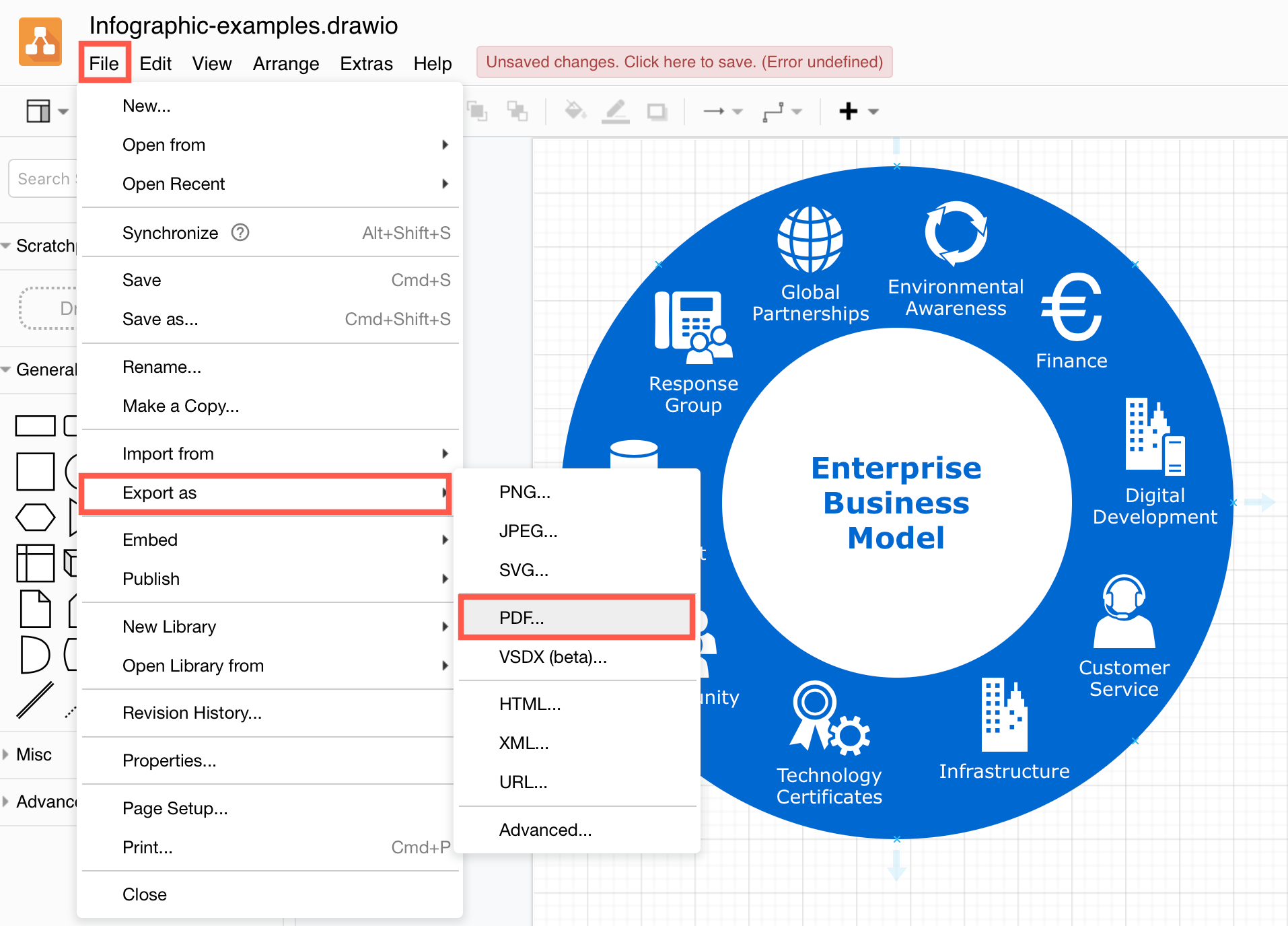
- Change the export settings to suit your requirements.
- Select whether to include All Pages in your multi-page diagram, the Current Page or just the shapes and connectors that are currently selected (Selection Only).
- If you are printing the just the current page or a selection, enable the Crop checkbox to crop the generated PDF to fit your diagram.
- Enable the checkboxes if you want a Transparent Background, or to include the Grid of the drawing canvas.
- Leave the checkbox enabled to Include a copy of my diagram to include diagram data in your PDF file, so you can open it again in the draw.io editor.
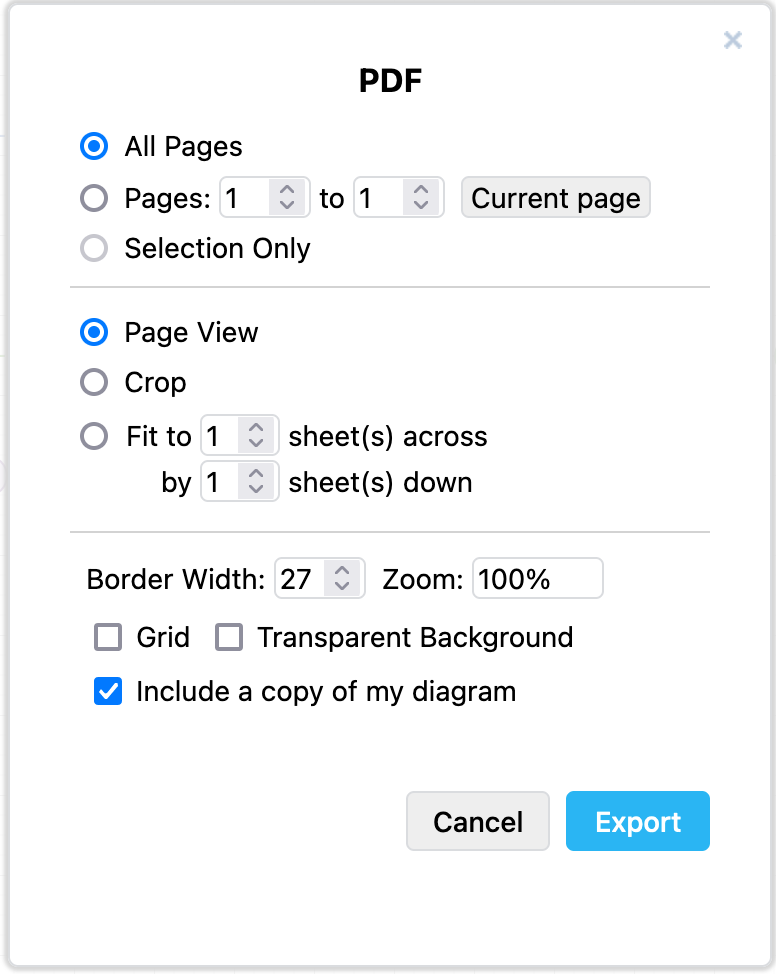
- Click Export and select the location to save your SVG file.
PDF diagram export options
-
All Pages - Export all pages of a multi-page diagram.
-
Pages - Export one or more diagram pages. The first diagram page is page 1.
-
Current page - Include only the current diagram page in the PDF.
-
Selection Only - Export only the selected shapes and connectors on the Current page.
-
Page View - Fit one drawing canvas page to one PDF page.
-
Crop - Crop the exported PDF pages to the diagram page's dimensions.
-
Fit to - Resize the diagram pages to fit to the number of sheet(s) across and/or sheets(s) down, where one sheet is a PDF page. This always maintains proportions.
-
Border Width - Add whitespace (in pixels) around the diagram's outer edge.
-
Zoom - Resize your diagram page by this percentage and position it in the top left of the PDF page.
-
Grid - Include the drawing canvas grid in the PDF page.
-
Transparent Background - Change the diagram background to transparent. This removes a background colour, but will not remove a background image.
-
Include a copy of my diagram - Load the exported PDF file back into the draw.io editor and continue editing your diagram.
Note: This may not work if you export your diagram using Safari, and is not available in the Desktop application.
Export a diagram with custom local fonts
If you have used a custom font that is installed on your local computer, the PDF generator on the draw.io server will not have access to it, and the font will not be displayed correctly in the generated PDF file.
In this instance, print your diagram to a PDF file instead of exporting it.
Secure PDF generation
Print directly to a PDF file via File > Print to ensure your diagram data is never transferred outside your own system.
If you choose to export your diagram to a PDF file instead, your diagram is sent to the draw.io server to use the PDF generator hosted there, and deleted from the server as soon as the PDF file is returned.