Create a mindmap diagram from text with Mermaid
The Mermaid syntax is used to create a number of different types of diagrams including flowcharts, mindmaps, tree diagrams, Gantt charts, pie charts, and more. Follow this example below to see how to describe a mindmap diagram in Mermaid syntax.
Mindmaps and concept maps are easy to draw and useful to quickly capture ideas for solving problems. But some people prefer to work from text lists when brainstorming. Drop a text list into the Mermaid import tool and draw.io will generate your mindmap for you - no need to fuss with connectors or layouts.
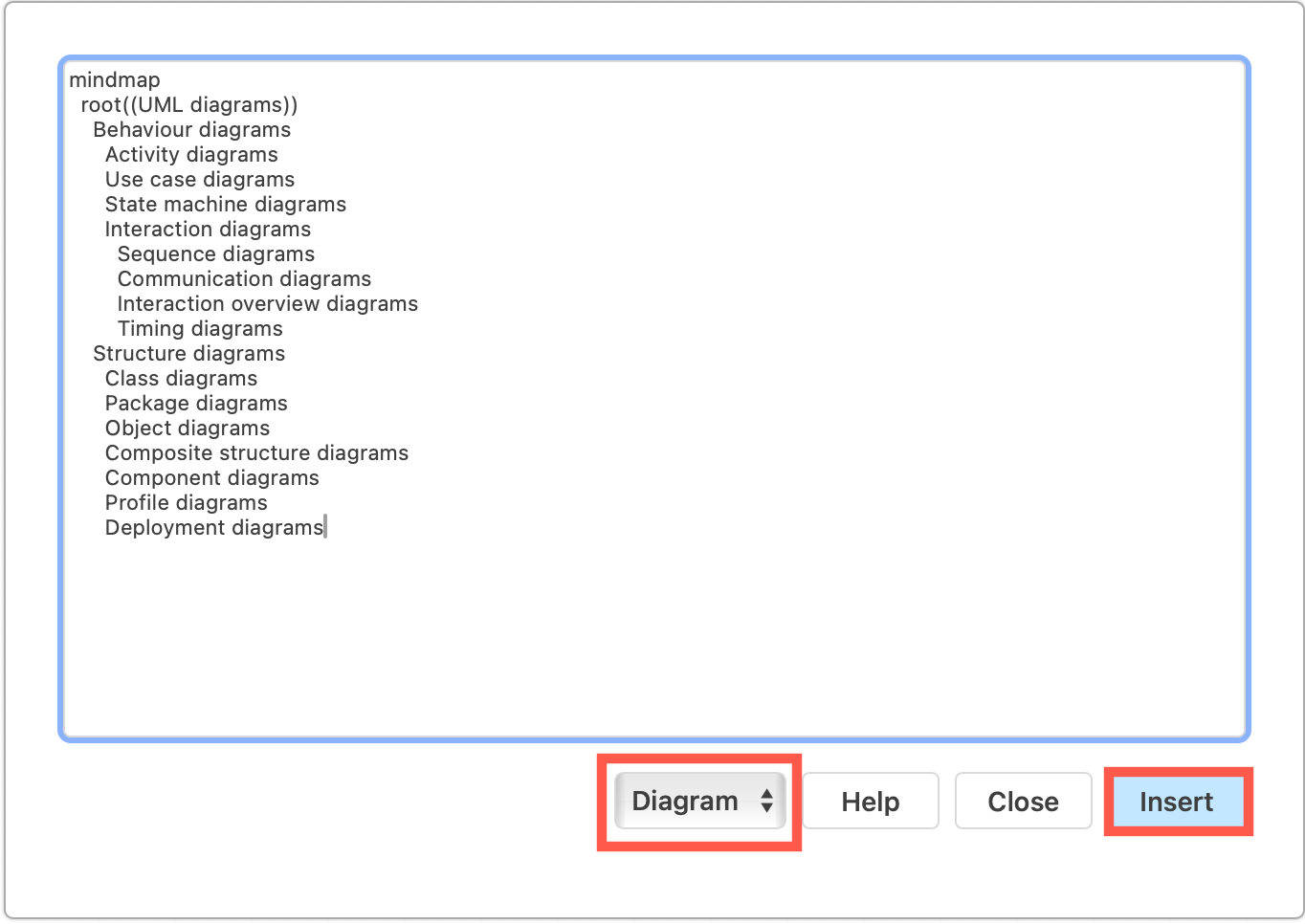
Create a mindmap in text
Mermaid allows you to create a wide range of diagrams from a human-readable text description, from various UML diagrams to general purpose mindmaps, concept diagrams and flows, and even Gantt and pie charts for project management and reports.
Mindmaps in Mermaid begin with the mindmap keyword which tells the renderer to use mindmap shapes and layout branches around a central topic.
Insert as a Diagram
In draw.io, when you choose to generate a Diagram from Mermaid code (the default), your mindmap will use a round shape for the root node, and rounded rectangles for all the branch and leaf nodes.
You can freely change the colours, styles of these shapes, connectors and labels, and the draw.io styles will be remembered when you edit and regenerate the Mermaid source.
Any changes to the position, size or connection type/location will be discarded if you edit the Mermaid source - this generates a new layout every time.
Insert as an Image
If you choose to add the Mermaid diagram as an image to the drawing canvas, it will use the Mermaid mindmap shapes and colours.
Write a mindmap in Mermaid
- enclose the root node title in double brackets -
((UML diagrams)) - use spaces to indicate a branch into leaf nodes
- break a long label into two or more lines using the HTML newline tag
<br/>
mindmap
  root((UML diagrams))
    Behaviour diagrams
      Activity diagrams
      Use case diagrams
      State machine diagrams
      Interaction diagrams
        Sequence diagrams
        Communication diagrams
        Interaction overview diagrams
        Timing diagrams
    Structure diagrams
      Class diagrams
      Package diagrams
      Object diagrams
      Composite structure diagrams
      Component diagrams
      Profile diagrams
      Deployment diagrams
Note: there can be only one root node in a Mermaid mindmap.
Insert the Mermaid mindmap into draw.io
- In the draw.io editor, click Arrange > Insert > Mermaid.
- Add the text for your mindmap into the text field, and click Insert to generate the diagram from the Mermaid description.
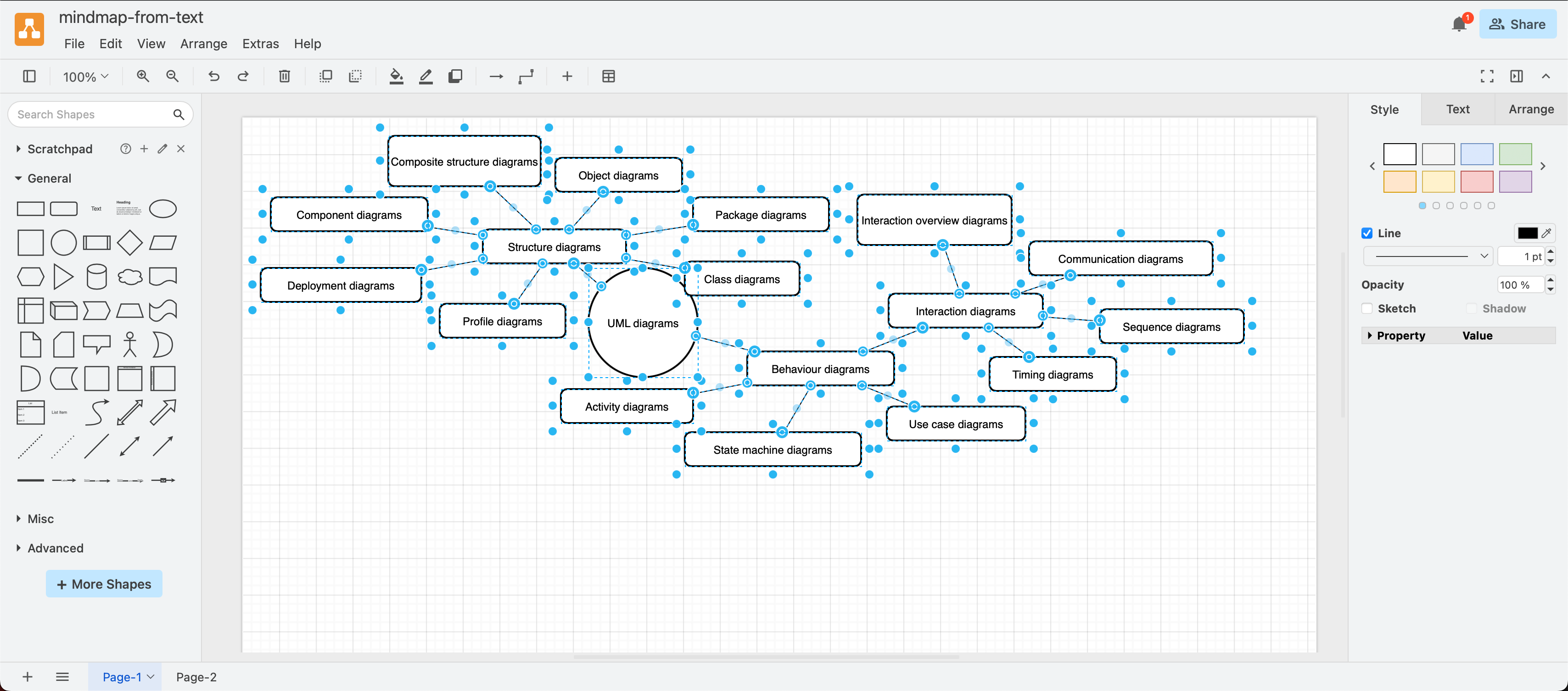
Your diagram will be generated and drawn on the canvas with draw.io shapes and Mermaid's standard colours. Now you can continue to edit and add to your mindmap, style the nodes and connectors as you would any other type of draw.io diagram.
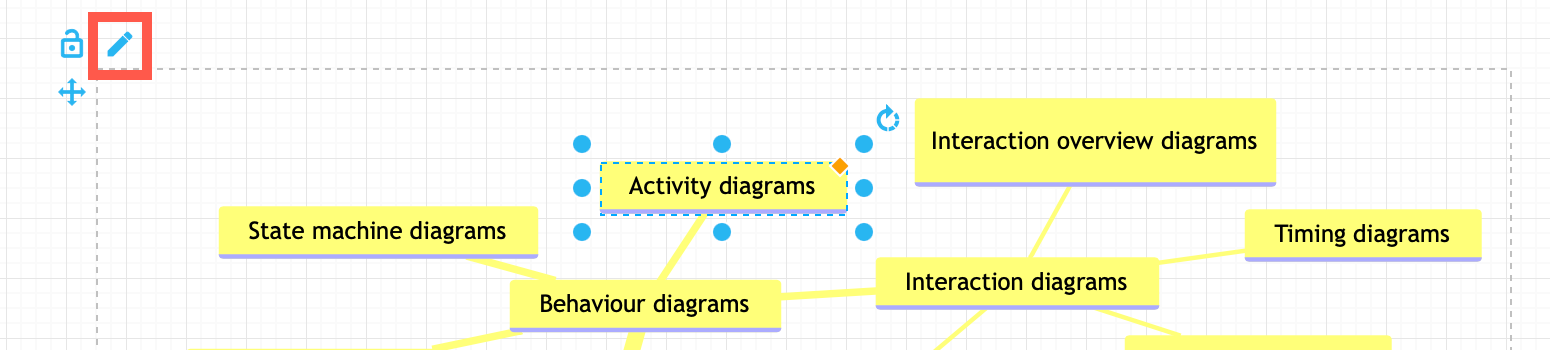
To add to the Mermaid source, select a shape inside the Mermaid container group and click the Edit pen incon in the top left.
Insert Mermaid mindmap as an image
When you choose Image from the drop down list when inserting your Mermaid code, the diagram will be generated and inserted as an SVG image on the drawing canvas.
Hover to see the Mermaid code as a tooltip, and double click on it to re-edit the Mermaid code and Apply your changes to update the diagram.
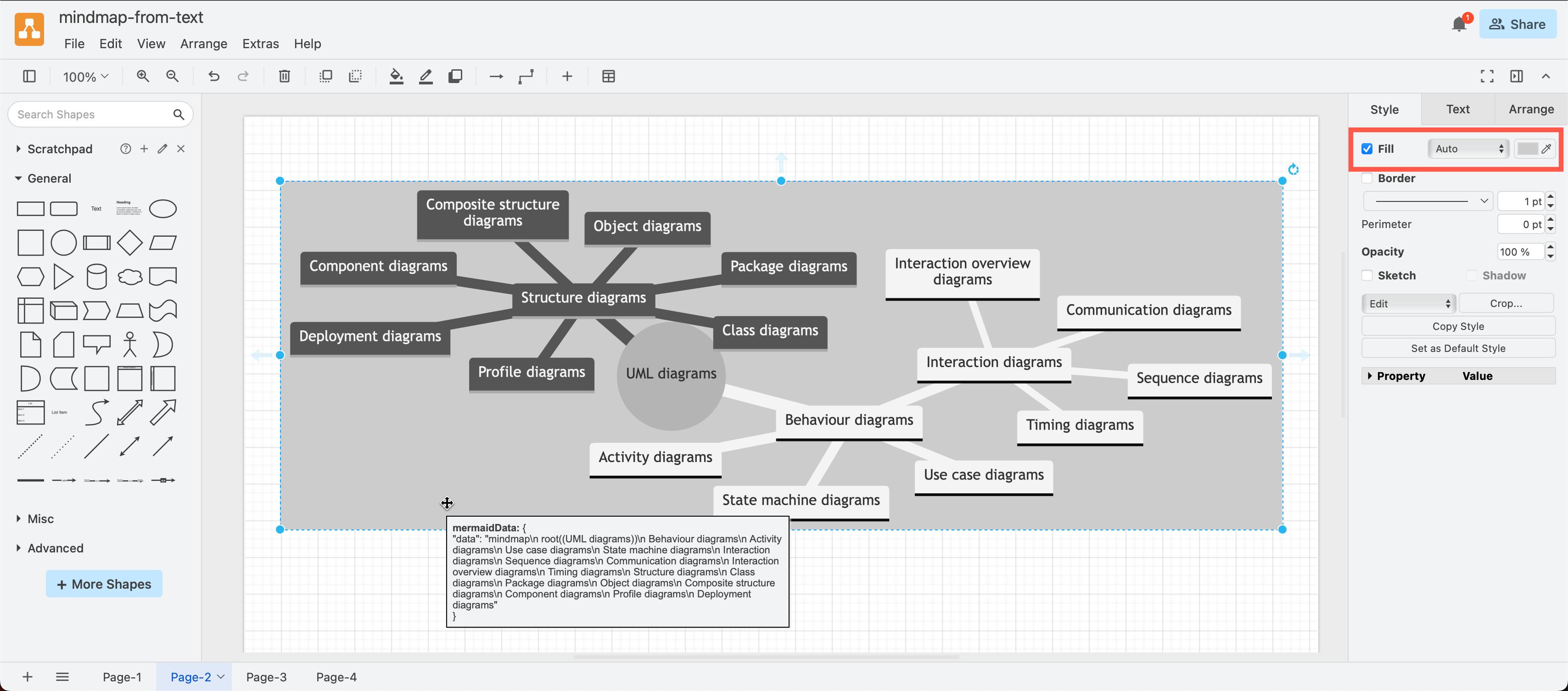
Tip: You may need to add a background to the image as Mermaid will automatically use black and white for the first two branches. Select the mindmap image, enable Fill in the Style tab of the format panel and select a fill colour.
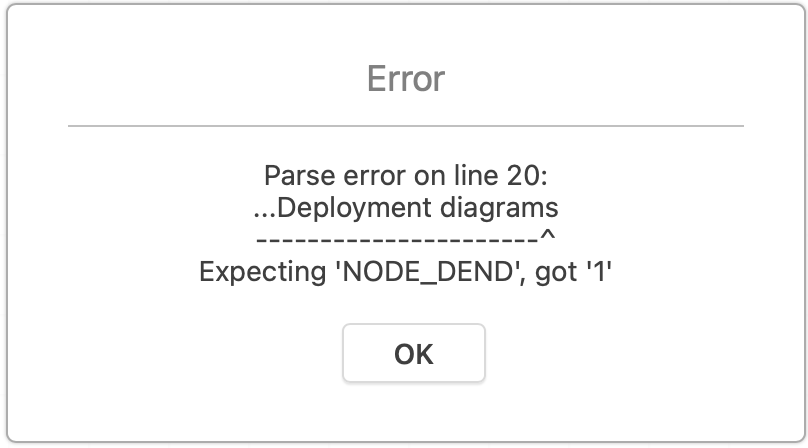
If there is an error in your Mermaid mindmap text, draw.io will display a parser error.
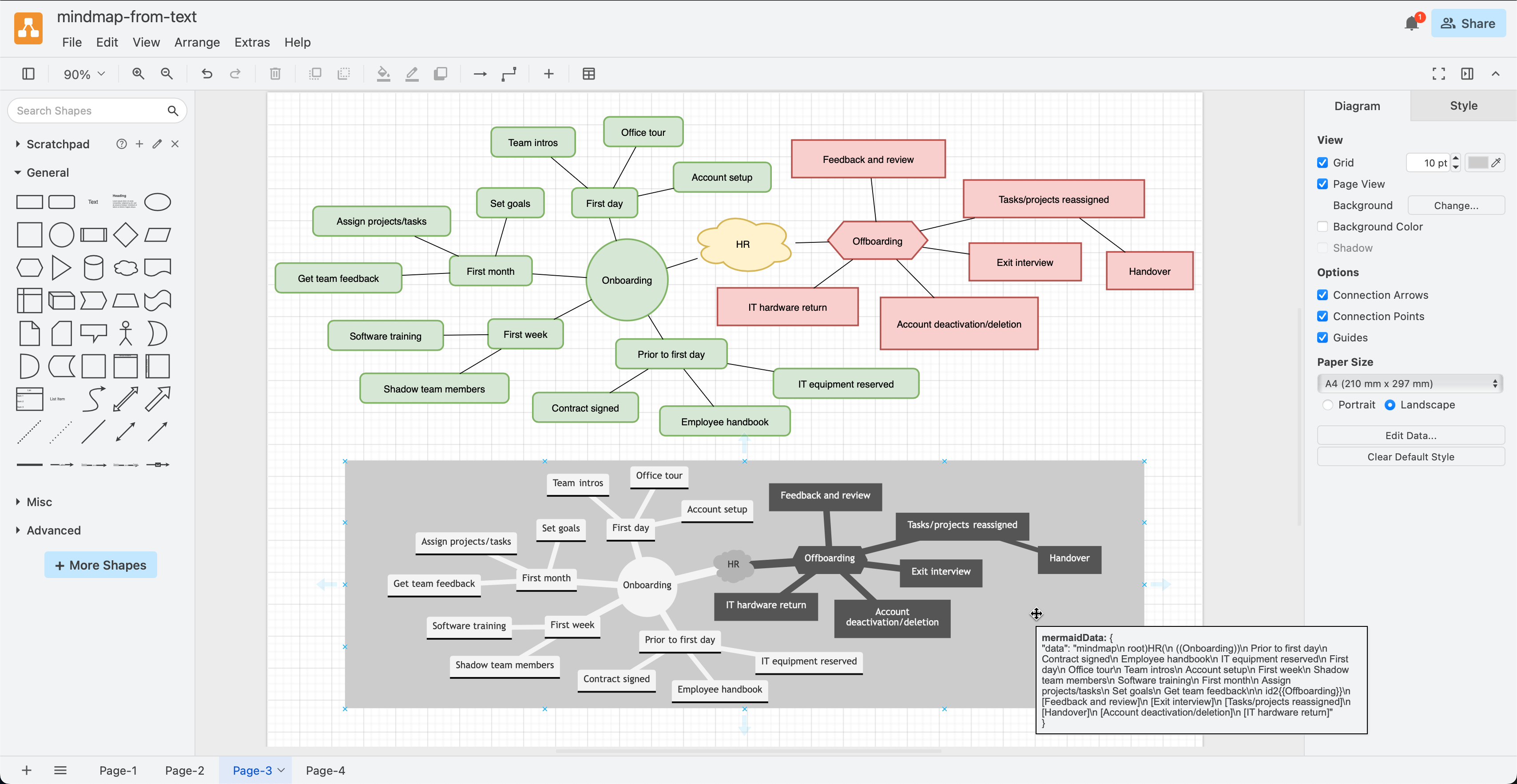
Mindmaps with different shapes
You can use different shapes to more clearly differentiate between branches.
[]- rectangle with sharp corners()- rounded rectangle(())- circle))((- bang shape)(- cloud shape{{}}- hexagon
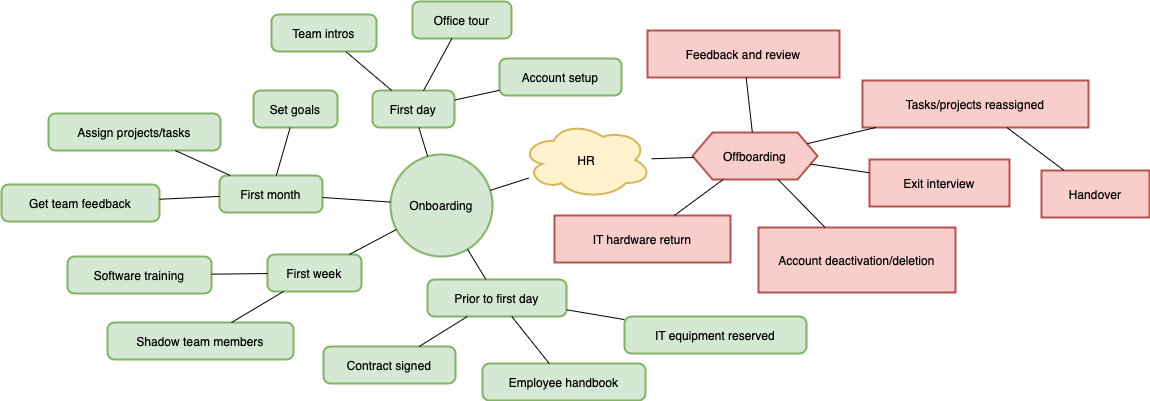
Open this example in our diagram viewer
mindmap
  root)HR(
    ))Onboarding((
      Prior to first day
        Contract signed
        Employee handbook
        IT equipment reserved
      First day
        Office tour
        Team intros
        Account setup
      First week
        Shadow team members
        Software training
      First month
        Assign projects/tasks
        Set goals
        Get team feedback

    id2{ {Offboarding} }
      [Feedback and review]
      [Exit interview]
      [Tasks/projects reassigned]
        [Handover]
      [Account deactivation/deletion]
      [IT hardware return]
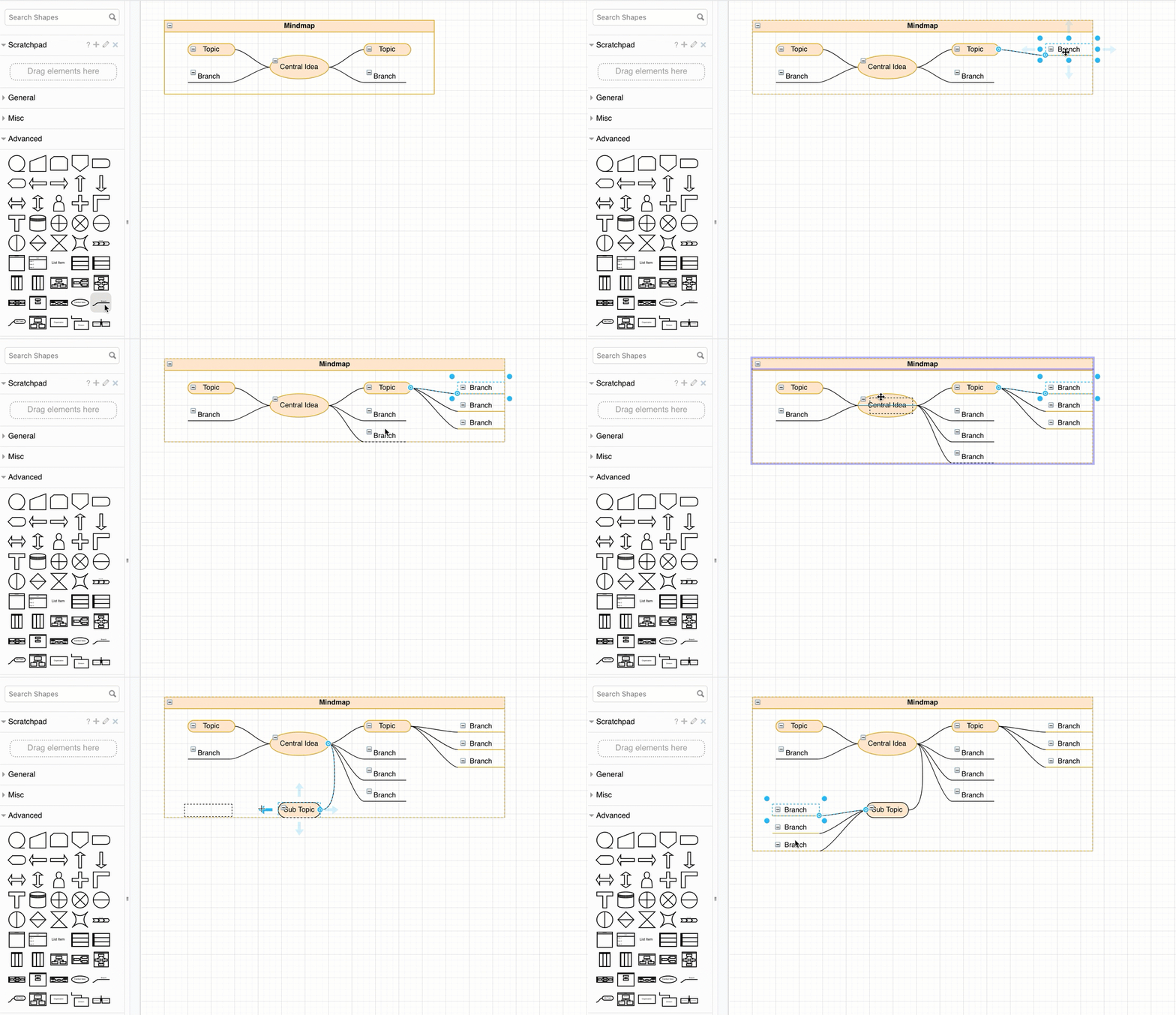
Prefer to draw a mindmap?
Use an automated layout container shape from the Advanced shape library and drop Sub Topic and Branch shapes inside to draw your mindmap quickly and easily.
Related
Change the layout inside your Mermaid container group quickly with a different automatic layout algorithm - Arrange > Layouts. Tree, circular or organic layouts are suited for mindmaps.
You can also configure Mermaid in your Mermaid source to use the Eclipse Layout Engine (ELK) instead of its default. Also, read more about the ELK option in our announcement post.
- See the other supported Mermaid diagram types in draw.io.
- See more examples of how to use Mermaid syntax for other types of diagrams.