Change the style of shapes with style rules
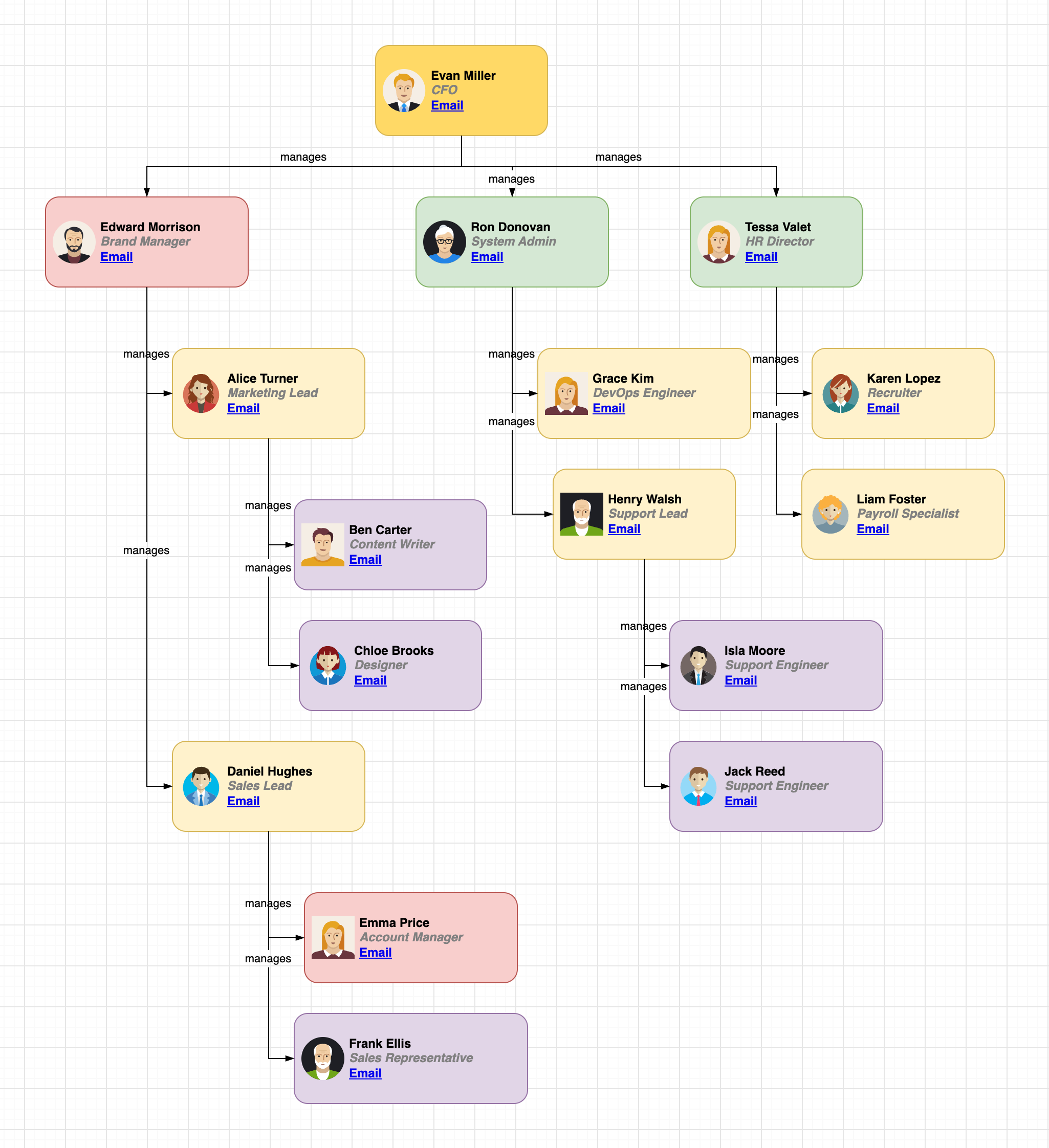
Style rules change the style of the shapes on a page whose data matches. For example, a rule can colour every shape whose status is down in red, or show the shapes of managers in bold. When the data of a shape changes, its style follows the rules.
Rules use the properties in the data of the shapes. Select a shape and press Ctrl+M on Windows or Cmd+M on macOS to see and change its data. A data source can fill the data of shapes from a Google Sheet or a CSV file.
Add a style rule
- Select File > Page Setup from the menu, click Advanced, then click Edit next to Style Rules.
- Click Add Rule.
- Enter the name of a property, select a comparison and enter a value. The properties and values of the shapes on the page are suggested as you type.
- Select a style to change, for example Fill Color, and choose its value. Click the plus button to change more styles, and the cross to remove a style.
- Click OK.
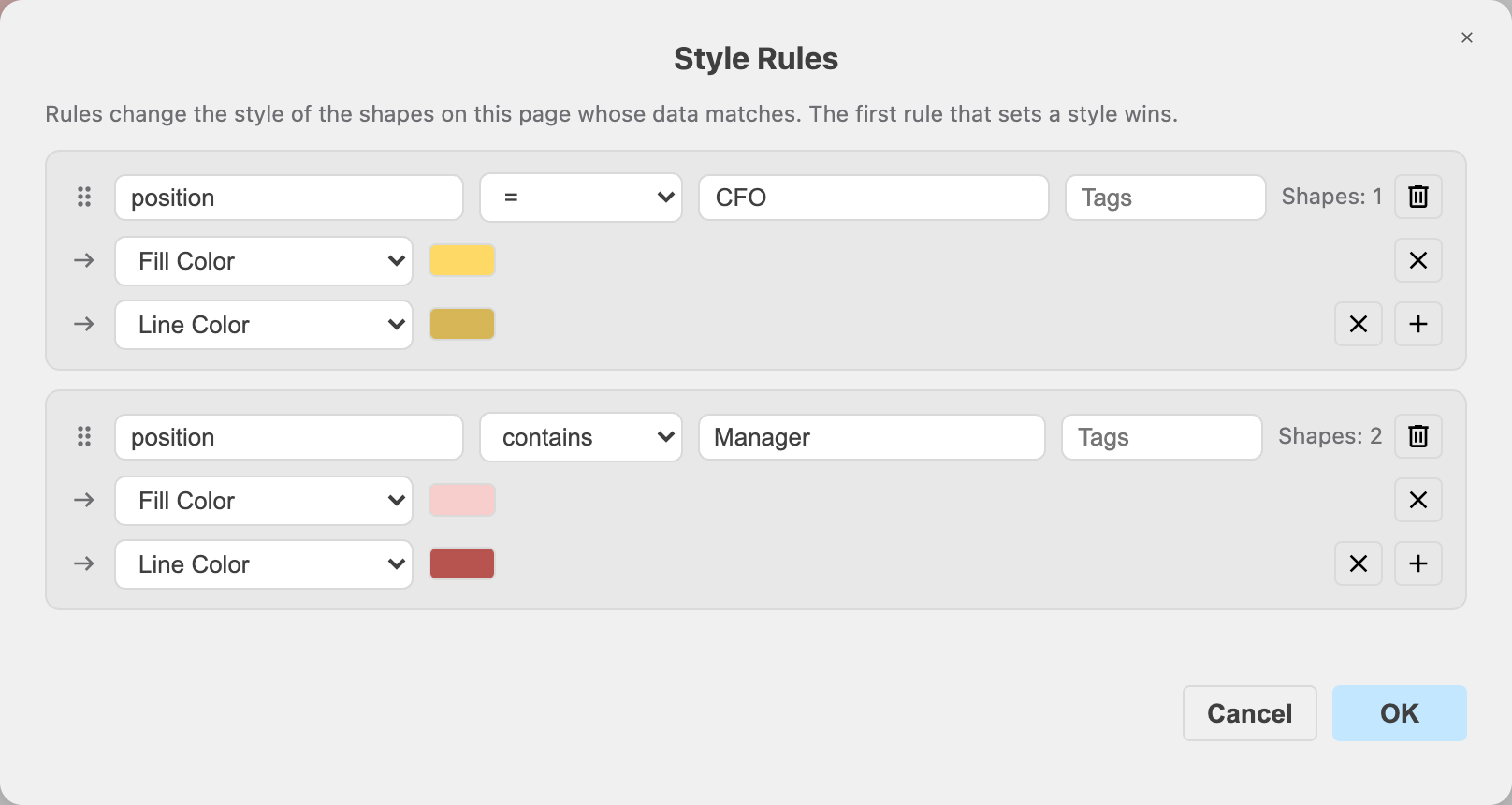
The rules will change the style of the matching shapes on the page. Shapes next to each rule shows how many shapes it matches.
Compare values
=and≠: The value is equal or not equal. Numbers are compared as numbers, so5equals5.0. Text is compared without upper and lower case and without the spaces at the start and end.<,≤,>and≥: The value is a number that is less, less or equal, greater, or greater or equal.- contains: The value contains the text, without upper and lower case.
- is empty and is not empty: The shape has no value, or has a value, for the property.
- Color Scale: The shape gets a colour that matches its number. Select the style to colour, enter the lowest and highest number, and choose two or more colours. Numbers below the lowest or above the highest number get the first or the last colour.
Change only shapes with tags
Enter one or more tags in the Tags field of a rule, separated with spaces. The rule will only change shapes that have one of these tags.
Change the order of the rules
When several rules change the same style of a shape, the first rule wins. Drag a rule by its handle on the left to move it up or down.
Styles that rules can change
Rules can change the Fill Color, Gradient, Line Color, Font Color, the background and border colour of the label, the colour of the lanes of a swimlane, the Opacity, Fill Opacity, line opacity and Text Opacity, the line width, Font Size, Font Style, Rotation and the Image, and turn Dashed, Rounded and Shadow on or off. An image must be an https:// URL. The Image field is marked if it has a URL that can't be used.
Styles set by rules in the format panel
When a rule changes a style of the selected shape, a funnel icon appears next to the section in the format panel. Hover over the icon to see which styles the rules set. Click the icon to open the style rules.
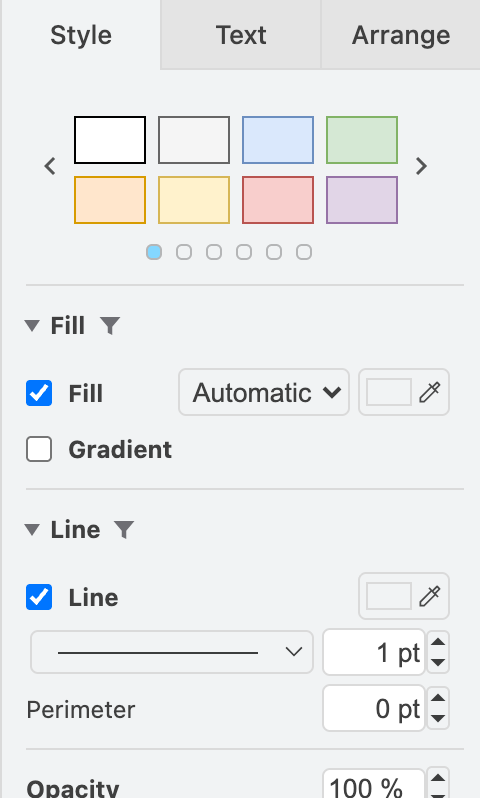
Note: While a rule sets a style of a shape, changing this style in the format panel has no effect. Change the rule, or change the data of the shape so that the rule doesn't match.
Insert a legend
Click Insert Legend in the Style Rules dialog. A legend that shows the styles of the rules will be inserted on the page. The rules don't change the shapes of the legend.
Notes
- Saved with the page: Each page has its own rules. When you copy shapes to another page, the rules of that page apply.
- The style of the shapes doesn't change: Rules change how shapes are drawn on the page, in the lightbox viewer and when you export the diagram. Apps that don't support style rules show the shapes with their own style.
- Limit: A page can have up to 100 rules.