Change the settings of a page in Page Setup
Each page of a diagram has its own settings, for example its paper size, its background and its style rules. Change them in the Page Setup dialog.
Open Page Setup
- Select File > Page Setup from the menu.
- Click Advanced to see the less common settings.
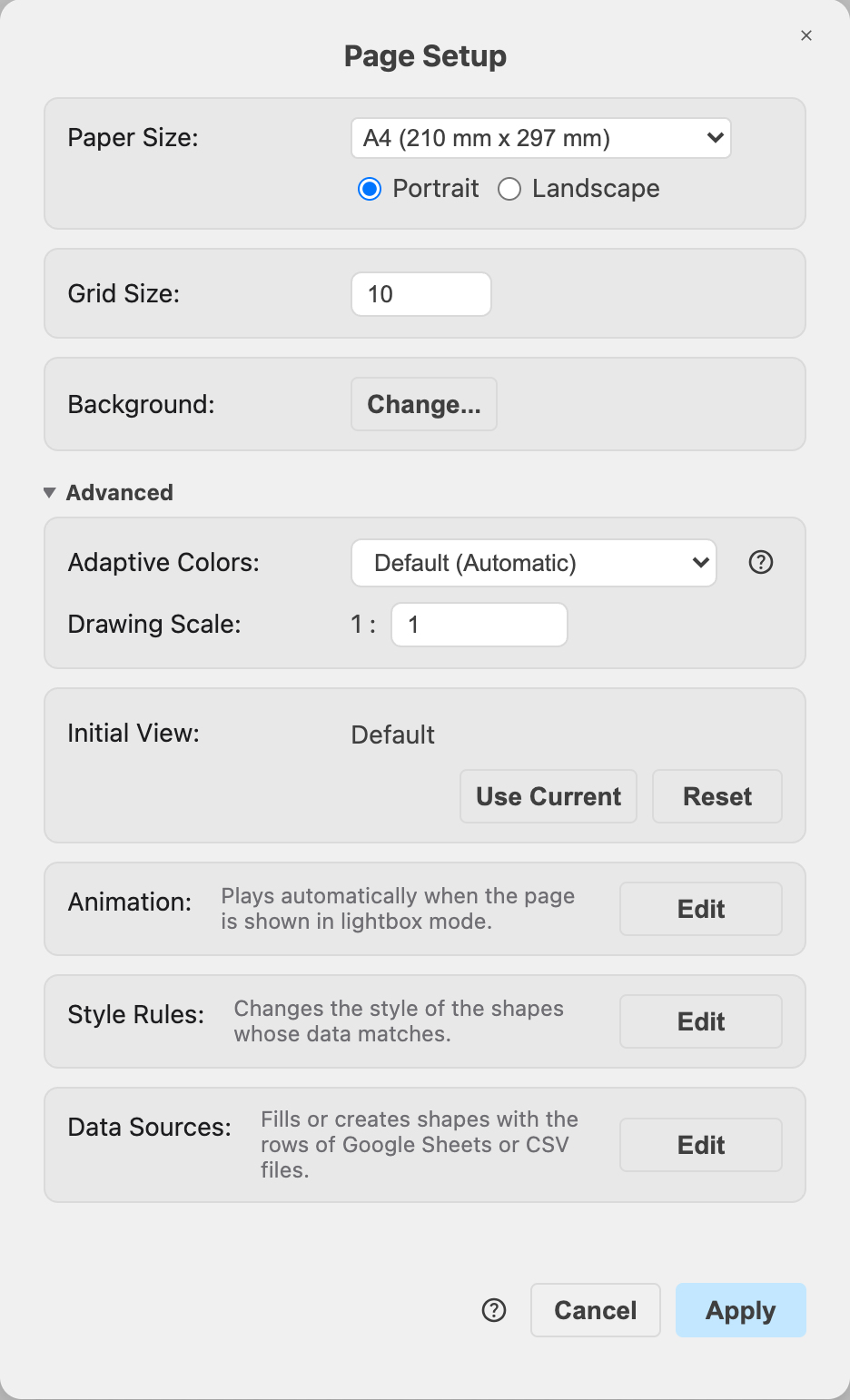
- Change the settings, then click Apply.
The settings will be saved with the current page. The other pages of the diagram keep their own settings.
Settings
- Paper Size: The size and orientation of the page. See how to change the page size, scale and orientation.
- Grid Size: The distance between the lines of the grid. See how to change the grid.
- Background: A colour, an image or another page behind the diagram. See how to change the background.
Advanced settings
- Adaptive Colors: How the colours of the page change between light and dark mode. See adaptive colours.
- Drawing Scale: The scale of the drawing for measurements in labels, for example
1 : 50when one unit in the diagram is 50 units in reality. See how to change the page size, scale and orientation. - Initial View: The zoom and position of the page when the diagram is opened. Click Use Current to save the current zoom and position, or Reset to use the default view again.
- Animation: Effects that play when the page is shown in the lightbox viewer. Click Edit to add page animations.
- Style Rules: Rules that change the style of the shapes whose data matches. Click Edit to change the style of shapes with style rules.
- Data Sources: Google Sheets and CSV files whose rows fill or create shapes. Click Edit to fill and create shapes from Google Sheets and CSV files. If the page has data sources, click Refresh All to refresh them. The time of the refresh, or the errors, will be shown below the description.
The Style Rules and Data Sources dialogs open on top of Page Setup. When you close them, you return to Page Setup.