Fill and create shapes from Google Sheets and CSV files
A data source copies the rows of a Google Sheet or a CSV file into the data of the shapes on a page. It can fill the data of shapes that are already on the page, or create a shape for each row. When the data changes, refresh the data source to update the shapes.
Show the values in labels with placeholders, and colour the shapes according to their values with style rules.
Note: The values of the selected columns are copied into the diagram. Anyone who can open the diagram can see them.
Add a data source
- Select File > Page Setup from the menu, click Advanced, then click Edit next to Data Sources.
- Click Add Source.
- Enter a Name and paste the link of a Google Sheet or the URL of a CSV file in URL, then click Preview. The first rows of the file will be shown.
- Select the Key Column. This column must have a different value in each row, for example a name or a number.
- Select the Columns whose values you want to copy into the data of the shapes. Columns that are greyed out can't be copied, for example a column called
id. - Select what happens to shapes when their row is removed from the file in Missing Rows.
- Select which shapes get the data in Shapes. See the sections below.
- Click OK.
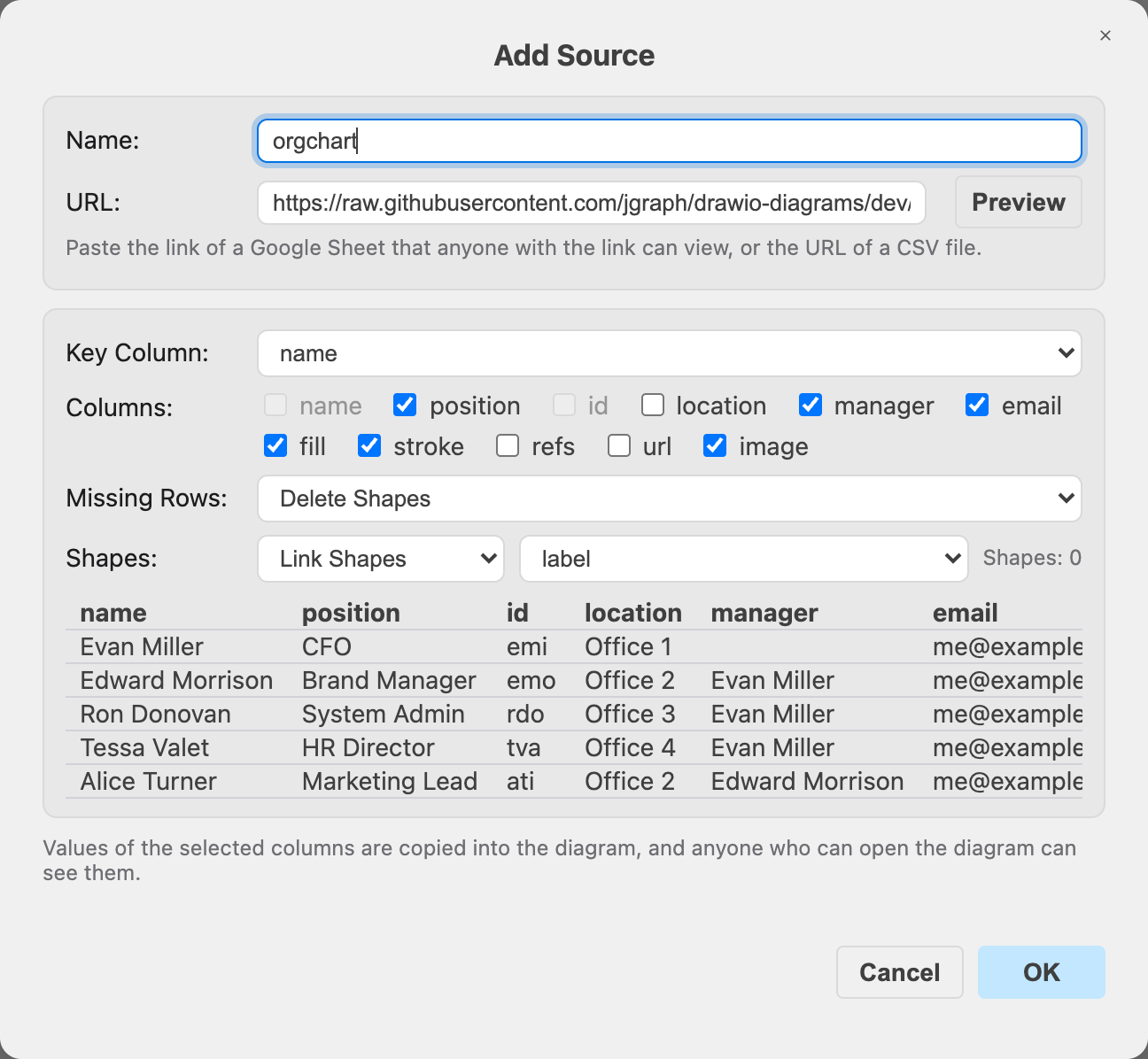
The values of the selected columns will be copied into the data of the shapes. Select a shape and press Ctrl+M on Windows or Cmd+M on macOS to see its data.
Use a Google Sheet
- Open the sheet in Google Sheets and click Share.
- Under General access, select Anyone with the link and the Viewer role.
- Copy the link and paste it in the URL field of the data source.
The data source will load the tab of the sheet that the link shows. The first row of the tab must contain the names of the columns.
Note: A sheet that isn't shared with anyone who has the link can't be loaded. You will see an error that asks you to check the link and the sharing of the sheet.
Use a CSV file
The first row of the file must contain the names of the columns. The file must be on a server that allows draw.io to load it. Files on GitHub can be loaded with their raw URL, for example https://raw.githubusercontent.com/jgraph/drawio-diagrams/dev/diagrams/orgchart.csv.
Note: If draw.io can't load files from the server, you will see the error … cannot be reached from here. Copy the data into a Google Sheet instead.
Fill the data of existing shapes
Select Link Shapes in Shapes and select the property that contains the key of the row, for example label. Shapes whose label (or other property) is a key in the file will be linked to the row and get its values. Shapes shows how many shapes will be linked.
Create a shape for each row
- Select Generate Shapes in Shapes.
- Enter the lines that define the shapes in Template. They work like the lines that start with
#when you insert CSV data to generate a diagram. Use the names of the selected columns in placeholders, for example%name%.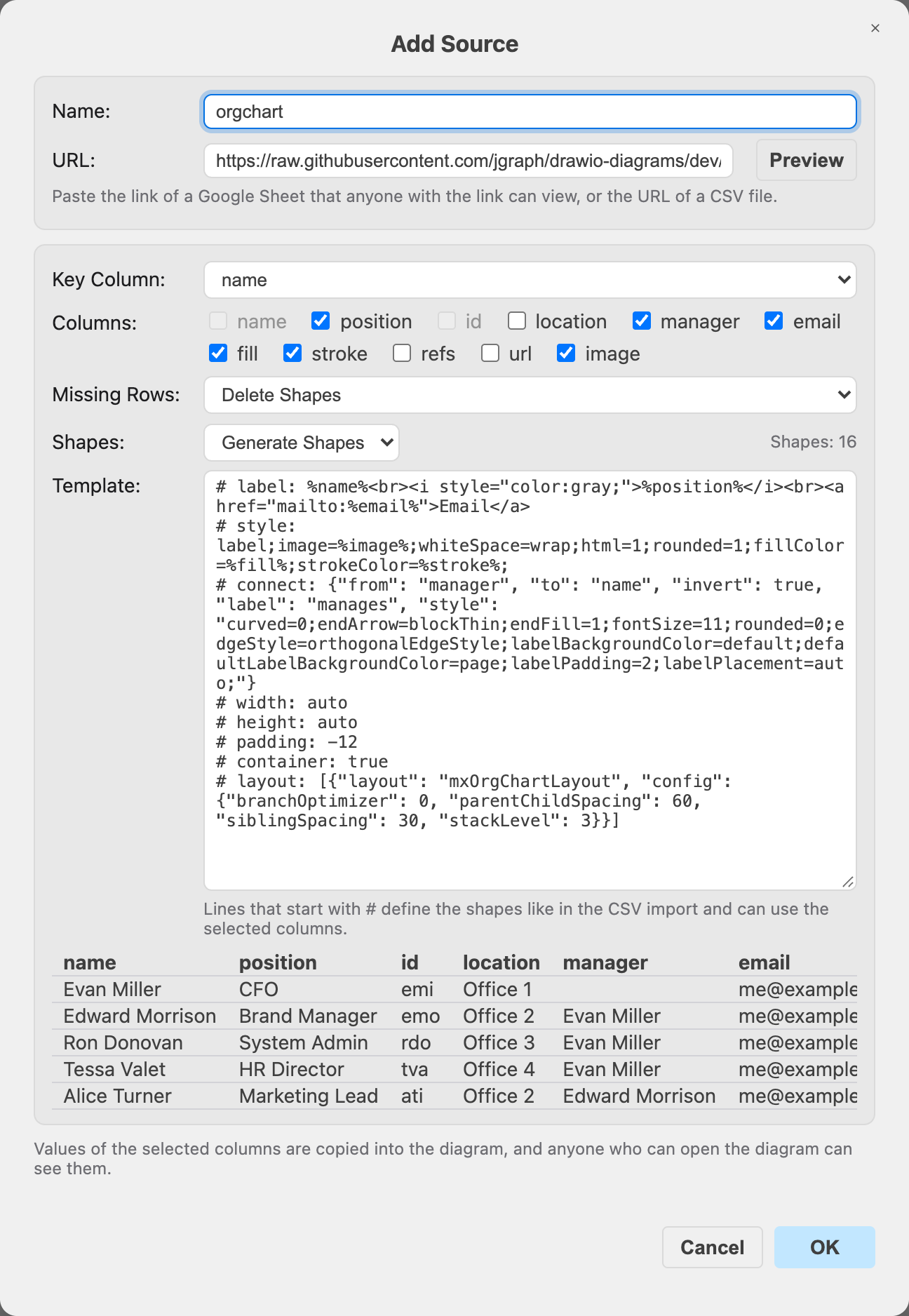
- Click OK.
A shape will be created for each row, connected and laid out as the template defines.
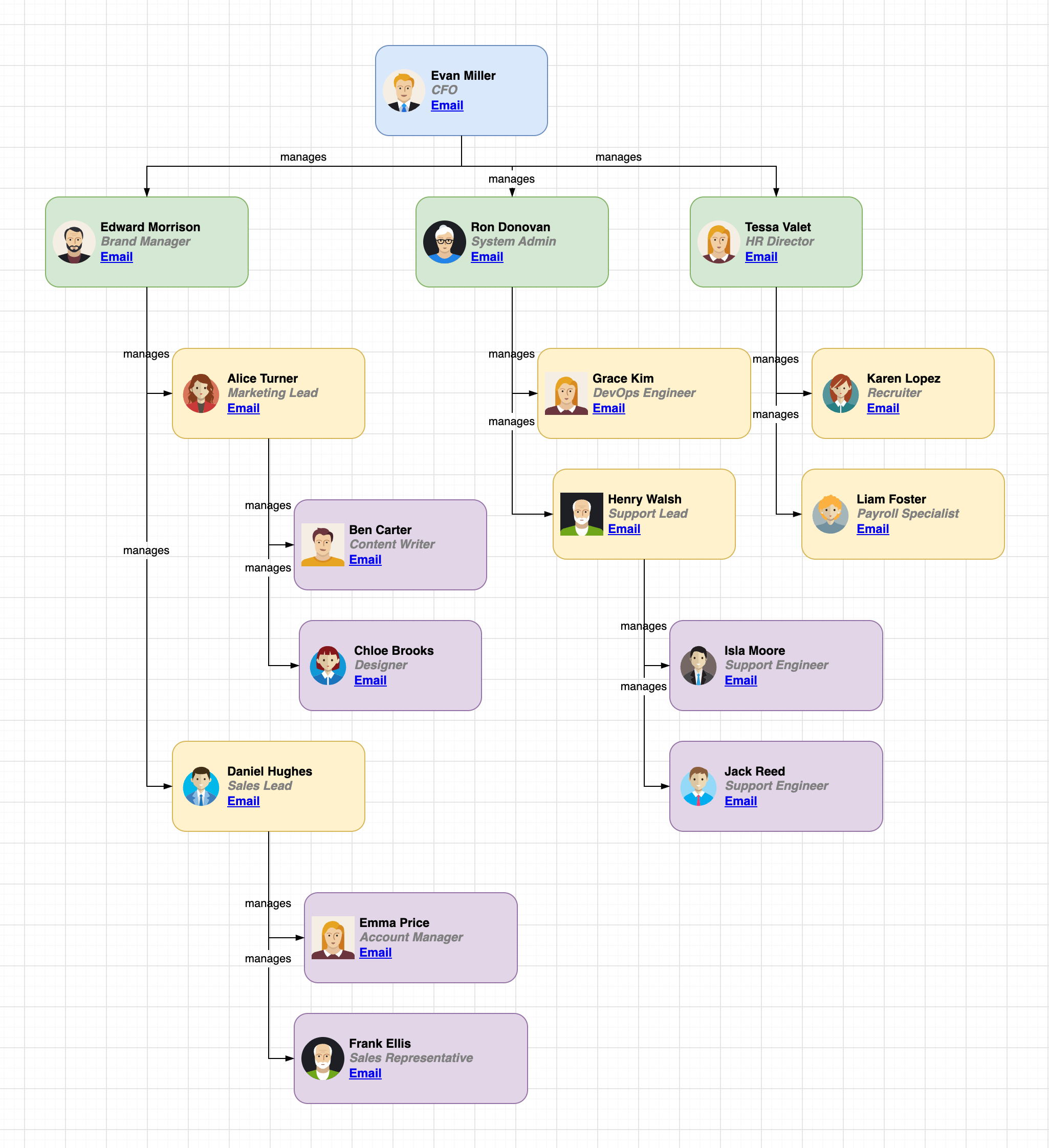
This template creates the org chart above from the example file:
# label: %name%<br><i style="color:gray;">%position%</i><br><a href="mailto:%email%">Email</a>
# style: label;image=%image%;whiteSpace=wrap;html=1;rounded=1;fillColor=%fill%;strokeColor=%stroke%;
# connect: {"from": "manager", "to": "name", "invert": true, "label": "manages", "style": "curved=0;endArrow=blockThin;endFill=1;fontSize=11;rounded=0;edgeStyle=orthogonalEdgeStyle;labelBackgroundColor=default;defaultLabelBackgroundColor=page;labelPadding=2;labelPlacement=auto;"}
# width: auto
# height: auto
# padding: -12
# container: true
# layout: [{"layout": "mxOrgChartLayout", "config": {"branchOptimizer": 0, "parentChildSpacing": 60, "siblingSpacing": 30, "stackLevel": 3}}]
# container: true puts the shapes into a layout container. The container applies the layout again whenever you add, delete or resize shapes in it. The # layout line uses the Org Chart layout with the Linear type (branchOptimizer: 0) for the top two levels, stacks the employees from the third level down in columns below their managers (stackLevel: 3, Stack from Level in the Org Chart dialog), and sets its spacing (see the JSON layout specification). # layout: orgchart uses the Hanger 4 type. To change the org chart type or the spacing, or to use another layout, select the container and select a layout in Arrange > Layout, for example Org Chart.
When you refresh the data source, shapes will be created and connected for new rows, and for rows whose shape you have deleted. The layout container arranges them with the other shapes. The other shapes keep their size and the styles you have changed. Only their data changes. Without a layout container, the other shapes also keep their position.
Below the template of a data source that has generated shapes, select Apply the template to the … existing shapes to change the styles and labels of these shapes and of their connectors as well. Each shape and connector remembers the style and label that the template gave it, so the styles and labels that you have changed on a shape or connector are kept, including styles that a layout changed, such as rounded corners. Shapes and connectors in diagrams from earlier versions don't remember their template yet: they get the style values that you change in the template also where you have changed them. If the template has # container: true, the shapes and their connectors are moved into the layout container and laid out. The option is selected when you change the template. Select it without changing the template to apply the template again: this resets the styles of the shapes and their connectors to the template, and moves shapes that were generated before the template had a layout container into it. Labels that you have changed are kept.
Note: Values from a file can only set the styles that style rules can change, for example the colours with fillColor=%fill% or the image with image=%image%. Images must be https:// URLs. Other styles that use values from the file, and links from the file (# link), are not used.
Refresh the data
- Open the Data Sources dialog from File > Page Setup > Advanced.
- Click the refresh button of a data source, or click Refresh All.
You can also click Refresh All next to Data Sources in File > Page Setup > Advanced without opening the dialog.
The data of the shapes will be updated in one step that you can undo. The time of the last refresh, or an error, will be shown below the data source.
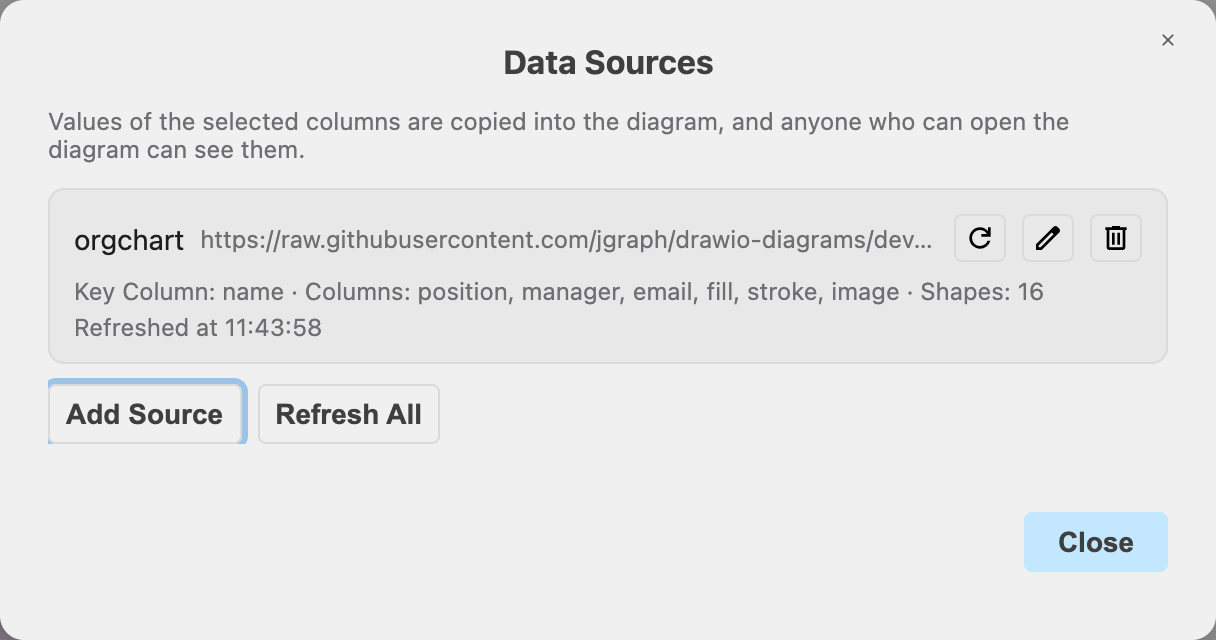
Note: Data sources aren't refreshed automatically. Refresh them when the data in the file has changed.
Missing rows
When a row is removed from the file, its shapes are changed when you refresh:
- Delete Shapes: The shapes and their connectors will be deleted.
- Fade Shapes: The shapes will be shown semi-transparent until the row is back in the file.
- Keep Shapes: The shapes will stay as they are.
Edit or delete a data source
Click the pencil next to a data source to change its URL, columns and other settings. Its name can't be changed.
Click the trash can to delete a data source. The shapes and their data will stay on the page.
Notes
- Saved with the page: Each page has its own data sources. A page can have up to 20 data sources.
- The draw.io desktop app: Data sources can't be loaded in the draw.io desktop app.