Snap to point shape property
Normally, when you drag a floating connector around a shape, it moves evenly, connecting to the closest or optimal location.
If you want to restrict connectors to just the connection points, you can use snap them to the shape's anchor points.
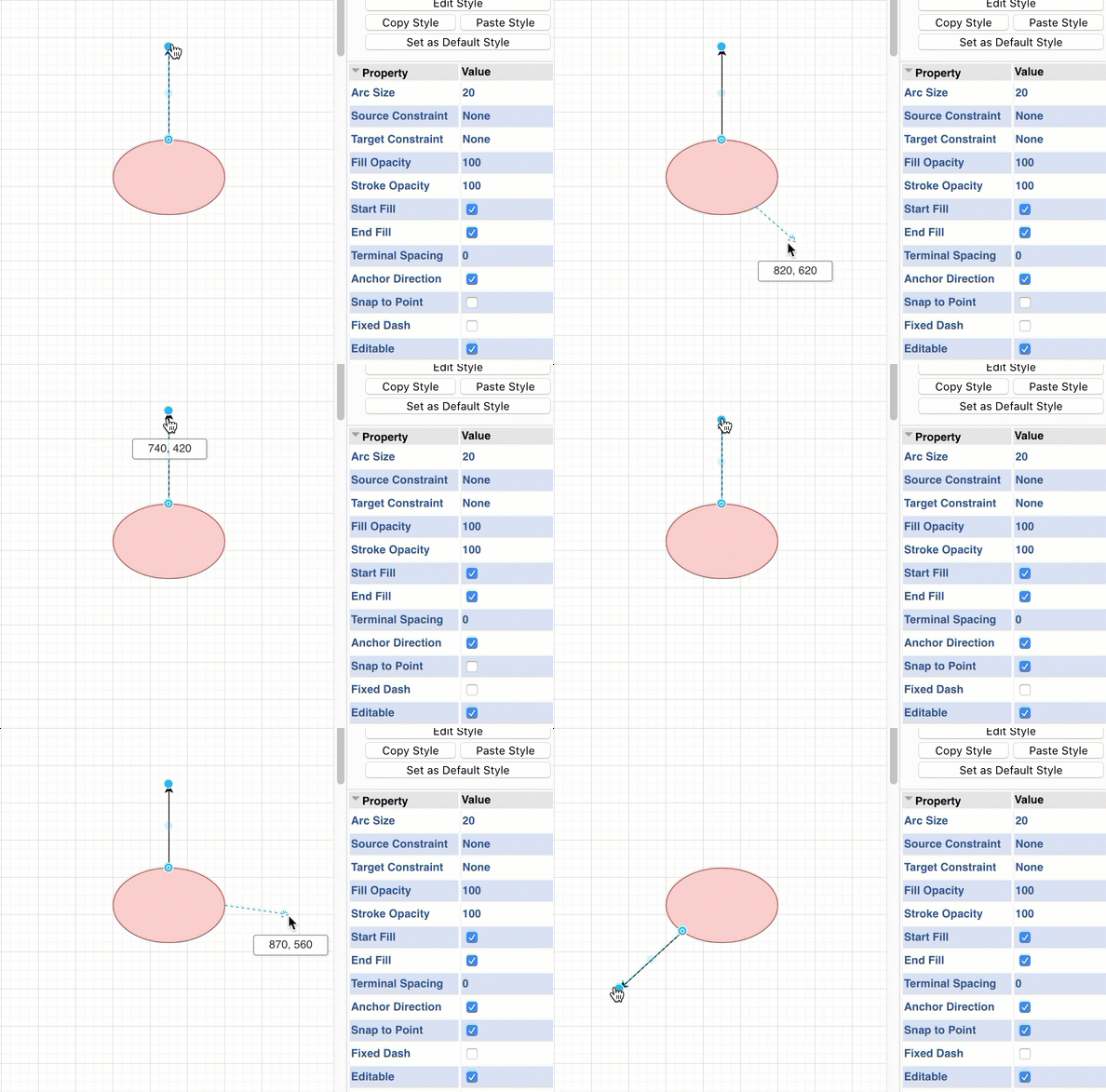
Enable snap to point on a shape
- Select the shape.
- In the Style tab of the format panel on the right, expand the Properties section.
- Enable the checkbox called Snap to Point.
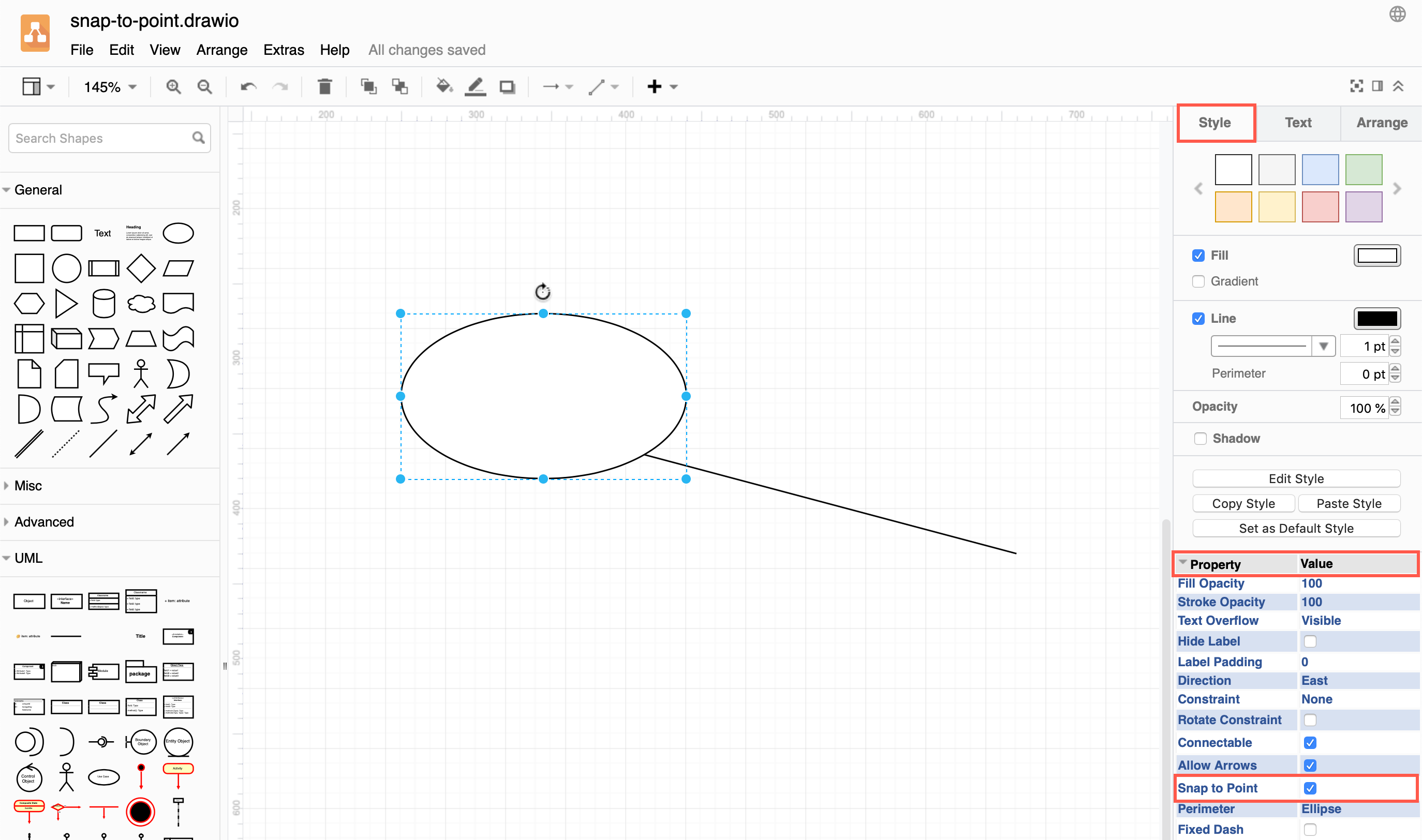
Alternatively, manually edit the shape or connector style and add snapToPoint=1; to the style definition.
You can also set the Snap to Point property on a connector - this connector will then only attach to fixed connection points on any shape on the drawing canvas.