Click to add shapes to the drawing canvas
There are many ways to add shapes to the drawing canvas.
Double click on the drawing canvas
When you double click on the drawing canvas a shape selection box will appear with the most commonly used shapes and connectors. Click on one of these to add it to the drawing canvas.
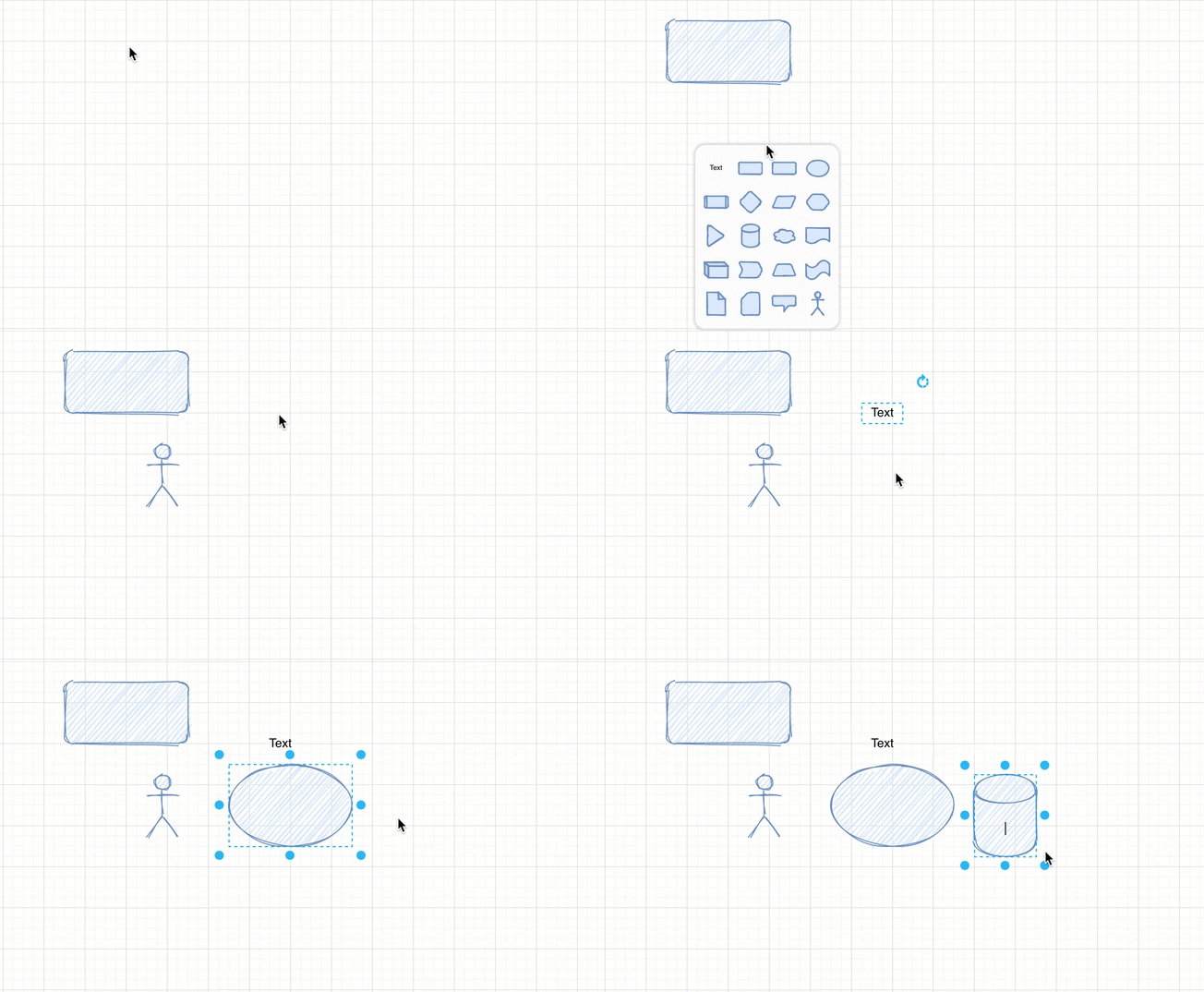
These shapes will use the shape style that you have set as the default style.
Use the direction arrows
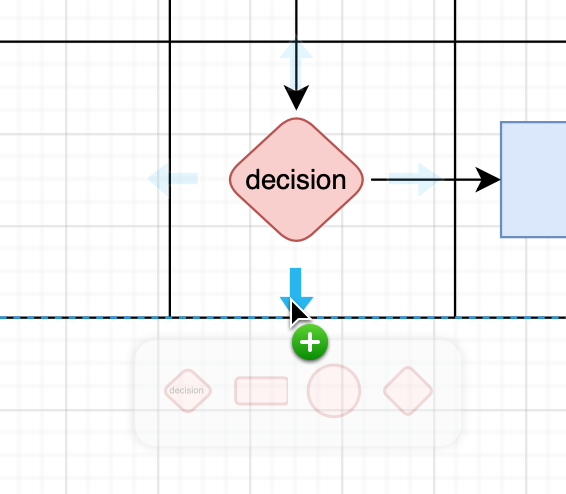
- Hover over a shape to see the four direction arrows.
- Click on or hover over one of the arrows to see a selection of common shapes.
- Choose one of those shapes and it will be added and connected in the direction you chose.
Click on a shape in the shape library
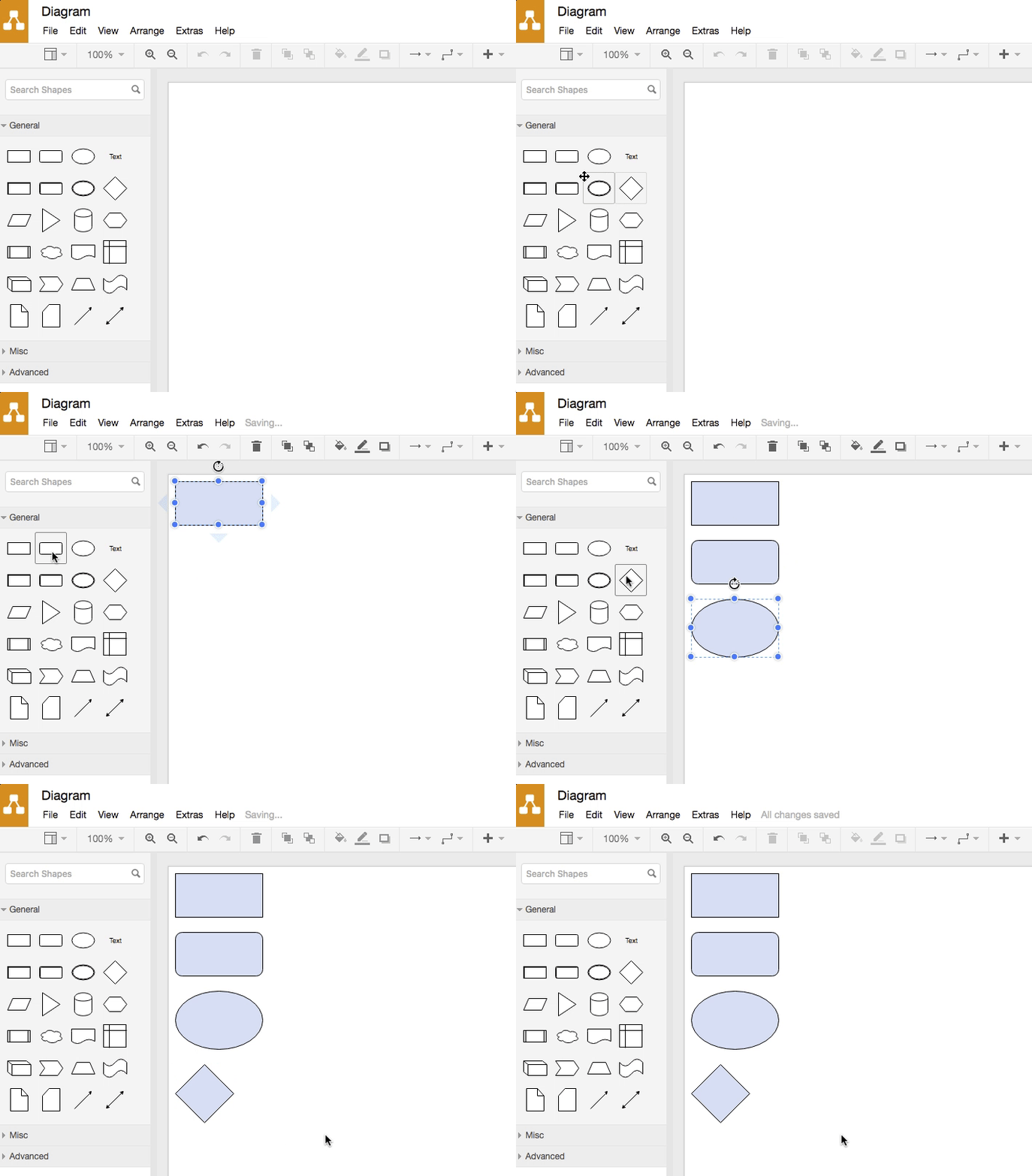
Quickly add shapes from the shape libraries by simply clicking on the shape. This makes it faster to add a lot of shapes to the canvas at once, and then place, style and connect them later.
The shapes will all appear stacked in a neat line down the left side of your diagram, and they will use your default style (that is usually the most recent style you applied to a shape).
Drag and drop shapes from the shape library
If you want to position shapes more accurately, drag and drop the shape from the shape library instead of click on it.
If you drop the shape onto one of the direction arrows of an existing shape on the drawing canvas, it will be connected to the existing shape (as the target of the connector).
Related
- Drag and drop a shape onto an existing shape to replace the shape on the drawing canvas.
- Press
Ctrl+D(Cmd+D) to quickly copy and paste a duplicate shape. - Drop shapes into container shapes, container table cells, and grouped shapes to keep them together.