Enable or disable the collapse/expand feature on container shapes
Container shapes are special shapes that can contain other shapes.
For example, the swimlanes and pool shapes in the Advanced shape library which are used in business process flows, and the region shapes in the cloud network libraries are container shapes.
Most container shapes allow you to expand or collapse them by clicking on a - or + in the top left of the shape.
Tip: Connectors can connect to shapes across the boundaries of their parent containers.
- Add a shape to a container: Drag a shape over a container shape and drop it when the outline is purple.
- Remove a shape from a container: Drag a shape from inside a container and drop it outside the container shape to remove it.
Enable or disable the collapse/expand property of container shapes
You can collapse and expand (or fold) container shapes, available in the Advanced shape library. This behaviour is enabled by default, but may be disabled via the draw.io menu.
- Select Extras > Collapse/Expand in the menu. The check mark next to this menu item indicates whether it is enabled (check) or disabled (blank).
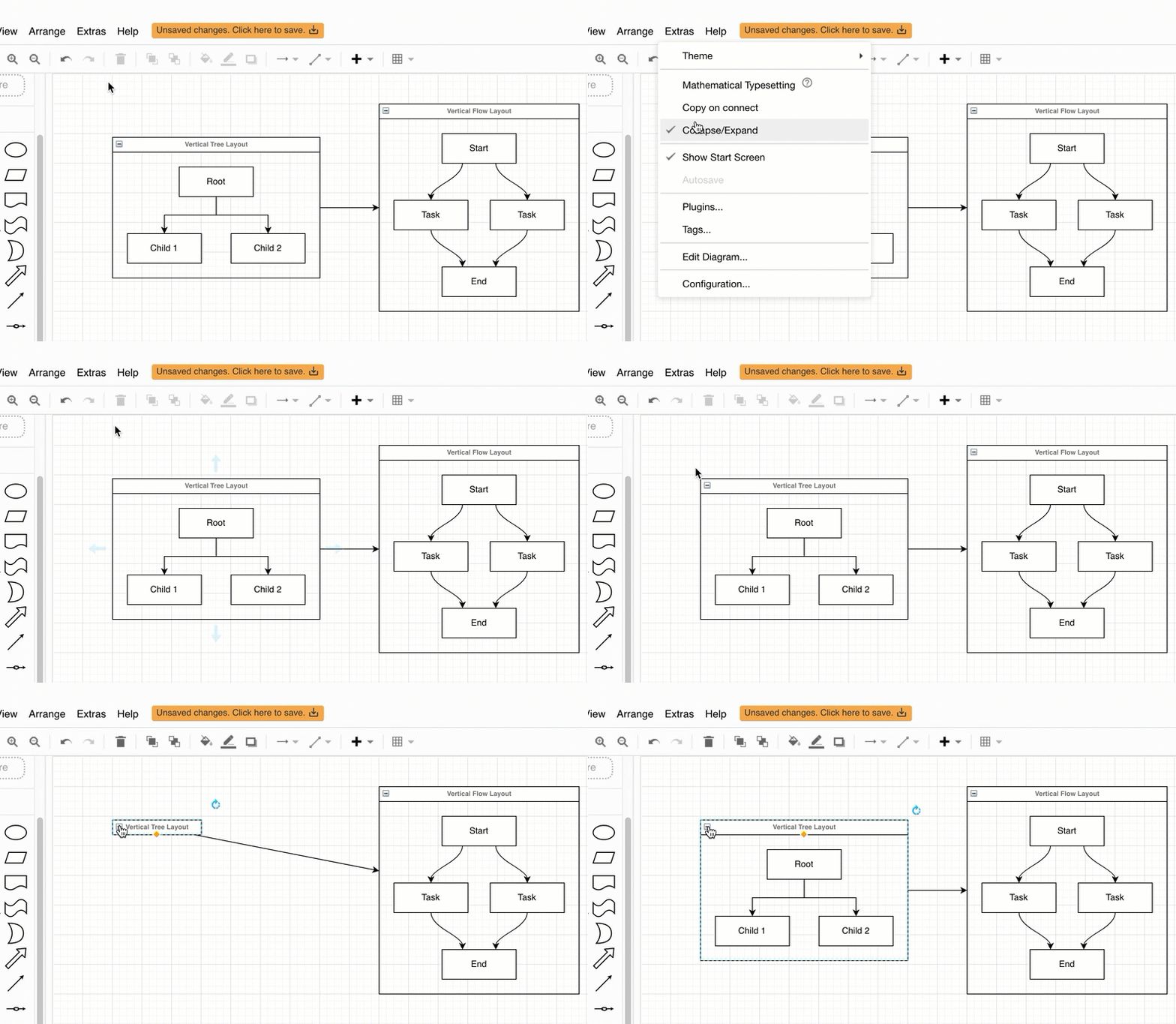
Minimal theme: Right click, then select Options > Collapse/Expand.
To turn any shape into a container, select it, then press Ctrl+G on Windows, or Cmd+G on macOS.
Related
- Overlap a shape on a container shape instead of adding it to the container.