Use mathematical typesetting in text and labels
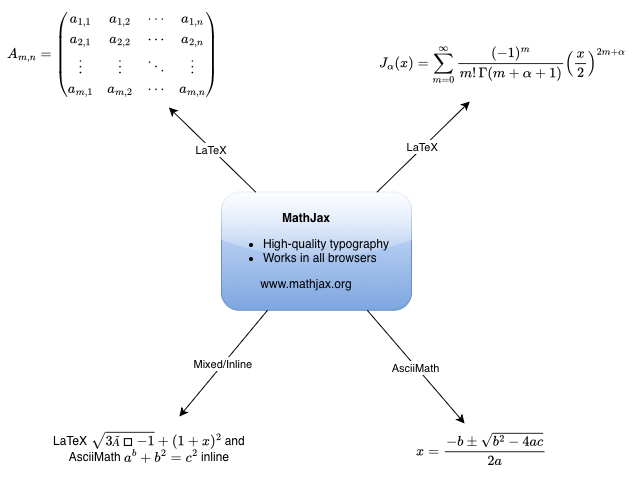
You can add maths equations to your diagrams by enabling mathematical typesetting via the draw.io menu. When you enter an equation into a text shape or label, enabling mathematical typesetting will use MathJax to render your equation. MathJax renders equations neatly and works in all browsers.
Enable mathematical typesetting
Select Extras > Mathematical Typesetting from the draw.io menu.
Disable mathematical typesetting
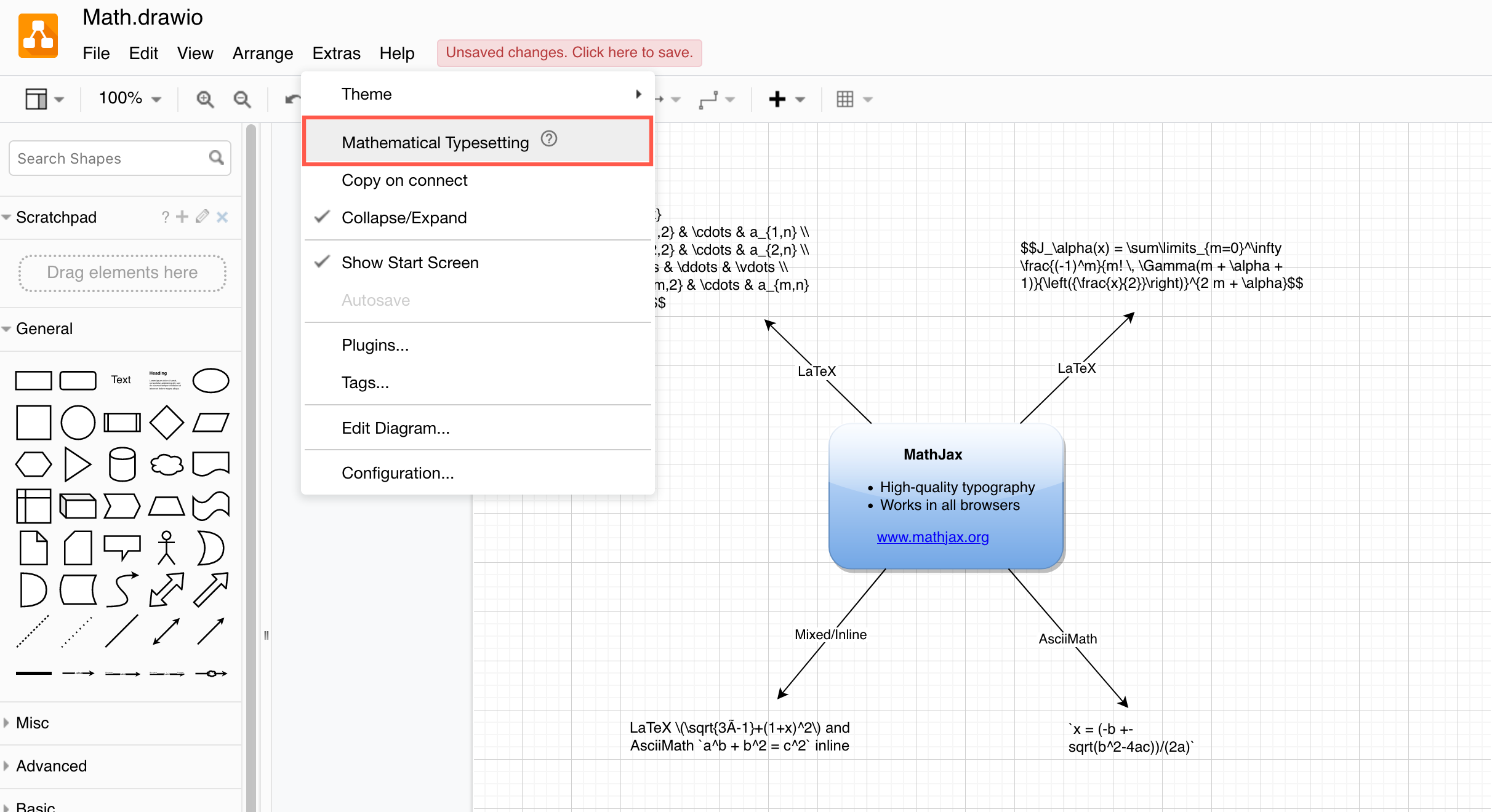
Disable mathematical typesetting via the same menu item to see and edit the equation's LaTeX or AsciiMath.
Enter an equation in text or a label
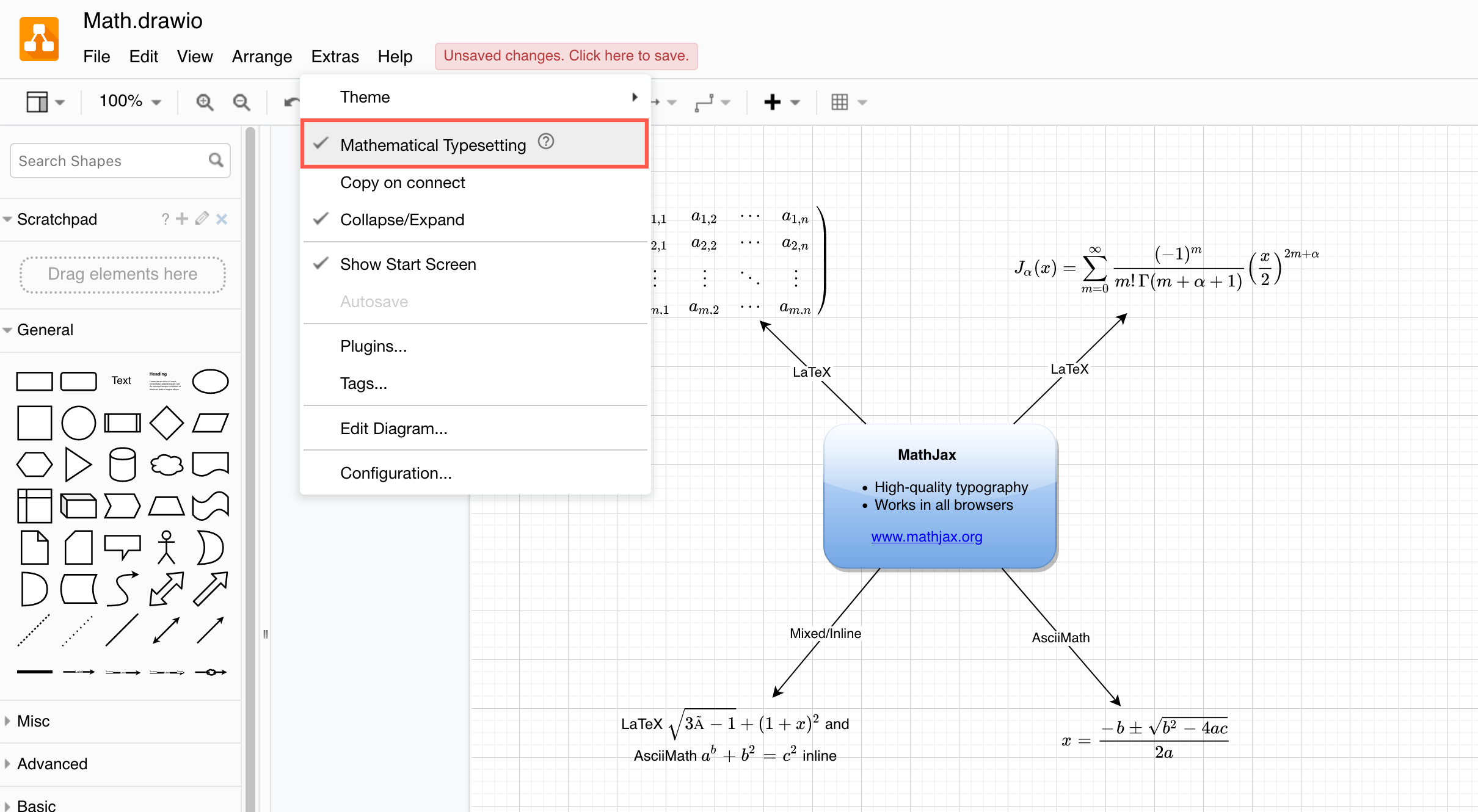
Enter your maths equation using LaTeX or AsciiMath in a text shape.
- AsciiMath between single backticks
`, for example:`a^2+b^2 = c^2` - LaTeX between double dollar signs
$$, for example:$$\sqrt{3×-1}+(1+x)^2$$ - Inline LaTeX between
\(and\), for example:\(\sqrt{3×-1}+(1+x)^2\)
You can mix inline LaTeX and AsciiMath in the same text, for example:
LaTeX \(\sqrt{3×-1}+(1+x)^2\) and AsciiMath `a^b + b^2 = c^2`
Maths equations in tables
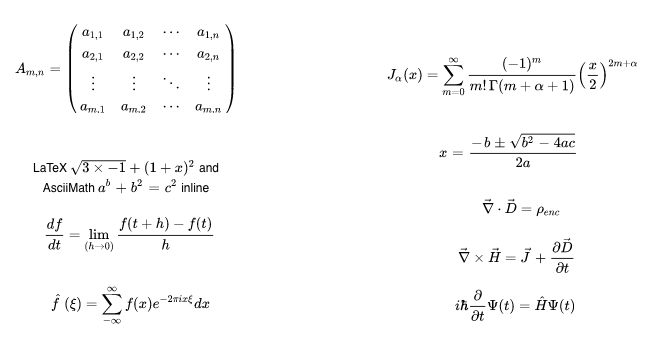
Just like you can add shapes to table cells, you can also add maths equations to table cells and cross-functional tables.
Tip: Left-justify the text shapes, then reposition them as they are rendered so that you do not get blank areas or pages when you export your diagram to an image or a PDF file.
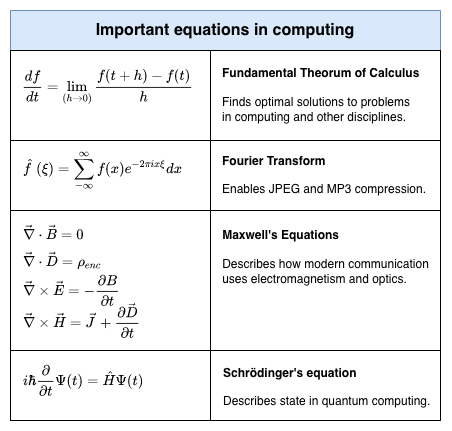
Open these examples in our diagram viewer
Change the output format
By default, the output uses SVG. You can use URL parameters to use HTML instead.
math-output=htmlto use HTML. This setting allows you to select most of the maths symbols in an exported PDF file.
Change the maths font
The TeX font is used by default, and when converted to an image or PDF format, the equation is converted to SVG. You can change these settings using URL parameters.
math-output=htmluses HTML-CSS to render the maths. Use this setting to allow the maths symbols to be selectable in an exported PDF file. Note that not all symbols are selectable.math-font=STIX-Webchanges the font to be STIX when generating the SVG version of the equation.math-font=STIXuses the STIX font in the HTML-CSS version of the equation.
Troubleshooting
Blank space or extra pages
From draw.io 29.8.0 onwards, label autosize, view bounds, exports and the initial fit-to-window measure the rendered MathJax output instead of the formula source, so math cells no longer leave extra whitespace around them and exports are sized correctly. Self-hosters and embedders can revert to the previous behaviour with the mathOutputSize configuration option.
If you are running an older release of draw.io, or you have disabled mathOutputSize, you can work around the issue per cell:
In the Style tab of the format panel, expand the Property section, and look for the Text Overflow shape property. Use Block or Width (or in some cases Hidden) for resize the shape to match the math output.
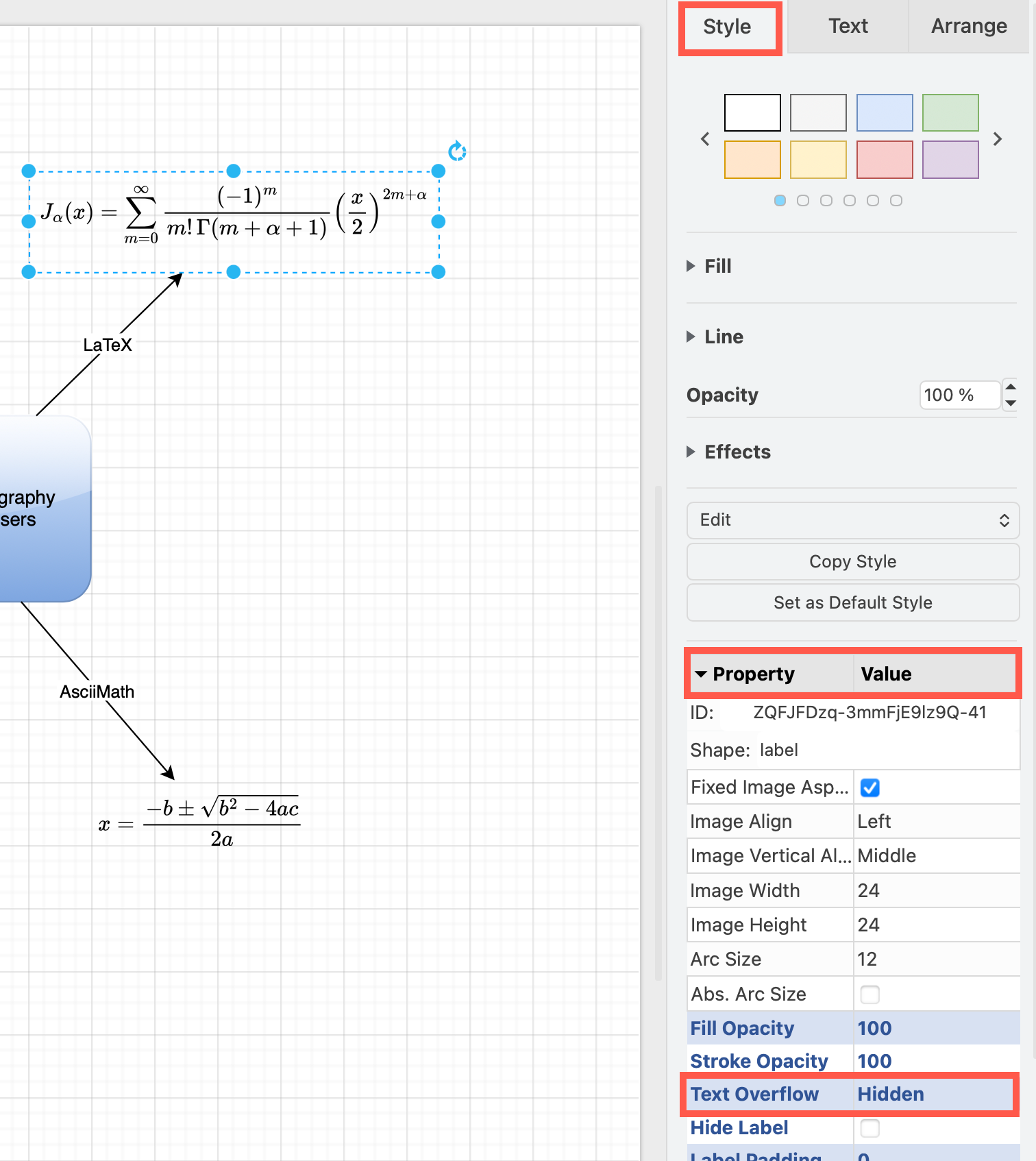
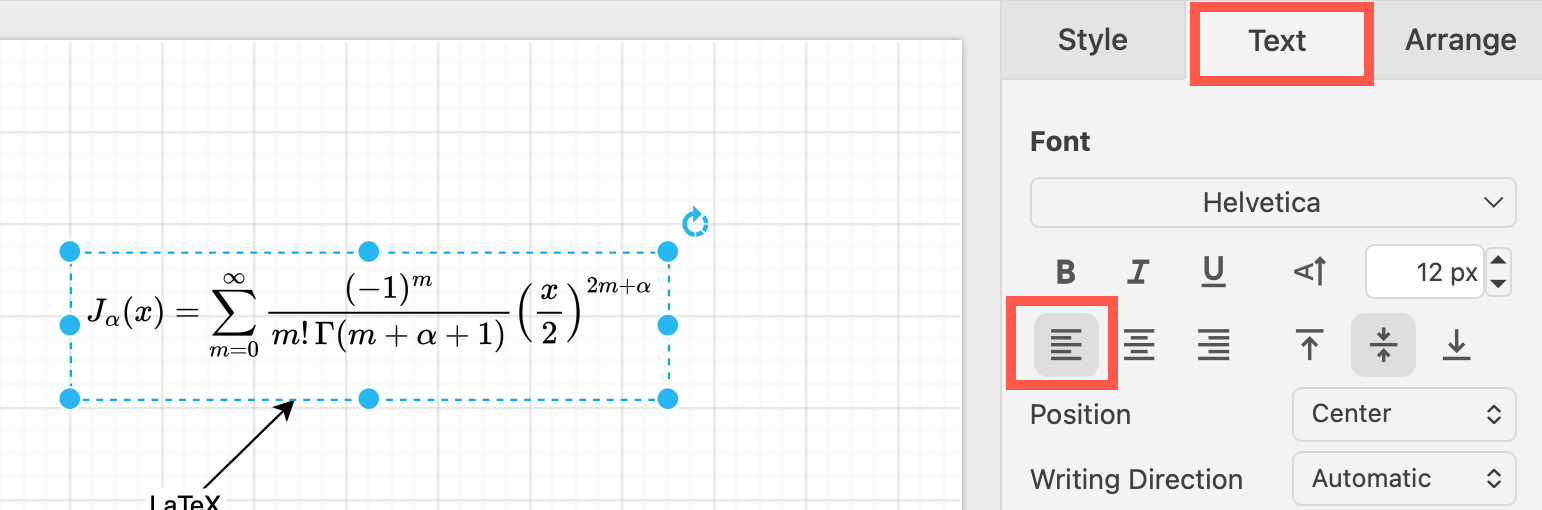
Make sure you use either the left or right justification in the Text tab of the format panel for your text shapes and keep them away from the diagram edges to avoid extra whitespace when exporting your diagram to an image or a PDF document.
Maths is not rendered
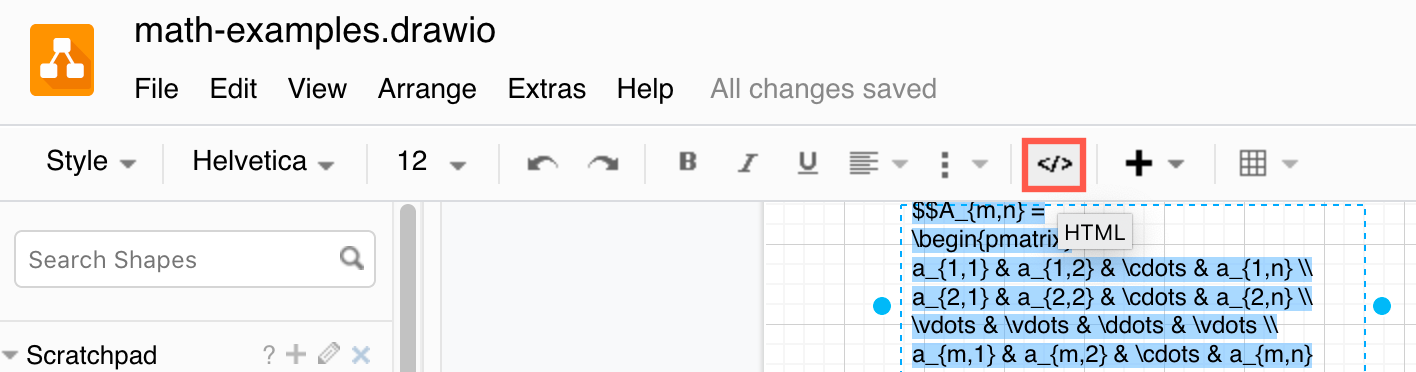
If you find your maths equation is not rendered correctly, the text may be hiding some HTML formatting tags.
- Select the text, then click
</>in the toolbar to expose hidden HTML tags. - Delete any extra HTML tags, and re-enable Mathematical Typesetting in the menu.
See why text in exported SVG images may not display correctly
Note: Math typesetting is available in draw.io for Confluence Server or Data Centre from release 10.1.4 onwards.