Use vertical and right-to-left text for Asian and Arabic languages
Japanese, Chinese, and Korean texts can be written vertically, and read from right to left. draw.io can display labels and text shapes vertically without rotating the characters, to be read top down, and from the right to the left.
Use the Text tab of the format panel to change the Writing Direction.

Tip: Open any of the examples below in draw.io by clicking on the diagram.
Change the writing direction
- Select the shape or text that you want to reformat.
- Click on the Text tab of the format panel.
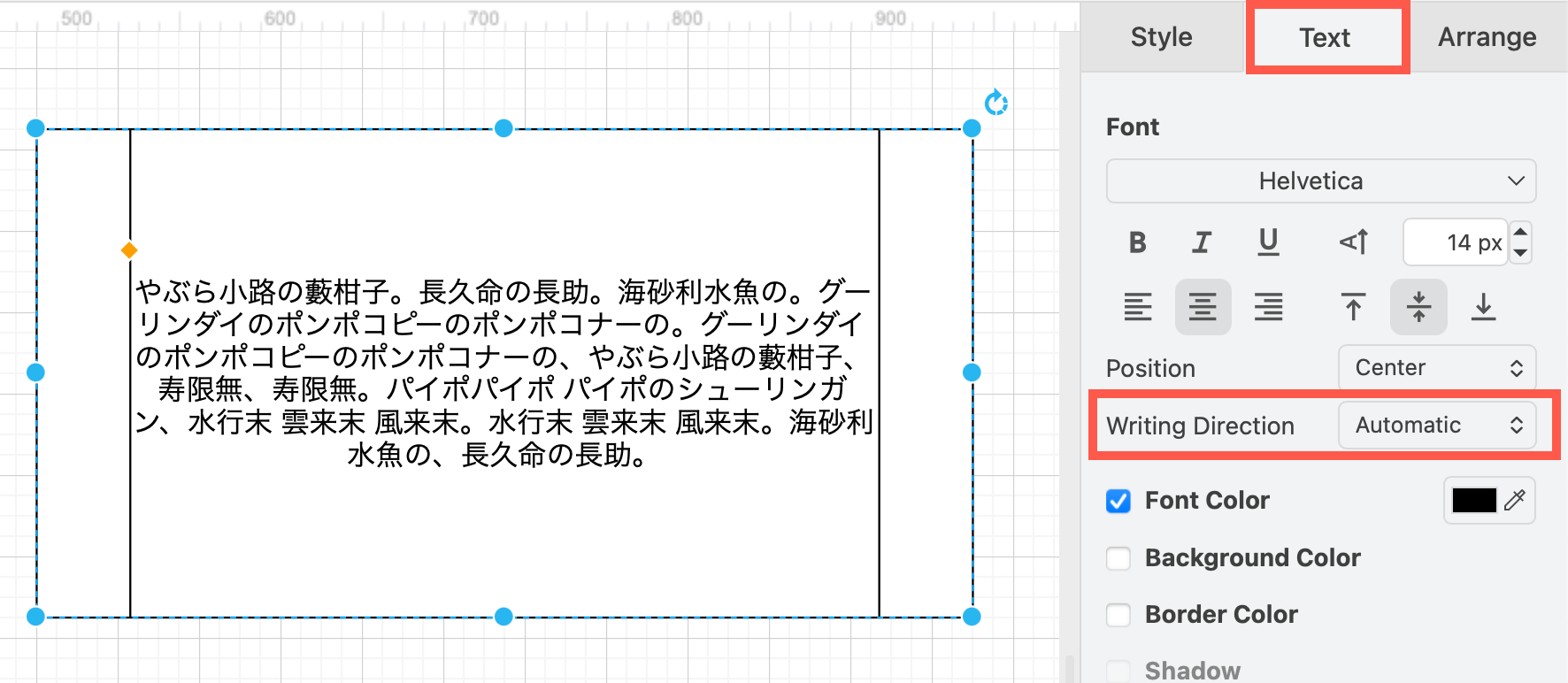
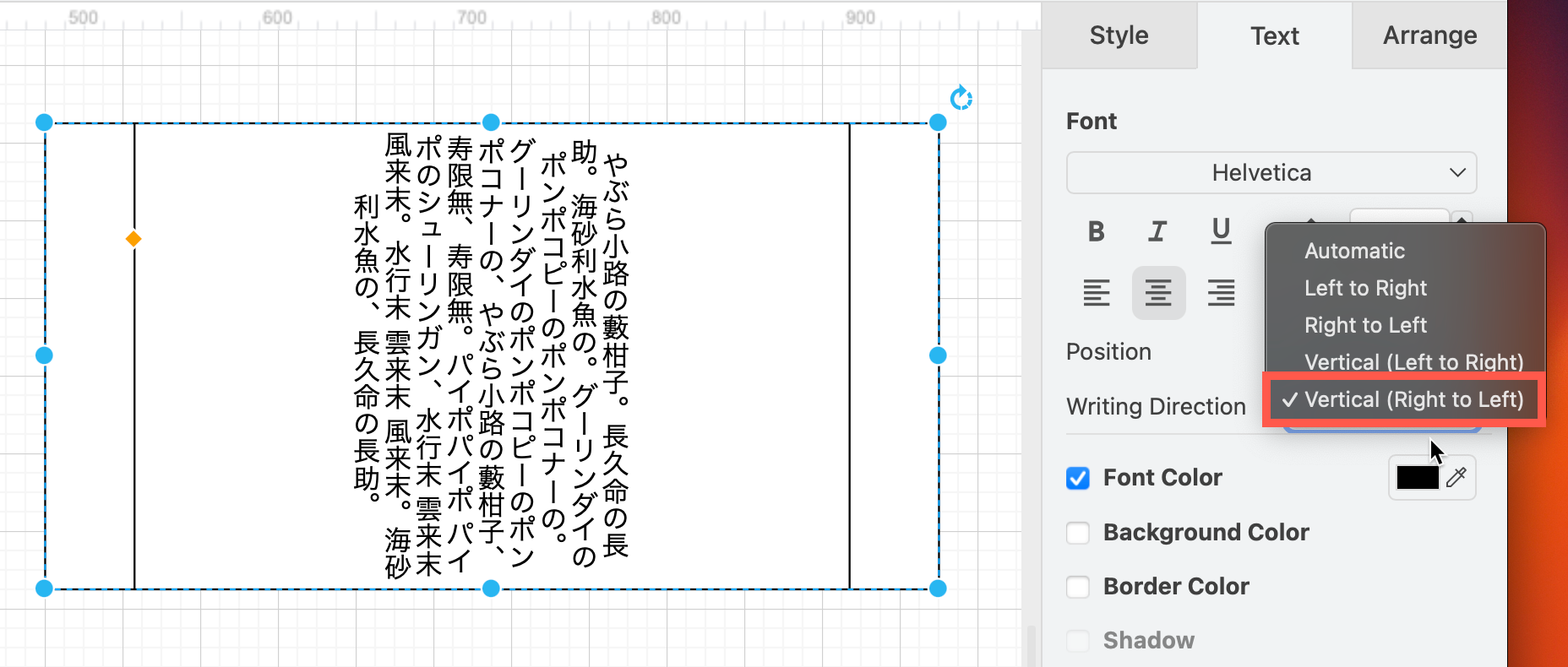
- For Japanese, Chinese and Korean, select Vertical (Right to left) from the Writing Direction list.
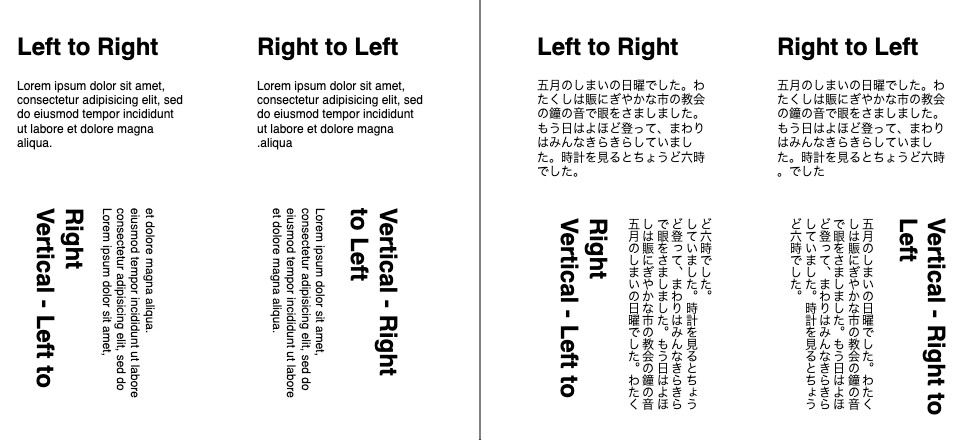
Here's how all four of the writing directions would look in both English and Japanese, using the Textbox shape.
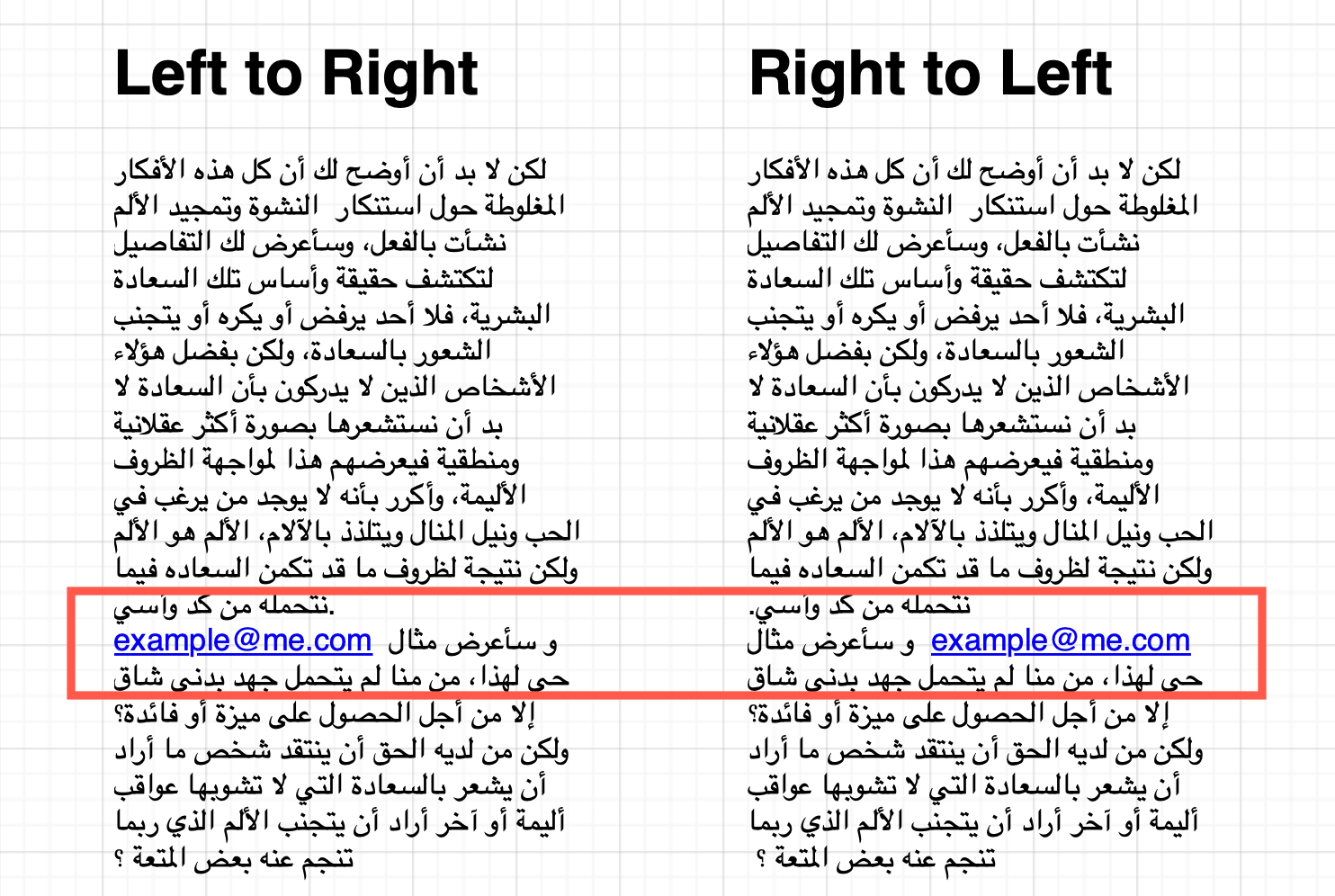
Tip: Choosing Automatic as the writing direction will orient text from left-to-right, unless it is in a language that is only read from right to left (such as Arabic).
You will notice more of a difference in text alignment when you mix scripts, for example, Arabic and Latin characters.
Writing direction vs vertical text
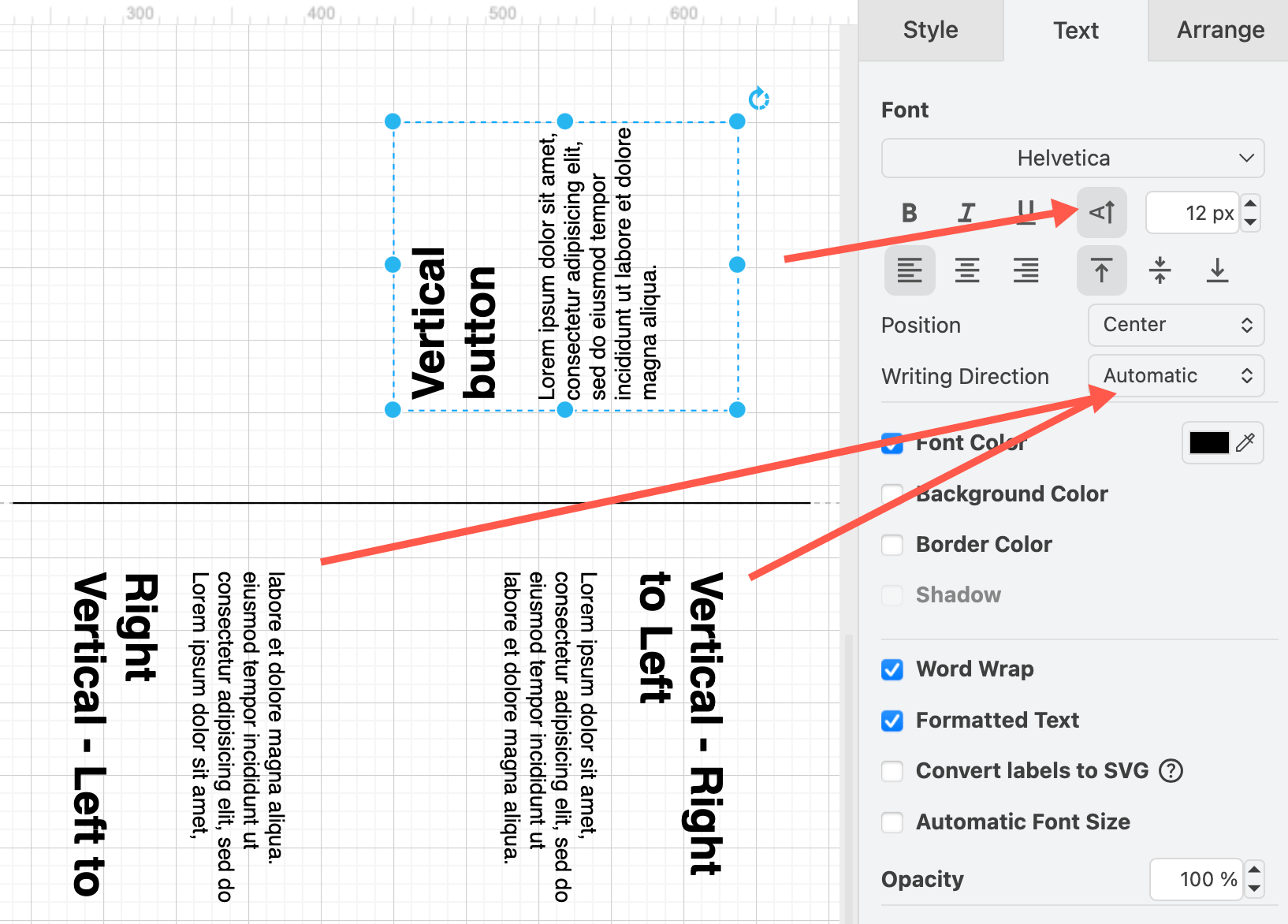
The Vertical button in the Text tab of the format panel can also orient text vertically. This button rotates the text so that it is read from the bottom up, whereas the Writing Direction vertical options are always read from the top down.
Related
- Switch the draw.io editor ito another language via the menu: Extras > Language or ... > Settings > Language. Alternatively, go directly to our web editor using the two-letter language code as a URL parameter. For example:
https://app.diagrams.net/?lang=ko - Use URL parameters and shape properties to translate shape and connector labels into multiple languages.