Use the Explore viewer to step through complex diagrams

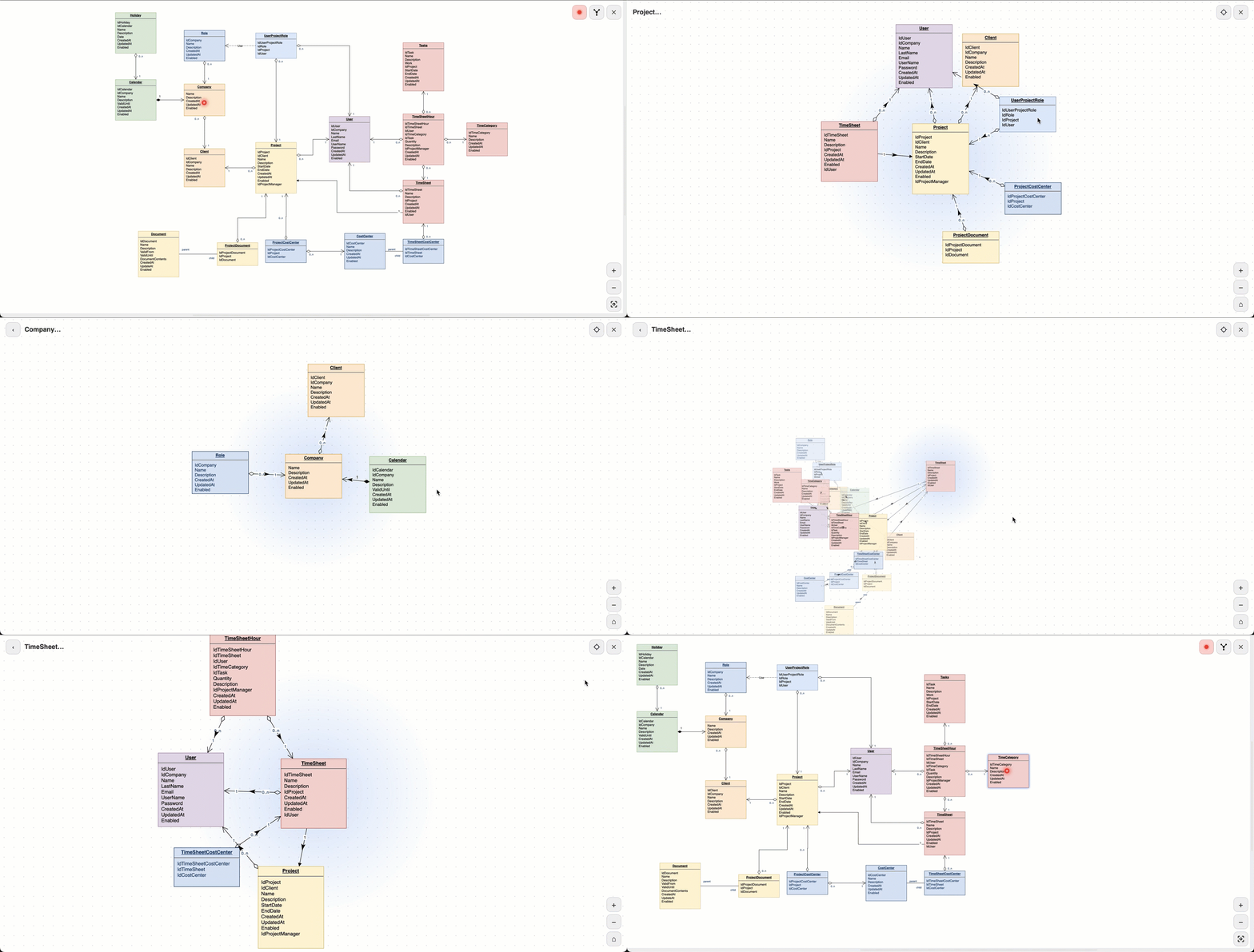
The Explore viewer is now animated and more interactive. Click on a shape and open the Explore viewer to see it and the shapes directly connected to it. This is useful when you want to explore or explain a highly complex technical diagram.
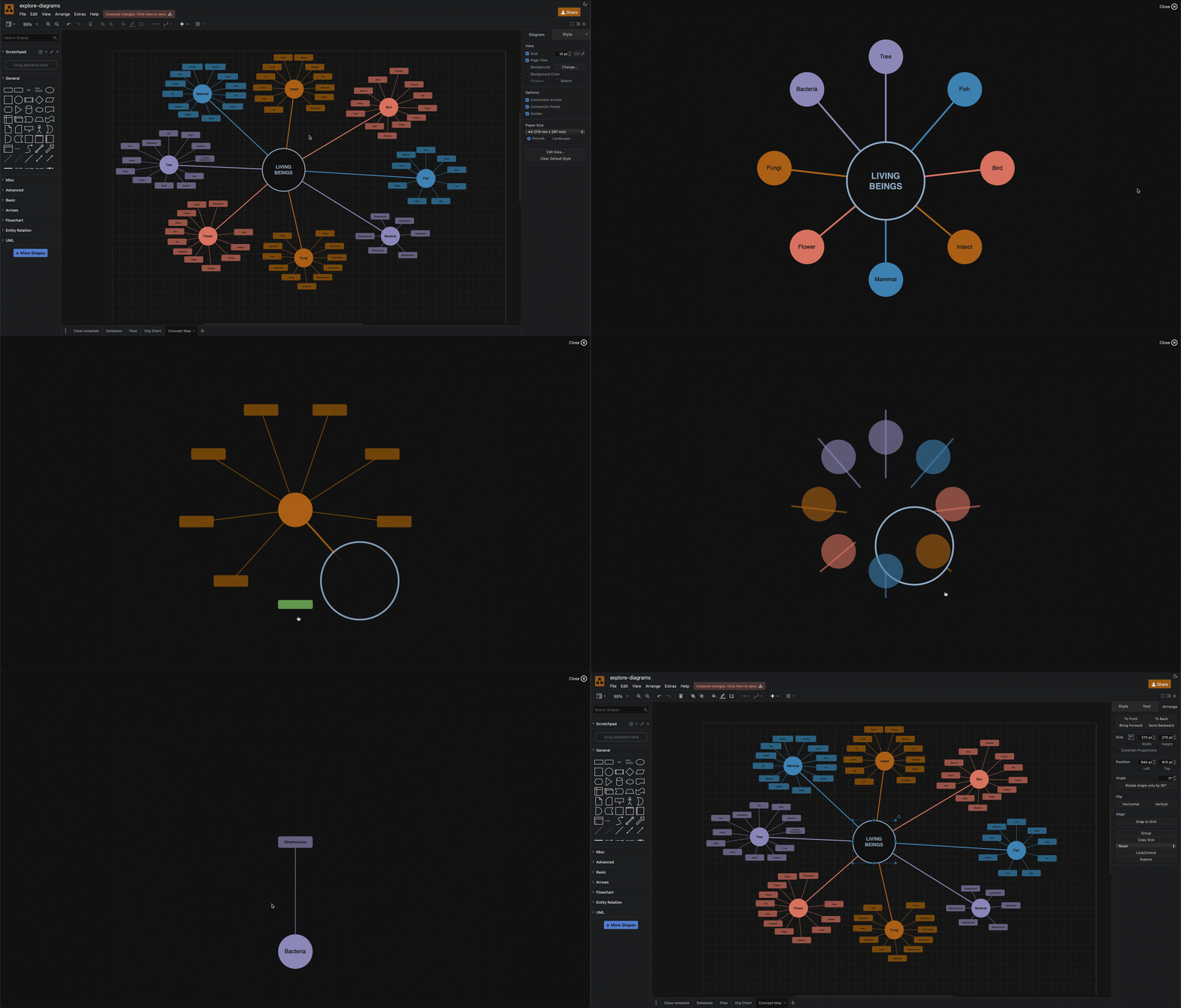
When would you explore a diagram?
- Follow reporting lines through a large organisation chart, one person at a time.
- Step through the branches of a mind map or concept map without the other branches getting in the way.
- See which tables are directly related to an entity in a database schema or explore class relationships in a UML class diagram.
- Trace your workflow through a complex flowchart or BPMN diagram without being distracted by any steps that others will do.
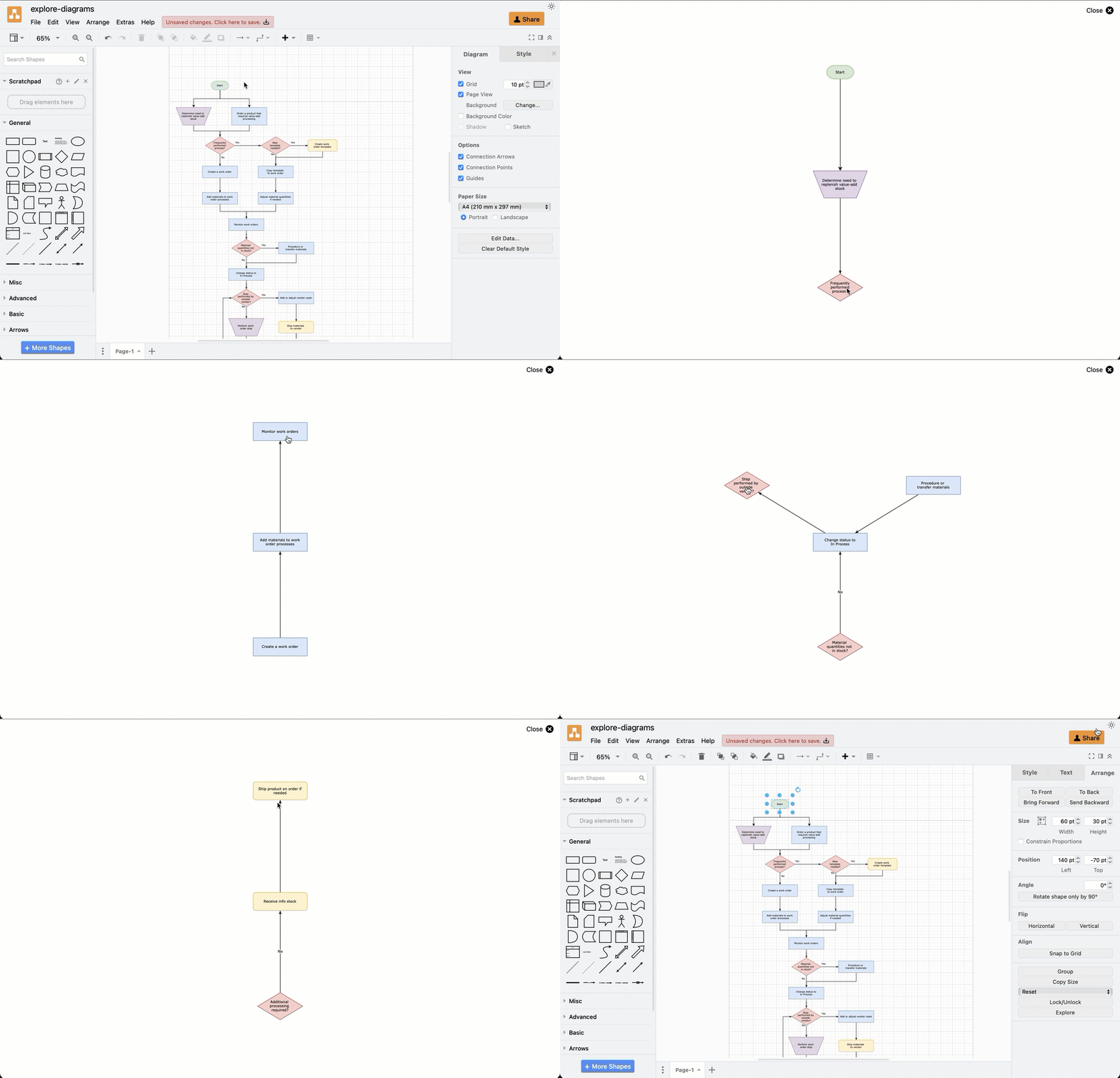
Open the Explore viewer
- Select a shape in your diagram.
- Click on the Explore button in the Arrange tab of the format panel. The Explore viewer will open with the shape you selected in the centre and its connected shapes around it.
Alternatively, select File > Publish > Explore - if you haven't selected a shape, the diagram will open in the Explore viewer starting from the shape with the most connections on the current page.
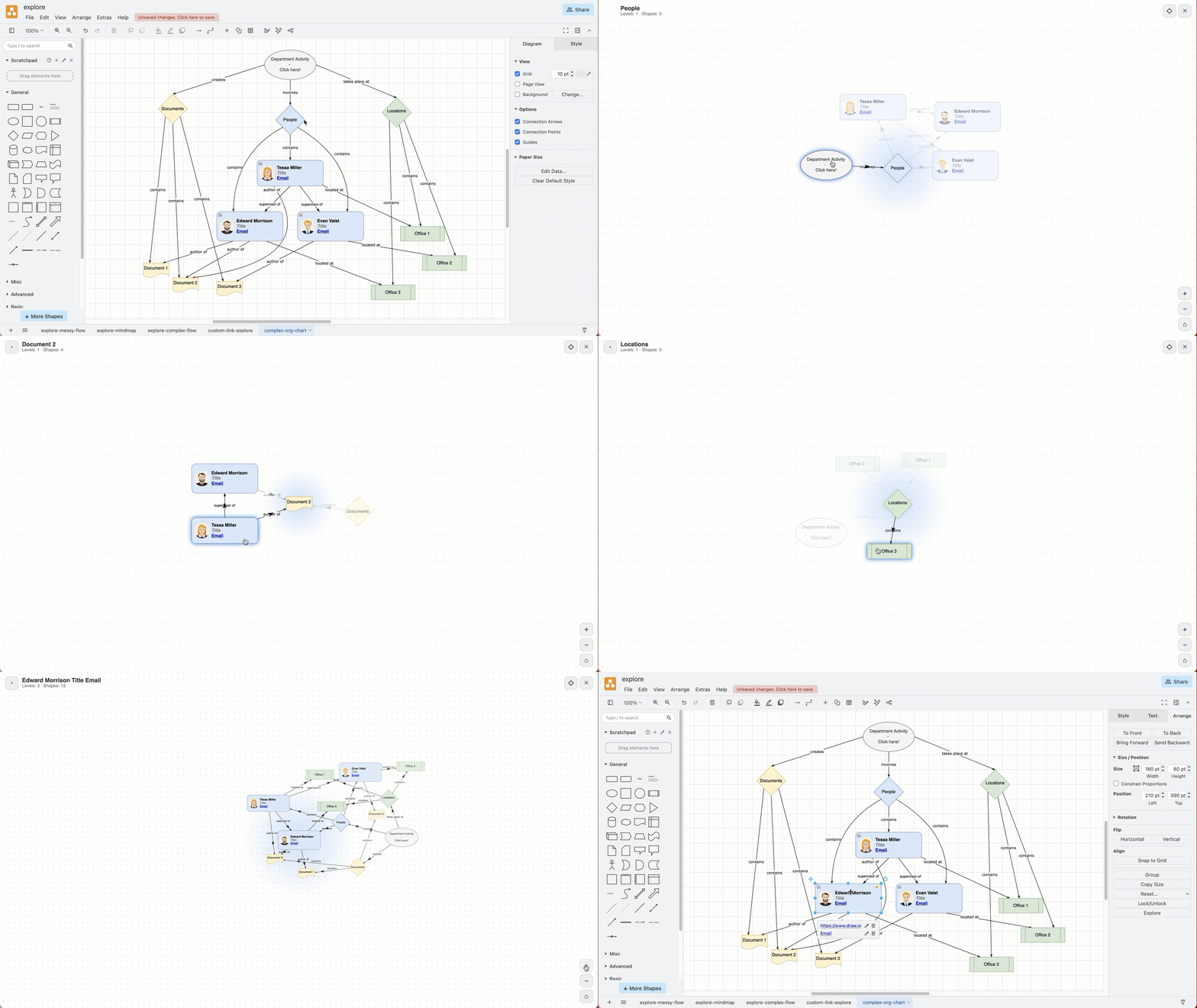
Note: Explore is disabled if the selected shape has no connectors. Unconnected shapes, such as most swimlanes, tables and groups, are also not shown in the Explore viewer.
Move through the diagram
Click on a shape to move it to the centre of the Explore viewer and show its connected shapes.
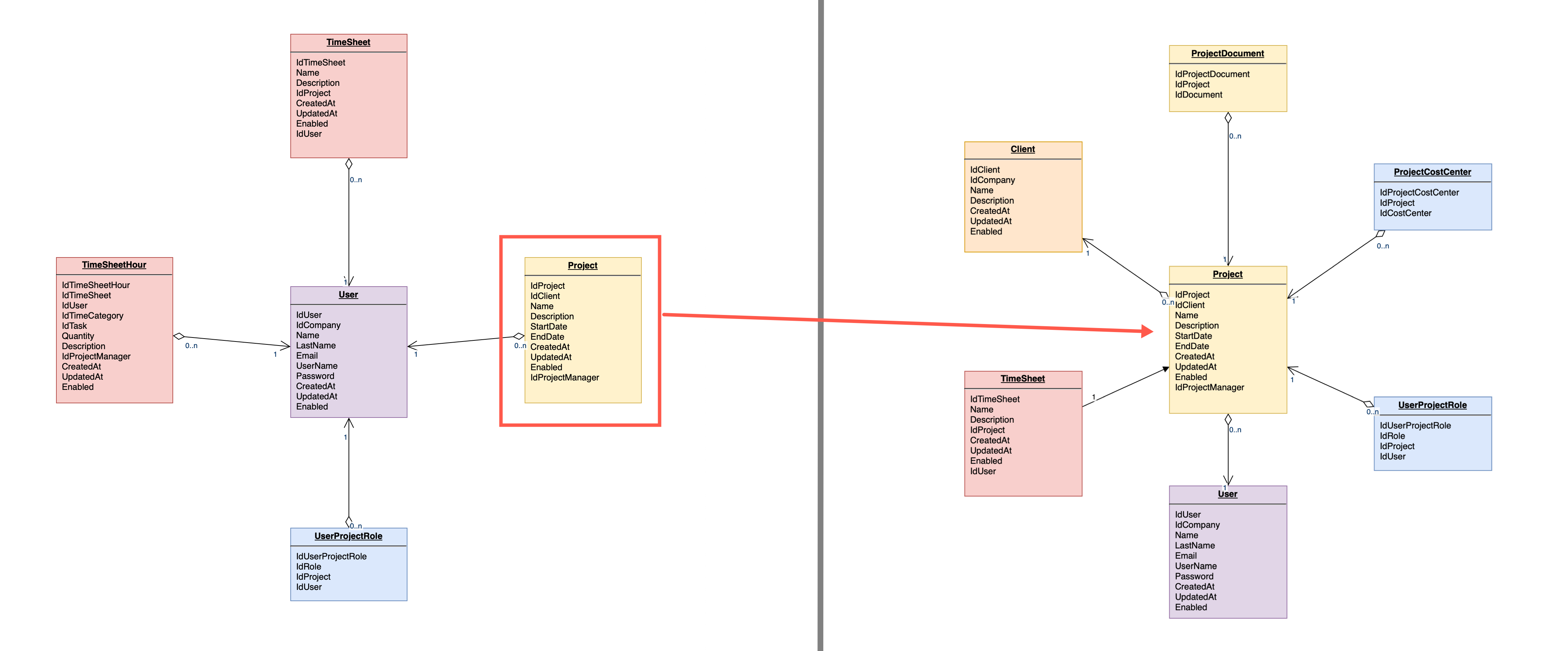
Click on the - and + tools in the lower right to zoom in/out and add more/subtract levels of connected shapes. Click on Reset below these to reset the zoom and return to the first shape with only one level of connected shapes displayed.
Note that only the first 12 connected shapes will be shown by default - click on the number that counts the hidden connected shapes to add more.
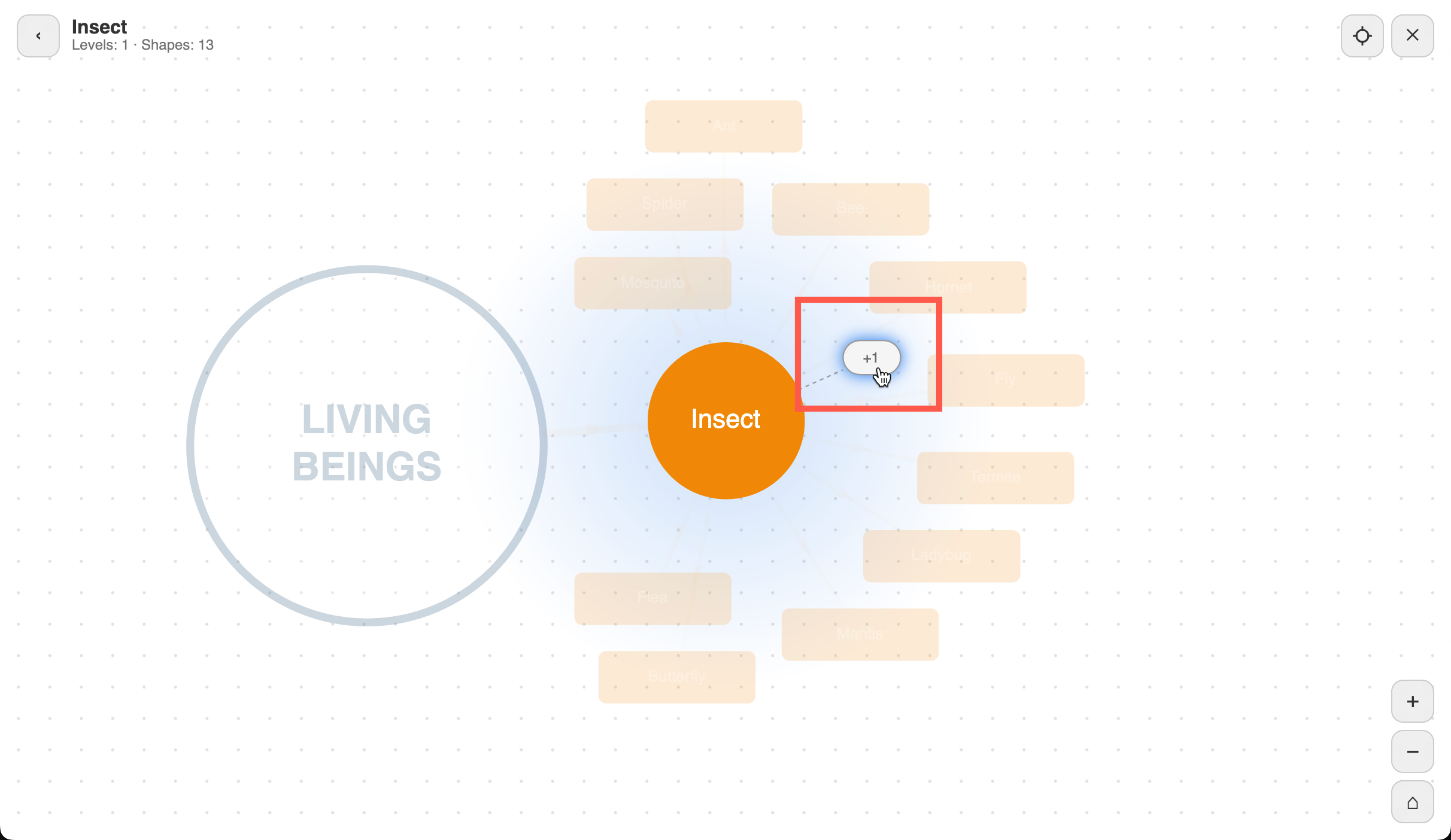
When you hover over a shape it will be highlighted along with its connected shapes. All other shapes in the diagram will be dimmed so you can see its connections clearly.
When you are done, click on the crosshair at the top right to close the Exploreß viewer and select the current centre shape in your diagram.
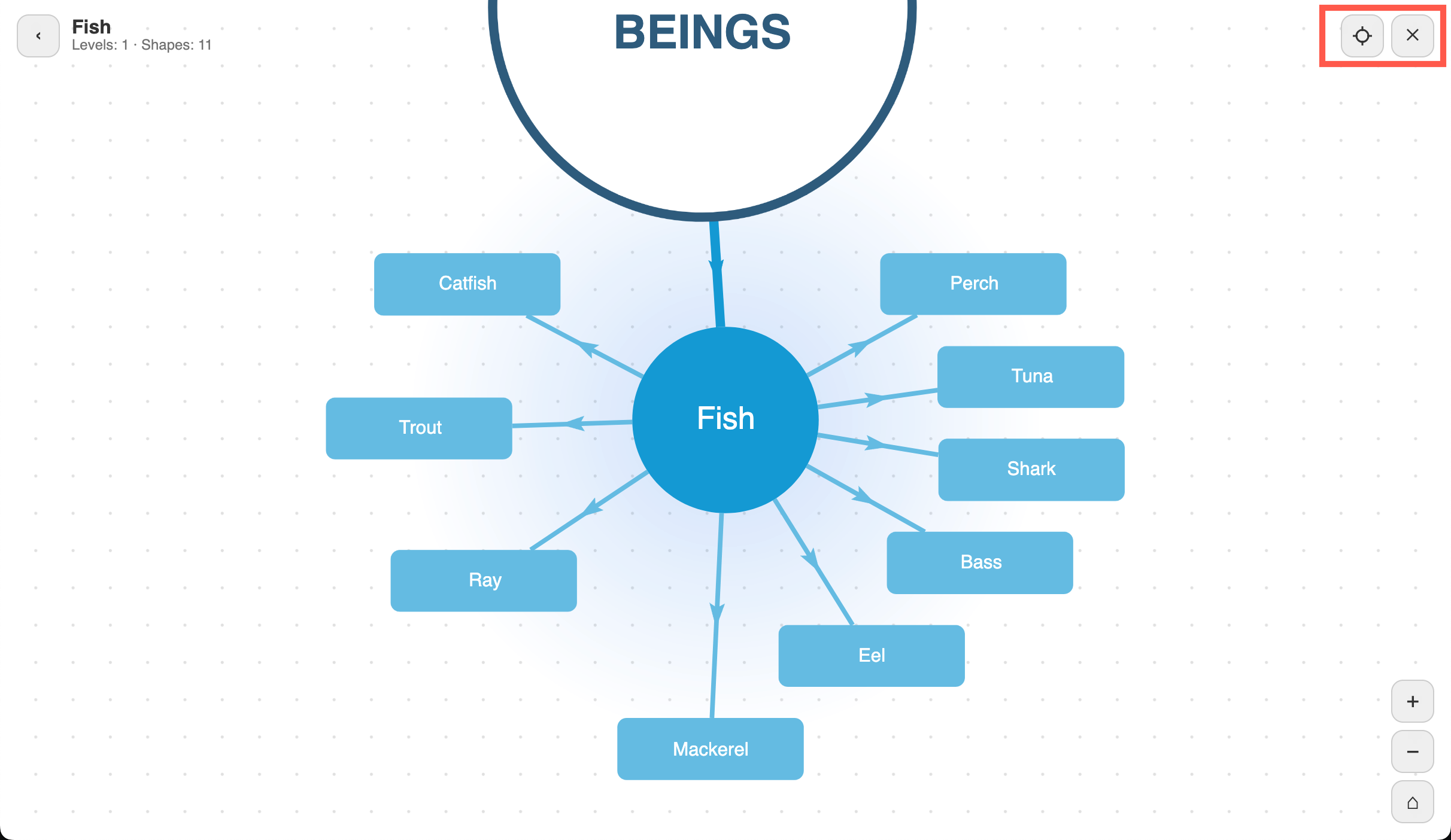
Alternatively press Escape to close the viewer and return to the editor or to presentation mode if you started exploring from there.
Explore from presentation mode and the lightbox
Walk your collaborators through your diagram in a meeting from presentation mode by clicking Explore in the top right. Add an interactive custom Explore link to a shape that you can click on in the lightbox viewer.
Configure the Explore viewer
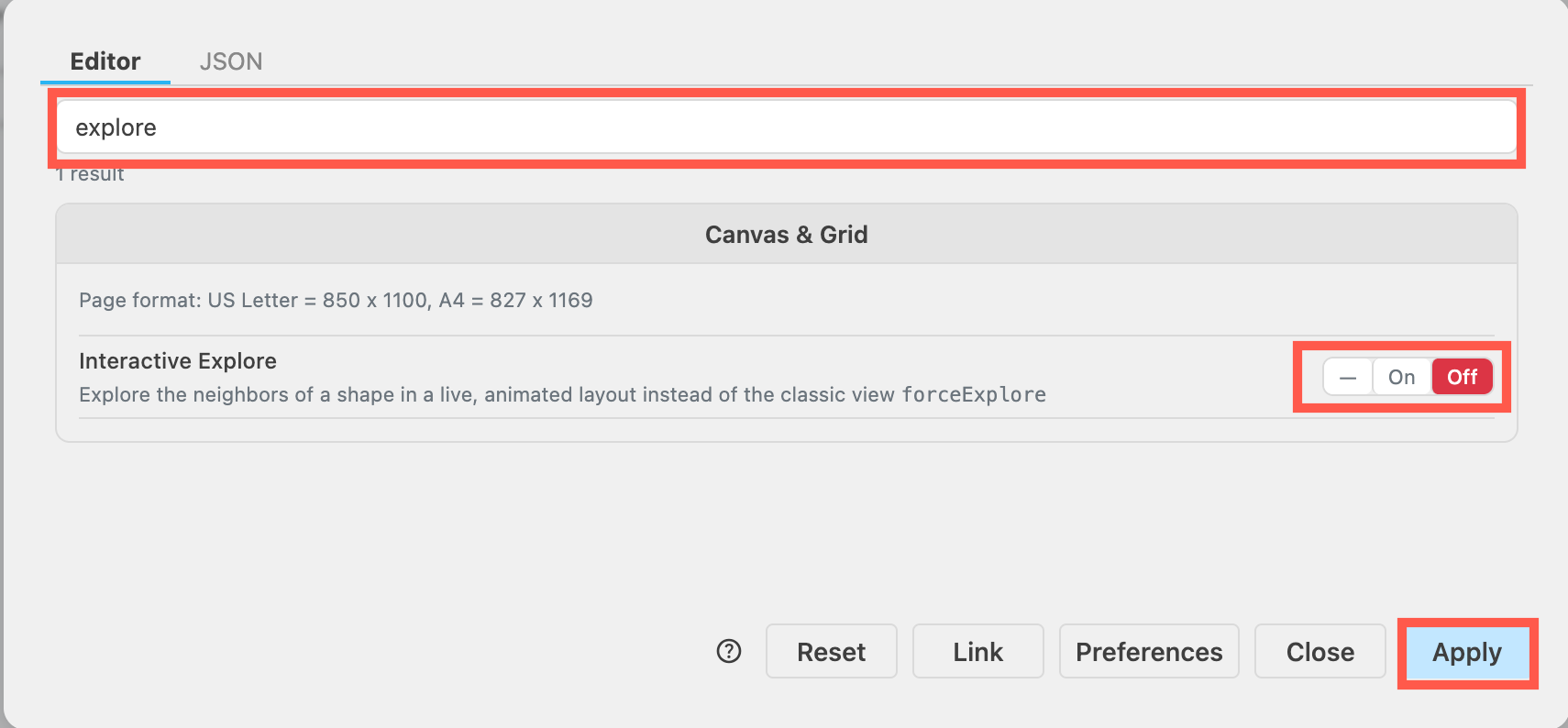
This animated Explore viewer replaces the classic Explore plugin. Set the behaviour to match the older plug via the editor configuration. Select Extras > Configuration from the draw.io menu, search for Explore, and toggle Interactive Explore to Off. Click Apply then reload the browser tab to load this new configuration, then open the Explore viewer.
See how to configure the draw.io editor.
Related
- Learn more about the built-in Explore viewer.
- Add an Explore action to a custom link that can be clicked on in the draw.io editor or in the lightbox viewer.