2 posts tagged with "layouts"

View All Tags

Advanced layout shapes and layout containers

· 3 min read

The advanced shape library contains several automatic layout shapes that let you quickly build flowcharts, trees and mindmaps without needing to worry about manually rearranging shapes.
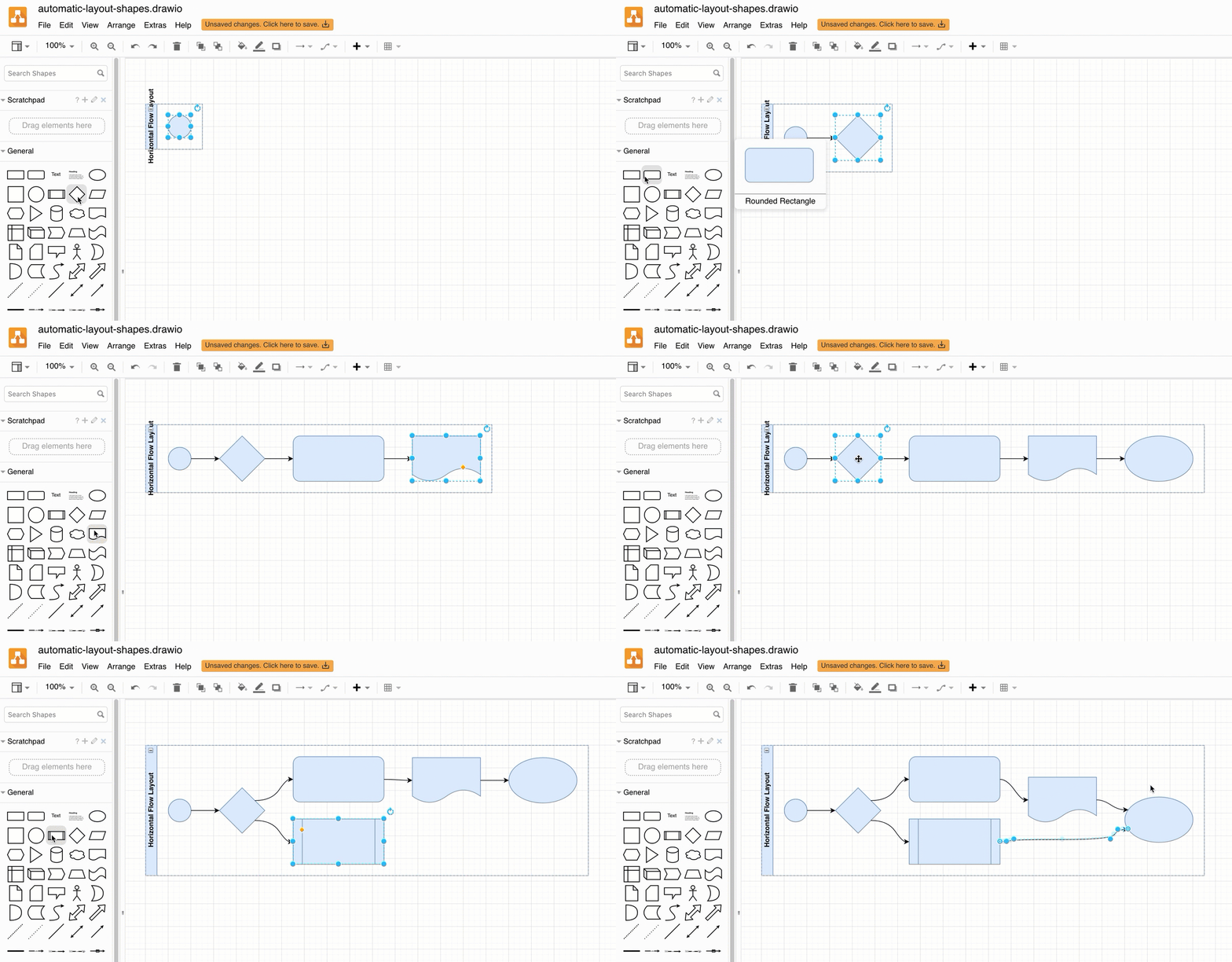
Hold down alt as you click on shapes in the shape library to add and connect them inside a automatic flow layout shape

Add an advanced layout shape​

Advanced shape library: Click on More Shapes at the bottom of the left panel, select the General shape library, and click Apply.

The layout shapes in the Advanced shape library include vertical and horizontal trees, vertical and horizontal flows, mindmaps and org charts. The Tree Container, mindmap and org chart layout shapes have expand/collapse functions in the top left of their shapes.
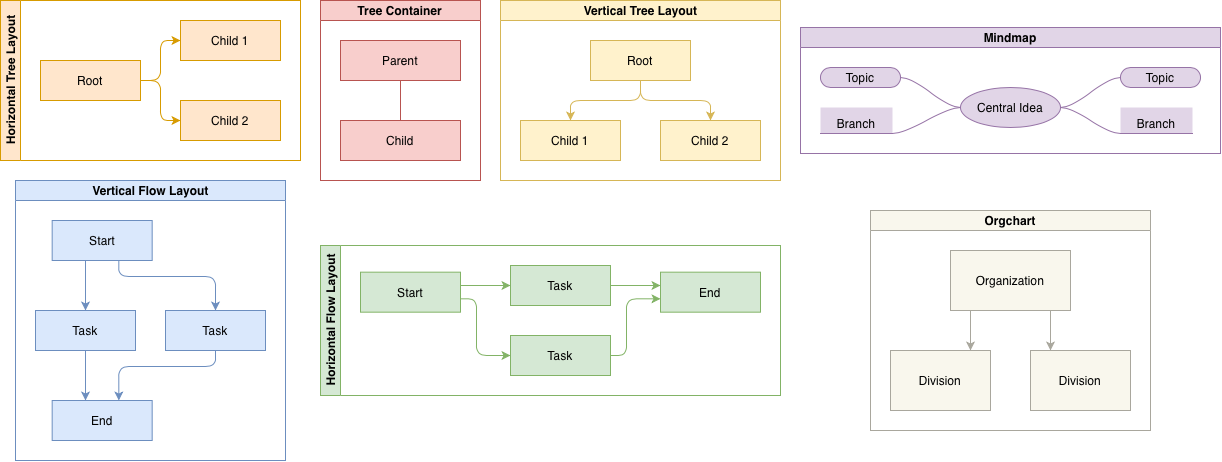
The Advanced shape library contains a number of automatic layout shapes surrounded by a swimlane shape

Add more shapes to your layout shape​

The diagram inside the layout shape will automatically rearrange to fit any new connected shape that you add or delete. Be careful not to delete all of the shapes inside though - when you delete the last contained shape, the entire layout shape is also deleted.

  • Drag and drop a shape from the shape library onto one of the direction arrows of the shapes inside the layout shape.
  • Hold Alt and click on a shape in the shape library to automatically add and connect it to the selected shape inside the layout shape as in the example at the top of the page. This selection will move on to the newly added shape, so you can quickly build your diagram inside the layout shape.
  • In the tree layout shapes, click on the left and right direction arrows to quickl add sibling nodes and connect it to the same parent node.
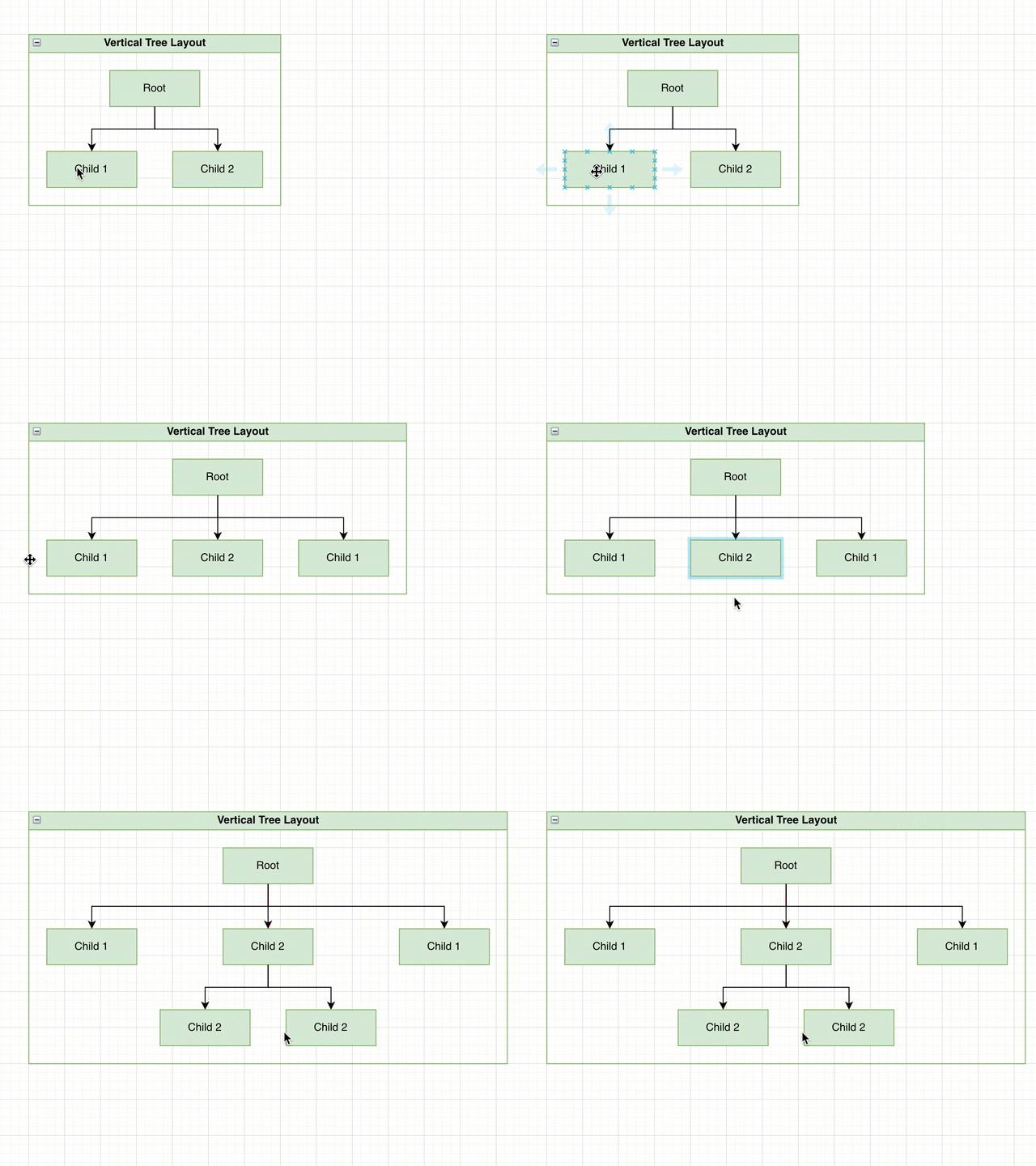
    Click on the directional arrows that appear when you hover over a shape to clone and connect a new shape inside of a container layout shape

Insert a layout container​

While the layout shapes from the Advanced shape library are surrounded via a swimlane shape that you can connect to and from, when you insert a layout container via Arrange > Insert > Layout or via the toolbar + > Layout it will have an invisible/transparent border.
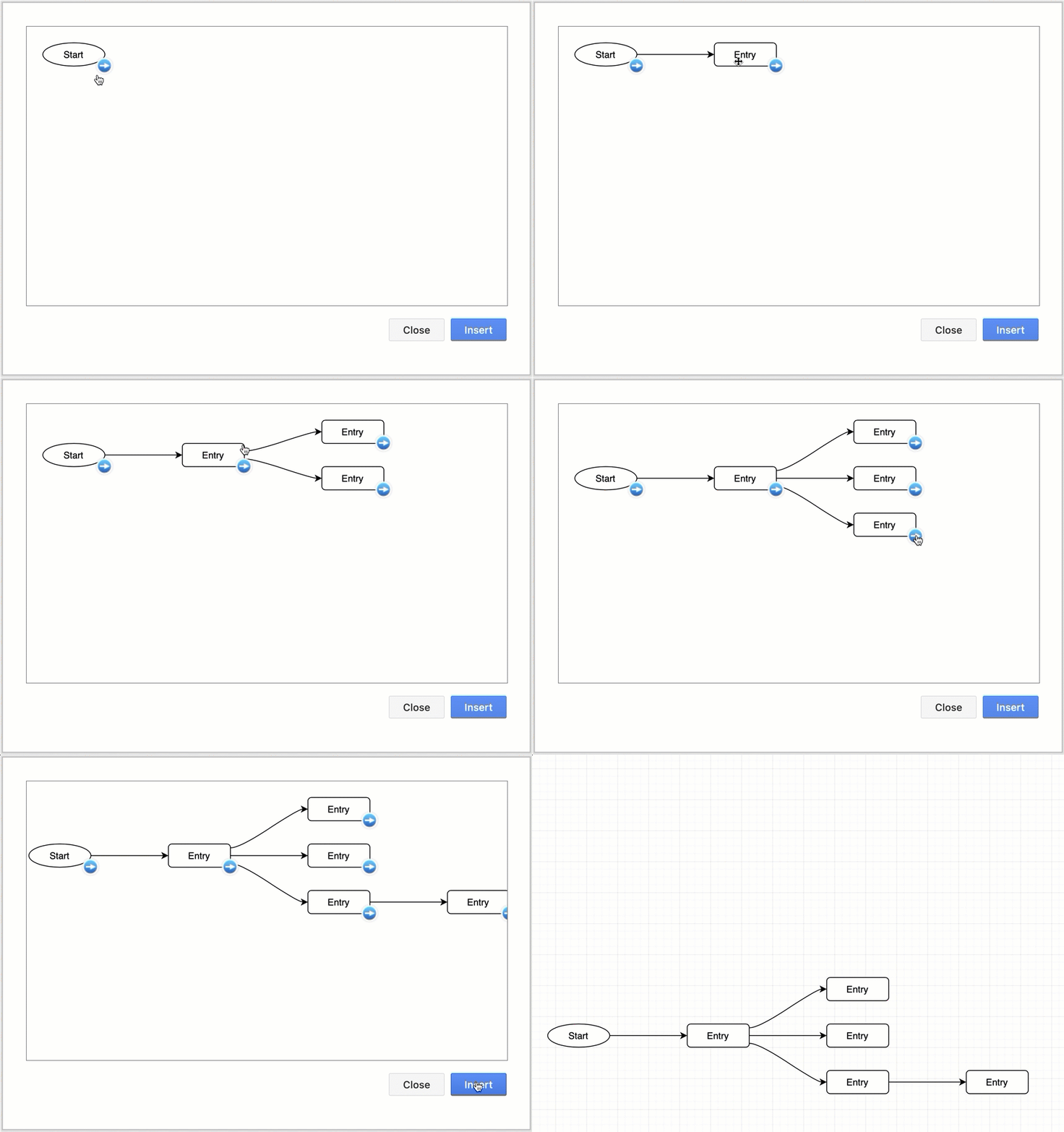
Quickly click together a horizontal flow in draw.io

Note: You can not connect to the border of these layout containers, only to the shapes inside.

The layout algorithms for both the Advanced layout shapes and these layout containers is the same. Add and remove shapes just as you would one of the Advanced layout shapes. Similarly, when you delete the last remaining shape inside a layout container, the layout container itself will also be deleted.

Do diagram layouts apply to layout containers?​

No. If your diagram has layout containers (from the Advanced shape library or via Arrange > Insert > Layout), the shapes and connectors inside those layout containers will not be rearranged when you apply a diagram layout from Arrange > Layout. While the layout container shapes follow the same algorithms, they are treated as a single shape when applying a diagram-wide layout.
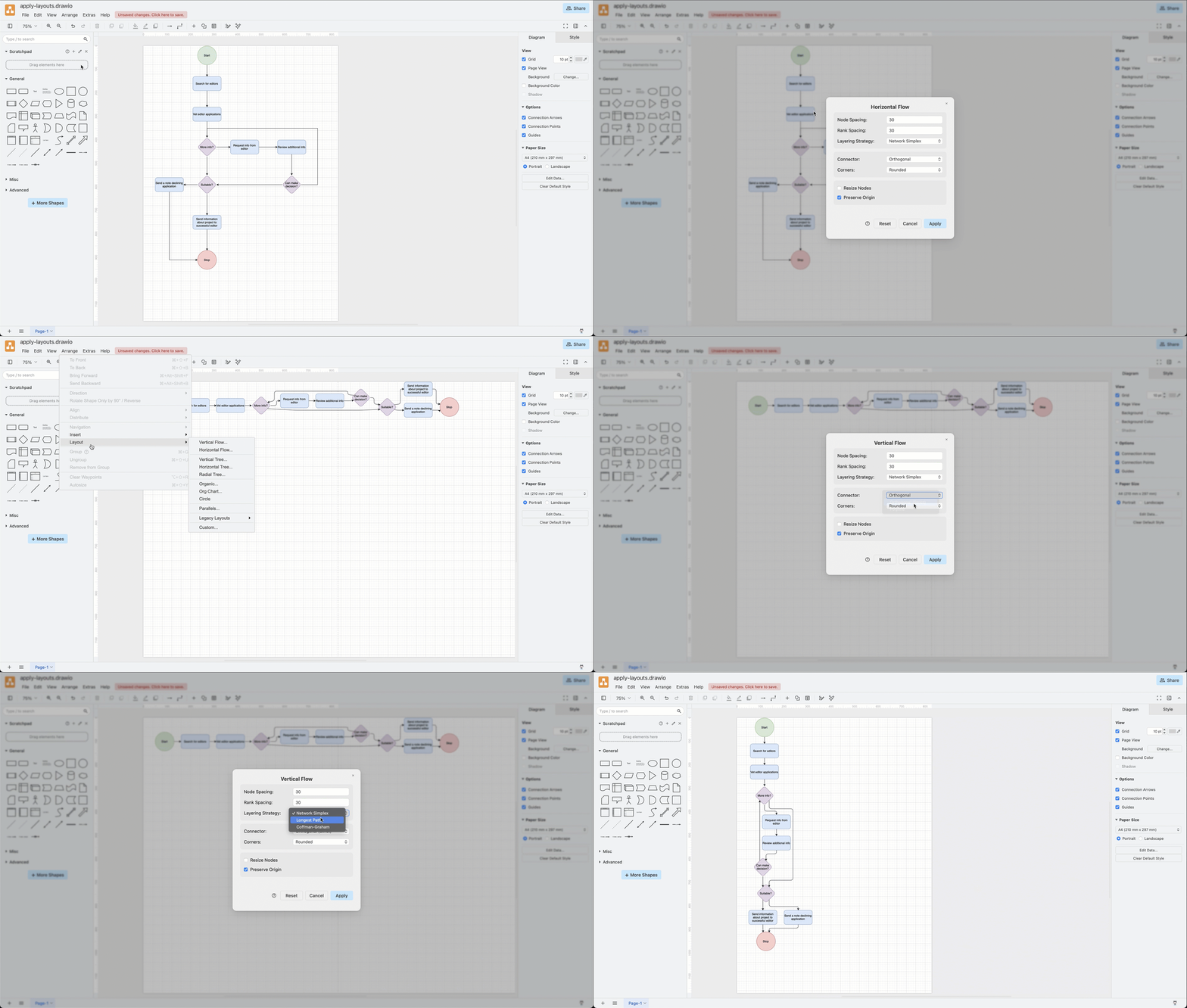
Rearrange your diagram quickly by applying a layout - select Arrange > Layout from the menu

Better automatic layouts with ELK

· 3 min read

The new version of the automatic layout dialogs in draw.io now use the Eclipse Layout Kernel (ELK) and its layering algorithms to automatically rearrange the shapes in your diagram.

Use these automatic layout presets to build neat flow charts, trees, org charts and other common diagram layouts quickly.

Rearrange your diagram quickly by applying a layout - select Arrange > Layout from the menu

Change layout options​

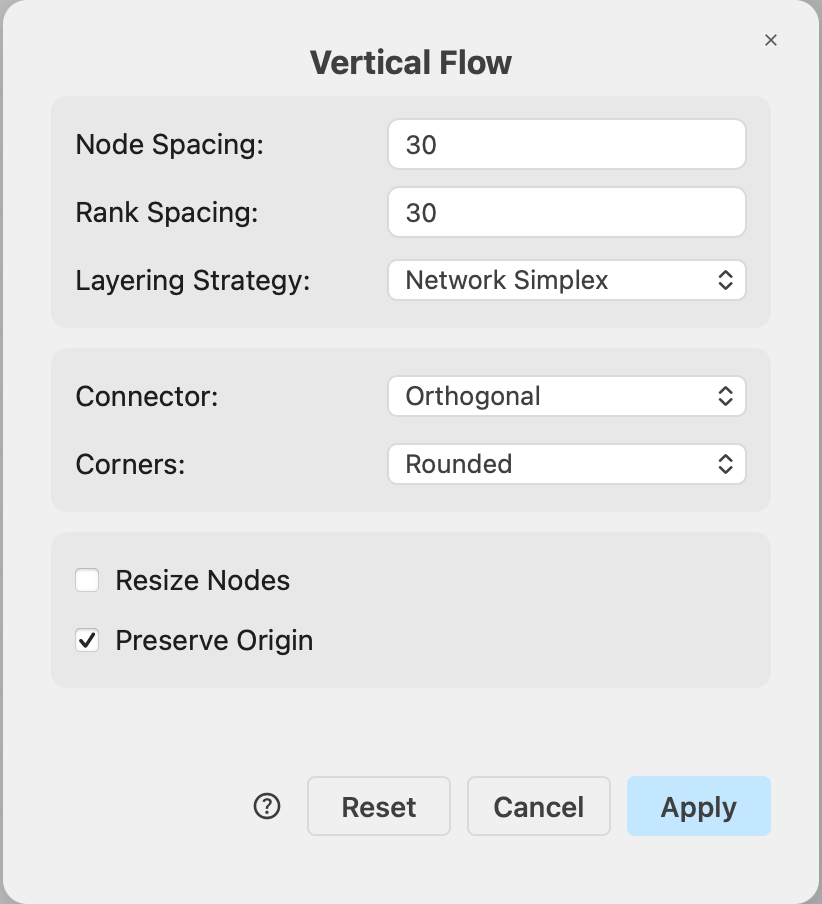
In most of the preset layouts via the Arrange > Layout menu you can customise the spacing, direction and connector behaviour.

  1. Select Arrange > Layout from the menu, or click + > Layout in the toolbar, then choose the layout preset that suits your diagram best.
  2. Change the layout options if you need to, then click Apply.
    Rearrange your diagram quickly by applying a layout - select Arrange > Layout from the menu

The diagram will be automatically rearranged.

Rearrange your diagram quickly by applying a layout - select Arrange > Layout from the menu

Undo the automatic layout: If you don't like this auto-layout, click Undo in the toolbar or press Ctrl+Z/Cmd+Z to revert to the diagram before it was auto-arranged.

The Flow, Tree, Radial Tree, and Organic layout dialogs store their last-used values in your browser, separately for each layout that you have applied.

Reset defaults: Click Reset in the layout dialog to discard the stored values and reopen the dialog with that preset's defaults.

Use a custom layout​

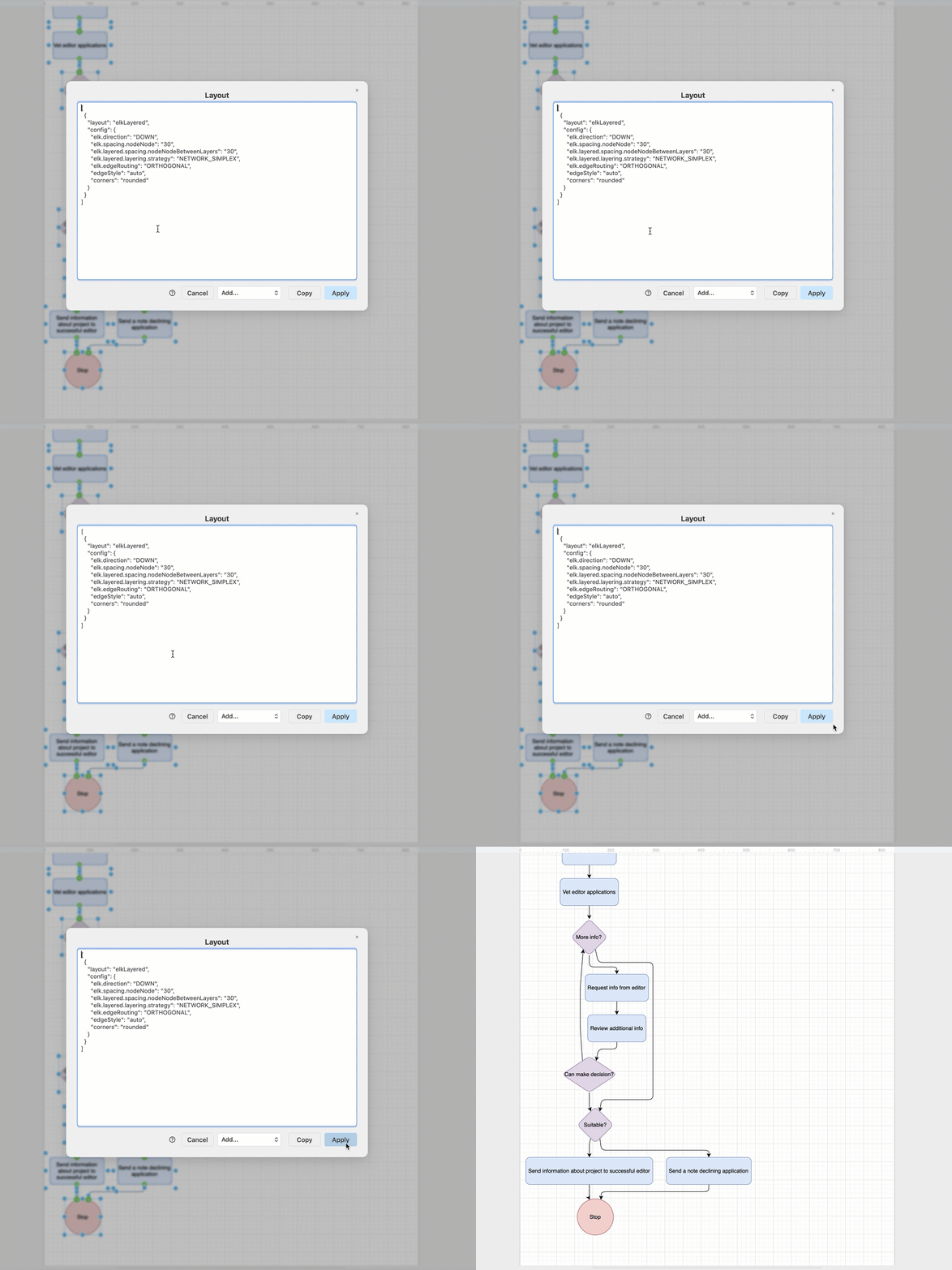
You can further customise the layout algorithm with JSON configuration options via Arrange > Layout > Custom in the draw.io menu, or + > Layout > Custom in the toolbar. Your custom configuration is appended to the JSON definition for that layout preset instead of running the preset immediately on your diagram.
Change the layout algorithm with custom JSON configuration code

Refer to the JSON layout specification for the full documentation of each layout preset.

Tip: This JSON layout specification can also be used to automatically layout imported diagram data from a CSV file.

Legacy layouts​

The legacy layouts are still available via the menu Arrange > Layouts > Legacy Layouts.

You can customise the ELK layout settings by entering a JSON configuration string.

These layout algorithms are also used in arranging the shapes inside the layout shapes from the Advanced shape library and layout containers. When you apply one of the diagram-wide layouts to one of these Advanced layout shapes or layout containers though, their internal elements will not be rearranged.
The Advanced shape library contains a number of automatic layout shapes surrounded by a swimlane shape