15 posts tagged with "atlassian"

View All Tags

New draw.io Board macro for whiteboard-style diagrams in Confluence Cloud

· 7 min read

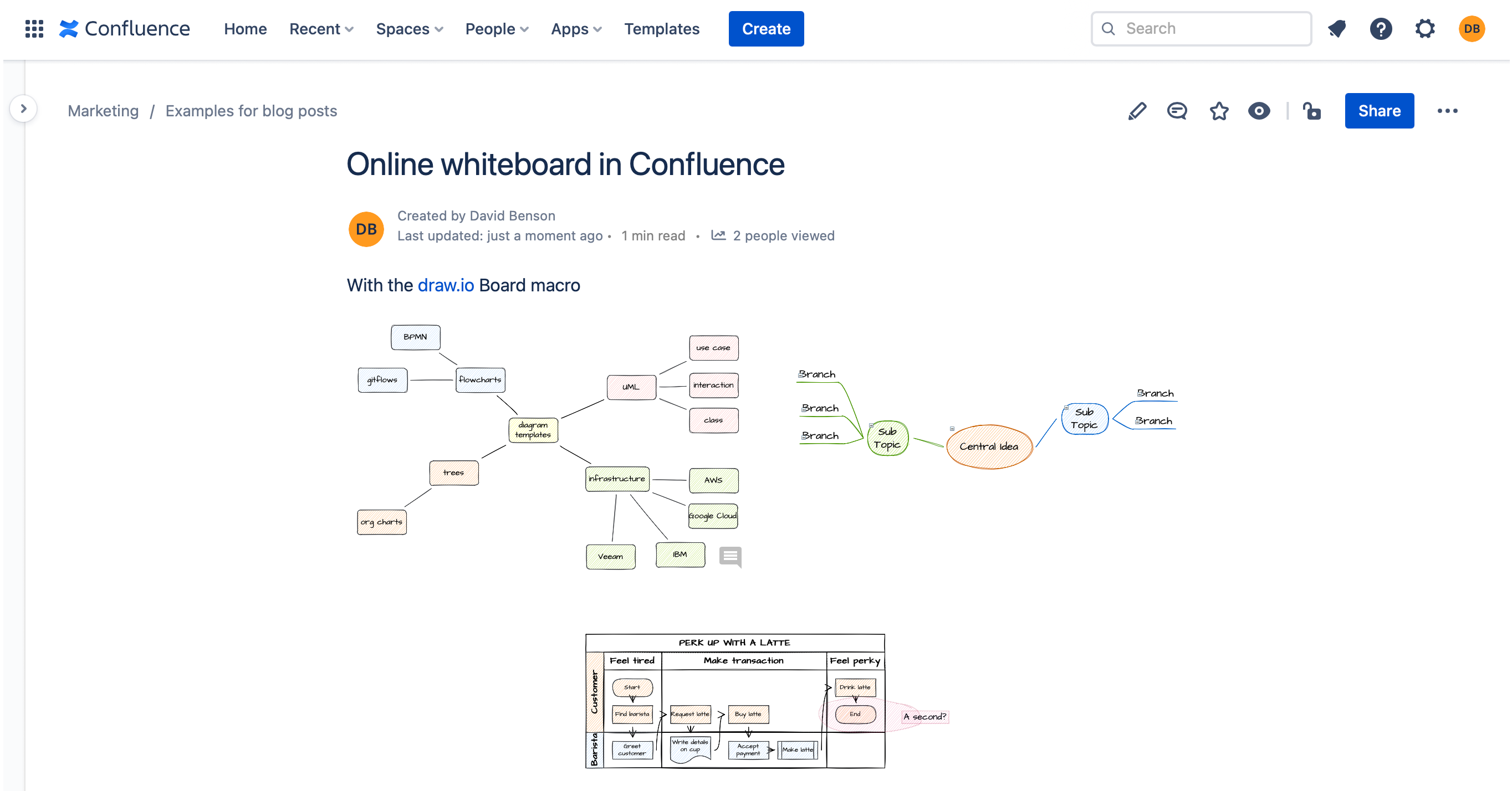
Embed whiteboard-style diagrams in Confluence Cloud pages with the new draw.io Board macro. The Board macro is a new feature for our integration with Confluence Cloud, delivered as part of our draw.io brand.

When you add or edit a diagram using the draw.io Board macro, it uses the Sketch editor theme, with the rough sketch shape and connector styles set as the default global style. The diagram editor has a a white non-paginated background and no grid lines so it feels more like a whiteboard.

A discussion thread on the GitHub draw.io project is open if you have any questions or suggestions.

Add the draw.io Board macro to a Confluence Cloud page

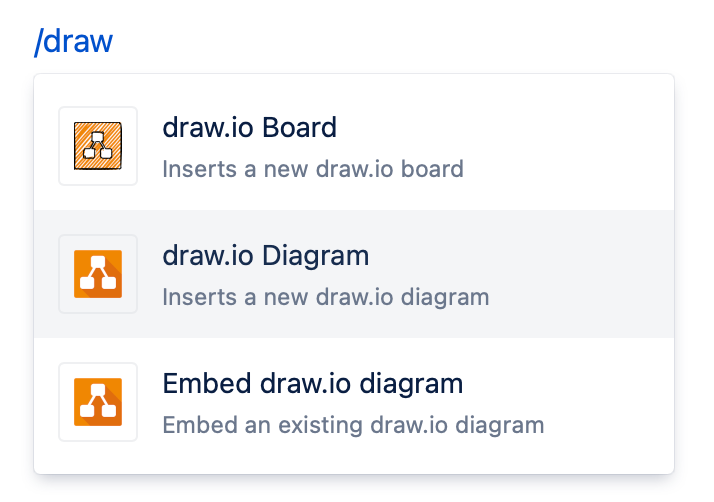
  1. Edit the page and type /draw to see a list of macros you can embed.
  2. Select the draw.io Board macro from the list to open the diagram editor.
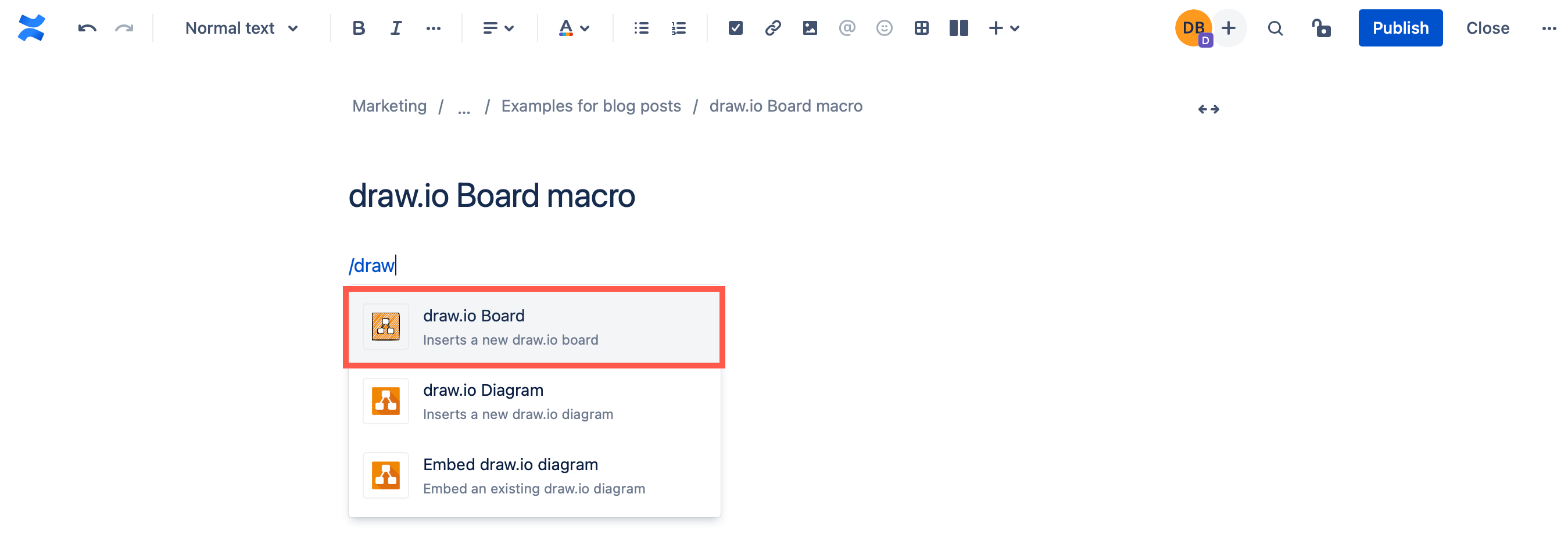
    Add the draw.io Board macro to a Confluence Cloud page

Diagram in Confluence Cloud using the draw.io Board macro

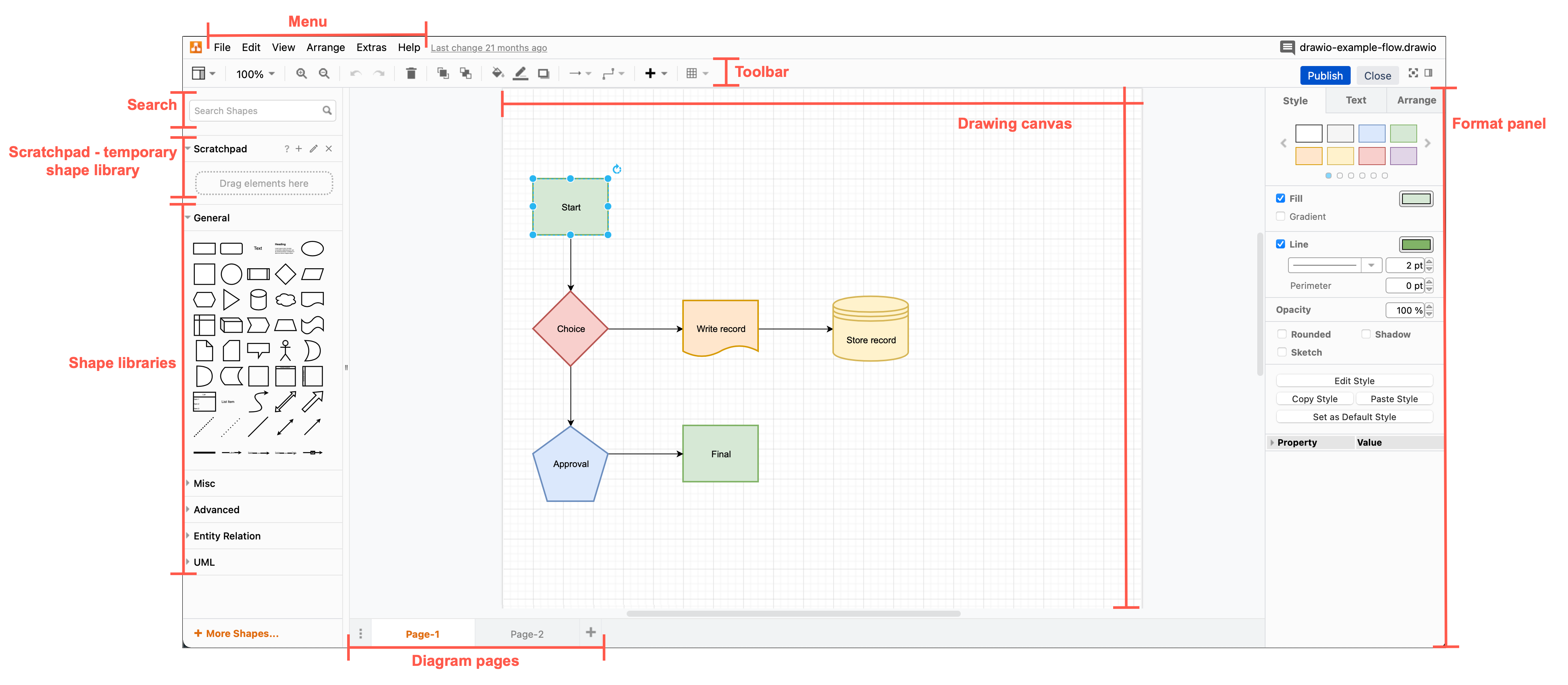
The draw.io Board macro uses a simplified editor theme, where the diagramming tools are reduced to the essentials. The panels you are used to seeing in draw.io are minimised to make it feel more like a whiteboard.

You can display panels and use the menus at any time to use the full functionality of the draw.io editor in the draw.io Board macro.

Zoom: To zoom in and out, click on the magnifying glass tools in the bottom right. Click on the number in the center to reset the zoom to 100%.

Dark mode: To switch between the default light theme and a dark theme (dark background and interface), click on the moon/sun tool in the bottom right.
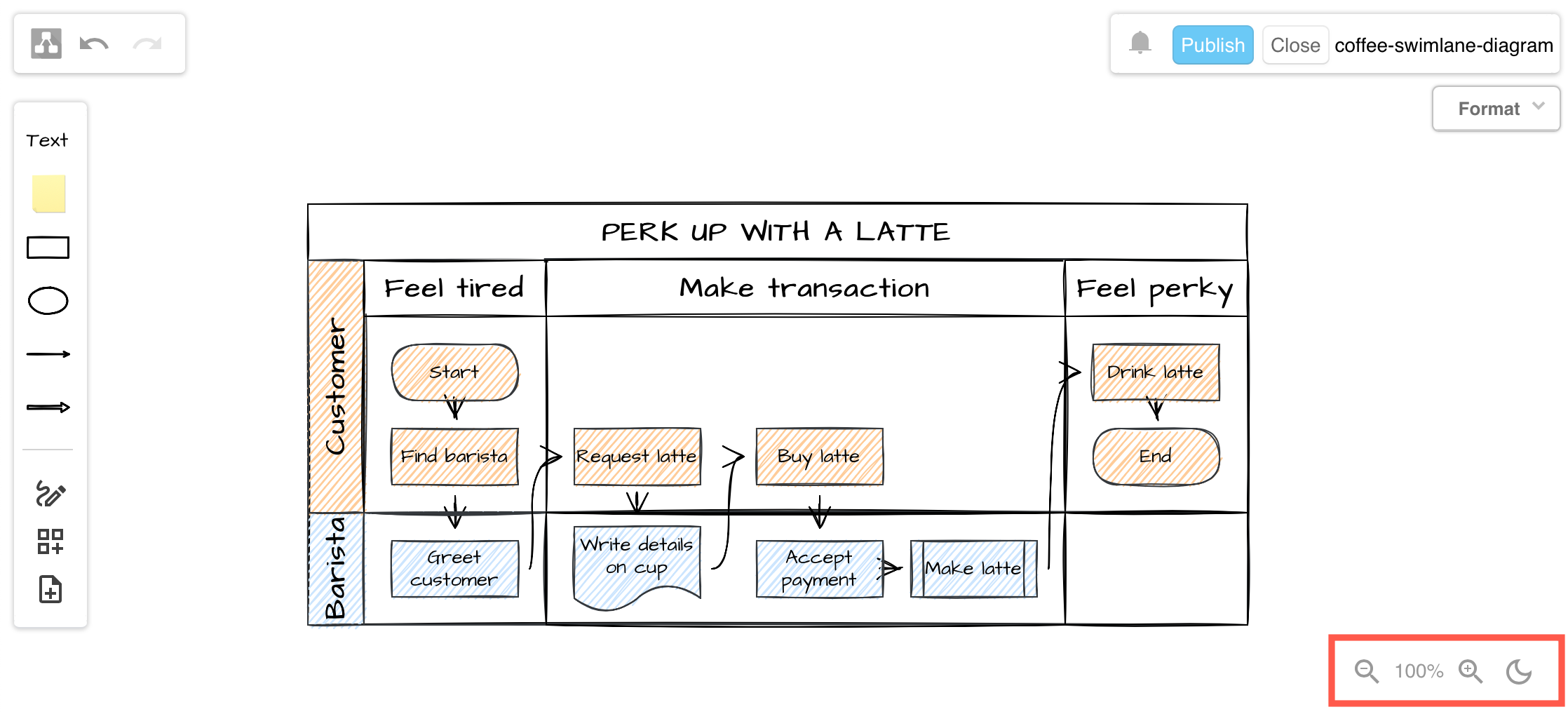
Zoom in and out and switch the editor into a dark mode with the tools in the bottom right in a draw.io Board diagram

Open the menu in the draw.io Board macro

Click on the draw.io logo in the top left to open the menu.
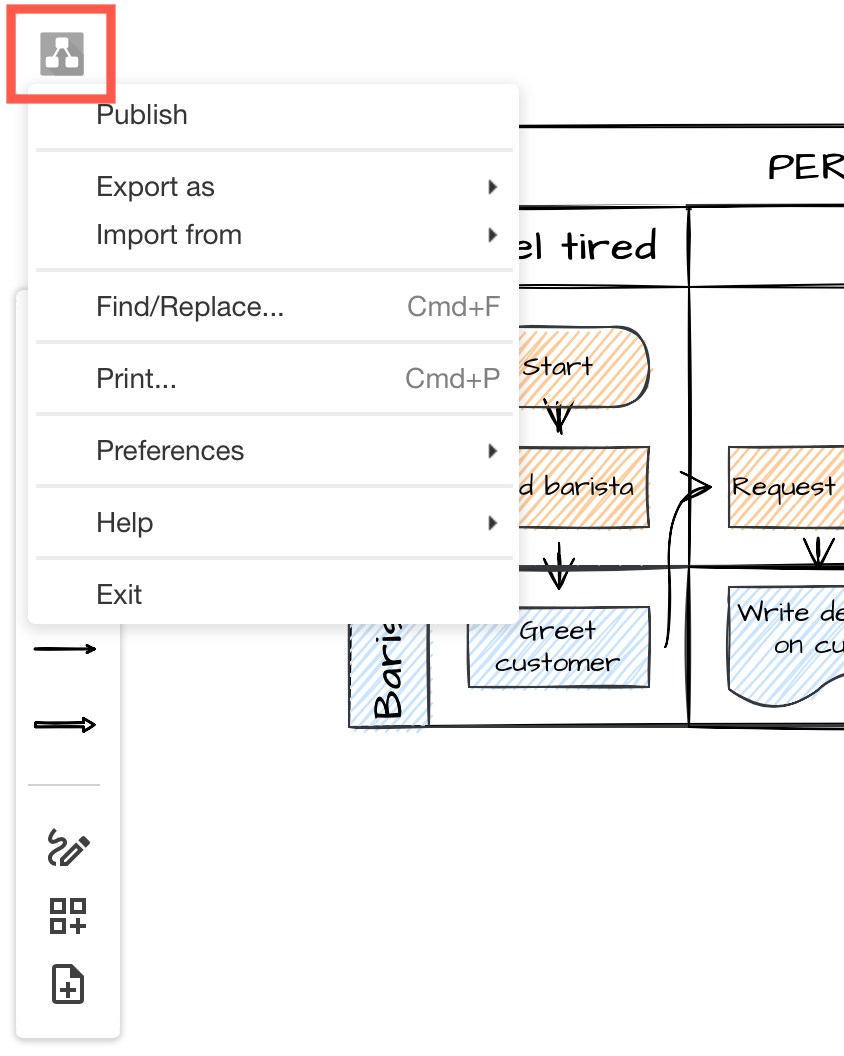
Click on the draw.io logo to open the menu when using the draw.io Board macro

Undo and redo: Click on the undo and redo arrows next to the menu icon to undo and redo the most recent changes. These will not be shown unless you have edited the diagram.

Work with shapes in the draw.io Board macro

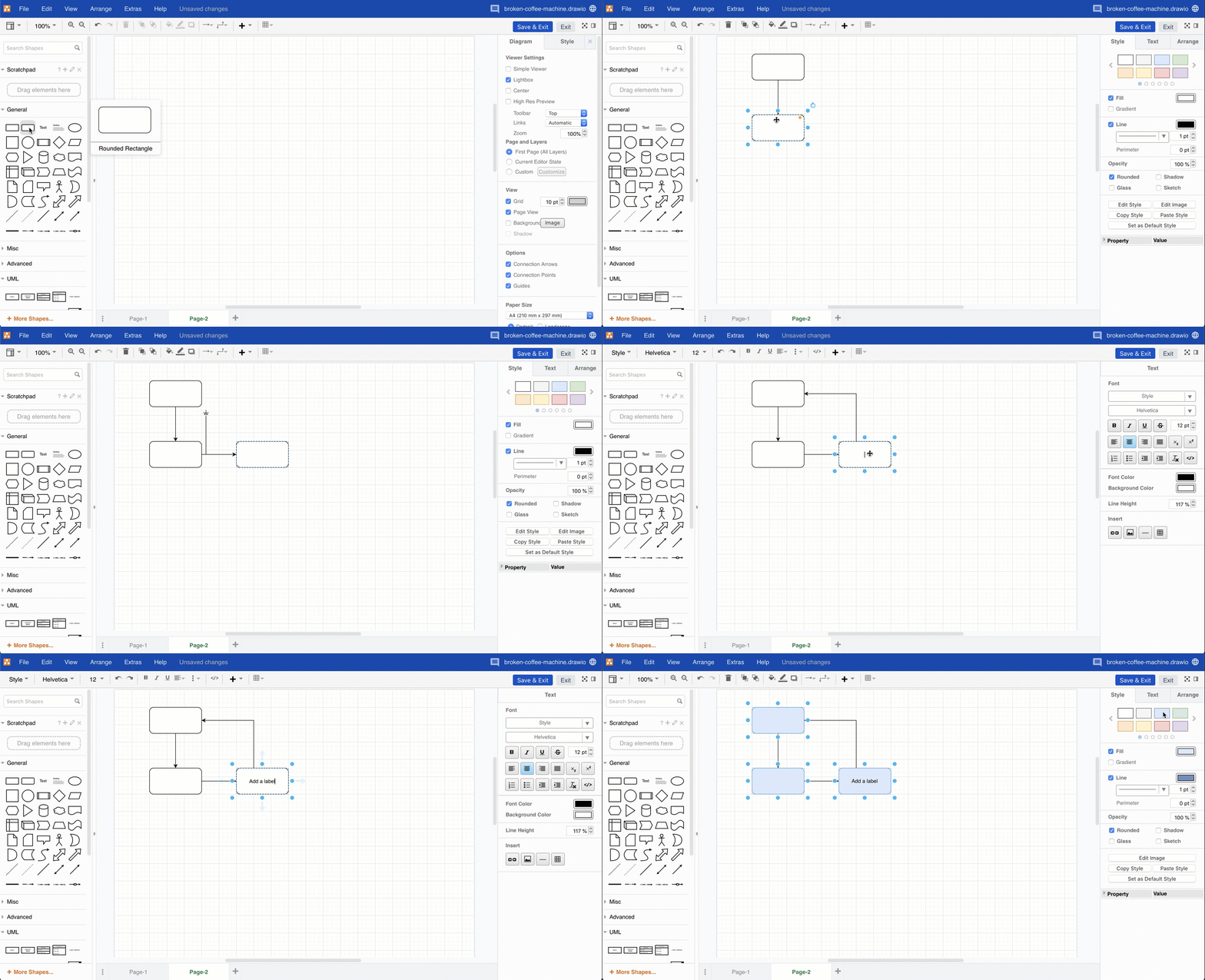
Add shapes: Double click on a blank space on the drawing canvas and select a shape.
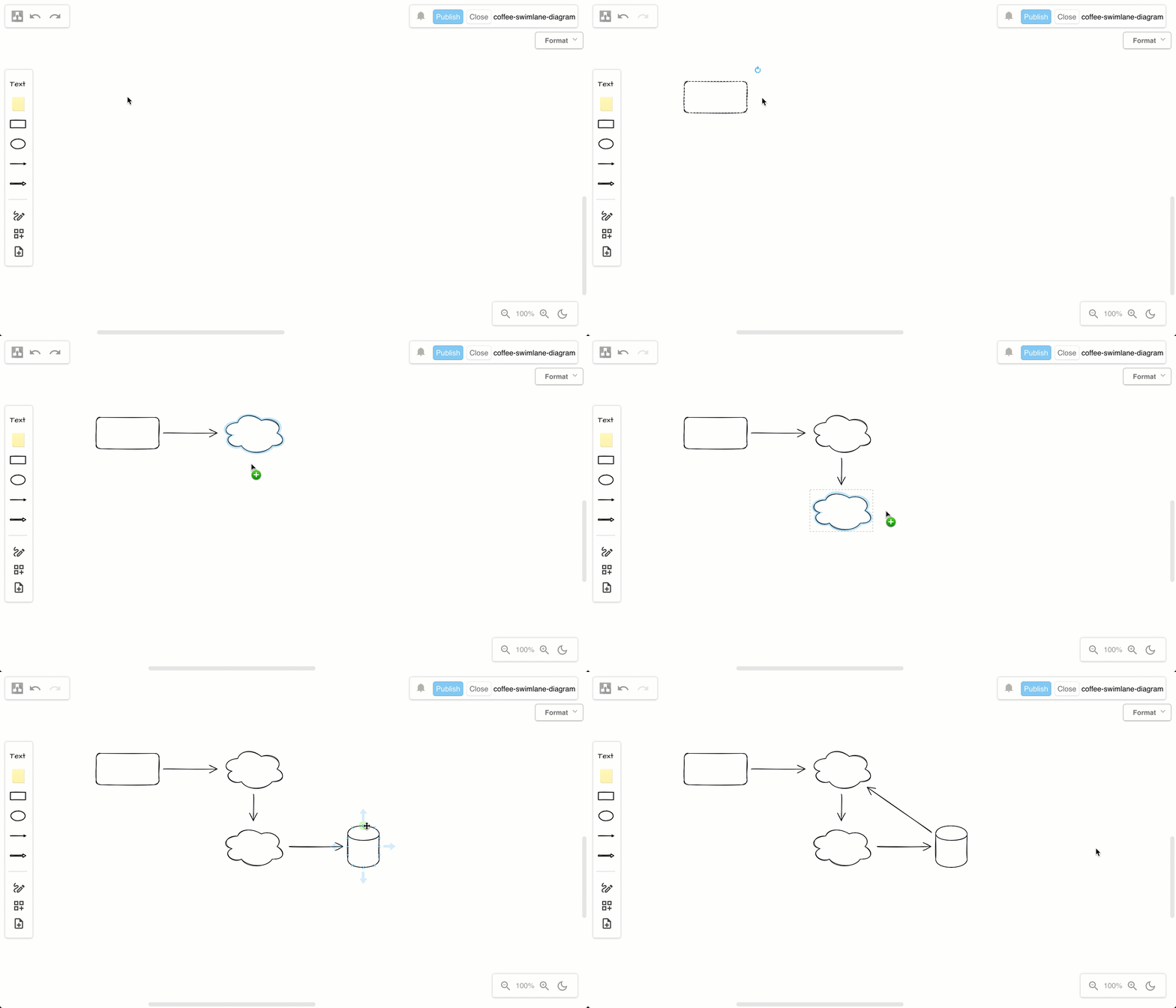
Double click on the drawing canvas to add a shape, or click on a direction arrow, or drag a new connection to a shape in another position in the draw.io editor

Connect shapes: Hover over shapes to see direction arrows.

  • Click on the direction arrow to add a new shape in that direction.
  • Click and drag a new connector from the source shape and drop it on another shape to connect them.

Alternatively, click on or drag the text, sticky notes, basic shapes and connectors in the top half of the toolbar on the left to add them to the drawing canvas.
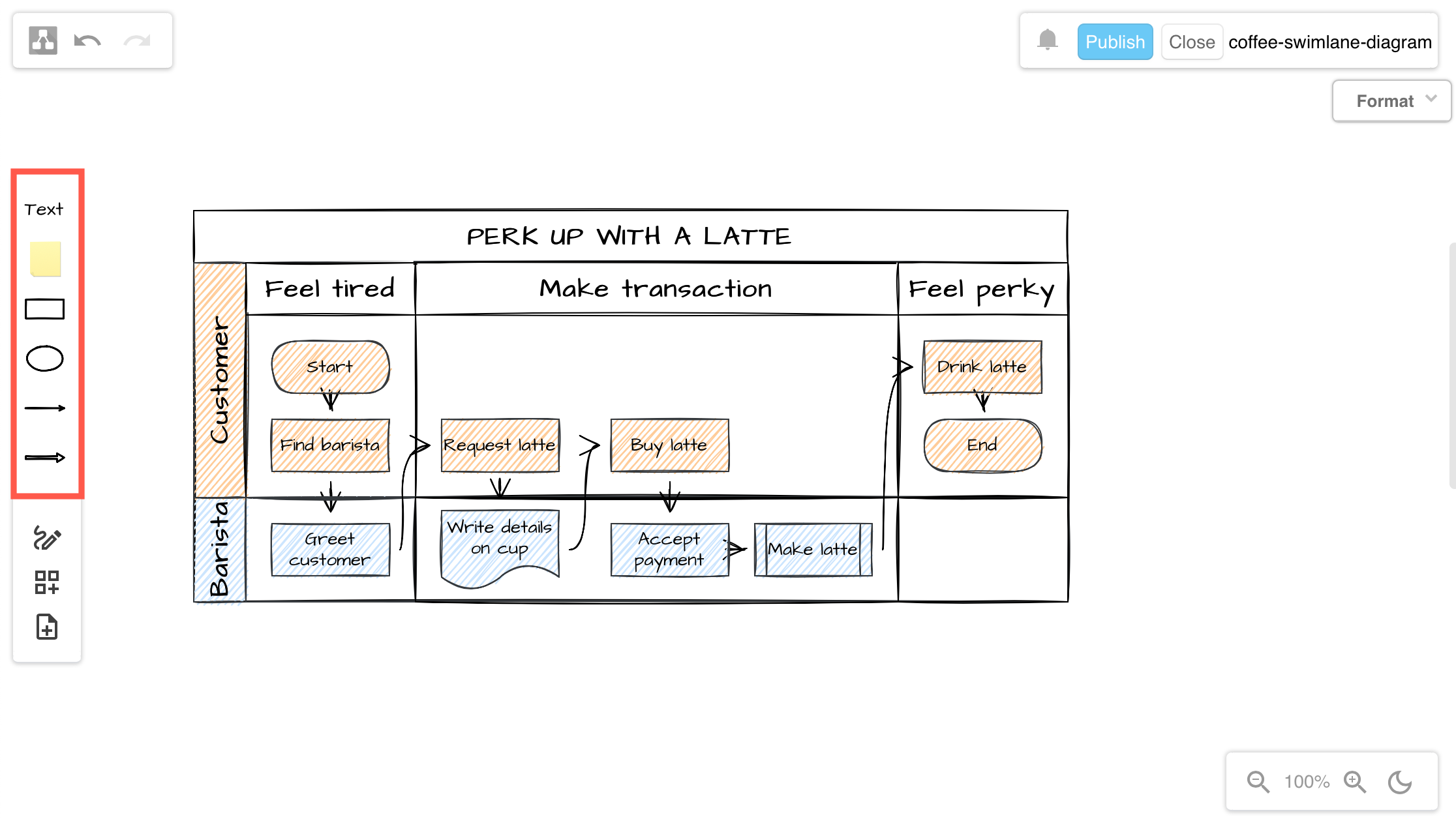
Click on the shapes or drag them from the toolbar onto the drawing canvas

Use shape libraries in the draw.io Board macro

To see the shape libraries and use a greater variety of shapes, click on Shapes in the toolbar to open the Shapes panel.

  • Search for shapes by entering a search term and press enter.
  • Drag shapes or groups of shapes from the drawing canvas to the scratchpad.
  • Enable more shape libraries: Click on More Shapes toward the bottom of the shape library, select the shape library, then click Apply.
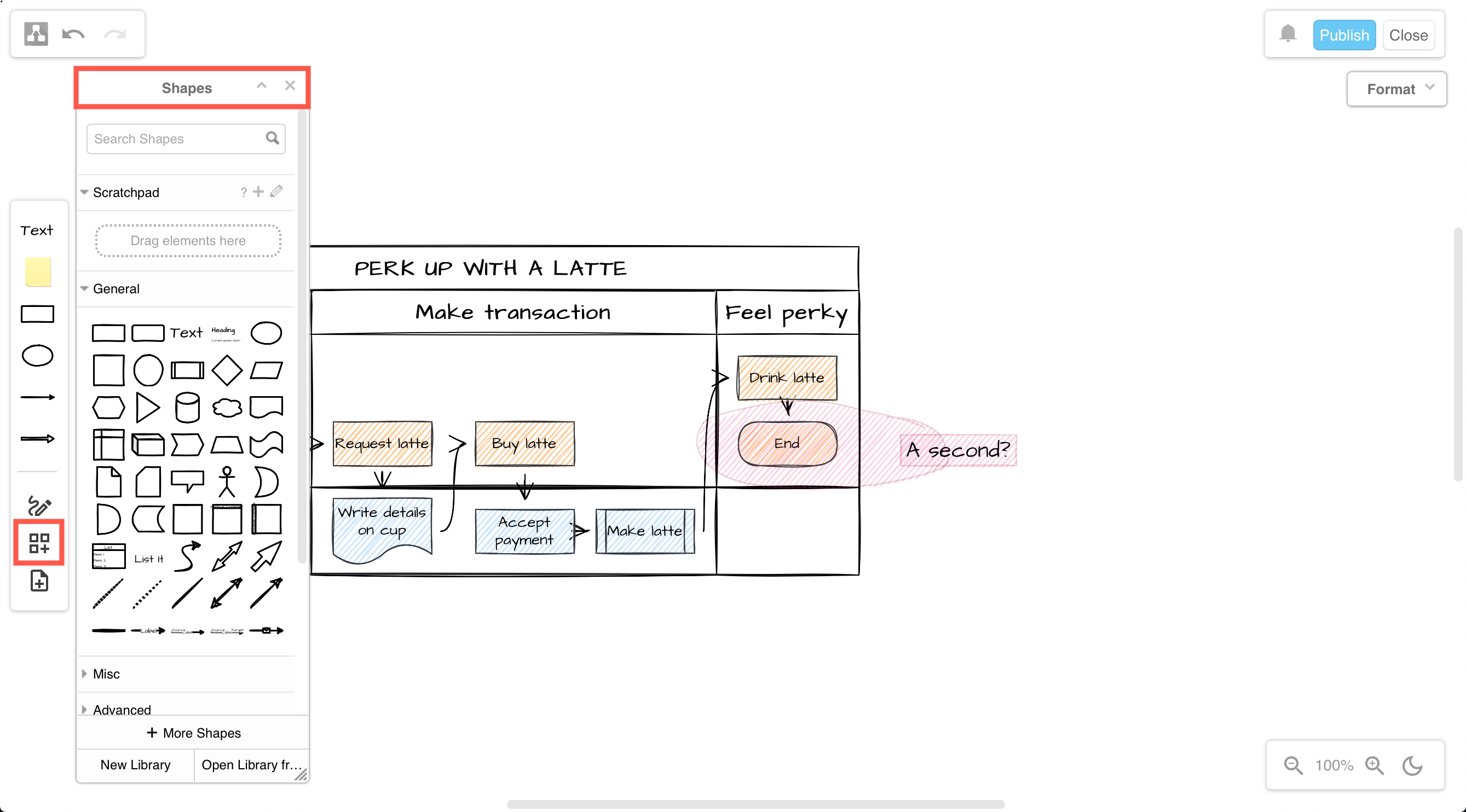
    Click on the Shapes tool to open the Shapes panel and access all the shapes in the shape library

Draw a freehand shape in the draw.io Board macro

You can draw images with a transparent background with your mouse.

  1. Click on the Freehand tool in the toolbar.
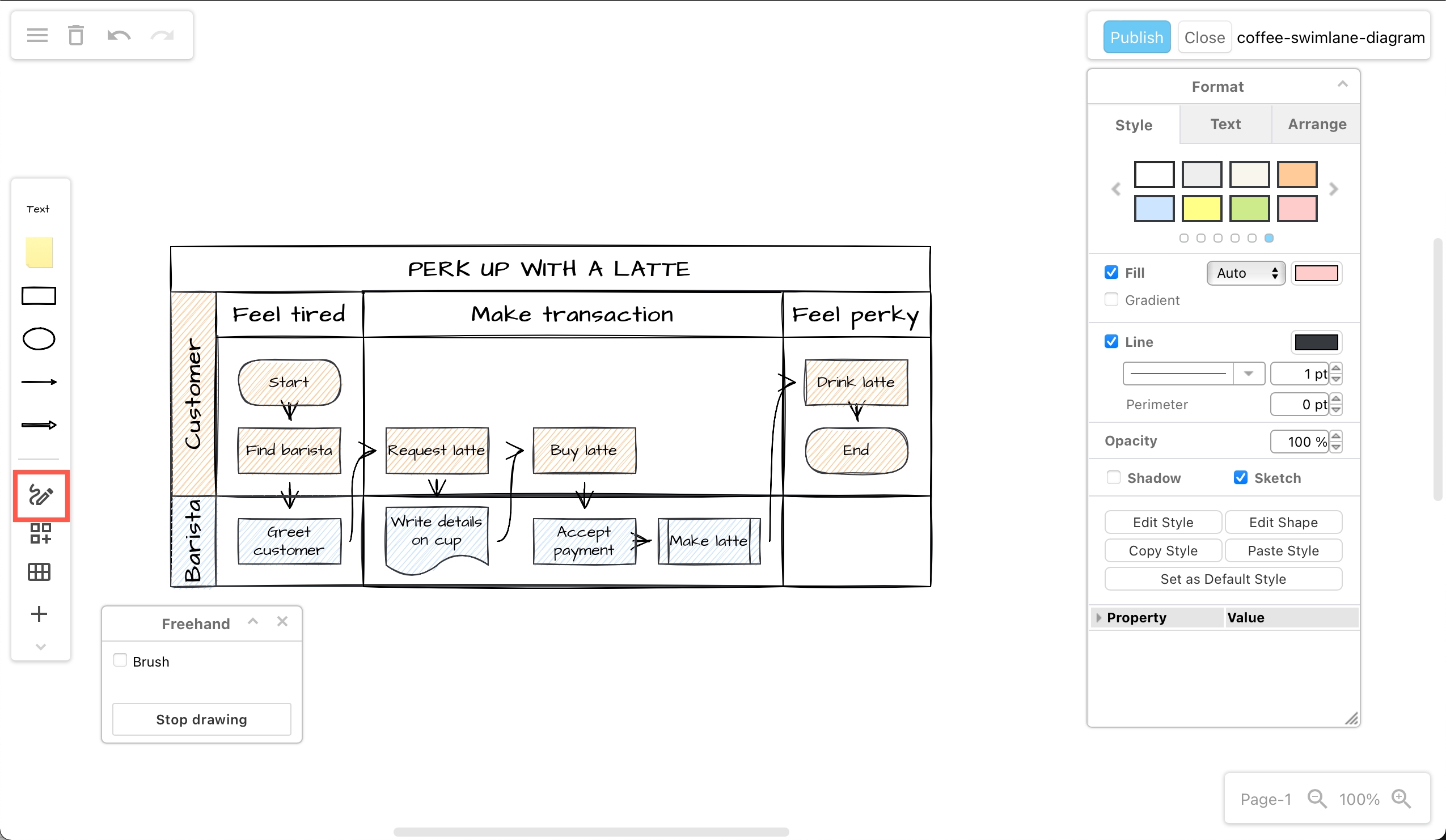
    Click on the shapes or drag them from the toolbar onto the drawing canvas
  2. Click Start Drawing in the Freehand panel.
  3. Click and hold to draw a freehand line on the drawing canvas. You can add multiple separate lines in your freehand drawing.
  4. Click Stop Drawing when you are finished, to save it as an image with a transparent background.
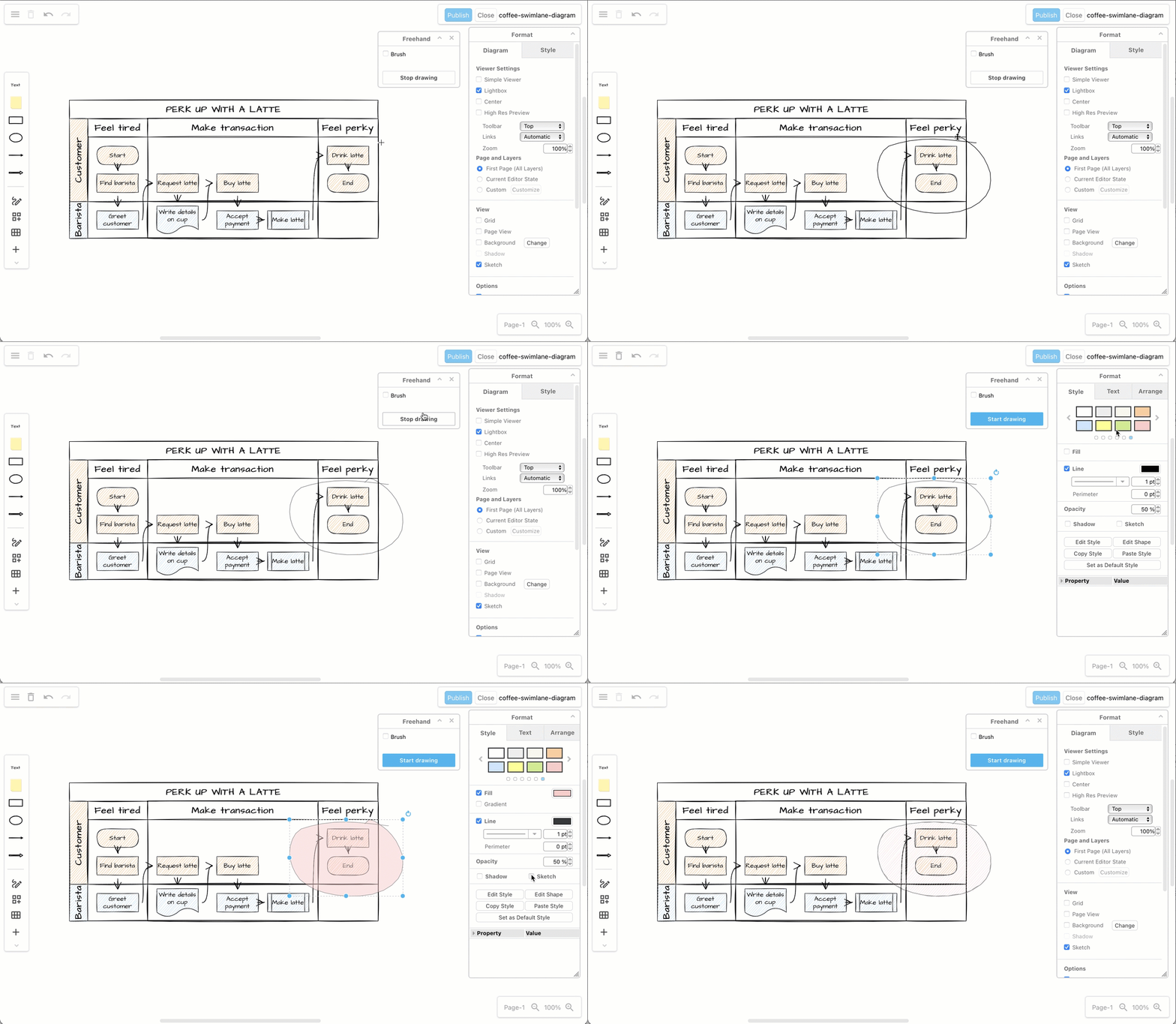
    Use the freehand drawing tool in a draw.io Board diagram to markup diagrams or draw shapes with your mouse

Learn more about drawing and styling freehand shapes

Tip: Use the Style tools in the format panel on the right to change your freehand shape's style, just as you would a shape from the shape libraries.

Style shapes in the draw.io Board macro

To access the format panel, click on the minimised heading. The tools and options that are available in the format panel will depend on what you have selected in your diagram.
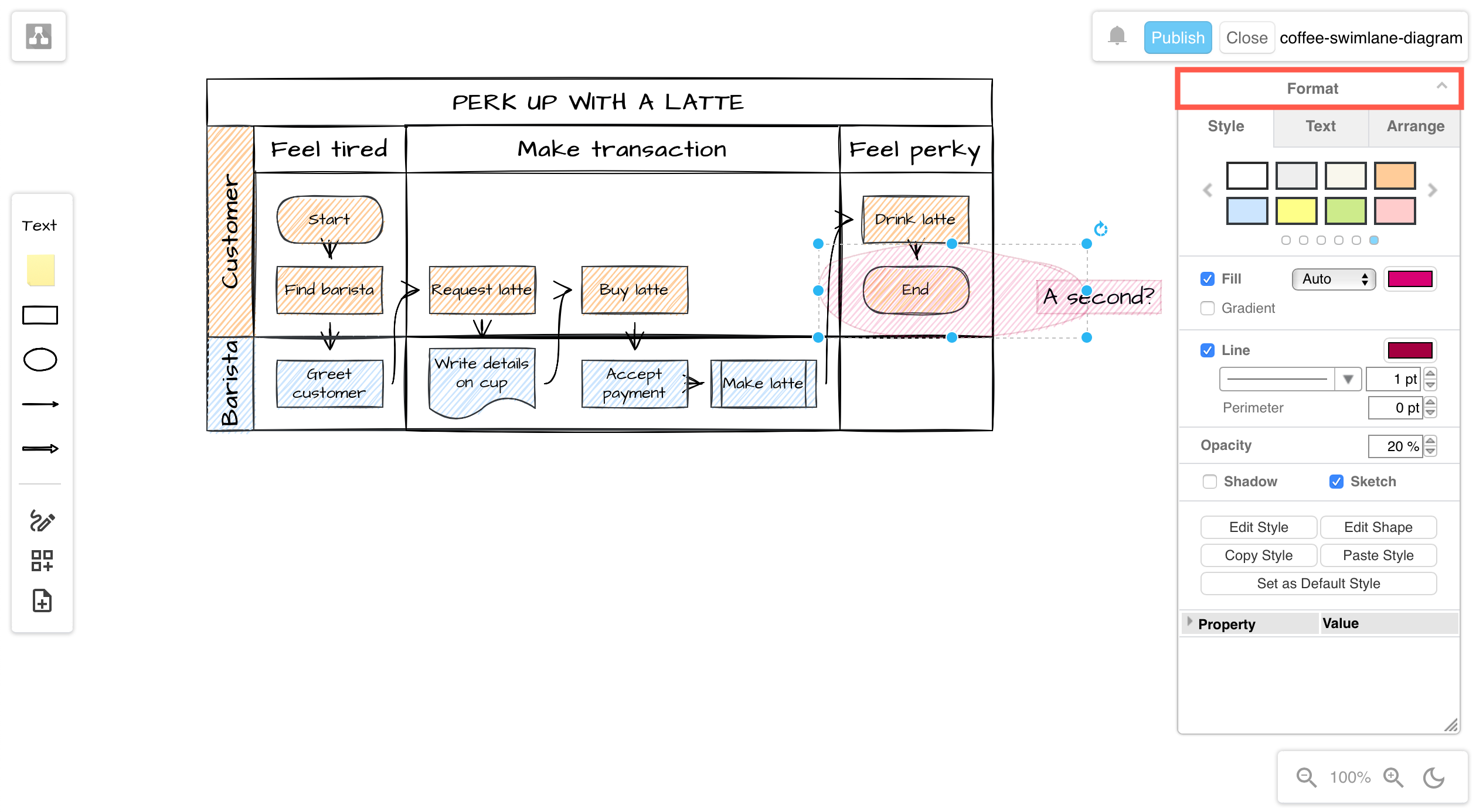
Click on the Format panel's title to open it and style shapes, text and connectors in a draw.io Board diagram

Insert a template in the draw.io Board macro

Click on the Template tool to select and use a diagram template from the template library. Click on the magnifying glass in the top right of a template to see a larger preview of it.
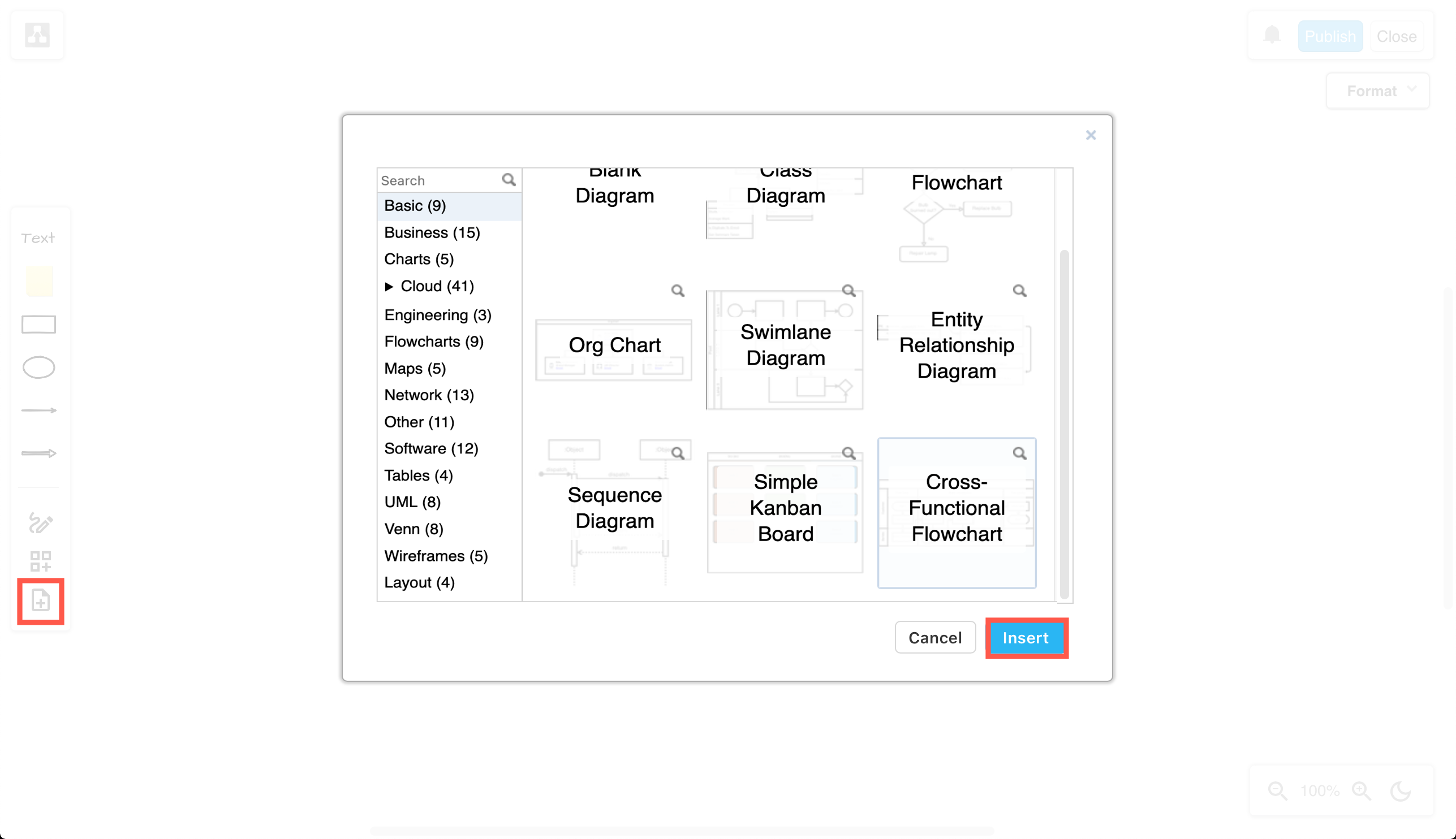
Select a diagram template and click Insert to add it to the drawing canvas in a draw.io Board diagram in Confluence Cloud

Save the draw.io Board to Confluence Cloud

  1. Click Publish in the top right to save your diagram.
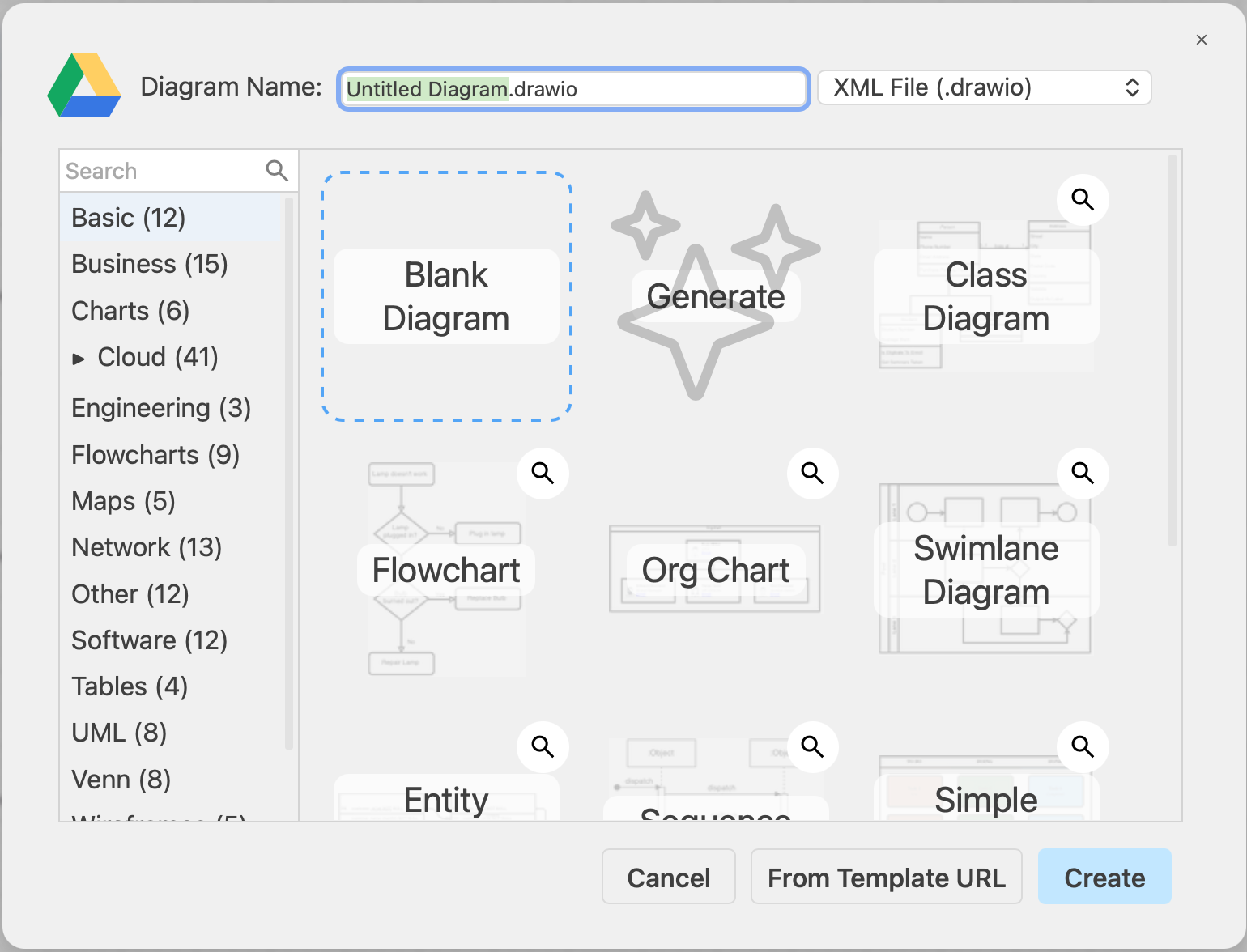
  2. Enter a filename if it is a new diagram, and click Save.

    Publish your diagram to save it and return to the Confluence Cloud page editor

You will return to the Confluence page and see a preview of your diagram in the draw.io Board macro.

Finally, publish your Confluence page.

Change the draw.io Board macro viewer settings

There are two methods to change how your diagram appears to viewers:

When viewing the Confluence page, hover over the diagram, click on the gear icon in the toolbar, change the viewer settings then click Save.
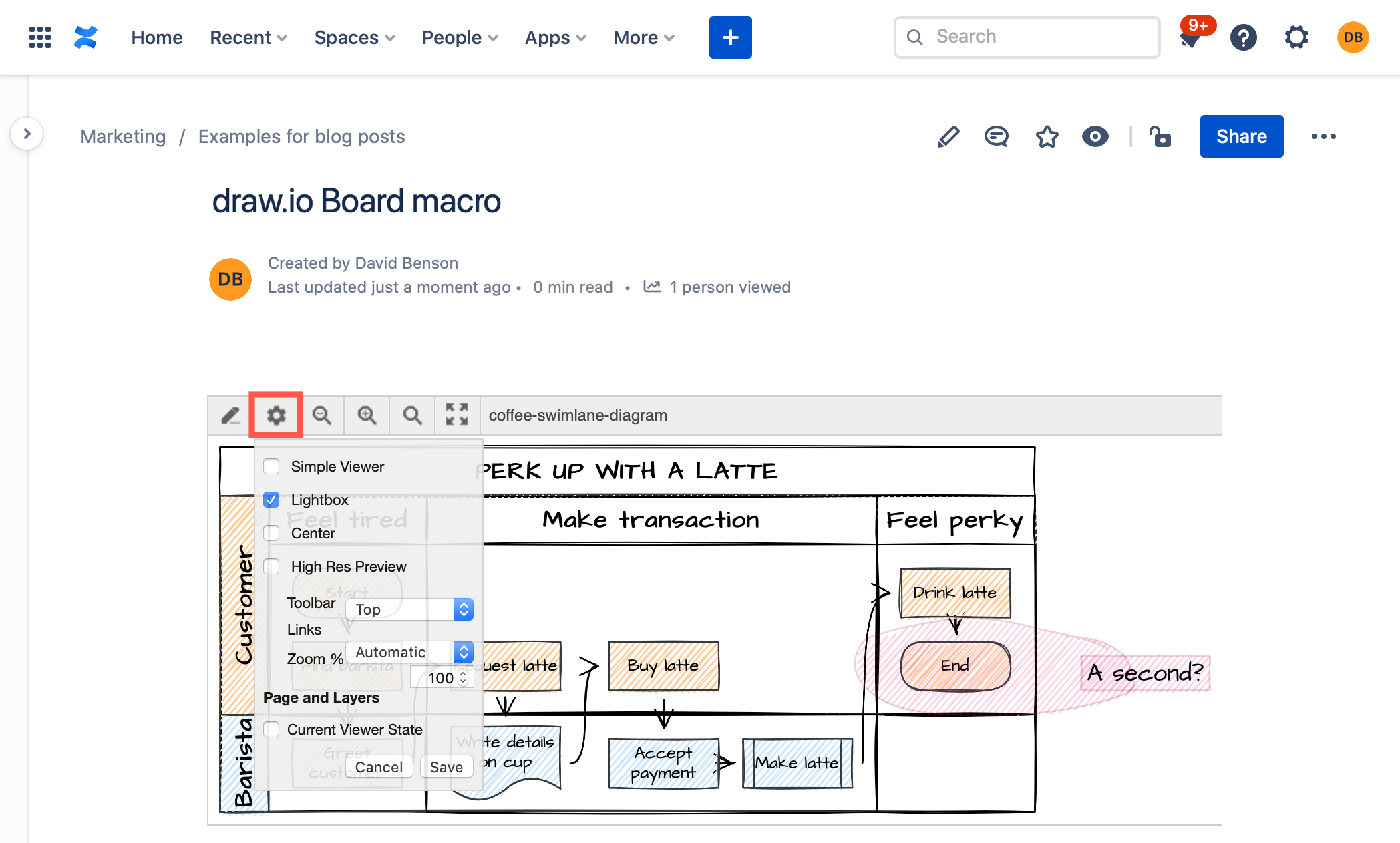
Set the viewer options to change how your diagram appears on the Confluence page
Note: If the diagram uses the Simple Viewer, you will not see the toolbar

Alternatively, from within the draw.io diagram editor, make sure nothing in your diagram is selected, then open the Format panel. The Viewer options are available at the top of the Diagram tab of the format panel.
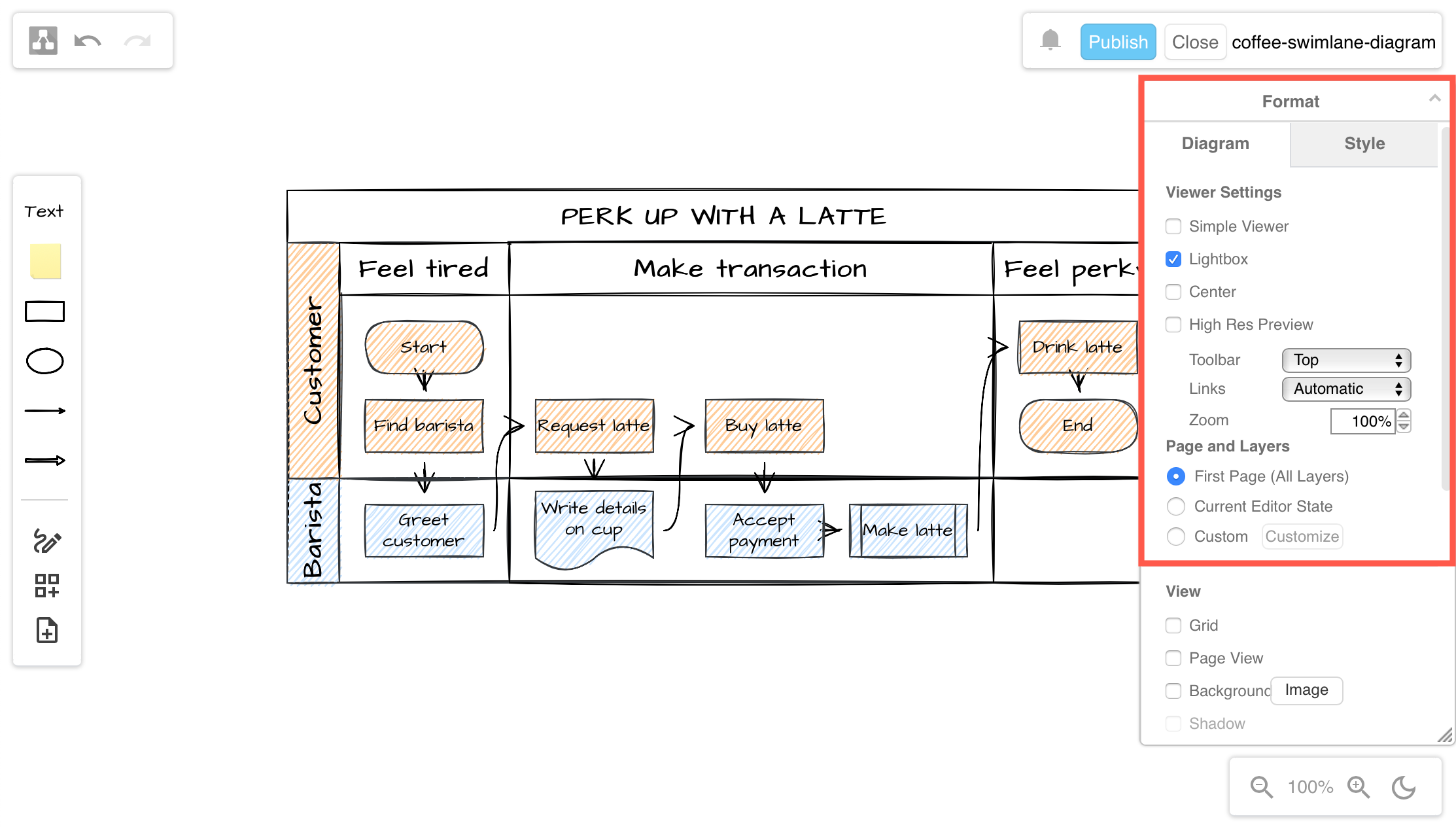
Set the viewer options within the draw.io Board editor to change how your diagram appears on the Confluence page

Keep your diagrams on premises with draw.io

· 2 min read

With the rising popularity of cloud collaboration, it is not surprising that some diagramming software providers are exiting the on-premises market. You don't have to worry about that with draw.io.

Lucidchart has recently announced that they will begin sunsetting ('kill' or 'cancel' to the rest of us) their Confluence Server and Data Center apps, Lucidchart OnPrem, starting from 6 January 2020. After this date, customers will be encouraged to move their diagrams to Lucidchart's own cloud platform, and use a connector app in Confluence to embed Lucidchart diagrams. The on-prem app will be fully deprecated one year later, on 6 January 2021, when they will stop supporting Confluence 7.5 and require customers to migrate their diagrams.

Bad for companies who require on-premise data storage

While much is being made of their 'industry-leading security' (have you noticed how everyone is 'industry leading' ...), many companies who are currently use the Lucidchart apps within their on-premises Confluence infrastructure will not be thrilled at the idea of yet another collaboration and storage location, yet another cloud subscription, and yet another set of DPAs. That's even if they are open to the idea of storing data in the cloud in the first place.

draw.io keeps your data in your infrastructure

If you aren't already using Confluence Cloud, you most likely you want to keep all of your data within your infrastructure, behind your firewall. That's why you are using Server or Data Center products, after all.

The draw.io apps for Confluence and Jira Server let you collaborate and keep your data in your infrastructure. Even when a diagram is being edited, the diagram data is only stored in your employee's browser and in the attachment in Confluence or on your Jira issue.

Manage your budget moving to Confluence Cloud

· 3 min read

draw.io and our Atlassian integrations are the leading solution for web based sketching and diagramming functionality. The article describes the draw.io integrations for Confluence that we, draw.io Ltd., build, deliver and maintain alongside the online app.diagrams.net and the offline draw.io Desktop application.

Atlassian recently deprecated their Confluence Server range. As the software market evolves, accelerating the move to Cloud is the next natural step in Atlassian's strategy.

Users able to move to Cloud have seen an overall cost saving due to reduced maintenance and downtime, as well as benefiting from Atlassian's scalability and security record. There are various mechanisms in place to smooth the road to Cloud, including free Cloud licenses while you migrate away from Server.

At smaller tiers Confluence Cloud is the clear winner, at higher tiers the cost outlay is greater (excluding the benefits). You can see a comparison between Confluence Server and Confluence Cloud at various tiers below (pricing as per the July 2021 price list, annual renewal in USD):

Users   Conf Server  Conf Cloud
101,300Free
251,3001,250
503,0002,500
1005,5005,000
25010,90012,500
50016,40018,500
2,00020,10061,000
10,00025,200256,000

For under 500 users, the cost is largely the same. But that isn't the whole picture, as you're likely to have apps installed, also.

Taking the top selling Confluence app, Gliffy, let's see how the price changes as you move to Cloud and compare it to draw.io on Cloud:

Users   Gliffy Server   Gliffy Cloud   draw.io Cloud
10510010
25301950187.50
506301,900375
1001,1783,800750
2502,4068,0001,500
5003,12510,2502,000
2,0006,56623,7504,500
10,0009,43095,75016,500

In fact, up to 4k users, you will save money on your Gliffy Server renewal by using draw.io on Confluence Cloud. With 10k users, you will pay 75% more for draw.io on Cloud compared to Gliffy on Server. However, if you have 10k users switching to Cloud and keep Gliffy, you pay over ten times (x10) the Server price.

There is a rich selection of apps in the Atlassian ecosystem and it's worth evaluating alternatives when migrating from Confluence Server to Cloud. Some apps, like draw.io with its one-click Gliffy mass importer, make it easy to switch whilst saving you money. Of course, you save that amount every year after you have switched.