Insert a template into an existing diagram
Templates give you a starting point when you create a new diagram. If you have an existing diagram, you can also add one of the draw.io templates to it easily via the menu.
- Go to the diagram page to which you want to add a template.
- Select Arrange > Insert > Template from the menu. Alternatively, click the
+icon in the toolbar, then select Template. - Templates are organised into logical categories on the left of the dialog. Select a category, then select a template on the right. Click Insert. Click on the magnifying glass in top right of a template to see a larger preview.
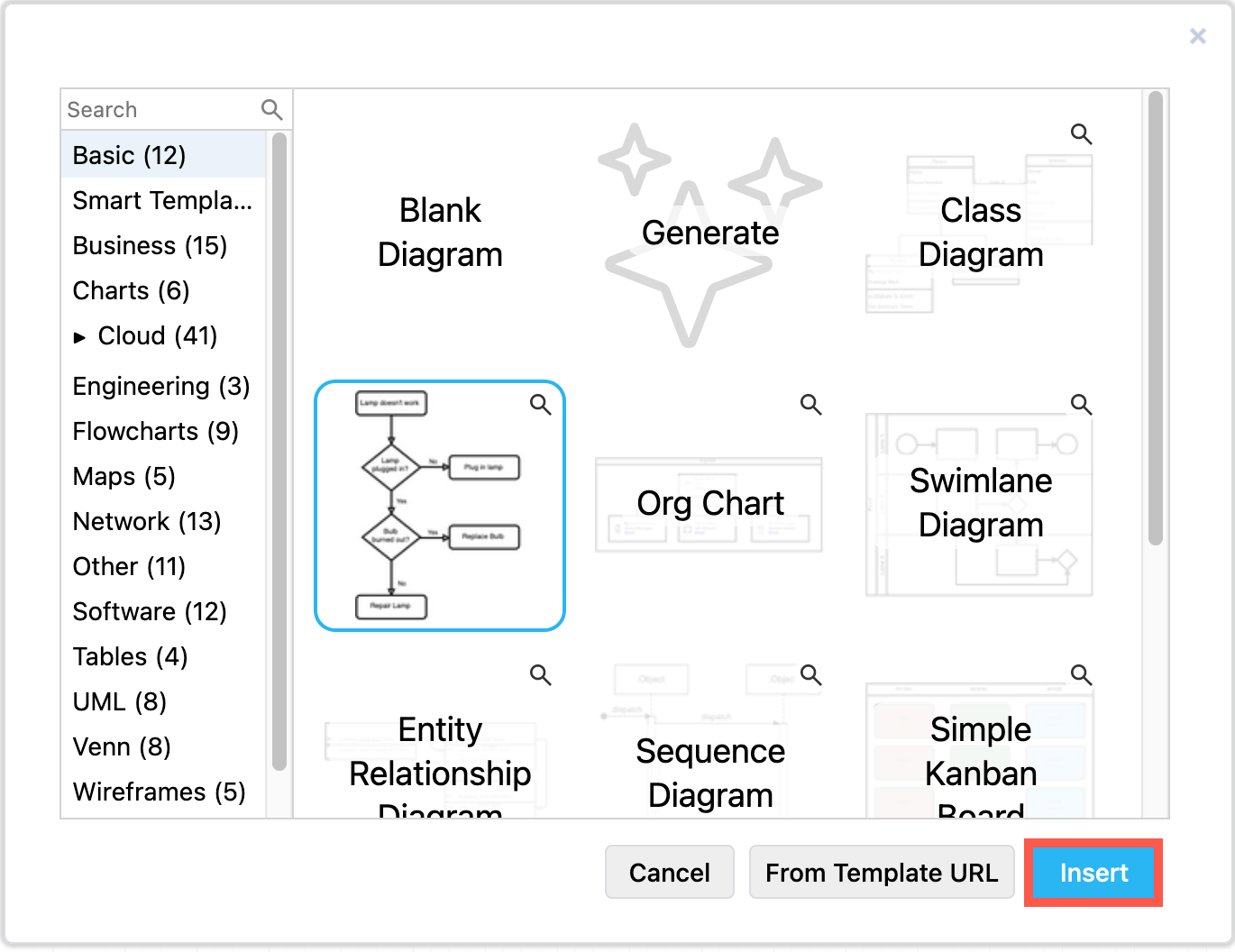
Search for templates: Enter a search term in the search field of the template library dialog. Alternatively, type a term into the search box in the shapes panel and select Search Templates to open and search the template library.
Create a diagram from text: In the From Text category, select Mermaid, SQL, CSV, PlantUML or Text. draw.io will open the appropriate dialog where you can paste or write the text to turn into a diagram.
The template you selected will be copied to that page in your diagram, and you can now edit it. Add and modify shapes, labels, connectors and styles as you need.
Use any diagram as a template
You can also import any diagram from its address on the internet (URL) and use it as a template. Note that the diagram file must be publicly accessible.
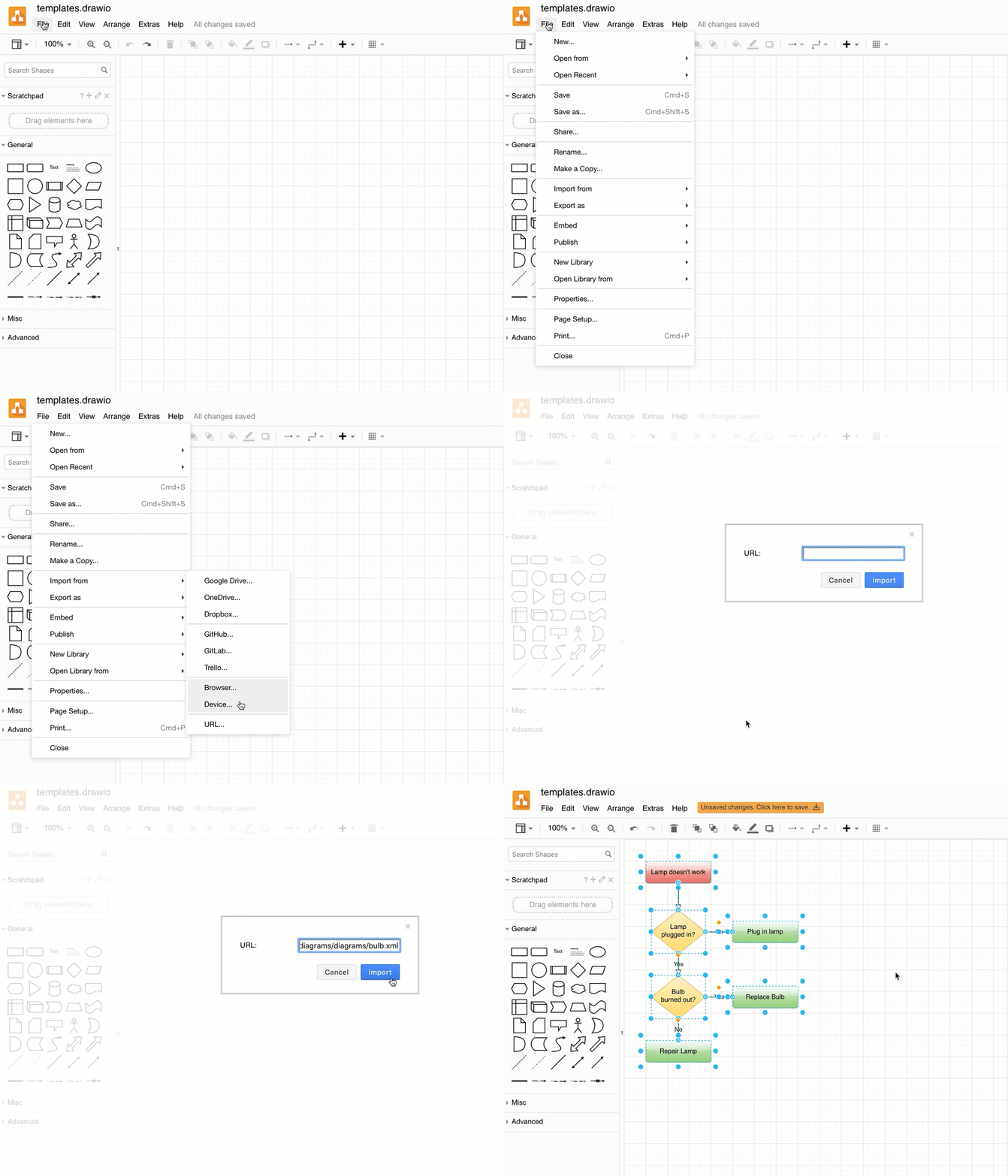
- Select File > Import from > URL from the menu.
- Paste the address to your diagram into the URL text field, then click Import.
For example, to use one of the diagrams in our diagram example repository on GitHub as a template, you would paste its address: https://jgraph.github.io/drawio-diagrams/diagrams/bulb.xml
See all of the elements you can insert into your diagram
Related
- Generate a diagram to use as a template