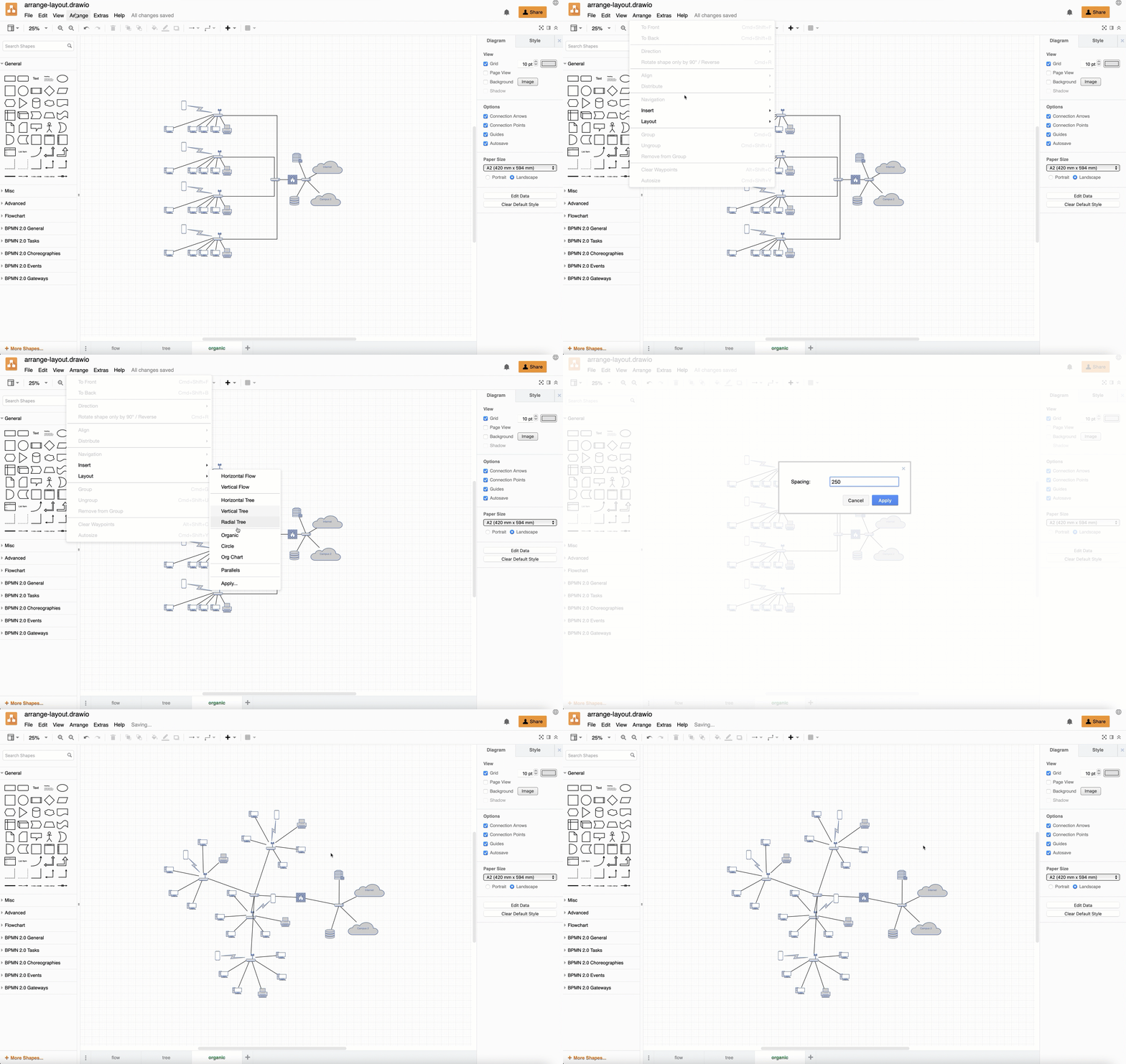
Insert an automated layout
The automated layouts available via Arrange > Insert > Layouts add a container to the drawing canvas where you can quickly build your diagram without needing to worry about manually repositioning the shapes - the layout will automatically adjust to every shape you add or connect.
These layouts work in the same way as the layout shapes in the Advanced shape library, but are not enclosed by a swimlane.
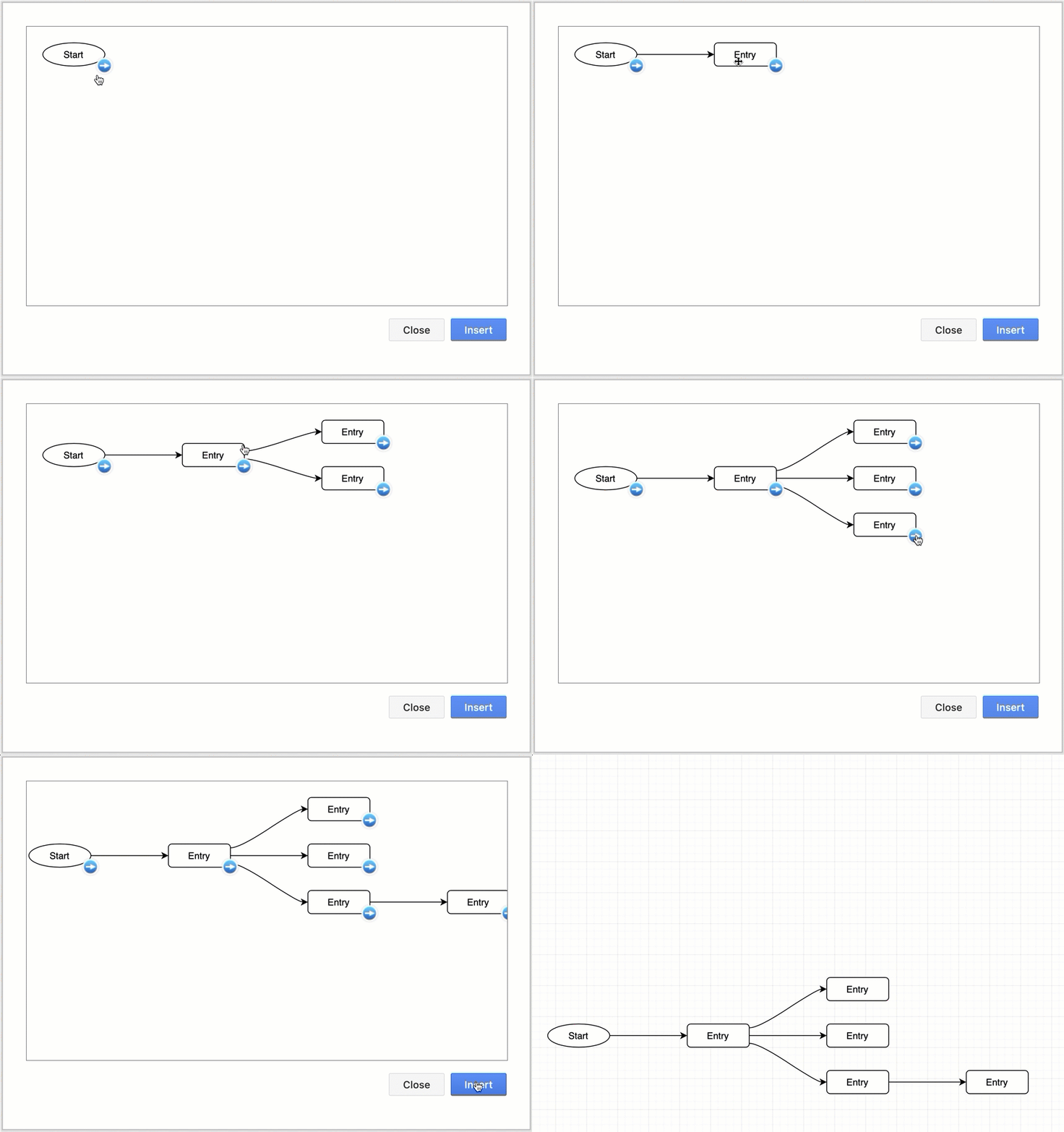
When you add or remove shapes, or connect to various shapes inside the layout, the shapes and connectors will be automatically rearranged - you don't need to manually resize the layout container.
Note: When you delete the element of a layout, the entire layout container is deleted. To keep the container, make sure there is at least one shape or connector inside.
Insert a layout container
-
Click Arrange > Insert > Layout, then select the diagram type and layout you want to use. Alternatively, click
+ > Layoutin the toolbar and select the layout you want to use. -
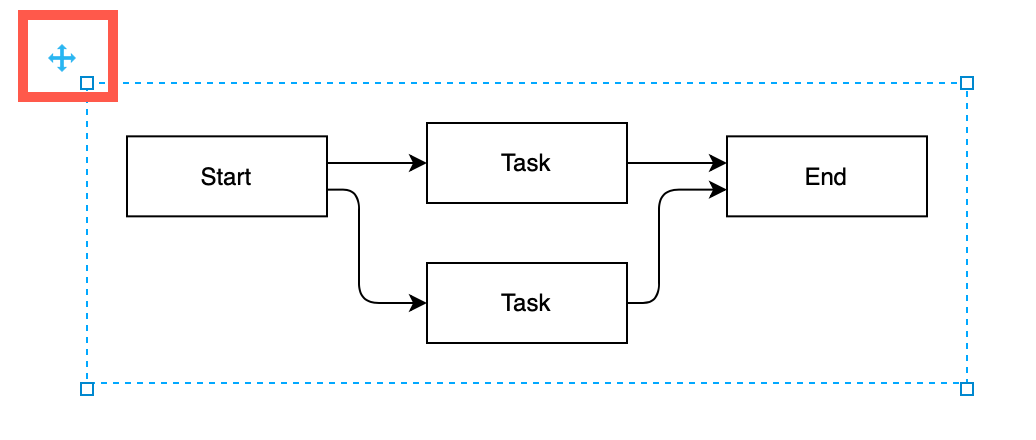
An invisible layout container will be placed onto the drawing canvas with the start of a diagram. Move the layout container around via the crossed arrows in the top left.
-
Build your diagram: Drop shapes onto the direction arrows of one of one of the shapes. The layout container will expand and rearrange to fit and organise the new shape into the selected layout.
Tip: You can also rearrange the existing shapes on the drawing canvas via Arrange > Layout, or use automated layout shapes for diagram portions within a container shape.
Available layouts
The following layouts are available via the Insert menu and the + tool in the toolbar.
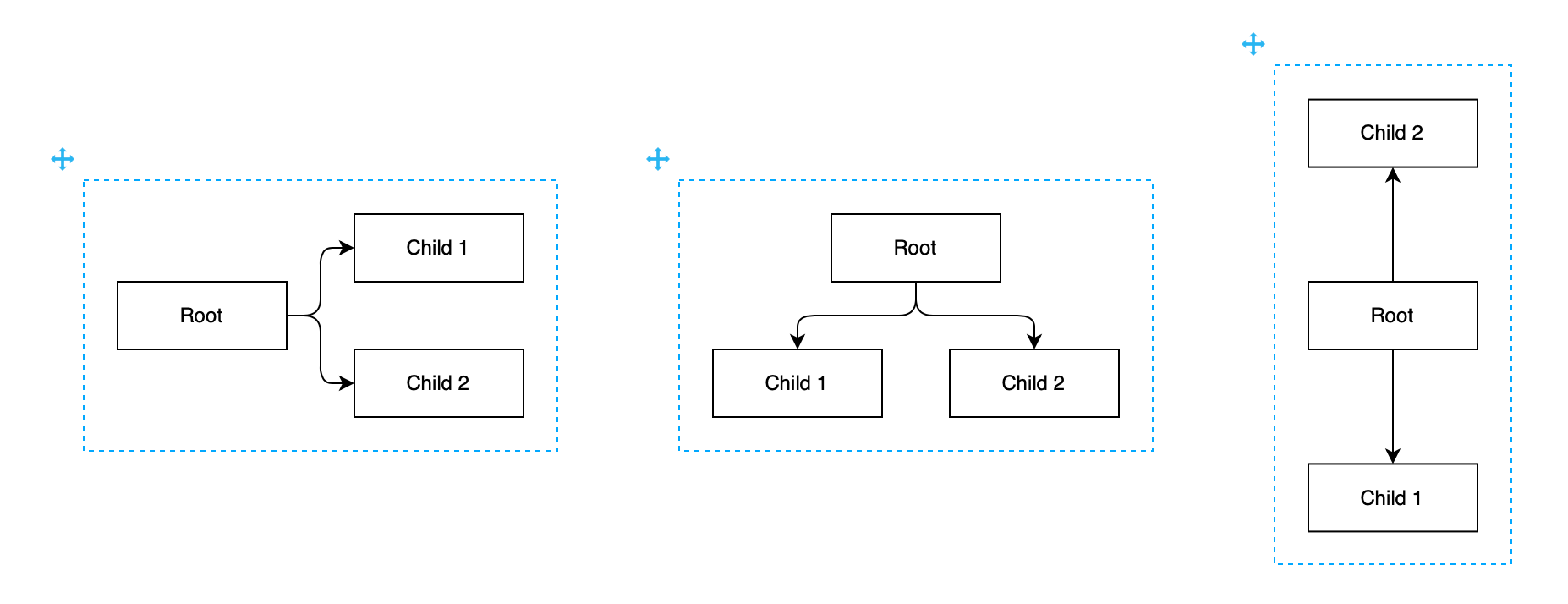
Horizontal or vertical flow
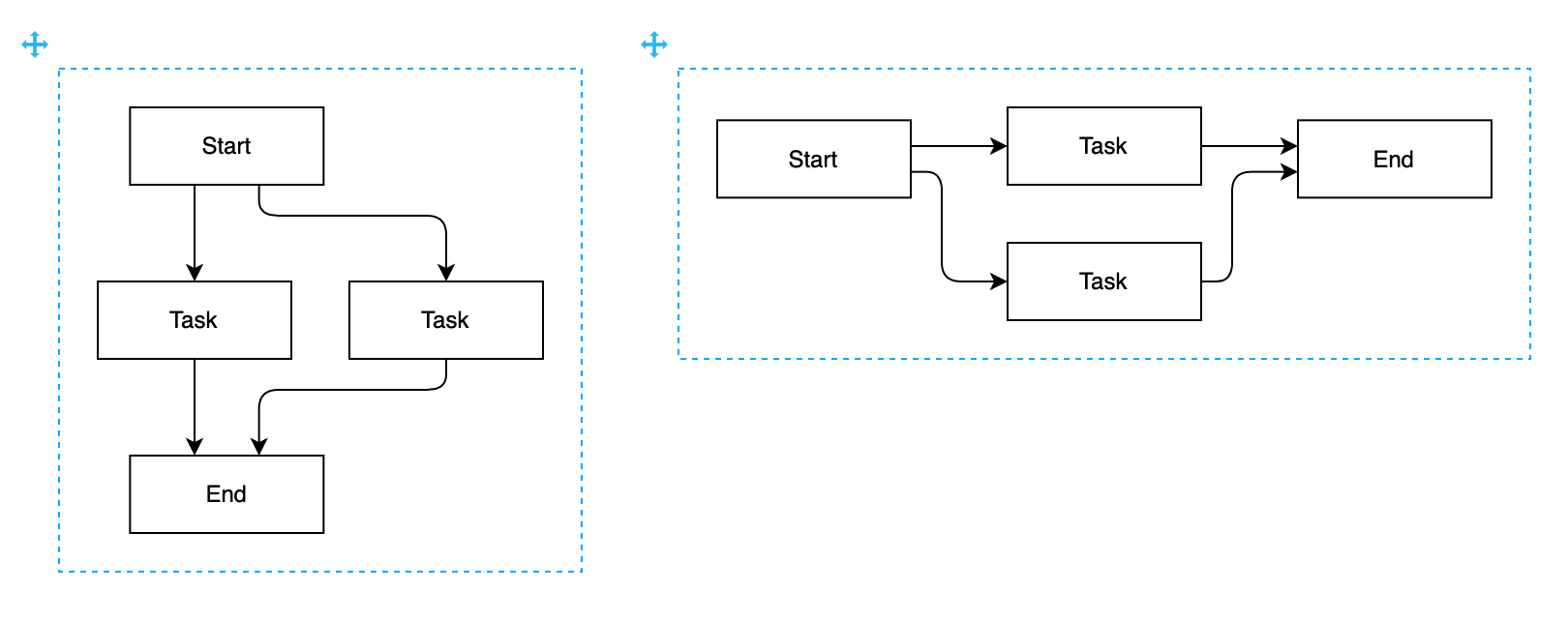
Horizontal, vertical or radial tree
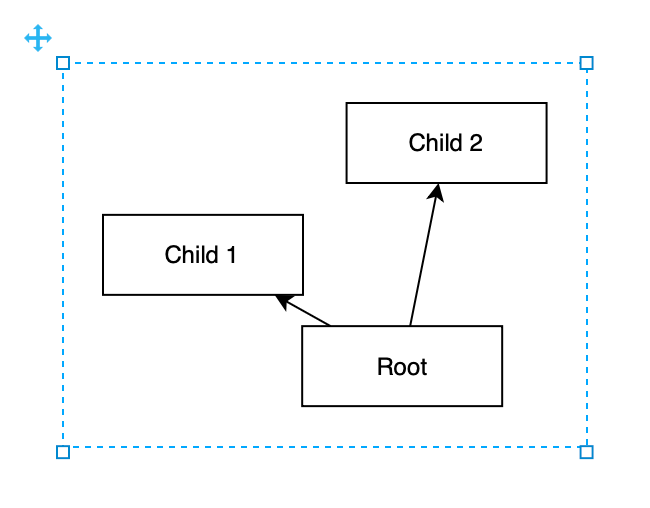
Organic
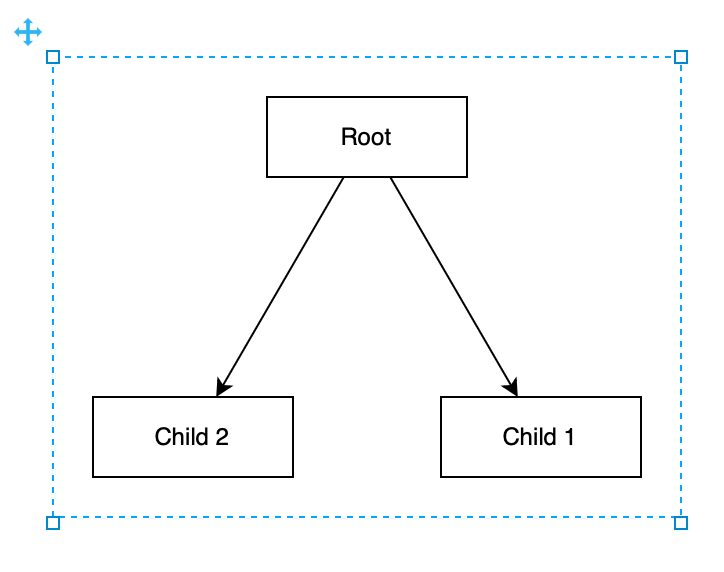
Circle
See all of the elements you can insert into your diagram
Related
Automated layout shapes are available in the Advanced shape library. These have a swimlane shape around the layout, making it clear that this particular part of your diagram is automatically laid out.
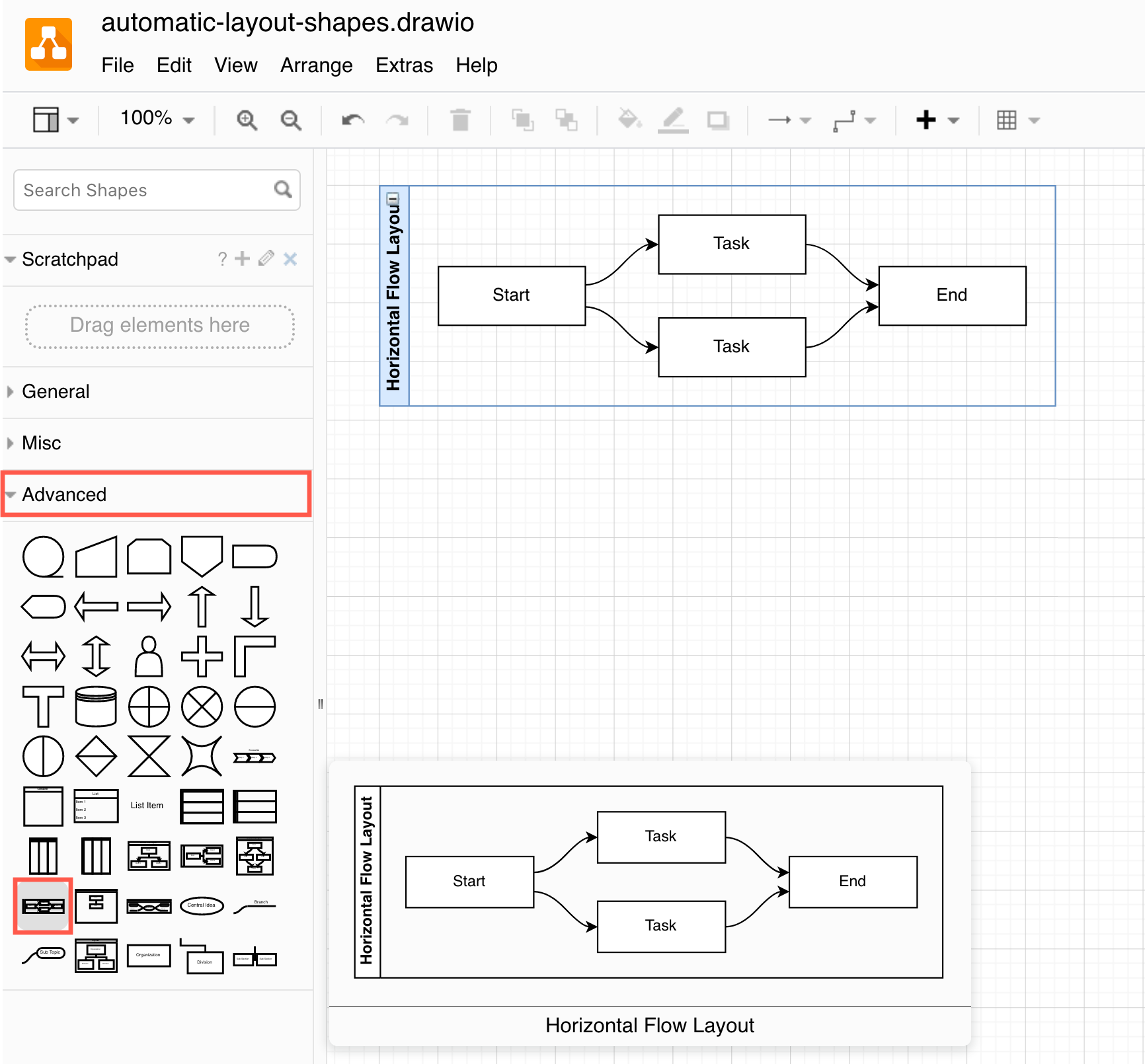
You can also apply a layout to the entire diagram to rearrange all the shapes on the drawing canvas that are not in container shapes. This will not change the layout anything inside any layout containers that were place via Insert > Layout or from the Advanced shape library.