Insert text and links
Select Arrange > Insert > Text to insert a basic text shape. Alternatively, click the + icon in the toolbar, then select Text.
This is the same as double-clicking on an empty section of the drawing canvas and select the Text shape, or dragging the Text shape from the General shape library on the left.
Insert a link
- Select Arrange > Insert > Link. Alternatively, click the
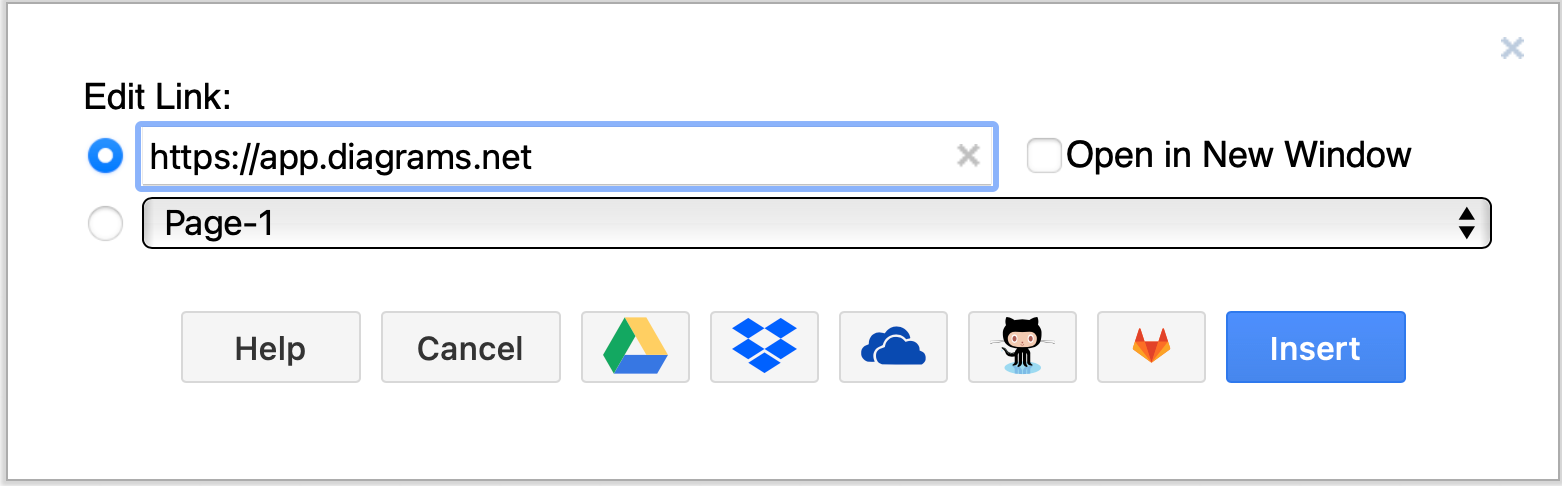
+icon in the toolbar, then select Link. - Enter the link you want to add in the Edit Link dialog. If you want the destination to open in a new tab, click the Open in New Window checkbox, then click Insert.
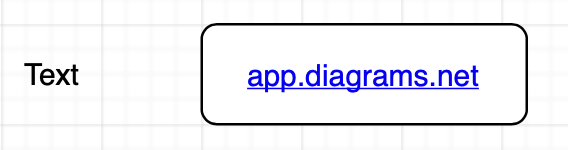
Links are inserted in basic rectangle shapes with rounded corners and a solid white background.
To add a link to part of a label's text, double-click the label, select the text inside the label that you want to link from, then click the Link button in the Insert section of the Text tab in the format panel. Enable Open in New Window if needed.
Add links to other pages in your diagram with the second option if your diagram contains multiple pages.
Use custom links (the third option) to add interactivity and animations to your diagram. Follow this tutorial to draw an interactive diagram with custom links and layers.