Insert a PlantUML diagram
Note: The PlantUML feature is partial implementation of PlantUML syntax. It is provided as-is and not intended as a complete replacement for a full PlantUML server.
The older implementation of PlantUML relied on a server to generate the diagram. The newer implementation runs client-side in your browser and allows you to edit the PlantUML description and regenerate your diagram inside the PlantUML container on the drawing canvas.
PlantUML is an alternative syntax, similar to Mermaid, that can be used to describe a range of diagrams in text. Originally, it was designed to support the many types of UML diagrams.
Insert a PlantUML diagram
- In draw.io, select Arrange > Insert > Advanced > PlantUML from the menu or click + > Advanced > PlantUML in the toolbar.
- Describe your diagram in the left text box. Click Preview to see how your diagram will render and check for any errors.
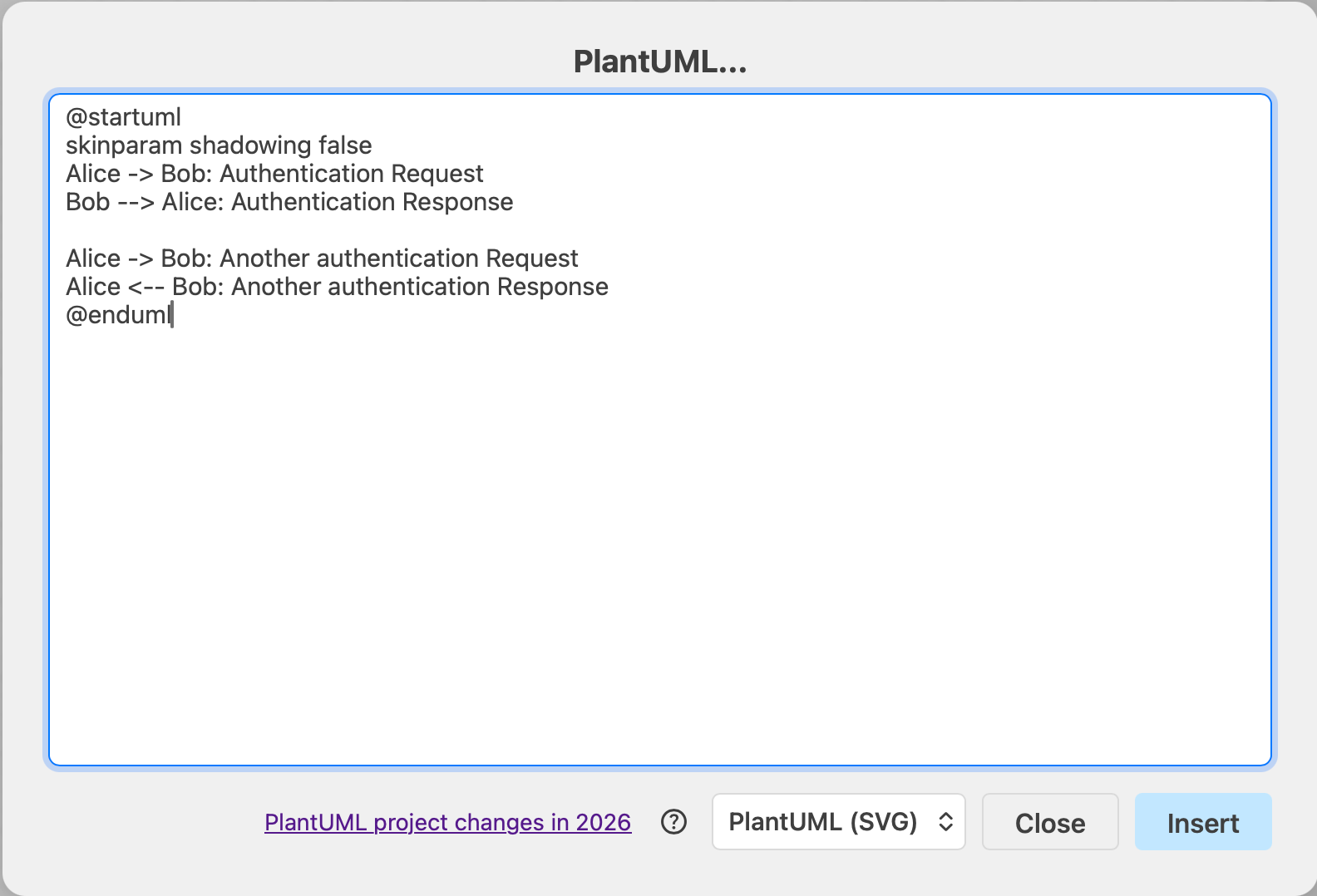
- Click Insert to add it to the drawing canvas inside a PlantUML container.
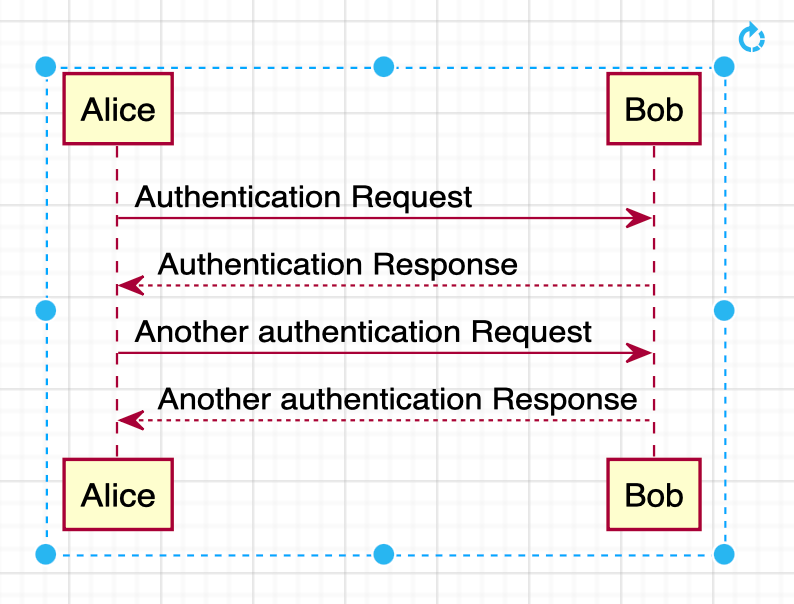
By default, the Diagram option is selected in the PlantUML dialog, which will render the diagram inside a transparent PlantUML container on the drawing canvas. There are three icons in the top left.
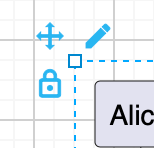
- Click the Lock icon to lock the container so you can not edit the layout, add shapes, or connect to elements inside the PlantUML container.
- Click and drag the crossed arrows in the top right to move the PlantUML container around on the drawing canvas.
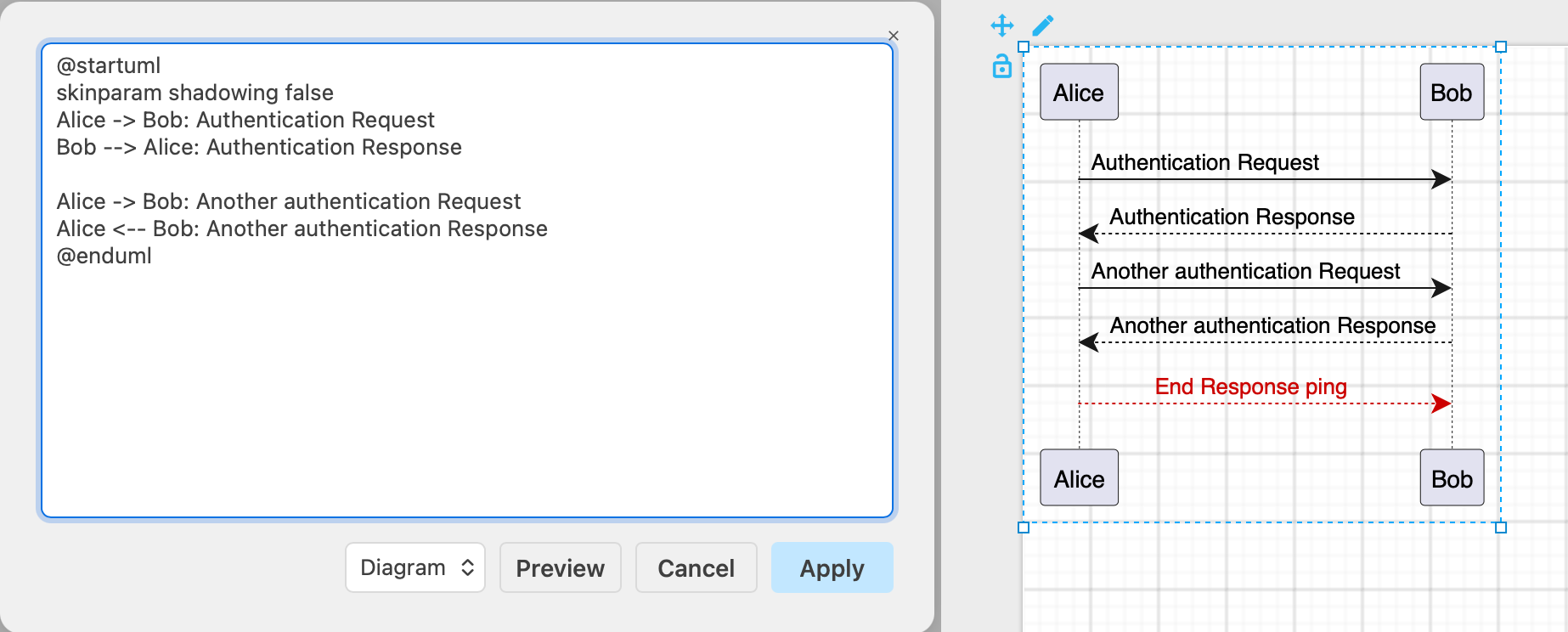
- Click on the pen Edit icon to open the PlantUML and make changes.
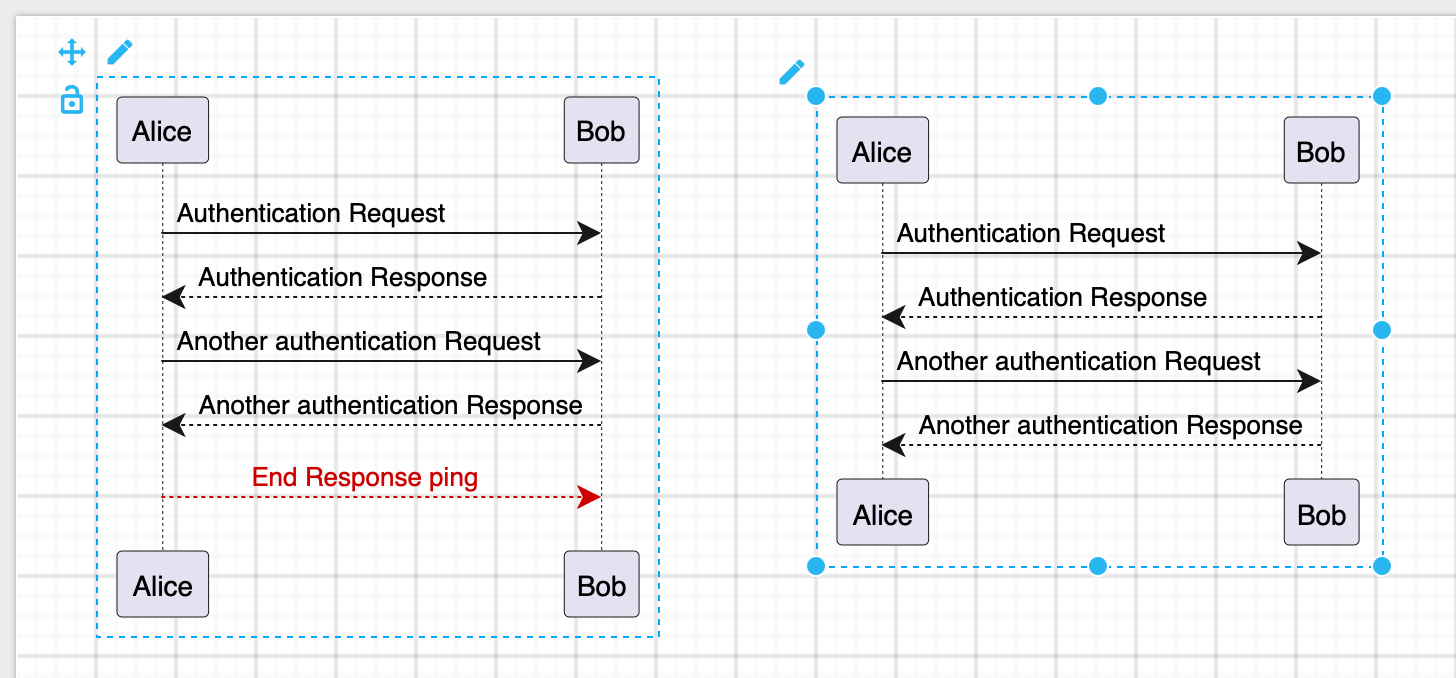
While you can now add shapes into this PlantUML container, they won't be reflected in the PlantUML code. For example, the following red arrow in this PlantUML sequence diagram - it is connected to the two lifelines, but not visible in the PlantUML syntax.
Insert a PlantUML image
- Select Arrange > Insert > Advanced > PlantUML from the draw.io menu.
- Describe your diagram using PlantUML, and select Image from the dropdown list, then click Insert.
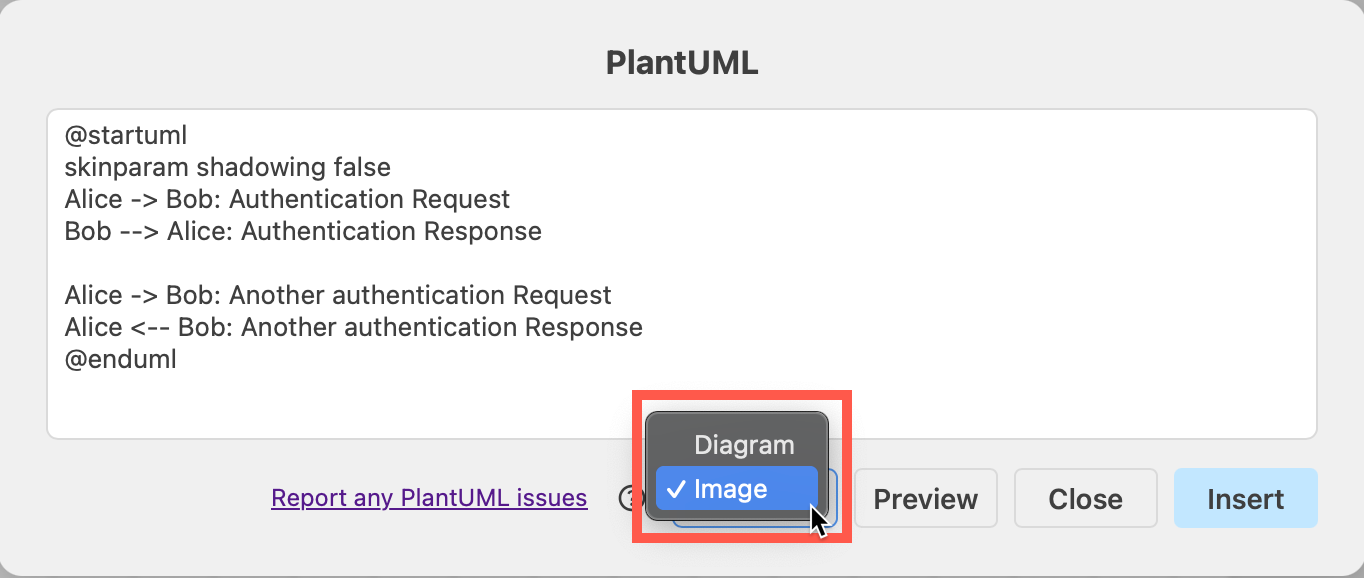
Your image will be added to the drawing canvas. Click on the pen Edit icon to change the PlantUML and regenerate the diagram image. You can't add or connect to diagram elements inside the PlantUML image.
As a comparison, the PlantUML syntax was inserted as an editable Diagram on the left and as an uneditable Image on the right.
Convert an old PlantUML diagram
- Hover over the PlantUML diagram image in your draw.io diagram and you'll see the shape data contains the PlantUML code.
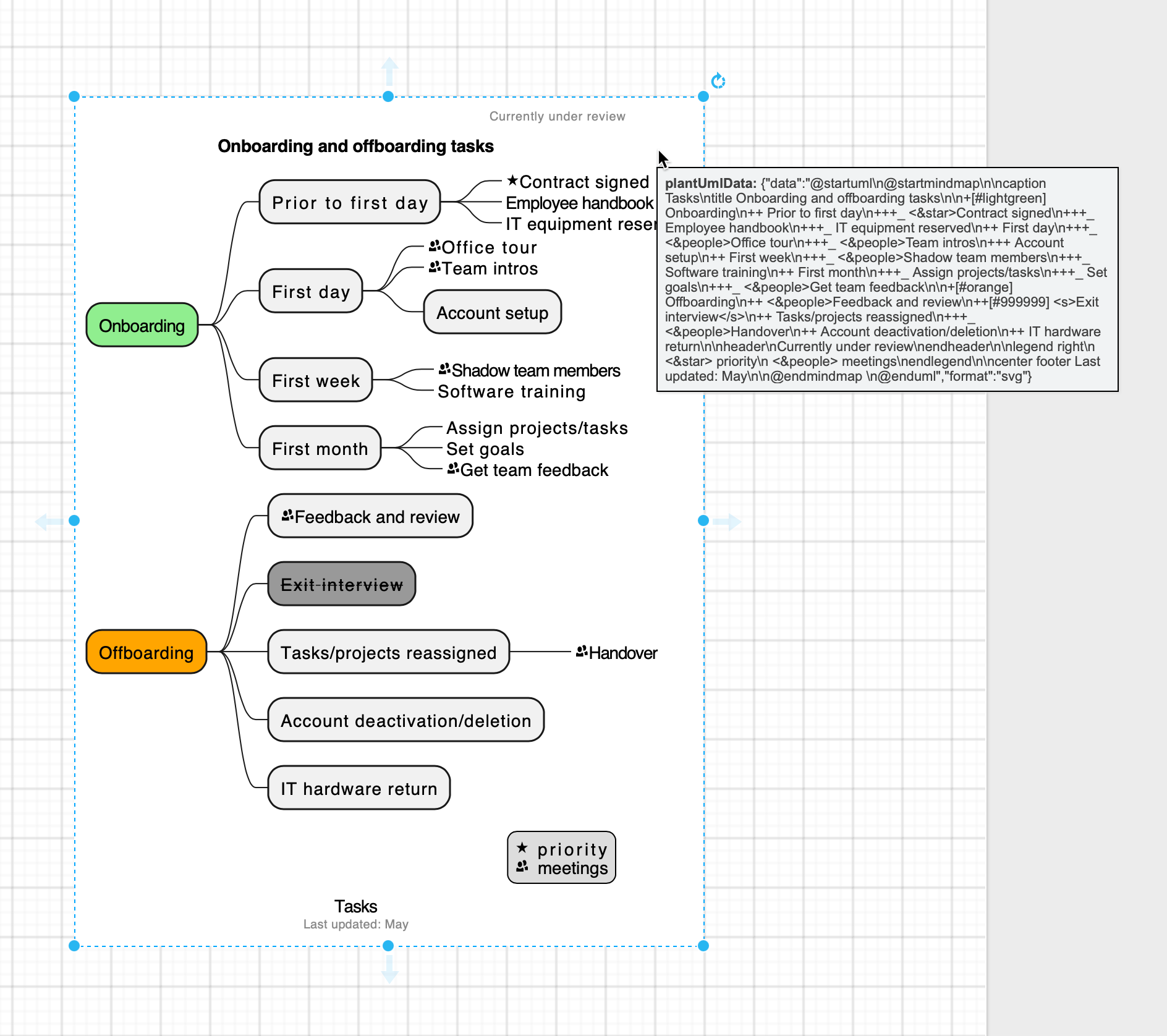
- Right click and select Edit Data. Alternatively, select the PlantUML SVG image and press
Ctrl+MorCmd+M.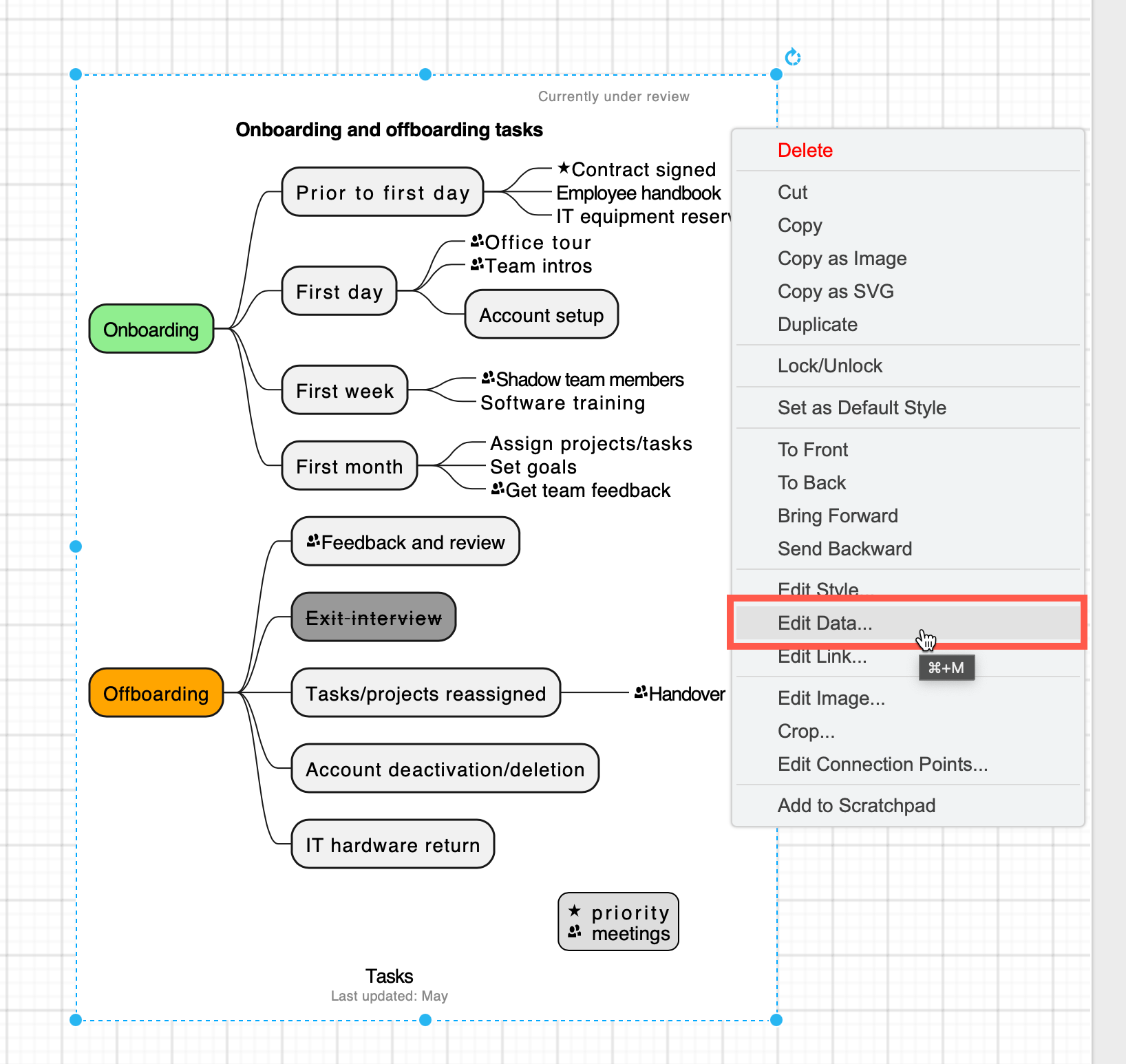
- Copy the PlantUML syntax from the plantUmlData shape property, from
@startumlto@endumlbut not the other data outside this description.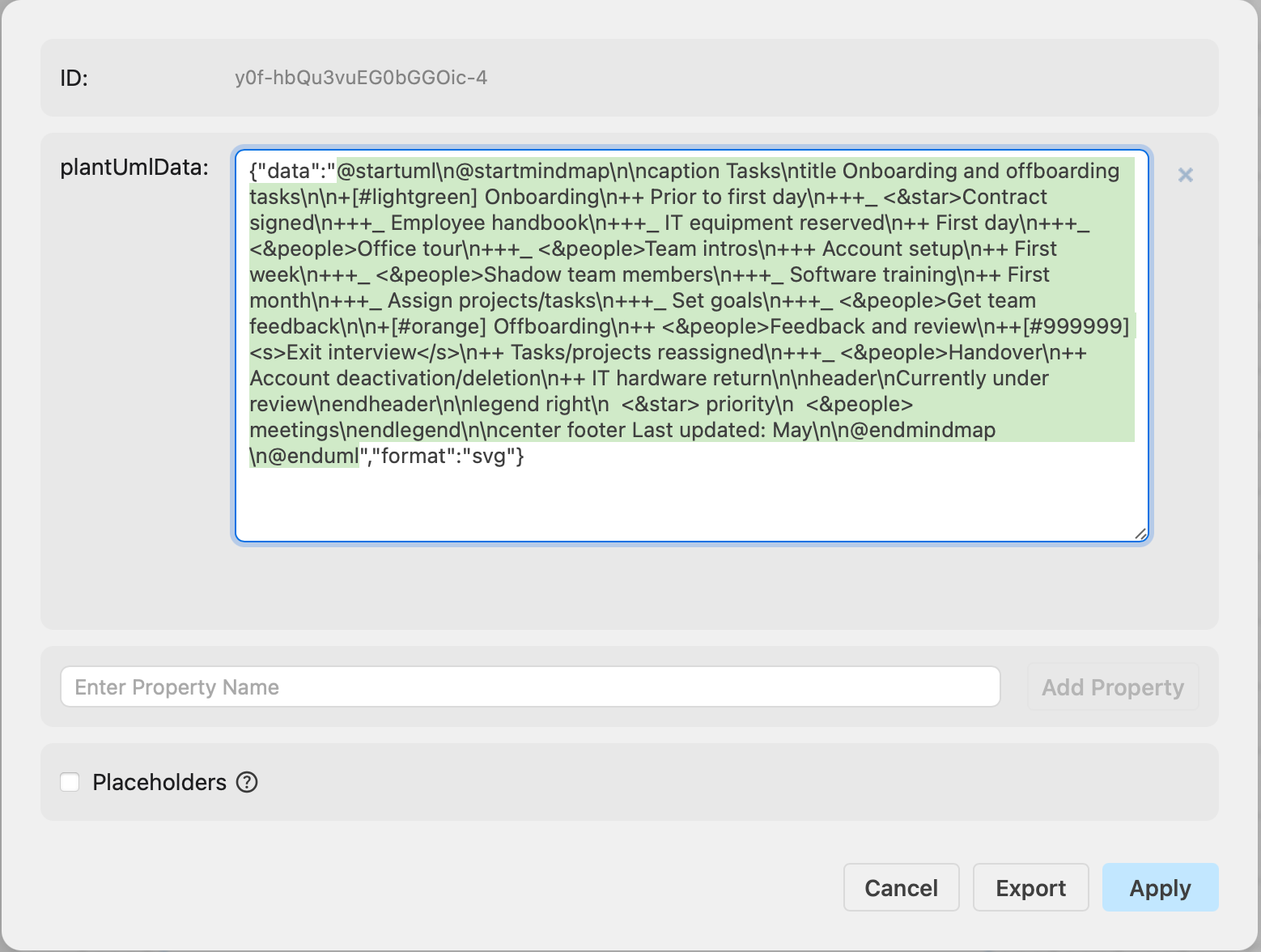
- Remove all the extra
/nnew line characters and reinsert the PlantUML following the steps above.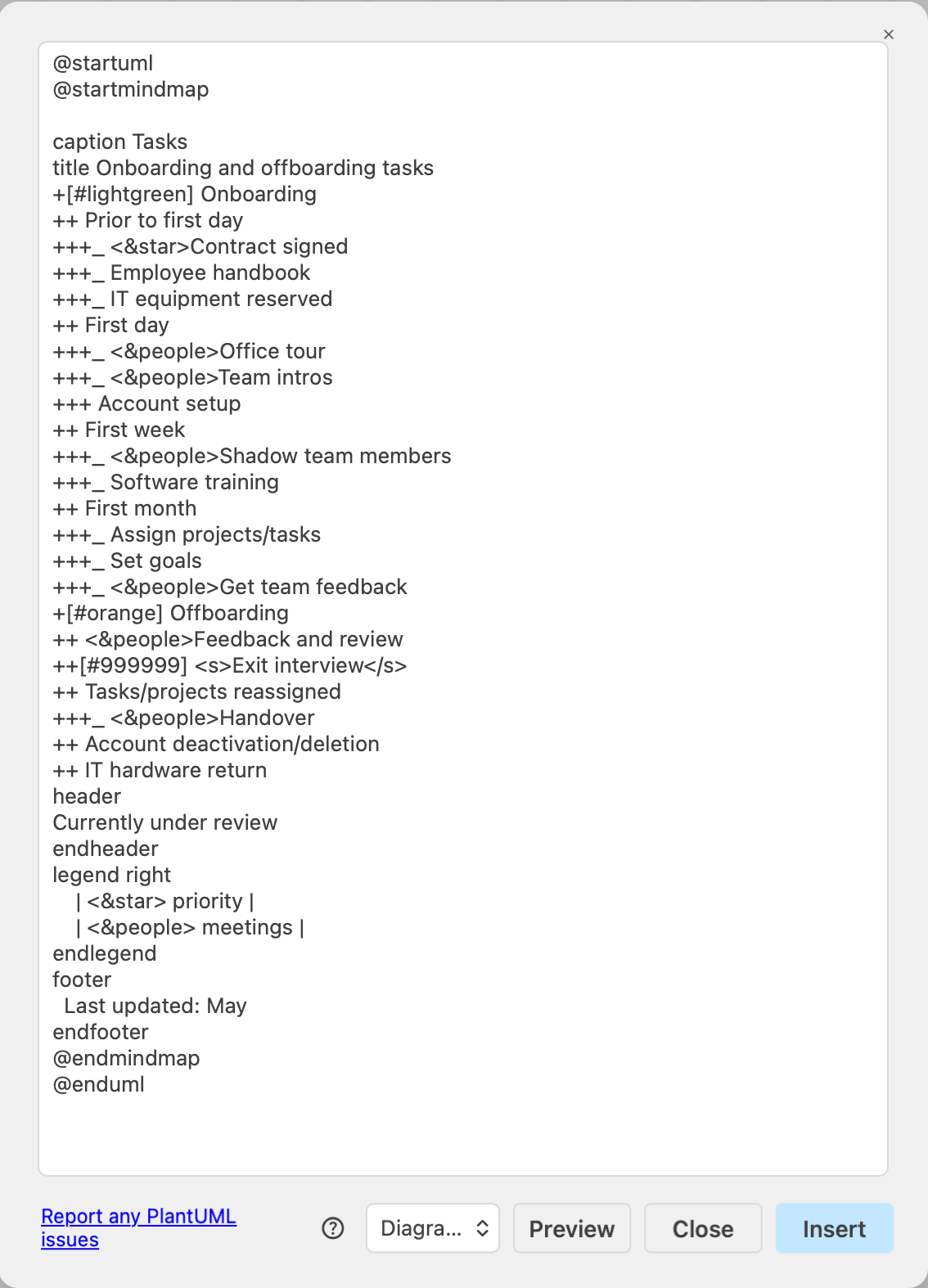
The diagram will be inserted onto the drawing canvas into a PlantUML container.
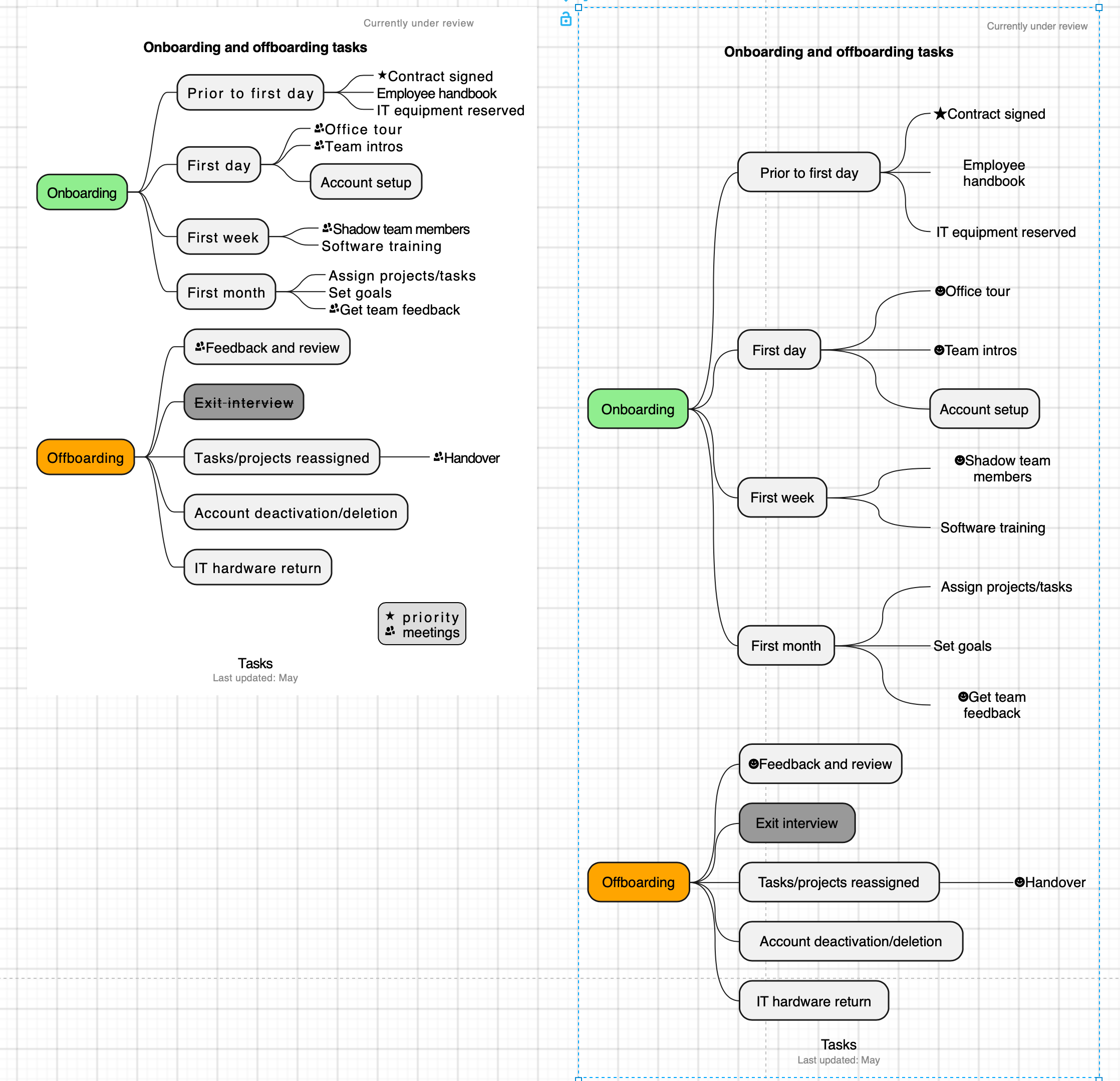
Note: As this feature is actively being developed, not all formatting or features may be supported. In the example above, you can see the icons and the legend are not rendered correctly. Please report issues in the drawio GitHub repository.