Tree layouts
Select Arrange → Layout → Vertical Tree… / Horizontal Tree… to arrange shapes as a tree growing top to bottom (Vertical) or left to right (Horizontal).
Tree layouts can be used whenever the diagram is organised in a hierarchy: org charts, decision trees, mind and concept maps, sitemaps, file structures.
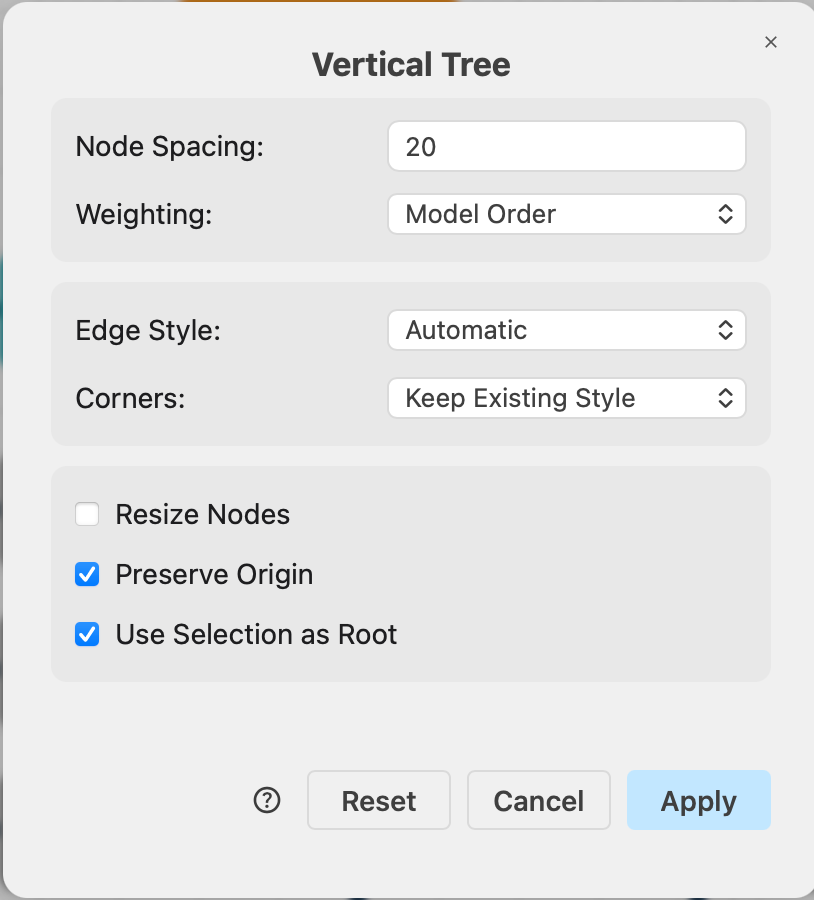
Tree layout options
Node Spacing (default 20) — the minimum distance in pixels between shapes.
Weighting — the order in which sibling branches are placed under their parent:
- Model Order (default) — siblings keep the order in which they were added to the diagram. The most predictable option: the layout never reshuffles branches.
- Descendants — siblings are ordered by the total size of their branch, and single leaf shapes are distributed between the bigger branches to balance the tree.
- Fan — like Descendants, but branches are weighted by their number of direct children only.
- Constraint — branches are ordered by layout constraints attached to the shapes. Rarely needed in draw.io.
If one or more shapes are selected, a U_se Selection as Root(s)_ checkbox will appears — see the common options available for all layouts for more details.
Example tree layout
The vertical tree layout was applied to an org chart template from the draw.io template library. The root note is placed in the center top of the diagram by default.
