Organic layout
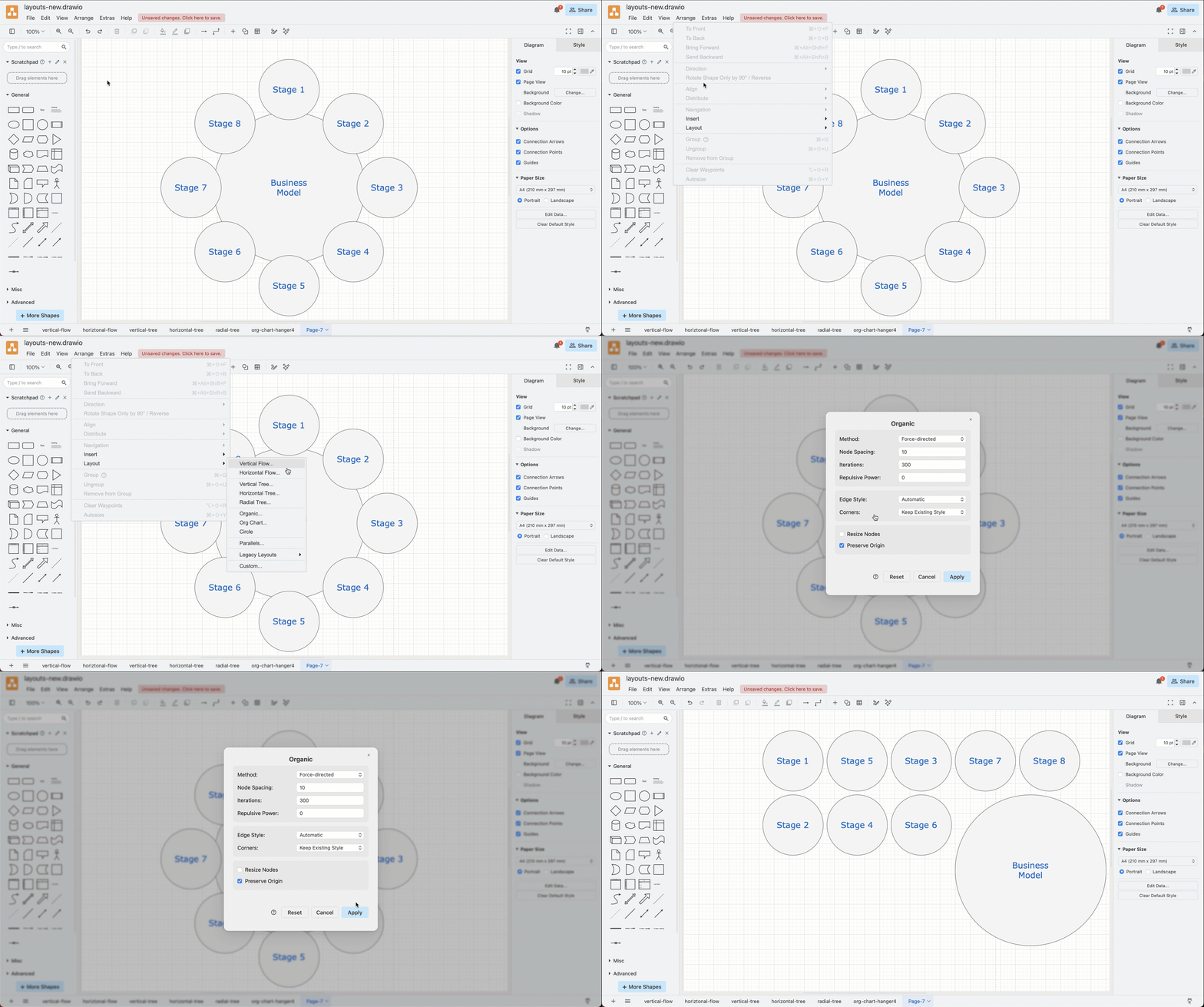
Select Arrange → Layout → Organic… to arrange the shapes in your diagram and apply a typical "network" appearance. There are no rows or columns, the shapes will be spread out evenly with connected shapes pulled closer together.
This is a good layout for undirected graphs, network diagrams and anything without an inherent direction or hierarchy.
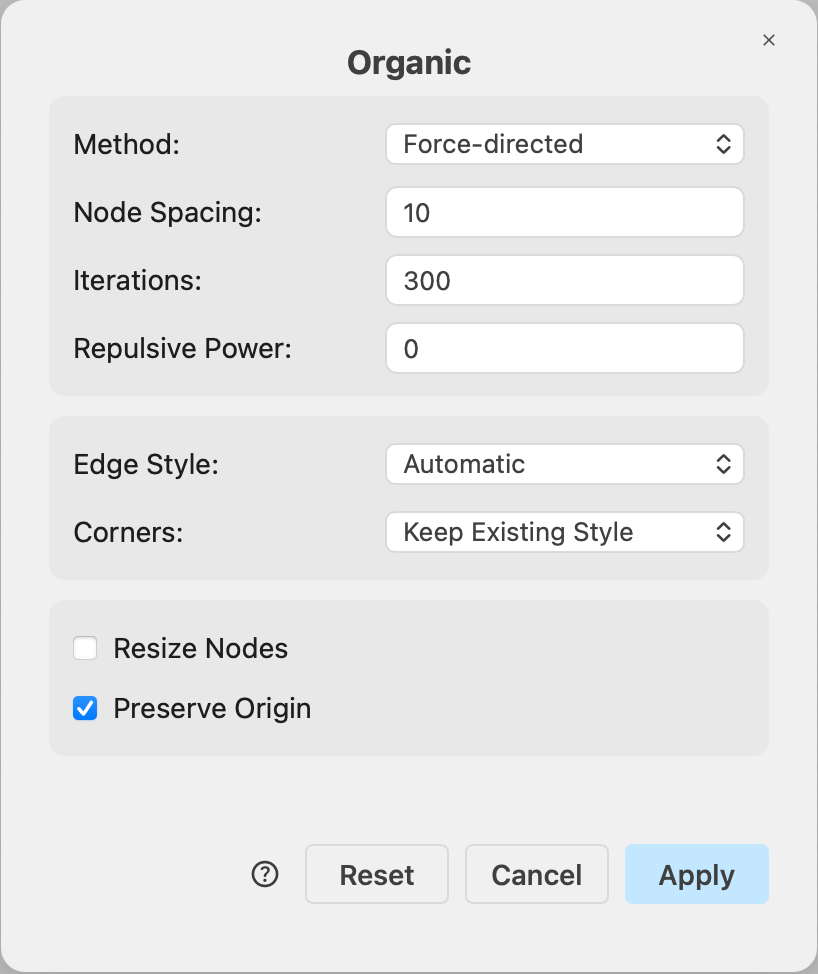
Organic layout options
Method — You can choose between two algorithms that produce similar-looking results using different methods. Each method remembers its own settings; different options will appear below depending on which method you select from the dropdown.
- Force-directed (default) — a physics simulation where every shape repels every other shape while connectors act as springs pulling their endpoints together.
- Stress — tries to make the on-screen distance between every pair of shapes proportional to their distance in the network. This method often results in more uniform connector lengths for a less visually cluttered diagram.
Force-directed options
- Node Spacing (default 10) — how far apart shapes are placed. This is a relative spread factor rather than an exact pixel distance — the same value spreads a large diagram more than a small one.
- Iterations (default 300) — the number of simulation steps. More iterations allow the layout more time to settle, but will be slower to compute.
- Repulsive Power (default 0) — at 0, only shapes repel each other. Higher values make the connectors themselves also push shapes away, which reduces the risk of shapes sitting on top of connector lines in dense diagrams.
Stress options
- Node Spacing (default 80) — the minimum distance in pixels between shapes.
- Edge Length (default 100) — the distance in pixels the layout tries to achieve for each connector. Increase the Edge Length to spread the diagram more.
- Iterations (default -1) — caps the number of refinement passes over the starting placement. With the default -1 (or any negative value) there is no cap: the layout keeps refining until the diagram stops improving. Set a positive number to stop earlier on very large diagrams.
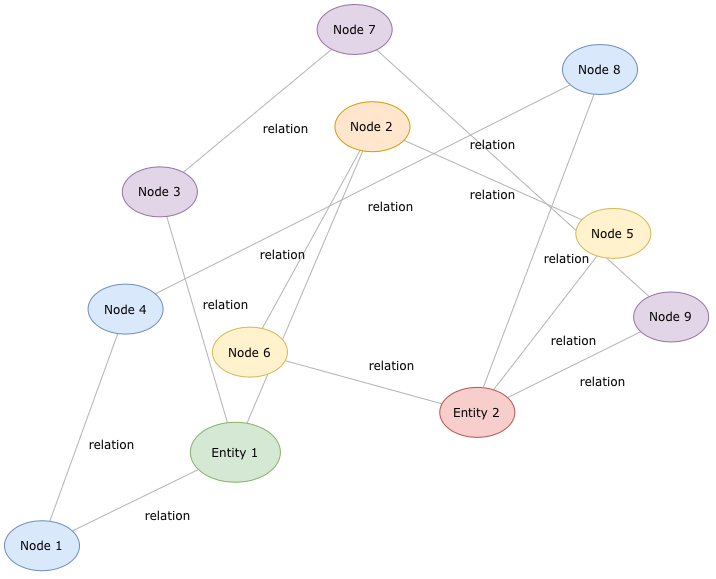
Example organic layout
The organic layout was applied to an undirected graph based on a template from the draw.io template library. Shapes are placed organically around the drawing canvas with a minimum distance between them and with connectors of a set length.
What happens when there are no connectors?
The organic layout preset relies on connectors between shapes. Without connectors, the circles in the business template below are placed neatly and evenly spaced in the top left of the drawing canvas.